
Why the Free-Editor Plus AI Stack Wins
Not long ago, free video editing software meant a compromise: a bare timeline, awkward codec support, a watermark, and a resolution ceiling. Those limits still exist, but they matter far less than they used to, because a growing share of the footage in a finished video never needs to be shot at all. Backgrounds, stylised inserts, establishing shots, impossible angles, and scratch voice-overs can all be generated before you ever open a timeline.
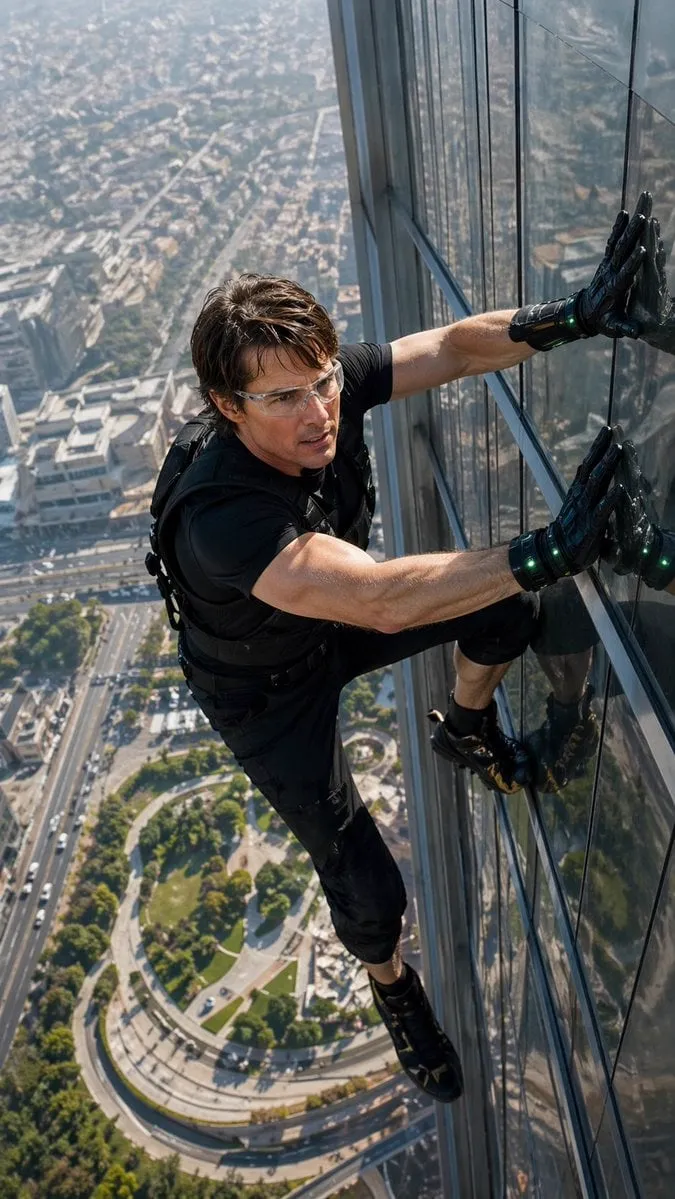
That shift changes what editing is for. The question stops being what can I shoot with the gear I own and becomes what do I need next, and what is the fastest way to get it. A phone clip delivers authenticity and a real face. A generated shot delivers the drone pass you cannot legally fly, the period street you cannot build, or the close-up of a hand you forgot to film. The free editor delivers pacing, sound, and finish, which are the parts that actually decide whether somebody watches to the end.
Three developments made this stack practical rather than aspirational:
- Delivery-grade generation. Text-to-video and image-to-video outputs now hold up at 1080p and frequently at higher resolutions, with far fewer warping artefacts in slow motion than early models produced. The gap between generated and camera footage is narrow enough that a viewer stops noticing which is which when the edit is good.
- Format friendliness. Most generators export standard H.264 MP4 or an intermediate codec. That means free editors accept the files without transcoding gymnastics, and hardware-accelerated playback usually keeps up.
- Iteration is nearly free. The expensive part of video is not rendering, it is trying again. A free timeline plus generated assets lowers the cost of a revision to almost nothing, which changes how boldly you experiment.
The catch is that generated footage does not arrive edit-ready. It arrives with drifting faces, inconsistent wardrobe, mismatched colour, and no continuity logic at all. Fusion, meaning the deliberate combining of reference images, consistent assets, and manual finishing, is what closes that gap. The rest of this guide is about building that workflow in a way you can repeat on every project instead of reinventing it each time.
Choosing Your Free Editing Foundation
Every free editor can cut clips. The differences that hurt later show up in three places: codec handling, timeline precision, and export limits. Test each candidate against your real footage before you commit a project to it, not against a demo clip.
Codec and performance checks
Load sixty seconds of the worst material you own and see whether playback stutters. The usual offenders are 10-bit HEVC from a phone, variable frame rate screen recordings, and generated clips at unusual frame rates. Things worth checking specifically:
- Does the editor play 10-bit phone footage without proxies on your machine?
- Can it read variable frame rate files without audio drifting out of sync?
- Does it let you set a 24 fps, 25 fps, or 30 fps timeline and conform clips reliably?
- Can it generate proxies and switch between proxy and full resolution with one click?
- Does it use hardware encoding on export, or will a five-minute video take forty minutes to render?
If your machine is more than five years old, a lightweight open-source editor will often feel faster than a heavyweight colour suite. That matters more than feature lists, because editing is a flow state activity. Lag kills flow.
Timeline precision and audio tools
Look for frame-accurate trimming, ripple delete, and a proper keyframe editor for scale, position, and opacity. On the audio side, the essentials are per-clip gain, a simple EQ, and audio ducking so music drops under dialogue automatically. If you plan to publish short-form video, a built-in or plugin-assisted auto-caption tool is close to mandatory. Captions are not decoration; a large share of viewers watch with sound off.
Free options worth knowing: a full colour-and-finishing suite with a genuinely generous free tier and no watermark, a social-first editor with the best built-in captioning and template system, an open-source NLE that runs well on modest hardware, another open-source option with strong multi-track audio support, and the stock editor that ships with most operating systems. Each has a personality. The colour suite rewards patience. The social editor rewards speed. The open-source pair reward stability. Pick for your project, not for a benchmark.
Export limits worth knowing
Read the fine print once and save yourself an unpleasant surprise at midnight. Check the maximum export resolution, whether a watermark appears on certain templates or effects, whether hardware encoding is limited, and whether anything you generate inside the app leaves with the file. Then write your target settings into a project note so you never guess again.
The Four-Stage Hybrid Workflow
A repeatable workflow beats a clever one. This sequence works for a thirty-second social clip and for a ten-minute explainer, and it keeps generated and camera footage from fighting each other.
Stage one: blueprint and shot list
Write the shot list before you generate anything. For each shot, note what it proves and how you will get it: shoot, generate, screen-record, or pull from an archive. A shot that proves nothing is a shot you should cut in the script rather than on the timeline. Mark the shots that require a face clearly, because those are the continuity-risky ones. Mark the ones that can be hands, silhouettes, back-of-head, or scenery, because those are cheap and safe to generate.
Stage two: generate the gaps
Generate only the shots you cannot shoot. Prompt for motion, not for beauty: what moves, in which direction, at what speed, with what camera behaviour. Generate three to five variants of each shot rather than one perfect attempt, because variation is what gives you options in the edit. Keep every prompt in a text file with the date and the assets you used. Roughly a week later you will want to regenerate a shot with the same look, and that note is the difference between five minutes and an hour.
Stage three: assemble the rough cut fast
Import everything, including the bad takes, and drop it on the timeline in story order. Do not colour-correct, do not add music, do not fix the audio. Trim to intent: does this cut land? Get a rough cut under sixty seconds for short-form before you touch anything decorative. This is the stage where a free editor earns its keep, because a rough cut usually happens three or four times.
Stage four: polish
Now do the work that makes generated footage feel like one film. Match black levels and white balance first, because exposure mismatches are more visible than colour shifts. Then unify contrast, then colour. Generated shots often arrive punchier and more saturated than camera footage; pulling saturation back five to fifteen percent and adding a touch of grain does more for cohesion than any single effect. Finally, sound: room tone under every dialogue section, transitions placed on action rather than on the beat, and music ducked under speech.
Keeping Characters Consistent Across Shots
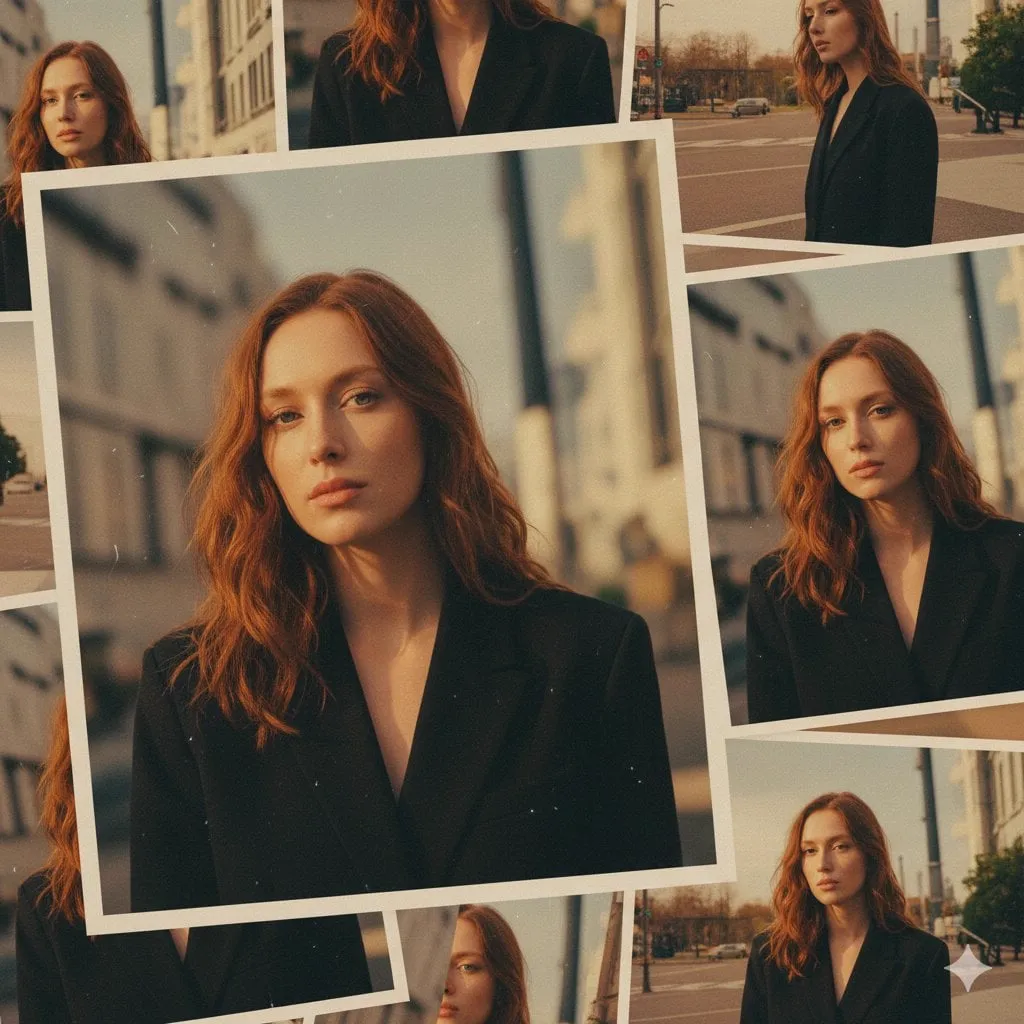
Character drift is the single most common reason an AI-assisted video feels cheap. A face that shifts between cuts reads as error, even to viewers who cannot articulate what is wrong. You have three levers: references, restraint, and editing.
References. Build a small character sheet before you generate anything: one clear frontal portrait, one three-quarter view, one profile, and one full-body frame in the outfit the character wears across the scene. Keep the lighting and background in those references as neutral as possible so the generator does not bake them into every shot. The same sheet, reused across a whole project, is the cheapest consistency tool available.
Restraint. Lock wardrobe, hair, and accessories in your prompt and never improvise mid-scene. Avoid extreme profile angles and heavy motion blur, both of which give a model room to reinvent the face. Prefer medium shots and inserts. A cutaway to hands, feet, a reflection, or the back of a head is not a cop-out; it is standard film grammar and it costs you nothing.
Editing. Editing hides variation better than generation fixes it. Reaction shots, cutaways to environment, and a cut placed on a gesture all buy you forgiveness. If two shots of the same character do not quite match, put something between them. If they still do not match, use the second one but push it further from the camera or crop tighter so the difference matters less.
A useful test: export the shots and play them in sequence on a phone at arm's length. If the face change is invisible at that size, the audience will not catch it either.
Style Consistency and Look Development
Generated clips rarely share a look by accident. You have to impose one. Start by choosing three reference frames that represent the film you want, ideally one dark scene, one bright scene, and one skin-tone-heavy scene. Then build a simple look in your editor: a slight curve lift in the shadows, a gentle roll-off in the highlights, and one colour bias you apply everywhere.
Apply that look twice. Once as an adjustment layer over camera footage and once, with lower strength, over generated footage, since generated shots usually need less correction but more unification. A subtle film grain layer on top of the whole timeline does more to sell cohesion than a strong LUT ever will. Keep grain consistent in size and strength; mismatched grain reads as a technical mistake.
The other half of style consistency is pace. Decide your average shot length before you edit and hold yourself to it. Long, slow generated shots feel cinematic and expensive. Rapid-fire generated shots feel like a stock-footage montage. Neither is wrong, but mixing them without intent makes the edit feel nervous.
Automating the Tedious Parts
Free tools are strongest where they remove labour rather than add creativity. Use them for the chores:
- Auto captions. Generate them, then fix line breaks by hand: two lines maximum, roughly thirty-two characters per line, one idea per caption card. Never trust punctuation or speaker labels without review.
- Scene detection. Split long recordings and generated sequences into shots automatically, then build a rough assembly from those splits. It is faster than scrubbing.
- Auto reframe. If you publish the same clip vertically and horizontally, let the editor track the subject instead of reframing by hand. Always review the tracked keyframes; auto-reframe loves to drift during fast motion.
- Silence removal. Useful for talking-head content, dangerous for comedy. Review every cut it makes.
- Audio ducking and loudness matching. Set music to duck two to three seconds under speech and normalise dialogue clips to a consistent level before you mix.
Treat all of it as a first pass, not a finished product. Automation gets you seventy percent there in ten percent of the time. The remaining thirty percent is the part viewers actually notice.
Common Mistakes That Wreck AI-Assisted Edits
Most failed AI-assisted videos fail for mundane reasons. Here are the ones worth guarding against:
- Mixing frame rates on one timeline. It produces judder that no amount of colour work hides. Convert everything to a single timeline rate before you start cutting.
- Ignoring audio. Viewers forgive soft visuals and rarely forgive bad sound. Record room tone for every location, even the generated ones, and use it under cuts.
- Generating before writing. Without a shot list, you generate beautiful clips that do not connect, and the edit becomes an apology.
- Using every shot you generated. Sunk effort is not a reason to keep a clip. Cut on story logic.
- Letting the generator choose the look. Pick three reference frames and enforce them. Otherwise every shot is its own film.
- Forgetting aspect ratios. Decide vertical, horizontal, or square before generating. Re-cropping a generated shot rarely works as well as generating for the right frame.
- Upscaling as a crutch. Generative upscaling can sharpen soft footage, but it can also invent detail in faces. Generate at the highest native resolution you can and upscale last, if at all.
- Never watching on a phone. Most of your audience watches on a small screen with poor speakers. Check both before delivery.
- No captions. Silent viewing is normal, not an edge case.
- Skipping a revision pass. Watch the export once without touching anything, taking notes on paper. Notes on paper produce better fixes than improvised timeline surgery.
Matching the Editor to the Job
Different jobs reward different free tools. Use this as a starting filter rather than a rulebook.
| Job | Best-fit free tool type | Why |
|---|---|---|
| Short-form social clips | Social-first editor with caption templates | Fast captions, vertical presets, quick export |
| Colour-heavy cinematic edits | Full finishing suite with node-based colour | Best grading control, no watermark, strong free tier |
| Long-form talking head | Open-source multi-track NLE | Reliable audio handling, no cost, stable export |
| Quick family or travel cuts | Stock operating system editor | Zero setup, simple trimming, fast share |
| Mixed generated and camera footage | Finishing suite plus manual look layer | Granular control over matching and grain |
If your project spans two categories, choose the tool that handles the harder half and do the simpler half awkwardly. Nobody has ever noticed that a caption looked slightly plain. Everybody notices blown-out skin tones.
Export, Delivery, and Quality Control
Export settings are the last chance to lose quality you earned. A short, practical baseline:
- Delivery format. H.264 in an MP4 container for upload, H.265 only when the platform accepts it and you need smaller files. Keep an intermediate or high-bitrate master for archiving.
- Resolution and bitrate. Match the timeline resolution. For 1080p delivery, a bitrate around 12 to 20 Mbps is comfortable for detailed footage; for vertical short-form, 10 to 15 Mbps is plenty. Higher bitrates help busy shots more than static ones.
- Audio. Speech around minus 14 to minus 16 LUFS integrated with true peaks below minus 1 dB for online platforms. Dialogue should sit clearly above music. If you have to strain to hear a line on a phone speaker, remix before publishing.
- Consistency. Export every part of a series with the same settings so your channel looks like a channel instead of a playlist of strangers.
Then run a five-minute quality check: full playback once, listen for clicks and level jumps, look for flash frames at cut points, confirm captions sync through the final thirty seconds, and verify the first two seconds hold attention without sound.
Frequently Asked Questions
Can free editors really handle AI-generated footage?
Yes. Generated clips are usually standard MP4 or an intermediate codec, and the main friction is frame rate rather than format. Conform everything to one timeline rate early and the rest is normal editing.
How do I stop characters from changing between shots?
Build a character sheet with frontal, three-quarter, profile, and full-body references, lock wardrobe in your prompts, avoid extreme angles, and use inserts and reaction shots to hide small mismatches in the edit.
Should I generate in vertical or horizontal?
Generate in the frame you will publish. Re-cropping generated footage loses composition that the model already got right, and vertical-native generation handles headroom better for short-form.
What is the fastest way to learn a new free editor?
Do one real five-minute project, not tutorials. The features you never use will never be your problem; the three features you need daily will reveal themselves in an hour.
Do I still need a camera?
For anything involving a real face, a specific place, or trust, yes. Camera footage grounds a video. Generated footage expands it. The best results usually mix both.
How long should a rough cut take?
For short-form, aim for under thirty minutes of editing time per finished minute. If it takes longer, you are finishing instead of assembling, and you will do the work twice.
What about watermarks and export caps?
Check the free tier terms once, note the resolution limits, and choose a tool whose limits you can live with for the whole project rather than discovering them at export.
Is it worth learning colour if I mostly generate footage?
Even a basic grasp of matching blacks, whites, and saturation pays off immediately, because generated clips from different prompts rarely match out of the box. Fifteen minutes of learning saves hours of blind tweaking.
Putting It Together
The best free video editing software is not the one with the longest feature list. It is the one that lets you assemble a rough cut quickly, match footage without fighting it, and export at a quality you are happy to publish. Add a deliberate generation stage in front of it, a written shot list before that, and a consistency layer in the edit, and you have a workflow that scales from a weekend clip to a series.
Start smaller than feels ambitious. Pick one free editor, generate five shots for a thirty-second piece, and finish it end to end. The lessons from that small completed project will teach you more about fusion, pacing, and consistency than any collection of tips, because they will be your own footage, your own mistakes, and your own fixes.
