
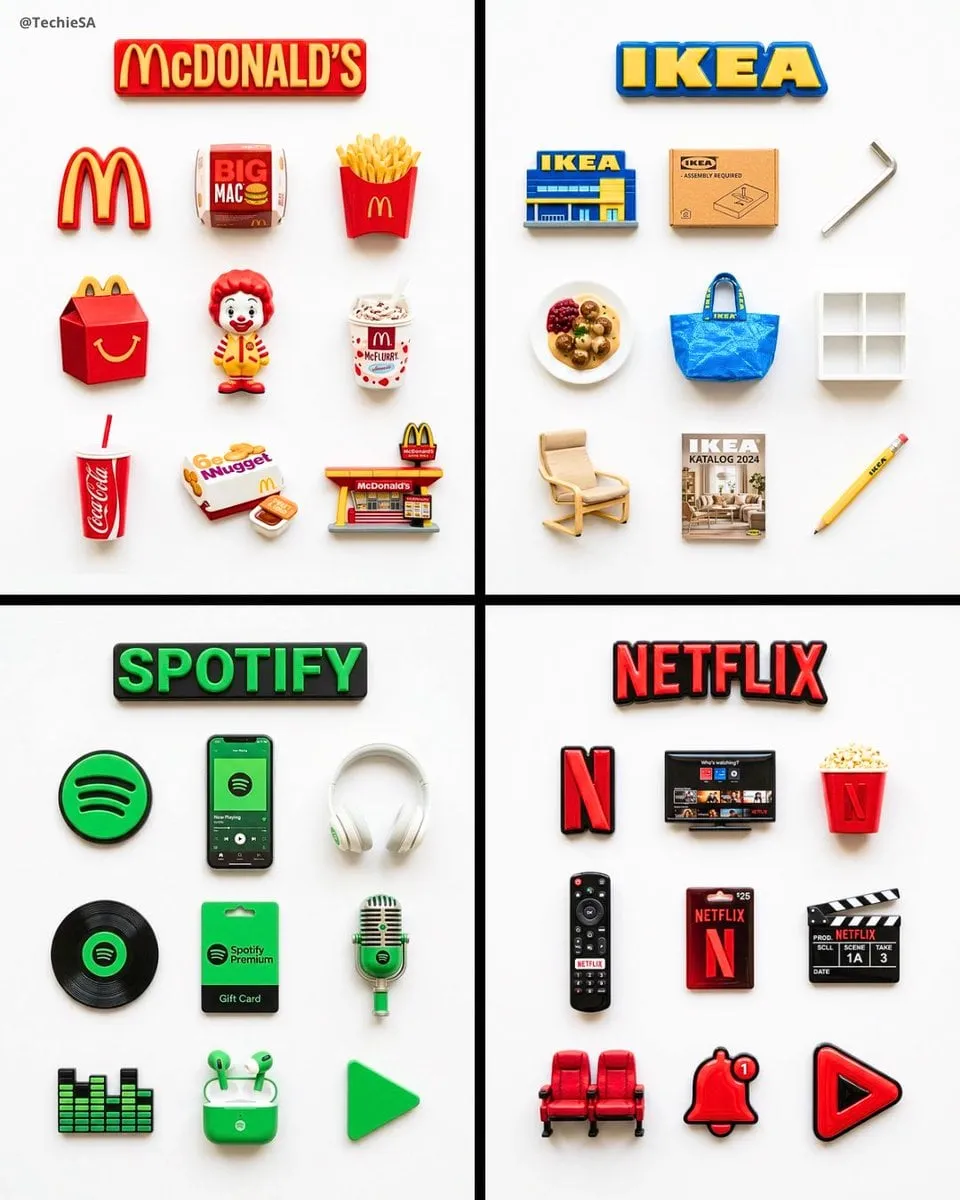
AI Animated Collage Video: A Practical Workflow Guide
Oct 15, 2026

Why animated collages became a dominant video format
Video is now the default language of the internet, but the economics of production have not changed as fast as the appetite for it. A creator with a small team still needs something visually dense enough to survive the first two seconds of a feed. The animated collage solves that problem neatly: it packs many images, textures, and moments into a single moving frame, so a viewer gets a lot of visual information without a long runtime.
A static collage is a mood board. An animated collage is a mood board that breathes. Cards drift, images slide in behind each other, a hero photo scales slowly while background layers parallax at half speed. The effect feels handmade and editorial, which is exactly why it works for fashion lookbooks, travel recaps, product roundups, documentary intros, podcast trailers, and music visualizers.
The reason AI changed this format is not that it invented motion graphics. The reason is that it removed the two biggest bottlenecks: sourcing motion and hand-animating every element. You can now turn a folder of stills into a living composition in an afternoon, without a motion designer, as long as you understand where the seams are and how to hide them.
What an animated collage actually is
Before choosing tools, define the format. "Animated collage" gets used loosely, and the looseness causes a lot of wasted rendering time.
Static collage vs animated collage vs montage
A static collage arranges multiple images in one frame and stays put. It works as a thumbnail, a title card, or a background texture. A montage cuts between shots sequentially — one image, then another, then another. An animated collage keeps multiple images visible in the same frame at the same time, but each element has its own motion: scale, position, rotation, opacity, or a generative warp that makes a photo feel filmed rather than frozen.
That distinction matters because a montage is an editing problem, while an animated collage is a compositing problem. Editing software is optimized for the first. You need layer-based thinking for the second, even if the final export happens in a timeline.
The three layers of every collage video
Most successful collage videos are built from three functional layers. The base layer is the background: a paper texture, a soft gradient, a blurred frame from one of your images, or a solid color that anchors the palette. The content layer holds the actual images, cropped and arranged. The motion layer is not a visual layer at all — it is the timing system that decides which element moves, when, and how fast.
Beginners tend to obsess over the content layer and ignore the base. That is a mistake. A textured or softly blurred base glues mismatched photos together, because the eye reads the whole frame as one material rather than as unrelated rectangles. If your collage looks like a ransom note, the fix is usually the base layer, not the photos.
The end-to-end workflow
The order of operations below is deliberately front-loaded. Most disappointing AI collage videos fail at step one or step three, not at the generation step.
Step 1 — Decide what the collage has to do
Write one sentence: this collage exists to make the viewer feel ___ and do ___. A travel recap wants wanderlust and a save. A product roundup wants clarity and a click. A podcast trailer wants intrigue and a follow. That sentence determines how many images appear at once, how fast things move, and whether text is on screen.
A useful heuristic: if the message is emotional, use fewer, larger images with slower motion. If the message is informational, use more, smaller images with quicker, more rhythmic motion. Density communicates energy; sparsity communicates confidence. Mixing the two in one video usually reads as indecision.
Step 2 — Gather and normalize the source material
Collect 15 to 30 candidate images for a 30 to 45 second piece. You will use roughly a third of them. Normalize before you compose: consistent aspect ratios, consistent color temperature, and consistent resolution. Resizing a 400-pixel thumbnail up to full frame will destroy the illusion of a coherent collage faster than any bad prompt.
Sort candidates into three buckets: heroes (the images that must be readable and stay on screen longest), support (images that fill space and move faster), and texture (patterns, fabric, paper, blur, bokeh) that sit underneath everything. Texture images are the secret ingredient — they give the composition a surface, which stops it from floating.
Step 3 — Build the still composition first
Do not generate motion until the frozen frame looks good. Lay out your collage as a single still image, whether in a design tool, a video editor timeline, or an image generator's composition mode. Ask a blunt question: if this were a poster, would I stop scrolling? If the answer is no, motion will not save it. Motion amplifies a good composition and exposes a lazy one.
At this stage, check three things. First, is there a clear focal point — one element the eye lands on first? Second, is there a readable path through the frame: hero, then support, then texture? Third, is there breathing room, or is every pixel occupied? Crowded collages feel anxious. Leave negative space where a caption, logo, or subtitle will eventually live.
Step 4 — Generate motion with AI, selectively
Now bring in the generative piece. Pick the elements that benefit most from movement — usually the hero and one or two support images — and leave the rest still or nearly still. A collage where everything moves at once looks like a screensaver. A collage where one element drifts while everything else holds looks intentional.
Use image-to-video generation rather than text-to-video whenever the image matters. Feeding your composed still into an animation engine preserves the actual photograph; describing it in text does not. Keep motion prompts short and physical, and generate at the highest resolution your pipeline supports, then downscale. Downscaling hides artifacts; upscaling reveals them.
Step 5 — Sequence, pace, and time to audio
Bring your generated clips and still elements into a timeline. Choose a tempo and stick to it: for most social collage videos, an element enters or changes every 0.8 to 1.5 seconds. Any slower feels sluggish on mobile; any faster becomes unreadable. Layer your audio track first, then cut motion to the beat rather than the other way around.
Vary the motion verbs. If every element scales up, the video feels mechanical. Rotate through a small vocabulary: slide in from an edge, fade in place, drift slowly, snap into position, unfold. Contrast in motion direction is what makes a collage feel composed rather than automated.
Step 6 — Grade, texture, and finish
One unifying pass makes the difference between "AI output" and "designed video." Apply a subtle grain or paper texture over the entire composition, unify the color temperature across all layers, and slightly reduce contrast on background elements so they recede. Vignetting the outer edges gently pulls focus inward.
Then add the finishing details that sell craft: a thin border or torn-paper edge on some images, tape corners, a hand-drawn arrow, a small handwritten label. These micro-details are cheap to add and carry a lot of the handmade signal that audiences associate with collage aesthetics.
Prompting for motion: what actually works
Motion prompting is a skill, and it is narrower than most people expect.
Describe the camera, not the content
The image already defines the content. Your prompt should define the camera and the physics. Phrases like "slow push in," "gentle leftward parallax," "handheld drift with slight rotation," and "subtle paper flutter" produce predictable results because they map to real camera behavior. Prompts that re-describe the scene tend to fight the source image and produce morphing artifacts.
Keep it short and specific
Long prompts invite the model to invent things. Three to eight words of motion description is usually enough, optionally with an intensity word: slow, subtle, gentle, drifting, quick. If you need more control, generate two variants with different intensities and pick in the edit rather than trying to nail it in one pass.
Protect faces and hands
Generative animation degrades faces, hands, and text first. If your hero image contains a face or a legible sign, either animate it very gently or keep it static and animate the elements around it. Letting the environment move while the subject holds still is both safer technically and often more elegant visually.
Match motion to meaning
A slowly rising frame suggests optimism and growth. A downward drift suggests weight or loss. Sideways movement suggests travel or progression. Rotation suggests unease. When you match the direction of motion to the emotional direction of the content, the video feels authored even if the viewer cannot articulate why.
Choosing your tool stack
You do not need one platform that does everything. It is faster and more controllable to assemble a small stack of specialized tools.
Composition and layout
Use a layer-based design tool or a video editor with solid nested compositions. What matters is precise positioning, blend modes, and the ability to group and animate multiple elements together. If your editor cannot nest a composition inside another composition, you will fight it constantly.
Image-to-video animation
This is the core generative step. Look for engines that accept an input image plus a short motion prompt, offer aspect-ratio control, and let you set duration and seed. Seed control is underrated: once you find a motion you like, reusing the seed across related images gives your collage a coherent motion signature.
Stills generation and cleanup
Even if you shoot your own photos, a generative image tool is useful for creating texture layers, filling awkward gaps in a layout, and extending backgrounds behind cropped subjects. Treat it as a texture factory, not as a replacement for your own material.
Audio and finishing
A simple music library plus a few well-chosen sound effects — whooshes for entries, soft clicks for snaps, paper rustles for texture reveals — does more for perceived production value than an extra day of visual polish. Sound effects make motion feel physical.
Composition rules that survive motion
Static design rules get tested the moment things move. These are the ones that hold up.
Depth, occlusion, and parallax
Give your collage a foreground, midground, and background, then move them at different speeds. Even a 5 percent difference in speed reads as depth. Overlapping elements — a photo partially hidden behind another — instantly communicates layering, which is why torn-paper and taped-photo styles work so well.
Negative space and text safety
Decide where text will live before you animate. Reserve a quiet region of the frame and keep motion out of it. Animating text along with everything else is a common mistake: it becomes unreadable exactly when it matters. Let text sit still while the collage moves beneath it, or animate text on its own slower rhythm.
Color harmony across mismatched sources
Source images rarely share a palette. Rather than fully color-matching each one, grade them toward a common temperature and let one accent color repeat across two or three elements. Repetition of a single accent — a red mug, a red jacket, a red stripe — ties a busy frame together more effectively than blanket color correction.
Common mistakes and how to fix them
Everything moves at once. Fix: pick one hero element, slow the rest to near-still, and stagger entries.
The collage looks like clip art. Fix: add a base texture layer, unify color temperature, and apply grain over the whole frame.
Motion artifacts on faces and edges. Fix: shorten the prompt, reduce motion intensity, shorten the clip to 2 to 4 seconds, and use it as a single beat rather than a long shot.
The video feels long at 40 seconds. Fix: remove images. Collage videos almost always improve when you cut the element count by a quarter.
It looks AI-generated in a bad way. Fix: mix in real photography, real textures, and a genuine sound design pass. Generated motion reads as artificial when the whole frame is synthetic; it reads as craft when it sits alongside authentic material.
The rhythm fights the music. Fix: build a beat map first — mark the grid at every 0.5 seconds — and place element changes on the beat map rather than eyeballing it.
Rights, licensing, and consistency checks
Collage aesthetics borrow from zine and scrapbook culture, which makes people casual about sourcing. Be deliberate. Confirm that every image you use is either yours, licensed, or public domain, and keep a simple spreadsheet listing source, license, and date. If you generate images, check the terms that apply to your specific tool and plan for commercial use.
Also watch for implied endorsement. If a person appears in your collage alongside a product, it can suggest a relationship that does not exist. Keep recognizable people away from commercial claims unless you have permission. For music, use tracks with clear commercial licensing — this is the most common cause of a finished video getting pulled after it performs well.
Finally, run a brand-safety pass. Pull five random frames from the export and look at them as stills. If any frame looks confusing, ugly, or off-message out of context, viewers will screenshot it and share that frame. Every frame is a potential thumbnail.
A worked example: a 40-second brand collage
Say you are building a collage video for a small coffee roaster. You have 24 photos: farm landscapes, burlap, hands, cups, packaging, and a few close-ups of beans.
Step one: the collage's job is to make the roast feel sourced and cared for, ending with a shop link. Emotional and informational, so you go medium density with a clear hero. Step two: you pick four heroes (farm landscape, hands sorting beans, the bag, a cup), ten support images, and six textures. Step three: you lay a still frame — the farm landscape as a soft blurred base, the packing bag as the hero in the right third, three smaller photos taped diagonally on the left, negative space in the lower right for the closing line.
Step four: you animate the base with a slow leftward drift, the hero bag with a subtle 3 percent scale, and leave the taped photos still. You generate two short clips: beans falling in slow motion, and steam rising from the cup. Step five: you set the tempo at one change per 1.2 seconds, with a bigger motion beat at the music's main drop where the bag snaps into place. Step six: you apply paper grain over everything, warm the shadows slightly, and add a small handwritten label reading "this week's lot."
Total production time with a rehearsed pipeline: under four hours. The same video with manual keyframing would take a day and a half, and the motion would not look as organic.
FAQ
Do I need a powerful machine? Not necessarily. Most heavy computation happens in browser-based or cloud generators. You need enough local power for comfortable timeline scrubbing, which is a much lower bar.
How long should an animated collage be? For social feeds, 20 to 45 seconds. For intros and title sequences, 5 to 12 seconds. Longer than a minute only works if there is a narrative voice carrying it.
Can I make an animated collage from video clips instead of photos? Yes, and it often looks better. Treat short clips as living photos, freeze their start frames for the still composition, then let them play once the motion begins.
Why does my collage look cheap even though the images are good? Almost always one of three causes: no base texture, inconsistent color temperature, or motion applied uniformly to every element. Fix the base layer first.
Should I animate text? Sparingly. Keep wording static and let the collage move behind it. If you must animate text, use opacity or a very short slide, and never make it compete with a simultaneous image movement.
How many images is too many? If a viewer cannot name what they saw after one viewing, there are too many. Density is a tool, not a virtue.
What is the best resolution to export? Match your delivery platform, and render at a higher resolution than needed when possible so you can crop for different aspect ratios without losing quality.
Final checklist before you export
Run through this list once, every time. Confirm the still composition works as a poster. Confirm exactly one element is treated as the hero. Confirm motion intensity varies between elements. Confirm the base layer has texture. Confirm color temperature is unified. Confirm text sits in reserved negative space. Confirm the rhythm follows the audio grid. Confirm sound effects land on the biggest motion beats. Confirm licenses are documented for every asset. Confirm five random extracted frames look good on their own.
If all ten pass, you have a collage video that looks designed rather than generated — which is the entire point of using AI here. The tool handles motion you could not reasonably keyframe by hand. Your job is the part AI still cannot do: deciding what the frame should say, and knowing when to stop moving it.

Alexander
More Blogs
Read MoreVidu Q4 Alternatives: 4K AI Video Models Compared (2026)
Vidu Q4 alternatives compared: Kling 4.0, Seedance 2.5, Wan 3.0, and Runway Gen-4 — 4K support, input modes, durations, audio, and what each costs in credits on Domer.
Top 4K AI Image Generators in 2026: 5 Models Compared on Real Costs
The top 4K AI image generators on Domer compared: Flux 3 Klein, Nano Banana 2.1, GPT Image 2.5, GPT Image 2, and Nano Banana Pro — 4K credit costs, reference limits, and speed.
Nano Banana 2.1 vs GPT Image 2.5: Which Image Model Should You Use? (2026)
Nano Banana 2.1 vs GPT Image 2.5 Flare compared: credit costs per resolution, aspect ratios, reference images, text rendering, and which tasks fit each model.