
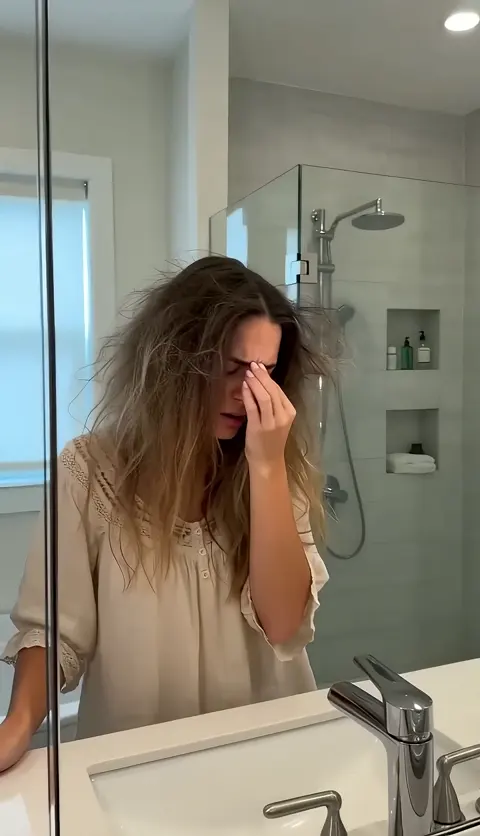
AI Animated Photo Generator: Turn Still Images Into Video
Oct 15, 2026
What an AI Animated Photo Generator Actually Does
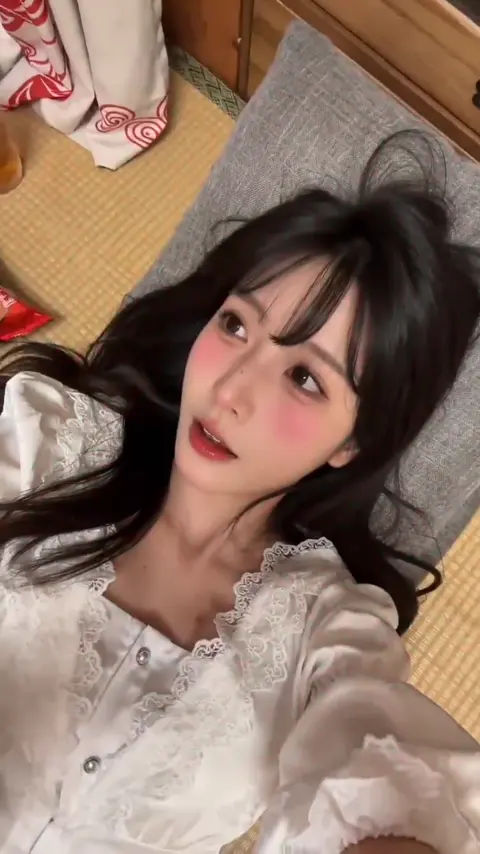
An AI animated photo generator takes a single still image and produces a short video clip in which something moves. That something might be a person turning their head, a camera slowly pushing forward, hair shifting in a breeze, or a background parallaxing behind a subject. The still image is the anchor; the model invents plausible motion on top of it.
It helps to separate this from three neighboring techniques that are often confused with it:
- Slideshow animation. Editors like traditional timeline tools can pan and zoom a photo (the classic Ken Burns effect). Nothing is generated; the pixels simply move as a block. Useful, but limited, because nothing inside the frame changes.
- Face swapping or identity replacement. These tools change who appears in a clip. They are a different problem, with different risks.
- Video editing. Cutting, grading, and compositing existing footage is post-production, not generation. Most AI animation work ends with a post-production pass, but generation comes first.
The practical output of an animated photo generator is usually a 2–10 second clip at 720p to 1080p, sometimes 4K after upscaling. Longer sequences are built by generating several clips and cutting them together, not by asking one render for a minute of footage.
Three broad families of tools dominate the space:
- Text-and-image conditioned video models that generate motion from a still plus a written prompt.
- Performance transfer tools that drive a portrait using an audio track or a reference video of a person moving.
- Depth-based 2.5D tools that estimate a depth map from the photo, split it into layers, and move the camera through a virtual 3D scene.
Each family produces a different look and fails in different ways. Choosing the wrong one is the most common reason people conclude that AI animation "doesn't work."
How the Technology Works Under the Hood
You do not need to train a model to use one, but understanding the mechanics makes you faster at diagnosing bad output.
Video diffusion models
Most modern image-to-video systems are diffusion models with temporal layers. The model starts with noise, then denoises it step by step until frames appear. Two conditioning signals steer the process: the source image (which locks appearance) and a text prompt (which steers motion, camera, and mood). Temporal attention layers let each frame "see" its neighbors, which is what keeps a face consistent from frame to frame instead of flickering into a new person every half second.
Performance transfer and face reenactment
Performance-driven tools extract facial landmarks or a latent expression code from a driving signal, then warp and re-render the source portrait to match. When the driving signal is audio, a separate model predicts mouth shapes from phonemes. This pipeline is excellent for talking-head content and poor for full-body action, because it has no concept of what the legs should do.
Depth, layering, and inpainting
Parallax tools run monocular depth estimation on the still, producing a grayscale map where bright pixels are near and dark pixels are far. The image is then treated as a set of textured planes. When the virtual camera moves, previously hidden areas become visible — and those gaps must be filled. Inpainting models hallucinate the missing pixels. This is where you see smeared edges or ghostly duplicates around a subject's silhouette.
The finishing layer
Almost every polished result passes through a cleanup stage: frame interpolation to raise the frame rate, upscaling to raise resolution, and sometimes a light grain or texture pass to hide the synthetic smoothness. Planning for that stage from the start changes how you generate.
The practical implication is that your source image often matters more than your prompt. Sharp, well-lit, single-subject photos with clean edges animate dramatically better than busy, low-contrast snapshots.
Matching the Animation Style to the Shot
Different photos want different treatments. Pick the style first, then the tool.
Subtle parallax and camera drift
Best for interiors, landscapes, archival photographs, and product scenes. The subject barely moves; the camera glides or the layers shift slightly. This is the safest, highest-success-rate approach because it hides model errors well. A 5% camera move on a real estate photo reads as professional cinematography.
Talking portraits
Best for testimonials, explainer narrators, historical figures, and avatar hosts. Feed the tool a clean, front-facing portrait and an audio track. Expect the head to move naturally but the shoulders and hands to stay stiff — frame the shot tighter to avoid drawing attention to the stiffness.
Full-body and action shots
The hardest category. Human pose, cloth physics, and foot contact all have to be invented. Success rates drop sharply, clips need to be shorter, and you should expect to discard several attempts. If the action matters more than the identity, consider generating from a video model with a pose reference instead.
Product and geometry shots
Turntables, reveals, and specular highlights look great — until the model invents a logo that does not exist or bends a straight edge. Keep motion small, verify every frame for label accuracy, and add any text in post-production rather than letting the model render it.
A quick decision rule: the more the shot depends on precise identity, text, or hand geometry, the less motion you should ask for.
A Step-by-Step Still-to-Video Workflow
This is the sequence that produces consistent results rather than lucky ones.
Step 1: Prepare the source image
- Use the largest clean version you have; roughly 1500–2000 pixels on the long edge is a good target.
- Fix softness first with an upscaler. Animation models amplify blur instead of hiding it.
- Even out lighting and reduce heavy filters, which the model may interpret as texture and animate.
- Crop with headroom. Give a talking head space above the hair so motion does not clip.
- Remove watermarks, timestamps, and stray objects. The model will animate every artifact you leave behind.
- Isolate the subject from the background when the tool supports it. Clean masks prevent edge tearing.
Step 2: Write motion direction, not a story
Describe the camera, the subject's action, the pacing, and — critically — what should stay still. "Slow push-in, subject turns head slightly toward camera, hair moves gently, background remains static, steady pacing" is a usable instruction. "A beautiful emotional moment" is not.
Step 3: Generate short and iterate
Start with 3–5 seconds. Render three to six variations with the same prompt and a different seed before judging the approach. If none of the six look right, the problem is the source image or the tool choice, not the prompt.
Step 4: Review frame by frame
Watch at quarter speed and check the usual failure points: eyes, teeth, hairlines, ears, jewelry, hands, and any background edge that passes behind the subject. Drift usually begins around the two-second mark, which is why short clips work better.
Step 5: Finish the clip
Interpolate to 30 or 60 fps, upscale, color-match to the surrounding edit, and add sound. Ambience and a light music bed make synthetic motion feel intentional rather than uncanny.
Step 6: Save your settings
Keep a note of the model, prompt, motion strength, and seed for every clip you approve. A repeatable recipe is worth more than a single good render.
Prompting and Motion Control That Actually Changes Output
Prompt phrasing has a real but bounded effect. It steers motion and mood far more reliably than it steers fine appearance, which the source image controls.
A dependable prompt pattern:
- Shot type — close-up, medium shot, wide establishing shot.
- Camera move — slow push-in, dolly left, tilt up, gentle orbit, handheld sway.
- Subject action — turns head, blinks, smiles slightly, breathes, fabric shifts.
- Pacing — slow, smooth, subtle, restrained.
- Constraints — background static, no zoom, no distortion, keep framing.
Motion strength sliders matter more than adjectives. A high motion setting on a portrait will rearrange facial features; a low setting on a landscape will produce almost nothing. Think of the slider as a risk dial, and start lower than you think you need.
Vocabulary worth testing for camera behavior: push in, pull out, pan, tilt, truck, orbit, crane, parallax, drift, rack focus. Vocabulary that tends to cause trouble: spin, walk toward camera, dance, morph, explode — especially when combined with a tight portrait crop. Complex compound actions are usually better split into two generated clips than forced into one.
If a tool exposes frame count or duration, treat 24–48 frames as a safe starting range for portraits and 48–96 for environmental shots where drift is less visible.
Choosing a Tool: What to Compare Before You Commit
Feature lists all look similar. These are the criteria that predict whether a tool will fit your workflow.
Image-to-video engines
- Duration limits per generation, and whether you can extend a clip.
- Resolution and aspect ratios, including vertical formats for short-form video.
- Image adherence — how strictly the first frame matches your source.
- Motion control granularity — a single slider, or separate camera and subject controls.
- Batch generation, which is what makes iteration affordable in time.
- Cost per render, and how quickly you can test at low resolution before paying for a final pass.
Avatar and talking-head tools
- Language and accent coverage for lip-sync accuracy.
- Expression and gesture controls, or the lack of them.
- Whether the platform enforces consent verification for real people's likenesses.
- Export formats and whether a clean plate without burned-in captions is available.
Post-processing utilities
Frame interpolation, upscaling, deflicker, and color matching are usually separate tools. Budget for them; they are what separate a demo from a deliverable.
A practical evaluation method: take one portrait and one interior photo, run them through three candidate tools with identical prompts, and score the results on identity retention, edge quality, and motion realism. Two hours of testing saves months of rework.
Common Mistakes and How to Fix Them
Melting or warping faces. Reduce motion strength, tighten the crop, and improve source sharpness. If it persists, the model cannot handle the pose angle — try a more frontal photo.
Flicker between frames. Apply deflicker or frame interpolation, lower the motion amount, and avoid very long clips. Flicker compounds with length.
Identity drift after two seconds. Cut the clip before the drift starts, or use a tool with stronger image conditioning. Drift is a limitation, not a bug you can prompt away.
Rubbery background edges. The depth estimation is failing around a complex silhouette, such as hair against foliage. Mask the subject manually or choose a background that separates cleanly.
Text and logos mutating. Never let the model generate typography. Animate the clean plate, then add text and branding in an editor.
Plastic, over-smoothed skin. Add a subtle grain or texture pass in post. Models tend to over-smooth because they average toward a plausible face.
Wasted render spend. Test at the lowest resolution and shortest duration that still shows the motion, then re-render the winner at full quality.
Most of these failures trace back to one of three causes: a weak source image, too much requested motion, or a tool family that does not match the shot.
Quality Control and Publishing Checklist
Before a clip leaves your machine, run this list:
- Does the first frame match the thumbnail and the surrounding edit?
- Is the motion consistent with the direction the rest of the video moves?
- Are eyes, teeth, and hands free of artifacts throughout?
- Is any on-screen logo, label, or price still accurate frame by frame?
- Does the clip loop cleanly if it will autoplay?
- Is the aspect ratio correct for each platform, and is critical content inside the safe area?
- Are captions present where audio matters, and are they legible against the moving background?
- Is the file exported at the right codec, bitrate, and frame rate for the destination?
Also record what you generated, with which tool and settings. When a client asks for a revision six weeks later, provenance notes are the difference between a quick fix and a rebuild.
Ethics, Consent, and Disclosure
Animating a still photo of a real person carries obligations that animating a landscape does not.
- Get consent for living individuals, and be especially careful with anything that could be read as an endorsement.
- Treat public figures and historical photos cautiously. Political, journalistic, and historical contexts are where synthetic motion does the most harm.
- Label synthetic media where the platform supports it, and keep provenance metadata intact when tools add it.
- Check the rights to the source image. A photo you found online is not automatically yours to animate, especially for commercial use.
- Follow platform policies. Most major platforms have disclosure rules for realistic synthetic content, and enforcement is getting stricter.
- Avoid deception as a design choice. Incidental animation for creative effect is different from fabricating a moment that never happened.
A simple internal rule works well: if a reasonable viewer would feel misled upon learning the clip was generated, do not publish it without a clear label.
FAQ
How long can an AI-animated clip be?
Most tools produce 2–10 seconds comfortably. Quality usually degrades as duration increases, so professionals generate several short clips and edit them together rather than relying on a single long render.
Do I need a high-resolution source photo?
Higher is better up to a point. Around 1500–2000 pixels on the long edge is a sweet spot: sharp enough for detail, small enough for fast iteration. Beyond that, gains are marginal unless you are finishing in 4K.
Can it animate a group photo?
Yes, but expect problems. Multiple faces mean multiple chances for identity drift and misaligned motion. If you must, keep the motion minimal and the clip under three seconds.
Why does my result look plastic?
Most models average toward a generic plausible face, which smooths skin texture. Reduce motion strength, use a sharper source, and add grain or texture in post-production.
Is a talking-head animation the same as image-to-video?
No. Talking-head tools are driven by audio and focus on mouth and head motion. General image-to-video tools invent motion from a prompt and usually cannot sync to speech.
What is the fastest path to a usable clip?
Choose a frontal, evenly lit portrait, ask for a slow push-in with a slight head turn, generate at the lowest resolution that shows the motion, pick the best of four to six attempts, cut before any drift appears, then interpolate and upscale.
Building a Repeatable Pipeline
The difference between a hobbyist result and a production-ready one is rarely the model. It is the process around it: a prepared source image, a restrained motion prompt, short iterations, ruthless frame-level review, and a finishing pass that hides the seams.
Start by defining where animated photos genuinely help — a hero image that needs life, a static product shot that needs a reveal, an archival photo that needs context, a testimonial that needs a face on screen. Then build a small library of recipes that work for those cases, and reuse them.
Treat prompt writing as direction and editing as the final polish. Blend synthetic motion with real footage rather than replacing it wholesale. Two or three well-animated photos in a longer edit land harder than a minute of continuous generated motion, because the audience never has time to notice the tells.
Most importantly, keep your rejection rate high and your clips short. Cheap, fast, disposable attempts are what let you find the one that looks real.

Alexander
More Blogs
Read MoreVidu Q4 Alternatives: 4K AI Video Models Compared (2026)
Vidu Q4 alternatives compared: Kling 4.0, Seedance 2.5, Wan 3.0, and Runway Gen-4 — 4K support, input modes, durations, audio, and what each costs in credits on Domer.
Top 4K AI Image Generators in 2026: 5 Models Compared on Real Costs
The top 4K AI image generators on Domer compared: Flux 3 Klein, Nano Banana 2.1, GPT Image 2.5, GPT Image 2, and Nano Banana Pro — 4K credit costs, reference limits, and speed.
Nano Banana 2.1 vs GPT Image 2.5: Which Image Model Should You Use? (2026)
Nano Banana 2.1 vs GPT Image 2.5 Flare compared: credit costs per resolution, aspect ratios, reference images, text rendering, and which tasks fit each model.