

AI Animation Generator Workflow: Create Animated Visuals Fast
Oct 15, 2026
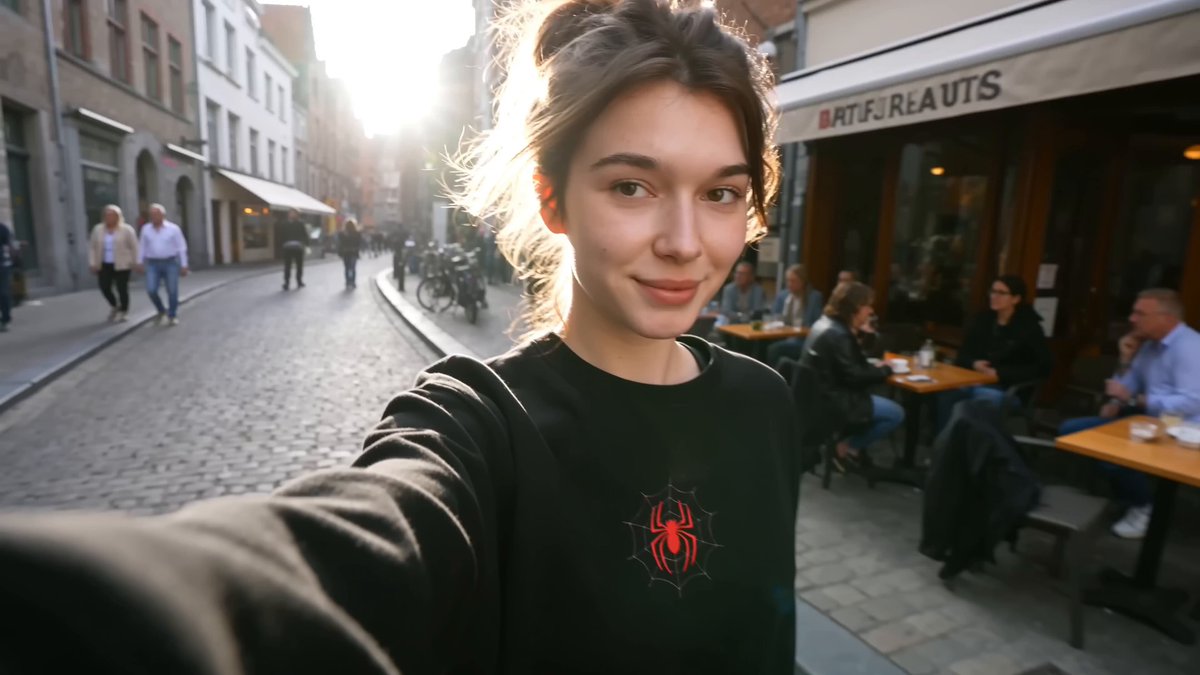
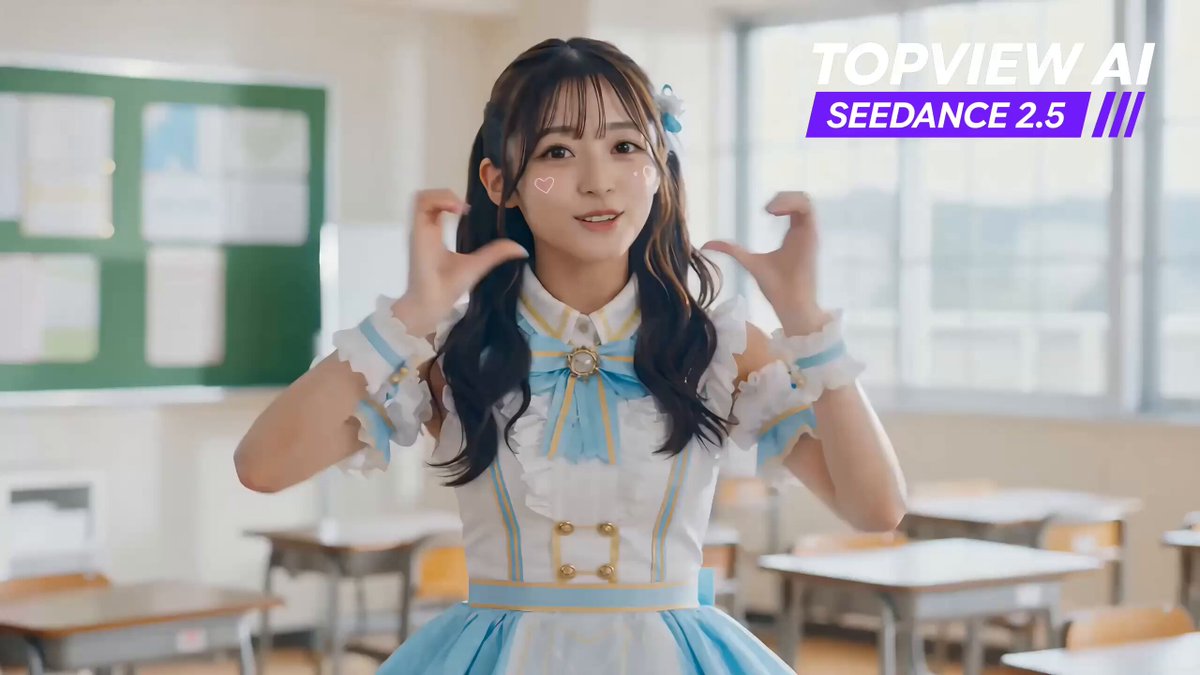
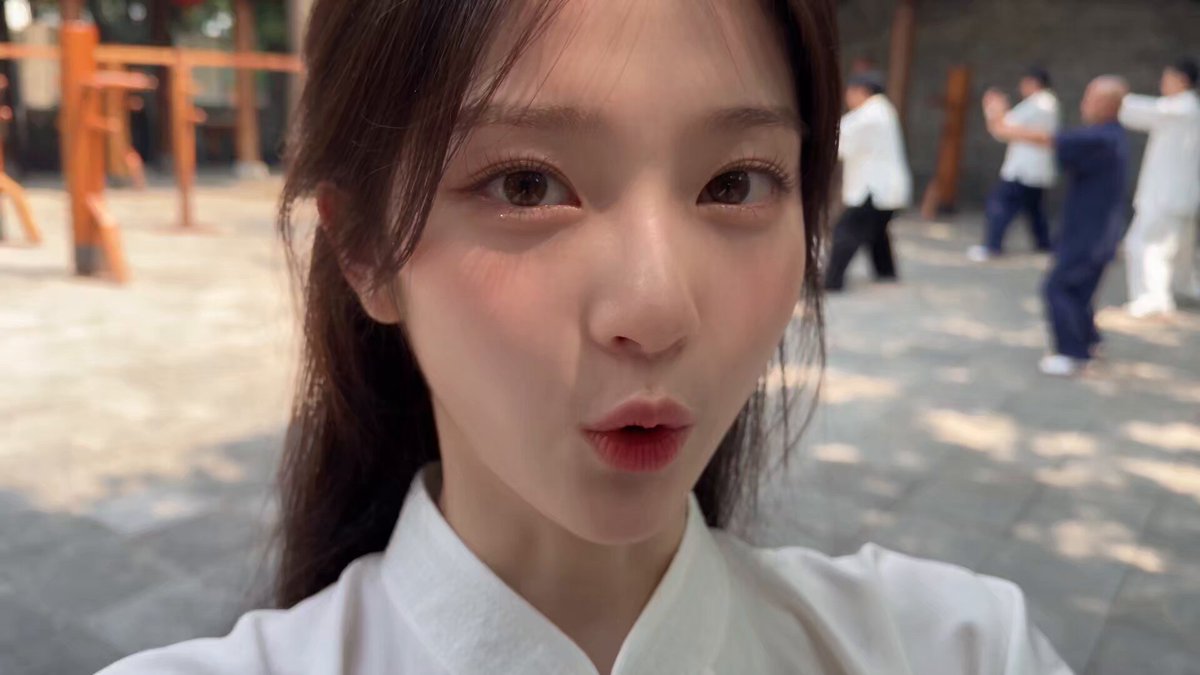
Animated visuals used to require a rig, a timeline, and a specialist who knew both. Today a text prompt, a reference frame, and a few minutes of rendering can produce a moving shot that reads as intentional. The distance between idea and motion has collapsed, but the craft did not disappear — it moved. Instead of keyframing every pose, you now spend your time choosing the right generation mode, keeping a character recognizable across shots, and editing fragments into a sequence that holds attention.
This guide walks through a repeatable AI animation workflow: what each generation mode is good for, how to write prompts that describe motion rather than scenery, how to keep style consistent, how to finish clips with audio and interpolation, and which mistakes waste the most time.
What an AI Animation Generator Actually Does
An AI animation generator takes a small amount of input — text, a still image, a short clip, or a body rig — and produces a sequence of frames that show movement. The main families you will encounter:
- Diffusion video models denoise a latent representation across time, which produces smooth, photoreal motion and forgiving texture handling.
- Transformer-based video models predict frames in sequence, which tends to improve long-range coherence and prompt adherence over longer durations.
- Motion-transfer and pose-driven tools read body or facial keypoints from a driving video and apply them to a stylized character or avatar.
- Hybrid pipelines generate keyframes with an image model, then interpolate and add motion with a video model — often the most controllable setup for stylized work.
In practice, the output is a clip of two to ten seconds at 16–30 frames per second. That constraint shapes everything else. You are not producing a film in a single pass; you are producing building blocks. Good results come from treating each clip as a shot inside an edit rather than as a finished piece.
Three jobs are handled well by these tools: creating camera movement or environments that would be expensive or impossible to shoot; restyling existing footage into a new aesthetic; and animating stills, whether illustrations, product photos, or character art. Which job you are doing determines the model and the prompt format. Most frustration comes from pointing a text-to-video model at a problem that image-to-video solves in one pass.
Choosing the Right Generation Mode for Each Shot
Mode selection is the highest-leverage decision in the whole workflow. Get it right and prompts become short; get it wrong and you will rewrite the same idea a dozen times.
Text-to-video
Best for establishing shots, abstract motion, landscapes, and anything where the exact composition does not matter yet. Strengths: fast exploration, high variety. Weaknesses: character identity drifts, text and logos are unreliable, and precise framing is hard to hold. Use it to generate options, then rebuild the winner in a more controlled mode.
Image-to-video
Best for product shots, character close-ups, illustrations, and any frame you have already composed. You control the first frame exactly, and the model adds motion to it. This is the workhorse mode for commercial and narrative work because composition is decided before generation instead of after.
Video-to-video and restyling
Best when the motion already exists and you only want a different look — live footage into anime, daytime into night, clean plate into painterly texture. Keep the style strength moderate at first: aggressive restyling erases fine detail and can introduce temporal flicker between frames.
Pose and motion transfer
Best for dancing characters, talking avatars, and any performance that must follow a specific rhythm. Record or source a driving clip, then map it onto your character. Expect to clean up hands, hair, and edges in post.
| Goal | Recommended mode | Typical clip length |
|---|---|---|
| Explore a concept quickly | Text-to-video | 2–5 s |
| Hold a specific composition | Image-to-video | 3–6 s |
| Restyle existing footage | Video-to-video | 3–8 s |
| Reproduce a performance | Pose / motion transfer | 4–10 s |
| Build a longer scene | Keyframes + interpolation | Any, stitched |
Building a Prompt System That Describes Motion
The most common prompt mistake is describing a picture instead of a sequence. A still-image prompt lists nouns and adjectives; an animation prompt has to describe what changes between the first frame and the last.
The five-slot frame
Write every prompt in the same order so you can debug it later:
- Subject — who or what, with two or three identifying details.
- Action — the verb that drives the clip, in present tense.
- Camera — shot size and movement (slow push in, handheld tracking, locked-off wide).
- Environment and light — location, time of day, key light direction.
- Style and texture — film stock feel, render style, color palette, grain.
A working example: "A ceramicist in a linen apron shapes a bowl on a spinning wheel, hands pressing inward, medium close-up with a slow push in, morning window light from camera left, soft film grain, muted earth palette." Every slot is present, and the action is unambiguous.
Temporal language
Use phrases that imply progression: "begins to," "gradually," "continues to," "settles into." Avoid words that imply a cut or a scene change unless you actually want one. If you need a specific beat — a door opening at the halfway point — say so explicitly, because the model has no sense of your storyboard.
Negative prompts and guardrails
Negative prompts are your cheapest quality control. A standard set for character work includes: extra limbs, warped hands, text artifacts, watermark, jitter, morphing faces, frame stutter, oversaturated skin. For architectural shots, add: bending verticals, flickering windows, melting geometry.
Seeds, references, and reproducibility
Lock a seed the moment a shot looks right. Save the seed, the prompt, the model version, and the input frame together in a project log. Six weeks later, when a client asks for one more variation, that log is the difference between a ten-minute job and a full re-shoot.
A Practical End-to-End Workflow
Here is the sequence that produces consistent results, whether the deliverable is a ten-second social clip or a two-minute explainer.
1. Preproduction and shot list
Write the shot list before opening any tool. Each row: shot number, duration, mode, subject, action, camera, and the reference frame you will use. Ten to twenty rows is normal for a one-minute piece, because most clips only survive three to five seconds in the edit.
2. Generate in batches, not one at a time
Run four to eight variations per shot in a single session. Variation is cheap; switching context is expensive. Generate the hardest shot first — usually a character close-up or anything with hands — so you learn the model's limits before committing the rest of the schedule.
3. Select ruthlessly
Score each take on three criteria: motion quality, identity or product fidelity, and whether the first frame cuts cleanly with its neighbors. Reject anything that only works if the viewer does not look closely. A take with beautiful lighting and a warped hand is a rejection.
4. Extend and stitch
For clips longer than the model's native length, generate overlapping segments and cut on motion, not on timecode. Overlap of roughly half a second gives you a clean seam. Where a seam is unavoidable, hide it behind a whip pan, a foreground wipe, or a cut to a reaction shot.
5. Finish
Upscale, interpolate to a consistent frame rate, stabilize only where needed, and color-match all clips in one pass at the end. Applying a single look to the whole sequence hides per-clip differences far better than perfecting each clip in isolation.
Motion Control: Camera, Timing, and Continuity
Amateur AI animation tends to move everything at once. Professional-looking output moves one thing at a time.
Camera language. Pick one move per shot: push in, pull out, pan, tilt, orbit, or handheld drift. If the subject also moves, keep the camera quiet. Two simultaneous movements read as chaos because the viewer cannot tell what to watch.
Timing. Keep action slower than feels natural in the generation stage. Models tend to accelerate motion, and slowing footage in the edit is far easier than fixing a clip that moves too fast to follow.
Continuity. Track three things between shots: screen direction, light direction, and wardrobe. If a character walks left to right in shot one, they should not exit frame right in shot two unless the story justifies it. If the key light is on the left, keep it there through the scene.
Anchoring. For any shot with a face, generate from a locked reference image rather than text alone. Faces are where identity breaks first, and a reference frame reduces the number of takes you need by half.
Keeping Style Consistent Across a Sequence
Consistency is what separates a reel from a pile of clips. Four techniques do most of the work:
- Character sheets. Build a reference sheet with front, three-quarter, and profile views. Feed the relevant view into every shot rather than a single hero image.
- A locked style block. Write one reusable style sentence — palette, texture, lens feel — and paste it unchanged into every prompt. Changing style words between shots is the fastest way to break a sequence.
- A shared color pipeline. Apply the same grade, grain, and contrast curve to every clip at the end. Uniform texture makes small inconsistencies invisible.
- One model per project. Switching models mid-project changes rendering characteristics, edge treatment, and color response. Choose one for the body of the work and use others only for specialty shots.
If your sequence involves a recurring character, test the identity hold before building the rest of the edit. Generate three unrelated shots of the same character and line them up side by side. If they read as the same person, the pipeline is stable enough to continue.
Audio, Editing, and Finishing
Great animation with bad sound feels unfinished; average animation with good sound reads as professional. Treat audio as part of the generation plan, not an afterthought.
Start with a scratch track: a music bed and rough narration so you can time cuts to rhythm. Cut picture to the beat, then replace the scratch with final sound, foley, and any voice-over. Add room tone under every scene — silence between clips makes edits audible.
On the picture side, finish in this order: stabilize, interpolate, upscale, grade, grain. Interpolating before stabilizing can bake in warping, and upscaling before grading leaves you correcting artifacts on a larger canvas. Export a master in your delivery resolution plus a mezzanine version for future recuts.
For vertical formats, reframe deliberately. Center-cropping a widescreen shot usually cuts the motion out of frame; instead, regenerate key shots in a vertical aspect ratio so the composition is designed for the platform.
Common Mistakes and How to Fix Them
Overloading one prompt with a full story. Fix: one shot, one action, one camera move. Write the rest as additional prompts.
Generating hundreds of clips with no shot list. Fix: ten rows of planning saves hours of scrolling. Decide the edit before generating.
Ignoring the last frame. The end of one clip is the beginning of the next. Judge takes by how they exit, not only by how they look in isolation.
Chasing photorealism for stylized content. Fix: pick a look and commit. Stylized work hides small inconsistencies that photorealism exposes.
Skipping QA on hands, text, and reflections. Fix: view every selected clip once at full size and once at 25% size. Small errors vanish at thumbnail scale and become obvious on a large screen.
Never writing anything down. Fix: keep a running log of seeds, prompts, model versions, and settings. Reproducibility is a competitive advantage.
Model and Tool Selection Criteria
Features matter less than fit. Evaluate any tool against this list before committing a project to it:
- Control granularity — can you specify camera motion, duration, and aspect ratio, and lock a seed?
- Identity retention — does it hold a face or product shape across multiple shots from a reference?
- Native clip length — longer native clips mean fewer seams and less stitching work.
- Output resolution and frame rate — determine whether you need heavy upscaling for your delivery target.
- Consistency features — reference image support, style conditioning, and reusable presets.
- Speed and throughput — how many usable takes per hour, not how many renders per hour.
- Usage limits and commercial terms — check generation quotas and licensing before a paid project, not after.
- Export flexibility — codec, alpha channel, and whether you can pull intermediate frames.
The fastest way to compare two tools is a bake-off on the same shot list: one character shot, one product shot, one environment shot. Score the best take from each and compare. Numbers beat impressions.
FAQ
How long should a single AI-generated clip be?
Generate three to six seconds and cut them together. Short clips keep motion quality high and give you edit flexibility.
Why does my character change appearance between shots?
Identity drift usually comes from text-only prompts. Generate from a locked reference image, keep the style block identical, and avoid switching models mid-project.
Do I need a fast machine to use these tools?
Most generation happens in the cloud, so a mid-range laptop with a stable connection is enough. Local rendering helps if you need offline work or very high volume.
How do I fix flickering textures?
Lower the motion intensity, reduce style strength in restyling mode, and apply a light temporal denoise in post. Flicker often comes from too much change requested per frame.
Can I use AI animation for client work?
Yes, but confirm licensing terms and disclosure expectations up front, and keep your project log so you can show how each shot was produced.
What frame rate should I deliver?
Match the delivery platform. Twenty-four frames per second suits cinematic work, thirty suits general video, and sixty suits motion-heavy content. Interpolate at the end so all clips match.
How many takes does a usable shot usually need?
Expect three to eight for text-to-video, two to four for image-to-video with a good reference frame, and more for anything involving hands, faces at an angle, or precise product detail.
Where should a beginner start?
Pick one image-to-video tool, build a character reference sheet, and produce a single fifteen-second sequence with four shots. Finishing one short sequence teaches more than browsing twenty tools.

Alexander
More Blogs
Read MoreVidu Q4 Alternatives: 4K AI Video Models Compared (2026)
Vidu Q4 alternatives compared: Kling 4.0, Seedance 2.5, Wan 3.0, and Runway Gen-4 — 4K support, input modes, durations, audio, and what each costs in credits on Domer.
Top 4K AI Image Generators in 2026: 5 Models Compared on Real Costs
The top 4K AI image generators on Domer compared: Flux 3 Klein, Nano Banana 2.1, GPT Image 2.5, GPT Image 2, and Nano Banana Pro — 4K credit costs, reference limits, and speed.
Nano Banana 2.1 vs GPT Image 2.5: Which Image Model Should You Use? (2026)
Nano Banana 2.1 vs GPT Image 2.5 Flare compared: credit costs per resolution, aspect ratios, reference images, text rendering, and which tasks fit each model.