
AI Anime Video Generation: A Practical Creator Workflow
Oct 15, 2026
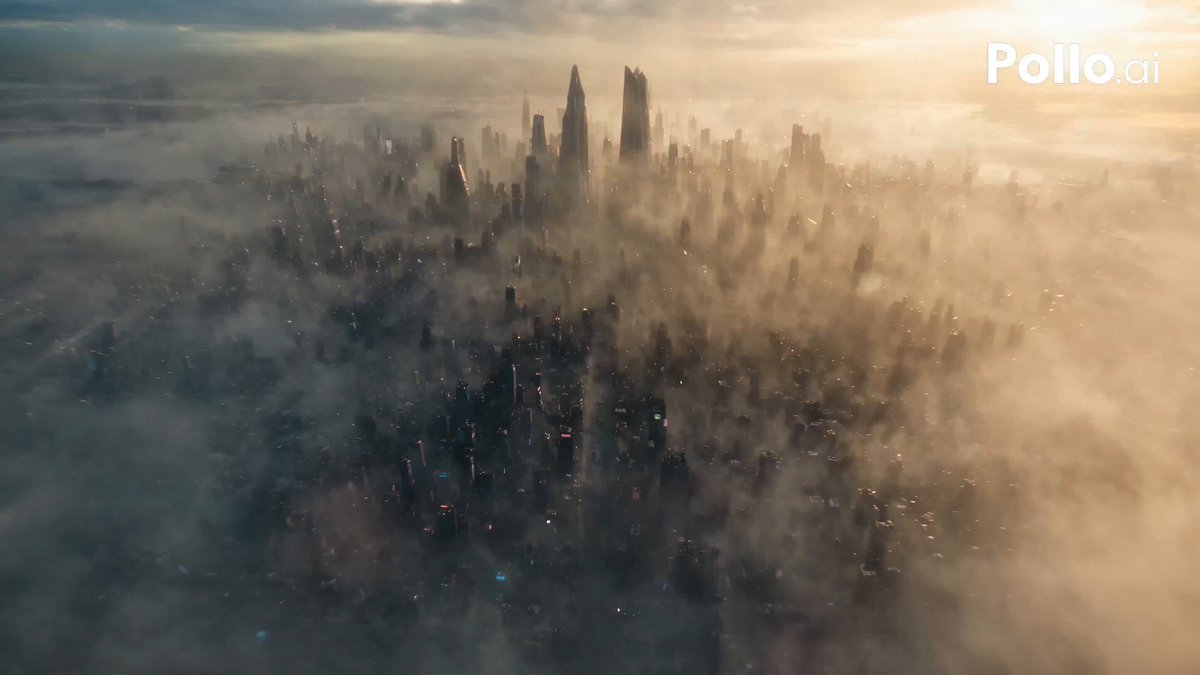
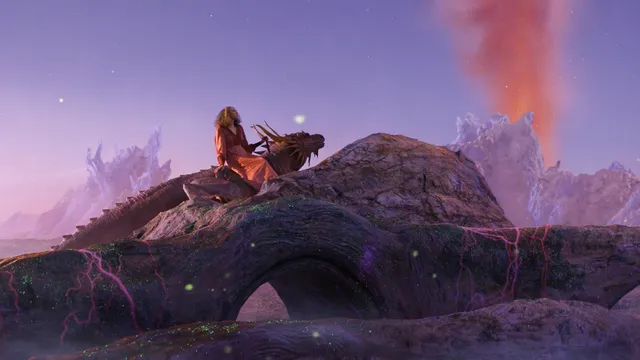
Anime-style AI video has moved from a novelty demo to a real production technique. A single creator can now build a short film, a social clip, a game trailer, or a music video with expressive characters, painted backgrounds, and dramatic motion. The hard part is not generating one attractive frame. The hard part is making dozens of frames feel like they belong to the same world, with the same characters, the same lighting, and the same emotional rhythm. That is a workflow problem as much as a model problem.
This guide is a neutral, tool-agnostic field manual for anime-style AI video production. It covers pre-production, prompt design, consistency systems, generation strategies, editing, sound, quality control, and common failure modes. Whether you are working on a personal short or a client project, the same principles apply: protect the style, plan the motion, and treat every clip as part of a larger sequence.
Why Anime-Style AI Video Requires a Different Workflow
Anime is a visual language with its own grammar. It is not simply live-action footage with a filter. Line art, cel shading, limited animation, expressive faces, speed lines, impact frames, dramatic camera angles, and painted backgrounds all carry meaning. Audiences who love anime notice when a character's face changes shape, when line weight flickers, or when a background looks like a photograph instead of a hand-painted location.
AI video models can produce beautiful anime-like imagery, but they tend to drift. A character may look correct in one clip and lose their jawline, eye color, or hairstyle in the next. A camera move may be smooth but emotionally flat. A background may be detailed but inconsistent with the previous shot. The workflow must therefore be built around constraints, references, and review loops rather than one-shot prompting.
There are three main tensions to manage. First, style consistency versus motion realism: stricter style control often reduces natural movement, while chasing realistic motion can pull the image away from anime aesthetics. Second, speed versus control: fast text-to-video generation is great for exploration, but image-to-video and reference-driven methods give better continuity. Third, volume versus quality: generating many variations helps you find the best shot, but it also creates a review burden. A good pipeline decides where to explore and where to lock down.
The End-to-End Production Pipeline
A reliable anime AI video pipeline has five stages: concept, shot design, reference preparation, generation, and post-production. Skipping any stage usually causes problems later.
Concept and Script
Start with a clear deliverable. Are you making a 15-second vertical clip, a 60-second short, or a three-minute pilot? Each format demands a different rhythm. Write a logline, a genre, an emotional arc, and a target platform. Then break the story into beats. For a 60-second short, eight to twelve beats is often enough. For a longer piece, treat each beat as a scene with a goal and a turn.
Write dialogue or voiceover only after the visual beats work. Anime often communicates through reaction shots, pauses, and atmosphere. A script that depends entirely on exposition will feel static. Instead, ask what the audience should feel in each shot: curiosity, tension, relief, awe, or sadness.
Shot Design and Storyboards
Create a shot list before generating anything. A simple table with columns for shot number, duration, camera, action, background, lighting, and audio is enough. For anime, prioritize a few shot types: wide establishing shot, medium dialogue shot, close-up reaction shot, and action cut. Plan transitions such as match cuts, whip pans, or hard cuts on impact.
Rough storyboards do not need to be beautiful. Stick figures and arrows are fine. The goal is to decide where the camera is, what the character does, and how the shot connects to the next one. If you cannot sketch it, you probably cannot prompt it clearly.
Reference and Prompt Preparation
Collect legal reference images for style, costumes, props, and locations. Build a character sheet with front, side, back, and expression views. Define a color palette and a lighting rule set. Then create a prompt template that includes subject, action, setting, camera, style, lighting, mood, and negative constraints. Keep the style portion of the prompt stable across shots. Change only the action and camera.
Generation Passes
Generate keyframes first. A strong still image gives the video model a clear target. Then animate selected keyframes with short clips, usually two to five seconds. Use seeds or reference images to maintain continuity. Batch variations, but review them in a contact sheet instead of watching every clip in full. Mark the best takes and note why they work.
Editing and Sound
Assemble a rough cut with temporary music. Adjust timing before adding detail. Then add sound effects, voice, ambience, and subtitles. Color grade for consistency. Export separate versions for landscape and vertical platforms if needed.
Designing a Consistent Anime Look
Consistency is the difference between a collection of clips and a film. Build a style bible that any collaborator could follow.
Build a Style Bible
Document the visual rules. For example: clean line art with slight variation, two-tone cel shading, soft bloom around highlights, muted teal and coral palette, painted backgrounds with visible brush texture, and subtle film grain. Decide how much detail backgrounds should have. Decide whether shadows are hard or soft. Decide whether the camera is allowed to shake.
Use a short style token set in every prompt. Long prompts can dilute the important signals. A stable core such as 'anime cel shading, clean lines, painted background, cinematic lighting' is more reliable than a paragraph of adjectives that changes every shot.
Character Consistency
Characters are the hardest part. Use reference images whenever the tool allows it. Keep descriptors fixed: hair color, eye color, age, outfit, accessories, and body proportions. Avoid changing clothes or age between shots unless the story requires it. If the model supports character training or embeddings, use them. If not, generate a clean character sheet and animate from those images.
Test consistency across poses before committing to a full scene. Generate the same character in close-up, medium shot, and wide shot. Check the face shape, hairstyle, and color palette. If drift appears, simplify the prompt, reduce motion, or use a shorter clip. Sometimes a still image with subtle motion is better than an ambitious animation that breaks the character.
Backgrounds and Lighting
Anime backgrounds often look painted, with strong perspective and atmospheric color. Use establishing shots to set the world. Keep horizon lines and vanishing points consistent. If a scene takes place in a classroom, decide where the windows are and which direction the light comes from. Then keep that direction in every shot.
Lighting carries emotion. Golden hour feels nostalgic. Neon night feels energetic or lonely. Overcast light feels quiet or ominous. Write the lighting rule into the style bible and repeat it in prompts. A consistent light direction can make separate clips feel like they were shot in the same location.
Prompting for Motion, Camera, and Emotion
Prompts for anime video should describe what changes, not just what exists. A still image prompt describes a scene. A video prompt describes an event.
Camera Language
Use precise camera terms: slow push-in, dolly out, pan left, tilt up, crane shot, handheld follow, dutch angle, rack focus. Anime also uses stylized camera effects: snap zoom, speed lines, impact frames, and dramatic freeze. Use one primary camera move per clip. If you ask for a push-in and a pan and a tilt, the model may produce a muddy compromise.
Action and Timing
Break action into beats. Anticipation, action, and follow-through. For a sword strike, generate the wind-up, the strike, and the reaction as separate shots. If the model supports time-based prompts, specify what happens at the start, middle, and end. Avoid complex choreography in a single prompt. Short, clear actions read better.
Atmosphere and Effects
Weather, particles, lens flares, bloom, rain, and cherry blossoms can add production value, but they can also hide poor composition. Use effects to support the story. Rain can emphasize sadness. Dust can sell impact. A soft glow can suggest magic. Do not stack five effects in one shot. Pick one or two and make them consistent.
Choosing the Right Generation Approach
There is no single best method. The right approach depends on how much control you need, how many shots you have, and how much time you can spend on iteration.
Text-to-Video vs Image-to-Video
Text-to-video is best for exploration and mood boards. It is fast and surprising, but it is difficult to control. Image-to-video is better for production because you can approve the keyframe before animating. For anime, image-to-video usually wins on character consistency and composition.
A hybrid approach works well: generate still keyframes with an image model, refine them in a paint or photo tool, then animate the approved frames. This gives you a clear checkpoint before spending time on motion.
Reference-Driven and Hybrid Workflows
Reference-driven workflows use character sheets, pose references, depth maps, or motion clips to guide generation. They are powerful but require setup. If your project has recurring characters, invest in references early. If it is a one-off experimental clip, text-to-video may be enough.
Cloud vs Local
Cloud tools are convenient, fast to start, and often have strong models. They may have limits on resolution, clip length, or style training. Local tools give more control and privacy, but they require hardware, installation, and troubleshooting. Choose based on project volume, confidentiality, and how much you enjoy technical setup.
A Step-by-Step Workflow You Can Reuse
This sequence works for short films, social clips, and client pitches.
- Define the deliverable. Write the format, length, aspect ratio, and deadline. Decide what success looks like.
- Write a beat sheet. List the emotional turns and the key visual moments.
- Create a style bible. Choose line quality, shading, palette, lighting, and background rules.
- Build a character sheet. Generate or draw front, side, back, and expression references.
- Storyboard key shots. Sketch camera, action, and background for each shot.
- Generate keyframes. Use image generation to explore composition. Select the best frames.
- Animate selected keyframes. Use short clips with one camera move and one action.
- Assemble a rough cut. Place clips on a timeline with temporary music.
- Add sound and polish. Record voice, add effects, adjust timing, and color grade.
- Run quality control. Check character consistency, motion, audio sync, and export settings.
Each step should produce an artifact: a beat sheet, a style bible, a shot list, a keyframe folder, a rough cut, and a final export. Artifacts make it easier to collaborate and easier to restart if a generation pass fails.
Editing, Sound, and Final Polish
Anime editing has a distinct rhythm. Hold on a reaction a little longer than you would in live action. Cut on action rather than after it. Use match cuts between similar shapes or movements. Speed ramps can add energy, but use them sparingly. A hard cut on an impact frame can be more powerful than a long animated sequence.
Sound design is half the experience. Add foley for footsteps, cloth, and props. Use whooshes for fast camera moves. Layer ambience for wind, rain, or city noise. Music should support the emotional arc, not fight it. If you use voiceover, record in a quiet space and edit for clarity. Subtitles should be readable and timed to the performance.
Color grading should unify the clips. If one shot is warmer than the others, adjust it to match the style bible. Check black levels, highlight roll-off, and skin tones. Export in the correct aspect ratio and resolution for each platform. Keep a master version with the highest quality for archives.
Quality Control Checklist for Anime AI Video
- Character faces match the reference across all shots.
- Hair, eye color, and outfit details remain consistent.
- Line weight and shading style do not flicker between clips.
- Background perspective and light direction are stable.
- Camera moves are motivated and not distracting.
- Motion blur and frame rate feel appropriate for anime.
- No unintended morphing, extra limbs, or warped hands.
- Effects like rain, bloom, or speed lines support the scene.
- Audio is synced and balanced.
- Music and sound effects do not overpower dialogue.
- Subtitles are accurate and readable on mobile.
- Color grade is consistent from first shot to last.
- Export settings match the target platform.
- File names and versions are organized.
- A backup of project files and references exists.
Common Mistakes and Fixes
One common mistake is prompting a full scene in a single clip. The model tries to do too much and produces weak motion. Fix it by breaking the scene into shots and generating each shot separately.
Another mistake is changing the style prompt between shots. Small changes add up to a different look. Fix it by locking a style token set and only changing action and camera.
Character drift is another frequent problem. Fix it with reference images, shorter clips, and closer framing. If the face still changes, generate a still image for the shot and animate it with minimal motion.
Overloading effects is a common issue. Too much bloom, rain, and lens flare can hide the character. Fix it by choosing one atmospheric effect per scene and keeping it consistent.
Ignoring audio until the end creates pacing problems. Fix it by adding temporary music and sound effects early. The edit will tell you which shots are too long.
Finally, do not judge a clip in isolation. Watch it in sequence. A shot that looks strange alone may work perfectly in context. A shot that looks beautiful alone may break the rhythm of the scene.
FAQ
How long should each anime AI video clip be?
Most clips work best between two and five seconds. Short clips are easier to control and easier to edit. Longer clips can work for slow atmosphere shots, but they often drift in style or motion.
Can I keep the same character across multiple shots?
Yes, but it requires references and discipline. Use character sheets, fixed descriptors, and image-to-video workflows. Test consistency before generating a full scene.
Do I need to know how to draw?
Drawing helps, but it is not mandatory. You can use reference images, rough sketches, and image generation to create keyframes. What matters most is clear shot planning and consistent style rules.
What is the best way to prompt camera movement?
Use one clear camera term per clip. Terms like slow push-in, pan left, or dolly out are more reliable than complex combinations. Add a subject action and keep the background stable.
How do I fix flickering line art?
Flickering often comes from inconsistent style prompts or overly complex motion. Simplify the prompt, reduce motion, use a reference image, and generate shorter clips. You can also clean up keyframes before animating.
Should I use text-to-video or image-to-video for anime?
Image-to-video is usually better for production because you can approve the look before animating. Text-to-video is useful for exploration, mood boards, and quick tests.
How do I make AI anime video look more professional?
Plan shots, build a style bible, use consistent references, edit with rhythm, and invest in sound design. Professional results come from the pipeline, not from a single prompt.
Anime-style AI video is still a young craft, but the principles are stable. Plan the story, protect the style, control the motion, and treat sound and editing as part of the creation rather than an afterthought. With a repeatable workflow, you can move from scattered experiments to finished pieces that feel intentional, coherent, and worth watching.

Alexander
More Blogs
Read MoreVidu Q4 Alternatives: 4K AI Video Models Compared (2026)
Vidu Q4 alternatives compared: Kling 4.0, Seedance 2.5, Wan 3.0, and Runway Gen-4 — 4K support, input modes, durations, audio, and what each costs in credits on Domer.
Top 4K AI Image Generators in 2026: 5 Models Compared on Real Costs
The top 4K AI image generators on Domer compared: Flux 3 Klein, Nano Banana 2.1, GPT Image 2.5, GPT Image 2, and Nano Banana Pro — 4K credit costs, reference limits, and speed.
Nano Banana 2.1 vs GPT Image 2.5: Which Image Model Should You Use? (2026)
Nano Banana 2.1 vs GPT Image 2.5 Flare compared: credit costs per resolution, aspect ratios, reference images, text rendering, and which tasks fit each model.