
AI Art Generator Workflow Guide: From Prompt to Video
Oct 15, 2026
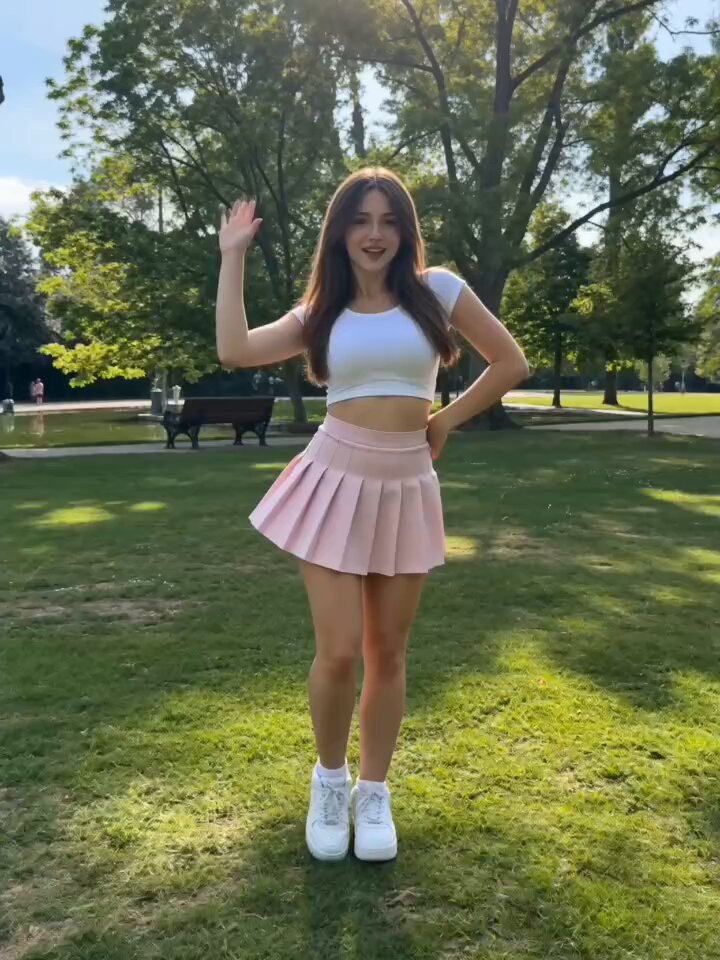
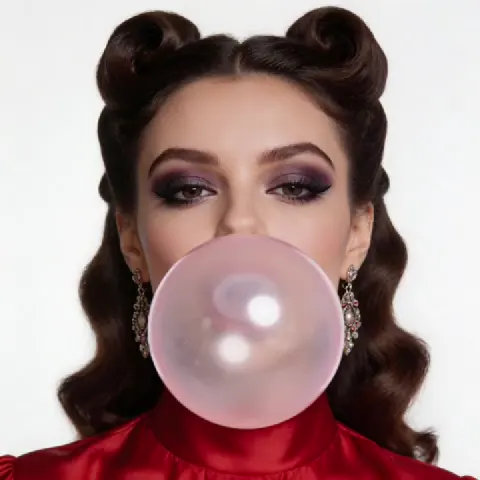
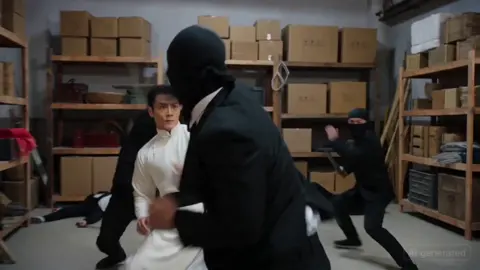
AI art generation has moved from a novelty to a practical part of visual production. What used to require a photographer, illustrator, 3D artist, and compositor can now begin with a text prompt and a reference image. The real value is not a single striking image. It is the workflow around it: consistent characters, repeatable styles, shot planning, animation, and finishing. This guide walks through a neutral, tool-agnostic workflow for using AI art generators and video models to create coherent scenes without losing creative control.
Why AI Art Generators Are Now Part of Video Workflows
A good AI art generator can produce a mood board in minutes. That speed changes how teams plan. Instead of debating an abstract idea, a director can see three visual directions before lunch. A marketer can test a campaign concept without booking a studio. A game designer can explore creatures, props, and environments in parallel. The bottleneck shifts from production capacity to taste and decision-making.
Video workflows benefit even more. A video needs more than one beautiful frame. It needs a cast of characters who look the same in every shot, locations that feel continuous, lighting that matches across scenes, and motion that respects the physical logic of the world. AI art generators solve the first part: generating strong stills. Video models solve the second: moving those stills in believable ways. The craft is in connecting them.
The most successful creators treat AI as a junior artist with amnesia. It can execute beautifully, but it forgets what it made five minutes ago unless you provide references, constraints, and clear direction. That mental model leads to better prompts, better asset management, and fewer wasted generations.
How Text-to-Image Generation Works
From prompt to latent space
Text-to-image models usually combine a language encoder with a diffusion process. The language encoder reads your prompt and turns it into a mathematical representation of meaning. The diffusion model starts with random noise and gradually denoises it into an image that matches that meaning. A decoder then converts the final latent representation into pixels. You do not need to understand the math to use the tool, but understanding the stages helps you debug bad outputs.
If the subject is wrong, your prompt is probably too vague or contradictory. If the composition is wrong, your aspect ratio or camera language may be missing. If the style is wrong, your references or style tokens are not strong enough. If the image looks plastic or over-sharpened, you may be pushing the model too hard with conflicting aesthetic words.
Why model choice matters
Different models have different strengths. Some excel at photorealism, skin texture, and cinematic lighting. Others are better at illustration, anime, graphic design, or product mockups. Some allow more control through image prompts, depth maps, pose references, or regional prompting. Some are faster but less detailed. Some produce more coherent text. None is best at everything.
For video work, choose a model that supports the kind of consistency you need. If your project depends on a recurring character, a model with strong image-prompt adherence and seed control will save hours. If your project depends on a specific environment, a model that respects structural references will be more useful. Build a small test project with each candidate before committing to a full pipeline.
Resolution, aspect ratio, and framing
Generate at the aspect ratio you plan to deliver. If your final video is vertical, do not generate wide images and crop them later unless you have framed for that crop. Cropping destroys composition and often cuts off hands, props, or environmental storytelling. If you need multiple formats, generate separate compositions or use outpainting carefully.
Resolution is not just about pixel count. It is about detail density. A 4K image with soft details can look worse than a sharp 1080p image. Generate at a reasonable native resolution, then upscale with a dedicated tool if needed. For animation, start with the highest quality stills you can afford, because video models amplify artifacts.
Building Prompts That Stay Consistent Across a Project
The five-part prompt formula
A reliable prompt covers five areas: subject, action, environment, style, and camera or lighting. For example: a middle-aged detective, standing in heavy rain, outside a neon-lit diner, cinematic noir illustration, low-angle medium shot with wet reflections. This formula gives the model enough information to make decisions without overwhelming it.
When a shot fails, remove one variable at a time. If the character changes but the environment is good, keep the environment prompt and revise the character description. If the lighting is wrong but the pose is right, adjust only the camera and lighting language. This controlled iteration is faster than rewriting the whole prompt.
Style tokens versus style references
Style tokens are words like watercolor, cyberpunk, claymation, or editorial photography. They are quick but imprecise. Style references are images that show the model what you mean. A single strong reference often beats ten adjectives. Many modern tools also support style adapters or trained mini-models that lock a visual identity more tightly.
For long projects, create a style guide with three to five approved reference images. Include examples for lighting, color palette, texture, and level of realism. Every new generation should be compared against that guide, not against your memory of what the project looked like last week.
Negative prompts and guardrails
Negative prompts tell the model what to avoid. Common entries include extra fingers, distorted hands, watermark, text, logo, blurry, low contrast, duplicate limbs, and oversaturated. Be careful not to overload negative prompts with contradictions. If you exclude too many concepts, the model may produce bland results because it is avoiding everything.
Guardrails also include technical settings. Lock the seed when you want small variations. Change the seed when you want fresh ideas. Keep the sampler and step count consistent within a scene. Document your settings so you can reproduce a good result later.
Prompt templates for reuse
Create templates for common shot types: character introduction, establishing shot, product close-up, action beat, emotional reaction, and transition frame. Each template should have placeholders for subject, wardrobe, location, time of day, mood, and camera angle. This turns prompting from a creative guessing game into a repeatable production process.
Multi-Image Fusion and Style References
Blending references for hybrid concepts
Multi-image fusion lets you combine elements from different references. You might blend a character pose from one image, a costume from another, and a color palette from a third. This is useful for concept art, advertising, and world-building. The goal is not to copy any single source. The goal is to extract visual traits and combine them into something new.
A practical approach is to separate references by role: identity reference, wardrobe reference, environment reference, lighting reference, and composition reference. Give each role a clear weight. If the model ignores one, increase its influence or describe it more explicitly in the prompt.
Preserving identity without copying
When you need the same character across many images, use multiple angles of that character. A front view, side view, three-quarter view, and back view give the model more information than a single portrait. If the tool supports pose or depth control, use it to keep proportions consistent. Avoid using a copyrighted character as your identity reference unless you have permission.
Consistency also comes from repetition. Generate a character sheet with neutral lighting and a plain background. Approve it. Then use that sheet as the foundation for every scene. Do not let the model reinvent the character in every prompt.
Workflow for fusion
- Gather references and label them by role. 2. Write a prompt that describes the intended result, not the references themselves. 3. Generate a small batch and compare. 4. Select the closest result and refine with image-to-image or inpainting. 5. Lock the approved result as a new reference. 6. Repeat for each new angle or expression. This process slowly builds a reliable visual asset library.
Keyframes, Motion, and Character Consistency
What a keyframe is in an AI pipeline
A keyframe is a still image that defines an important moment in a shot. In traditional animation, an animator draws keyframes and then fills in the motion between them. In AI video, you often generate the first frame, the last frame, or both, and let the model interpolate. The quality of the keyframes determines the quality of the motion.
Think of keyframes as anchors. If the anchors are inconsistent, the motion will wobble, morph, or drift. If the anchors are strong, the video model has a clear path to follow.
Character sheets and scene bibles
Before animating, create a character sheet and a scene bible. The character sheet includes face, hair, body type, wardrobe, accessories, and expression range. The scene bible includes location layouts, color scripts, lighting conditions, props, and time of day. These documents keep human collaborators aligned and give AI tools consistent references.
For recurring characters, include a neutral pose and a neutral expression. Then add variations: smiling, angry, running, sitting, holding a prop. The more controlled variations you have, the easier it is to generate new shots that still feel like the same story world.
Maintaining continuity
Continuity comes from four controls: seed, reference images, prompt discipline, and color management. Keep the seed stable when making small changes. Use the same character references across shots. Keep your prompt structure consistent. Apply the same color grading or LUT after generation so every scene feels like it belongs to the same film.
Small details matter. A scar on the wrong cheek, a jacket that changes color, or a building that moves between shots breaks immersion. Review each frame against your scene bible before animation. It is easier to fix a still than a rendered video.
Animating between keyframes
Image-to-video tools usually accept one or more stills and generate motion. Some let you describe the motion in text. Some offer camera controls like pan, tilt, zoom, and dolly. Some support motion brushes that let you paint the direction of movement. Start with simple motions: a head turn, a slow push-in, a curtain moving in the wind, or a vehicle passing through frame. Complex choreography often requires multiple shorter shots rather than one long generation.
When motion fails, simplify. Reduce the number of moving elements. Lock the camera. Shorten the clip. Generate at a lower resolution, fix the motion, then upscale. Video models are more likely to succeed when the keyframes are clear and the requested movement is physically plausible.
A Step-by-Step AI Video Workflow
Step 1: Define the story beat and shot list
Start with a one-sentence story beat. Then break it into shots. Each shot should have a purpose: establish location, introduce character, show conflict, reveal detail, or transition. Write the shot list in plain language before you touch a prompt. This prevents the common mistake of generating random beautiful images that do not connect.
Step 2: Generate style frames
Create three to five style frames that establish the look. Do not worry about character consistency yet. Focus on color, lighting, texture, and composition. Choose one direction and document the prompt, model, seed, and reference images that produced it.
Step 3: Lock character and location references
Generate character sheets for each main subject. Generate location plates for each major environment. Approve them. Store them in a clearly named folder. These references become the source of truth for the rest of the project.
Step 4: Create keyframes
For each shot, generate the keyframes you need. A simple shot may need only a first frame. A complex shot may need a first, middle, and last frame. Check continuity before moving on. If a character looks different, regenerate until the keyframes match the approved references.
Step 5: Animate with image-to-video
Upload the keyframes and describe the motion. Keep prompts short and physical: slow dolly in, character turns head to the left, rain falls steadily, camera pans right. Generate several variations. Choose the best take, not the first take. If the shot needs a specific timing, edit the clip in post rather than asking the model to do everything.
Step 6: Edit, sound, and polish
AI generation is only the beginning. Assemble the clips on a timeline. Adjust pacing, add transitions, stabilize shaky motion, and color grade. Add sound design, music, and voice. Sound often does more for believability than another round of video generation. A simple shot with excellent sound can feel more cinematic than a complex shot with silence.
Choosing Tools for Art, Animation, and Post
Text-to-image generators
Midjourney is known for strong aesthetics and stylized results. DALL-E is approachable and good at following complex prompts. Stable Diffusion offers deep control through extensions, adapters, and local workflows. Adobe Firefly integrates with design tools and focuses on commercially safer training data. Ideogram is useful when text rendering matters. Test each tool against your specific needs: character consistency, aspect ratio control, reference support, and output quality.
Video generation and animation
Runway, Pika, Luma, Kling, and similar platforms offer image-to-video and text-to-video generation. Some are better at realistic motion. Some are better at anime or stylized movement. Some offer stronger camera controls or longer clip lengths. The right choice depends on your shot type. For dialogue scenes, you may need lip-sync tools. For action, you may need higher frame rates and better motion coherence.
Upscaling, cleanup, and post-production
Upscaling tools can add detail and prepare stills for animation. Cleanup tools can remove artifacts, fix hands, and extend backgrounds. Traditional editing software remains essential for pacing, sound, color, and final delivery. Do not expect the AI model to finish the job. A finishing pass in Photoshop, After Effects, DaVinci Resolve, or similar software will make the result feel intentional.
Selection criteria
Evaluate tools by control, consistency, output length, licensing, integration, and team fit. A tool with slightly lower image quality but better reference control may be more valuable for a character-driven project. A tool with beautiful stills but weak animation may still be useful for storyboards. Match the tool to the job, not the other way around.
Common Mistakes and How to Fix Them
Too many ideas in one prompt
A prompt that asks for a cyberpunk samurai, a watercolor style, a spaceship, and a romantic sunset will produce confusion. Prioritize one subject and one visual idea per generation. Build complexity through iteration, not through a single crowded prompt.
No reference sheet
Without references, every generation invents a new character. Create a character sheet and use it consistently. If your tool supports multiple reference images, use them. If it does not, keep prompts extremely detailed and stable.
Inconsistent aspect ratios
Mixing horizontal and vertical generations creates composition problems. Decide your delivery format early. Generate all keyframes in that format. If you need multiple formats, plan separate compositions.
Ignoring motion artifacts
AI video can warp faces, melt hands, and bend backgrounds. Watch each clip frame by frame. Shorten the shot if the artifact appears late. Use a cutaway or reaction shot to cover a difficult motion. Edit around weaknesses instead of expecting perfection.
Over-relying on one seed
A single seed can produce a lucky image, but it cannot carry an entire project. Use seeds for controlled variations, but also explore new seeds for creative options. Document what works and build a library of reliable settings.
Poor text rendering
AI models still struggle with logos, signs, and subtitles. Generate the image without text, then add typography in a design tool. This gives you clean lettering, correct spelling, and brand-safe fonts.
No color management
Color shifts between tools can break continuity. Apply a consistent color space and grade after generation. Use reference stills to match skin tones, shadows, and highlights across scenes.
No story
Beautiful images without narrative purpose feel empty. Start with a story beat, a shot list, and a reason for every frame. The audience remembers emotion, not resolution.
Custom Training, Ethics, and Production Safety
When custom training helps
Custom training is useful when you need a very specific character, product, or art style that generic prompts cannot reproduce. By training a small adapter on a curated dataset, you can teach the model your visual identity. This is common for brands, comic artists, game studios, and creators with a recognizable style.
Keep the dataset clean. Use consistent lighting, angles, and quality. Remove duplicates and outliers. A small, well-labeled dataset often outperforms a large, messy one. Test the trained model on new prompts before using it in production.
Data hygiene
Only train on images you have the right to use. Get consent for people, avoid private information, and respect intellectual property. If you are building a character, make sure it is original or properly licensed. Document your sources and keep records of approvals.
Ethical and legal guardrails
AI-generated art raises questions about copyright, likeness, and disclosure. Rules vary by country and platform. In general, avoid mimicking a living artist's signature style without permission. Avoid generating real people in misleading situations. Disclose AI involvement when required by your client, platform, or audience. When in doubt, ask a legal professional.
Review process
Build a human review step before anything is published. Check for bias, cultural sensitivity, brand safety, and factual accuracy. AI can generate convincing but false details. A reviewer should confirm that the image or video does not misrepresent a person, product, or event.
FAQ
How long does it take to learn AI art generation?
Most people can produce a usable image in an afternoon. Producing consistent, production-ready visuals takes weeks of practice. The learning curve is less about the tool and more about art direction, prompt discipline, and asset management.
Can AI art replace illustrators and animators?
AI changes the workflow more than it replaces the role. It handles exploration, variation, and repetitive tasks. Human artists still direct the vision, solve problems, refine details, and make emotional choices. The strongest results come from collaboration between human taste and machine speed.
How do I keep the same character across many images?
Create a character sheet with multiple angles and expressions. Use it as a reference in every generation. Keep seeds and prompts stable. Use pose or depth controls if available. Review each output against the approved sheet before moving on.
What resolution should I generate at?
Generate at the native resolution your model handles well, then upscale. For video, start with sharp 1080p or higher stills. Avoid generating tiny images and upscaling too aggressively, because artifacts will become more visible in motion.
Can I use AI art commercially?
The answer depends on the model, your local laws, and the terms of the platform you use. Some tools allow commercial use, some restrict it, and some require disclosure. Check the license before you publish or sell. Keep records of your prompts and source references.
What is better for video: text-to-video or image-to-video?
Text-to-video is faster for exploration. Image-to-video gives you more control over composition and character consistency. For narrative work, start with generated keyframes and animate them with image-to-video. Use text-to-video for backgrounds, abstract shots, and early tests.
How many images should I generate per shot?
Generate at least four to eight variations for important shots. For simple background elements, two or three may be enough. The goal is not to generate endlessly. The goal is to reach an approved frame quickly and move to the next stage.
Do I need a custom model?
Only if generic prompts cannot capture your character or style. Many projects work well with reference images and disciplined prompts. Custom training becomes worthwhile when you have a recurring visual identity and a clean dataset to support it.
AI art generators are powerful because they compress the distance between an idea and a visual. Video workflows are powerful because they turn those visuals into motion, rhythm, and story. The winning approach is neither blind automation nor pure manual craft. It is a structured pipeline: define the shot, generate the style, lock the references, create keyframes, animate carefully, and finish with human judgment. Once that pipeline is in place, you can create consistent, polished scenes in a fraction of the time, while keeping the creative decisions where they belong.

Alexander
More Blogs
Read MoreVidu Q4 Alternatives: 4K AI Video Models Compared (2026)
Vidu Q4 alternatives compared: Kling 4.0, Seedance 2.5, Wan 3.0, and Runway Gen-4 — 4K support, input modes, durations, audio, and what each costs in credits on Domer.
Top 4K AI Image Generators in 2026: 5 Models Compared on Real Costs
The top 4K AI image generators on Domer compared: Flux 3 Klein, Nano Banana 2.1, GPT Image 2.5, GPT Image 2, and Nano Banana Pro — 4K credit costs, reference limits, and speed.
Nano Banana 2.1 vs GPT Image 2.5: Which Image Model Should You Use? (2026)
Nano Banana 2.1 vs GPT Image 2.5 Flare compared: credit costs per resolution, aspect ratios, reference images, text rendering, and which tasks fit each model.