
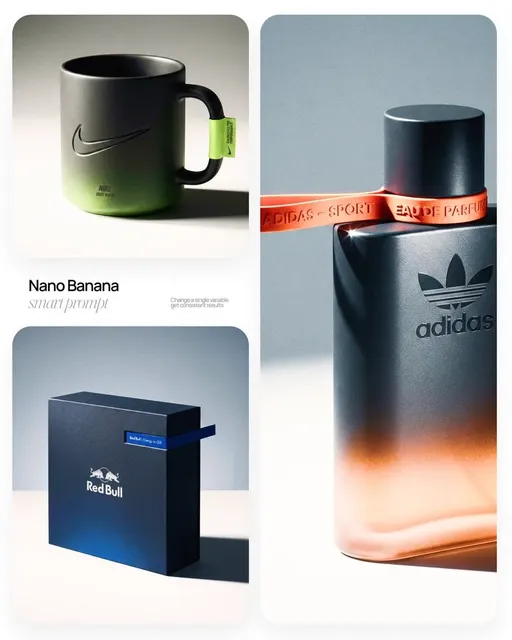
AI Image Generators for Scroll-Stopping TikTok Thumbnails
Oct 14, 2026

Why TikTok thumbnails deserve a dedicated production workflow
Most creators treat the cover image as an afterthought: they export the video, pick a random frame, and move on. That habit costs more than it seems. The cover image is the single piece of your content that appears in four different places at once — the profile grid, the search results list, the "related videos" rail, and the preview card when someone taps your sound. In each of those contexts, a viewer is scanning at speed, deciding whether your video is worth two seconds of attention.
That means the cover is not decoration. It is a conversion asset, and it deserves the same deliberate process you give your hook, your pacing, and your caption.
A good thumbnail production workflow has four stages:
- Define the promise. What single idea should a viewer understand before they read a word?
- Build the frame. Composition, focal point, color, and human presence.
- Add the layer that carries meaning. Text, arrows, circles, before/after framing.
- Test and iterate. Publish, watch retention at the 1–3 second mark, and adjust the pattern.
AI image generation is genuinely useful in stages two and three, and occasionally in stage one when you are exploring visual directions you cannot shoot yourself. It is much less useful as a one-click replacement for the entire process. Creators who get the best results treat generators as a fast concept artist rather than a finished designer.
What actually makes a TikTok cover image work
Before choosing a tool, get precise about the target. A generator can produce a beautiful image that completely fails as a thumbnail, usually because it optimized for detail rather than legibility.
Contrast and focal hierarchy
At the size a cover is displayed in a feed, a viewer's eye needs exactly one place to land. Images with competing focal points — three faces, a busy background, dense texture — read as noise. High contrast between the subject and the background is what makes the subject pop.
Practical rules that hold up across almost every niche:
- Keep the subject occupying roughly 40–60% of the frame.
- Use a background that is either much darker or much lighter than the subject, not a similar mid-tone.
- Avoid high-frequency texture (foliage, crowds, brick) directly behind faces.
- Let negative space exist. Empty space is not wasted space; it is where text will go.
Text overlay legibility
Most high-performing covers carry three to five words. Not a sentence. Not a paragraph. Three to five words with a strong visual weight.
Legibility depends on four things: font weight, contrast against its local background, stroke or shadow separation, and total character count. A thin serif over a busy photo disappears the moment the image is scaled down. A heavy sans-serif in white with a subtle dark outline survives almost anything.
The mistake to avoid is asking an image generator to render your text for you. Even the strongest text-capable models still produce unpredictable letterforms, invented words, and inconsistent kerning. Generate the background plate, then add type in a real design tool where you control the font, the tracking, and the drop shadow.
Emotional triggers, faces, and motion cues
Human faces attract attention faster than any other visual element, and emotional faces attract it faster still. Surprise, skepticism, delight, and mild disgust all outperform neutral expressions because they imply a story.
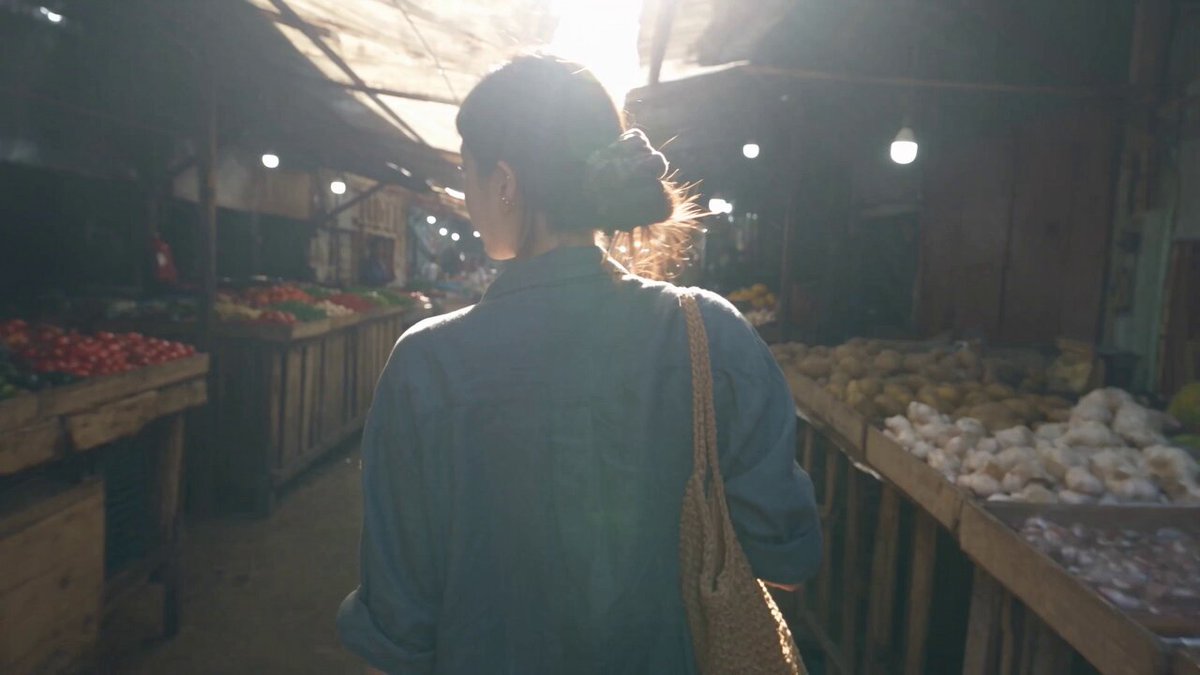
If you are not on camera, you can still borrow this mechanic. Use a face in the generated plate, or use a gesture — a hand pointing, a hand holding an object, a body turned away mid-motion. Directional cues matter too: an arrow, a gaze, or a pointing finger that leads the eye toward your text increases the chance the text gets read.
Where AI image generation genuinely helps
AI generators are strongest in three thumbnail jobs:
Concept exploration. You have an idea for a visual metaphor but no way to shoot it. A generator gives you twenty variations in a few minutes, which is enough to kill bad ideas early.
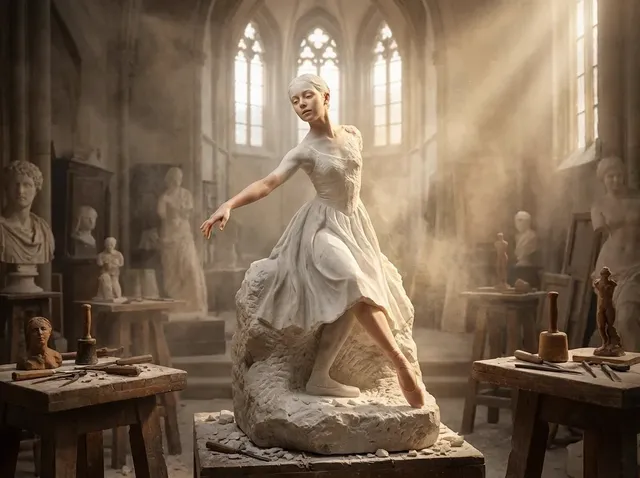
Background plates. You need a stylized environment — a neon city, a clean studio, a surreal landscape — behind your subject. This is the single highest-value use case, because backgrounds are the easiest thing to shoot badly and the easiest thing to generate well.
Texture, props, and inserts. Close-ups of objects, abstract gradients, paper textures, and light flares that you can composite into a montage layout.
Where they struggle:
- Reproducing your own face or brand character consistently across a series.
- Rendering accurate logos, product packaging, or readable type.
- Matching a very specific existing brand palette without careful prompting.
- Producing frames that hold up when someone actually looks at them for more than half a second.
Knowing this boundary saves a lot of wasted generation time. Use AI for what it does well and finish the rest by hand.
Choosing a generator: matching tools to thumbnail jobs
Different generators have different strengths, and the right choice depends on what kind of cover you are building.
Photorealistic environment and subject plates. Diffusion-style models with strong photographic training are the workhorse here. They handle skin texture, lighting, depth of field, and lens characteristics convincingly. You prompt for camera language — focal length, aperture, lighting direction — and you get something that reads as a real photograph.
Illustration and stylized branding. Models tuned toward illustration, anime, or graphic-novel aesthetics are better when your channel has a consistent drawn identity. Consistency matters more than realism here; a recognizable style is a retention asset across your whole grid.
Text and layout-heavy covers. Some newer models handle short strings of text far better than older ones. Even so, treat any generated text as a placeholder. It is useful for composition — you can see where a headline should sit and how large it should be — but retype it yourself in the final pass.
Compositing and retouching. Whatever generated the base image, you will finish in a layer-based editor. Generative fill inside a design suite is excellent for extending a background, removing a distracting object, or expanding a tight crop to a wider aspect ratio without stretching.
Template-driven production. If you publish daily, a template system beats a generation system. Build four or five cover layouts that you can drop new plates and new headlines into. Consistency compounds; reinvention every day does not.
A sensible stack for most solo creators: one generative model for plates, one layer-based editor for type and compositing, and one template file per content format.
A repeatable thumbnail production workflow
Step 1 — Write the cover promise before you prompt
Finish this sentence: "This cover tells the viewer they will get ______." If you cannot fill it in with something specific, the image will not save the video.
Examples of strong, specific promises:
- "This is what happens when you skip the setup step."
- "Three settings that changed my output quality."
- "The version everyone gets wrong."
Now translate that promise into a visual scene. A comparison promise suggests a split frame. A mistake promise suggests a reaction face plus a red circle. A tutorial promise suggests a clean, minimal frame with room for a number.
Step 2 — Generate wide, and generate more than you need
Generate at the widest aspect ratio you can reasonably use, then crop. Wide generations give you flexibility to reposition the subject for vertical framing later. Plan for at least eight to twelve variations per concept; the first four will almost always be generic.
Use a fixed prompt skeleton so variations are comparable:
[subject + action], [expression or gesture],
[background environment], [lighting direction and quality],
[camera: focal length, angle, distance],
[color palette], [mood], [negative: text, watermark, extra limbs]
Keeping the skeleton stable lets you change one variable at a time — outfit, lighting, angle — which is how you actually learn what the model responds to.
Step 3 — Composite in layers, never flatten early
A working layer stack for a cover image:
- Background plate (generated or photographed)
- Subject cutout with a subtle rim light
- Color grade or LUT layer for grid consistency
- Contrast vignette that darkens the text zone
- Headline text with stroke or shadow
- Small secondary element: arrow, number, badge, or icon
The vignette is the step most creators skip, and it is the one that makes text readable without an ugly box behind it.
Step 4 — Preview it small, then compress it well
Shrink your cover to roughly 150 pixels wide. If you cannot read the headline or identify the subject instantly, fix it at full size and check again. This test catches nearly every legibility problem before publishing.
Export clean. Thumbnails get recompressed aggressively by every platform, so avoid heavy noise, fine gradients, and very fine text strokes, all of which turn into mush. A slightly flatter, higher-contrast image survives compression better than a detailed one.
Prompt patterns that produce usable covers
Vague prompts produce decorative images. Specific prompts produce component images. Here are patterns worth stealing, adapted to common thumbnail archetypes.
The reaction frame. "Close-up portrait of a person reacting with wide-eyed surprise, three-quarter angle, soft key light from the left, clean dark teal background, shallow depth of field, 50mm lens, high contrast, negative space on the right side."
The negative-space instruction is the important part. It reserves room for your headline.
The split comparison. Generate two plates separately with identical lighting and camera settings, then place them side by side in your editor. Never try to get a model to render a single image that is cleanly split; you will fight seams and inconsistent lighting.
The object hero. "Macro shot of a single object centered on a seamless matte surface, dramatic side lighting, deep shadow falloff, muted background, sharp detail on the subject edge." Ideal for product, food, tech, and craft channels.
The surreal metaphor. "Person standing in an oversized empty office with floating paperwork, wide-angle, cool overhead light, cinematic color grade, subject positioned in the left third."
The checklist frame. Generate a clean, low-detail background with strong directional light, then build numbered badges and short labels yourself. Numbered-list covers work because the number is instant information.
A prompt-quality note: naming a lighting direction, a lens, and a color palette does more for realism than stacking aesthetic adjectives. "Cinematic, beautiful, stunning, 8k" changes almost nothing. "Hard side light, 85mm, cool shadows with warm highlights" changes everything.
Common mistakes and how to fix them
Too many elements. If the cover has a subject, three text blocks, a logo, an arrow, and a border, nothing reads. Fix: one subject, one headline, at most one accent. Delete until it hurts.
Tiny text. Anything under roughly 8% of the image height disappears on mobile. Fix: size the headline so it occupies at least a quarter of the frame width.
Low contrast between text and background. Fix with a vignette, a soft gradient scrim, or a subtle text stroke — in that order of preference.
Generic AI look. The dead giveaway is uniform soft lighting, a subject centered with no intent, and a washed color palette. Fix: specify lighting direction and palette, crop aggressively off-center, and grade the final image so it matches your grid.
Ignoring your grid as a whole. Nine covers that each look good individually can look chaotic together. Fix: pick a two- or three-color palette and reuse it, and keep the headline in the same position across formats.
Misleading covers. A cover that promises something the video does not deliver buys a click and loses a follower. The thumbnail should compress your hook, not invent one.
Aspect ratio mismatch. Cropping a square generation into a vertical frame with a naive center crop chops heads. Fix: generate wide, reposition manually, and use generative fill to extend edges when the crop is too tight.
Testing, iteration, and measurement
Thumbnail optimization is a loop, not a one-time decision. The signals worth watching are early-retention at the first few seconds and, when available, the ratio of views that come from search and profile traffic.
A practical test cadence:
- Change the cover on older, high-performing videos to see whether it lifts profile traffic.
- When launching a new format, publish several variations of the cover style over a week rather than judging a single post.
- Track which visual pattern — reaction face, split comparison, object hero, checklist — correlates with your best-performing videos, and retire the ones that consistently underperform.
Keep a small swipe file. Every time a cover in your niche stops your own scroll, save it and note why: the color relationship, the facial expression, the text position, the amount of empty space. Patterns emerge fast, and they are more reliable than any general rule.
One caution: do not change the cover on a video that is currently trending. You will disrupt whatever distribution it has earned. Test on stable content.
FAQ
Can an AI image generator create the whole thumbnail, text included?
It can attempt it, but expect misspelled words and unstable letterforms. Generate the base image, then add type in a design tool for full control.
How many generations should I expect per usable cover?
Budget ten to twenty images per finished thumbnail. That sounds wasteful until you compare it to the time cost of a photo shoot or a stock-licensing search.
Is it a problem that other creators use the same models?
Only if you accept the default output. The differentiation comes from your lighting choices, your palette, your crop, and your type treatment. Those are decisions, not model features.
What aspect ratio should I work in?
Generate wide for flexibility, then compose the final cover in the vertical ratio your platform displays. Keep a master file at a generous resolution so you can re-export if the platform changes its grid.
Do faces really matter that much?
They help, but expression and framing matter more than presence. A clear, emotionally legible face beats a neutral one; a well-composed object or scene beats a poorly framed face.
How do I keep a consistent look across dozens of covers?
Lock three things: a lighting direction, a two-to-three color palette, and a headline position. Everything else can vary.
Should I use AI at all if I can shoot my own photos?
Yes, for backgrounds, textures, and concept testing. Your own photographs still make the strongest subject plates, because consistency of a real person across a grid is something generators still handle poorly.
Bringing it together
The creators who win the thumbnail game are not the ones with the most advanced model. They are the ones who treat the cover as a designed object with a single job: making the promise of the video legible in under a second. AI image generation removes the friction from that process — it gives you backgrounds, concepts, and variations fast enough to actually iterate. The judgment about what stays in the frame, what color the text is, and what the headline says is still yours. Build a template, test systematically, and let the grid do the branding work for you.

Alexander
More Blogs
Read MoreVidu Q4 Alternatives: 4K AI Video Models Compared (2026)
Vidu Q4 alternatives compared: Kling 4.0, Seedance 2.5, Wan 3.0, and Runway Gen-4 — 4K support, input modes, durations, audio, and what each costs in credits on Domer.
Top 4K AI Image Generators in 2026: 5 Models Compared on Real Costs
The top 4K AI image generators on Domer compared: Flux 3 Klein, Nano Banana 2.1, GPT Image 2.5, GPT Image 2, and Nano Banana Pro — 4K credit costs, reference limits, and speed.
Nano Banana 2.1 vs GPT Image 2.5: Which Image Model Should You Use? (2026)
Nano Banana 2.1 vs GPT Image 2.5 Flare compared: credit costs per resolution, aspect ratios, reference images, text rendering, and which tasks fit each model.