
AI Photo to Anime Generator: A Practical Workflow Guide
Oct 15, 2026
Why Photo-to-Anime Conversion Became a Core Creative Skill
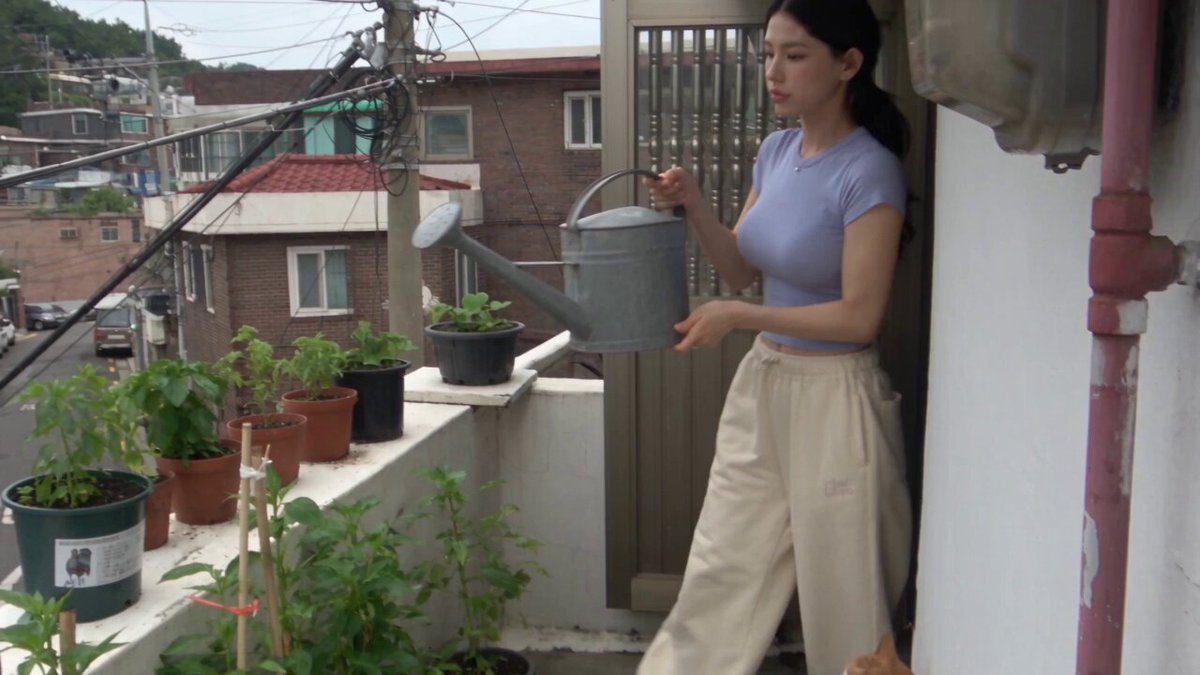
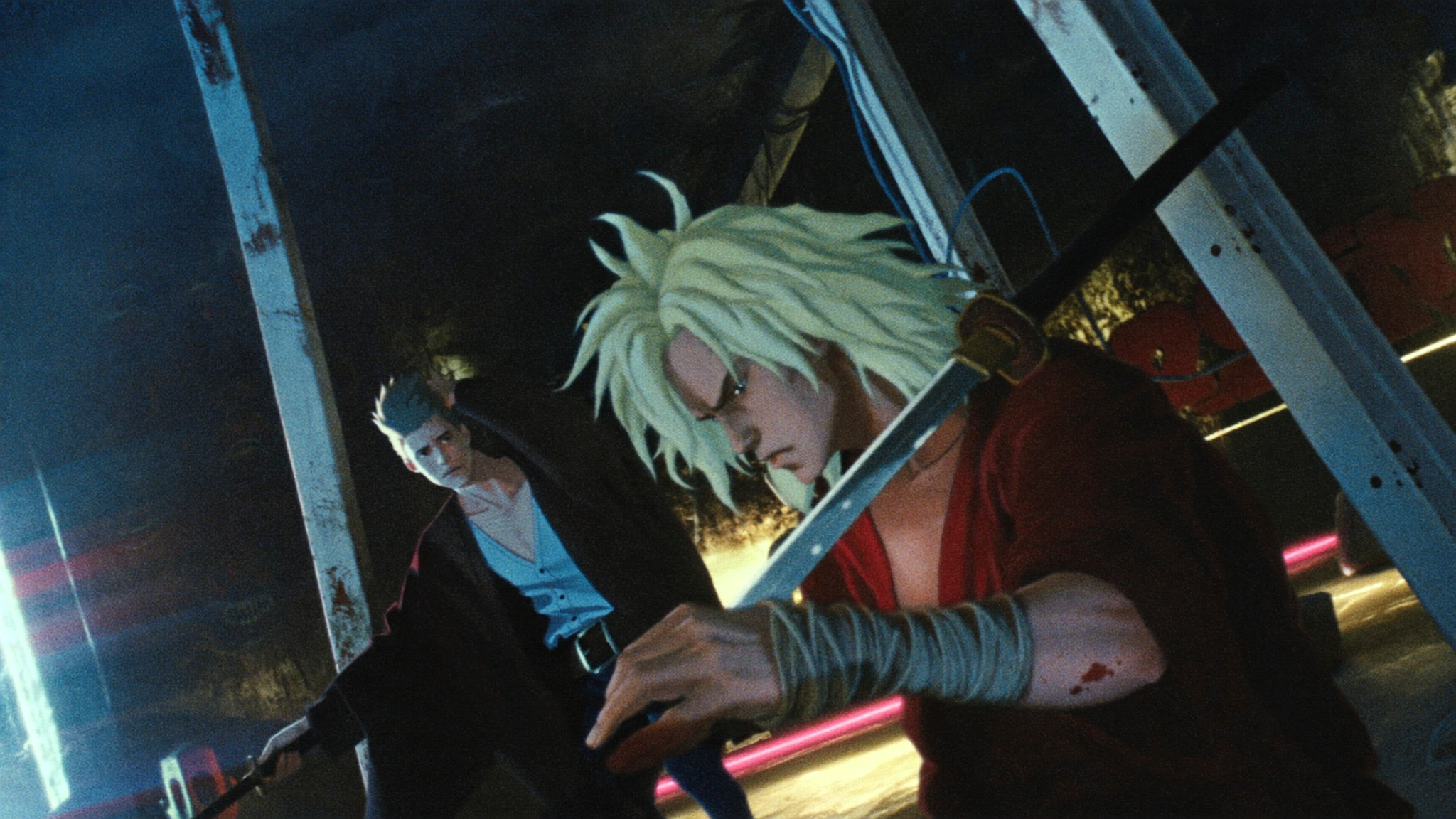
Turning a photograph into anime-style artwork used to require an illustrator, a reference folder, and hours of inking. Today it is a routine production step. Streamers build avatars from selfies, indie studios previsualize shorts before anyone draws a keyframe, illustrators generate lighting studies from location photos, and social teams turn product shots into stylized thumbnails that stop the scroll.
The reason is not that the technology suddenly became magic. It is that three separate capabilities converged: diffusion models that can learn a visual style from a relatively small set of examples, lightweight conditioning adapters that let you hold onto the structure of an existing photo, and consumer hardware that can run the whole thing locally in seconds. Together they turned stylizing a photo from a research demo into a controllable slider.
What these tools actually do is worth stating plainly, because it shapes every decision you will make. A photo-to-anime generator does not trace your image and repaint it. It re-synthesizes the image from noise while being nudged toward two competing goals: look like this style, and stay faithful to this photo. Nearly every frustrating result — a drifting face, melted hands, a background that ignores your composition — comes from that tension. Learning to balance it is the whole skill.
How Photo-to-Anime Conversion Actually Works
Structure versus style
Think of the process as two channels. The structure channel carries information about where things are: edges, depth, pose, silhouettes. The style channel carries information about how things look: line weight, palette, eye rendering, shading model, background treatment. A good workflow keeps these channels as separate as possible, because when they blur together you have no lever to pull when something goes wrong.
Conditioning: the part beginners skip
Most modern pipelines let you feed a structural map alongside the prompt. Depth maps preserve volume and camera perspective. Canny or line-art maps preserve silhouettes and hard edges. Pose skeletons lock limb positions. These are not advanced extras; they are the difference between the model guessing and the model being told.
What fine-tunes and adapters add
Base models know anime in general. Character-specific fine-tunes and small style adapters teach them one subject or one look in particular. That is why two people running the same prompt get wildly different results: one is using a generic checkpoint, the other is using a stylized checkpoint plus a character adapter. If consistency matters to your project, adapters matter more than prompt wording.
Why results still vary run to run
Sampling starts from noise, so identical settings can produce different faces. Seeded generation removes most of that variance. If you are producing a series, treat the seed as part of your project file, not as a setting you change casually.
Choosing the Right Tool for the Job
There is no single best generator. There is a best generator for the constraint you are working under — and the constraint is usually time, control, or hardware.
| Scenario | What to prioritize | Tool category |
|---|---|---|
| One-off portrait for social | Speed, pleasing defaults | Browser-based stylizer |
| Character sheet for a comic | Consistency, seeds, adapters | Desktop diffusion app |
| Style exploration | Fast iteration, batch grids | Local interface with queueing |
| Video clip from a still | Temporal coherence | Image-to-video model with style conditioning |
| Client work with usage terms | Output licensing clarity | Commercial platform with documented terms |
Four questions to ask before committing
How much control do you need? If the answer is that you want to change one specific thing, you need a tool that exposes conditioning and strength. If the answer is that you want something pretty in ten seconds, a preset-driven tool will beat a powerful one you never learn.
Local or hosted? Local generation gives you unlimited iteration, full privacy for sensitive photos, and no per-image cost — but it demands a capable GPU and an afternoon of setup. Hosted tools trade control and privacy for zero maintenance.
Does it need to move? Stills and video are different problems. Video models punish flicker, so a pipeline that produces beautiful stills may be unusable for animation without additional stabilization.
Who owns what? Check the license of the model weights and the terms attached to your outputs, especially for commercial work involving real people.
A Step-by-Step Photo-to-Anime Workflow
Step 1: Prepare the source photograph properly
Garbage in, stylized garbage out. Use a sharp, well-lit photo at roughly 1024–2048 pixels on the long edge. Avoid harsh flash, deep shadows across the face, motion blur, and heavy compression. Crop tight enough that the subject occupies most of the frame, and remove distracting background clutter before generation — it is far easier to delete a lamppost in seconds now than to fight it through twenty generations later.
Step 2: Choose a reference style, not an adjective
Anime style as a phrase is not a specification. Collect three to five frames that show the look you want and write down what they share: line weight, eye highlights, whether shading is flat cel or soft gradient, background detail level, palette temperature. You are building a small style brief. It will make your prompts sharper and your rejections faster.
Step 3: Separate subject from style in the prompt
A reliable prompt skeleton:
[subject, pose, framing] + [style era and rendering] + [palette and lighting] + [quality anchors]
For example: a young woman in a denim jacket, three-quarter view, waist-up portrait; cel-shaded animation style with clean line art and two-tone shading; warm sunset palette, rim light on hair; high detail on face, simple background. Note that every clause does one job. When a result disappoints, you can change one clause instead of rewriting everything.
Step 4: Tune transformation strength deliberately
Most tools expose a strength, denoise, or creativity slider. Low values keep the photo's identity and add a filter-like style layer. Middle values produce a convincing character that still resembles the subject. High values ignore the source and invent a new person who happens to share a pose. For likeness-preserving work, start in the middle and move in small increments; for concept art, push higher on purpose.
Step 5: Add structural control for anything that must not drift
If the face must match, condition on the photo. If the pose must match, condition on pose. If the composition must match, condition on depth. Stacking two or three controls is normal in professional work and dramatically reduces retries.
Step 6: Fix the details that always break
Eyes, hands, glasses frames, teeth, earrings, hair strands, and background text are the recurring failure points. Cleanup options, in order of effort: generate a few variations and pick the best; use an inpainting pass on the problem region; composite the original detail back in and re-stylize only that area at low strength.
Step 7: Upscale, then re-detail
Native output resolution is usually too small for print or large screens. Upscale two times, then run a light second pass at low strength to restore crisp line work. Avoid aggressive sharpening; it amplifies the plastic texture that makes AI images easy to spot.
Step 8: Grade the final image
A quick color grade, slight grain, and consistent contrast across a set will do more for perceived quality than another twenty generations. If you are producing a series, apply the same grade to every image.
Keeping Characters Consistent Across Many Images
Consistency is where hobby projects and production projects diverge. The reliable method is to lock everything that does not need to change:
- Seed: fix it, record it, reuse it.
- Checkpoint and adapters: keep the same style model and character adapter for the entire project.
- Prompt block: store the subject-and-style text as a reusable snippet.
- Reference image: use the same canonical portrait for identity conditioning.
- Vary only: pose, camera angle, expression, wardrobe, and lighting.
Then stress-test. Generate a front view, a profile, and an extreme close-up before you commit to a full set. If the character survives those three, the rest of the project will be smooth. If the profile looks like a different person, fix the identity conditioning now rather than after fifty images.
From Still Images to Motion: Anime Video Workflows
Anime video adds a temporal dimension that punishes every inconsistency. Three approaches dominate.
Image-to-video from a styled still. Style your keyframe first, then let a video model animate it with a modest motion prompt. This is the fastest route to a short clip and preserves your carefully tuned still.
Frame-by-frame stylization. Style every frame of real footage with the same seed and strength. Effective for dance and sports clips, but flicker appears quickly. Stabilize the source footage first, keep strength moderate, and be prepared to smooth results in post.
Keyframe interpolation. Style several key poses, interpolate between them, then run a cleanup pass. The most controllable approach for narrative work and the most labor-intensive.
Practical guidance for all three: keep clips short, work in three-to-five-second segments, hold the seed constant across a segment, and expect to composite. Sound design and music do an enormous amount of the this feels like anime work — do not skip audio.
Common Mistakes and How to Avoid Them
| Mistake | Why it happens | Fix |
|---|---|---|
| Over-stylizing to the point of losing the subject | Strength pushed too high | Lower strength, add identity conditioning |
| Plastic, over-smoothed faces | Too many refinement passes | Fewer passes, light grain, reduce sharpening |
| Inconsistent character between images | Seed and adapters not locked | Fix seed, reuse the same adapter and prompt block |
| Flat, dead backgrounds | Prompt mentions only the subject | Describe background style and detail level explicitly |
| Baked-in text artifacts | Real-world signage in the source | Remove or crop text before generation |
| Flicker in video | Per-frame variation | Stabilize source, lock seed, moderate strength |
| Unusable commercial output | Terms checked after delivery | Verify model and platform licenses before starting |
The meta-mistake, though, is treating generation as a single click. The people getting consistently good anime conversions are running a process: prepared inputs, separated style and structure, locked variables, and a short cleanup pass.
Style Recipes You Can Adapt
| Look | Prompt ingredients | Notes |
|---|---|---|
| Classic cel-shaded TV animation | clean line art, two-tone shading, limited palette, painted background | Reduce shading softness; keep backgrounds flatter than characters |
| Modern digital film anime | soft gradients, bloom, detailed eyes, cinematic lighting | Higher detail budget; watch for over-rendered skin |
| Painterly watercolor | visible brush texture, muted palette, soft edges | Works best on landscapes; keep faces simple |
| Neon cyberpunk | saturated magenta and cyan, wet reflections, rim light | Use depth conditioning; reflections drift easily |
| Manga ink | high-contrast black and white, screentone, hatching | Style from a photo, then add screentone manually for authenticity |
Treat these as starting points. The most distinctive results come from combining an unexpected palette with a restrained rendering style, not from stacking every descriptor you know.
Legal, Ethical, and Practical Considerations
If your source photo shows a real person, get consent before publishing a stylized version — a likeness does not stop being personal because it has been redrawn. For commercial projects, read the license attached to the model weights and the platform's output terms; they differ meaningfully. Be transparent about your process with clients, especially when the deliverable implies hand-drawn work. And when you study an artist's style in order to mimic it, consider whether you are making a tribute or competing with their commissions — that judgment is yours, but make it deliberately.
FAQ
How many images do I need for a consistent character? Often fewer than you expect for a single adapter, but the practical bottleneck is curation: twenty carefully selected images with varied angles beat two hundred near-duplicates.
Can I convert a group photo? Yes, but faces on the edges and occluded faces degrade fastest. Generate at higher resolution, condition on the full composition, and expect to inpaint individual faces.
Why does my output look like a photo with a filter? Your strength is too low or your prompt lacks style terms. Raise strength slightly and add explicit rendering descriptions such as line weight and shading type.
Why did the model change the character's clothes? The prompt is under-specified. Wardrobe needs its own clause, or it will be treated as creative freedom.
Do I need a powerful GPU? For batch work at high resolution, yes. For occasional single images, hosted tools are usually the smarter trade.
How do I make anime video without flicker? Stabilize the source, lock the seed, keep strength moderate, work in short segments, and smooth in post.
Is stylizing someone's photo without permission acceptable? For private experimentation, usually harmless. For publication, ask first.
What is the fastest path to a good result? A sharp source photo, a written style brief, separated style and structure conditioning, and one careful cleanup pass.
Where to Go Next
Start with a single photo and one paragraph of style notes. Run three generations at low, medium, and high strength, and compare them side by side until you can predict what the slider does. Then lock a seed, build a character sheet, and only after that attempt motion. The pipeline is not complicated; it is just unforgiving of skipped steps. Once you have a repeatable workflow, the tool stops being a slot machine and starts being a brush.

Alexander
More Blogs
Read MoreVidu Q4 Alternatives: 4K AI Video Models Compared (2026)
Vidu Q4 alternatives compared: Kling 4.0, Seedance 2.5, Wan 3.0, and Runway Gen-4 — 4K support, input modes, durations, audio, and what each costs in credits on Domer.
Top 4K AI Image Generators in 2026: 5 Models Compared on Real Costs
The top 4K AI image generators on Domer compared: Flux 3 Klein, Nano Banana 2.1, GPT Image 2.5, GPT Image 2, and Nano Banana Pro — 4K credit costs, reference limits, and speed.
Nano Banana 2.1 vs GPT Image 2.5: Which Image Model Should You Use? (2026)
Nano Banana 2.1 vs GPT Image 2.5 Flare compared: credit costs per resolution, aspect ratios, reference images, text rendering, and which tasks fit each model.