
AI Video Playground: Build a Repeatable Creative Workflow
Oct 14, 2026
What an AI Video Playground Actually Is
An AI video playground is a sandboxed workspace where several generative video models sit behind a single prompt box. Instead of installing, learning, and paying for each model separately, you write one prompt, pick a model from a list, and get a clip back. Then you change one variable and run it again.
The defining feature is not the number of models on the shelf. It is the comparison loop. A playground is built for iteration: same prompt, different model; same model, different seed; same seed, different camera instruction. The faster that loop runs, the faster you find the version of the shot that actually works.
Video generation is non-deterministic. The same prompt almost never produces the same clip twice, and a prompt that sings on one model can collapse on another. That means your real bottleneck is not creative vision, it is the number of controlled attempts you can make per hour. A playground removes the friction between attempts.
Most playgrounds share a common set of controls:
- A model selector, sometimes grouped by style or capability
- A prompt field with an optional negative prompt
- An input slot for a reference image or an existing video
- Duration, resolution, and aspect ratio settings
- A seed field, so you can lock a result you like
- A run history and output gallery you can revisit later
The term comes from machine learning research, where a "playground" was a safe environment for testing model behavior without touching production systems. Applied to video, it means the same thing: a place to be wrong quickly, cheaply, and without breaking anything downstream.
Why a Playground Beats Committing to One Model
Most creators start by picking a single tool and learning it deeply. That is a reasonable strategy for editing software. It is a poor strategy for generative video, because model strengths are genuinely different and they change fast.
Consider the range of shots in a single thirty-second commercial:
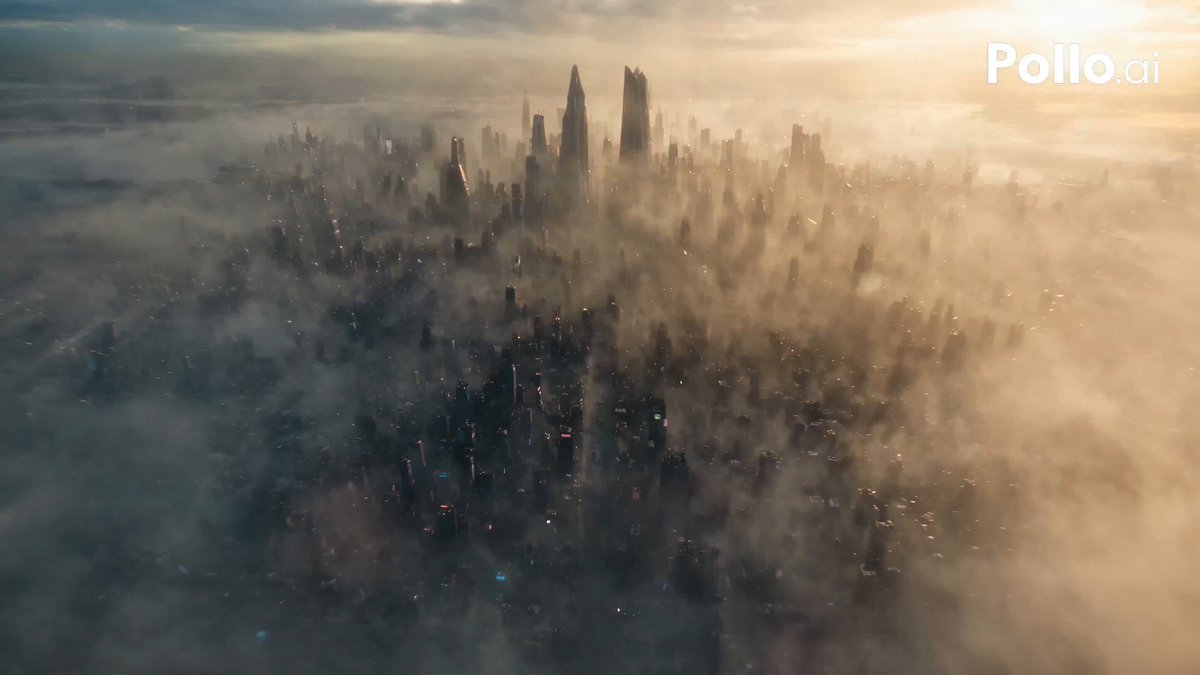
- A wide establishing shot of a city at dusk
- A close-up of a hand turning a dial
- A stylized animated transition
- A talking-head line delivered to camera
No single model is best at all four. A model that renders skin texture beautifully may struggle with fast lateral movement. A model that nails anime aesthetics may produce uncanny faces on live-action prompts. A model tuned for cinematic camera moves may refuse to hold a product's logo shape.
A playground lets you route each shot to the model that handles it best, then match the outputs in post. That is not a workaround. It is how professional studios already work with traditional tools, and it is how you should think about generated footage.
There is also a practical hardware argument. Running video models locally demands serious GPU memory, and the requirements shift with every new release. Cloud playgrounds move that burden off your machine, which means a mid-range laptop can produce the same output as a workstation.
| Shot type | What to prioritize | Common pitfall |
|---|---|---|
| Dialogue close-up | Facial stability, lip coherence | Identity drift between takes |
| Action beat | Frame-to-frame motion coherence | Smearing on fast pans |
| Establishing wide | Depth, atmospheric light | Flat, over-smooth textures |
| Product macro | Shape retention, label accuracy | Melting geometry |
| Stylized/animated | Consistent art direction | Style flicker across shots |
Setting Up Your Playground Before You Generate Anything
The biggest productivity gains happen before the first prompt. Setup is boring and it saves hours.
Build a reference library first. Collect character sheets, location plates, style frames, and colour palettes. Store them in a single folder with predictable names. When you need to feed an image into an image-to-video model, you should not be hunting through downloads.
Lock your aspect ratio and resolution early. A 16:9 narrative project and a 9:16 vertical project need different framing, different camera language, and often different models. Switching later means regenerating everything.
Decide your clip length policy. Most models drift, warp, or lose coherence past a certain duration. Find that ceiling for your chosen model and write your shot list around it. A four-second shot that holds is worth more than an eight-second shot you have to hide in the edit.
Create a prompt log. A simple spreadsheet with columns for shot number, prompt, model, seed, settings, and a verdict is enough. Without it, you will re-run failures you already diagnosed two days earlier.
Set content guardrails. Know what your models will refuse and what your brand will not accept. Avoid prompts that recreate a real person's likeness without permission, and be careful with logos, trademarks, and recognisable locations. If the output will run commercially, check the licence terms of every model you use before you build a pipeline around it.
Define a kill switch. Agree in advance how many attempts a shot gets before you change approach. Ten runs with no usable frame means the prompt, not the seed, is the problem.
Choosing the Right Model for the Shot
Model selection is a decision, not a preference. Work through these three filters in order.
Match the model to the motion type
Slow, controlled motion is a different technical problem from fast motion. Models that excel at drifting camera moves and atmospheric scenes often fall apart when asked to render a sprint, a punch, or a spinning object. If your shot requires speed, test the same prompt across at least three models before committing.
Decide between consistency and spectacle
Some models are built for visual impact in a single frame. Others are built to hold a character's identity across a sequence. You usually cannot maximise both. For a one-off hero shot, chase spectacle. For a six-shot narrative with the same protagonist, prioritise consistency even if each individual frame is slightly less striking.
Read the gallery with suspicion
Model showcase pages display best-case outputs, often hand-picked from hundreds of runs. Look specifically for hands, crowds, text, and reflective surfaces, because those are where models fail most visibly. Then test with your own material. A five-run test with your actual prompt tells you more than an hour of browsing.
Useful criteria to compare side by side:
- Cost per generation and how usage is metered
- Maximum clip duration and supported aspect ratios
- Image-to-video and video-to-video support
- Seed locking and reproducibility
- Style controls or reference-image guidance
- Commercial usage terms
- Queue times during peak hours
Prompting for Motion: A Structure That Works
Most weak video prompts are long, adjective-heavy, and vague about what actually moves. A useful prompt describes a moment in time, not a mood board.
Use a six-part skeleton:
- Subject — who or what, with one or two specific details
- Action — a single present-tense verb phrase
- Camera — movement, lens, and framing
- Environment — location, time of day, weather
- Light — direction, quality, colour temperature
- Look — film stock, grain, colour grade, era
A weak version: "Beautiful cinematic emotional shot of a woman looking sad in a city, gorgeous lighting, 8k, masterpiece."
A working version: "A woman in a charcoal wool coat stands at a rain-slicked crosswalk, lifting her chin as the signal changes. Slow dolly-in, 50mm, shallow depth of field. Overcast dusk, sodium streetlights behind her. Cool blue grade with warm practical highlights, subtle 35mm grain."
The second prompt gives the model something to animate. The first gives it a mood it cannot translate into motion.
A few rules that survive across models:
- One action per clip. Two actions in one prompt usually produce neither.
- Describe camera movement explicitly. "Dolly in," "handheld follow," "static locked-off frame" all meaningfully change output.
- Use negative prompts for persistent artefacts: extra limbs, warped hands, text overlays, flicker.
- Change one variable at a time. If you alter subject, camera, and lighting simultaneously, you learn nothing from the result.
- Lock the seed once you find a composition you like, then iterate the action or camera only.
The Six-Stage Workflow From Concept to Final Cut
This is the loop that turns a playground session into finished material.
Stage 1: Break the script into shots
Write a shot list with one row per clip: shot number, description, duration, and priority. Mark which shots are hero shots and which are connective tissue. Hero shots earn more attempts.
Stage 2: Develop the look in stills
Before generating any video, generate still frames. Stills are faster, cheaper, and easier to judge. Iterate on composition, lighting, and colour until you have a consistent visual language across the sequence. This step alone typically eliminates half the wasted video runs.
Stage 3: Draft and test prompts at low cost
Run short, low-resolution versions of each shot. The goal is not quality, it is confirmation that the motion reads correctly and the composition holds. Keep the good prompts, delete the rest.
Stage 4: Generate hero takes
Now run at full duration and resolution. Generate multiple seeds per shot rather than accepting the first acceptable result. Three to five takes per shot is a reasonable baseline, more for hero moments.
Stage 5: Assemble the sequence
The edit is where generated clips become a film. Lay clips on a timeline, cut on motion, and watch the whole thing without effects. If the sequence does not work at this stage, no amount of polish will save it.
Stage 6: Repair and polish
Upscale, stabilise, retime, and clean up artefacts. Add sound design, music, and any motion graphics. This is also where you fix the seams between clips from different models.
Testing Discipline: How to Experiment Without Wasting Budget
Playgrounds usually meter usage, so experimentation has a real cost. A few habits keep that cost low.
Storyboard in stills. As noted above, a still frame is a fraction of the cost of a video clip and answers most composition questions.
Test small, finish big. Run your experiments at the shortest duration and lowest resolution the model allows. Only the final take needs full quality.
Batch by theme. Group all your close-ups into one session and all your wides into another. Switching between shot types constantly means re-learning the prompt dialect each time.
Keep a kill list. Note prompts and model combinations that consistently fail. Review it before starting a new session so you do not repeat dead ends.
Time-box each shot. Twenty minutes per shot is a workable limit for most short-form projects. When the timer ends, either accept the best take or escalate to a different model or a different framing.
Archive your winners. Save the prompt, seed, model, and settings for every shot you keep. If a client asks for a revision three weeks later, you can rebuild the shot instead of starting over.
Common Mistakes in AI Video Playgrounds
Prompting in one giant paragraph. Long prompts dilute attention. Structure beats volume.
Testing everything at once. Changing model, prompt, seed, and duration in a single session produces results you cannot interpret.
Ignoring aspect ratio until post. Cropping a 16:9 clip into vertical loses composition and often cuts the subject's head off.
Chasing one perfect clip. Ten usable takes edit better than one flawless take, because the edit needs options.
Forgetting screen direction. If a character walks left in one shot and right in the next, the audience reads it as a jump. Plan continuity across shots, not just within them.
Overusing slow motion and camera pushes. These are the default motions models do well, which is exactly why they become visual clichés when every clip uses them.
Neglecting audio. Generated clips are silent. Without foley, ambience, and music, even strong visuals feel unfinished.
Skipping colour matching. Different models have different colour science. Grade each clip toward a common reference before you export.
Post-Production: Turning Clips Into a Sequence
Generated footage needs the same discipline as camera footage, plus a little more patience.
Start by transcoding everything to a consistent codec and frame rate, and build proxies if your timeline gets heavy. Assemble the rough cut on motion and rhythm: cut when the movement peaks, not when the clip ends. Generated clips rarely have natural cut points, so you create them.
Stabilisation is often mandatory. Many models introduce micro-jitter that is invisible frame by frame but obvious in motion. A light stabilisation pass fixes most of it; aggressive settings will warp faces, so keep the strength moderate.
Retiming is your friend. A four-second clip can become a two-second beat or a six-second drift with a modest speed change, and slight speed adjustments help clips from different models feel like they belong to the same scene.
Colour is where sequences come together. Build a reference frame, then match every clip to it using exposure, white balance, and a shared look. A single global grade over the whole timeline often does more than per-clip fiddling.
Finally, sound. Lay ambience first, then foley, then music. Sound design is what makes a generated sequence feel intentional rather than assembled.
FAQ
Do I need a powerful computer to use a video playground?
No. Cloud-based playgrounds do the rendering remotely, so a mid-range laptop with a stable connection is enough. Local generation still requires a strong GPU, but a playground removes that requirement entirely.
How many attempts does a usable shot take?
Five to fifteen is a realistic range, with hero shots at the higher end. If you are consistently past twenty attempts without a keeper, the prompt or the model choice is wrong rather than unlucky.
Is image-to-video better than text-to-video?
Usually yes when you need control. Starting from a reference frame locks composition, character design, and colour, which leaves the model free to focus on motion. Text-to-video is better for exploration and for shots where you want the model to surprise you.
How do I keep a character consistent across shots?
Use the same reference image, keep the prompt skeleton identical, lock the seed where the model supports it, and keep lighting direction consistent between shots. Consistency is a system, not a single setting.
How long should each generated clip be?
Three to five seconds is the sweet spot for most shots. Longer clips tend to drift, warp, or lose coherence. Build longer sequences from shorter shots rather than asking one clip to carry the whole scene.
Can I use playground output commercially?
It depends entirely on the model and the platform's terms. Check the licence for each model you use, keep records of what generated each shot, and avoid prompts that reproduce protected characters, real people's likenesses, or trademarked designs.
What if the model refuses my prompt?
Rewrite it around the same intent with different wording, remove anything resembling a real person or brand, and simplify the scene. Refusals are usually about phrasing, not concept.
Do I still need an editor if I am generating everything?
More than ever. Generation gives you raw material; editing gives it meaning. Cutting, pacing, colour, and sound are what separate a folder of clips from a finished piece.
The playground is not a shortcut around craft. It is a faster way to reach the decisions craft depends on. Set up your workspace, route each shot to the right model, keep a log of what worked, and treat the edit as the real destination from the first prompt onward.

Alexander
More Blogs
Read MoreVidu Q4 Alternatives: 4K AI Video Models Compared (2026)
Vidu Q4 alternatives compared: Kling 4.0, Seedance 2.5, Wan 3.0, and Runway Gen-4 — 4K support, input modes, durations, audio, and what each costs in credits on Domer.
Top 4K AI Image Generators in 2026: 5 Models Compared on Real Costs
The top 4K AI image generators on Domer compared: Flux 3 Klein, Nano Banana 2.1, GPT Image 2.5, GPT Image 2, and Nano Banana Pro — 4K credit costs, reference limits, and speed.
Nano Banana 2.1 vs GPT Image 2.5: Which Image Model Should You Use? (2026)
Nano Banana 2.1 vs GPT Image 2.5 Flare compared: credit costs per resolution, aspect ratios, reference images, text rendering, and which tasks fit each model.