
作成
AI Video Transitions: Pro Effects Without Complex Editing
Oct 15, 2026
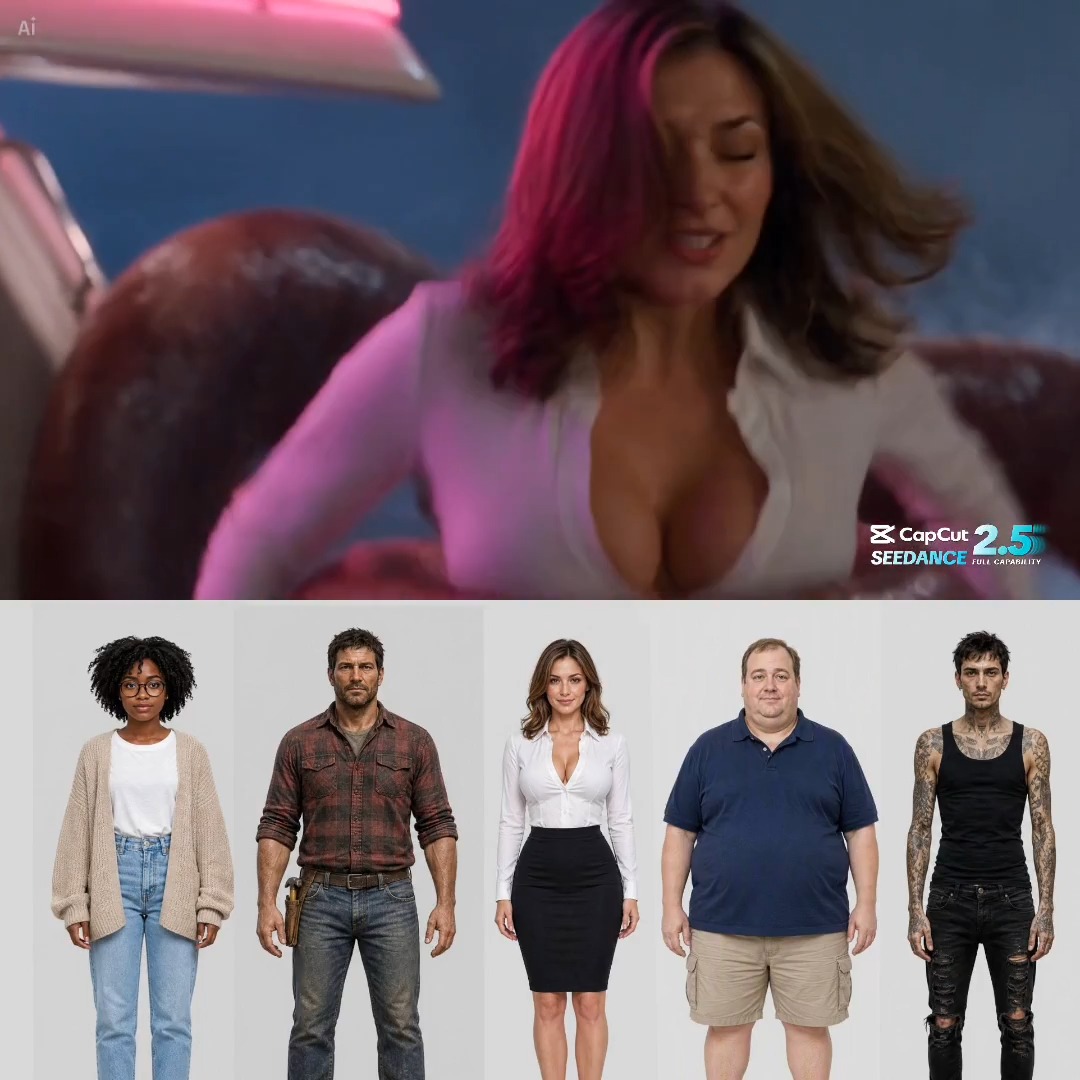
A transition is a promise. When a cut lands well, viewers never notice it; when it lands badly, the whole edit feels amateur even when the footage is beautiful. That is why transitions eat so much post-production time, and why AI-assisted tools have become so attractive to editors who would rather spend their hours on story than on keyframes.
Traditional transitions demand masking, keyframing, speed ramps, and rounds of trial and error in software like Adobe After Effects or the Fusion page in DaVinci Resolve. AI-assisted transitions flip the order of operations: instead of building an effect from nothing, you point a model at two shots, describe the intent, and get a finished result that respects the motion, color, and rhythm of both clips. You then judge, adjust, or discard. That loop is dramatically faster.
This guide explains how these systems actually work, which transition styles earn their place, a repeatable workflow you can run on every project, and the mistakes that make generated effects look cheap.
Why Transitions Make or Break a Cut
A transition is punctuation, not decoration. A hard cut says "next thought, same context." A dissolve says "time passed" or "we are drifting into memory." A whip pan says "hold on, we are moving fast." When punctuation and meaning disagree, the audience feels it even if they cannot name the problem. A slow cross-dissolve in the middle of a fight scene drains tension. A glitch effect dropped onto a tender interview devalues the moment.
The second reason transitions matter is rhythm. Editing is largely the management of expectation: you establish a pace, then either satisfy it or break it deliberately. Transitions are one of the loudest tools you have for controlling that pace. Used sparingly, a stylized transition becomes an event the viewer remembers. Used on every cut, it becomes wallpaper, and the story disappears behind technique.
A useful rule of thumb: if you can remove a transition and the scene still reads clearly, the transition is probably stylistic and should be rare. If removing it makes the scene confusing, the transition is doing structural work and belongs there.
How AI Transition Engines Actually Work
Under the marketing language, most AI transition systems combine four technical jobs. Understanding them helps you predict where a tool will succeed and where it will produce mush.
Scene analysis and frame prediction
The model samples frames from the outgoing and incoming clips, then estimates camera motion, subject motion, depth ordering, and color distribution. From that, it predicts which frames make the best handoff point. In practice this means the system may suggest shifting your cut three frames earlier because the subject's shoulder sweep creates a natural wipe. That kind of suggestion is where AI saves real time, because finding those frames manually is the slowest part of hand-built transitions.
Style-adaptive effect selection
Once the handoff is chosen, the engine picks or blends an effect family: optical dissolve, motion blur push, light leak, glitch, morph. Many tools let you bias the choice with a text prompt, a reference clip, or a preset pack. The better systems treat style as a constraint, not a filter, meaning the effect changes shape to fit the footage rather than sitting on top of it like a sticker.
Temporal consistency and warp control
This is the hardest part and the most common failure point. When two shots have different subjects in different positions, a naive morph produces melting faces and rubbery limbs. Strong engines generate intermediate frames with consistency checks so objects keep their identity across the blend, and they limit warp to regions where motion vectors support it. If a tool offers a "warp strength" or "smoothness" slider, that slider is your main defense against uncanny artifacts.
Motion-aware interpolation
Finally, the system generates new frames between the two clips so motion continues rather than stutters. This is what makes a speed ramp feel like one continuous camera move instead of two clips glued together. Interpolation quality depends heavily on source frame rate and shutter angle; 24fps footage with natural motion blur interpolates better than 60fps footage shot at a high shutter speed, which often looks brittle when retimed.
Transition Types and When Each Works
Not every transition deserves a place in your library. These five categories cover most real editing needs.
Motion-matched cuts and match cuts
The most invisible and most professional option. The model finds a moment where motion direction, speed, or shape aligns across two shots, then tightens the timing so the cut feels inevitable. Use it for dialogue scenes, documentary sequences, and any montage where you want energy without visible technique. If you only adopt one AI-assisted transition behavior, adopt this one.
Light, color, and gradient wipes
A flare sweeps across the frame and the next scene emerges from it. This works best when the outgoing clip already has a bright source near the edge of frame, or when you are moving between locations and want a soft sense of travel. Overused, it becomes a signature tic. Keep it for scene-level changes, not shot-level ones.
Glitch, datamosh, and stylized energy
High-impact, high-risk. These effects suit music videos, gaming content, tech explainers, and title sequences. They read as commentary on the footage itself, which is exactly why they clash with sincere material. Apply them where the edit is already stylized, and dial intensity down by 20 percent from what feels right in the moment. Reviewers almost always prefer the restrained version.
Morphs and shape-based transitions
One object becomes another: a coffee cup becomes a moon, a doorway becomes a screen. This is the most impressive category and the most dependent on source material quality. It needs a clear subject, a clean background, and similarity in silhouette or position. When those conditions hold, AI morphs can look like a high-budget visual effect. When they do not, the result is a smear.
Speed ramps and whip pans
These are transitions in the editing sense rather than the overlap sense. The engine accelerates the tail of clip A and decelerates the head of clip B so the two shots read as one continuous movement. This is the single most useful technique for travel, sports, and product content, because it disguises a location change as momentum.
A Practical Workflow, From Rough Cut to Final Polish
The difference between a polished edit and a mess of effects is almost never the tool. It is the order of operations. Run this sequence and you will avoid most trouble.
Lock the story first
Do not touch transitions until the structure is settled. Every clip you move later invalidates the handoff frames the model calculated. Edit to a locked picture, ideally with a scratch music bed and a rough audio mix, then begin styling.
Mark transition intent on the timeline
Go through the cut and tag each junction with a purpose: "time passing," "location change," "energy spike," "hard continuation." Most junctions should be plain cuts. On a typical three-minute piece, expect maybe five to eight intentional transitions, and only two or three that are visibly stylized. Marking intent before generating anything prevents the common trap of styling cuts that did not need help.
Generate candidates in batches
Generate three to five options per marked junction rather than one. Variation matters because the model's best output often is not the one that looks most impressive in isolation; it is the one that supports the surrounding rhythm. Batch generating also keeps you in a review mindset instead of a tinkering mindset.
Review fast and pick one
Watch each option twice at normal speed with sound on. If you cannot decide in two passes, the transition is not strong enough and a hard cut is the better answer. Watching with sound matters because audio continuity often determines whether a visual blend feels smooth, and mute review hides that.
Clean up seams, audio, and framing
AI transitions can introduce a one- or two-frame flash, a subtle color shift, or a slight reframing at the blend point. Fix color with a matched grade across the junction, fix audio with a short crossfade or a split edit, and fix framing by nudging the incoming clip's scale by a percent or two. These small repairs are what separate a generated effect from a designed one.
Version and archive your settings
Save the chosen preset, prompt, and slider values in a project note. When a client asks for "the same feel as the opening," you will be able to reproduce it instead of hunting through bins, and a returning series can inherit the exact look without guesswork.
Keeping Style Consistent Across a Series
A single video is a project. A series is a system. If every episode uses different transition logic, viewers lose the sense of a show, even if the graphics package is identical.
Build a small transition kit and document it. A typical kit contains one dominant scene-change transition, one accent transition for energy moments, one soft transition for emotional beats, and a rule that everything else is a hard cut. Write down when each is allowed. The constraint is what creates the identity.
Consistency also comes from shared parameters rather than shared effects. Two episodes can use different visual treatments and still feel like siblings if duration, easing curve, and audio treatment match. Duration matters most: a 12-frame dissolve reads as a system, while randomly mixing 6-frame and 30-frame dissolves reads as indecision.
Common Mistakes and How to Fix Them
Transitions on every cut. The fastest way to make generated effects feel cheap. Fix it by reverting to hard cuts and keeping stylized transitions for scene changes only.
Ignoring motion direction. Two shots moving in opposite directions fight each other. Reverse the incoming clip horizontally, or choose a transition that reinterprets the motion instead of blending it directly.
Wrong duration for the music. A transition that lands off the beat feels broken even when the visuals are clean. Align the midpoint of the effect with the musical accent, not its start.
Over-warping faces. Any time a human face passes through the middle of a blend, artifacts become obvious. Shorten the transition, increase smoothness, or cut so the face is not the transition subject.
Forgetting audio. A perfect visual blend with an abrupt audio cut still reads as a mistake. Always handle the sound at the same junction.
Styling before locking picture. Every moved clip invalidates prior work. Lock the edit first, then style.
Rendering, Hardware, and Realistic Expectations
AI transitions are compute-heavy. Frame interpolation and warping stress the GPU far more than a standard dissolve, and a project full of them can turn a ten-minute export into an hour. Practical mitigations: render transition-heavy sections to intermediate files, work at a lower playback resolution, and keep source footage in a consistent codec so the engine is not fighting varied compression artifacts.
Expectations matter too. These tools excel at continuity, speed, and consistency. They are weakest at making a poorly framed pair of shots look intentional, and they cannot invent coverage that does not exist. The strongest results come from footage that is already well exposed with clear motion paths.
Choosing the Right Tool for Your Setup
Match the tool to the bottleneck you actually have. If your problem is finding the best cut point, you want a tool with strong scene analysis. If your problem is a distinctive look, you want a tool with reference-based styling and prompt control. If your problem is volume, you want batch processing and saved presets.
Consider three practical factors: how the tool handles audio, whether it exports cleanly into your main editor, and how much manual override it gives you. A tool with fewer, better controls usually beats one with dozens of sliders, because you will actually learn it. For professional pipelines, prioritize non-destructive workflows that keep the original clips intact so you can regenerate an effect without rebuilding the edit.
Pre-Publish Quality Checklist
- Every visible transition has a reason you can state in one sentence.
- Transition midpoints align with musical or dialogue accents.
- Audio is crossfaded or split at every junction.
- Color matches across the blend, with no flash frames.
- No face, hand, or text warps during the effect.
- Duration is consistent with your series kit.
- The edit still reads clearly with transitions muted.
- Presets and settings are saved for reuse.
FAQ
Do AI transitions look artificial?
They look artificial when they are overused, over-warped, or mismatched to the tone. Motion-matched cuts and speed ramps are extremely hard to spot. Morphs and glitches announce themselves by design, so treat them as stylistic choices rather than invisible tools.
Can I use AI transitions on phone footage?
Yes, with caveats. Phone footage often has rolling shutter, variable frame rate, and heavy compression, all of which confuse motion estimation. Convert to a constant frame rate first, keep transitions short, and avoid morphs on handheld material. Motion-matched cuts work well if the phone was stabilized.
How many transitions should a video have?
Fewer than most editors think. For a three-minute piece, five to eight intentional transitions with two or three stylized ones is a healthy range. Documentary and interview content often needs only two or three across an entire episode.
Do AI transitions replace motion design skills?
No. They replace the mechanical labor of building an effect. Judging timing, choosing where emotion should shift, and knowing when restraint is better are still human decisions, and they are what separate a professional edit from a preset dump.
What should I do about audio during a transition?
Decide audio first, then choose the visual. A short crossfade, a hard cut on a syllable, or a sound design hit all create different feelings, and the visual effect should support that choice rather than being planned in isolation.
AI-assisted transitions are best understood as an accelerator, not an autopilot. They remove the tedious parts of matching motion, finding handoff frames, and interpolating movement, which lets you spend your attention on the decisions that actually shape a story. Learn one or two transition types deeply, build a small documented kit, keep hard cuts as your default, and reserve spectacle for the moments that have earned it.

Alexander
More Blogs
Read MoreVidu Q4 Alternatives: 4K AI Video Models Compared (2026)
Vidu Q4 alternatives compared: Kling 4.0, Seedance 2.5, Wan 3.0, and Runway Gen-4 — 4K support, input modes, durations, audio, and what each costs in credits on Domer.
Top 4K AI Image Generators in 2026: 5 Models Compared on Real Costs
The top 4K AI image generators on Domer compared: Flux 3 Klein, Nano Banana 2.1, GPT Image 2.5, GPT Image 2, and Nano Banana Pro — 4K credit costs, reference limits, and speed.
Nano Banana 2.1 vs GPT Image 2.5: Which Image Model Should You Use? (2026)
Nano Banana 2.1 vs GPT Image 2.5 Flare compared: credit costs per resolution, aspect ratios, reference images, text rendering, and which tasks fit each model.