
作成
Animated Image AI Generator: Turn Stills Into Motion
Oct 15, 2026
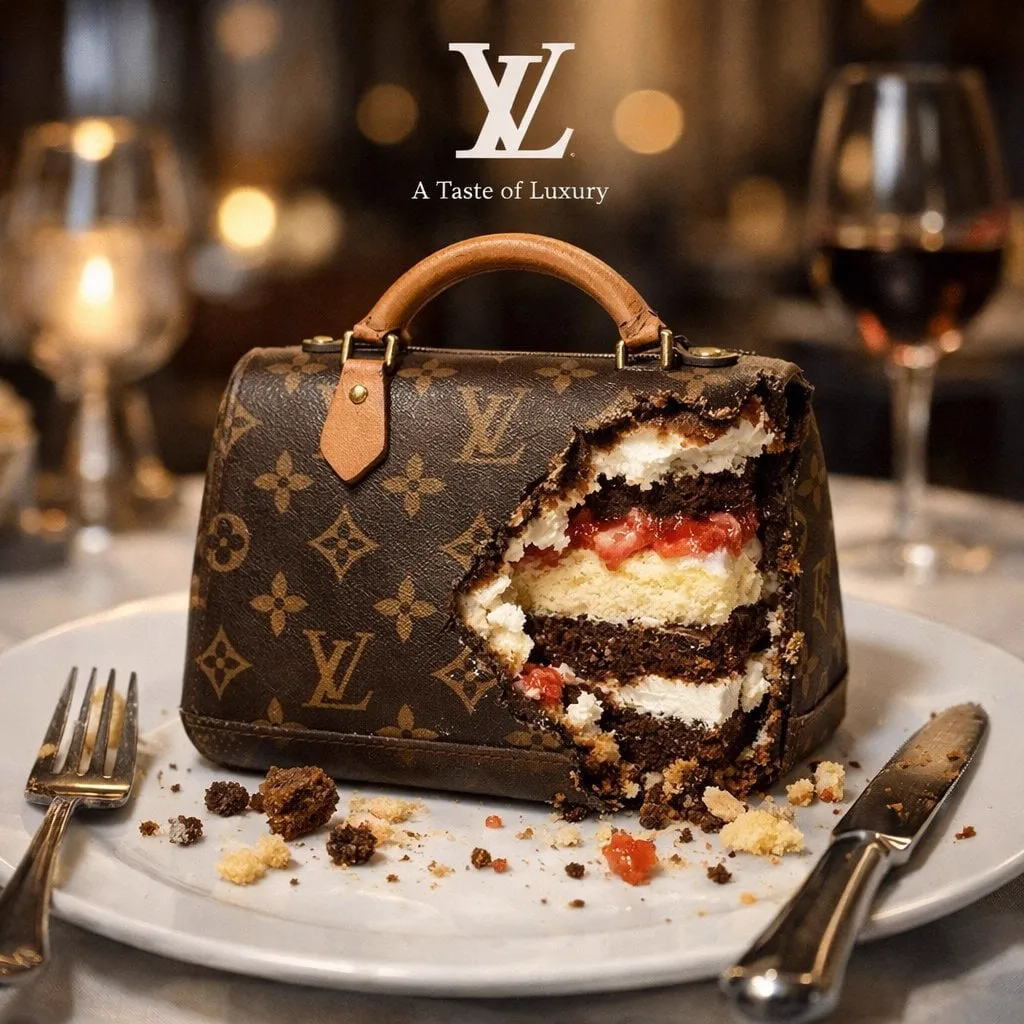
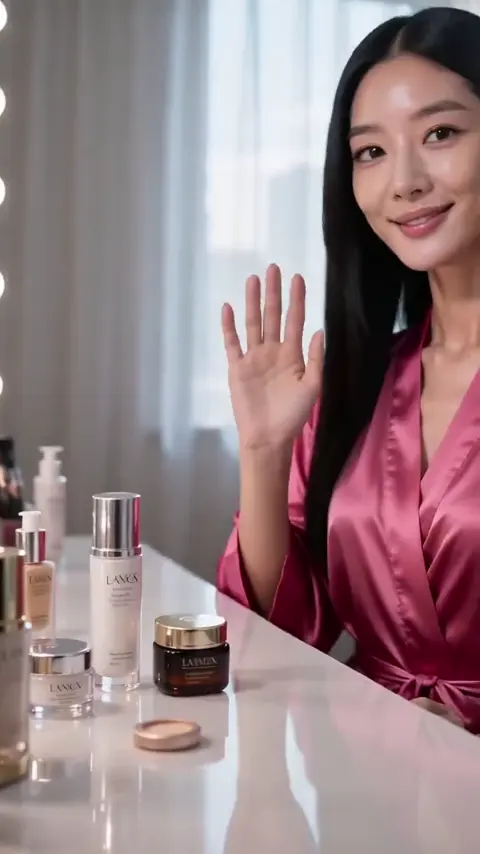
A single still image makes one argument: here is a thing, look at it. Motion makes a different argument: something is happening, keep watching. That gap between a static asset and a moving one used to require a motion designer, a timeline, and hours of keyframing. Animated image AI generators collapse most of that work into a prompt, a reference frame, and a short render pass.
The catch is that "instant" rarely means "effortless." The tools are fast, but the output quality still tracks the quality of your inputs and decisions. The rest of this guide walks through what these generators actually do under the hood, how to structure prompts that produce believable motion, how to keep a character looking like themselves across several shots, and how to run the whole thing as a repeatable workflow instead of a slot machine.
What an animated image generator actually does
It helps to separate three things that often get bundled under the same label, because they fail in different ways.
Text-to-image generation creates a still from a description. You control subject, style, lighting, and composition through language. The output has no temporal dimension at all.
Image-to-video generation takes an existing still and predicts what the next few seconds would look like. The model invents motion, parallax, and often subtle lighting changes to sell the illusion. This is what most people mean when they say animated image generator.
Motion loops and animated stills are a narrower case: a short, repeating clip used like a living GIF, often for backgrounds, avatars, or UI accents. The technical pipeline is similar, but the design goal is different — a loop has to close on itself without a visible seam.
Under the hood, modern image animation systems combine a diffusion-style image model with temporal layers that learn how pixels move between frames. A motion prior — learned from enormous amounts of video — tells the model that hair drifts, water ripples, fabric folds, and crowds shuffle. Your prompt and your reference image steer that prior toward a specific outcome.
That matters practically. Because the model is predicting plausible motion rather than simulating physics, it responds far better to clear, singular instructions than to dense, cinematic paragraphs. A prompt that asks for five simultaneous movements usually produces mush.
How the pipeline works, from still to clip
Step 1: Prepare the still
Garbage in, wobble out. Before anything else, make sure your source image is:
- Sharply focused on the subject. Blurry references produce jittery motion, because the model has no confident edges to track.
- Cleanly separated from the background. Strong subject/background contrast gives the model a clear signal about what should move and what should stay put.
- High enough resolution that upscaling is not required. A 512-pixel-wide source animates, but it animates small.
- Free of conflicting depth cues. A flat illustration animates differently from a photo with shallow depth of field, and mixing the two in one shot confuses the parallax.
Step 2: Write a motion prompt, not a scene prompt
This is the single biggest quality lever. A scene prompt describes what is in the frame; a motion prompt describes what changes.
Weak: "A woman in a red coat standing in a rainy city street, cinematic, moody lighting, 8k."
Strong: "Slow push-in on the woman; she turns her head slightly to the left; rain falls steadily; coat fabric shifts gently; background lights stay fixed."
The scene description is already handled by your reference image. Your words should be spent entirely on movement, camera behavior, and which elements must remain static.
Step 3: Choose duration and frame pacing
Most generators work in short bursts — typically two to ten seconds. Longer clips are usually assembled from several generations rather than produced in one pass. Frame pacing matters too: 24 fps reads as cinematic, 30 fps reads as broadcast or web-standard, and 60 fps reads as smooth but slightly clinical. For most social and product work, 24 or 30 fps is the practical default.
Step 4: Render, review, iterate
Generate two or three variations before judging anything. A single render is a sample, not a verdict. When a take fails, diagnose it by category — subject motion, camera motion, or stability — rather than rewriting the whole prompt and losing whatever was working.
Where animated stills earn their keep
The temptation is to animate everything. The better move is to animate where motion adds information rather than decoration.
| Use case | What motion adds | Typical length |
|---|---|---|
| Product hero shots | Shows texture, weight, and finish | 3–5 seconds |
| Explainer visuals | Directs attention to the right element | 2–4 seconds |
| Social loops | Stops the scroll without needing audio | 3–6 seconds |
| Character intros | Establishes personality through micro-expression | 4–8 seconds |
| Storyboards and pitch decks | Communicates camera intent before production | 2–3 seconds |
| Museum, editorial, and immersive displays | Creates ambient depth in a static layout | 6–15 seconds, looped |
Notice that almost none of these need a story. They need a gesture. That constraint is what makes AI animation genuinely useful rather than a novelty.
Prompt patterns that produce reliable motion
Once you have made a few dozen clips, a repeatable prompt skeleton becomes invaluable. A structure that holds up well:
- Camera instruction first. "Slow dolly in," "static camera," "gentle orbit to the right." Camera language is the most reliably obeyed instruction in most models.
- Primary subject action. One verb phrase only. "She blinks and smiles faintly." Not three actions chained.
- Secondary environmental motion. "Steam rises," "leaves drift," "dust motes float." Keep this slow and low-amplitude.
- Stability constraints. "Background architecture remains rigid," "no morphing of facial features," "hands stay still."
- Style and mood continuity. "Consistent with the source image; soft daylight; no color shift."
A comparison of common vague prompts against their workable rewrites:
| Vague | Workable |
|---|---|
| "Make it move" | "Static camera; subject breathes; hair moves slightly" |
| "Cinematic energy" | "Slow push-in; shallow depth of field maintained" |
| "Epic transformation" | "Subject raises one hand; lighting brightens gradually" |
| "Lots of motion" | "Fabric flows in wind; camera holds steady" |
The rewrite is not more poetic. It is more specific, which is what the model needs.
Camera language: the cheapest way to look expensive
Amateur animation looks amateur because the camera is dead. A locked-off camera with a moving subject reads as a test. A moving camera with a mostly still subject reads as a shot.
| Move | Effect | Best for |
| --- | --- |
| Slow push-in | Builds intimacy and focus | Portraits, product reveals |
| Pull-out | Reveals context, creates closure | Endings, chapter transitions |
| Lateral truck | Adds depth without distraction | Landscape, interiors, group scenes |
| Gentle orbit | Suggests three-dimensionality | Objects, sculptures, characters |
| Handheld drift | Adds documentary realism | Interviews, street scenes |
| Rack focus | Redirects attention instantly | Two-subject compositions |
| Tilt up | Suggests scale and grandeur | Architecture, tall subjects |
Two cautions. First, camera moves amplify any instability in the source image, so a slightly soft reference becomes visibly soft when it is pushed in. Second, combining two camera moves in one short clip — say, a push-in and a simultaneous orbit — almost always breaks the geometry. Pick one.
Keeping characters consistent across shots
Character drift is the most common complaint about image animation, and it is mostly a workflow problem rather than a model problem.
Lock the description, not just the image. Write a short, stable character block — age range, hair, wardrobe, distinguishing features — and reuse the exact same phrasing in every prompt. Paraphrasing a character description between shots invites the model to redesign them.
Reuse the same reference wherever possible. If your tool supports multiple references, feed the same primary character image into every shot rather than a similar-looking one.
Change one variable at a time. If shot one is a close-up in daylight and shot two is a wide shot at night, expect drift. Move lighting or framing, not both.
Keep clips short and hand off frames. Generate a three-second clip, extract its final frame, and use that as the opening frame for the next clip. This chains continuity forward with far less drift than generating each shot independently.
Accept that extreme angles break consistency. Profile views, heavy foreshortening, and unusual camera heights all reduce the model's ability to match facial geometry. Use them deliberately, and expect to spend more iterations.
Aspect ratio, duration, and export settings
Format decisions should be made before rendering, not after, because re-framing an animated clip involves cropping motion that was designed for a different frame.
| Destination | Aspect ratio | Practical duration |
|---|---|---|
| Vertical social feed | 9:16 | 3–6 seconds |
| Feed post | 4:5 or 1:1 | 2–5 seconds |
| Website hero | 16:9 or 21:9 | 5–10 seconds, looped |
| Presentation slide | 16:9 | 2–4 seconds |
| Digital signage | 16:9 or 9:16 | 10–20 seconds, looped |
Export at the highest quality your editing step supports, then compress once at the end. Re-compressing an already compressed animated clip produces banding in gradients and shimmer in fine textures — both very visible in motion.
Common mistakes and how to fix them
Asking for too much motion. The most frequent failure. Fix: one subject action, one camera instruction, one environmental detail.
Animating a low-detail image. Flat illustrations with large single-color areas give the model nothing to track. Fix: add texture, gradient, or subtle shading to the source before animating.
Ignoring the first frame. In many image-to-video systems the opening frame is your reference, and any mismatch between prompt and reference produces a visible snap in the first half-second. Fix: make the prompt describe motion that logically follows from the still.
Forgetting the loop. If the final use is a looping background, plan the return. The last frame should be close enough to the first that a hard cut is invisible.
Skipping audio planning. Silent motion feels unfinished in most contexts. Decide early whether you need a room tone, a subtle whoosh, or nothing at all.
Rendering at the wrong length. Generating a ten-second clip to use four seconds of it wastes time and increases the odds of a mid-clip breakdown. Generate close to the length you need.
Judging from one sample. Variance is inherent. Two or three generations per shot is normal, not a sign that something is wrong.
A repeatable production workflow
- Write a one-line brief. Not "a nice animated image" but "a five-second vertical clip of a ceramic mug rotating slightly, static camera, warm morning light."
- Source or create the stills. Aim for clean subject separation and consistent lighting across a set.
- Draft motion prompts from a template. Camera, subject action, environment, constraints, style.
- Generate three variants per shot. Save all of them; sometimes the second-best take is the better edit.
- Select on motion quality, not on beauty. A less pretty frame with clean, believable movement will cut better than a gorgeous frame with warping.
- Assemble in an editor. Trim to the beat, add transitions only where the motion stalls, and keep cuts on movement rather than on stillness.
- Layer audio. Room tone, a light score bed, and one or two specific sound effects will do more for perceived quality than another render pass.
- Caption and export. Burned-in or platform captions, then a single final compression.
Quality control checklist
Before anything ships, run through this list:
- Does the motion resolve, or does it trail off mid-gesture?
- Are faces stable at the start, middle, and end of the clip?
- Do hands and fingers stay intact throughout?
- Is the background rigid, or does architecture breathe and warp?
- Does the first frame match the source image closely enough to hide the transition?
- Is the loop seamless if it is meant to loop?
- Does the clip still read at the size it will actually be viewed — a phone, a lobby screen, a slide?
- Is the file size acceptable for the delivery channel?
Most of these checks take seconds and catch the majority of embarrassing failures.
FAQ
How long does it take to animate one image?
Render time varies with resolution and clip length, but a few seconds of generated motion typically completes in well under a minute on modern hosted hardware. The real time cost is iteration: expect two to four passes to land a shot you are happy with.
Do I need to be an artist to get good results?
Not an artist, but you do need to be a clear writer. The skill being exercised is direction — telling the system exactly what should change and what should stay still.
Can I animate a photograph of a real person?
Technically yes, and legally it depends entirely on consent and local law. Get explicit permission before animating anyone's likeness, and be especially careful with public figures, minors, and anything that could be mistaken for a real event.
Why does my animated image look warped at the edges?
The model has less information about the borders of the frame, so it extrapolates. Cropping slightly inward before animating, or adding a stability instruction, usually resolves it.
Is it better to animate a generated image or a real photograph?
Generated images tend to animate more predictably because they have clean, consistent internals. Real photographs carry authentic texture and lighting, but shallow depth of field and motion blur in the source can confuse the motion model.
Should I use one long clip or several short ones?
Several short ones, almost always. Short generations drift less, give you more edit points, and let you discard a bad take without losing an entire sequence.
How do I keep a series of clips looking like one piece?
Fix three things across every render: the aspect ratio, the color and lighting description, and the character description block. Consistency in those three areas carries more visual continuity than any single prompt trick.
The tooling will keep getting faster, and the gap between a rough draft and a polished shot will keep narrowing. What will not change is the underlying discipline: decide what should move, describe it precisely, and check the result at the size it will actually be seen. Animated image generation rewards specificity, and that is a skill you can build regardless of which generator you happen to open.

Alexander
More Blogs
Read MoreVidu Q4 Alternatives: 4K AI Video Models Compared (2026)
Vidu Q4 alternatives compared: Kling 4.0, Seedance 2.5, Wan 3.0, and Runway Gen-4 — 4K support, input modes, durations, audio, and what each costs in credits on Domer.
Top 4K AI Image Generators in 2026: 5 Models Compared on Real Costs
The top 4K AI image generators on Domer compared: Flux 3 Klein, Nano Banana 2.1, GPT Image 2.5, GPT Image 2, and Nano Banana Pro — 4K credit costs, reference limits, and speed.
Nano Banana 2.1 vs GPT Image 2.5: Which Image Model Should You Use? (2026)
Nano Banana 2.1 vs GPT Image 2.5 Flare compared: credit costs per resolution, aspect ratios, reference images, text rendering, and which tasks fit each model.