
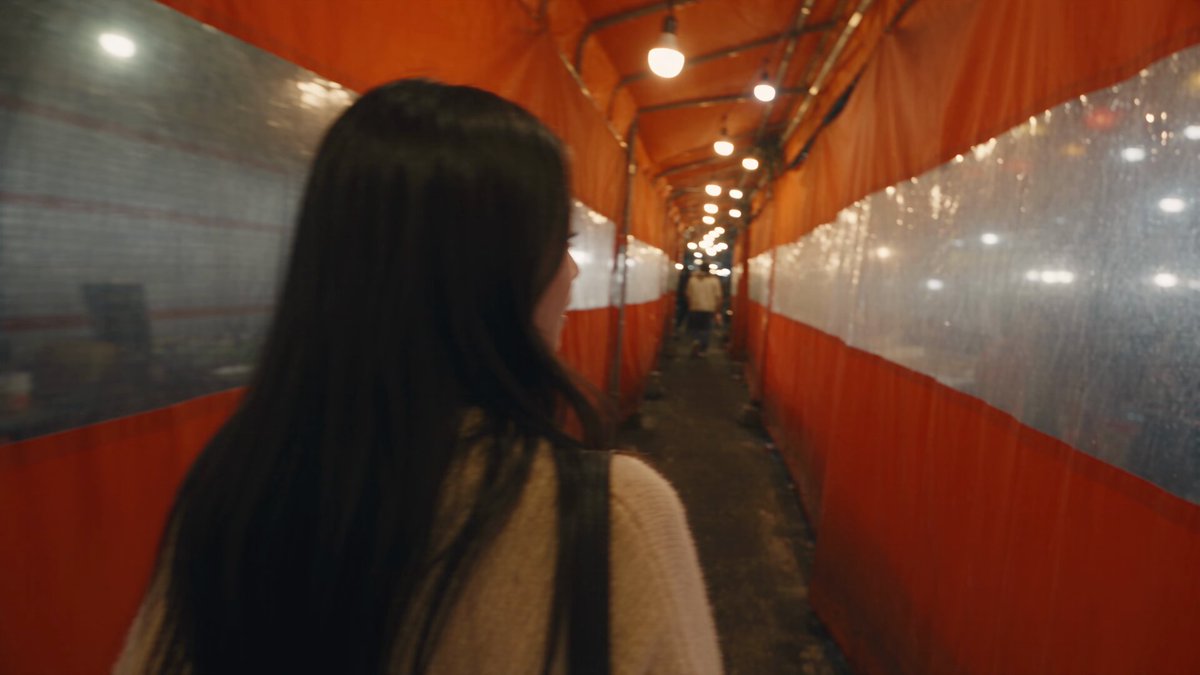
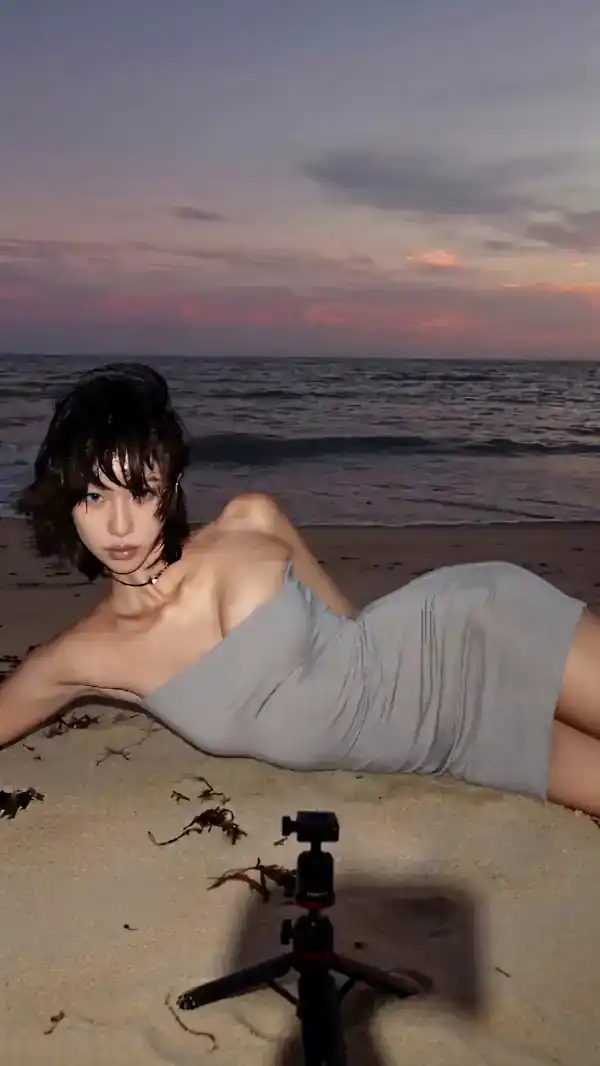
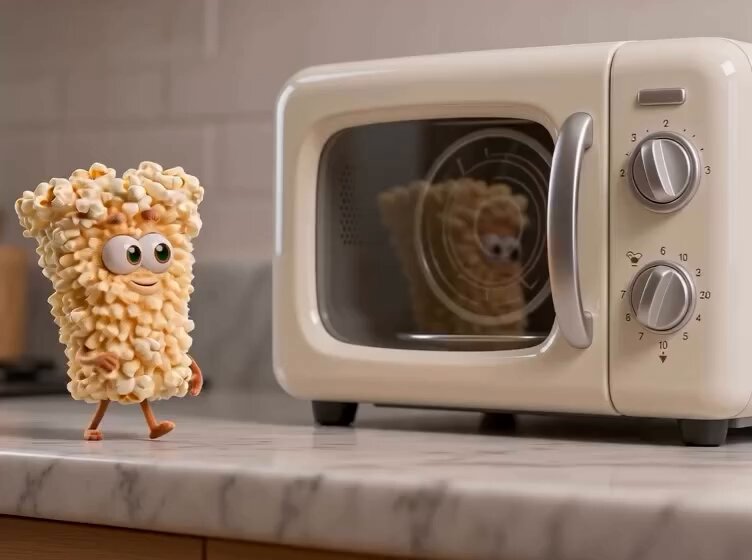
Most editors do not lose viewers because of a bad story. They lose them in the two seconds between two clips, where a dissolve feels mushy, a wipe feels like a template, or a hard cut lands a beat too late. Transitions are the connective tissue of short-form video, and they are also where cheap tooling shows itself fastest.
The usual advice is to download a free transition pack and drag a preset between clips. That works for a week. Then you notice the same three effects in every video on your feed, the watermark sits in the corner, and the export quality drops the moment you push a 4K timeline through a mobile editor. This guide is about the alternative: a neutral, model-driven workflow for generating transitions with AI, then finishing them like a professional editor would.
No subscriptions required to follow along. No specific platform is mandatory. What you need is a repeatable process, a clear idea of which model to use for which shot, and a quality-control pass that catches the tells before your audience does.
Why Free Transition Packs Stop Scaling
Free transition libraries solve a distribution problem, not a craft problem. They give millions of creators the same assets, which is why audiences now recognize the zoom-blur whip, the glitch flash, and the light-leak overlay within a few frames. Familiarity is not inherently bad, but it signals "template" rather than "authored."
The deeper constraint is architectural. A preset pack can only animate what already exists in your footage. It cannot invent the intermediate state between two shots that were never designed to connect. If your A clip ends with a subject facing left and your B clip begins with the subject facing right, no amount of funky distortion will make that read as intentional. A dissolve will just look like a mistake with a filter on it.
Generative video changes the equation because it can produce the missing frames. Instead of hiding a discontinuity, you can render a plausible in-between moment: the camera swings, the subject turns, the light shifts, and the cut disappears into motion. That is a fundamentally different approach to transitions, and it is why editors who have adopted AI-assisted finishing tend to stop browsing preset marketplaces entirely.
There are trade-offs. Generation costs compute, takes time, and occasionally produces artifacts. That is exactly why the rest of this article focuses on process rather than novelty.
Mapping the Transition Types You Actually Need
Before touching any tool, audit your last ten videos and tag every transition you used. Most creators discover they rely on three or four patterns and ignore the rest. Naming those patterns is the first step toward generating them deliberately.
Motion-led transitions
These hide the cut inside camera movement or subject movement. A pan that exits frame left and re-enters frame right, a whip that carries momentum into the next shot, or a push-in that resolves on a new subject. These are the highest-value transitions for short-form because they feel energetic and forgiving of imperfect footage. They are also the easiest to generate, since you only need consistent motion direction and lighting.
Morph and match-cut transitions
Here the shape, silhouette, or composition of shot A transforms into shot B. A coffee cup becomes a car wheel. A face becomes a moon. Morphs are the most impressive and the most fragile: they require tight prompt discipline and a clean reference frame on both ends, and they fail loudly when the model drifts.
Atmosphere and texture transitions
Smoke, rain, lens flare, fabric, or a light flash sweeps across the frame and resets the scene. These are the modern equivalent of the light-leak overlay, but generated rather than stamped on. They are useful for time jumps and location changes, and they are cheap to produce because they do not need to preserve subject identity.
Conceptual transitions
A cut that carries meaning rather than motion: a clock becomes a sunrise, a packed bag becomes an airport gate. These require the most planning and the least render time. You are essentially writing a visual joke, and the joke either lands or it does not.
Map your needs against these four buckets. Most creators need lots of motion-led transitions, a few atmospheric ones, occasional morphs, and rare conceptual cuts. That ratio tells you where to spend your generation budget.
A Repeatable AI Transition Workflow, Stage by Stage
The workflow below assumes you already have a rough assembly cut. Do not generate transitions before your story works, or you will burn hours polishing seams between shots you later delete.
Stage 1 — Lock the storyboard and write continuity notes
Before generation, write one line per transition describing the outgoing frame, the incoming frame, and the motion you want in between. Something like: "Out: subject walking toward camera, golden hour, handheld. In: subject seated at desk, same room, cooler light. Motion: camera continues forward, light shifts warm to cool over 12 frames."
These notes become your prompt scaffold. They also expose impossible transitions early, when fixing them is still cheap. If the light shift contradicts a lighting setup you cannot justify, change the shot instead of asking a model to hallucinate consistency it cannot maintain across two very different frames.
Stage 2 — Generate the bridge frames
Generate at the shortest duration that covers the transition: usually 8 to 24 frames at your project frame rate. Longer generations invite drift. Use the last frame of clip A as an image reference where the tool supports it, and describe the destination in text. Then check the first generated frame against clip A's last frame. If the exposure or color temperature jumps, regenerate before you look at anything else.
A useful trick is to generate the transition twice with different seeds and pick the cleaner one. Two cheap attempts usually beat one expensive attempt with heavy post-processing.
Stage 3 — Composite, grade, and finish
Bring the generated clip into your timeline between A and B. Trim it so the motion continues through the cut rather than resetting. Then apply three finishing touches:
- Match contrast. Lift or crush the transition's shadows to match the surrounding shots. AI generations often arrive slightly flatter than camera footage.
- Add directional motion blur. A subtle blur along the axis of movement sells continuity, especially in the middle frames.
- Layer sound. A whoosh, a room tone crossfade, or a single impact hit will do more for perceived smoothness than any visual tweak. Transitions are audio events as much as visual ones.
That is the whole loop. Once you have run it five times, it takes fifteen minutes per transition instead of an hour.
Choosing a Model for Each Job
Model choice matters more than prompt wording once you are past the beginner stage. Think in terms of three tiers.
Cinematic motion and camera control
For hero transitions in brand films, product launches, or anything with a real camera move, prioritize models with strong camera-control conditioning and temporal coherence. Runway's Gen-series tooling and Sora-class generators excel here: they hold geometry across a 3-second move and respond well to language about lens length, camera height, and speed. Use them for the two or three transitions per video that carry the most weight.
Stylistic consistency across a series
If you publish a recurring show with a fixed look, consistency beats realism. Flux-class image models fine-tuned on your own frames, combined with an image-to-video pass, will keep color, grain, and character design stable across episodes. This tier also handles morphs well, since you can generate matched keyframes as stills first and animate between them.
Fast drafts and volume passes
For social cutdowns, ad variants, and A/B tests, speed matters more than polish. Kling-class and other high-throughput generators let you produce a dozen transition options in the time a premium model takes for one. Use them for drafts, then regenerate only the winning concept at higher quality.
A practical rule: one premium model for hero moments, one stylistically tuned model for series work, one fast model for volume. Three tools, three jobs, no overlap.
Prompt Patterns That Produce Clean Transitions
Most failed transitions are prompt failures, not model failures. These patterns cover the common cases.
Pattern 1 — Motion continuation. "Continue the forward camera move, maintain handheld shake and 35mm lens character, subject remains centered, lighting stays consistent, no new objects enter frame." This is the workhorse for motion-led cuts.
Pattern 2 — State change. "Over 16 frames, transition from [state A] to [state B], keeping the subject's position and scale fixed. Only the described element changes." Use this for lighting shifts, wardrobe changes, and time-of-day jumps.
Pattern 3 — Element wipe. "A curtain of [smoke/water/light] sweeps left to right across the frame, fully occluding the scene at the midpoint, revealing the new scene as it clears." Specify direction and occlusion timing; vague wipes produce mushy middles.
Pattern 4 — Match cut. "Begin from the shape of [object A] and resolve into the silhouette of [object B] within 12 frames, preserving composition and camera distance." Morphs live or die on silhouette continuity.
Two constraints apply to all four. First, describe what should not change. Negative instructions reduce drift more effectively than extra detail about what should. Second, keep durations short. Twelve to twenty-four frames is the sweet spot; anything longer starts inventing.
Also resist the urge to stack effects. A transition that combines a whip pan, a light leak, and a glitch reads as three transitions fighting for the same moment.
Batch Production and Preset Discipline
Once a transition works, treat it as a template. Save the prompt, the seed, the frame count, and the finishing settings in a plain text file or spreadsheet. Note the model used and the generation duration. Six months later, that note is the difference between recreating a look in ten minutes and spending an afternoon guessing.
Build batches by transition type rather than by video. Generating eight motion-led transitions in one session keeps you in the right headspace and makes comparison easy. It also lets you reuse successful seeds across related shots, which improves visual consistency across a series.
Name files with a convention that encodes type, duration, and version: motion-whip-24f-v2. Editors who skip naming conventions end up scrubbing through dozens of untitled clips and eventually choosing the wrong one.
Finally, keep a rejected folder. Failed generations are useful references for what your prompts over-specify, and occasionally a "flawed" render becomes the perfect stylized transition for a different project.
Quality Control Before You Publish
Run this checklist on every AI-generated transition before it ships.
- Frame-one match. Does the transition's first frame align with clip A's last frame in exposure, white balance, and grain? If not, fix it in generation, not in the grade.
- Frame-last match. Same check against clip B's first frame.
- Motion continuity. Watch at quarter speed. Does momentum carry through, or does motion stutter at the splice points?
- Anatomy and geometry. Look for melting hands, warped doorframes, and shifting horizons. These are the loudest AI tells.
- Audio sync. Does a sound event land on the visual peak of the transition?
- Mobile check. Watch on a phone at arm's length. Subtle grade mismatches disappear at small sizes, which is fine; hard geometry errors do not.
- Loop check. If the video loops, does the final transition back to frame one feel intentional?
Seven checks, under two minutes. It is the cheapest insurance in the entire workflow.
Common Mistakes That Make AI Transitions Look Cheap
The most frequent error is overuse. A generated transition is a punctuation mark, not a paragraph. If more than one in four cuts is generated, the video starts to feel like a demo reel. Let ordinary cuts do ordinary work.
The second is mismatched resolution and grain. A crisp AI-generated segment dropped into grainy handheld footage looks pasted. Add grain, reduce sharpness slightly, or generate at a lower fidelity setting so the new material sits inside the same world as the rest.
The third is ignoring the audio bed. Silent transitions feel synthetic because real camera moves come with sound. Even a filtered room tone crossfade changes how smoothness is perceived.
The fourth is generating before the edit is locked. Transitions built for shots you later cut are pure wasted work.
The fifth, and most subtle, is uniformity. If every transition uses the same model, the same duration, and the same motion vector, your video develops a rhythm that feels mechanical. Vary duration by 4 to 8 frames between transitions. Audiences will not notice the variation, but they will notice its absence.
FAQ
Do AI transitions work for talking-head footage? Yes, but keep them subtle. Motion-led transitions between two static interview angles usually need a small push or parallax move rather than a dramatic whip. Reserve the big motion for B-roll.
How long should a generated transition be? Between 8 and 24 frames at your project's frame rate. Shorter feels like a cut; longer gives the model room to drift.
Can I use the same prompt across different videos? Yes, if you also keep the seed and reference frames consistent. Prompt alone rarely guarantees a repeatable look.
What if the model keeps warping faces? Generate the transition with the face out of frame or occluded, then cut to the face after the transition completes. It is faster than fighting the model.
Do I need a premium model for every transition? No. Use fast, inexpensive generation for drafts and social variants, and reserve premium models for the two or three hero moments in a project.
How do I keep transitions consistent across a series? Lock one model, one lens description, one grain setting, and one audio treatment. Consistency comes from constraint, not from variety.
Is a hard cut ever better? Frequently. A well-timed hard cut on a beat is more professional than any generated effect. Use AI transitions where a discontinuity needs solving, not as decoration.
What to Do Next
Start with one video and one transition. Pick a cut that currently feels awkward, write the continuity note, generate a short bridge clip, and finish it with a grade match and a sound hit. Compare the result against the preset you would have used.
Then build outward. Add a second transition type, then a batch session, then a saved template file. Within a month you will have a personal library of transitions that no one else has, tuned to your footage and your edit rhythm, exportable at full resolution without a watermark in sight.
The tools will keep changing. The workflow will not: lock the edit, write the continuity note, generate short, finish properly, and check before you publish. That process is what separates transitions that look generated from transitions that look directed.
