

After Effects Hold Last Frame: AI Video Workflow Guide
Oct 13, 2026
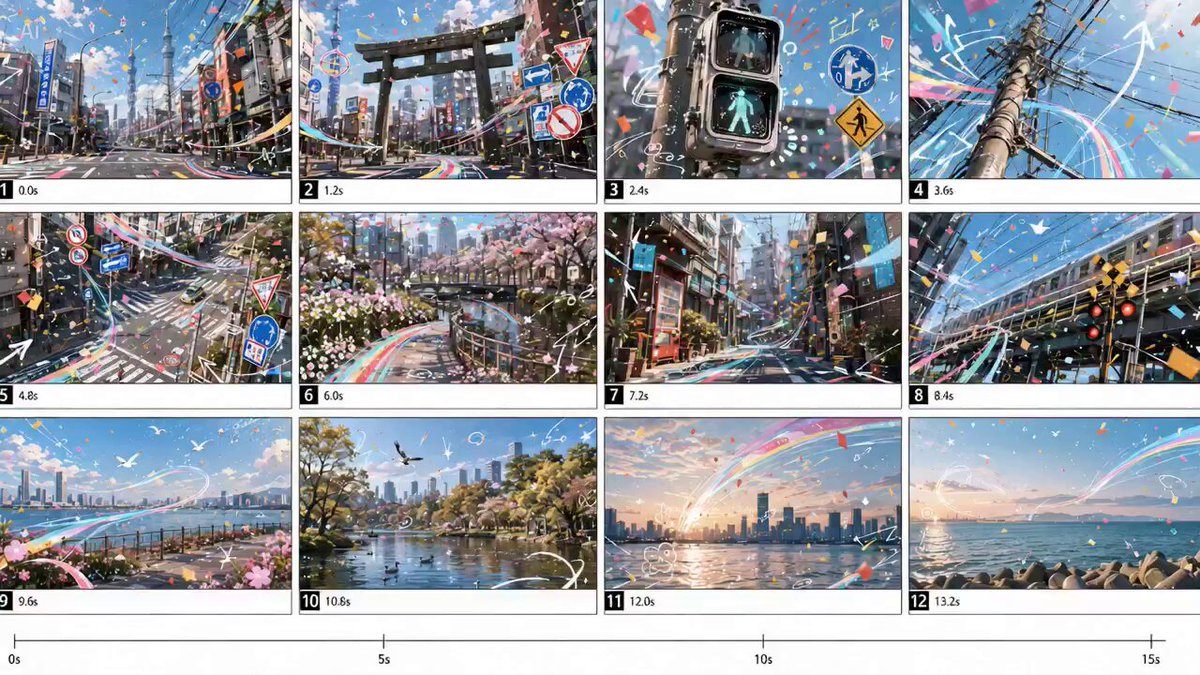

A video that ends on a frozen frame is one of the oldest tricks in post-production, and it still works because it does something cuts and fades cannot: it stops time without releasing the viewer's attention. Whether you are holding on a reaction shot, freezing a product mid-spin, or stretching a shot so a voiceover can finish, the hold-last-frame operation in Adobe After Effects is usually where that decision gets executed. What has changed is what happens after the hold. AI-assisted frame generation now lets editors extend a frozen frame into new motion, repair a damaged final frame, and build seamless loops, turning a hard stop into a deliberate ending.
This guide covers the classic technique, the situations where it breaks down, and a repeatable workflow that combines timeline precision with modern AI video tools.
What "Hold Last Frame" Actually Does in After Effects
At its core, the operation is simple: After Effects takes the final frame of a layer and extends it forward in time so the playhead keeps showing that same image. There is no new information, no motion, no change in pixels. Everything the viewer sees after the hold point is literally the same frame repeated for as long as you keep the layer alive.
That simplicity is the point. A hold gives you breathing room for dialogue to finish, a music sting to resolve, or a title to animate in over a static image. It acts as a visual full stop: freezing implies "this is the end" far more strongly than a cut to black, which reads as a transition rather than a conclusion. And it can rescue a take whose final second is unusable, saving a reshoot.
The catch is equally simple. Because the frame is repeated, any flaw in it becomes more visible the longer it stays on screen. Noise, motion blur, compression blocking, a stray boom mic, and a subject who is half a frame away from blinking all get amplified by stillness. A two-second hold is forgiving. A ten-second hold on a soft, noisy frame is not.
The Classic Manual Workflow, Step by Step
You do not need AI to hold a frame, and you should know the manual route before you reach for anything else. It is faster, it is lossless, and it never invents pixels that were not in the original shot.
Freezing the frame in the timeline
Place the playhead on the frame you want to hold and confirm it is the last usable frame, not the last frame the camera recorded. Select the layer and choose Layer > Time > Freeze Frame, or use Time Remapping and set a hold keyframe, then trim the layer's out point to the length you need. The layer becomes a still in duration but keeps its original resolution and color data.
A quick alternative: duplicate the layer, trim the duplicate to a single frame, then enable Time Remapping and drag the out point. This keeps the original layer intact underneath, which is useful when you need to revert.
Time Remapping for variable holds
Time Remapping is the more flexible option because it lets you slow the approach into the freeze and then hold indefinitely. The practical pattern is to set a keyframe where the shot still looks good, add a second keyframe a few frames later with a much slower value, then hold the same time value across several keyframes. Use Easy Ease on the incoming keyframe so the deceleration feels like a camera settling rather than a stutter.
The tell of a bad time remap hold is a visible gear change where the footage abruptly stops. Easing over six to twelve frames usually hides it. For interlaced or high-shutter-angle material, add a small Pixel Motion Blur or a directional blur ramp so the freeze reads as motion continuing into stillness.
Nested comps and pre-renders
When a hold sits inside a larger composite, nest the frozen layer in its own composition before you add effects. Effects such as Camera Lens Blur or Glow applied to a held frame can flicker if they are sampling a moving layer underneath. Nesting also isolates render order, so a grade applied to the hold does not accidentally affect the motion before it, and it means you can later swap a single source comp instead of rebuilding a stack.
Five Places the Classic Method Breaks Down
Knowing the failure modes tells you exactly when AI is worth the extra step.
First, short final frames. Many clips end on a frame the codec only partially reconstructed. Holding it shows smeared edges and macro-blocking, especially on fast pans.
Second, holds that need to feel alive. A six-second hold on a person can read as a technical error, because humans are never perfectly still. Micro-motion, a blink, a breath, a drifting highlight, is what separates frozen from dead.
Third, endings that need to continue. Sometimes the freeze is a starting point: you want the camera to drift, the smoke to keep rising, or the character to keep walking. A static hold cannot do that.
Fourth, resolution mismatch. If the rest of the timeline is 4K and the held frame is upscaled from a 1080p source, the freeze will look softer than everything around it.
Fifth, aspect ratio changes. Freezing inside a vertical reframe often exposes edges that were never meant to be seen, and a still frame gives the viewer time to notice them.
How AI Fits Into the Workflow
AI does not replace the hold. It changes what you can do with the frame you chose to hold. Three capabilities matter most.
Interpolation and in-betweening
Frame interpolation tools generate intermediate frames between two existing ones. Applied to the last fraction of a second rather than the whole clip, interpolation can smooth a stuttery approach or build a graceful deceleration where the original footage was too short. The risk is well known: interpolation invents detail, and around hands, hair, and thin edges it invents the wrong detail. Use it on the ramp, not on the hold itself.
Generative continuation
This is where things get genuinely new. A generative video model can take a single still frame and produce a plausible next few seconds: drifting clouds, a slow push-in, a character inhaling, smoke curling. The result is not a freeze at all; it is an ending that keeps breathing while the story has already stopped.
Practically, you export a clean frame, feed it as the starting image, and describe the motion you want in a short prompt. Good prompts describe camera behavior and one or two physical motions, nothing more. "Slow dolly in, subtle wind in the trees, no change in subject position" works far better than a paragraph of atmosphere.
Cleanup, upscaling, and stabilization
Even if the hold stays a hold, AI can fix what the camera recorded. Denoisers trained on video handle a noisy final frame without the plastic look of a simple blur. Upscalers bring a soft freeze closer to the surrounding footage. And if the last frame is slightly tilted or drifting, stabilization on the held still can lock it without introducing jitter, because there is no motion left to fight.
A Hybrid Workflow You Can Repeat
Here is a sequence that works for shorts, ads, and documentary endings alike.
1. Choose the true final frame
Scrub frame by frame. The last frame of the file is often not the last frame you want, because codecs frequently end on a partial or over-compressed frame. Step back three to five frames and check for closed eyes, motion blur, and edge artifacts. If a better frame exists earlier, hold that one instead.
2. Export a clean plate
Render the chosen frame as a lossless image at full resolution, in the project's working color space. Do not export a JPEG, and do not export a screenshot. The quality of everything downstream depends on this single file, and a compressed source frame will bake its artifacts into every generated second.
3. Generate the continuation
Import the still into your AI video tool of choice, write a tight motion prompt, and generate several short variations rather than one long one. Short generations stay coherent; long ones drift and start inventing new subject matter. Then review for the common failures: melting faces, pulsing backgrounds, and lighting that changes direction.
4. Reassemble and match
Bring the generated clip and the original footage into the same composition. Cut on motion, because the moment the original stops moving is usually the best transition point. Then match the generated section to the camera: add Grain or Noise at a level that matches the source, use a subtle Curves adjustment so black levels align, and if the original has rolling shutter, consider a small Transform wobble so the generated section does not look unnaturally steady.
5. Grade and deliver
Grade the joined clip as one unit, not two. A hold that is noticeably warmer, sharper, or cleaner than the footage before it will read as a mistake no matter how good the generated motion is.
Matching AI Output to After Effects Footage
Generated frames rarely match camera footage out of the box. Four adjustments close most of the gap.
Compression is the first. Real footage, especially from mirrorless cameras, carries sensor noise that reads as texture. Add a one to three percent noise layer with Multiply blending rather than leaving the generated section glassy.
Sharpness is the second. AI output often arrives slightly over-sharpened. A very small Bilateral Blur or a lowered Sharpen value makes it sit better next to softer acquisition.
Color is the third. Generated clips are usually delivered in a neutral space. Convert before you compare, not after, or you will chase a mismatch that does not exist.
Motion cadence is the fourth. If your source is 24 fps and the generator returned 30 fps, conform the frame rate and check for duplicate frames. A hold that suddenly runs smoother is as jarring as one that suddenly stutters.
Which Ending Needs Which Approach
| Situation | Best approach |
|---|---|
| Short hold under two seconds in a fast edit | Classic freeze frame, no AI |
| Long hold on a person or animal | AI continuation with micro-motion |
| Product or logo ending | Held frame plus generated light drift or particle motion |
| Documentary interview ending | Held frame, cleaned and stabilized, no generation |
| Shot ends before the action resolves | Generative continuation, then cut to the original's best moment |
| Archive or heavily compressed footage | Denoise and upscale first, then decide |
The through-line: use AI when the shot needs to keep living or when the final frame is technically weak. Use a plain hold when the frame is clean and the pause is short.
Delivery Checks Before You Export
Run through this list once, every time. Does the hold start on a frame that matches the motion before it, or is there a visible snap? Is the total hold length justified by the audio underneath, or does it outlast the last word by three seconds and feel broken? Are there any single-frame flashes at the join between generated and original footage? Does the noise level stay consistent across the transition? Have you checked the very last frame of the export itself, since players sometimes show a black or partially decoded frame at the end? And if the deliverable loops, are the first and last frames visually compatible?
Mistakes That Ruin Hold Frames
Holding the file's final frame is the single most common cause of a mushy ending. Generating too much is the second: thirty seconds of AI continuation almost always drifts, while four to six seconds is usually the sweet spot.
Forgetting audio is a quieter failure. A freeze frame over continuing ambience works; a freeze frame in total silence reads as a technical breakdown. Keep room tone running under the hold, or fade it deliberately.
Ignoring the color space wastes hours when you convert a generated clip after the grade instead of before it. Over-relying on interpolation is another trap: interpolating a whole clip to create a hold is expensive and artifact-prone, so interpolate the approach and then hold. Finally, do not let the hold carry the ending alone. A hold is punctuation, not a sentence, and it works best when the story has already landed.
FAQ
Can I hold the last frame without any AI tools? Yes. Freeze Frame or Time Remapping in After Effects does it with zero generated pixels, and for short holds that is still the best choice.
How long can a freeze frame last before it looks wrong? On clean, sharp footage, three to five seconds is comfortable. Beyond that, viewers start inspecting the image and noise or softness becomes obvious. If you need longer, add micro-motion.
Does AI continuation change the frame I started with? A well-behaved generator keeps the first frame intact and builds forward from it. Always compare the first generated frame against your source still before cutting, because some tools subtly re-render or shift it.
Should the generated section match the original's frame rate exactly? Yes. Conform it, remove duplicate frames, and confirm cadence matches before you grade, or the transition will feel subtly wrong in a way viewers cannot name.
What if the generated clip drifts and introduces a new subject? Cut earlier. Use only the first two or three seconds, where the motion is closest to your prompt, and hold the remainder of the shot manually.
Key Takeaways
The hold-last-frame technique has not changed in After Effects, and it does not need to. What has changed is that a frozen frame is no longer a dead end. By choosing the right frame, exporting it cleanly, generating a short and tightly prompted continuation, and matching grain, color, and cadence on the way back in, you get endings that stop the story without stopping the image. Learn the manual method first so you know exactly what the AI is replacing, then reach for generation only when the shot genuinely needs to keep breathing.

Alexander
More Blogs
Read MoreVidu Q4 Alternatives: 4K AI Video Models Compared (2026)
Vidu Q4 alternatives compared: Kling 4.0, Seedance 2.5, Wan 3.0, and Runway Gen-4 — 4K support, input modes, durations, audio, and what each costs in credits on Domer.
Top 4K AI Image Generators in 2026: 5 Models Compared on Real Costs
The top 4K AI image generators on Domer compared: Flux 3 Klein, Nano Banana 2.1, GPT Image 2.5, GPT Image 2, and Nano Banana Pro — 4K credit costs, reference limits, and speed.
Nano Banana 2.1 vs GPT Image 2.5: Which Image Model Should You Use? (2026)
Nano Banana 2.1 vs GPT Image 2.5 Flare compared: credit costs per resolution, aspect ratios, reference images, text rendering, and which tasks fit each model.