
Loading...
Creative Suite: AI Video Generator & AI Image Generator Tools
Power up your creative workflow with our AI-driven tools. Generate stunning videos, create images, and apply custom adjustments - our AI Video Generator and AI Image Generator offer a complete solution for all your creative needs.


Image to Video AI Generator
Upload a photo and bring it to life with AI. Domer's image to video AI generator turns still images into dynamic videos—add camera motion, subject animation, or smooth transitions between frames. Supports single or dual frame mode with 1000-character motion prompts. Generate in 16:9 for YouTube or 9:16 for TikTok and Reels. No filming, no editing skills, no watermarks. Start free with 10 credits.
Try for FreeWhat You Can Create with Image to Video
From animated portraits to product demos—our image to video AI generator turns any photo into engaging video content.
Bring Photos to Life
Transform static photos into dynamic videos. Add motion to portraits, landscapes, product shots, or any image. Perfect for social media posts that need to stand out with image to video animation.
Product Showcases
Turn product images into engaging video demos. Show rotation, zoom effects, or highlight specific features. Ideal for e-commerce, presentations, and marketing materials.
Logo Animations
Animate static logos and brand assets. Add professional motion graphics without video editing skills. Create eye-catching intros for videos, websites, or social media.
Creative Transitions
Generate smooth transitions between two images. Control the start and end state for precise animation. Great for storytelling, before/after comparisons, or artistic projects.
Social Media Reels
Create scroll-stopping animated content from your photo library. Turn travel photos, food shots, or behind-the-scenes images into engaging short clips for Instagram, TikTok, and YouTube Shorts.
Presentation Visuals
Replace static slides with animated visuals. Turn charts, diagrams, or concept images into dynamic video segments that hold audience attention during pitches and talks.
How Image to Video Works
You provide 1 or 2 images. AI models analyze your frames and generate smooth video—no keyframe editing, no complex software. Single image mode: upload one frame, describe the motion. AI interprets your prompt and animates the image with camera movement, subject motion, or effects. Two image mode: upload start and end frames. AI generates smooth transitions between them, handling object movement, rotations, or transformations. Technical specs: generates 4-5 seconds of video at 24fps, supports 16:9 (1920x1080) and 9:16 (1080x1920) aspect ratios, up to 1000-character prompts for detailed motion description. Accepts PNG, JPG, WebP up to 10MB per image.
Image to Video AI Generator — Professional Animations Without Complex Editing
Most tools either auto-animate everything with zero control or require professional editing skills. Our image to video tool gives you precise control through simple text prompts—describe what you want, AI handles the technical work.
1-2 Frame Flexibility
Single frame mode for camera motion and simple animations. Two frame mode when you need specific start and end states. Upload just what you need—no forced workflows or unused features cluttering the interface.
1000-Character Motion Prompts
Describe camera movement, subject motion, speed, and effects in detail. Most image to video tools limit you to 200-300 characters. Detailed prompts mean better first-try results and fewer wasted credits.
YouTube and Social Media Formats
Generate in 16:9 (landscape) for YouTube, websites, presentations. Or 9:16 (vertical) for TikTok, Instagram Reels, Stories. AI composes the animation for your chosen format—no awkward cropping or black bars.
Commercial-Ready MP4 Files
Every image to video output exports as clean MP4 with no watermark. Use for client work, product listings, social media ads, website backgrounds—any commercial purpose. No attribution required.
30-60 Second Generation
Upload your image, write the motion prompt, hit generate, wait 30-60 seconds. Download when ready. Much faster than manual keyframe animation or filming the real thing.
Free Credits to Start
New accounts get 10 free credits. Enough to test multiple image to video models and see real results before paying. No credit card required to sign up and start animating.
How to Use Image to Video
From upload to finished video in under 90 seconds
Upload Your Image(s)
Single frame mode: upload one image for camera motion or simple animation. Two frame mode: upload start and end frames for controlled transitions. Accepts PNG, JPG, WebP up to 10MB each.
Describe the Motion
Write what should happen in the video. Be specific about camera movement, subject motion, speed, and any effects. The more detail in your image to video prompt, the better your results.
Choose Format and Generate
Pick 16:9 for YouTube and websites or 9:16 for TikTok and Reels. Select your AI model based on speed and quality needs. Hit generate and wait 30-60 seconds.
Download and Use
Videos export as MP4 files with no watermark. Commercial use included—use them for client work, product demos, social media, websites. Modify your prompt and generate again for variations.
Image to Video AI Generator Features
Everything you need to turn still images into professional animated video content.
Multi-Model Selection
Choose from multiple AI models optimized for different image to video tasks. Each model handles motion, transitions, and effects differently—pick the right one for your project.
Camera Motion Control
Describe camera movements in your prompt—pan, zoom, orbit, dolly, tilt. The image to video AI interprets cinematic directions and applies smooth, professional camera work to your still image.
Subject Animation
Animate people, objects, and elements within your image. Add subtle head movements to portraits, product rotations, or natural motion like flowing hair and moving water.
Dual Frame Transitions
Upload two images and generate smooth morphing transitions. The AI calculates intermediate frames, handling object repositioning, style changes, and seamless blending between states.
HD Resolution Output
Generate image to video content at 1920x1080 or 1080x1920. Sharp enough for YouTube uploads, client presentations, and professional use without quality degradation.
Automatic Credit Refund
If image to video generation fails (about 1-2% of attempts), credits are automatically refunded. No lost credits from server issues or content policy edge cases.
What Creators Say About Our Image to Video Tool
Content creators, marketers, and businesses use Domer's image to video AI generator every day.
I turn my best Instagram photos into Reels with Domer's image to video tool. Upload, describe the camera motion, done. My engagement rate doubled since I started posting animated content.
David Chen, Content Creator
David Chen
Content Creator
Product photography is expensive enough—filming video for every product was out of budget. Image to video lets us animate existing product shots into video ads. ROI is through the roof.
Rachel Kim, Marketing Manager
Rachel Kim
Marketing Manager
Clients send me logos and want animated intros. Used to take hours in After Effects. Now I upload the logo, describe the animation, and deliver same day with Domer's image to video generator.
Marcus Thompson, Freelance Designer
Marcus Thompson
Freelance Designer
I use image to video for animated thumbnails and channel intros. Upload my custom artwork, add subtle motion, and it looks way more professional than a static image.
Sofia Garcia, YouTube Creator
Sofia Garcia
YouTube Creator
Every product listing now has a video. Upload the product photo, describe a slow rotation, generate. The image to video quality is good enough that customers think we filmed everything.
James Wilson, E-commerce Owner
James Wilson
E-commerce Owner
Static posts get buried by the algorithm. Since switching to image to video animated content across all our brand accounts, reach and engagement are up significantly.
Anna Zhang, Social Media Manager
Anna Zhang
Social Media Manager
Image to Video FAQs
Common questions about our image to video AI generator
Latest News
Tips, tutorials, and updates from the Domer AI team.
From Script to Screen: Free AI Video Workflow Guide
Learn a practical workflow for turning a written script into a finished AI video using free tiers, prompt design, shot planning, and editing tips.
Short-Form Video Growth: An AI Workflow for More Views
A practical AI workflow for planning, generating, editing, and publishing short-form videos that hold attention and earn more views on every feed.
AI Voiceover and Royalty-Free Music: A Video Sound Workflow
Build a complete AI voiceover and royalty-free music workflow for video: voice selection, licensing, ducking, loudness targets, and QC.
Réaliser un storyboard IA : méthode complète pour créateurs
Méthode pas à pas pour concevoir scènes et storyboards avec l'IA : cohérence des personnages, découpage, prompts et erreurs à éviter.
Como Fazer Vídeos com IA Localmente: Guia Prático e Completo
Aprenda a gerar vídeos com IA localmente: requisitos de hardware, modelos, fluxos de trabalho, consistência de personagem e como resolver erros comuns.
Cómo hacer que un corto de TikTok se vuelva viral: guía práctica
Aprende a diseñar cortos de TikTok con ganchos fuertes, retención, señales del algoritmo y flujos de trabajo con IA para escalar tu producción.
Baby Brat Meme Generator: How to Create Cursed-Cute AI Images
Complete guide to creating Baby Brat memes—the cursed-cute trend combining baby filters with brat aesthetics. Get the best AI prompts, tools, and tips for viral-worthy images.
Domer: Free AI Image Generator - Complete Features & Guide
Everything you need to know about Domer AI—a fast, free image generator for creating memes, art, and transformations. Get 10 free credits to start.
FLUX.2: The End of Five Designer Nightmares
FLUX.2 solves the problems that made AI image tools frustrating—exact colors, consistent characters, readable text, print quality, and efficient workflows. Here's what actually changed.
From Kling 2.6 to 3.0: How One AI Video Platform Is Rethinking the Entire Workflow
While competitors race for longer videos and higher resolution, Kling is betting on something different with its AIO model—and it might just work. A deep dive into Kling 3.0's unified approach.
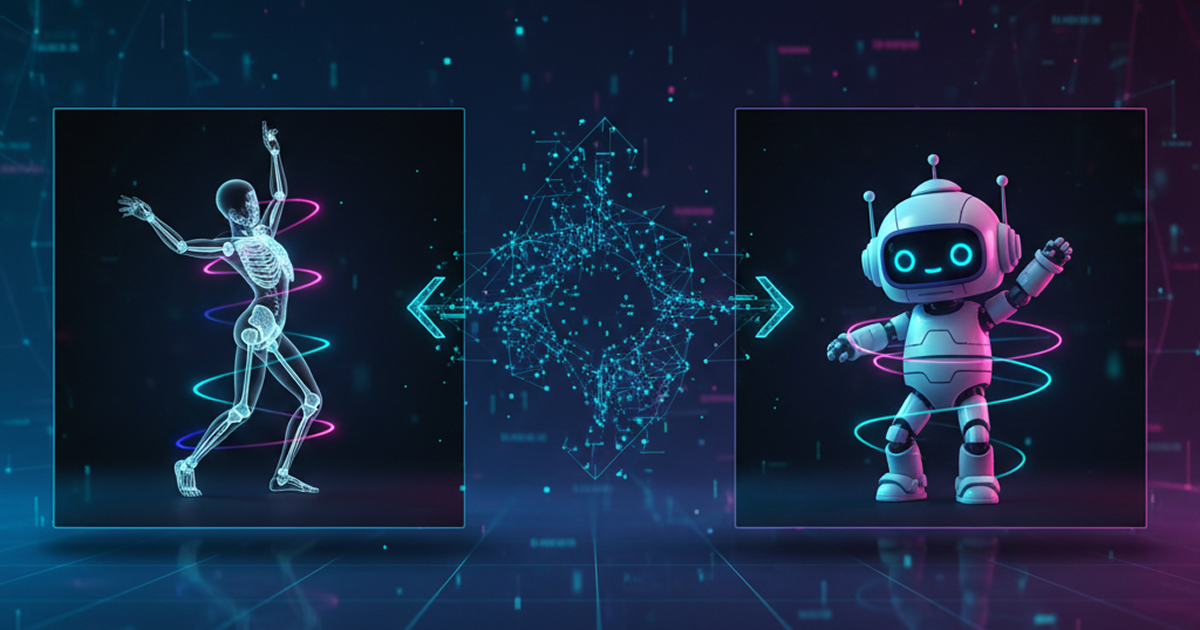
Kling Motion Control: Transfer Motion from Video to Image with AI
Learn how Kling Motion Control works - upload a reference video and static image to create videos with transferred motion. Complete guide with examples and tips.
Orelon — AI Video Generator for Cinematic Video Creation
Create cinematic videos from text or images with Orelon. Compare 23 video models, apply effects, and direct camera motion in one workspace — no installs.
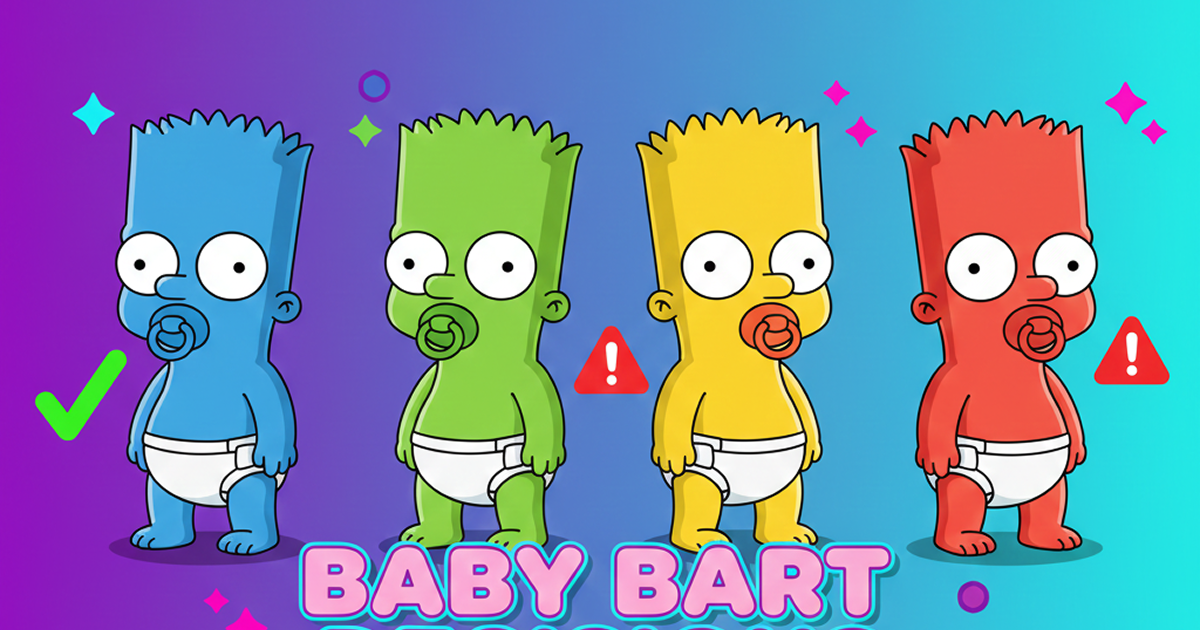
What Is Domer Meme? The Baby Bart Simpson Phenomenon Explained
A deep dive into the Domer meme that took over TikTok in late 2025. Learn what 'Domer' means, why it went viral, and how to create your own Domer-style images with AI.
Start Turning Images into Videos Today
Try Domer's image to video AI generator free. No credit card, no watermarks, no limits on creativity.