
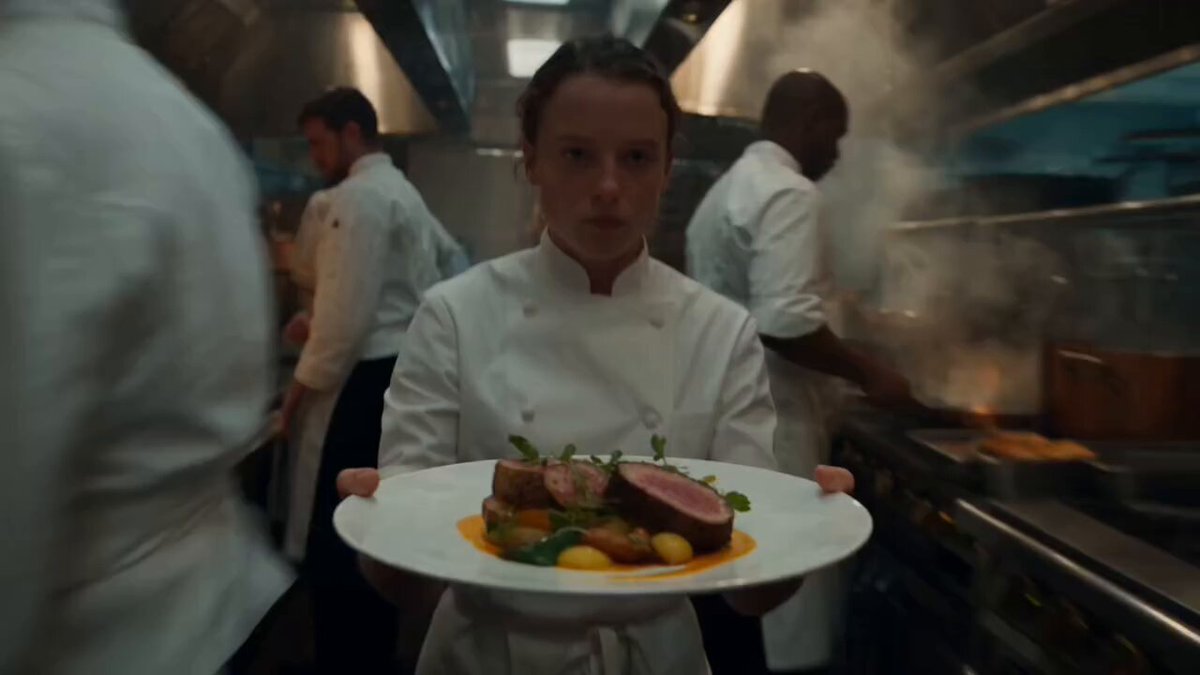
AI Animated Photo Generator: Turn Still Images Into Motion
Oct 15, 2026
Why Photo Animation Is Now a Default Workflow Step
A still photograph is the cheapest asset you own and the hardest one to hold attention with. Feeds autoplay, thumbnails move, and short-form video rewards motion inside the first second. That combination pushed photo animation from a niche visual-effects task into a routine step in everyday content work: a portrait that blinks and turns its head, a product shot rotating through shifting light, an archival family photo drifting gently into depth.
Before generative models, animating a single frame meant rigging. You cut the subject out of the background, cloned patches to fill the hole, built a depth map by hand, then pushed layers apart in 3D space. A four-second parallax shot could eat an afternoon, and anything involving a moving face was out of reach without motion capture. AI photo animation collapses that pipeline. A model reads the image, infers depth, pose, and lighting cues, then predicts how pixels should move. You describe the motion; it renders the frames.
The tradeoff is control. Generative animation is probabilistic, so the same image and prompt produce different clips on separate runs. Knowing where a model is confident — camera movement, cloth, hair, water, smoke — and where it guesses — hands, teeth, text, hard geometry — is the difference between a clip that looks intentional and one that looks uncanny. This guide covers the concepts, the decision criteria, a full production workflow, prompt patterns, and the failure modes worth memorizing.
How AI Photo Animation Actually Works
The latent-motion idea
Most current image-to-video systems start the same way: they compress a picture into a compact mathematical description called a latent, then learn to predict how that latent should change frame by frame. During training the model watches millions of clips paired with text captions, so it builds a statistical feel for how smoke drifts, how hair lifts, how a camera pans down a street. At generation time you supply one image as the first frame plus a prompt, and the model invents the next 24 to 200 frames.
Depth, pose, and camera conditioning
Pure latent prediction is unstable, so production pipelines add structure. Monocular depth estimation converts the photo into a rough 3D relief, telling the model that the foreground face should move more than the distant mountains. Pose and landmark detectors give faces and bodies an internal skeleton, anchoring identity so the eyes stay put while the head turns. Camera conditioning accepts explicit parameters — dolly in, orbit fifteen degrees left, slow crane up — separately from subject motion. When a tool exposes those three controls independently, results become dramatically more predictable than when everything rides on one paragraph of text.
Frame interpolation versus generative motion
Not every job needs a generative model. Interpolation tools create new frames between two existing ones by estimating optical flow; they are fast, cheap, and preserve original pixels exactly. Use them to smooth 24fps footage to 60fps or to slow a pan without stutter. Generative models invent content that was never photographed. A practical rule: interpolate when you only need smoothness, generate when you need new motion or new geometry.
What the model cannot know
A single photo contains no information about the back of someone's head, the underside of a table, or the space behind a shoulder. The model fills those gaps with plausible invention. That is why hands morph, earrings multiply, and doorframes bend. Your job is to choose shots where the missing information does not matter, and to keep the camera inside the cone of what the photo can support.
Matching the Method to the Job
Generative image-to-video
Best for atmospheric motion, subtle parallax, environmental animation, and short hero clips of three to eight seconds. It handles complex subjects — animals, crowds, reflections — that would be painful to rig. Weaknesses: identity drift over long durations and unpredictable fine detail.
2.5D parallax and layer rigs
If the shot is a landscape, a building, a product on seamless background, or anything with a clean silhouette, build layers instead. Cut the subject out, inpaint the hole behind it, produce or paint a depth map, then animate camera and layers in a compositor. Results are deterministic, repeatable, and resolution-independent — a strong fit for client work where a specific look must be approved.
Face reenactment and talking portraits
When the goal is a person speaking or singing, use a dedicated face-reenactment or lip-sync tool driven by a performance video or audio track. These tools track facial landmarks and transfer expression while locking identity. Feed them a front-facing, evenly lit portrait; profiles and heavy shadows degrade quickly.
Hybrid stacking
The strongest results usually combine methods. Generate a subtle four-second base animation for atmosphere, add a controlled parallax camera move in post, stabilize the whole thing, then interpolate. Each stage fixes a weakness in the previous one.
A Step-by-Step Workflow for Animating a Photo
Step 1: Prepare the source image properly
Resolution first. Aim for 1.5 to 2 times your delivery width so the model has detail to work with — a 1080p finish wants at least 1620 pixels of width, ideally 2048 or more. Restore before you animate: run old scans through a denoise and upscale pass, remove dust and scratches, correct color casts. Then simplify. Generative models amplify ambiguity, so a cluttered frame produces cluttered motion. Crop into the subject, remove distractions with inpainting, and level the horizon if you plan a camera move.
Finally, protect identity. If the photo contains a recognizable face you care about, keep the eyes visible, avoid heavy filters, and consider generating a face-focused pass first before attempting a full-frame animation.
Step 2: Write a motion brief, not a scene description
The model already sees the image; it does not need you to describe what is in it. Describe only change. Instead of "a woman in a red coat standing in a rainy street," write "slow push in, coat flutters slightly, rain streaks fall past camera, subtle head turn to the right." Camera verbs, subject verbs, environmental verbs, plus one pace word.
Step 3: Run short, cheap first passes
Generate at low resolution and short duration — two to four seconds — until the motion reads correctly. Motion is the hardest variable to fix later; sharpness, grain, and color can all be handled in post. If the base motion is wrong, no upscale will save it.
Step 4: Change one variable per iteration
Keep a simple log: seed, prompt, motion strength, camera preset. Change one field, rerun, compare. When a seed behaves well, lock it and vary only the prompt. This turns a slot machine into a reproducible process, and it is the single biggest productivity gain available to you.
Step 5: Upscale, interpolate, stabilize
Once motion is approved, upscale with a video upscaler that handles temporal consistency, not a still-image upscaler applied frame by frame — the latter produces flicker. Interpolate from the generated frame rate to your delivery frame rate if motion looks steppy. If the shot will sit in a longer edit, apply a mild stabilizer to remove micro-jitter from generative drift.
Step 6: Finish in the edit
Cut on motion, not on the beat of a soundtrack. Trim the first and last few frames, where models tend to breathe or settle. Loop seamlessly by reversing the last half second if you need a matching background plate. Grade for consistency across shots, add sound design — ambience does more for perceived realism than extra resolution — and export at platform-appropriate bitrates.
Writing Motion Prompts That Actually Direct Motion
Prompting for animation sits closer to directing a camera operator than describing a picture. Four slots work well:
- Camera: "slow dolly in," "gentle orbit right," "static locked-off frame," "handheld drift."
- Subject: "she turns her head slightly and smiles," "the fabric ripples," "steam rises from the cup."
- Environment: "leaves fall past the lens," "rain hits the pavement," "clouds move slowly."
- Pace and feel: "slow, cinematic," "quick energetic push," "subtle, barely perceptible."
Patterns to avoid: contradictory instructions ("static camera panning"), extreme motion requests ("full 360 spin"), and multiple competing subjects ("she turns while he walks toward camera while the dog jumps"). Use short phrases rather than full sentences; most models weight early tokens more heavily.
Negative prompts are equally useful. If you consistently see warped hands, drifting background edges, or facial melting, name those artifacts explicitly in the negative field. Keep the list short — five to eight terms — because long negative lists leak into the output and suppress legitimate detail.
Common Failure Modes and Fixes
Face warping and identity drift. Usually caused by large head rotations or long durations. Fix by reducing motion strength, shortening clips to three seconds, or splitting a longer shot into two generations that share the same seed.
Melting hands and text. Generative models have no reliable prior for fingers or lettering. Reframe so hands are partially occluded, crop text out of frame, or plan a cut before the hand enters the action.
Background breathing. The pixels behind the subject pulse because the model treats the whole frame as one moving field. A layered parallax approach or a slight vignette and blur on the background layer hides it well.
Temporal flicker. Frame-by-frame upscaling is the usual culprit. Move the upscale to a temporal-aware video model, or apply a light denoise and sharpen pass after interpolation.
Ghosting and double edges. Caused by motion strength set too high or by an image where the subject already shows motion blur. Reduce strength, or start from a sharper frame.
Rubber-sheet geometry. Straight architectural lines bend during camera moves because the model lacks a 3D prior. Prefer a locked-off frame with subject-only motion for architecture, or build a parallax rig instead.
Color and brightness pulsing. Fix in post with a consistent grade and a temporal smoothing pass rather than regenerating. Regenerating to fix exposure usually breaks the motion you already liked.
Mini Recipes for Five Common Photo Types
Portrait. Front-facing, eyes open, clean background. Prompt: "subtle head turn, blink, hair moves gently, static camera, slow cinematic." Duration three to five seconds. Add a slow push in post rather than asking the model for camera motion; combined head turn and camera move is where faces break.
Product on seamless background. Skip generative motion for the object itself. Instead, animate lighting and shadow — a rotating gradient or moving highlight across the surface reads as premium and stays perfectly sharp. A three-second loop with a slight orbit sells it.
Landscape. Layer-based parallax wins here. Generate depth, separate sky, midground, and foreground, and slide them at different rates. Add drifting clouds or water motion with a short generative pass if you want life in the frame.
Archival or restored family photo. Denoise and upscale first, then animate a small head turn and a warm camera drift. Keep the grain — audiences read grain as authenticity, and a perfectly clean restored frame often looks artificial next to the original texture.
Illustration or comic panel. Generative models handle stylized art well but drift toward photorealism unless prompted against it. Include style anchors such as "flat cel shading," "hand-drawn line work," "no added detail," and keep motion limited to camera and a single element.
Quality Control Checklist Before You Publish
- Watch the clip three times muted, once at full speed, once slowed. Different artifacts appear at each speed.
- Check the first and last ten frames for settling, breathing, or a sudden snap back to the source image.
- Zoom to 200 percent on faces, hands, and any text. If any of them are visible defects, reframe or crop.
- Verify edge quality where the subject meets the background; generative edges often shimmer.
- Confirm aspect ratio and safe areas for each destination; a 16:9 hero clip may need a 9:16 reframe, and generative shots rarely crop gracefully.
- Check the loop point if the clip repeats. A half-second reverse tail hides almost any seam.
- Compare color against neighboring shots in the edit timeline, not in isolation.
- Export a test upload at platform settings before committing to a full render.
FAQ
How long should an AI-animated photo clip be?
Three to eight seconds is the sweet spot. Shorter reads as a blink; longer invites identity drift and background instability that viewers notice even if they cannot name it.
Can I animate any photo?
Mostly yes, but quality varies with what the photo hides. Front-facing subjects, shallow depth of field, and simple backgrounds animate best. Cluttered scenes with many overlapping objects produce the most artifacts.
Do I need a GPU or can this run in the cloud?
Both paths exist. Cloud tools trade control and iteration speed for convenience, while local pipelines using open models demand a capable GPU but give you unlimited experimentation and full seed control. Choose based on how many variations you need per finished second.
Is frame interpolation the same as AI animation?
No. Interpolation invents frames between two existing ones to smooth motion. AI animation invents motion that was never recorded. Interpolation preserves your pixels; animation replaces them.
Why does the same prompt give a different result every time?
Generation starts from a random seed. Lock the seed to reproduce a clip, then vary the prompt to explore. Once you find a seed that likes your image, reuse it across attempts — it often behaves consistently for that source.
How do I keep a person's face consistent across several animated shots?
Use the same source frame, the same seed, and the same prompt structure for each. Keep head rotation under roughly fifteen degrees per clip, and generate short shots rather than one long one.
What is the biggest mistake beginners make?
Asking for too much motion at once. A slow push with a subtle head turn looks professional; a full camera orbit with a walking subject looks artificial almost every time. Start subtle, then add only what the shot can support.
Should I add sound to an animated photo?
Almost always. Room tone, a soft whoosh on a camera move, or a gentle ambient bed dramatically raises perceived realism. Silence is what makes viewers realize they are looking at generated motion.
How many attempts should a finished clip take?
Budget five to ten short low-resolution passes per usable shot, then one or two high-resolution renders. If you are still fighting the motion after a dozen attempts, the source image is usually the problem, not the prompt.

Alexander
More Blogs
Read MoreVidu Q4 Alternatives: 4K AI Video Models Compared (2026)
Vidu Q4 alternatives compared: Kling 4.0, Seedance 2.5, Wan 3.0, and Runway Gen-4 — 4K support, input modes, durations, audio, and what each costs in credits on Domer.
Top 4K AI Image Generators in 2026: 5 Models Compared on Real Costs
The top 4K AI image generators on Domer compared: Flux 3 Klein, Nano Banana 2.1, GPT Image 2.5, GPT Image 2, and Nano Banana Pro — 4K credit costs, reference limits, and speed.
Nano Banana 2.1 vs GPT Image 2.5: Which Image Model Should You Use? (2026)
Nano Banana 2.1 vs GPT Image 2.5 Flare compared: credit costs per resolution, aspect ratios, reference images, text rendering, and which tasks fit each model.