
AI Animated Photo Generator: Turn Still Images Into Motion
Oct 15, 2026
What an AI Animated Photo Generator Actually Does
An AI animated photo generator takes a single still image and produces a short video clip that looks like the moment kept going. You upload a photograph, describe the motion you want in plain language, and the model returns three to ten seconds of footage in which hair drifts, water ripples, the camera glides forward, or a portrait blinks and turns its head.
Under the hood, the process is less magical than it looks and more structured than most tutorials admit. Understanding the pipeline helps you predict failures before they happen.
From pixels to latent space
The first step is encoding. An image encoder compresses your photo into a compact latent representation, discarding redundant pixel detail while preserving structure, color, and texture relationships. Every later operation happens in that compressed space, which is why small problems in the source photo — soft focus, compression artifacts, a badly clipped background — become large problems in the output.
Temporal attention: how frames stay related
A still-image model has no concept of time. To generate motion, the architecture adds temporal layers that let each generated frame attend to the frames around it. That is what keeps a scarf from flickering between frames or a face from reshaping itself every half second. When you see a clip where the background is stable but the subject melts, the temporal layers are working but the conditioning signal — your prompt plus the source image — is fighting them.
Conditioning: the three inputs that matter
Nearly every image-to-video system is steered by three things:
- The source image, which anchors identity, composition, and palette.
- The text prompt, which describes motion, camera behavior, and atmosphere.
- Control parameters, which set motion strength, duration, frame count, seed, and sometimes an explicit camera path or motion mask.
Most disappointing results come from tuning the prompt while ignoring the other two. If motion strength is set to maximum, no prompt will rescue the output. If the source is 600 pixels wide, no seed will fix the mushy eyes.
Depth, parallax, and why photos move convincingly
Humans read depth from parallax: nearby objects slide faster across the frame than distant ones. Many animation systems estimate a depth map from your single photo and then simulate a virtual camera move through that reconstructed space. This is why a slow dolly or an orbit feels natural on a landscape, and why it feels wrong on a flat wall with no depth cues. If your photo is visually flat, either add motion in the subject instead of the camera, or composite in an artificial depth layer during editing.
What these tools still cannot do
Be honest about the limits. Current systems struggle with long continuous takes, precise dialogue performance, complex hand interactions, and multi-shot narrative continuity. If your project needs a character to walk through three rooms and speak four lines, generate the motion in short clips and assemble the story in an editor rather than asking one model for a two-minute scene.
Four Animation Styles and When to Use Each
Most beginners treat photo animation as one technique. It is really four, and each has its own preparation, prompt style, and quality ceiling.
Subtle cinemagraph
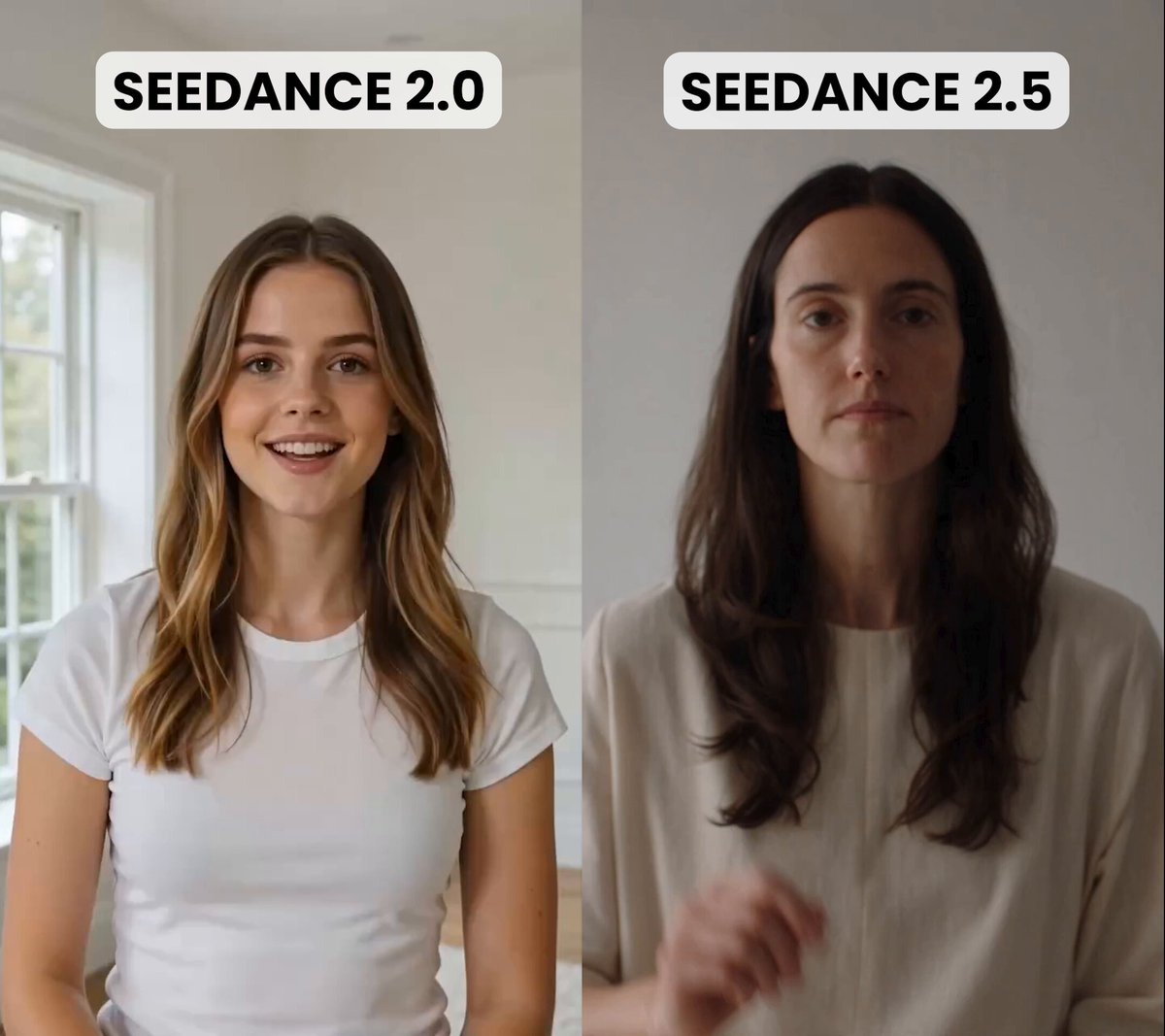
A single element moves while everything else stays still: steam rising from a cup, leaves shifting in a window, a flag rippling. This style is the easiest to execute and the most forgiving of source quality, because the model only has to animate a small masked region. Use it for hero banners, product pages, and social posts where a full performance would feel excessive.
Living portrait
A face blinks, smiles, turns slightly, or speaks. This requires accurate facial landmarks and usually a dedicated talking-portrait model rather than a general image-to-video model. Expect to spend more time on source selection: frontal or near-frontal faces with even lighting and visible teeth work best. Profile shots and heavy shadows produce artifacts.
Camera-driven parallax
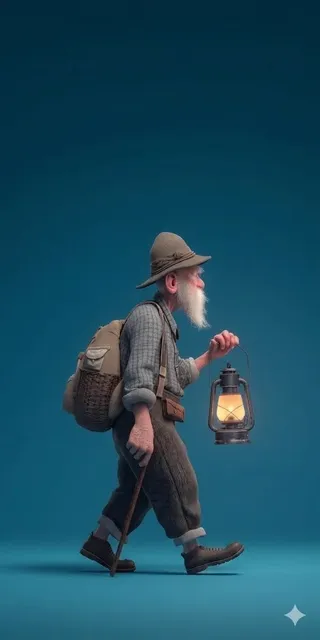
Nothing in the scene moves; the camera does. A push-in, a slow orbit, or a lateral truck through an estimated depth field. This is the strongest style for architecture, interiors, landscapes, and product photography, and the weakest for flat two-dimensional artwork.
Full scene animation
People walk, crowds shift, traffic flows. This is the most ambitious and the least predictable. Break the scene into layers, animate each separately where possible, and accept that you will generate many variants before one holds together.
| Style | Difficulty | Best source images | Typical clip length |
|---|---|---|---|
| Subtle cinemagraph | Low | Product, nature, close-up detail | 2–5 seconds |
| Living portrait | Medium | Evenly lit frontal faces | 3–8 seconds |
| Camera parallax | Medium | Architecture, landscape, interiors | 4–8 seconds |
| Full scene | High | Wide shots with clear depth | 3–6 seconds |
Preparing Source Photos for Reliable Motion
The single highest-leverage improvement in any photo animation workflow happens before you open a generation tool. Source preparation accounts for more quality variance than model choice does.
Resolution and sharpness
Animate at 1024 to 2048 pixels on the long edge. Anything smaller and the model invents detail that does not match the original. Anything much larger rarely helps and slows generation. Critically, upscale before animating, not after — a model given a soft image will animate the softness and add its own artifacts on top of it.
Focus matters more than resolution. If the eyes are not sharp, the animated eyes will drift and reshape. Run a light sharpen and a denoise pass, but resist aggressive sharpening, which creates halos the model mistakes for edges in motion.
Subject separation
If the background is busy — a crowd, a cluttered desk, dense foliage — the temporal model has more opportunities to make mistakes. Consider a gentle background blur or an outright background replacement before animating. For cinemagraphs, isolate the region you want to move; masking one element is far more controllable than asking the model to decide.
Aspect ratio and framing
Choose your delivery ratio before you generate: 16:9 for landscape video, 9:16 for short-form vertical, 1:1 for feeds. Generating in 16:9 and cropping to 9:16 later throws away the composition you carefully built, and cropping a moving clip often decapitates a rising subject.
File hygiene
Save as PNG or high-quality JPEG in sRGB. Strip metadata you do not need. Check for reflections, stray text, and hands before you commit. Text in a source image will almost always warp during animation, so either remove it in the still or accept a stylized shimmer.
Step-by-Step: From Still to Finished Clip
Here is a repeatable workflow. It assumes you already have a source photo and access to at least one image-to-video tool.
Step 1 — Define the shot before you generate
Write one sentence describing the outcome: what moves, how the camera behaves, and how long the clip runs. Ambition without specification is how people burn an afternoon generating noise.
Step 2 — Prepare the still
Crop, upscale, denoise, retouch, and confirm the aspect ratio. This is the step most people skip and later regret.
Step 3 — Choose an animation mode
Match the mode to the style from the previous section. Subtle cinemagraph and camera parallax can often share one tool; living portraits usually need a specialized model.
Step 4 — Write the motion prompt
Use the formula in the next section. Keep it between twenty and sixty words. Longer prompts dilute the signal.
Step 5 — Set controls conservatively
Start with low motion strength, a fixed seed, and the shortest duration your tool allows. Low motion strength hides model weaknesses; high strength exposes every one of them.
Step 6 — Generate a small batch
Produce three to five variants with the same prompt and different seeds. Judging a single output is a coin flip. Judging five gives you a real read on what the model can do with your image.
Step 7 — Repair faces and edges
Run a face restoration pass on any clip with people in it. Fix edges where the subject meets the background, since that seam is where most morphing artifacts appear.
Step 8 — Interpolate to delivery frame rate
Many models output 16 to 24 frames per second, which can look slightly stuttery. Frame interpolation can smooth that to 30 or 60 frames per second, but keep the setting modest — aggressive interpolation creates ghosting around fast motion.
Step 9 — Grade and add sound
Unify grain, adjust contrast, and add an ambient bed. Sound is not optional polish; it is what makes a three-second clip feel intentional rather than experimental.
Step 10 — Export per destination
Export a master at high bitrate, then derive platform-specific versions. Vertical crops need their own exports, not automated reframes of a landscape master.
Prompt Patterns for Image-to-Video Models
Image-to-video prompts describe change, not appearance. The model already sees the photo; it does not need to be told the woman has red hair. It needs to be told what the hair is doing.
A reliable four-part formula
Use this order: subject action + camera movement + atmosphere + style and quality tags.
Example: "the woman turns her head slightly and smiles, hair shifting gently, slow push-in, soft window light, shallow depth of field, cinematic, natural skin texture."
Example for a landscape: "clouds drift slowly across the ridge, mist rising in the valley, slow lateral truck to the right, golden hour light, documentary realism, fine detail."
Motion verbs that work
Drift, ripple, sway, billow, flicker, pulse, glide, push in, pull back, orbit, truck left, tilt up, settle. These words map well onto the motion priors most models learned from real footage.
Motion verbs that cause trouble
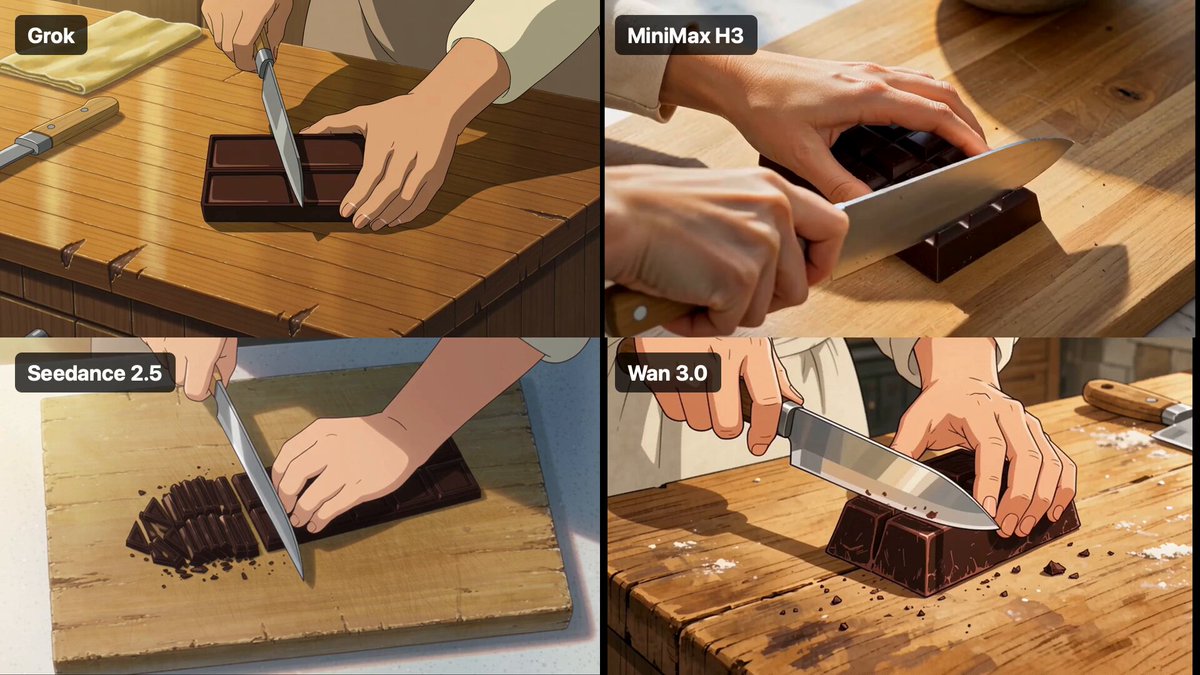
Anything implying precise interaction — grasp, twist, thread, fold, type — is a coin flip on a single still. If you need it, generate a placeholder motion and composite the interaction in an editor.
Negative guidance and constraint phrases
Where a tool supports negative prompts, include the artifacts you keep seeing: "no warped hands, no extra fingers, no morphing background, no flicker, no text distortion." Where it does not, keep positive phrasing specific instead of adding more adjectives.
Choosing Tools: Categories, Not Just Brands
The market changes fast enough that memorizing product names is a poor strategy. Learn the categories and you can evaluate whatever launches next.
Hosted image-to-video models
General-purpose generators that accept a still plus a text prompt. Selection criteria: maximum clip length, output resolution, whether camera paths and motion masks are exposed, seed control, watermark policy on free tiers, commercial licensing, and whether an API exists for batch work. Runway, Luma, Kling, Pika, and similar systems fit here; the right choice depends on which controls you actually use, not on benchmark screenshots.
Talking-portrait specialists
Tools dedicated to lip sync and facial performance. Evaluate them on jaw accuracy, teeth rendering, head-pose stability, and how they handle glasses and beards. These are usually worth the extra step for interview-style or archival narration projects.
Editing suites with built-in motion
Adobe Firefly, Premiere Pro, DaVinci Resolve, and CapCut all fold generative motion into an existing timeline. The advantage is workflow: your grade, sound, and captions live in the same place. The trade-off is often less fine-grained control over motion parameters.
Interpolation and upscaling utilities
Separate tools for frame interpolation and resolution upscaling are worth having. They clean up output from any generator and let you standardize everything to one frame rate and resolution regardless of source model.
How to decide quickly
Ask four questions. Does it support my required clip length? Can I control motion strength and camera behavior? Are commercial rights clear for my use case? Can I export without a watermark at my target resolution? Two "no" answers disqualify a tool regardless of how impressive its demo reel looks.
Polishing, Sound, and Export Settings
The last ten percent of the workflow determines whether a clip looks professional or looks generated.
Texture consistency
Different passes — animation, face restoration, interpolation, upscaling — can leave a clip with inconsistent grain. Add a subtle unified grain layer or a light film emulation across the whole clip so the frames feel like one continuous capture.
Sound design in three layers
Start with an ambient bed matched to the scene: room tone for interiors, wind and birds for exteriors, soft hum for product shots. Add one or two foley accents synchronized to visible motion, such as cloth rustle when a head turns. Layer music underneath at low volume, and never let music carry the scene alone.
Export presets that hold up
Deliver H.264 at 1080p with a bitrate around 12 to 20 Mbps for social, and higher for broadcast or large displays. Keep a ProRes or high-bitrate master archived separately. For vertical platforms, generate or crop in 9:16 and burn in captions rather than relying on platform auto-captions, which frequently misplace text over moving subjects.
Common Mistakes and How to Fix Them
Too much motion
Symptom: everything in the frame wobbles, including the background. Fix: lower motion strength by half and specify one moving element in the prompt.
Contradictory prompts
Symptom: the model produces neither the camera move nor the subject action you asked for. Fix: one camera verb, one subject verb, nothing competing.
Low-resolution sources
Symptom: eyes and small details pulse or smear. Fix: upscale the still and add light sharpening before generating again.
Faces too small in frame
Symptom: the face resembles the original for a second, then drifts. Fix: crop tighter so the face occupies a larger share of the frame, or switch to a portrait specialist.
Ignoring the destination format
Symptom: a beautiful landscape clip that loses its subject when cropped vertical. Fix: decide the aspect ratio first and generate natively in it.
Stopping after one generation
Symptom: a usable but unremarkable clip. Fix: batch five seeds, pick the best, and re-roll only the parameter that failed.
Skipping sound and grade
Symptom: technically fine footage that viewers scroll past. Fix: ambient bed, one foley accent, unified contrast.
Use Cases, Ethics, and Consent
Photo animation has moved from novelty to practical production technique across several industries.
Real estate and hospitality use slow camera parallax to make listing photos feel like walkthroughs. E-commerce uses cinemagraphs to show fabric drape or liquid movement without a video shoot. Museums and archives animate historical photographs for exhibits, often with careful documentation of what was synthesized. Education uses motion to direct attention to a diagram detail. Families use it to bring scanned photographs gently to life for anniversaries and memorials.
Consent is not optional
If a photograph contains a real, identifiable person, you need a clear basis for animating them. For commercial work, that means written permission. For public figures, it means extra caution: placing words in someone's mouth via lip sync is a different act from a subtle camera move, and audiences and platforms treat it very differently.
Label synthetic media
Most major platforms now expect disclosure when realistic media has been generated or altered. A short on-screen label or a caption note costs nothing and protects your credibility. Keep an internal record of which source image and which prompt produced each clip so you can answer questions later.
Handle archival material with care
Animating photographs of people who have died can be meaningful for a family and upsetting when published broadly without context. Ask before sharing, especially in public campaigns.
FAQ
How long does a typical generation take?
Hosted models usually return a three-to-five-second clip in under two minutes, with longer or higher-resolution outputs taking more. The real time cost is iteration: batching five variants, reviewing them, and re-running with adjusted settings typically takes fifteen to thirty minutes per final clip.
Do I need a powerful local GPU?
Not necessarily. Most image-to-video generation happens on hosted services. A local GPU becomes useful for upscaling, interpolation, and face restoration, where desktop tools are often faster and cheaper for repeated work.
Why do faces warp even when the rest of the image is stable?
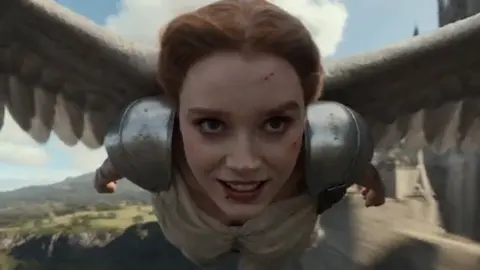
Faces have very little tolerance for error and the model has to invent motion for structures it only partially understands, such as teeth, eyelashes, and the boundary between hair and background. Fix it with a tighter crop, even lighting, a portrait-specialized model, or a post-generation face restoration pass.
Can I animate a scanned old photograph?
Yes, and it is one of the most rewarding uses of the technique. Scan at high resolution, repair scratches and dust first, correct faded color, and then animate with very low motion strength. Restoring before animating matters more here than anywhere else.
How do I keep a character consistent across multiple shots?
Use a single sharp reference image, keep the prompt structure identical between shots, and change only the camera and subject motion. Where a tool supports character reference or identity locking, use it. Otherwise accept that consistency will require manual selection from many generated variants.
Is commercial use allowed?
It depends entirely on the tool and your plan tier. Check the terms for the specific model you use, confirm whether generated output can be used in paid advertising, and keep records of your license status. Never assume that paid access alone grants unrestricted commercial rights.
How many seconds should a finished animated photo be?
Short is better. Two to five seconds for a cinemagraph, three to eight for a portrait, and four to eight for a camera move. Longer clips accumulate artifacts and lose the sense of a captured moment.
What is the fastest way to improve results?
Improve the source image and lower the motion strength. Those two changes alone fix the majority of disappointing outputs, and neither requires learning a new tool.

Alexander
More Blogs
Read MoreVidu Q4 Alternatives: 4K AI Video Models Compared (2026)
Vidu Q4 alternatives compared: Kling 4.0, Seedance 2.5, Wan 3.0, and Runway Gen-4 — 4K support, input modes, durations, audio, and what each costs in credits on Domer.
Top 4K AI Image Generators in 2026: 5 Models Compared on Real Costs
The top 4K AI image generators on Domer compared: Flux 3 Klein, Nano Banana 2.1, GPT Image 2.5, GPT Image 2, and Nano Banana Pro — 4K credit costs, reference limits, and speed.
Nano Banana 2.1 vs GPT Image 2.5: Which Image Model Should You Use? (2026)
Nano Banana 2.1 vs GPT Image 2.5 Flare compared: credit costs per resolution, aspect ratios, reference images, text rendering, and which tasks fit each model.