
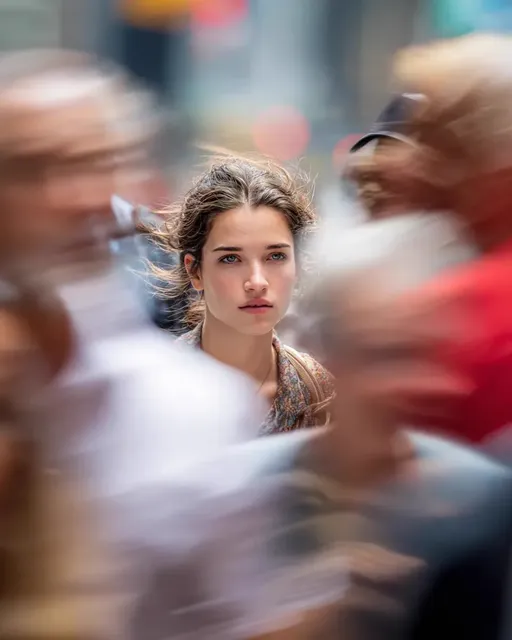
AI Animation Picture Generator: Turn Stills Into Motion
Oct 15, 2026

Still images are no longer the end of the line. An AI animation picture generator takes a photo, an illustration, or a rendered frame and gives it motion — drifting clouds, lifting hair, a slow camera push, a blinking character — without building a traditional animation pipeline. The appeal is obvious. The results, however, depend on how you prepare the source image, how you describe motion, and which model you point at the job.
This guide walks through what these tools actually do, a repeatable workflow from one still frame to a finished clip, criteria for choosing a generator, prompt patterns for motion, the artifacts you will run into, and the fixes that work. The goal is usable footage, not a demo you would never publish.
What an AI animation picture generator actually does
The phrase covers several different techniques that are often bundled together under one product name:
- Image-to-video (I2V). A single still becomes a short clip. The model treats the image as the first frame and predicts subsequent frames, keeping the content recognizable while adding motion.
- Text-to-image then animate. You generate a still from a prompt, then run it through an animation pass. Common when the source asset does not exist yet.
- Frame interpolation. Two or more keyframes are blended into smooth in-between frames. Excellent for slideshow-style motion, less convincing for organic movement.
- Rigging and puppet animation. Facial landmarks or skeletons are detected, then driven by a performance capture or a preset motion. The classic route for portraits and cartoon characters.
- Particle and effect layers. Parallax, light rays, snow, dust, and similar overlays generated from depth estimation on a still image.
Most creators end up mixing at least two of these. A typical clip might be an image-to-video generation of four seconds, extended once, interpolated to a higher frame rate, then finished with a subtle parallax pass to add depth.
Two terms matter throughout: temporal consistency, which is how stable the content stays from frame to frame, and motion strength, which controls how far pixels are allowed to travel. Almost every quality problem traces back to the tension between those two dials. Push motion too hard and faces melt into soup. Keep it too low and you get a static image with a faint, unsettling shimmer.
The technology stack in plain language
You do not need to read research papers to get good results, but knowing roughly what happens under the hood helps you diagnose failures instead of guessing.
Diffusion models and latent space
Most modern generators are diffusion-based. The model learns to remove noise from images, and once it can denoise reliably, it can also generate. In video variants, the denoising happens across a stack of frames at once so the model can compare frame one with frame ten while it works. That is why video diffusion behaves differently from running an image model repeatedly on the same picture and stacking the results.
Temporal attention and motion modules
Temporal attention layers let frames share information with each other. A motion module is a smaller network trained specifically to interpret motion cues — a moving camera, a waving hand, a flowing cape — and apply them across the sequence. When a model handles a complex action convincingly, a dedicated motion module is usually the reason.
GANs, interpolation, and rigging
Older but still useful approaches include generative adversarial networks for stylization and warping, optical-flow interpolation for smoothing, and landmark-based rigging for faces and bodies. These are cheaper and more predictable than diffusion in narrow cases, which is exactly why they have not disappeared from modern toolchains.
Why consistency is the hard part
Every generated frame is a guess. Small errors compound frame after frame. If frame twelve drifts half a pixel off target, frame forty-eight can drift far enough to change the shape of a nose or bend a doorframe. Everything in a good workflow — short generations, gentle motion, controlled frame rates, static reference elements — exists to keep that drift under control.
A repeatable workflow from one still to a finished clip
Step 1: Prepare the source image
Resolution, framing, and contrast matter more than clever prompting.
- Work at the largest size the model accepts, then downscale after generation for crispness.
- Keep the subject away from the edges. Models frequently warp whatever touches a border.
- Avoid text in the frame unless you plan to remove it. Lettering is one of the first things to melt.
- Fix details before animating. Blurry hands become unrecognizable hands once they move.
- Keep a clean, layered version of complex artwork so you can rebuild regions if a generation damages them.
Step 2: Define the motion intent in one sentence
Write down what should move and how much, for example: a slow push-in on the subject, a light breeze in the hair, a subtle shimmer on the water, and a background that stays essentially static. This sentence becomes both your prompt and your quality checklist when you review the output.
Step 3: Generate short before you generate long
Start with two to four seconds. Compare the last frame against the first. If drift is already visible in a short clip, a longer one will only amplify it. Once a short clip is clean, extend it in overlapping chunks and blend the joins rather than asking for one long take.
Step 4: Iterate on one variable at a time
Change motion strength, then prompt, then seed. Changing all three at once makes it impossible to learn what your model responds to. Keep a small notes file of settings that worked; you will reuse them constantly, and they will save you more time than any new tool.
Step 5: Finish outside the generator
Assemble in an editor. Retime, add sound, grade the color, and cut on motion so loops feel intentional. A generator gives you raw motion; an editor turns that motion into a watchable clip.
Choosing a generator: decision criteria
Rather than a ranking, use criteria you can test against your own footage:
| Criterion | What to check | Why it matters |
|---|---|---|
| Control granularity | Region masks, camera controls, motion brushes | Determines whether you can keep backgrounds locked |
| Maximum clip length | Native duration before extension | Longer native takes mean fewer visible seams |
| Consistency | Face and texture stability in your own tests | Saves hours of cleanup later |
| Resolution ceiling | Native output versus upscale workflow | Matters for large screens and print-adjacent work |
| Input flexibility | Single image, keyframes, depth, pose | Enables more precise direction |
| Local versus hosted | Hardware needs, privacy, offline work | Decides your long-term setup |
| Output formats | MP4, WebM, image sequences, alpha | Affects compositing options downstream |
Practical picks: hosted image-to-video tools such as Runway, Pika, Kling, and Luma Dream Machine are fast for single-shot motion. Local stacks built on Stable Diffusion with AnimateDiff-style motion modules give more control if you are comfortable with node graphs in ComfyUI. Dedicated tools such as Ebsynth and optical-flow interpolators handle stylized, hand-directed work. Upscalers and frame interpolators like Topaz Video AI or RIFE clean up the final pass.
Test the same source image across two or three tools before committing to one. Twenty minutes of comparison prevents weeks of working around a model that simply does not handle your subject matter well.
Prompting for motion, not just appearance
Describe change over time
Appearance prompts list nouns and adjectives. Motion prompts describe verbs and direction: steam rises and curls to the left, the camera tilts down slowly, fabric billows toward the viewer. If your prompt could describe a photograph, it will not add motion.
Use camera language deliberately
Terms like push-in, pull-back, pan, tilt, orbit, handheld, dolly, and crane give strong cues. One camera instruction per generation is usually enough. Stacking three produces jitter as the model tries to resolve the conflict.
Add stability cues
Phrases such as stable background, static environment, consistent lighting, and no camera shake genuinely influence results in most models. Use them whenever you want the subject to move and the world around it to stay put.
Reusable prompt patterns
- Portrait: subtle head turn, natural blink, hair moves gently, stable background, fixed camera
- Landscape: slow push-in, clouds drift right, water ripples, foreground rocks stay static
- Product: slow orbit around the object, fixed lighting, reflections do not change, clean background
- Illustration: character breathes, cape sways, leaves fall, warm light flickers, camera locked
Keep prompts to a couple of sentences. Long prompts dilute the motion signal and produce a vague, drifting result.
Fixing the usual artifacts
Flicker and texture crawl
Symptoms: shimmering detail, buzzing noise, textures that seem to boil. Fixes: lower motion strength, shorten the clip, generate at higher resolution and downscale, or run a temporal smoothing pass. Fine patterns like mesh, tartan, and woven fabric are the worst offenders — reduce their prominence in the source image or mask them out.
Morphing faces and hands
Symptoms: features drift, fingers merge, expressions slide sideways. Fixes: crop tighter so the face occupies more pixels, avoid extreme head turns, keep hands out of frame, or animate the face separately with a rigging tool and composite it back over the generated body motion.
Warping backgrounds and text
Symptoms: straight lines bend, signage scrambles, architecture breathes. Fixes: use region masks or motion brushes to lock the background, remove text from the source image, animate only the foreground, and composite over the untouched original frame.
The over-smooth look that reads as artificial
Symptoms: plastic skin, uniform grain, motion that feels like liquid. Fixes: add grain and texture in post, mix in a real footage layer, use a restrained grade, and cut on beats instead of relying on continuous motion. A little imperfection sells realism better than flawless rendering.
Loop seams
If you are building a seamless loop, generate the clip, then match the last frame to the first with a short cross-dissolve or a gentle time remap. Better still, ask the generator for cyclical motion — waves, breathing, drifting fog — that loops naturally without a visible jump.
Production settings that matter more than people expect
- Aspect ratio. Generate at your delivery ratio. Cropping later throws away resolution and can cut moving elements out of frame.
- Frame rate. Generate at 24 or 25 fps for a filmic feel, then interpolate to 48 or 60 for smoother slow motion. Doubling the frame rate also hides minor temporal inconsistencies.
- Duration. Short clips stitched together beat one long generation almost every time.
- Upscaling. Upscale after you finish editing motion, not before, so you are not sharpening artifacts you are about to remove.
- Color. Work in a consistent color space, apply a single look at the end, and go easy on heavy grain before compression.
- Audio. Sound does more for perceived motion quality than any render setting. Wind, footsteps, ambient hum, and music cues make four seconds feel intentional and finished.
Where these tools fit in real projects
Short-form social loops. Vertical clips of four to eight seconds, looping, often generated from a single hero image. Speed matters more than precision here.
Explainer and education visuals. Diagrams and historical illustrations animated with a slow push and a moving light source. The static parts must stay static, so masking is essential.
Product and e-commerce. Turntable-style motion, fabric movement, liquid pours. Reflective surfaces and mirrors are the hardest cases; expect retouching work.
Storyboards and previz. Animate rough keyframes to test timing before committing to expensive production. Low resolution is fine because you are testing rhythm, not polish.
Archival and restoration. Gently animating old photographs for documentaries. Keep motion minimal and respect the source; heavy motion reads as fake and breaks trust with the viewer.
Character animation for illustration. Rigging-driven tools handle dialogue and expressions better than pure image-to-video, and the two approaches can be combined in a single shot.
Mistakes that waste the most time
- Animating a weak source image. Garbage in, morphing garbage out. Fix the still first.
- Asking for a long clip in one pass. Drift compounds. Chunk the generation.
- Changing five settings at once. You will never learn what actually improved the result.
- Ignoring the first and last frames. Comparing them tells you instantly whether a clip is usable.
- Leaving text and logos in frame. They will scramble, and viewers will notice immediately.
- Skipping sound design. Silent clips always feel unfinished, even when the motion is excellent.
- Forgetting to archive the original asset. You will need it for masked composites and corrections.
- Generating at the wrong aspect ratio. Re-cropping costs resolution and framing freedom.
FAQ
How long can one generated clip be?
Native durations are typically a few seconds per pass. Most working pipelines chain several short generations with overlapping frames and blend the joins rather than relying on a single long take.
Do I need a powerful GPU?
Only for local pipelines. Hosted image-to-video tools run entirely in a browser. Local diffusion stacks with motion modules want a modern GPU with generous video memory, and they reward patience with reproducibility.
Why does my character's face change shape?
Temporal consistency fails fastest on faces because they contain fine, highly recognizable structure. Crop tighter, reduce motion strength, shorten the clip, or animate the face separately with a rigging tool and composite it back.
Can I control exactly what moves?
Yes, with the right tool. Look for region masks, motion brushes, depth conditioning, or pose inputs. Without those controls, you guide motion through prompts and accept approximation.
Is image-to-video better than frame interpolation?
They solve different problems. Image-to-video invents new frames and can create organic movement that never existed. Interpolation blends existing keyframes and is smoother but cannot invent motion. Many projects use both in sequence.
How do I make a seamless loop?
Use cyclical motion, keep the clip short, and match the final frame to the first with a cross-dissolve or a subtle retime. Avoid one-directional camera moves when the clip needs to repeat.
What resolution should I generate at?
The highest your tool supports natively, then deliver at your platform's target size. Upscale at the end of the process so you are not sharpening artifacts you intend to remove.
How do I stop the clip from looking artificial?
Add grain, reduce motion strength, include one static element as a reference, use intentional sound, and cut rather than letting motion run continuously without rhythm.
Key takeaways
An AI animation picture generator is a motion tool, not a magic wand. The quality ceiling is set by your source image and your motion brief. Work in short generations, change one variable at a time, lock what should not move, and finish in an editor with sound and a grade. Choose tools by control and consistency rather than by demo reels, and keep a small library of prompt patterns that you know work for portraits, landscapes, products, and illustrations. Do that consistently, and the clips you publish will look deliberate instead of merely generated.

Alexander
More Blogs
Read MoreVidu Q4 Alternatives: 4K AI Video Models Compared (2026)
Vidu Q4 alternatives compared: Kling 4.0, Seedance 2.5, Wan 3.0, and Runway Gen-4 — 4K support, input modes, durations, audio, and what each costs in credits on Domer.
Top 4K AI Image Generators in 2026: 5 Models Compared on Real Costs
The top 4K AI image generators on Domer compared: Flux 3 Klein, Nano Banana 2.1, GPT Image 2.5, GPT Image 2, and Nano Banana Pro — 4K credit costs, reference limits, and speed.
Nano Banana 2.1 vs GPT Image 2.5: Which Image Model Should You Use? (2026)
Nano Banana 2.1 vs GPT Image 2.5 Flare compared: credit costs per resolution, aspect ratios, reference images, text rendering, and which tasks fit each model.