

AI Animation Video Generator Apps: A Complete Workflow Guide
Oct 15, 2026
What an AI Animation Video Generator App Actually Does
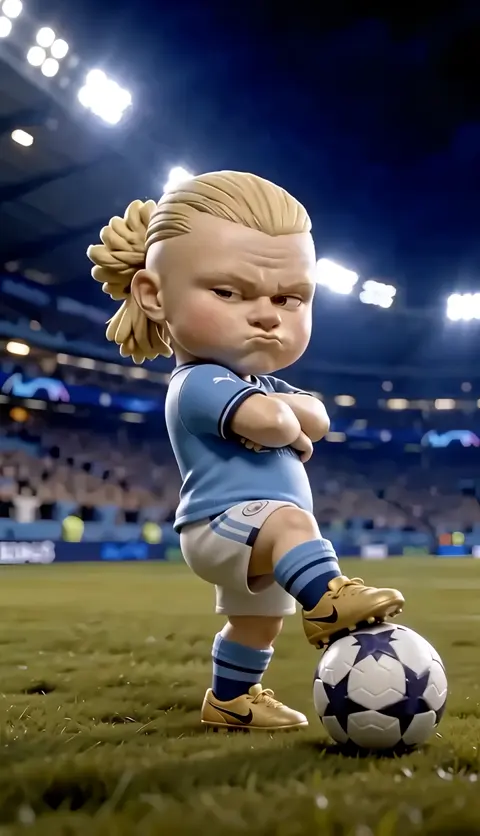
An AI animation video generator app turns written or visual input into moving footage. That sounds simple, but the phrase hides a wide range of very different tools. Some apps animate a single still image into a three-second loop. Others assemble a multi-shot narrative sequence with consistent characters, camera moves, and dialogue-driven pacing. Knowing which category a tool belongs to before you commit is the single biggest factor in whether your project succeeds or stalls.
In practice, most modern generators accept one or more of the following inputs:
- Text prompts describing a scene, subject, action, and camera behavior.
- Reference images that lock in a character's face, outfit, or a specific art style.
- Video clips used for motion transfer, style transfer, or shot extension.
- Audio tracks that drive lip sync and beat-matched cuts.
- Structured data such as a shot list, storyboard panels, or a script with timestamps.
The output is usually a short clip — anywhere from two to twenty seconds — which you then stitch together in an editor. Very few tools produce a finished five-minute film in one pass. Treat the generator as a shot factory, not a film crew. The director's job is still yours.
This guide walks through how the technology works, how to choose a tool, how to build a repeatable production workflow, and how to avoid the mistakes that waste the most time.
How the Underlying Technology Works
Diffusion, Transformers, and Motion Latents
Most current generation systems are built on diffusion models that have been extended from images into time. An image model learns to denoise a static picture. A video model learns to denoise a sequence of frames while keeping the frames mutually coherent. The mechanism that maintains coherence is the interesting part: the model carries a compressed representation of motion — often called a motion latent — alongside the visual latent. When you change a prompt word, you are nudging both the appearance and the movement trajectory.
Newer architectures add transformer layers on top of the diffusion backbone. Those layers let the model attend to relationships across a longer time window, which is why a ten-second clip today holds together far better than a ten-second clip from two years ago.
What the Model Is Bad At
Understanding the limits is more useful than understanding the architecture. Generators struggle with:
- Hands interacting with objects — contact points drift, fingers merge.
- Precise text rendering — signage and logos warp.
- Physical continuity — a cup that is full in shot one is often empty in shot two.
- Long single takes — beyond roughly ten seconds, identity and geometry start to slide.
- Exact motion specification — you can suggest a movement, rarely choreograph it frame by frame.
Design your shots so the model's weaknesses stay off camera. A close-up of a hand picking up a key is a risk. A medium shot of a person turning toward a door is reliable.
Image-to-Video vs. Text-to-Video
Text-to-video is fastest for exploration. Image-to-video is better for production because it gives you a fixed starting frame you already approved. A practical pattern is to generate a still you love, then animate it with a restrained motion prompt. This two-stage approach converts an unpredictable process into a controllable one.
Choosing the Right Tool: Decision Criteria
Feature lists are noisy. Score candidates on the criteria that actually affect your output.
Clip Length and Resolution
If your target is social vertical video, 720p to 1080p at five seconds per clip is plenty. If you are cutting into a broadcast or cinema pipeline, you need higher resolution and a genuine upscale path. Check whether the app supports upscaling natively or whether you must export and finish elsewhere.
Reference and Identity Controls
Does the tool accept a character reference and hold it across multiple generations? Can you save a style preset? Can you reuse a seed? These three capabilities matter more than raw visual quality for anything longer than a single clip.
Motion Control Granularity
Some apps give you a camera slider for pan, tilt, and zoom. Others accept a driving video for motion transfer. Others give you nothing but a text box. Decide how much control you actually need before paying for more of it.
Editing Integration
Look for clean exports — ProRes, H.264, PNG sequences, or alpha-channel WebM. A generator that outputs only watermarked MP4s will bottleneck you later.
Iteration Speed and Cost Predictability
Time-to-first-render and time-per-revision drive your real throughput. A tool that renders in ninety seconds lets you explore twenty variations; a tool that takes twelve minutes lets you explore three. Cost predictability matters for budgeting, but speed matters for creative quality.
Licensing and Commercial Use
Confirm the terms for commercial distribution, model training on your inputs, and derivative works. Read the actual terms, not the marketing page.
A Repeatable Production Workflow
Step 1: Write a Shot List, Not a Script
A script describes what characters say. A shot list describes what the camera sees. For AI animation, the shot list is the working document.
| Shot | Duration | Subject | Action | Camera |
|---|---|---|---|---|
| 1 | 4s | Rooftop, dawn | Character looks over city | Slow push in |
| 2 | 3s | Same character, close | Eyes narrow | Static, shallow DOF |
| 3 | 5s | Street below | Traffic moves, lights blur | Slow tilt down |
Keep every shot under six seconds unless the model has proven it can hold longer. More, shorter shots are easier to regenerate individually when one fails.
Step 2: Build a Style Bible
Before generating anything, collect four to six reference images that define your look: color palette, line weight if it is 2D, lens character if it is photoreal, lighting direction. Write two or three sentences describing the style in plain language. You will paste that description into every prompt. Consistency across shots comes from repetition of the same style language far more than from any single setting.
Step 3: Generate Keyframes First
Produce a still image for the first frame of every shot. Approve them all before animating. This is the highest-leverage habit in the entire workflow, because a still costs a fraction of a clip and reveals composition problems instantly. Reordering or deleting shots at this stage is nearly free.
Step 4: Animate with Restrained Motion Prompts
When you animate a keyframe, describe only the motion and the atmosphere. Do not re-describe the character in detail — the reference image already carries that information, and redundant description invites the model to reinterpret it.
Weak prompt: A young woman with red hair and a green jacket standing on a rooftop at dawn, cinematic, 4k, beautiful, city lights, dramatic sky.
Strong prompt: Slow push in. Hair moves gently in wind. Distant traffic lights flicker. Subtle atmospheric haze drift.
Step 5: Review in Contact Sheets
Export thumbnails of every generated clip into a single contact sheet. Problems that are invisible when watching clips one at a time — a color shift, a costume change, a jump in lighting direction — become obvious in a grid. Regenerate only the outliers.
Step 6: Assemble, Sound-Design, and Grade
Cut in your editor of choice. Add sound before you refine visuals; audio changes perceived pacing dramatically and often reveals that a shot you thought was too long is actually fine. Then apply a single look-up table across all shots to unify color, and finish with a light grain or halation layer if the generated footage looks unnaturally clean.
Prompting Patterns That Improve Output Quality
The structure below works across most text-to-video and image-to-video interfaces.
- Shot type and subject. "Medium shot of a cyclist."
- Action verb. "Coasting downhill, leaning into a turn."
- Camera behavior. "Tracking shot from the side, slight handheld drift."
- Environment and light. "Overcast morning, wet asphalt, soft reflections."
- Style anchor. "Muted documentary color, 35mm grain, shallow depth of field."
- Negative constraints. "No text overlays, no lens flares, no rapid cuts."
Three habits separate good prompters from frustrated ones:
- Change one variable at a time. If you alter subject, style, and camera simultaneously, you learn nothing from the result.
- Prefer verbs over adjectives. "Leaning," "stepping," and "turning" produce better motion than "dynamic" or "cinematic."
- Keep a prompt log. A simple spreadsheet of prompt, seed, and rating turns guesswork into an asset you can reuse.
Keeping Characters Consistent Across Shots
Identity drift is the most common complaint in AI animation. Attack it from four directions at once.
- Reference conditioning. Supply the same character image to every shot. If the tool supports multiple reference slots, use one for face and one for wardrobe.
- Seed discipline. Lock a seed for a character where the tool allows it, and change only the seed for camera and environment variation.
- Scene isolation. Generate each shot separately rather than relying on a long continuous take. Separate generations are easier to correct.
- Editorial camouflage. Cut away to inserts, hands, environments, and other characters. Audiences accept an identity shift much more readily after a cut than within a shot.
If a tool supports training a small character model on a set of reference images, that is usually the strongest option for recurring characters, but it costs setup time. For one-off projects, reference conditioning plus editorial camouflage is enough.
Common Mistakes and How to Avoid Them
Overloading the first prompt. Beginners write a paragraph containing a full scene description and then wonder why the model improvises. Start minimal, then add.
Chasing length instead of coverage. A five-minute piece made of sixty short shots is easier and often better than a five-minute piece made of twelve long ones. Coverage gives you editing options.
Ignoring motion blur and frame rate. Generated footage is often rendered at 24fps with inconsistent motion blur. If you mix it with real footage, add a subtle blur pass to match.
Skipping audio until the end. Sound is not a finishing step. Build a scratch track early and animate against it.
Rendering at maximum quality for drafts. Draft at lower resolution with the same settings, approve the composition, then re-render the approved shots at full quality.
Assuming one tool will do everything. Realistic pipelines combine a still generator, a video generator, an upscaler, and a traditional editor. No single app wins every category.
Quality Control Checklist Before Export
Run this list on every project:
- Every clip's first and last frame can be cut on without a visible jump.
- Character wardrobe, hair, and eye color are identical across shots.
- Light direction is consistent within each scene.
- No warped text, extra fingers, or melting props appear in hero frames.
- Audio levels are normalized to roughly -14 LUFS for web delivery.
- Frame rate and resolution are uniform across all clips.
- Color grade is applied globally, not per clip.
- Export codec matches the delivery platform.
Project Recipes by Format
Social vertical (15–30 seconds). Six to ten shots of two to three seconds each. One subject, one location, one visual hook in the first 1.5 seconds. Vertical framing, centered subject, large on-screen movement.
Explainer (60–90 seconds). Mix AI footage with animated diagrams and screen recordings. Keep AI shots abstract — environments, textures, hands, silhouettes — so identity consistency is never a problem.
Product ad (20–45 seconds). Generate clean macro shots of the product in imagined environments, then cut in real product footage for accuracy. Never let a generator invent your logo.
Narrative short (2–5 minutes). Build a full shot list, create keyframes for every shot, animate in batches of five, and review contact sheets weekly. Budget roughly three to five generations per approved shot for a polished result.
FAQ
How long does it take to produce a one-minute animated video? With a solid shot list and an approved keyframe set, expect a full day of generation and a second day of editing, sound, and grading for a polished result. Rushed projects can be done in hours, but consistency suffers.
Do I need animation skills? No, but you need editing skills. Composition, pacing, and sound design carry more of the final quality than prompt writing does.
Can AI animation handle dialogue? Lip sync has improved substantially for front-facing medium shots. Profile shots and heavy motion still break. Record or synthesize voice first, then animate to the waveform.
What resolution should I generate at? Draft at the lowest resolution that lets you judge composition, then re-render approved shots at your delivery resolution. Generating everything at maximum quality wastes the most expensive resource you have: iteration time.
How many retries should I expect per shot? Three to five for a hero shot, one to two for background or insert shots. Budget accordingly and do not treat a high retry count as a personal failure.
Is generated footage acceptable for commercial work? That depends on the tool's licensing terms and your client's comfort level. Verify both. Many brands now accept AI-generated B-roll but require real footage for anything showing a product or a person's likeness.
Should I use one app or several? Several, usually. A strong pipeline pairs a still-image model for keyframes, a video model for motion, an upscaler for delivery resolution, and a conventional editor for assembly. Choosing tools by strength rather than by brand loyalty produces better work.
Where to Focus Next
The technology improves on a quarterly cadence, which means the specific model you use matters less than the workflow around it. Skills that will still matter in two years: writing precise shot lists, building style bibles, evaluating footage critically in contact sheets, and cutting to sound. Those are transferable across every tool that appears.
Start with one small project — ten shots, thirty seconds, one character, one location. Build the full pipeline end to end, including audio and grading. The lessons you learn from finishing something short will improve your next project far more than another round of tool comparison.

Alexander
More Blogs
Read MoreVidu Q4 Alternatives: 4K AI Video Models Compared (2026)
Vidu Q4 alternatives compared: Kling 4.0, Seedance 2.5, Wan 3.0, and Runway Gen-4 — 4K support, input modes, durations, audio, and what each costs in credits on Domer.
Top 4K AI Image Generators in 2026: 5 Models Compared on Real Costs
The top 4K AI image generators on Domer compared: Flux 3 Klein, Nano Banana 2.1, GPT Image 2.5, GPT Image 2, and Nano Banana Pro — 4K credit costs, reference limits, and speed.
Nano Banana 2.1 vs GPT Image 2.5: Which Image Model Should You Use? (2026)
Nano Banana 2.1 vs GPT Image 2.5 Flare compared: credit costs per resolution, aspect ratios, reference images, text rendering, and which tasks fit each model.