
AI Anime Art Generation: A Practical Workflow Guide
Oct 15, 2026
Why Anime-Style AI Generation Feels Different
Anime art has a distinct visual language: clean line art, stylized proportions, expressive eyes, and deliberate color palettes. When you ask a general-purpose AI image generator for anime, the result often looks like a Western cartoon or a soft-focus painting. The reason is that anime is not a single style. It is a family of styles shaped by decades of hand-drawn production, from cel-shaded TV animation to highly detailed illustration. AI models learn from patterns in training data. If the training data mixes anime with other illustration styles, the model may default to a generic look. To get convincing anime results, you need to guide the model toward specific visual traditions. That means choosing the right base model, writing prompts that describe line weight, shading, and composition, and using control tools to keep characters consistent across scenes. This guide walks through a practical workflow for generating anime-style images and video with AI. It covers tool selection, prompt design, character consistency, animation, quality control, and production habits that make the process repeatable. Whether you are creating a short animation, a visual novel, a social media series, or concept art for a game, the same principles apply.
The Core Workflow: From Idea to Finished Frame
A reliable AI anime workflow has five stages: define the look, build a prompt spine, generate variations, select and refine, and upscale. Skipping stages usually leads to wasted generations and inconsistent results.
Define the target look
Before opening any tool, collect reference images. Look for anime that matches your goal: a 1990s cel-shaded series, a modern digital illustration, a watercolor background style, or a gritty cyberpunk aesthetic. Write down the visual traits you see. Are the outlines thick or thin? Is shading hard-edged or soft? Are the eyes large and reflective or narrow and realistic? Do backgrounds use detailed line art or painted textures? Your references become the target. Without them, you will judge outputs by feel alone and end up with style drift across a project.
Build a prompt spine
A prompt spine is a reusable structure that describes the constant parts of your style. It might include the medium (anime key visual, cel-shaded animation frame), the line style (clean black outlines, flat colors, two-tone shading), the lighting (soft rim light, warm sunset), and the camera (medium shot, eye level). You then swap in the subject and action for each new image. For example, a spine could be: anime key visual, cel-shaded, clean line art, soft rim light, detailed background, medium shot, cinematic composition. A specific prompt adds: a young swordswoman standing on a cliff, wind blowing her cloak, dramatic clouds. Keeping the spine consistent reduces random variation.
Generate variations
Do not generate one image and stop. Generate batches of four to eight variations using the same prompt but different seeds. If your tool supports it, vary the aspect ratio, the sampling steps, or the guidance scale slightly. The goal is to explore the model's interpretation of the prompt. Look for compositions that feel intentional, not accidental. Save the seeds of promising results so you can reproduce them.
Select and refine
Choose the best candidate. Use inpainting to fix hands, eyes, or background details. Use image-to-image with a low denoising strength to adjust colors or lighting without changing the composition. If the face is almost right but the expression is off, mask the face and run a targeted generation with a more specific expression prompt. Refinement is where a good image becomes a finished piece.
Upscale and clean
AI images often have soft edges or compression artifacts at small sizes. Upscale with a model trained for illustration or anime, not a photo upscaler. After upscaling, check for new artifacts. Sometimes you need to run a second pass at lower strength to smooth noise while preserving line art. Finally, export in the format your project needs: PNG for transparency, JPEG for web, or a sequence for video.
Choosing the Right AI Tool for the Job
Not all AI art tools handle anime the same way. The best choice depends on whether you need still images, short video clips, or both.
Image-first models
Some models are fine-tuned on anime datasets. They produce strong line art and stylized faces out of the box. Others are general-purpose but respond well to anime prompts when you add style tags. Look for models that support negative prompts, seed control, and inpainting. If you plan to do character consistency, check whether the tool supports reference images, embeddings, or adapter training. Cloud-based tools are convenient but may limit model choice or resolution. Local tools give you more control but require a capable GPU and time to set up.
Video-first models
AI video generators can animate a still image or generate motion from a text prompt. For anime, image-to-video usually works better than text-to-video because you can control the first frame. Look for features like motion brush, camera control, and frame interpolation. Some video tools are designed for realistic footage and struggle with anime line art. Test a short clip before committing to a long sequence. Pay attention to how the tool handles fast motion, hair, and clothing. Anime often has exaggerated motion, and some models create smearing or melting.
Hybrid pipelines
A common workflow is to generate stills in an image-focused tool, then animate them in a video tool. You can also generate a rough animation with AI, then refine frames in a traditional animation program. Hybrid pipelines give you the best of both worlds: strong character design from image models and motion from video models. The trade-off is more software and more steps. Choose a hybrid pipeline when you need precise control over the final look.
Local vs cloud
Local generation means you run models on your own hardware. You get privacy, no per-image costs, and unlimited experimentation. You also need a strong GPU, technical patience, and storage for models. Cloud tools are easier to start, often have polished interfaces, and handle updates for you. They may charge per generation or limit resolution. Many creators use a mix: cloud for quick tests and local for final production.
Prompt Engineering for Anime Aesthetics
Prompt engineering for anime is about describing visual grammar, not just subjects. A prompt that says 'anime girl' gives the model too much freedom. A prompt that describes line weight, shading, and composition gives you control.
Subject, style, camera, lighting
A strong anime prompt includes four layers. Subject: who or what is in the frame, including age, clothing, pose, and expression. Style: the visual tradition, such as 90s cel anime, modern key visual, or watercolor illustration. Camera: shot size, angle, lens, and depth of field. Lighting: time of day, light source, color temperature, and mood. For example: a teenage pilot in a worn flight jacket, confident smirk, standing in a hangar; 90s cel anime style, clean line art, flat colors, dramatic shadows; low angle, medium shot, wide lens; warm sunset light through hangar windows, dust in the air, cinematic. This prompt gives the model multiple anchors.
Negative prompts and artifacts
Negative prompts tell the model what to avoid. Common negatives for anime include: photorealistic, 3D render, Western cartoon, blurry, extra fingers, deformed hands, asymmetrical eyes, messy line art, watermark, signature, text. Use negatives sparingly. Too many can flatten the style. If a specific artifact keeps appearing, add only that term. For example, if hands are consistently bad, add 'bad hands, extra fingers'. If the background is too busy, add 'cluttered background'.
Seed control and consistency
A seed is a number that determines the initial noise for image generation. Using the same seed with the same prompt and settings produces the same image. Changing the seed creates variations. For character consistency, you can keep the seed fixed while changing the pose or background description. This is not perfect, but it reduces random changes in facial features. Some tools let you lock the seed and vary only the prompt. Experiment with seed variation to find a range that keeps your character recognizable.
Style tags and weights
Many tools let you add weights to prompt terms, like (cel shaded:1.2) or (soft shading:0.8). Use weights to emphasize the traits you care about. If the line art is too thin, increase the weight of 'thick outlines'. If the colors are too saturated, increase 'muted colors'. Weights are a blunt instrument, so adjust in small steps. A change from 1.0 to 1.1 can make a visible difference.
Solving Character Consistency Across Images and Scenes
Character consistency is the hardest part of AI anime production. A character must look the same in every shot, even when the pose, angle, and lighting change. There are several techniques, and they work best when combined.
Character sheets and reference images
Create a character sheet with multiple views: front, side, back, and a few expressions. Generate the sheet with a detailed prompt that includes hair color, eye color, clothing, and distinctive features. Then use that sheet as a reference for other images. Some tools accept a reference image and try to match the character's face and outfit. The quality depends on the tool and the reference. A clean, well-lit character sheet with a neutral background gives the best results.
Embeddings and adapters
More advanced tools support embeddings or adapter models that learn a character from a set of images. You train a small model on 10 to 30 images of your character. After training, you can use a trigger word in prompts to generate that character in new situations. This approach takes time and requires a consistent dataset, but it produces the strongest consistency. If you are making a series with a recurring cast, this investment pays off.
Pose and expression control
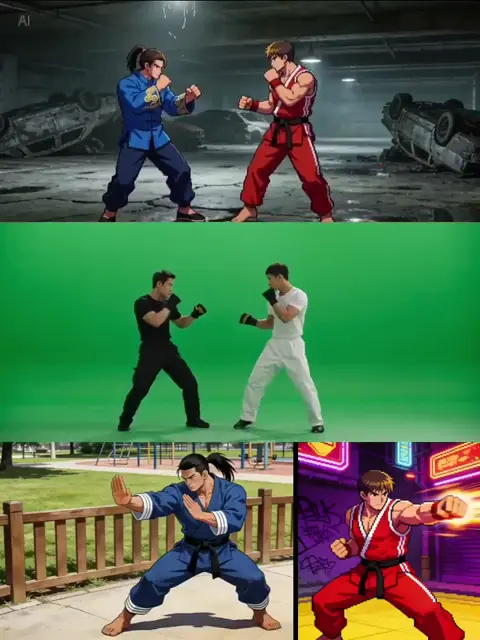
Even with a consistent character, you need control over pose and expression. Tools like ControlNet or pose references let you specify a skeleton or depth map. You can generate a pose in a 3D program or use a reference photo, then apply it to your character. For expressions, you can use face landmarks or simply describe the expression in detail and generate multiple options. Some tools have dedicated expression editors. The goal is to separate identity from pose so you can mix and match.
Scene continuity
Consistency also applies to backgrounds and props. If a scene takes place in a classroom, the desks, windows, and lighting should match across shots. Create a background reference sheet just like a character sheet. Use the same seed or reference image for background generation. When you move the camera, describe the new angle but keep the key details. For example, if the classroom has a broken clock on the wall, mention it in every shot where it is visible. Small details build continuity.
Animating Anime Art: From Stills to Motion
AI animation has improved rapidly, but it still requires careful setup. The most reliable approach is to animate from a still image rather than generating motion from text alone.
Image-to-video
Start with a high-quality anime still. Upload it to a video model and describe the motion you want: hair blowing, cloak fluttering, camera slowly pushing in. Keep the motion description simple. Too much motion confuses the model and creates warping. Use a short clip length, often two to four seconds, and generate several variations. Then choose the cleanest clip and extend it if needed.
Keyframe and interpolation
For more control, create keyframes at important moments and let the AI interpolate between them. You can generate keyframes with an image model, then use a video tool to fill in the motion. Some tools support this natively. If not, you can generate short clips and edit them together. Interpolation works best when the keyframes are close in composition. Large jumps in pose or camera angle produce artifacts.
Camera moves
Anime often uses dynamic camera moves: pans, tilts, zooms, and tracking shots. AI video tools usually offer camera controls. Use them subtly. A slow zoom or pan feels more natural than a fast whip. If the tool does not have camera controls, you can simulate a move by cropping and scaling the image over time in an editor. This is a reliable fallback for simple moves.
Frame rate and motion blur
Anime is often animated on twos or threes, meaning the image changes every two or three frames. AI video models usually generate at a constant frame rate. You can convert to a lower frame rate in post to get a more hand-drawn feel. Motion blur can help smooth fast action, but too much makes the image look like a 3D render. Use motion blur selectively, and consider adding speed lines or impact frames for action scenes.
Quality Control: Common Artifacts and How to Fix Them
AI anime art has predictable failure modes. Knowing them helps you fix issues quickly.
Hands and fingers
Hands are a common problem. AI models often add extra fingers or merge them. Fix hands with inpainting. Mask the hand area and generate with a prompt that describes the hand pose: 'open hand, five fingers, relaxed'. Use a negative prompt for extra fingers. If the hand is still bad, generate a separate hand image and composite it in an editor. For animation, keep hands simple or hide them in pockets.
Eyes and facial asymmetry
Anime eyes are expressive, but AI can make them uneven or cross-eyed. Use inpainting on the eyes. Describe the eye direction and shape: 'large round eyes looking left, symmetrical'. If the face is asymmetric, mask the whole face and regenerate with a lower denoising strength. Sometimes a small shift in the prompt, like changing 'smiling' to 'gentle smile', fixes the expression.
Background melting
When you generate a character, the background may look like melted colors. This happens when the model focuses on the face. Fix it by generating the background separately and compositing, or by using a depth map to separate foreground and background. You can also use inpainting with a prompt that describes the background in detail.
Style drift
Style drift happens when images in a sequence look like they came from different shows. To prevent it, use a consistent prompt spine, the same model, and the same seed where possible. Create a style reference image and use it as an image prompt for every generation. If drift occurs, go back to the reference and adjust your prompts to match.
Over-smoothing
Some upscalers and video models smooth out line art. To keep crisp lines, use an upscaler trained on illustrations. Avoid aggressive denoising. If lines are still soft, add a sharpen filter in post, or overlay a line art layer generated from the original image.
Building a Repeatable Production Pipeline
If you plan to create more than a few images, you need a pipeline. A pipeline saves time, reduces errors, and makes collaboration easier.
Asset library
Organize your assets in folders: references, character sheets, backgrounds, prompts, seeds, and final renders. Name files with a consistent convention, such as project_character_pose_version. Keep a spreadsheet or text file with prompts and settings for each final image. When you need to regenerate or adjust, you have a record.
Naming conventions
Use clear names that include the project, character, scene, and version. Avoid spaces and special characters. For example: neoncity_aya_run_01.png. A good naming convention helps you find assets and avoids overwriting.
Batch generation
Generate in batches. Write a list of prompts and run them overnight or in a queue. Batch generation is efficient and gives you more options. Review the batch in the morning and select the best. Delete obvious failures to keep your library clean.
Review gates
Set checkpoints where you review quality before moving to the next stage. For example, after character design, review the sheet before generating scenes. After scene generation, review composition and consistency before animating. Catching problems early saves hours of rework.
Ethical and Legal Considerations for AI Anime Art
AI art raises questions about copyright, style imitation, and commercial use. Understanding the basics helps you avoid problems.
Copyright and style imitation
You cannot copyright a style. However, you should avoid directly copying a living artist's distinctive characters or trademarks. If you train a model on a specific artist's work without permission, you may face legal and ethical issues. Many platforms have rules about this. For commercial projects, use models trained on licensed or public domain data, or create your own style.
Commercial use
Check the license of the AI tool you use. Some tools allow commercial use of generated images, others do not. Some require a paid plan. Read the terms. If you use a model trained on a dataset that includes copyrighted work, the commercial status can be unclear. When in doubt, consult a lawyer.
Attribution
You do not need to attribute an AI tool unless its license requires it. However, being transparent about AI use is good practice, especially in client work. Some clients may have policies about AI-generated content. Ask before you start.
FAQ
What is the best AI model for anime art?
There is no single best model. Some models are fine-tuned for anime and produce strong line art. Others are general-purpose but respond well to detailed prompts. Test a few and see which matches your style. For character consistency, look for models that support adapters or reference images.
How do I keep a character consistent across images?
Use a character sheet, reference images, and if possible, train an adapter. Keep your prompt spine stable, use the same seed where you can, and separate identity from pose. Consistency is a process, not a single setting.
Can I animate anime art with AI?
Yes. Image-to-video works better than text-to-video for anime. Start with a high-quality still, describe simple motion, and generate short clips. Use camera controls subtly. For complex action, create keyframes and interpolate.
Why do AI anime faces look weird?
Common issues include asymmetry, cross-eyed pupils, and melted details. Use inpainting on the face, describe eye direction, and avoid overloading the prompt. Lower denoising strength when refining.
How many images do I need for a character adapter?
Usually 10 to 30 images. They should show the character from different angles with consistent lighting and a neutral background. More images can help, but quality and consistency matter more than quantity.
Is AI anime art legal to sell?
It depends on the tool license and the training data. Check the terms of the tool you use. Avoid imitating copyrighted characters. For commercial work, use models with clear commercial licenses. When unsure, get legal advice.

Alexander
More Blogs
Read MoreVidu Q4 Alternatives: 4K AI Video Models Compared (2026)
Vidu Q4 alternatives compared: Kling 4.0, Seedance 2.5, Wan 3.0, and Runway Gen-4 — 4K support, input modes, durations, audio, and what each costs in credits on Domer.
Top 4K AI Image Generators in 2026: 5 Models Compared on Real Costs
The top 4K AI image generators on Domer compared: Flux 3 Klein, Nano Banana 2.1, GPT Image 2.5, GPT Image 2, and Nano Banana Pro — 4K credit costs, reference limits, and speed.
Nano Banana 2.1 vs GPT Image 2.5: Which Image Model Should You Use? (2026)
Nano Banana 2.1 vs GPT Image 2.5 Flare compared: credit costs per resolution, aspect ratios, reference images, text rendering, and which tasks fit each model.