
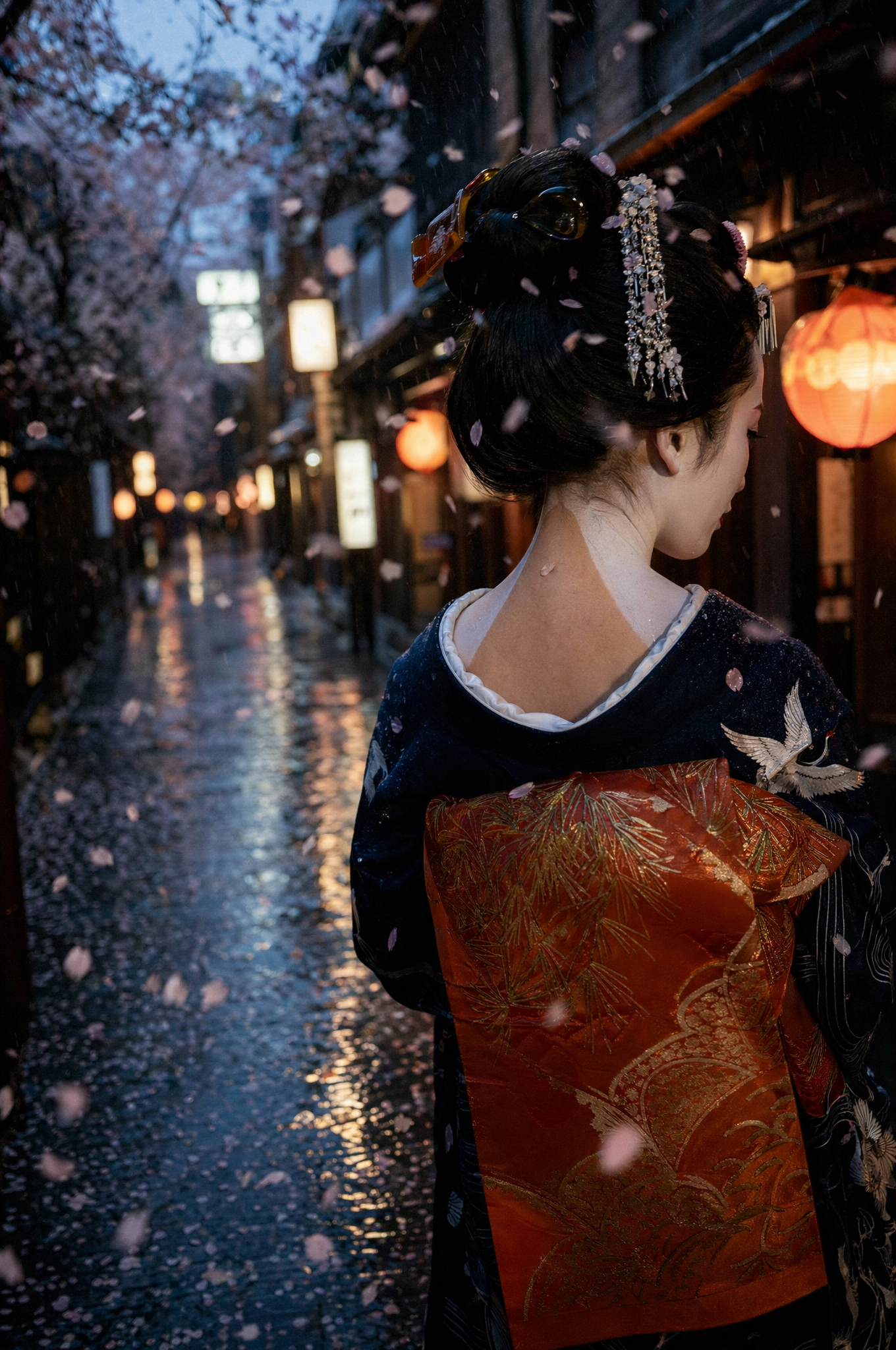
AI Anime Character Generator: Turn Photos Into Anime Art
Oct 15, 2026
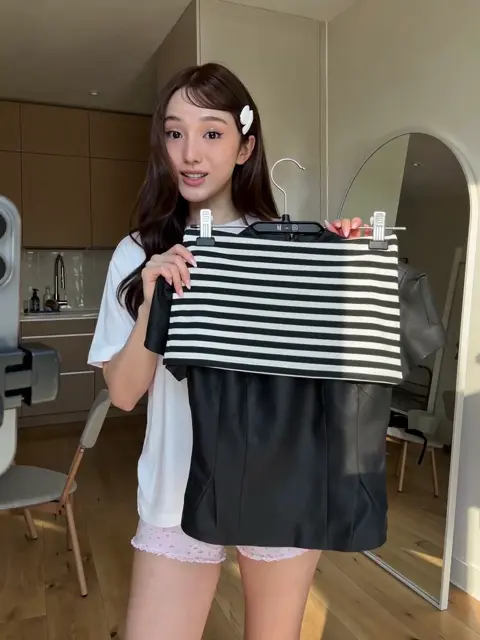
Why Photo-to-Anime Conversion Became a Mainstream Workflow
Turning a real person into an anime character used to mean commissioning an illustrator, waiting weeks, and paying per revision. Today the same request can be handled in a browser tab in a few minutes, and the results are often good enough to use as a profile avatar, a gift, a comic pitch, or a storyboard character. The shift happened because three things converged: diffusion models got good at illustration-heavy styles, image-to-image pipelines made it possible to keep a real face's structure while swapping the rendering style, and consumer hardware plus browser-based tools removed the need for a rendering farm.
The practical outcome is that photo-to-anime conversion is no longer a novelty. It is a repeatable production step. Character designers use it to explore a likeness quickly. Writers use it to cast their scripts visually. Streamers and community managers use it for branded avatars and thumbnails. Small studios use it to build a consistent cast of characters for shorts and comics without hiring a full art team for early iterations.
What separates a satisfying result from a disappointing one is rarely the tool. It is the source photo, the prompt, the strength settings, and the amount of cleanup you are willing to do afterward. This guide walks through the whole chain: understanding what the models actually do, choosing the right tool, preparing a photo, writing prompts that hold on to a likeness, keeping a character consistent across many images, and polishing the final file so it looks intentional rather than generated.
How AI Anime Generation Actually Works
Diffusion, image-to-image, and control layers
Most modern anime generators are latent diffusion models. They start with noise and progressively denoise it, guided by your text prompt, until an image emerges. In text-to-image mode, the model invents everything. In image-to-image mode, your photo is partially noised and then denoised again, which means the model keeps the broad structure of the original and repaints the surface detail. That single mechanic is what makes photo-to-anime conversion possible: the pose, framing, and facial geometry survive, while the shading, linework, and rendering style change.
Control layers add precision. Pose estimation, depth maps, and edge detection can lock the skeleton, camera distance, and silhouette so a restyle does not drift into a different person or a different angle. Reference-image adapters go one step further, letting you point the model at a style or character image and say "render it like this" without retraining anything.
Why anime is a distinct target
Anime illustration is not photorealism with a filter. It relies on clean ink-like lineart, flat cel shading with hard shadow edges, a limited palette, oversized and highly symbolic eyes, and hair rendered as large graphic shapes with a few highlight bands. Models learn these conventions from enormous collections of illustration art, which is why a prompt containing "cel shading" behaves so differently from one containing "cinematic portrait."
What models cannot infer
Models do not know your intent. They cannot guess whether you want a late-90s television look or a modern digital key visual, whether the character should keep their glasses, or that a hand must have exactly five fingers. Everything you care about has to be either described in the prompt, preserved by a control layer, or fixed in an editing pass. Treating the first generation as a draft rather than a final image is the single most useful mindset shift in this workflow.
Choosing the Right Tool for Your Goal
There is no universally best generator. There are tools that trade control for speed, and speed for control. Before opening anything, decide which of these criteria matter most.
- Control depth. Browser-first generators usually expose a prompt and a few sliders. Node-based pipelines and local installs expose denoising strength, sampler, seed, mask control, and multiple conditioning inputs.
- Consistency features. Some tools support character references, saved styles, or small custom model training. If you need the same character across twenty images, this matters more than raw image quality.
- Inpainting quality. Fixing a hand or an eye is faster than regenerating a whole image. Check whether the tool lets you mask a region and regenerate it at higher resolution.
- Upscaling path. Illustration-tuned upscalers handle flat color and lineart better than photographic ones, which tend to add fake skin texture and noise.
- Privacy and hosting. Local installs keep source photos on your machine. Cloud tools upload them. If your subject is a client or a minor, this is a real decision.
- Licensing and commercial use. Read the terms for the specific model and hosting platform before selling output.
As a rule of thumb: a single avatar is fine in a browser generator. A twenty-page comic, a recurring cast, or anything requiring a consistent silhouette pushes you toward a pipeline where you can fix seeds, train a small character model, and batch-process. A social clip that moves needs a generator plus an image-to-video step afterward.
Preparing a Source Photo That Converts Well
The source photo does more for final quality than any slider. Models reconstruct detail from what they can see, so anything ambiguous gets invented.
Aim for these conditions:
- Face the camera or use a three-quarter angle. Full profile is the hardest to keep recognizable.
- Use even, soft lighting. Harsh shadows across the eyes create dark patches the model interprets as objects.
- Keep the expression clear. A distinct emotion survives stylization better than a neutral half-smile.
- Show the hair and eyes. Bangs covering one eye, sunglasses, or heavy beauty filters remove exactly the features that make the likeness work.
- Use an uncluttered background. Busy backgrounds become busy anime backgrounds unless you separate the subject first.
- Start at 1024 pixels on the long edge or higher. Cropping tighter beats uploading a low-resolution group photo.
- Capture multiple angles if you plan a series. Front, three-quarter, and profile shots give you material for a character sheet later.
If you only have a phone snapshot, spend two minutes on cleanup: straighten the head, crop to chest-up for portraits, denoise lightly, and raise the mid-tone contrast slightly. Avoid aggressive sharpening, which the model can mistake for texture and translate into line noise.
Prompting for Anime Style Without Losing Likeness
The prompt skeleton
A reliable anime prompt has four layers, ordered from identity to technique: subject descriptors, style descriptors, lighting and composition, then quality cues.
Example: "portrait of a young woman with wavy auburn hair, round glasses, and freckles, 1990s cel anime style, clean ink lineart, flat shading, limited pastel palette, soft rim light from the left, chest-up composition, subtle film grain."
Notice that identity details come first. If you bury "round glasses" behind five style words, some models will drop it. Keep identity descriptors concrete and visual: hair color and shape, eye color, clothing, accessories, build, and age range.
Negative prompts
A short negative list prevents the most common failures: "photorealistic, 3D render, blurry lineart, extra fingers, deformed hands, watermark, signature, text, oversaturated, plastic skin, doll-like." Do not pile on fifty negatives; each one consumes attention that could be spent on your actual subject.
Style vocabulary cheat sheet
- cel shading, flat color, hard-edged shadows
- ink lineart, variable line weight, clean vectors
- watercolor background, painterly key visual
- retro television grain, limited palette, halftone
- shoujo sparkle, soft bloom, floral motifs
- chibi proportions, super-deformed, oversized head
- mechanical detail, hard surface, panel lines
Pick two or three style terms, not ten. Contradictory styles produce muddy compromises.
Strength and guidance settings
In image-to-image mode, denoising strength is your likeness dial. Around 0.35–0.5, the face stays close to the original and the style shift is subtle. Between 0.55 and 0.75, you get a stronger restyle but risk drifting to a different person. Above 0.8, you are essentially generating a new image with the photo as loose inspiration. Guidance scale of 5–8 keeps prompts obedient without pushing colors into neon territory, and 25–40 sampling steps is usually plenty for illustration styles.
The Full Photo-to-Anime Workflow, Step by Step
Step 1: Define the deliverable
Decide what the file is for before generating. A 1024-pixel avatar, a 2048-pixel comic panel, and a 16:9 thumbnail have different framing and resolution needs. Writing this down prevents an hour of re-generating at the wrong aspect ratio.
Step 2: Build a clean base
Crop, straighten, and lightly retouch the photo. If the background is distracting, remove it now. A clean cutout gives you the option to composite a stylized background later instead of letting the model invent one.
Step 3: First pass at low strength
Run image-to-image at 0.35–0.45 with a short prompt emphasizing identity. Your goal here is not beauty; it is confirmation that the model understands who this person is. Check the eye shape, hair silhouette, and glasses or facial hair.
Step 4: Style pass
Raise strength to 0.55–0.65 or add a style reference image. This is where the anime look arrives. Generate a batch rather than a single image, because composition quality varies even at a fixed seed.
Step 5: Mask and fix
Inpaint problem areas instead of rerolling everything. Eyes, hands, ears, and hair edges are the usual suspects. Mask tightly, describe only what belongs in the masked region, and generate several options.
Step 6: Batch variations
Produce eight to twenty variations and shortlist two or three. Compare them side by side at the same zoom level; small differences in eye size and jaw shape read very differently at full size.
Step 7: Upscale
Send the chosen image through an illustration-friendly upscaler at 2x to 4x. Then optionally run one very light image-to-image pass at low strength to re-sharpen lineart that the upscaler softened.
Step 8: Archive the settings
Save the seed, prompt, negative prompt, model name, strength, and upscaler. Reproducing a look six weeks later without metadata is nearly impossible.
Keeping One Character Consistent Across Many Images
Consistency is layered, not single. A viewer recognizes a character through face structure, hair silhouette, outfit, palette, and line weight. You need to control all five.
The most accessible method is a fixed recipe: same seed, same prompt, same model, same strength, with only pose or expression described differently. This works well for a handful of images and falls apart as soon as you change camera angles significantly.
A stronger method is a small character model trained on fifteen to thirty curated images of your character, covering multiple angles, expressions, and lighting conditions. Once trained, it can be invoked by a short trigger phrase and holds up across poses far better than prompt-only approaches. Building that dataset takes an afternoon of generation plus careful selection, and it pays off immediately on any project longer than a single image.
Reference-image adapters sit between the two: no training required, but you must supply the reference every time and keep prompts disciplined.
Practical rules that make any of these approaches work:
- Write the outfit description once and reuse it verbatim across every prompt.
- Lock the palette. Grade final images toward the same three or four anchor colors.
- Use pose or depth control to change the body without changing the face.
- Keep line weight consistent in post; a light uniform sharpening unifies mixed outputs.
- Build a one-page character sheet with front, three-quarter, and profile views as your reference of record.
For a comic, the reliable rhythm is: generate panels from pose references, keep denoising moderate so the face holds, then do a single cleanup pass across the whole page so line quality matches.
Finishing: Cleanup, Upscaling, and Final Polish
Generated anime images almost always need fifteen minutes of finishing. The good news is that finishing is faster and more predictable than generating.
- Eyes. Inpaint each eye separately at a higher resolution. Symmetry errors are the fastest way to make an image feel artificial.
- Hands. Crop them out, hide them behind props, or inpaint at high resolution with a tight mask. Generating a whole new hand is easier than correcting a broken one.
- Lineart. Look for broken or doubled lines around the hair and jaw. A light sharpen plus a small contrast curve usually restores them.
- Upscaling. Prefer illustration-tuned upscalers. Photographic upscalers add skin grain and micro-detail that fights flat cel shading.
- Palette unification. Sample colors from your best image and grade the rest toward it. This single step makes a set look like one artist made it.
- Texture. A subtle film grain, halation around highlights, or a paper texture can sell a retro television look.
- Compositing. If you cut the character out, relight them slightly to match the new background's light direction.
Export PNG when you plan more edits, WebP or high-quality JPEG for delivery, and keep a master file at the largest resolution you generated. Downscaling is free; upscaling quality after the fact is not.
Common Mistakes and How to Fix Them
The character looks generic. The prompt described a style but not a person. Add three or four distinguishing identity details and regenerate.
The face drifts between images. Denoising strength is too high, or you are changing prompts too much. Lower strength, fix the seed, and add depth or pose control.
The skin looks plastic. Over-weighted style prompts and high guidance push toward smooth renders. Reduce guidance, add flat shading and cel shading terms, and include plastic skin in the negative prompt.
The background competes with the subject. Generate the character and the background as separate passes, then composite. One image rarely handles both well.
Hands and props are mangled. Generate at higher resolution, mask and inpaint, or reframe so the difficult element is out of shot. Reframing is a legitimate solution.
The outfit changes every image. Restate the outfit exactly, or train a character model. Small wording changes produce large visual changes.
Glasses, braces, or a beard disappear. These features are frequently sacrificed during stylization. Describe them explicitly and check the first low-strength pass before investing in a batch.
The style overwhelms the person. Strong stylization reduces recognizability. Keep two or three anchor features intact and let everything else stylize.
Nothing is reproducible. Save prompts, seeds, and settings. A folder of images without metadata is a dead end.
FAQ
Can I turn a photo into an anime character without losing the likeness?
Yes, if you keep denoising strength in the 0.35–0.55 range, use a clean, well-lit source photo, and let a control layer hold the pose. Accept that some simplification is inevitable; the goal is recognizability, not a pixel-perfect match.
Do I need an expensive GPU?
Only if you want to iterate hundreds of times locally. Browser-based generators handle occasional work fine. Heavy batch work, custom character training, and long animation passes benefit from a dedicated GPU or a rented cloud instance.
Which style is easiest to keep recognizable?
Styles with clear lineart and simple shading tend to preserve facial structure best because they keep edges readable. Extremely soft, painterly, or heavily filtered styles blur the features that make a face recognizable.
How many images do I need for a consistent character?
Fifteen to thirty well-chosen images covering multiple angles, expressions, and lighting conditions are usually enough for a small character model. Fewer than ten tends to overfit and reproduce the same pose.
Can these images be animated into short clips?
Yes. Generate a strong still first, then animate through an image-to-video step. Consistent character work pays off here, because a moving clip makes any face drift painfully obvious.
What about privacy and rights of likeness?
Only upload photos of yourself or of people who have explicitly agreed. Check whether the tool stores uploads, and confirm the model license permits your intended use, especially for commercial projects. Generating a recognizable public figure for advertising without permission is a legal risk regardless of how the image was made. When in doubt, get written consent and keep your source files private.
Treat the whole process as a small production pipeline rather than a slot machine: prepare the input, control the structure, prompt for identity first and style second, verify with a low-strength pass, batch for options, fix locally, and unify in post. Do that consistently and photo-to-anime conversion stops being a gamble and starts being a tool you can plan around.

Alexander
More Blogs
Read MoreVidu Q4 Alternatives: 4K AI Video Models Compared (2026)
Vidu Q4 alternatives compared: Kling 4.0, Seedance 2.5, Wan 3.0, and Runway Gen-4 — 4K support, input modes, durations, audio, and what each costs in credits on Domer.
Top 4K AI Image Generators in 2026: 5 Models Compared on Real Costs
The top 4K AI image generators on Domer compared: Flux 3 Klein, Nano Banana 2.1, GPT Image 2.5, GPT Image 2, and Nano Banana Pro — 4K credit costs, reference limits, and speed.
Nano Banana 2.1 vs GPT Image 2.5: Which Image Model Should You Use? (2026)
Nano Banana 2.1 vs GPT Image 2.5 Flare compared: credit costs per resolution, aspect ratios, reference images, text rendering, and which tasks fit each model.