
AI Cartoon Animation Generators: A Practical Workflow Guide
Oct 15, 2026
What an AI Cartoon Animation Generator Actually Does
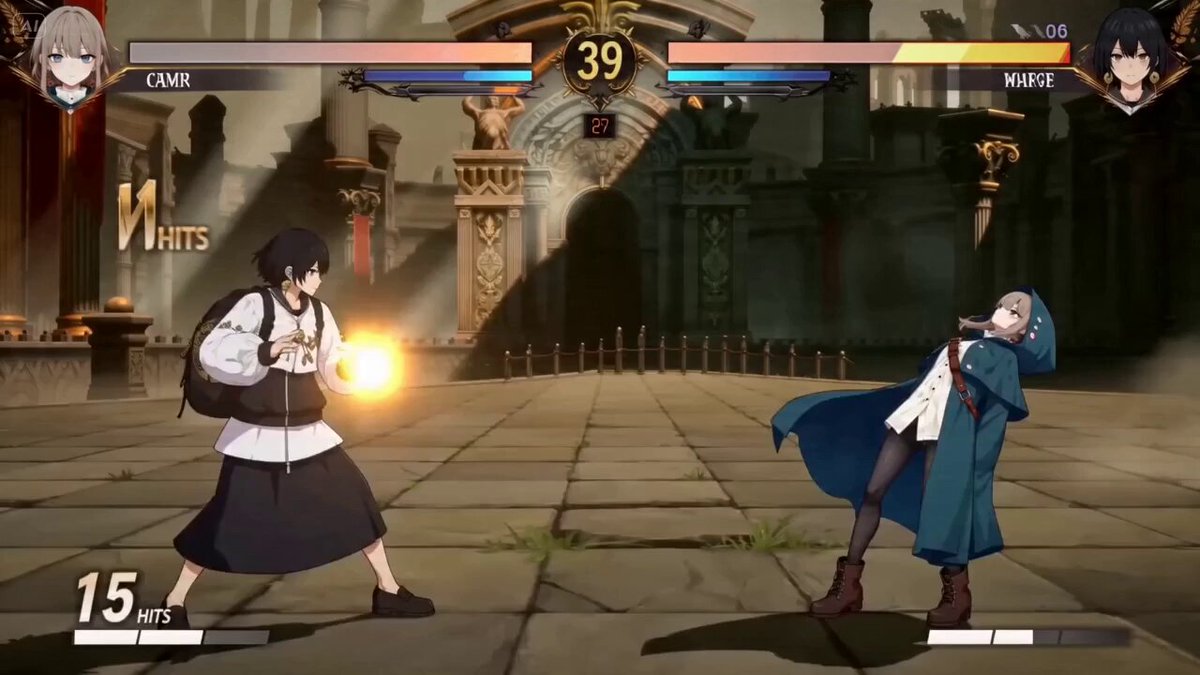
An AI cartoon animation generator converts text prompts, still images, or short reference clips into moving footage rendered in a drawn, stylized aesthetic: flat vector shapes, cel-shaded anime, storybook watercolor, rubber-hose slapstick, or a polished modern action-series look. The part that surprises newcomers is how little the process resembles traditional animation. The model is not drawing keyframes and in-betweens onto a timeline. It predicts a plausible next frame, repeatedly, guided by your prompt and whatever reference image you hand it.
That single fact shapes nearly every practical decision that follows. Because the system predicts frames instead of constructing them, identity drifts over time, hands and props mutate, and long continuous takes tend to melt. Cartoon aesthetics are more forgiving than photoreal ones — a wobbling outline reads as hand-drawn energy, while a wobbling human face reads as an error — but the constraint never disappears.
The takeaway is simple: treat these tools as shot machines, not scene machines. Generate short, purposeful clips of two to five seconds and assemble them in an editor the way a live-action crew assembles coverage. Productions that plan at shot level get finished; productions that ask for one continuous thirty-second animated take usually spend the afternoon re-rolling the same prompt and blaming the model.
It also helps to separate three layers of the job. The look is the visual style: line weight, palette, shading, background treatment. The motion is what actually moves in frame and how the camera behaves. The continuity is what stays the same across shots: character design, costume details, prop placement, screen direction. Most beginners obsess over the prompt for the look, then discover that continuity is the hard part.
Choosing the Right Approach: Text-to-Video, Image-to-Video, and Hybrid Pipelines
There are three broad ways to get cartoon motion, and they suit different jobs.
Pure text-to-video is the fastest path from idea to pixels. You describe the character, style, action, and camera in a prompt, and the model produces a clip. The advantage is speed and spontaneity. The disadvantage is that you have almost no control over character identity between generations. This approach works well for mood pieces, background plates, abstract sequences, transitions, and any shot where the character is small, silhouetted, or facing away.
Image-to-video starts from a still you control — a character sheet render, a hand-drawn keyframe, a composited layout — and animates it. Because the first frame is fixed, identity is anchored and drift drops sharply. This is the workhorse approach for character-driven cartoons and usually delivers the best quality-per-effort ratio. You still write a motion prompt, but you are describing movement rather than inventing the whole image.
Hybrid pipelines combine both with compositing. You might generate backgrounds separately from characters, animate characters on clean plates, then combine them in an editor or compositor. Some teams animate a rigged puppet with traditional tools and use generative passes for effects, textures, smoke, or fire. Hybrid setups take longer to prepare but scale far better across a series where one character appears in dozens of shots.
Decision criteria worth writing down before you generate anything:
- How many shots will this character appear in? One or two means text-to-video is fine. Ten or more means investing in a reference-driven pipeline.
- Does the character speak? Dialogue needs stable faces and believable mouth shapes, which pushes you toward image-to-video plus a lip-sync pass.
- How stylized is the look? Graphic styles with flat color and thick outlines stay consistent more easily than painterly styles with heavy texture.
- How tight is the deadline? Iteration speed matters more than peak quality when you ship weekly.
- Who reviews the work? A client who wants revisions on a specific character will force you toward reproducible pipelines rather than one-off generations.
Building a Reusable Cartoon Style Before You Animate
Every project benefits from a style lock: a small set of fixed references that define the look. Build it before you generate a single shot.
Start with a character sheet. Generate or draw your character in a neutral pose, front view, then produce a three-quarter view and a profile view. Keep the same outfit, the same hair silhouette, the same palette. Save these images; they become your anchor frames.
Next, define the line and shading language. Decide whether outlines are thick or thin, whether shading is flat, cel, or a soft gradient, and whether backgrounds use the same line weight as characters. Write it as one sentence you can paste into every prompt, for example: thick black outlines, two-tone cel shading, flat pastel background, no gradients.
Then build a palette file. Six to eight named colors used consistently across every asset will do more for perceived production value than any single generation upgrade. Color inconsistency reads immediately as amateur work, even to viewers who cannot say why.
Finally, create three or four background plates at the right aspect ratio. Reusing a handful of well-designed environments across many shots is standard practice in real animation production, and it looks intentional rather than cheap.
A Step-by-Step Cartoon Animation Workflow
The following workflow scales from a thirty-second social clip to a multi-episode series. It is deliberately boring: the creative excitement happens inside each step, not in improvising the order.
Step 1 — Write a Script and a Shot List
Write the script first, then break it into shots. A shot is a single continuous camera setup; a scene is a group of shots in one location. For a one-minute cartoon you will typically need twelve to twenty shots. Note for each shot what happens, who is on screen, the camera angle, and the approximate duration. This document is your production plan and your quality checklist.
Step 2 — Lock Characters, Palette, and Line Weight
Produce the character sheet and style references now, before generating clips. If a shot requires a new prop or costume, generate that reference in isolation first, then use it inside the shot. Fixing a design in a still is far cheaper than re-rolling an animated clip fifty times.
Step 3 — Generate Clips Shot by Shot
Work in order of risk, not order of appearance. Generate the hardest shots first — dialogue close-ups, complex actions, unusual angles — while you still have schedule room to change approach. Keep each clip short. If a shot needs six seconds on screen, generate two or three shorter clips and cut between them for more control and better motion quality.
Step 4 — Add Voice, Music, and Sound Design
Animation sells through sound more than most people expect. Record or synthesize dialogue, then cut your picture to the audio rather than the audio to the picture. Add foley — footsteps, cloth movement, prop handling — because silence between lines makes even good animation feel unfinished. Music should support the rhythm of your cuts; pick a track with a clear tempo and cut on the beat.
Step 5 — Edit, Time, and Finish
Assemble in your editor, adjust timing, then apply a finishing pass: a subtle grain or paper texture, a light color grade, and a consistent output resolution. Cartoon footage benefits enormously from one unifying treatment that hides small frame-to-frame inconsistencies. Export at your target aspect ratio and check the result on a phone screen before delivery.
Prompt Patterns That Produce Usable Cartoon Footage
Prompts for animation have three jobs: describe the look, describe the motion, and describe the camera. Vague prompts fail on all three.
Weak version: a cartoon cat walking down a street, animated.
Stronger version: flat vector cartoon style, thick black outlines, two-tone cel shading, a ginger cat in a blue scarf walking left to right along a rainy sidewalk, camera tracks sideways at walking pace, puddles reflect the character, gentle bounce in each step.
Notice the structure: style block, subject block, action block, camera block, detail block. Reuse the style block verbatim across every prompt in the project. Change only the subject, action, and camera.
Motion vocabulary matters. Phrases like walk cycle, gentle bounce, float, looping, slow orbit, and hold on the face produce more predictable results than moves dramatically. For camera work, specify direction and speed: slow push in, static wide, pan left at moderate speed. Avoid stacking three motions in a single clip, because the model will compromise on all of them.
Tool Categories and How They Fit Together
A cartoon animation pipeline is rarely one tool. Think in categories and pick one tool per category.
| Category | What it does | What to look for |
|---|---|---|
| Text-to-video model | Generates motion from a prompt | Stylized motion quality, clip length, aspect ratios |
| Image-to-video model | Animates a still you control | Identity retention, camera control, first-frame fidelity |
| Character design tool | Produces consistent character sheets | Reference reuse, style lock features |
| Voice and audio tool | Dialogue, music, foley | Voice range, timing control, export formats |
| Editor or compositor | Assembles shots, timing, finishing | Frame-accurate cutting, keyframing, color tools |
| Upscaler or interpolator | Raises resolution and smoothness | Artifact handling on flat colors and outlines |
Two practical rules. First, do not switch models mid-project unless you are ready to restyle everything; every model has its own default look and motion signature. Second, keep your editor as the single source of truth for timing. Generative tools are for generating, not for final assembly.
Common Mistakes and How to Avoid Them
Asking for long clips. Long generations drift and degrade. Cut more and generate shorter.
Changing the style prompt between shots. Even small wording changes alter line weight and palette. Freeze the style block.
Neglecting the first frame. In image-to-video, the still you feed in determines most of the result. Compose it carefully, at the correct aspect ratio, with the character clearly visible.
Ignoring motion blur and interpolation. Flat cartoon colors show interpolation artifacts more than live footage does. Test a short section before applying smoothing to a whole project.
Animating everything. Real cartoons hold frames, use limited animation, and let dialogue carry a scene. Constant motion looks cheap and tires the viewer.
Skipping sound design. Silent animation feels like a test render. Add ambience and foley early so you can judge pacing honestly.
Working without a shot list. Without a list you lose track of continuity, and a character's scarf changes color between shots without anyone noticing until review.
Over-relying on one hero shot. If your best shot took forty generations, the rest of the film will not match it. Aim for a consistent floor, not a single peak.
Quality Control: What to Check Before You Publish
Run this checklist on every project:
- Identity: does the character look the same in every shot? Check hair silhouette, eye spacing, and costume details.
- Screen direction: does a character moving left continue moving left across a cut?
- Eyeline: do characters looking at each other actually look at each other?
- Motion quality: any stutter, ghosting, or melted frames that survive editing?
- Audio sync: do mouth shapes land close enough to the dialogue?
- Color consistency: does the palette hold across scenes?
- Aspect ratio and safe areas: is anything important cropped on a phone?
- Opening three seconds: does the first shot communicate style and subject instantly?
Fix continuity errors before polishing effects. Audiences forgive rough rendering; they do not forgive a character whose shirt changes color mid-scene.
Time, Effort, and Cost Expectations
Be realistic about iteration. A simple three-second shot with a stable character may take three to eight generations to get right. A dialogue close-up with lip sync may take fifteen or more, plus a separate audio pass. Backgrounds and establishing shots are usually faster because identity matters less.
For a one-minute finished cartoon, budget roughly one day for script and shot list, one day for style and character references, two to four days for generation and retries, one day for audio, and one to two days for editing and finishing. Experienced teams compress this substantially, but only because they have already built reusable style references and prompt blocks.
Cost scales with generation volume, not with finished runtime, so retries are the real variable. Reducing retries is a skill: better first frames, stable style blocks, and shorter clips do more for your budget than hunting for a cheaper model.
FAQ
Do I need drawing skills?
No, but visual literacy helps enormously. You need to judge composition, color, and timing. Being able to sketch a rough pose or layout will improve your first frames and therefore your output.
How long should each generated clip be?
Two to five seconds for most shots. Longer clips drift, and you rarely need more than a few seconds before a cut. Generate coverage rather than duration.
Why does my character's face change between shots?
Because each generation is independent unless you anchor it. Use the same reference image, the same style block, and generate dialogue shots from identical stills so the face stays put.
Can I match a specific existing art style?
You can get close by describing concrete visual traits — line weight, shading model, palette, era of animation — rather than naming a studio or artist. Describe what you see, not who made it.
Is this good enough for client work?
For social content, explainers, and stylized shorts, yes. For broadcast-grade character animation, generative tools work best as one stage in a pipeline that includes manual cleanup, compositing, and sound design.
What resolution should I generate at?
Generate at the model's native resolution for the aspect ratio you need, then upscale in a dedicated pass. Pushing far beyond the trained resolution usually adds artifacts rather than detail.
How do I keep lip sync believable?
Record or generate dialogue first, cut the shot to the audio, then run a lip-sync pass. Keep mouths small and framing medium or wider, because extreme close-ups expose every imperfection.

Alexander
More Blogs
Read MoreVidu Q4 Alternatives: 4K AI Video Models Compared (2026)
Vidu Q4 alternatives compared: Kling 4.0, Seedance 2.5, Wan 3.0, and Runway Gen-4 — 4K support, input modes, durations, audio, and what each costs in credits on Domer.
Top 4K AI Image Generators in 2026: 5 Models Compared on Real Costs
The top 4K AI image generators on Domer compared: Flux 3 Klein, Nano Banana 2.1, GPT Image 2.5, GPT Image 2, and Nano Banana Pro — 4K credit costs, reference limits, and speed.
Nano Banana 2.1 vs GPT Image 2.5: Which Image Model Should You Use? (2026)
Nano Banana 2.1 vs GPT Image 2.5 Flare compared: credit costs per resolution, aspect ratios, reference images, text rendering, and which tasks fit each model.