
Create
AI Cover Photo Generator: Design Stunning Graphics Fast
Oct 14, 2026
What an AI Cover Photo Generator Actually Solves
A cover photo is the hardest working image in your content library. It appears in search results, social feeds, video grids, newsletter headers, and app stores, and it has to do three things at once: stop a distracted viewer, communicate what the content is about, and survive being cropped into a dozen different aspect ratios.
Most people approach cover design as a purely aesthetic problem. It is not. It is a communication problem with tight technical constraints. An AI cover photo generator helps because it collapses the distance between an idea and a usable image, letting you explore ten directions in the time it used to take to sketch one.
But the tool is not the strategy. Without a clear plan, an AI generator will happily produce beautiful, generic images that look like everyone else's. The goal of this guide is to turn that raw speed into a repeatable visual system: how to plan a cover, how to prompt for it, how to refine it, and how to check it before you publish.
The three jobs every cover must do
- Interrupt. The image must be legible and distinctive at thumbnail size, roughly 150 pixels wide, where detail disappears and only shape, contrast, and color survive.
- Set expectation. A viewer should be able to guess the topic, tone, and format before reading a single word.
- Crop gracefully. A single master file should work as a wide banner, a square post, and a vertical story without losing the subject or the headline.
If your generated image fails any of those three tests, no amount of stylistic polish will save it.
Start With the Channel, Not the Prompt
The most common mistake with AI cover generation is opening the tool first. The constraints of your destination should drive every creative decision, and those constraints are knowable before you generate anything.
Map the real dimensions and safe zones
Write down the exact placement you are designing for, then add the secondary placements you will realistically reuse the asset in. A typical set looks like this:
- Wide blog or article header: roughly 16:9 or 2:1, with the focal subject kept in the horizontal center because side columns get cropped on smaller screens.
- Video thumbnail: 16:9, with the most important element in the middle third and a clear margin near the play-button overlay in the lower right.
- Square social post: 1:1, which usually means the wide composition must be re-centered rather than simply cropped.
- Vertical short-form cover: 9:16, the most demanding ratio, where a horizontal scene almost always needs to be regenerated rather than cropped.
- Audio or podcast artwork: 1:1 and often displayed as a small circle, which means avoid text near the corners and avoid critical detail near the edges.
Note where platform interface elements will sit: profile bubbles, duration badges, mute icons, and captions. Generate with those zones empty rather than trying to hide them later.
Decide the single message before you decide the style
A cover communicates one idea. Not three. Ask yourself: if the viewer remembers one thing, what should it be? "This is a beginner-friendly tutorial." "This is a contrarian take." "This is a calm, premium product." Once that sentence exists, style choices become easy because every option either supports it or fights it.
Gather references before generating
Collect five to ten images you admire in the same category. Not to copy them, but to name what makes them work: the palette, the light direction, the amount of negative space, the presence or absence of a human face, the density of text. Vague references produce vague prompts, and vague prompts produce the bland, over-smoothed look that makes AI imagery easy to spot.
Choosing the Right Tool for the Job
"AI cover photo generator" describes several different categories of software, and the best workflow usually combines two or three of them.
Text-to-image generators
These are your idea engine. Modern diffusion and transformer-based image models handle photographic realism, illustration, 3D render, and typographic-poster styles competently. Look for three capabilities when choosing one:
- Aspect ratio control. Native square, wide, and vertical output beats cropping a single composition.
- Reference or image-prompt support. Being able to feed in a style reference or a rough sketch dramatically improves consistency across a series.
- Iteration speed. You will generate dozens of images per finished cover. Fast, cheap iteration matters more than maximum resolution.
Design canvases with generative fill
A layout tool with generative fill, background removal, and layered text handles the half of cover design that image models are still bad at: precise typography, alignment, and brand elements. Generate the scene, then compose the headline and logo in a canvas where you control the grid.
Utility tools that quietly matter
- Upscalers for when a great composition comes out at a modest resolution.
- Background removers for isolating a subject and rebuilding the environment deliberately.
- Palette extractors for keeping a series visually consistent.
- Mockup previews for checking your cover in context before publishing.
Decision criteria at a glance
| Situation | Recommended approach |
|---|---|
| Photographic, human-centered thumbnail | Text-to-image with reference image, then light retouching |
| Infographic-style blog header | Generate a clean background, build the graphic in a canvas |
| Illustrated podcast artwork | Text-to-image with a fixed style descriptor and locked palette |
| Product banner with exact copy | Generative background plus manual typesetting |
| Batch of ten covers for one series | One locked prompt template, varied only in subject and accent color |
A Prompt Formula That Produces Usable Covers
Great cover prompts are not poetry. They are technical briefs. The formula below is deliberately structured so you can reuse it and only change a few variables.
The six-part structure
- Subject and action — who or what is in frame, and what are they doing.
- Composition and framing — shot type, camera angle, subject placement, and where negative space should live.
- Lighting — direction, quality, and time of day. This single element does more for perceived quality than any style keyword.
- Color palette — two or three named colors, plus an accent.
- Medium and finish — photograph, editorial illustration, 3D render, collage, risograph print, and so on.
- Constraints — what must not appear.
Worked example: a blog header
A wide editorial photograph of a single ceramic coffee cup on a concrete counter, shot from a low three-quarter angle, subject positioned in the left third with clean empty space on the right for a headline, soft directional window light from the left with gentle falloff, muted palette of warm grey, sand, and a single burnt-orange accent, natural grain, shallow depth of field, no text, no logos, no people.
Worked example: a tutorial thumbnail
A bold 16:9 thumbnail composition of two hands assembling a small wooden desk, viewed from directly above, tools arranged symmetrically around the center, high-key studio lighting with crisp shadows, palette of light oak, off-white, and deep teal, clean photographic realism with slight color grading, generous empty space in the top left corner, no text, no faces, no clutter.
Worked example: podcast artwork
A square minimalist illustration of a microphone silhouette inside a circle of abstract sound waves, centered composition with even margins, flat vector style with subtle paper texture, palette of deep navy, cream, and coral, graphic and iconic, readable as a small circle, no text, no gradients, no photorealism.
Negative prompts and what to exclude
Models drift toward specific defaults: extra fingers, warped text, glossy plastic skin, random floating particles, and cluttered backgrounds. Add explicit exclusions for anything you do not want — text, watermarks, extra limbs, busy patterns behind the headline area — and treat them as part of your standard template rather than as one-off fixes.
The Production Workflow, Step by Step
Step 1: Write the brief
One paragraph covering audience, single message, placement, aspect ratio, and mood. Keep it in a document so the whole series shares the same foundation.
Step 2: Generate wide, not narrow
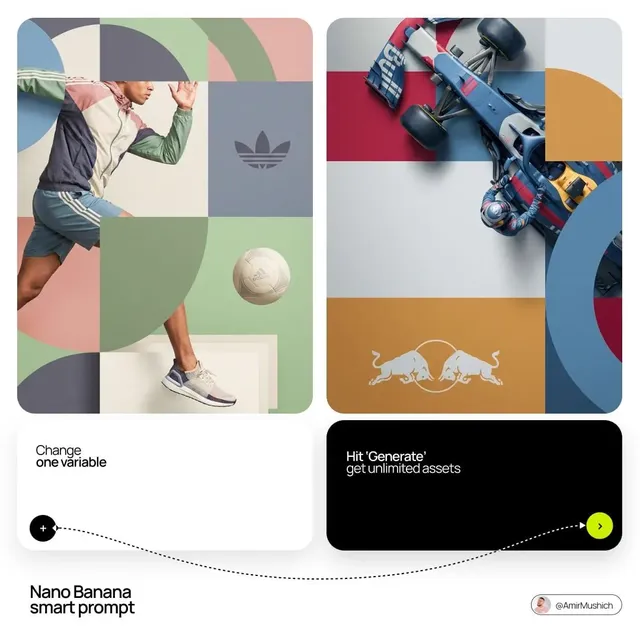
Produce eight to twelve variations at once, changing one variable at a time. If you change subject, lighting, and palette simultaneously, you learn nothing about which one worked.
Step 3: Select on composition, not detail
Judge candidates at thumbnail size first. If the shape does not read when small, discard it. Detail problems can be fixed; composition problems cannot.
Step 4: Refine with inpainting
Fix hands, edges, and awkward overlaps with targeted edits instead of regenerating the whole image and losing the composition you liked. Select a region, describe what should be there, and keep everything else locked.
Step 5: Upscale and clean
Upscale to your final target, then remove compression artifacts and stray elements. This is also the moment to unify color temperature across a series.
Step 6: Compose the text layer
Move into a canvas to add the headline, subtitle, logo, and any badges. Keep text in a consistent, high-contrast typeface; do not let the generator attempt lettering for anything except deliberately graphic poster styles.
Step 7: Export a master set
Export the wide, square, and vertical versions from the same layered file so the brand elements stay consistent. Save the layered master — future episodes are far easier when you can swap one element instead of rebuilding the file.
Composition, Typography, and Readability
Reserve space before you need it
The single biggest cause of rescued-looking covers is a beautiful image with nowhere to put the title. Reserve roughly a third of the frame as deliberate negative space, and specify its location in the prompt. Left-third subject plus right-third empty space is a durable default for wide formats.
Use contrast rather than decoration
Headline text needs a minimum contrast ratio against whatever sits behind it. If the background is busy, add a subtle gradient scrim, a soft shadow, or a solid color block. Avoid drop shadows with large blur radii, which look dated and muddy at small sizes.
Design for the smallest rendering
Type smaller than roughly 4 percent of the image height will be illegible in a feed. Set your headline large, then reduce the word count until it fits comfortably. Three to six words is usually the ceiling for a thumbnail.
Check the crop in a real interface
Preview your cover inside the actual platform interface, not in an isolated file viewer. Profile icons, timestamps, and overlays routinely cover the exact corner you thought was empty.
Common Mistakes and How to Fix Them
Generic, overly smooth imagery. The model defaulted to its most common training examples. Add specific medium, lighting, and lens descriptors, and include one unusual element that a stock library probably would not have.
Text that looks almost right but is subtly broken. Stop asking image models to render small type. Composite text in a design canvas, or if you want a genuine typographic look, generate it deliberately as a large graphic element and accept that it may need redrawing.
Mismatched aspect ratios. Regenerate for vertical formats rather than stretching or heavily cropping. Cropping a wide scene to 9:16 usually removes context and leaves an awkward composition.
A different look for every post. Consistency comes from locking variables: same palette, same lighting direction, same prompt template, same text placement. Vary the subject and one accent color, nothing else.
Subject too close to the edge. Add margin in the prompt and verify in the smallest crop you support. Faces and hands clipped at the frame edge read as errors, not as edge-to-edge boldness.
Over-reliance on one generation. A single output is a starting point. Expect to use a fraction of what you generate, and budget time for selection and finishing.
Quality Control Checklist Before Publishing
Run every cover through the same list. It takes two minutes and prevents a week of a mediocre image representing good work.
- Legible and distinctive at 150 pixels wide.
- Single clear focal point.
- Headline readable in under one second.
- No clipped faces, hands, or logos at the frame edge.
- Contrast ratio comfortable for the text layer.
- Empty space preserved where platform interface elements sit.
- Palette consistent with your last five covers.
- Square and vertical crops checked individually.
- File exported at the correct dimensions and compression level.
- Layered master saved with a clear naming convention.
Scaling Across a Content Calendar
Once a single cover works, turn it into a system. Build a template that defines the grid, the type scale, the logo placement, and the color set. Write a prompt template with the variable slots clearly marked. Then batch your production: generate for a month of posts in one session, select in a second session, and finish in a third. Context switching is what makes cover design feel slow, not the generation itself.
Track which covers perform and why. Over time you will notice patterns — a face versus no face, cool versus warm palettes, dense versus minimal compositions — and those observations are worth more than any style trend. Let performance data, not novelty, drive the next iteration of the template.
FAQ
Can an AI cover photo generator produce final, publish-ready images?
Sometimes, especially for backgrounds and photographic scenes. Most polished covers still pass through a layout tool for typography and brand elements.
How many generations should I expect per finished cover?
Ten to forty is typical. Efficient workflows batch generation and treat selection as a distinct, focused task.
Is it acceptable to use AI-generated imagery for commercial content?
That depends on the model's license and your platform's policies. Check both, keep records of what you generate, and disclose where your audience or clients expect transparency.
What is the fastest way to get a consistent series look?
Lock your prompt template and your palette, then vary only subject and accent color. Consistency is a constraint problem, not a talent problem.
Should I generate text inside the image or add it afterward?
Add it afterward for anything that must be read precisely. Reserve in-image text for large, decorative, poster-style typography.
How do I fix a cover that looks obviously AI-generated?
Add photographic specifics — lens length, light source, film grain, imperfect details — and reduce the glossy, hyper-saturated defaults. Slight imperfection increases believability.
What resolution should I export at?
Export at the largest size the platform accepts, then let the platform downscale. Start from the highest-quality source you can produce rather than upscaling a small file.
Turning a Generator Into a Design System
The difference between a decent AI cover and a great one is rarely the model. It is the brief, the composition discipline, the finishing pass, and the consistency across everything you publish. Treat generation as one step in a production line: plan the message, define the constraints, prompt like a technical brief, select on composition, refine surgically, set type in a controlled canvas, and verify against a checklist.
Do that a few times and the process compresses. You will know which prompts to reuse, which crops to check first, and which details always need a manual fix. That accumulated judgment is the real asset — it is what makes an AI cover photo generator feel less like a slot machine and more like a reliable part of your creative workflow.

Alexander
More Blogs
Read MoreVidu Q4 Alternatives: 4K AI Video Models Compared (2026)
Vidu Q4 alternatives compared: Kling 4.0, Seedance 2.5, Wan 3.0, and Runway Gen-4 — 4K support, input modes, durations, audio, and what each costs in credits on Domer.
Top 4K AI Image Generators in 2026: 5 Models Compared on Real Costs
The top 4K AI image generators on Domer compared: Flux 3 Klein, Nano Banana 2.1, GPT Image 2.5, GPT Image 2, and Nano Banana Pro — 4K credit costs, reference limits, and speed.
Nano Banana 2.1 vs GPT Image 2.5: Which Image Model Should You Use? (2026)
Nano Banana 2.1 vs GPT Image 2.5 Flare compared: credit costs per resolution, aspect ratios, reference images, text rendering, and which tasks fit each model.