

AI Image to Animation: A Practical Guide to Motion Video
Oct 15, 2026
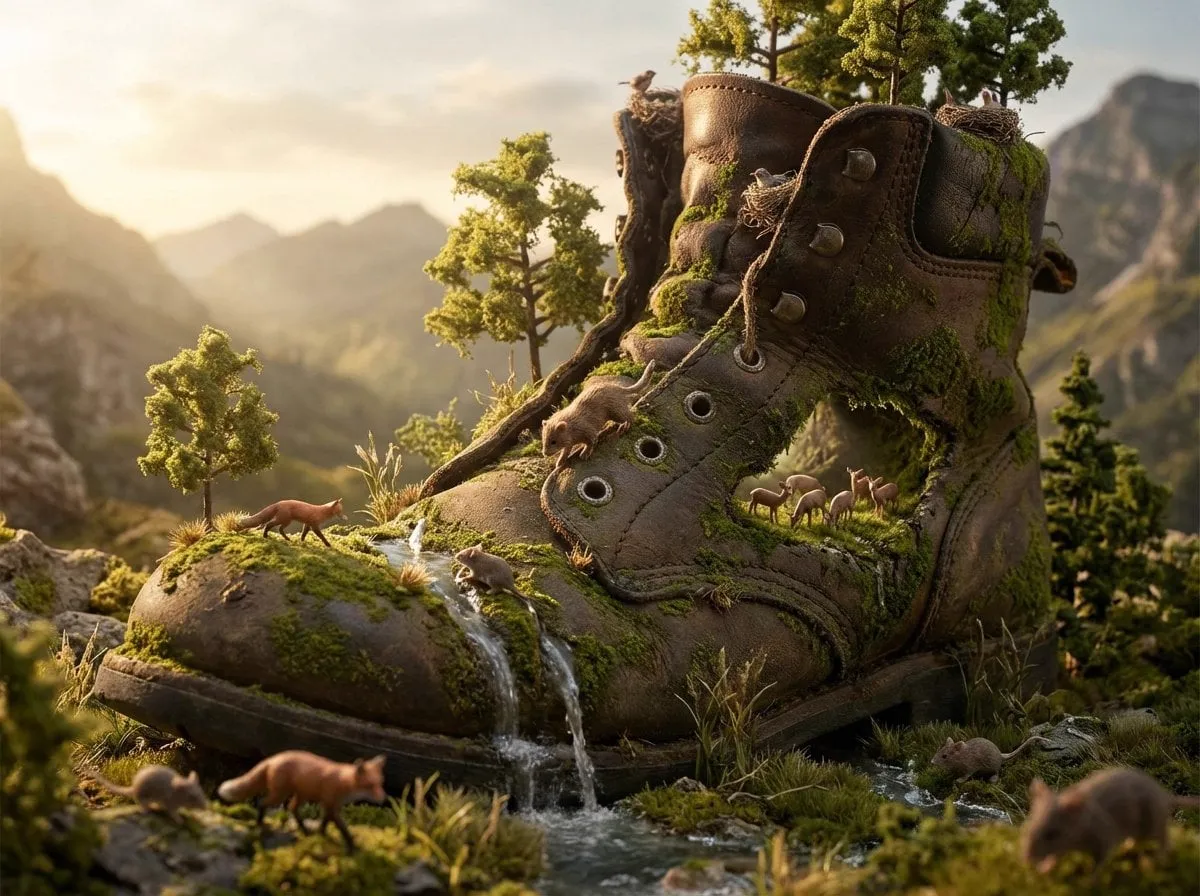
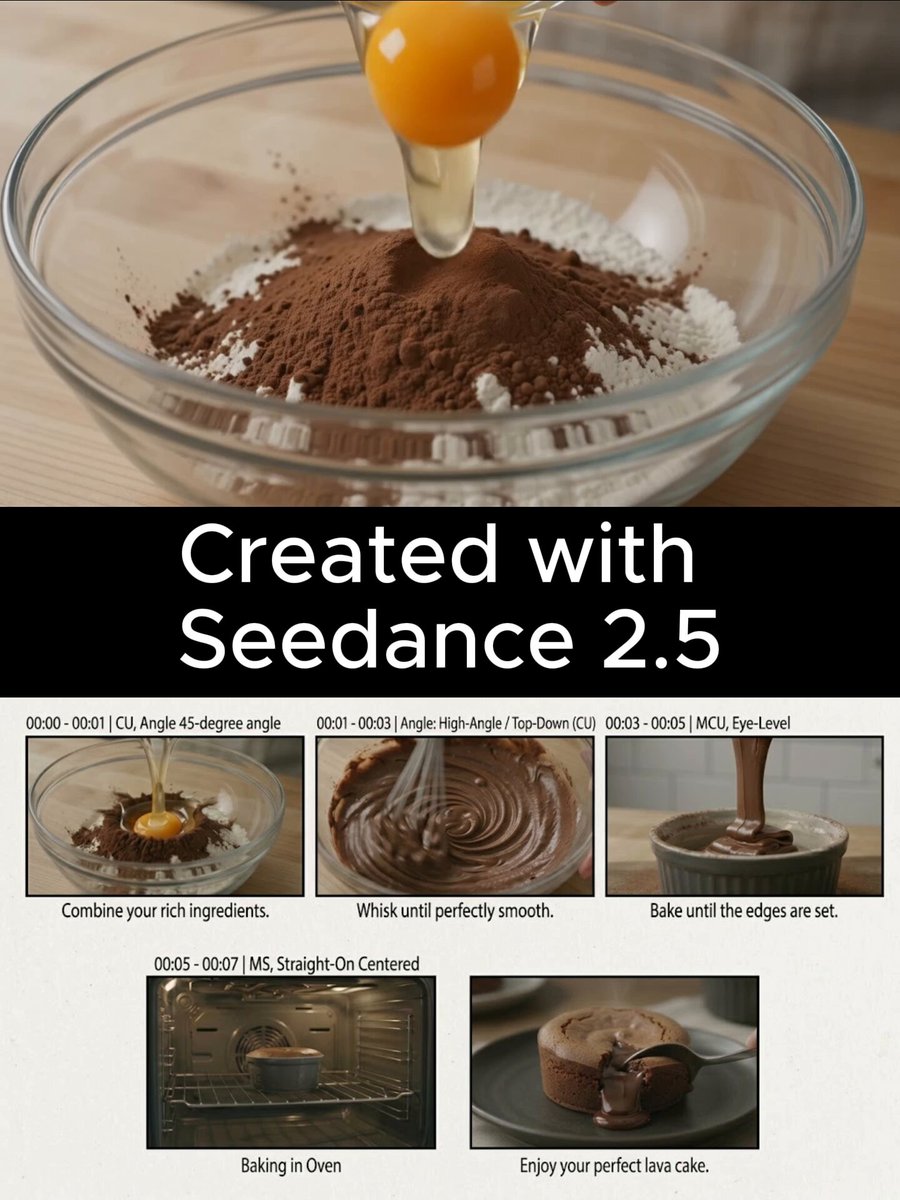
Static images can only carry a story so far. Whether you are promoting a product, pitching a short film, or trying to stop a scroll, motion is what holds attention, and the gap between “I have a great frame” and “I have a great shot” has never been narrower. An AI image to animation generator takes a still you already own and turns it into a moving clip, complete with camera drift, parallax, and the small environmental movements that make a scene feel alive. The catch is that results are only as good as the frame you feed in, the motion you describe, and the review loop you build around it. This guide covers how the technology works, how to prompt it for control instead of chaos, and how to fold animated stills into a real production pipeline.
What an AI image to animation generator actually does
Under the hood, these tools are generative video models trained on enormous libraries of footage. Because they have seen so much movement, they learn more than appearance: they learn how materials behave. Fabric folds when a torso twists. Shadows stretch as a light source moves. Smoke curls upward. When you hand the model a still frame, it treats that frame as the first moment of a scene and predicts what the next two, four, or eight seconds should look like, matching the composition, palette, and lighting of your source image as closely as it can.
Image-to-video versus text-to-video
Text-to-video starts from a description and invents everything: subject, framing, lighting, style. Image-to-video starts from a fixed frame, which means composition, subject identity, and art direction are already locked in. That single constraint makes it far more useful for professional work. If a client has approved a key visual, a product photo, or a storyboard panel, you animate exactly that asset instead of generating something vaguely similar and hoping it survives review. The trade-off is that you can only move what is in the frame. If the shot needs a new angle, either generate that angle separately or accept that the motion stays within the current viewpoint.
What “instant” really means in practice
Preview generation can be genuinely quick — seconds to a couple of minutes for a low-resolution clip — which is what makes the instant claim feel true. Final-quality renders take longer, often several minutes per shot, because temporal consistency is harder to hold together at higher resolutions and longer durations. Treat generation as a two-tier process: cheap, fast drafts to explore motion ideas, then a slower, higher-resolution pass on the take you want to keep. Budgeting for iteration rather than a single perfect render is the difference between a smooth session and an afternoon of frustration.
The four-stage pipeline from still to finished shot
Stage 1: Prepare the source image
A surprising number of disappointing animations trace back to the input frame. Before generating anything, check five things:
- Match the aspect ratio to the delivery format. Feeding a square image into a 16:9 model forces the tool to invent the sides of the frame, and invented edges rarely match the original.
- Work at the highest reasonable resolution without stretching. Upscaling a 600-pixel-wide image before animating gives the model more pixels but not more detail, and it will happily animate the mush.
- Clean up compression artifacts, stray objects, and blown-out highlights. The model treats every pixel as intentional information, so a JPEG halo becomes a moving halo.
- Keep the subject reasonably large in the frame. Tiny faces and hands are the first things to warp, because the model has fewer pixels to track.
- Simplify busy backgrounds where you can. Strong texture, dense foliage, and mirrored surfaces are all difficult for temporal models to hold steady.
Stage 2: Describe the motion, not the picture
The image already describes the picture. What the model needs from your prompt is information about change over time: what moves, how fast, and in which direction. Weak prompts describe content (“a woman in a red coat”), which the model can already see. Strong prompts describe behavior (“slow push in, coat swaying slightly, hair lifting in a light breeze, bokeh lights shimmering behind her”).
Keep the prompt focused. Two or three motion ideas per clip is usually the ceiling before the model starts blending them into a blur of activity. Pace matters too: words like gently, slowly, and subtly produce restrained motion, while dramatic, sweeping, and rapid produce clips that can tear a subject apart.
Stage 3: Generate several short takes
Generate three to five short clips — two to four seconds each — rather than one long one. Short clips are cheaper to evaluate, easier to compare side by side, and simpler to repair. Note which take has the best camera motion, which holds the subject’s identity, and which keeps the background stable. You will often assemble the final shot from pieces: the first two seconds of one take and the tail of another, cut on motion.
Stage 4: Repair, upscale, and assemble
Once you have a take, post-production does the polishing: frame interpolation to smooth motion, upscaling to delivery resolution, deflicker passes, and noise matching so the animated clip sits naturally next to live-action footage. Add grain, adjust the grade, cut to the beat. Viewers forgive plenty of small imperfections in a well-edited sequence — they notice far more when a clip sits on screen too long.
Matching the model to the shot
Different engines are good at different kinds of movement. Instead of chasing one universal winner, match the tool to the requirement.
Subtle motion: portraits, products, atmosphere
For talking-head stills, product hero shots, and moody landscapes, you want restraint. Look for adjustable motion strength, camera controls such as pan, tilt, zoom, and dolly, and low-motion presets. Stable Video Diffusion workflows inside ComfyUI give granular control over motion strength; hosted tools such as Runway, Luma Dream Machine, and Kling offer camera-move presets that are easier to steer. In this category, less is almost always more: a slow push in on a product, with a specular highlight sliding across the surface, reads as premium.
Full action: characters, vehicles, and physics
For running characters, drifting cars, or splashing water, you need models that handle occlusion and fast movement without melting geometry. Longer-duration models such as Veo and Sora-class systems handle complex motion better but render more slowly. Generate short bursts, then extend or stitch them. Avoid stacking extreme camera moves on top of extreme subject movement — most models can handle one intense variable at a time.
Style preservation and consistency across shots
Animated stills often need to sit alongside other animated stills. Consistency comes from three habits: reuse the same source art style, reuse the same prompt skeleton, and reuse the same seed when the tool supports it. Character reference features, identity locking, and style transfer help, but the cheapest consistency trick is a consistent frame — same lens, same lighting, same palette. If a character must appear in five shots, generate all five base frames first, then animate them in one session with identical settings.
Prompt patterns that produce reliable motion
Structured prompts beat poetry. A reliable formula is: camera move plus subject action plus environmental motion plus pace plus continuity note.
Examples that work well:
- “Slow dolly in, subject turns head slightly toward camera, coat fabric shifting in the wind, gentle pace, keep facial features unchanged.”
- “Static camera, steam rising from the cup, soft light flickering, subtle drift, preserve the wooden table texture.”
- “Slow orbit around the product, specular highlights traveling across the metal, minimal subject movement, smooth steady pace.”
- “Handheld push forward, crowd shifting in the background, leaves falling past the lens, medium pace, keep the architecture stable.”
Camera vocabulary maps directly to model controls, so it is worth learning: dolly in and out (toward or away), truck left and right (sideways), pedestal up and down (vertical without tilting), pan (rotate horizontally), tilt (rotate vertically), roll (rotate around the lens axis), orbit or arc (circle the subject), rack focus (shift focus between planes), and zoom (change focal length). When a tool exposes these as presets, use them. When it does not, these are the exact words to put in the prompt.
Two habits separate clean clips from messy ones. First, describe what should stay still as well as what should move — “background remains static” is a legitimate and useful instruction. Second, keep negative phrasing out of the main description; “no distortion, no extra limbs, no text” belongs in a dedicated negative field if the tool provides one.
A worked example: animating a product photo
Say you have a studio shot of a ceramic mug on a walnut table and you need a six-second hero clip for a landing page.
- Prepare the frame. Crop to 16:9, remove clutter behind the mug, and inspect the table edges for compression artifacts.
- Set the base resolution high — ideally 2K or better — so the final upscale has real detail to work with.
- Draft the motion. First pass: “slow dolly in, gentle rotation of the mug, steam rising, camera steady.” Generate three low-resolution takes.
- Compare. Look for steam that moves like steam rather than smoke, a table surface that does not swim, and a handle that keeps its shape at the last frame.
- Refine the winner. Strengthen the steam slightly, add “soft window light shifting across the glaze,” then re-render at higher resolution.
- Extend if needed. Generate a second short clip that continues the camera move, then cut the two together with a dissolve.
- Finish. Interpolate to 60 fps, upsample to delivery size, add a subtle grain layer, and grade to match the rest of the site’s footage.
This pattern — subtle motion, controlled camera, short clips stitched — works for almost any product, portrait, or interior shot.
Common failure modes and how to fix them
| Symptom | Likely cause | Fix |
|---|---|---|
| Faces melt or morph | Too much motion across too few pixels | Reduce motion strength, shorten the clip, crop closer |
| Flickering light or color | Temporal inconsistency between frames | Keep lighting simple in the source, apply a deflicker pass |
| Background swims or ripples | Dense texture the model cannot track | Simplify or blur the background, add “static background” to the prompt |
| Subject drifts out of frame | Ambiguous camera instruction | State the move explicitly, or specify a static camera |
| Sharp but lifeless result | No secondary motion | Add smoke, dust, leaves, or light shimmer |
| Hands and fingers warp | Small, complex geometry | Keep hands out of frame, or regenerate with a different seed |
| Style drifts across takes | Inconsistent prompts or seeds | Reuse the prompt skeleton and seed; batch the shots together |
Quality control checklist before export
Run through this list before calling a clip finished:
- Identity: does the subject look like the subject at the last frame, not just the first?
- Edges: do fabric, hair, and product outlines stay clean, or do they shimmer?
- Physics: does the motion obey gravity, inertia, and material behavior?
- Continuity: would this clip cut cleanly with the shot before and after it?
- Duration: is it short enough to stay interesting and long enough to read?
- Resolution: does the upscale hold up at delivery size?
- Audio: does it need ambience, sound design, or music to land the motion?
- Rights: do you have permission for the source image and any recognizable people in it?
Where animated stills pay off
E-commerce teams animate packshots to show texture, weight, and sheen without booking a studio day. Social editors turn a single hero image into three vertical clips for different platforms. Real estate marketers add a slow push in on a listing photo to make a static gallery feel like a walkthrough. Educators animate diagrams so a process reads as a sequence instead of a wall of labels. Game and film teams use image-to-video as cheap previsualization: animate the storyboard panel, test the pacing, then shoot or render the real thing.
Archival projects benefit too — a faded family photograph can gain a gentle parallax that respects the original. Music videos, podcast cover art, and album promotion are natural fits: a loop of restrained motion that reactivates old artwork. The common thread is that all of these use cases need a handful of seconds, not a full scene, and they already own a high-quality still. That is exactly the shape of problem image-to-video solves best.
Decision criteria for choosing a tool
Before committing to a subscription or a local setup, score candidates against these criteria:
- Motion control. Can you set the camera move, motion strength, and duration explicitly, or are you limited to a single slider?
- Maximum duration. Two seconds is fine for atmosphere; four to ten seconds is better for narrative beats. Know what the shot needs.
- Consistency features. Seeds, character references, and style locks matter as soon as you need more than one shot.
- Resolution and upscaling. Native 1080p output is a reasonable floor for most delivery; anything below that will need a professional upscale.
- Iteration speed. Fast drafts change how you work. A tool that takes twenty minutes per preview discourages experimentation.
- Hardware and hosting. Local models such as Stable Video Diffusion and AnimateDiff avoid per-render billing but demand a strong GPU, patience, and comfort with node graphs like ComfyUI. Hosted tools trade control for speed and simplicity.
- Licensing terms. Check commercial-use rights, especially for source images of people, branded products, or licensed artwork.
- Integration. API access or editor plugins (for example, an After Effects or DaVinci Resolve workflow) save hours of manual file shuffling.
For most solo creators, the practical answer is a hybrid: use a fast hosted model for drafts and a controllable local or premium model for the final pass. Keep the source frames and prompts organized in a project folder, because you will reuse both.
FAQ
Can I animate a photo of a real person?
Technically, yes, and the results can be convincing. Ethically and legally, get consent, avoid putting words in anyone’s mouth, and never publish something that could be mistaken for a real event. Many tools also restrict recognizable public figures in their terms.
How long can an AI-generated clip be?
Most image-to-video models output between two and ten seconds per pass. Longer sequences are built by generating several clips and cutting or extending them, sometimes with frame interpolation to smooth the joins.
Do I need an expensive GPU?
For cloud tools, no — the rendering happens elsewhere. For local models, a modern card with plenty of video memory makes a large difference. If you are unsure, start hosted and move local only when render volume or privacy requirements justify the hardware.
How do I keep a character consistent across five shots?
Generate all the base frames first with the same art direction, then animate them in a single session using the same prompt skeleton, the same settings, and the same seed where available. Consistency of the input frame does most of the work.
Will this replace traditional animation?
Not for expressive character performance or precise cinematic timing. It is excellent at adding life to existing frames and producing short atmospheric or product motion, and it is a genuine time saver for previsualization — but handcrafted animation still wins where nuance matters.
Why does my clip look fine on the first frame and wrong on the last?
Because temporal models accumulate error. Motion, lighting, and identity tend to drift the longer the clip runs. Shorten the duration, lower the motion strength, and pick the take that holds together at the end rather than the one that starts most dramatically.
Should I add sound?
Almost always. A two-second clip of a coffee pour without audio feels unfinished; a subtle ambience or a single sound cue makes the motion read as intentional rather than as a technical demo.
The best way to learn any of this is to pick one still you care about, write three prompt variations, and compare the takes side by side. Everything else — model choice, resolution, post-production polish — becomes obvious once you have a reference clip in hand and a specific thing you want to improve.

Alexander
More Blogs
Read MoreVidu Q4 Alternatives: 4K AI Video Models Compared (2026)
Vidu Q4 alternatives compared: Kling 4.0, Seedance 2.5, Wan 3.0, and Runway Gen-4 — 4K support, input modes, durations, audio, and what each costs in credits on Domer.
Top 4K AI Image Generators in 2026: 5 Models Compared on Real Costs
The top 4K AI image generators on Domer compared: Flux 3 Klein, Nano Banana 2.1, GPT Image 2.5, GPT Image 2, and Nano Banana Pro — 4K credit costs, reference limits, and speed.
Nano Banana 2.1 vs GPT Image 2.5: Which Image Model Should You Use? (2026)
Nano Banana 2.1 vs GPT Image 2.5 Flare compared: credit costs per resolution, aspect ratios, reference images, text rendering, and which tasks fit each model.