
How to Create AI Music Videos: A Practical Workflow
Oct 15, 2026
A finished song without visuals is now a half-finished release. Playlists, short-form feeds, in-app canvases, and artist pages all expect motion, and audiences decide within a couple of seconds whether a track is worth their attention. The old answer was to book a shoot, rent a space, hire a crew, and hope the edit matched the mood of the record. The newer answer is to direct a sequence of generated shots, refine them with keyframes, and cut them against the track — the same creative decisions, a fraction of the logistics.
This guide is deliberately practical. It walks through the full pipeline for turning a song into visuals: how to read the track as a timeline, how to build a shot list that survives generation, which generation mode fits which shot, how to keep characters and sets from drifting, how to sync everything to the beat, and how to finish and deliver in every aspect ratio that matters. It also covers the mistakes that make AI music videos feel cheap, plus the criteria worth using when you choose tools.
Why Every Song Now Needs a Visual Layer
Music consumption is visual-first. A track competes against a feed of moving images, and a static cover art thumbnail loses that contest almost every time. That shift created two demands at once: more visuals per release than ever before, and visuals fast enough to ride a moment while it is still a moment. A song can spike on a Tuesday and be forgotten by the following week.
Traditional production cannot keep up with that cadence. A single narrative video can take weeks of planning, a shoot day, and a post-production cycle measured in days or weeks. Multiply that across a lead single, two follow-ups, a lyric video, vertical cutdowns, and a handful of teasers, and the budget becomes the limiting factor rather than the idea.
Generative video changes the economics of iteration. Rendering a shot costs time, not a second crew call. That means the creative loop — try, look, adjust, try again — becomes affordable. You can test three visual interpretations of a chorus before lunch and keep the one that actually lands. It also means artists who could never justify a music video now have one, and directors can spend their energy on sequencing and rhythm instead of logistics.
Be honest about the ceiling, though. AI generation is excellent at texture, atmosphere, environments, stylized motion, and abstract storytelling. It is weaker at precise choreography, complex hand interactions, and sustained dialogue-driven performance. The strongest AI music videos lean into what the tools do well and design around the rest.
The End-to-End AI Music Video Workflow at a Glance
The workflow has seven stages, and skipping any of them is why most first attempts look like a random reel of clips rather than a video.
- Listen and map. Convert the track into a timing sheet of sections, energy changes, and lyric moments.
- Storyboard. Translate the timing sheet into a shot list with one visual intention per beat of the song.
- Prompt and prototype. Generate rough versions fast, at low resolution, to test whether the ideas read.
- Lock consistency. Pick references and keyframes so characters, locations, and color stay stable.
- Generate and select. Produce the finals, then brutally cut down to the best takes.
- Cut to the music. Edit against markers, not against the clock, and place transitions on accents.
- Finish and deliver. Grade, overlay text, mix, and export every aspect ratio the release needs.
The artifacts you produce along the way matter as much as the footage. A timing sheet, a shot list with prompt notes, a prompt library for recurring styles, a selects bin, and a master timeline are what let you revise without starting over. Keep them in one project folder so that a re-cut six weeks later is an afternoon of work rather than a rebuild.
Realistic time budget for a three-minute track: one to two hours for mapping and storyboarding, three to six hours for generation and iteration, two to four hours for editing, grading, and exporting. Most of that time is judgement, not rendering.
Step 1: Break the Song Into a Timing Sheet
Before you write a single prompt, write down what the song actually does. Load the track into any editor, drop markers on the section boundaries, and note the timecode where each change occurs. Then add three columns of context: energy level, instrumentation density, and lyric density.
A workable timing sheet for a three-minute pop song might look like this:
| Section | Start | Energy | Lyric density | Visual intention |
|---|---|---|---|---|
| Intro | 0:00 | Low | None | Slow reveal of an empty location, atmosphere only |
| Verse 1 | 0:14 | Medium | High | Character introduced, observational shots, minimal motion |
| Pre-chorus | 0:42 | Rising | Medium | Motion increases, colors warm, camera starts moving |
| Chorus 1 | 0:52 | High | High | Wide, confident shots, strongest imagery, fastest cuts |
| Verse 2 | 1:18 | Medium | High | New location, same character, quieter framing |
| Bridge | 1:44 | Low | Sparse | Slow motion, close-ups, a single held image |
| Final chorus | 2:02 | Peak | High | Callback to earlier shots, bigger scale, faster rhythm |
| Outro | 2:36 | Falling | None | Static or drifting exit, resolve the visual motif |
Three rules make this sheet useful. First, mark the hook — the moment a casual listener would hum. That section deserves your best two or three ideas, and the first three seconds of the video should preview it. Second, count the bars in each section; a chorus that runs sixteen bars can hold four visual ideas, not one. Third, note any lyric that is specific enough to demand an image. Concrete nouns beat abstractions every time.
Step 2: Turn Lyrics and Mood Into a Shot List
Now convert each section into shots, aiming for one shot per two to four seconds during dense passages and one shot per four to eight seconds during sparse ones. A three-minute video typically needs 40 to 70 usable shots, which is far more than most people estimate.
There are three legitimate storytelling approaches, and mixing them is what keeps a video interesting:
- Literal. The lyric mentions a highway, so there is a highway. Clear, singable, easy to follow.
- Metaphorical. The lyric mentions distance, so there is a figure walking away through fog. More artistic, more room for interpretation.
- Textural. No direct link to the words; the shot carries mood through light, grain, movement, and palette.
A reliable prompt formula for generated shots is: subject, action, environment, lighting, lens, camera movement, mood, and finish. For example: "A lone figure in a wet wool coat walking through an empty neon-lit street at dawn, soft blue and amber light, anamorphic lens flare, slow dolly forward, melancholic, subtle film grain." Every element you name is one less element the model has to invent, and less invention means fewer surprises.
Write negative prompts for the failure modes you keep seeing: text overlays, distorted hands, extra limbs, warped faces, watermark artifacts, sudden camera jolts. Keep a shared negative list across the whole project so your look stays coherent.
Finally, note the transition idea for each shot pair. A match cut on shape, a whip pan, a light wipe, or a hard cut on a drum hit all read better than a random dissolve. Deciding this at the shot list stage saves you from discovering in the edit that nothing connects.
Step 3: Choose a Generation Mode for Each Shot
Not every shot should be made the same way. Match the mode to the job.
Text-to-video for lyrical storytelling
Text-to-video is the fastest way to explore. It is ideal for environments, weather, crowds, landscapes, abstract motion, and any shot where the subject is generic enough that consistency does not matter. Use it to prototype a whole video in low resolution, then regenerate only the shots that earn a place in the final cut.
Image-to-video: animating album art and concept boards
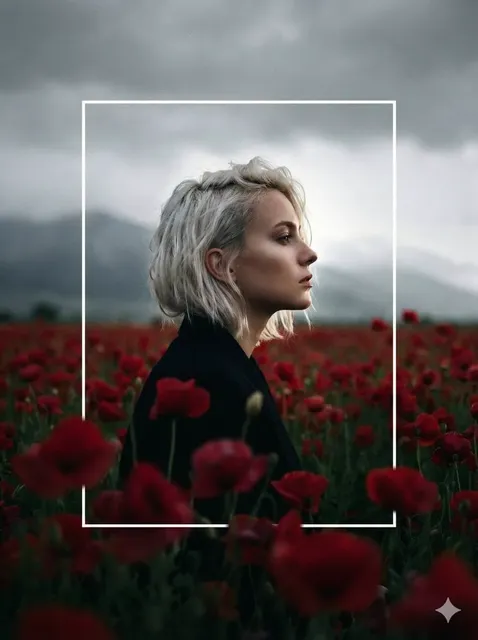
When you already have a look — cover art, a mood board, a photo of the artist, a still from a previous video — image-to-video preserves that look and adds motion. This is the mode that fixes the "every shot looks like a different project" problem, because the reference image carries the palette, wardrobe, and composition. Animate a portrait with a subtle push-in and hair movement, or take a landscape still and add drifting cloud motion, and the result already belongs to the same visual world.
Batch generation for full-track coverage
For a long track, generation is a volume problem. Queue multiple prompts at once so you can review a batch instead of babysitting one render. Batch output also gives you options: five takes of the same prompt often contain one usable shot and one happy accident worth building the sequence around. Tag every output with the shot number from your list so the selects step does not become archaeology.
A simple decision rule: if consistency matters, start from an image. If the shot is purely atmospheric, start from text. If you know you need 60 shots by Friday, batch everything.
Step 4: Hold Consistency With Keyframes and References
Consistency is the difference between a music video and a compilation. Four levers do most of the work.
Character anchors. Keep a fixed set of reference frames of your performer: two or three angles, consistent wardrobe, consistent hair. Describe that wardrobe the same way in every prompt — "cropped black leather jacket, silver chain, wet hair" — because paraphrasing changes the output.
Environment anchors. Build a small library of establishing shots for each location and reuse them as starting frames. Two or three locations that read clearly are more convincing than eight that blur together.
A locked look. Choose a palette, a lens character, and a grain level, then apply them everywhere. Palette drift is the single most common reason AI videos feel disjointed, and it is usually caused by prompts that change adjectives between shots.
Keyframe control. When your tool supports start and end frames, use them. Supplying both the first and last frame of a shot lets you interpolate a transition deliberately: pull from a wide to a close-up, move from interior to exterior, or morph one motif into another. Interpolation is also the cleanest way to build a long unbroken take out of shorter generations.
Where the tool allows seeds, reuse the seed of a shot you liked and change only one variable — the action, or the lighting, or the camera move. Changing one variable at a time is how you learn what each prompt element is actually controlling.
Step 5: Sync Sound, Vocals, and Rhythm
Most releases do not need regenerated audio, and most should not have it. Keep the mastered track as the spine of the project and cut visuals to it. Only touch the audio when you need something the mix does not provide: a spoken intro, a doubled vocal moment, a sound-design layer, or a short performance line.
Practical sync rules that hold up across genres:
- Place markers on every section boundary and on the kick of each chorus.
- Cut on the beat for high-energy sections, and cut slightly before or after the beat for verses so the rhythm breathes.
- On a held note, let a single shot run. Cutting through a sustained vocal fights the performance.
- Use one or two beat-synced transitions per section, not on every cut. Impact loses meaning when it happens constantly.
- Keep the song's dynamics intact. If the master is loud, do not add visual chaos on top of it.
If you add lip-synced performance shots, drive them from a clean vocal stem rather than the full mix, and keep the shots short. Tight, well-lit, medium close-ups read far better than full-body wides, where small mouth inaccuracies become obvious. Mix to a sensible loudness target for the destination platform, leave headroom for true peaks, and check the result on phone speakers, because that is where most listeners and viewers will meet it.
Step 6: Edit, Grade, and Deliver
Assemble in this order: place the full track, drop your markers, then lay in selects roughly, in section order. Watch once without fixing anything and note which moments lose energy. That first pass tells you which three or four shots need to be regenerated, and it is cheaper to learn this now than after you have graded everything.
Grade for cohesion rather than for beauty. One look applied consistently — a gentle filmic curve, restrained saturation, a light grain pass — unifies footage from different generations. Avoid heavy contrast; it exposes artifacts. If a shot still looks obviously synthetic, shorten it and put it on a beat where the audience is reading rhythm rather than detail.
Text and lyric overlays should follow the same discipline: one typeface, one or two sizes, consistent position, and safe margins so nothing is covered by interface elements on vertical platforms. Animate overlays on section changes, not on every line.
Deliverables worth exporting from every project:
- 16:9 master at the highest quality you generated.
- 9:16 vertical cut with the hook moved into the first two seconds.
- 1:1 or 4:5 for feed placements.
- Two or three 10–20 second clips for teasers, each built around a single image.
- A captioned version for muted playback.
Build the vertical cut first if short-form is your priority, then let the widescreen version breathe. Reframing after the fact almost always loses the composition you generated.
Common Mistakes and How to Avoid Them
Over-generating without a plan. Sixty prompts with no shot list produce sixty unrelated clips. Fix: storyboard first, generate second.
Chasing beauty over rhythm. A gorgeous shot that lands half a beat late makes the whole section feel sluggish. Fix: cut to markers before you fall in love with a render.
Ignoring the song's structure. If the chorus looks the same as the verse, the audio dynamics disappear visually. Fix: reserve your widest shots and fastest cuts for the highest-energy sections.
Drifting characters. Small prompt changes create a new person. Fix: lock reference frames and copy your character description verbatim.
Faces in extreme motion. Running, turning, and speaking close to camera are the hardest things to generate cleanly. Fix: keep faces stable and let the environment or camera carry the movement.
Uncanny hands. Keep hands out of frame, in shadow, or occupied with an object. Fix: shoot around the weakness instead of fighting it.
One continuous slow zoom. It reads as a lack of ideas. Fix: vary shot scale and movement type across each section.
Forgetting the first three seconds. Most viewers decide instantly. Fix: open with your strongest single image, ideally matched to the hook.
Audio afterthought. Visuals synced to a rough mix fall apart when the master changes. Fix: lock the final audio before you fine-cut.
Tool Selection Criteria and Workflow FAQ
Rather than chasing brand names, evaluate tools against the decisions you will actually make.
- Control: start frames, end frames, reference images, seeds, camera-movement prompts, duration limits.
- Consistency: how well the same description and reference produce the same character across shots.
- Output specs: maximum resolution, frame rate, aspect ratios, and whether verticals are native or cropped.
- Throughput: batch queuing and how easily you can review dozens of clips at once.
- Fit with your editor: file formats, naming, and whether outputs drop cleanly into your timeline.
- Commercial clarity: usage rights for released music, client work, and paid placements.
- Predictability: a plan you can budget around rather than a bill that scales with experimentation.
A dependable stack is deliberately boring: one text-to-video model for exploration, one image-to-video model for consistency shots, a keyframe-capable generator for transitions, an upscaler for finals, a lip-sync tool for the occasional performance shot, and a standard editor for the cut. Four tools used well beat nine tools used occasionally.
How many generated clips do I need for a three-minute song?
Plan for three to four times more than you will use. Expect to generate 150–250 short clips to fill a 40–70 shot timeline, because selection is where quality comes from.
Can I make a music video from a single still image?
Yes, and it is a strong constraint. Animate the still in a few directions — push-in, parallax, light movement — and intercut with textural b-roll. Monotony is the risk; vary pacing and shot scale to counter it.
Is AI generation good enough for a full narrative video?
For atmosphere, environments, and stylized sequences, yes. For sustained performance, dialogue, or complex choreography, treat generation as one layer inside a hybrid production with real footage.
How do I keep a video feeling like the artist's brand?
Lock three things: palette, wardrobe, and one recurring visual motif. A single repeated image — a color, a location, a gesture — does more for recognition than a dozen clever shots.
What do I do when a shot almost works?
Shorten it. A 1.5-second version of an imperfect shot reads as deliberate pacing; a four-second version reads as a mistake. Keep the idea, cut the exposure.
How do I avoid a generic look across a whole catalogue?
Build a project-level prompt library with your own vocabulary for light, lens, and grain, and reuse it across releases. Your style should come from your prompt grammar, not from whatever the default preset happens to be.
The through-line in all of this is unchanged from traditional filmmaking: the song is the script. Map it, storyboard it, generate with intent, protect consistency, cut on the beat, and finish in every format the release touches. The tools are new. The discipline is the same, and it is still what separates a video that gets shared from a folder of interesting clips.

Alexander
More Blogs
Read MoreVidu Q4 Alternatives: 4K AI Video Models Compared (2026)
Vidu Q4 alternatives compared: Kling 4.0, Seedance 2.5, Wan 3.0, and Runway Gen-4 — 4K support, input modes, durations, audio, and what each costs in credits on Domer.
Top 4K AI Image Generators in 2026: 5 Models Compared on Real Costs
The top 4K AI image generators on Domer compared: Flux 3 Klein, Nano Banana 2.1, GPT Image 2.5, GPT Image 2, and Nano Banana Pro — 4K credit costs, reference limits, and speed.
Nano Banana 2.1 vs GPT Image 2.5: Which Image Model Should You Use? (2026)
Nano Banana 2.1 vs GPT Image 2.5 Flare compared: credit costs per resolution, aspect ratios, reference images, text rendering, and which tasks fit each model.