
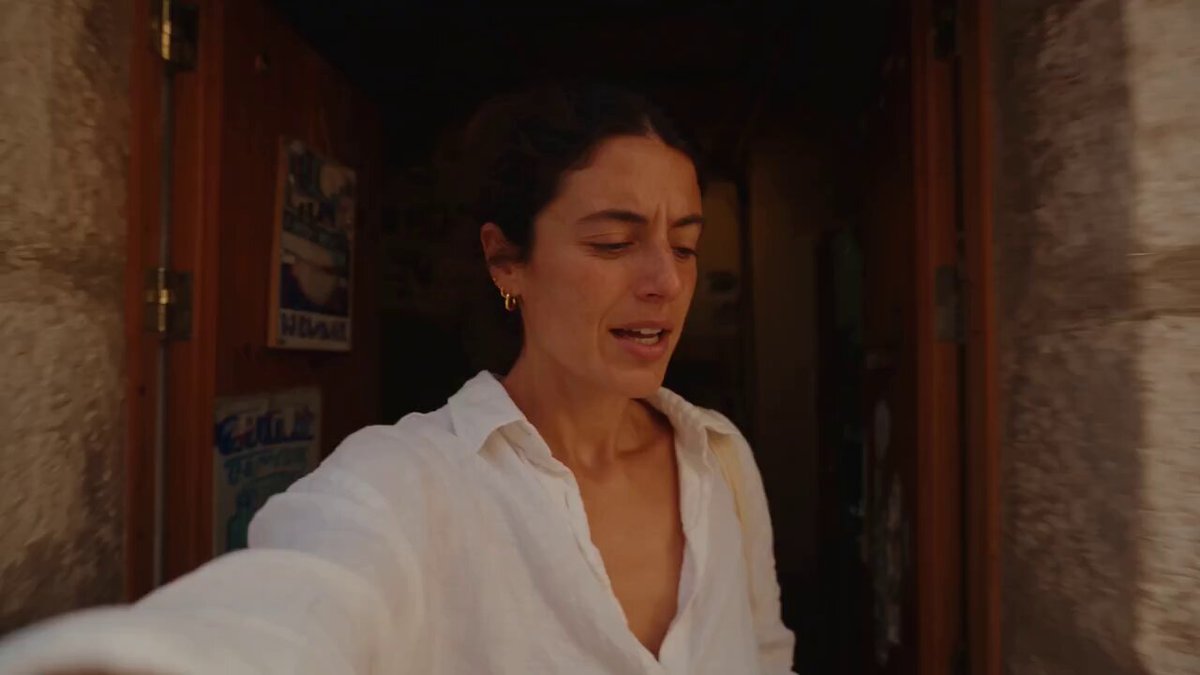
AI Photo Animation Apps: Bring Your Still Photos to Life
Oct 13, 2026
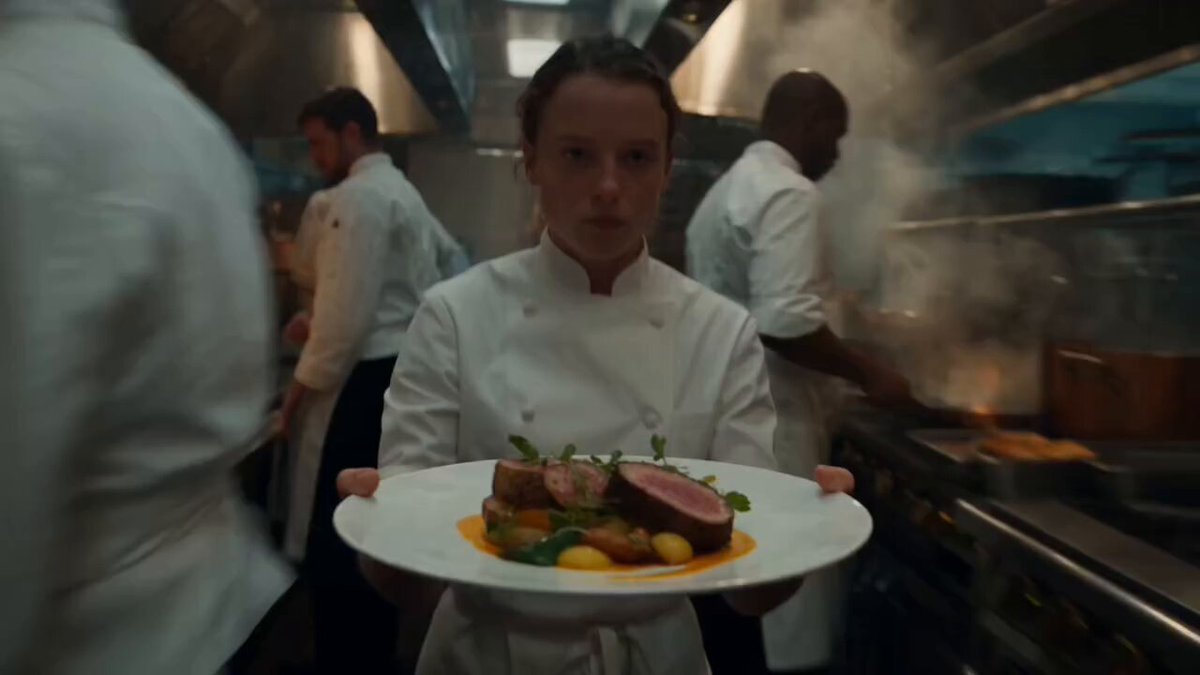
What AI Photo Animation Actually Does
AI photo animation is the practice of using machine learning to add believable motion to a still image. The result can be as subtle as a portrait where the eyes blink and the hair shifts, or as dramatic as a landscape where clouds roll across the sky while the camera pushes forward. The defining trait is that the input is a single frame and the output is a sequence of frames that never existed in the original file.
Not all animation is created equal, and the differences matter when you choose a tool.
Layered parallax. The app estimates depth, separates the subject from the background, then moves each layer at a slightly different rate. Because the original pixels are largely preserved, this family is the safest option for scanned prints, archival family photos, and any image where fidelity matters more than spectacle.
Warp-and-flow motion. Landmark detection finds eyes, mouth corners, shoulders, and edges. The app nudges those regions a few pixels at a time and loops the result. This produces the classic "live photo" look — a gentle shimmer that reads as motion without fully changing the scene.
Generative video. A video model invents new frames from your image plus a text or motion prompt. Here you can get genuine camera moves, a subject turning their head, fabric billowing, or a character walking through a doorway. The trade-off is that generative models also invent things you did not ask for: a sixth finger, a melting earring, a window that changes shape between frames.
Most consumer apps blend all three: parallax for the background, warp for the face, and a short generative pass for anything that needs to move more than a few pixels. Knowing which mode you are using tells you what to expect before you ever press generate.
How the Technology Works Behind the Scenes
Under the friendly interface, four building blocks do most of the work. Understanding them makes you dramatically better at diagnosing bad output.
Depth estimation and subject segmentation
A depth model assigns every pixel an approximate distance from the camera. A segmentation model then decides which pixels belong to the subject, the background, and the boundary between them. Together they let an app isolate a portrait from a cluttered room without a green screen. When depth estimation struggles — glass, mirrors, reflective floors, fine hair against a busy background — you get the classic artifacts: a glowing halo around the head, or a background that appears to slide straight through the subject's shoulders.
Motion priors and facial landmarks
Motion priors are learned patterns of how things usually move. Clouds drift horizontally. Fabric ripples outward from an anchor point. Eyes blink at a natural rhythm. Facial landmark models locate dozens to hundreds of key points on a face, which allows an app to animate a smile or a blink while keeping the rest of the frame stable. This is why the same source photo can look natural in one app and rubbery in another: the landmark model, the blend weights, and the fallback behavior when a face is partially occluded all differ.
Diffusion video models and temporal consistency
Modern generative animation uses diffusion or diffusion-style transformers extended into the time dimension. Instead of denoising one image, the model denoises a stack of frames while enforcing agreement between neighboring frames. Temporal attention layers are what prevent flicker and slow drift. When you see a face gradually morph into a different person over four seconds, that is temporal consistency breaking down — usually because the clip was too long, the motion prompt too aggressive, or the source resolution too low for the model's training distribution.
Audio conditioning
Audio-driven animation maps phonemes to mouth shapes and head motion. It is impressive for slow, clear speech and disastrous for singing, rapid delivery, or heavy accents outside the model's training data. If lip sync matters for your project, always test with the exact audio you plan to publish rather than a clean sample clip.
What to Check Before You Commit to an App
The market is crowded, and feature lists all sound identical. These are the criteria that actually separate tools in daily use.
- Output resolution and length. Most apps cap free or entry tiers at a few seconds. Check whether the cap is per generation or per project, because a 20-clip project multiplies the limit.
- Temporal stability. Generate the same test photo in three tools and watch the edges of the frame. Flicker, shimmer, and slow zoom drift are the fastest ways to spot a weak model.
- Control granularity. Can you paint a motion brush to animate only the water and leave the rocks still? Can you set a camera path? Broad, single-slider controls save time; fine controls save projects.
- Identity preservation. For portraits, the question is whether the person still looks like themselves at frame 60. Test with a face you know well rather than a stock image.
- Handling of difficult regions. Teeth, eyes, jewelry, text, and thin fabric are where models fail first. Check them at full resolution, not in a thumbnail.
- Licensing and rights. Confirm what you may do commercially with both the source photo and the generated clip, and whether the app claims any rights over your uploads.
- Privacy. Personal and family photos are sensitive. Prefer tools that let you delete uploads, offer local processing, or state clearly how long assets are retained.
- Export flexibility. You want horizontal, vertical, and square output, plus a clean file without a watermark on paid tiers.
- Batch handling. If you are animating a photo archive or a product catalog, batch queues and consistent settings matter more than any single creative control.
- Cost per finished minute. Compare tools on the cost of a finished minute of usable footage, not the cost of a single generation. Rerolling is the norm.
| Priority | Best fit |
|---|---|
| Maximum realism on portraits | Apps with strong landmark models and short generative passes |
| Archival and historical photos | Depth-based parallax tools that preserve original pixels |
| Marketing and product loops | Web studios with batch export and brand presets |
| Fast social clips | Mobile apps with vertical presets and built-in captions |
| Full creative control | Desktop suites with masks, camera paths, and manual retiming |
A Workflow That Produces Clean Results
Most disappointing animations are not caused by a bad model. They are caused by a rushed pipeline. This sequence works across nearly every app category.
Step 1 — Prepare the source image
Start with the highest-resolution version you have. Repair scratches and dust before animating, because motion amplifies every blemish. Upscale softly rather than aggressively if the original is small. If you can, extend the canvas slightly beyond the frame you want, so that camera moves have somewhere to travel without hitting an edge.
Step 2 — Choose the smallest motion that tells the story
A portrait needs a blink and a subtle breath, not a head turn. A landscape needs drifting clouds and a slow push, not a swooping drone move. The rule of thumb: if you can clearly describe the motion in three words, it is probably the right amount.
Step 3 — Generate short and stitch
Long single generations are where drift and morphing appear. Generate three- to five-second passes instead, then cut them together in an editor. Short passes also let you reroll only the segment that failed instead of the entire clip.
Step 4 — Fix flicker and edges
If a clip flickers, try a lower motion strength, a slightly lower resolution, or a shorter duration. If edges crawl, mask the subject manually and animate the background separately. Frame interpolation can smooth stutter, but it will not fix a warping face — that needs a re-generation.
Step 5 — Grade, sound, and export
Animated stills usually look flat next to real footage. Add a gentle contrast curve, a subtle vignette, and a light grain layer to unify the image. Sound carries more weight than most people expect: ambient room tone, a soft music bed, or a single environmental effect makes a five-second loop feel intentional rather than experimental.
Motion Styles and Where They Fit
| Style | Best for | Main risk |
|---|---|---|
| Gentle parallax | Archival photos, portraits, real estate | Looking static if overdone |
| Facial micro-motion | Headshots, memorial tributes, avatars | Uncanny eyes and teeth |
| Environmental motion | Landscapes, weather, city scenes | Inconsistent clouds or water |
| Camera push or pull | Dramatic reveals, title backgrounds | Edge cropping and softness |
| Character animation | Illustration, mascots, comics | Anatomy errors |
| Talking portrait | Messages, explainers, greetings | Lip sync mismatch |
| Particle and light effects | Music visuals, mood pieces, covers | Looking like a filter preset |
Mix at most two styles per clip. A portrait with a subtle background push is elegant; a portrait with a head turn, floating particles, a zoom, and a color shift reads as noise.
Use Cases Across Industries
Family archives and tributes. The most emotionally valuable use of this technology is also the simplest. Scan a photo, animate a blink and a gentle background drift, add a music bed, and you have a keepsake. Keep motion minimal here — the audience is looking at the person, not the effect.
E-commerce and product catalogs. A still product photo with a slow rotation, drifting shadow, or steam effect converts better than a flat image in many categories. Batch workflows matter: consistent lighting, consistent duration, consistent aspect ratio.
Real estate and hospitality. A slow push through a room, curtains shifting, or a pool surface rippling gives listings motion without a video shoot. Keep camera moves level and slow, or viewers feel motion sickness.
Social shorts and meme content. Vertical output, a hard hook in the first second, and caption-safe framing. This is where fast rerolling and template-driven apps shine.
Museums, education, and publishing. Historical images brought to life with restrained motion help audiences connect with material. Attribution and ethical handling of images of real people matter here more than anywhere else.
Music and album artwork. Animated covers and looping visuals are now standard on streaming platforms. Particle drifts, slow parallax, and grain overlays work well and hold up at small sizes.
Mobile, Web, or Desktop: Choosing a Category
Mobile apps win on convenience and presets. They are ideal for one-off social clips, quick experiments, and situations where the photo is already on your phone. Their limits show up in export control, batch handling, and fine masking.
Web studios win on balance. You get stronger models, larger exports, and better project management without installing anything. If you animate photos more than once a month, a browser-based studio is usually the right home base.
Desktop suites win on control. Manual masks, camera paths, retiming, compositing, and color pipelines let you fix what automated tools get wrong. They are the right choice for client work, long projects, and anything that must match existing footage.
A practical setup for most creators is two tools: a fast web or mobile app for exploration, and one editor for finishing. Do not try to make a single app do everything.
Common Mistakes and How to Fix Them
Over-animating. Too much motion destroys the realism of a still image. Fix: cut motion strength by half and re-generate, then compare side by side.
Animating a low-resolution source. The model has less information to work with, so it invents more. Fix: upscale first, and keep output resolution at or below the source's effective detail.
Animated text inside the photo. Signs, book covers, and logos warp badly. Fix: mask and lock those regions, or cover them with a clean graphic in your editor.
Multiple faces, everyone moving. Group photos often produce one convincing face and several unsettling ones. Fix: apply motion only to the intended subject, or animate the whole frame with parallax only.
Wrong aspect ratio for the platform. A beautiful horizontal clip cropped to vertical can decapitate your subject. Fix: decide the destination before generating, and choose the matching preset.
Ignoring the first and last frame. Loops that do not match at the seam look broken. Fix: generate a few extra frames and trim to a natural motion beat.
Skipping the rights check. Photos of other people, licensed artwork, and commercial imagery all carry restrictions. Fix: confirm permission and platform terms before publishing, and keep documentation with the project file.
Never re-testing the tool. Models update frequently. Fix: keep a small test folder with one portrait, one landscape, one product shot, and one group photo, and re-run it after any major update.
Publish-Ready Quality Checklist
- Face looks like the person at the final frame, not just the first.
- No flicker on frame edges or in flat areas like sky and walls.
- Hands, teeth, and jewelry survive a full-resolution review.
- Text and logos are either locked or removed.
- Motion supports the story instead of competing with it.
- Audio is present, mixed low, and free of clicks at cut points.
- Aspect ratio and safe zones match the destination platform.
- Export is watermark-free and at the resolution you promised.
- Source photo, settings, and version notes are saved with the project.
FAQ
Do I need a powerful computer?
For web and mobile apps, no. Rendering happens remotely. Desktop tools that run models locally benefit from a modern GPU, but most creators never need one.
How long should an animated photo clip be?
Three to six seconds for social content, one to three seconds for a subtle loop, and up to fifteen seconds for a slow narrative piece. Longer clips increase the chance of drift, so stitch short passes instead.
Will an animated portrait still look like the person?
With restrained micro-motion, usually yes. Identity loss appears when you push large head turns, extreme expressions, or long durations. Keep the face motion small and let the background carry the movement.
Can I animate a group photo?
Yes, but expect trade-offs. Parallax across the whole frame is safest. Per-person motion usually means generating each face separately and compositing, which is a job for an editor.
Is it ethical to animate photos of people who have passed away?
It can be deeply meaningful, and it can also be upsetting. Get agreement from close family before publishing anything publicly, keep motion gentle, and avoid synthetic speech unless it was explicitly approved.
What resolution should my source photo be?
Aim for at least 1500 pixels on the long edge, and higher for anything intended for a large screen. Sharper input means less hallucination and fewer artifacts.
Can I use the output commercially?
That depends on two things: the terms of the app you used, and your rights to the source photo. Check both. Keep records of licenses and permissions alongside your project files.
Why does one app produce better results than another on the same photo?
Different depth models, landmark detectors, motion priors, and temporal consistency methods. There is no single best app — there is a best app for portraits, another for landscapes, and another for batch product work. Test with your own material.
Where to Start
Pick one photo you know intimately — a portrait in good light. Run it through two or three apps at the lowest motion setting and compare the results at full resolution, not in a preview window. The tool that keeps the edges clean, the face recognizable, and the motion restrained is your starting point. From there, build a short workflow: prepare the file, generate in short passes, fix the seams, add sound, and export for the specific place it will live. Restraint, not spectacle, is what makes an animated photo feel alive.

Alexander
More Blogs
Read MoreMontaggio video rapido: transizioni e software per l'AI
Guida pratica al montaggio video rapido con AI: transizioni fluide, software, workflow, coerenza visiva, errori da evitare e FAQ operative.
Building an AI Video Production Workflow From Concept to Cut
A practical guide to planning, generating, editing, and finishing AI-assisted videos with consistent characters, clear shot lists, and reliable review loops.
A Repeatable Post-Production Workflow for Polished AI Video
Build a repeatable AI video post-production pipeline: organize assets, cut story-first, design transitions, refine audio, and review versions calmly.