
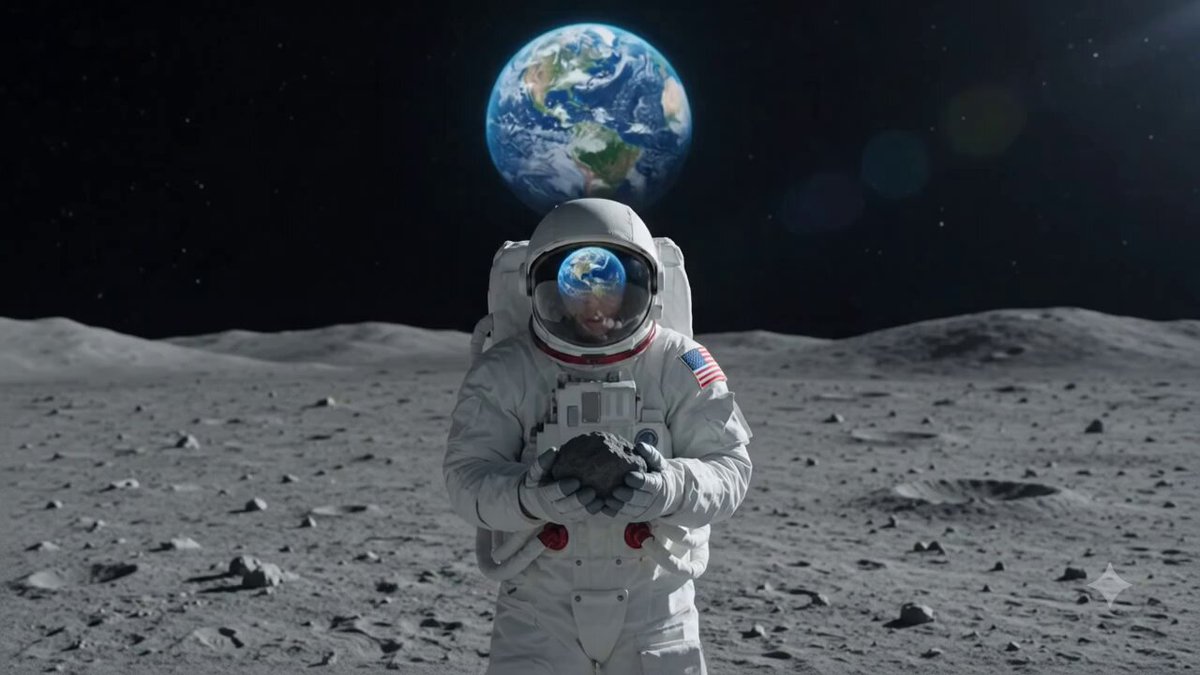
AI Photo Animation Software: Turn Still Photos Into Video
Oct 15, 2026
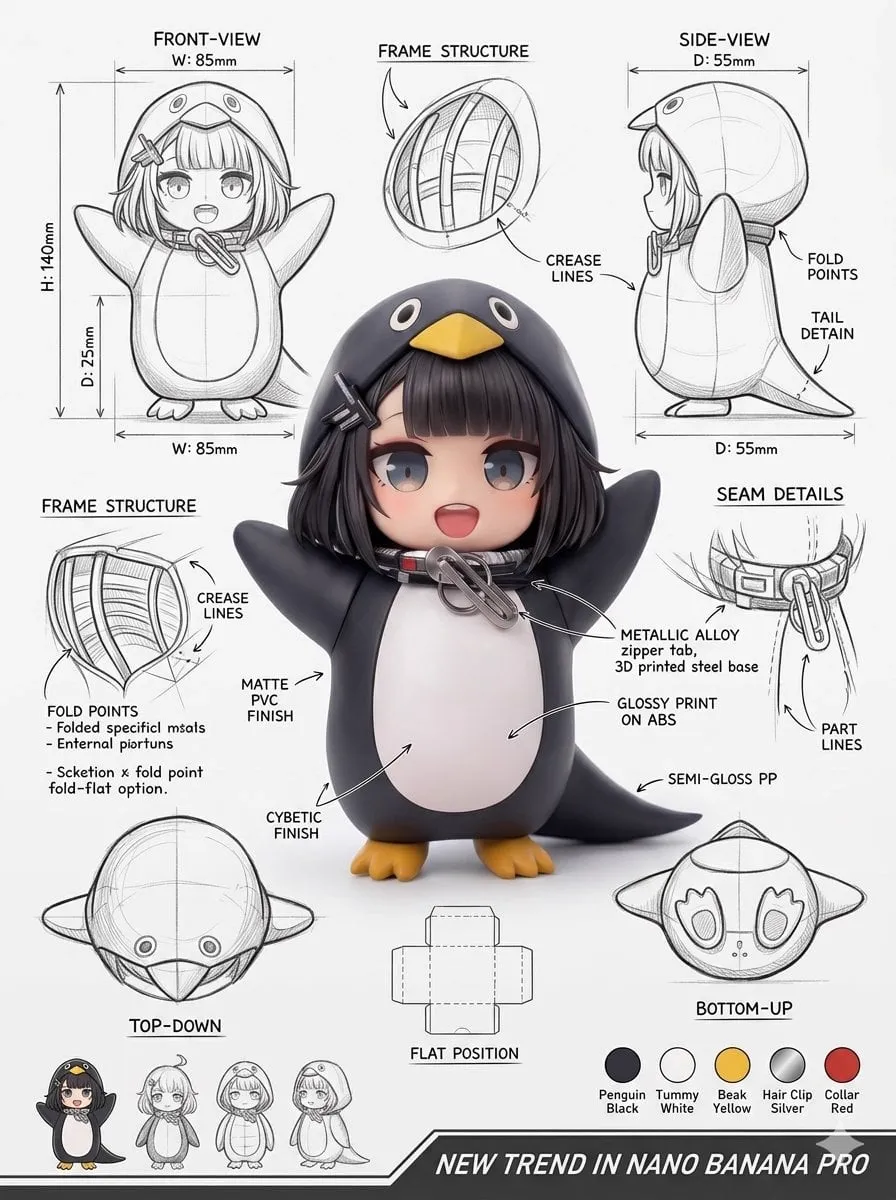
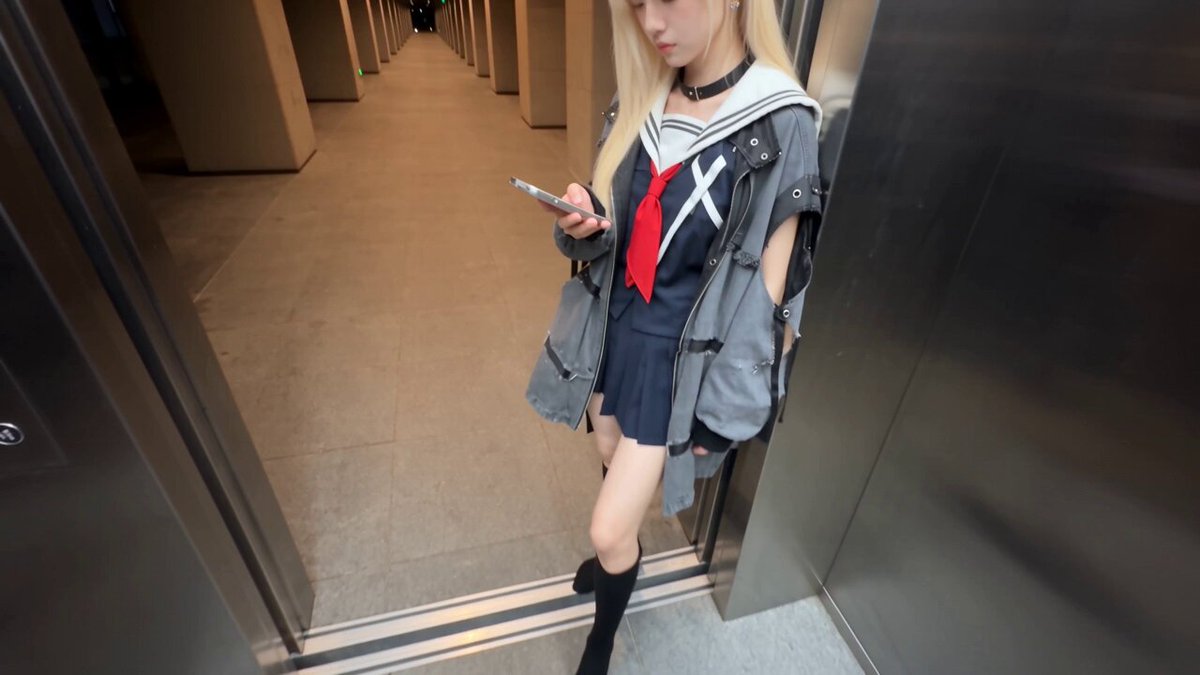
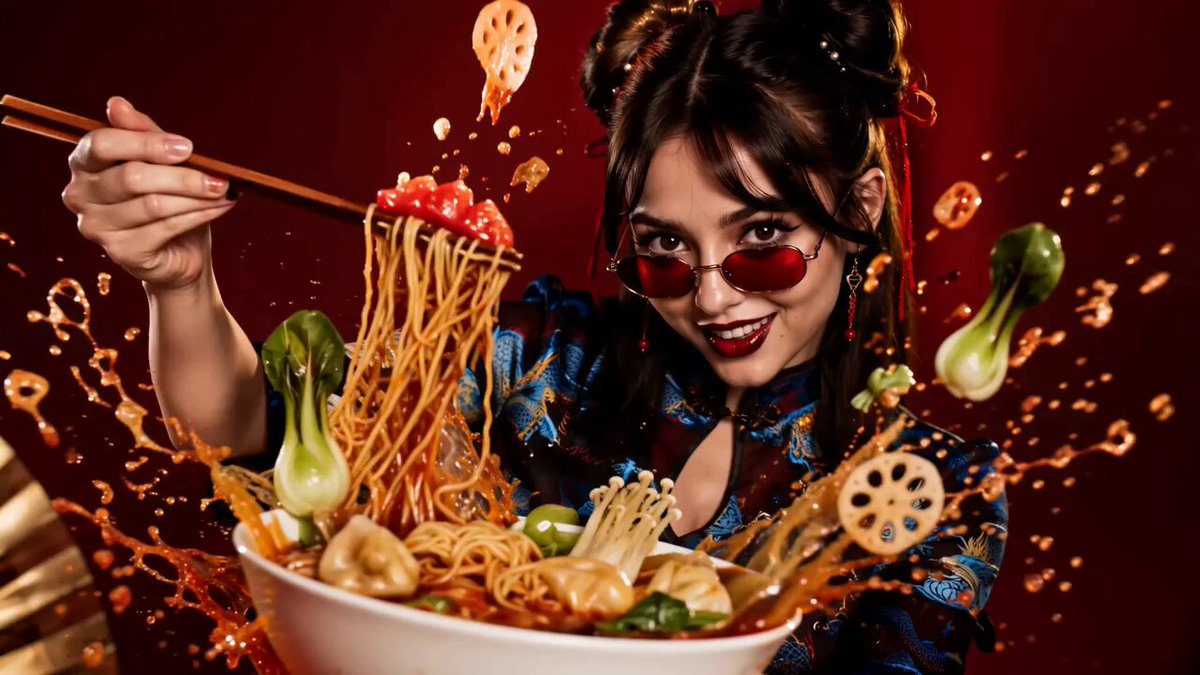
What AI Photo Animation Software Actually Does
AI photo animation software takes a still image — a portrait, a product shot, a landscape, or a scanned family photograph — and generates believable motion from it. The result is normally a short video clip: a few seconds of gentle parallax, a head turn, drifting hair, rippling water, or a slow camera push through the scene. Nothing about the original file changes on disk; the software builds an entirely new sequence of frames that appears to be the same moment continuing.
It helps to separate four distinct jobs that people lump together under one label:
- Parallax and 2.5D motion. The image is split into layers, a depth map is estimated, and a virtual camera moves between them. This is the oldest and most reliable technique, and it still produces the most controllable results.
- Performance animation. Face landmarks are tracked and then driven by an audio track or a reference video, producing a talking, singing, or reacting portrait.
- Generative image-to-video. A diffusion model conditions on the still plus a text prompt and invents entirely new frames, including movement and even objects that were never in the photo.
- Restoration plus animation. Damaged, faded, or low-resolution scans are repaired first and animated second — the standard path for archival, memorial, and museum work.
Most modern tools blend at least two of these. A product clip might use depth-based parallax for the background and generative motion for a hand entering the frame. An archival tribute might restore scratches, upscale the face, then add a subtle head tilt.
Knowing which job you actually need prevents the most common failure mode: using a heavy generative model for a task that a simple depth-based camera move would do better, faster, and without warping anyone's face.
How the Technology Works Under the Hood
Understanding the pipeline makes you dramatically better at choosing settings, because every control in a photo animation interface maps to one of these stages.
Depth estimation and layering
A monocular depth model reads a single 2D image and predicts how far every pixel is from the camera. That prediction becomes a grayscale depth map, which the software uses to slice the photo into foreground, midground, and background. Once the layers exist, a virtual camera can dolly, pan, or rack focus between them. Depth quality determines whether the result looks like a real camera move or like a paper cutout being dragged around.
Landmark tracking and rigging
For faces and bodies, the software detects keypoints — eyes, brows, jawline, shoulders, fingers — and builds a lightweight rig. Audio-driven animation maps phonemes to mouth shapes; video-driven animation copies motion from a driving clip. The rig is what keeps a smile from turning into a smear.
Generative frame synthesis
Diffusion-based video models start from noise and progressively denoise toward a frame that matches both the source image and your prompt. Temporal layers or attention mechanisms keep consecutive frames consistent. This is where the magic and the risk both live: the model can invent a plausible wave crashing, but it can also invent a sixth finger.
Post-processing
Almost every pipeline ends with the same cleanup steps: frame interpolation to raise the frame rate, temporal smoothing to reduce flicker, upscaling to reach delivery resolution, and color grading to match the surrounding edit. Skipping these is why so many AI clips look slightly uncanny even when the motion itself is good.
Choosing the Right Tool: Decision Criteria
There is no single best photo animation tool. There is only the best tool for your source material, your deadline, and your distribution channel. Work through these criteria in order.
Motion control granularity. Some tools give you a text box and a generate button. Others expose camera paths, motion brushes, region masks, and per-layer speed. If you need a specific move — a slow push-in on a product label — you want the second kind.
Likeness preservation. For portraits, identity drift is the number one complaint. Look for tools that offer identity locking, reference-image conditioning, or a strength slider that trades motion for fidelity.
Clip length and resolution. Many models produce four to five seconds at 720p natively. Check whether the tool offers extension, stitching, or a native 1080p/4K path, because upscaling a soft clip never fully recovers detail.
Local versus cloud. Local tools such as ComfyUI-based workflows give you privacy and unlimited iteration on your own hardware, but demand a capable GPU and patience. Cloud tools trade that for speed and simplicity.
Commercial rights. Read the license for the model and the platform. Rights for generated output vary, and some models restrict certain categories of content entirely.
Privacy and consent. If you are animating photos of real people — clients, family, deceased relatives — confirm where files are stored, whether they are used for training, and whether you have documented permission.
Integration. Does the tool export clean ProRes or image sequences you can drop into an editor, or does it lock output behind a proprietary player? Editors such as DaVinci Resolve, Premiere Pro, and Final Cut Pro all handle image sequences and high-bitrate files gracefully; a watermarked vertical export does not.
A Step-by-Step Workflow for Animating a Photo
This sequence works for portraits, products, and archival material alike. Adapt the details rather than skipping steps.
1. Prepare the source image
Upscale to at least 2x your delivery resolution before animating. Cropping, straightening, and dust removal all happen now, not later. A 1920x1080 output built from a 600-pixel-wide source will always look soft, no matter how good the model is.
2. Repair and clean
Run denoising and scratch removal first. If the photo is a scan, correct color casts and restore contrast. Remember: the animation model amplifies whatever it sees, including noise and JPEG blocking.
3. Define the frame and aspect ratio
Decide the destination — 16:9 for YouTube, 9:16 for shorts and reels, 1:1 or 4:5 for feeds. Choose this before generating, because re-framing a finished clip crops away the motion you paid compute for.
4. Isolate the subject if needed
Masking the subject lets you animate the background independently, or hold the face perfectly still while the environment moves. This is often the single biggest quality upgrade available.
5. Build or verify the depth map
If the tool exposes depth controls, inspect the estimated map. Backgrounds that fuse with the subject, or halos around hair, are visible in the map before they become visible artifacts in the video.
6. Write the motion prompt
Describe what moves and how fast, in physical terms. "Slow push-in, camera drifts left, gentle breeze moves the leaves, subject blinks once" beats "cinematic and dynamic."
7. Generate several takes
Run three to five variations with small prompt changes or different seeds. Generative output is a distribution, not a single answer. Budgeting time for options is cheaper than trying to fix a bad take.
8. Select and stabilize
Pick the take with the best motion distribution, then apply stabilization or temporal smoothing if the tool supports it. Check the first and last frames — they are usually where flicker hides.
9. Interpolate and upscale
Raise the frame rate with an interpolation pass and upscale to delivery resolution using a dedicated video upscaler rather than a resizing filter.
10. Composite and finish
Bring the clip into an editor. Add titles, sound design, music, and grade it to match your other footage. Motion without audio feels unfinished to almost every audience.
Prompting and Motion Direction: Getting Believable Movement
The prompt is a director's note, not a mood board. Motion prompts work best when they answer four questions: what moves, how much, in which direction, and how fast.
Use motion verbs, not adjectives. "Camera pushes in slowly" is actionable; "epic" is not. Models respond to physical description far more reliably than to emotional description.
Separate camera motion from subject motion. A drifting camera plus a walking subject is two instructions. Blur them together and the model will pick one and ignore the other.
Constrain rather than demand. "Subtle," "slight," and "gentle" are your friends on portraits. The most common cause of a distorted face is an instruction that implies large displacement.
Anchor the environment. Telling the model that the background is a still photograph with only the light shifting will often keep architecture straight, which is exactly what you want in real estate and product work.
Use negative prompts for known failure modes. Extra fingers, warped text, melting edges, duplicated limbs, third eyes. Naming the failure helps the sampler avoid it.
Match duration to change. A four-second clip cannot contain a full character walk and a camera move and a costume change. If your prompt describes three events, you are describing a ten-second clip.
Keep a seed log. When a take works, note the seed, prompt, and settings. Reproducing a good result deliberately beats hoping for it twice.
Common Mistakes and How to Fix Them
Too much motion. The single most frequent error. Reduce amplitude by half, then half again. Restraint reads as professionalism; exaggeration reads as a filter.
Warping faces and hands. Fix by masking the face and animating it separately at lower strength, or by choosing a model with stronger identity conditioning. Also check source sharpness — soft faces warp more.
Over-sharpening to hide softness. Sharpening halos become crawling edges once frames move. Sharpen the final graded export sparingly, if at all.
Ignoring the audio. Viewers forgive visual imperfection far more readily than bad sound. Add ambience, a light score, and clean levels.
Single-take dependency. If you only generate once, you are shipping whatever the model felt like producing. Always generate options.
Forgetting rights and consent. Confirm you have permission to animate photographs of identifiable people, and that your model license allows commercial use if the clip is for a client.
Mismatched grain and noise. Stitching an AI clip into live-action footage requires matching grain, contrast, and color temperature, or the cut will scream "generated."
Wrong frame rate. Generating at 24fps and delivering at 30fps produces judder. Decide the timeline frame rate before you start and keep interpolation consistent.
Practical Use Cases That Pay Off
E-commerce product clips. A still product photo becomes a slow rotating hero shot with a moving highlight. Depth-based parallax handles this beautifully, and the result converts better than a flat image in most feed placements.
Real estate teasers. A single exterior photo becomes a slow push toward the front door, with trees swaying. Agents can produce listing teasers from the existing photo set without a reshoot.
Archival and memorial films. Restore, upscale, then add a gentle head tilt. The emotional impact comes from restraint; a dramatic zoom on a 1940s portrait usually breaks the illusion of authenticity.
Storyboards and animatics. Animating illustrated boards gives clients a sense of pacing and camera language before production money is spent.
Social advertising. Nine-by-sixteen clips generated from existing brand photography cost a fraction of a shoot and can be versioned per audience quickly.
Education and museums. Diagrams, maps, and paintings gain explanatory motion — arrows drawing themselves, layers separating, weather moving across a historical map.
Music and cover art. A single album image becomes a looping visual for audio platforms and social teasers.
Quality Control Checklist Before You Publish
Run this pass on every clip. It takes two minutes and catches almost everything.
- Scrub frame by frame through any face, hands, and fine text.
- Watch the boundary between subject and background for flicker or edge crawl.
- Confirm the first and last frames are clean enough to cut from and to.
- Check that the motion direction matches the surrounding edit's directionality.
- Verify resolution, frame rate, and aspect ratio against the delivery spec.
- Confirm audio loudness and that music is cleared for your use case.
- Review the clip at small size on a phone. If it falls apart there, it falls apart for most of your audience.
- Confirm you have documented permission and license coverage for every identifiable person in the frame.
Frequently Asked Questions
How long can an animated photo clip be?
Most image-to-video models natively produce three to ten seconds. Longer sequences are typically built by extending a clip, generating overlapping segments and stitching them in an editor, or repeating a seamless loop. For most marketing and social use, four to six seconds is plenty.
Can AI animate a group photo without distorting people?
Yes, but it requires work. Mask each face, animate the group with minimal global motion, and keep identity strength high. Reduce camera movement, since perspective changes are what warp faces at the edges of a frame.
Do I need a powerful GPU?
Only for local workflows. Cloud tools run everything remotely, so a laptop is enough. If you want unlimited iteration, privacy, and no per-generation cost, a machine with a recent mid-to-high-end GPU and generous VRAM makes local generation comfortable.
Is animating old family photographs worth it?
For many people it is genuinely moving, especially when the motion is subtle. Restore first, animate gently, and avoid dramatic camera moves. A slow blink and a slight head turn land far better than a sweeping zoom.
What resolution should I generate at?
Generate at the highest native resolution your tool supports, then upscale to delivery size. Generating at 720p and upscaling to 4K rarely looks convincing because the detail was never captured in the generated frames.
How do I keep the same character across multiple clips?
Use a consistent reference image, lock the seed where possible, and reuse the same prompt structure. Small prompt changes between shots cause visible identity drift, so treat your prompt like a character sheet.
Are there licensing concerns?
Yes. Check both the model license and the platform terms. Some restrict commercial use, some restrict certain content categories, and some make claims about the training data. Keep a record of what you used for client work.
Can I animate text-heavy images?
It is risky. Lettering tends to wobble or morph. Animate the background only, keep the text layer as a clean overlay in your editor, and add any typography in post.
Where Photo Animation Is Heading
Three trends are worth watching. First, temporal consistency is improving fast, which means longer clips without stitched seams and fewer flickering edges. Second, conditioning is becoming more structural: depth, pose, and camera parameters are increasingly exposed as inputs rather than guessed, which puts real cinematographic control back in the creator's hands. Third, the boundary between animation and editing is dissolving — the same tools that animate a still will increasingly handle relighting, extension, and cleanup inside a single timeline.
For now, the practical takeaway is simple. Treat AI photo animation as a first-class production step rather than a novelty filter: prepare your source properly, direct the motion with specific language, generate options, and finish in a real editor. Teams that follow that discipline produce clips that look intentional. Everyone else produces clips that look generated — and audiences can tell the difference instantly.

Alexander
More Blogs
Read MoreVidu Q4 Alternatives: 4K AI Video Models Compared (2026)
Vidu Q4 alternatives compared: Kling 4.0, Seedance 2.5, Wan 3.0, and Runway Gen-4 — 4K support, input modes, durations, audio, and what each costs in credits on Domer.
Top 4K AI Image Generators in 2026: 5 Models Compared on Real Costs
The top 4K AI image generators on Domer compared: Flux 3 Klein, Nano Banana 2.1, GPT Image 2.5, GPT Image 2, and Nano Banana Pro — 4K credit costs, reference limits, and speed.
Nano Banana 2.1 vs GPT Image 2.5: Which Image Model Should You Use? (2026)
Nano Banana 2.1 vs GPT Image 2.5 Flare compared: credit costs per resolution, aspect ratios, reference images, text rendering, and which tasks fit each model.