
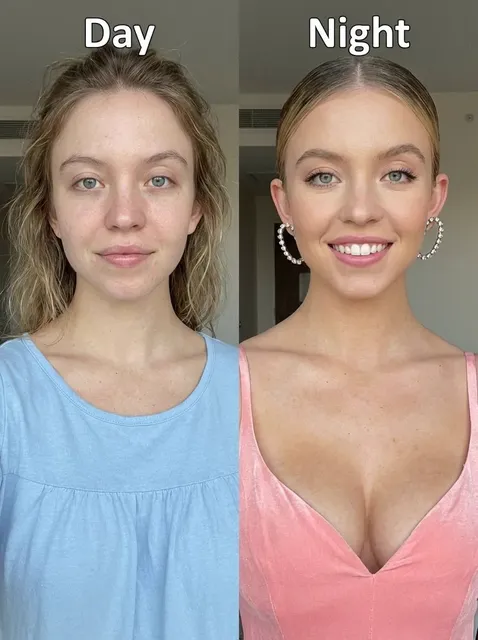
How to Take Better Photos With AI and Turn Them Into Video
Oct 15, 2026
Why AI reshaped the photo-to-video pipeline
Photography and video production grew up as separate disciplines with separate gear lists and separate skills. A still photographer worried about shutter speed only insofar as it affected sharpness. A videographer worried about it constantly, because it governed motion blur across twenty-four frames every second. AI has quietly collapsed that wall. A single well-exposed frame now holds enough structural information for a generative model to extrapolate camera movement, parallax, and subtle subject motion into several seconds of believable footage.
That changes what you optimize for when you press the shutter. Sharpness, dynamic range, and clean separation between subject and background matter more than they used to, because generative tools amplify whatever structure already exists. Noise does not vanish when you animate a photo. Motion blur does not disappear. Clipped highlights do not recover themselves. Instead, every flaw gets carried forward, stretched across dozens of frames, and often exaggerated by the interpolation process. A clean, slightly flat, well-lit frame, on the other hand, can produce motion that looks like it came off a gimbal.
AI also helps on the capture side. Scene recognition, subject tracking, multi-frame stacking, and automatic white balance have improved to the point where a modern phone can outshoot a mid-range camera from a decade ago in difficult light. The skill is knowing which automated decisions to accept and which to override. The rest of this guide walks through those decisions, then carries the results into an AI video workflow that holds up under scrutiny.
Camera settings that survive AI enhancement
Exposure: protect the highlights, lift the shadows
Generative models handle shadows gracefully and highlights badly. A blown sky becomes a smeared white band that flickers as the camera moves. A slightly underexposed foreground, by contrast, can be lifted in post with minimal damage. If you shoot raw, you have more latitude, but the principle applies to phone JPEGs too: check the histogram, keep the bright end off the right wall, and let the midtones sit a little lower than feels natural on the back screen.
Focus and depth of field
Subject detection autofocus has become genuinely reliable for people, animals, and vehicles. Turn it on. What matters more for AI animation is depth of field. Extremely shallow depth of field looks beautiful in a still and becomes a liability in motion, because the model has to invent detail in the blurred regions, and invented detail tends to breathe and shimmer. A moderate aperture that keeps your subject crisp while retaining some background structure gives the model something to work with. When you want background separation, get it through distance and lighting rather than by opening up to the widest aperture.
Shutter speed and stabilization
Handheld is fine. Chaotic is not. If your photo has visible motion blur from a slow shutter, the animated clip will inherit a softness that reads as smearing. Keep the shutter fast enough to freeze your subject, rely on optical stabilization for the rest, and brace against something solid when light is low. If you plan to animate a photo with a virtual camera move, the still itself should look like a moment frozen from a stable shot.
Resolution and aspect ratio
Shoot wider than your final deliverable and at the highest resolution your sensor allows. A 16:9 frame gives you room to crop to a vertical format later, and vertical social formats benefit from extra headroom above and below the subject. More pixels also mean more detail for the model to sample, which reduces the mushy look that appears when a small image is scaled up before animation. Aim for at least four thousand pixels on the long edge, and avoid heavy in-camera sharpening, which creates halos that motion makes obvious.
Composition rules for frames that will move
Composition for AI video follows the same instincts as cinematography, with a few additions specific to generated motion.
Leave lead room. If you intend the camera or subject to move left to right, place the subject on the left third with space in the direction of travel. A centered subject with equal space on both sides gives the model no cue about which way the shot should travel, and the resulting motion often feels arbitrary.
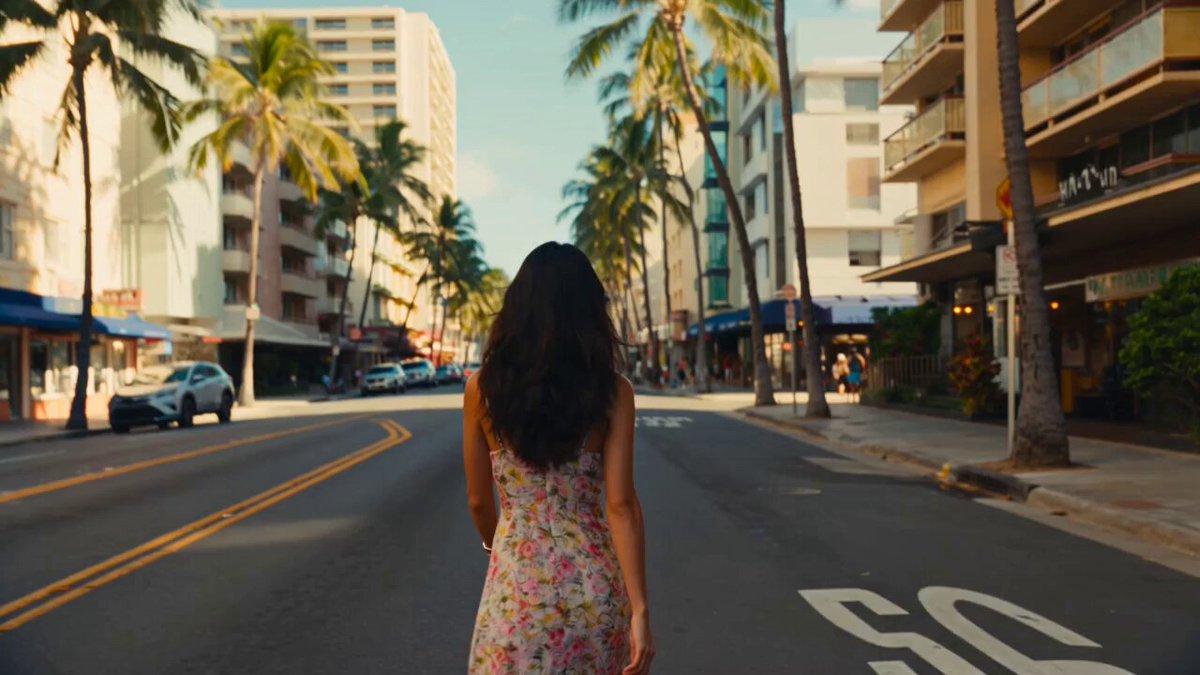
Build layers. Foreground, midground, and background elements give a parallax algorithm something to separate. A doorway frame, a row of plants, a railing, a blurry shoulder in the near foreground: all of these let the model push the camera through space in a way that reads as three-dimensional rather than as a flat zoom.
Keep the horizon level. Slight tilts are easy to correct in a still and annoying in a clip, because correcting rotation means either cropping into the frame or letting the tilt ride along with the motion. Level the camera at capture time.
Avoid text and fine repeating patterns. Signage, striped fabrics, brickwork, and dense foliage can trigger warping or shimmer. If you cannot avoid them, keep them out of the region where the largest camera movement will occur.
Do not crop limbs at the frame edge. A hand or elbow cut off by the border has no surrounding context, and generative models often hallucinate an unsettling reconstruction as it moves. Give bodies a little breathing room inside the frame.
Lighting decisions that AI handles well
Lighting is where most still-to-video projects either shine or fall apart. Soft, directional light is the safest choice. Overcast daylight, a window with a sheer curtain, golden hour with the sun at your subject's back or side, or a single large diffused source in a studio all give the model consistent shading across the frame. Consistency is the keyword: the model assumes the light stays the same as time advances, so mixed color temperatures, flickering practical lights, or a subject half in sun and half in shade create conflicts it cannot resolve.
Hard light is not forbidden, but it demands more control. A crisp shadow line across a face gives wonderful depth in a still and often pulses in a generated clip, because the model is guessing at how the shadow edge should evolve. If you shoot hard light, keep the subject still, choose a small camera movement, and expect to do a bit of cleanup.
Backlight and rim light deserve special mention because they are the easiest way to make a generated clip look expensive. A bright rim along a shoulder or hairline separates the subject from the background and gives motion something crisp to track. Just make sure the background itself is not blown out, or that rim will smear into the sky.
Finally, avoid heavy on-camera flash. The flat, shadowless look is fine in a snapshot and lifeless in motion, and the hard falloff at the edge of the flash pool tends to confuse depth estimation.
A repeatable still-to-video workflow
Step 1: cull ruthlessly
Select only frames that are sharp, well exposed, and cleanly composed. Ten excellent source images will produce a better sequence than fifty mediocre ones. When you evaluate a candidate, ask a simple question: could I describe the camera move I want in one sentence? If the frame is ambiguous, the model will be too.
Step 2: prepare the source image
Convert raw files, correct white balance, and apply a mild grade that keeps highlights below clipping. Remove distracting elements only if the retouching is invisible. Aggressive healing, heavy noise reduction, and plastic skin smoothing all reduce the texture the model needs to synthesize convincing detail. Export at high quality, ideally as a PNG or a maximum-quality JPEG, and work in a color space you will use consistently across the sequence.
Step 3: choose one motion per clip
Decide on a single dominant action: a slow dolly in, a gentle orbit, a crane up, a rack focus, a subject turning their head. One motion reads as intentional. Three motions read as chaos, and chaos is where artifacts cluster.
Step 4: generate short clips
Start with three to five second generations. Short clips give you room to select the best take, and they are far easier to fix than a ten second clip with a problem in the middle. Generate several variations from the same frame, then pick the one whose motion feels most physically plausible.
Step 5: review frame by frame
Scrub through each clip slowly. Look at hands, hair edges, the boundary between subject and background, and any region of high texture. If an artifact appears at second four, you can often trim the clip to three seconds and keep a perfectly usable shot.
Step 6: upscale and retime
After selection, upscale to your delivery resolution and, if needed, retime for slow motion. Do the upscaling after selection, not before, so you are not paying the computational cost on takes you will discard.
Step 7: assemble and grade
Cut the clips together on the beat or on the motion. Apply a single grade across the sequence, using the same look you established in step two. A shared grade is the fastest way to make clips generated from different source photos feel like one continuous piece.
Directing motion with prompts and controls
Most image-to-video tools accept a text description alongside the source frame. Treat that description as a camera and blocking note, not as a story. A useful prompt has four parts: the camera move, the subject action, the atmosphere, and the lens character.
For example, "slow dolly in, subject turns head slightly toward camera, soft morning haze, shallow but controlled depth of field, 50mm look" tells the model everything it needs. Compare that with a paragraph of narrative prose, which usually dilutes the motion signal and produces a drifting, aimless clip.
A few rules of thumb:
- Name one camera move. Words like dolly, push in, orbit, crane, tracking, handheld drift, and static are understood by most systems.
- Keep subject action small. A blink, a breath, a slight turn, a hand adjusting a sleeve. Large actions need longer clips and produce more artifacts.
- Describe light, not mood. "Soft window light from the left" steers the render. "Melancholy" does not.
- Use negative guidance when available to suppress warping, text, or extra limbs.
- If a tool offers a motion strength slider, start in the middle and move down rather than up. Subtle motion is almost always more convincing than dramatic motion.
Keeping a sequence consistent
A sequence of generated clips fails when each shot looks like it came from a different production. Consistency comes from constraints you set before you generate anything.
Lock the look first. Choose a grade, a contrast curve, and a color palette, then apply it to your source stills before animation rather than after. Models tend to preserve the tonal character of the input, so grading early is more effective than grading later.
Reuse references. If your tool supports reference images or character consistency features, feed it the same portrait or the same environment shot across multiple clips. If it supports seeds, note which seed produced a look you liked and reuse it with a different source frame.
Keep your settings steady. Resolution, motion strength, and clip length should stay within a narrow range across the whole sequence. Varying them wildly creates visible jumps in detail level and motion quality.
Cut on motion. When you assemble, place your cut points where the motion in the outgoing clip is still flowing, rather than after it has settled. This hides the small discontinuities that always exist between separately generated takes.
Common mistakes and how to avoid them
Over-animating. The single most common error is asking for maximum movement from every frame. Restraint reads as confidence. A locked-off shot with a subtle breath of motion often looks more professional than an elaborate swoop.
Animating a compressed screenshot. Images pulled from messaging apps or social platforms carry heavy compression artifacts, and the model will treat those artifacts as texture, producing a crawling, blocky result. Always animate from the original file.
Ignoring the edges of the frame. Artifacts cluster at borders, especially where an object meets the frame line. Crop slightly inside the original image before generating so you have a clean margin.
Forgetting audio. Silent generated clips feel unfinished. Add ambience, room tone, or music that matches the pace of the motion. Even a low room hum makes a sequence feel deliberate.
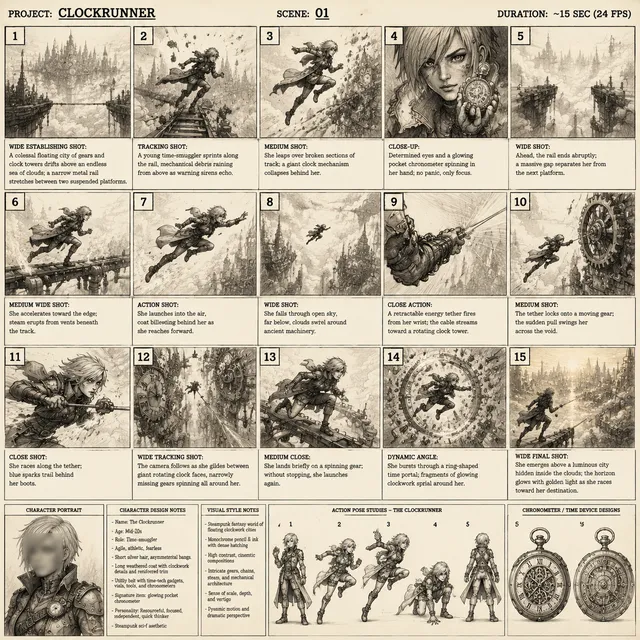
Generating before planning. Storyboard the sequence on paper or in a simple shot list first. Knowing that you need a wide establishing shot, a medium, and a close detail determines which photos you select and which camera moves you request.
Skipping the plausibility check. Ask whether the motion obeys physics. A camera that accelerates instantly, a shadow that moves against the light, or a subject whose hair blows in two directions at once will read as artificial no matter how good the resolution is.
Choosing the right tools for the job
Tool selection matters less than workflow, but a few criteria separate systems that fit a photo-to-video pipeline from those that do not.
- Image-to-video quality. Some tools excel at text-to-video and treat stills as an afterthought. Test with your own photos before committing.
- Motion control granularity. Look for direct control over camera movement, motion strength, and clip duration.
- Reference and consistency features. Character references, style references, and seed reuse are what make multi-shot sequences possible.
- Resolution ceiling and upscaling. Check the native output resolution and whether the tool includes a credible upscale step.
- Clip length. Longer native clips reduce the stitching work in editing.
- Licensing and commercial use. Confirm that generated output can be used in the contexts you need.
- Batch and API access. If you produce at volume, automation saves more time than any single quality improvement.
- Local versus cloud processing. Local options give privacy and predictable cost; cloud options give speed and access to larger models.
A practical approach is to build a small test set: one portrait, one landscape, one detail shot, and one low-light frame. Run the same set through two or three tools and compare edge stability, motion plausibility, and how faithfully each one preserves the original color. The winner is usually obvious within an afternoon.
FAQ
Can I animate a photo taken with a phone?
Yes, and phone photos often work well because modern computational photography produces clean, well-exposed files with low noise. The main limitation is resolution and sometimes aggressive sharpening. Shoot in the highest quality mode available, avoid digital zoom, and export the original rather than a shared copy.
How long should a generated clip be?
Three to five seconds is the sweet spot for most projects. It is long enough to establish a camera move and short enough to keep artifacts manageable. Longer shots are possible but usually require more takes and more cleanup.
Do I need raw files?
Not strictly, but raw gives you more room to correct exposure and white balance before animation, which reduces the chance that the model inherits a color cast. If you shoot JPEG, get the white balance right in camera.
Why does my subject's face change during the clip?
Small faces, partial occlusion, and heavy shadows all make identity harder to preserve. Fill the frame with the subject, keep the face evenly lit, and use a tool that supports character references if you need recognizable consistency across multiple shots.
How do I make camera motion look realistic?
Slow it down and keep it linear. Real dolly moves accelerate gently and hold a steady direction. Add a touch of stabilization in post, and avoid combining rotation with a push unless you have a specific reason.
Should I capture video instead of photos for this kind of project?
If you already have motion footage, use it. The photo-to-video approach is most valuable when you have a strong still image, a limited budget, or a need to create several camera angles from a single capture. Many hybrid projects use both: real footage for the hero shots and animated stills for inserts and transitions.
What is the fastest way to improve results?
Improve your source images. Better lighting, sharper focus, cleaner composition, and higher resolution will improve your output more than any setting inside the generation tool.
The underlying principle is simple. AI video tools are amplifiers, not fixers. Everything you get right at the moment of capture becomes more valuable once motion is added, and everything you overlook becomes more visible. Treat the still photograph as the foundation of the shot, light and compose it with cinematography in mind, and the generated clip will do the rest of the work.

Alexander
More Blogs
Read MoreVidu Q4 Alternatives: 4K AI Video Models Compared (2026)
Vidu Q4 alternatives compared: Kling 4.0, Seedance 2.5, Wan 3.0, and Runway Gen-4 — 4K support, input modes, durations, audio, and what each costs in credits on Domer.
Top 4K AI Image Generators in 2026: 5 Models Compared on Real Costs
The top 4K AI image generators on Domer compared: Flux 3 Klein, Nano Banana 2.1, GPT Image 2.5, GPT Image 2, and Nano Banana Pro — 4K credit costs, reference limits, and speed.
Nano Banana 2.1 vs GPT Image 2.5: Which Image Model Should You Use? (2026)
Nano Banana 2.1 vs GPT Image 2.5 Flare compared: credit costs per resolution, aspect ratios, reference images, text rendering, and which tasks fit each model.