

AI Video Effects Beyond Snapchat: A Creator's Workflow Guide
Oct 15, 2026
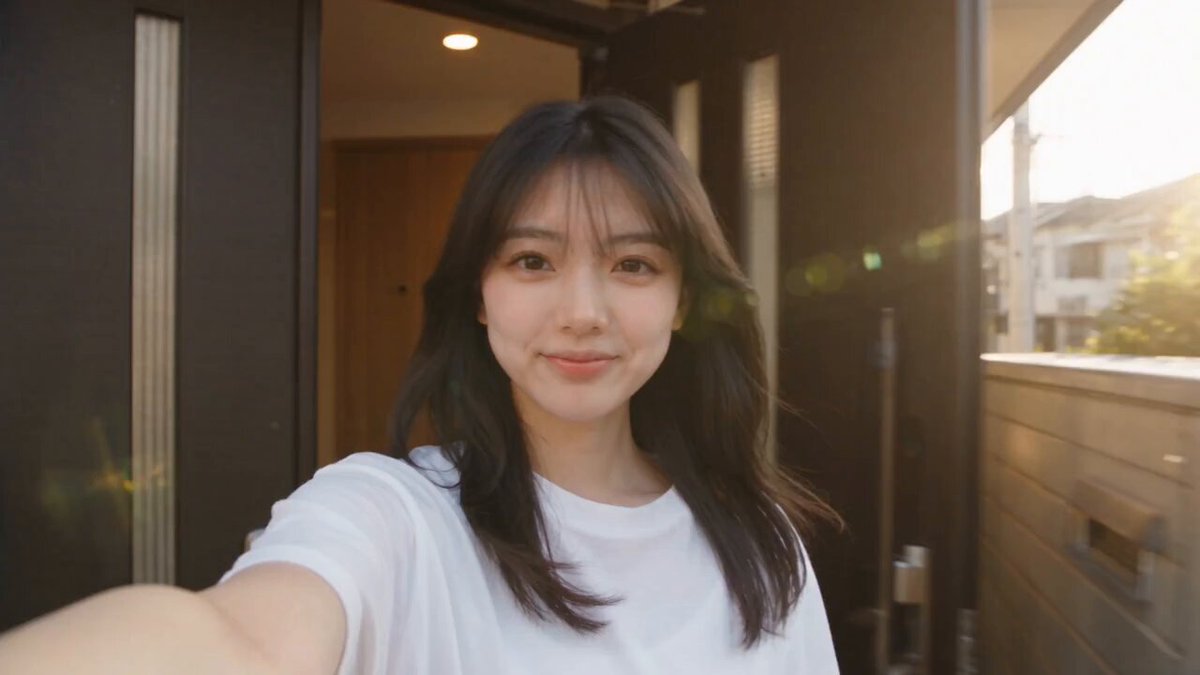
Video effects used to mean one thing: open a social app, pick a lens, hold the phone at arm's length, record. That workflow is still the fastest route to a playful clip, but it is no longer the only route, and for anything with a story, a brand, or a paying client attached, it is rarely the best one. Modern AI video tools let you restyle footage, replace backgrounds, erase objects, rebuild missing frames, and generate b-roll without a studio or a full post-production crew.
The interesting question is no longer whether you can apply a fun effect to a video. It is whether the effect you want is something a filter can actually deliver, or whether you need a small AI-assisted pipeline behind it. This guide walks through where mobile effects break down, what AI changes, how to choose tools, and a step-by-step workflow you can repeat on every project.
Why App Filters Stop Being Enough
Face filters are engineering marvels. They track dozens of facial landmarks in real time on a phone that costs less than a lens. But they were designed for one specific situation: a face, in frame, at conversational distance, captured live on the front camera.
The moment you step outside those conditions, the constraints show up. Shoot on a mirrorless camera or a drone and the effect cannot follow you, because it lives inside the app rather than in your edit. Record at arm's length and the tracking gets jumpy. Move the camera quickly and the effect smears or slides off the face.
Output quality is the second wall. Effects rendered live on a phone are computed under a hard time budget, usually at reduced resolution before being re-encoded. Every upload and download cycle compresses the result again. What looks crisp on a small screen can fall apart on a monitor, a client review link, or a vertical ad placement.
Control is the third wall. You can pick a look, but you cannot tune it. You cannot dial the intensity to 40 percent, key out a specific hue, hold a color palette steady across six shots, or match the grain of footage you already edited. Consistency is what separates a one-off clip from a body of work, and consistency is exactly what a preset-driven filter cannot give you.
There is also a practical rights question. Third-party effects and soundtracks come with their own usage terms, and those terms are not always compatible with commercial work. When a client asks whether the effect is cleared for paid media, the answer needs to be simple.
What AI Actually Changes About Video Effects
AI did not replace filters. It split the problem into two layers, and understanding the split makes tool selection much easier.
Assistive effects
Assistive tools do jobs that used to require manual labor in an editor: rotoscoping a subject, tracking a mask across a moving shot, cleaning up noise, upscaling archival footage, fixing uneven lighting, stabilizing a shaky take, or generating in-between frames for smooth slow motion. The output still looks like your footage. The tool just removes hours of grind.
Generative effects
Generative tools change what the footage is. You can restyle a clip into watercolor, clay, or anime; repaint a background as a different location; insert an object that was never on set; extend a shot beyond what the camera captured; or produce an entirely synthetic clip from a text prompt or a still image.
Why quality improved so quickly
Three practical shifts matter. First, models learned to process sequences rather than isolated frames, which cut down the flicker and texture crawl that made early results look unstable. Second, generation pipelines got smart about resolution: render motion and structure at a manageable size, then upscale and detail the final output. Third, segmentation and matting improved enough that hair, hands, and glass edges — historically the hardest edges in compositing — became usable without hand-drawn masks.
The result is a hybrid craft. You still make creative decisions. You just make them at a higher level, describing the effect you want instead of keyframing every parameter of it.
Five Questions to Answer Before Choosing Tools
Tool comparisons age fast. Decision criteria do not. Before you install anything, answer these five questions, because they narrow the field more than any feature list.
- Live or offline? If the effect must appear while filming — a face-tracked lens for a live story — you need a real-time capture tool. If it can be applied after the shot, you have far more options and far better quality.
- Photoreal or stylized? Photoreal work demands clean matting, believable lighting, and consistent color. Stylized work hides small errors and tolerates far more experimentation.
- Per shot or per project? A single hero clip justifies a slow, expensive render. A weekly content series needs something repeatable and fast.
- What resolution and duration? Long clips with heavy generation are expensive in both time and compute. Short vertical clips are the cheapest thing to iterate.
- Where does the output live? Vertical social, landscape YouTube, square, and client deliverables each impose different framing, safe areas, and compression realities.
Write the answers down. They become your tool spec, and they stop you from chasing whatever looked impressive in a demo reel.
A Step-by-Step AI Video Effects Workflow
The workflow below assumes you are producing a real edit, not just experimenting. It works for a thirty-second vertical clip or a three-minute brand piece.
Step 1: Describe the effect in one sentence
Before opening any app, write the effect as a sentence a stranger could understand. For example: a kitchen scene where the background slowly turns into a hand-drawn illustration while the subject stays photographic. That sentence tells you which shots need masks, which need generation, and which need nothing at all.
Vague goals produce vague results. Specific goals produce a checklist.
Step 2: Prepare the footage
AI models respond to clean input. Good source preparation includes:
- Shooting with the subject separated from the background, either by distance, lighting, or a simple contrast in tone.
- Locking off the camera when the shot does not need movement. A static frame is dramatically easier to process.
- Keeping shutter speed and exposure consistent across a sequence so the model does not fight shifting light.
- Recording a few seconds of clean ambient audio and a clean plate of the empty background for later cleanup.
- Backing up originals before any processing, because generative passes are lossy by nature.
This stage is unglamorous and it is where most quality differences are decided.
Step 3: Generate, stylize, or transform
Now the model runs. Depending on the shot, you might be doing one of four things:
- Video-to-video restyle: keep the timing and motion, change the look.
- Background replacement: segment the subject, generate or insert a new environment, match the lighting.
- Inpainting and object removal: erase what should not be there and let the model reconstruct the plate.
- Text or image to video: create a shot that never existed, useful for b-roll, transitions, or concepts that are impractical to film.
Run short tests on a few seconds before committing to a long clip. Generation quality varies by content — water and crowds are hard, slow camera moves are easy — and a thirty-second test saves hours.
Step 4: Composite and clean up
Generated footage is raw material, not a finished shot. Bring it into a conventional editor and do the familiar work: stabilize, mask the seams, adjust edge softness, add grain to match surrounding shots, and fix any frame where the model drifted.
A practical trick is to cut around the problem. If frames 40 to 47 flicker, trim or hide them with a cutaway rather than trying to repair pixels. Audiences forgive a cut; they do not forgive a face melting for half a second.
Step 5: Sound, color, and export
Sound sells effects more than people expect. A stylized transition lands harder with a whoosh, a room tone bed, or a beat drop. Clean up dialogue and ambience first, then build the effect audio around it.
Color is the last unifier. Apply a shared grade across original and generated shots so they read as one piece, then export in the correct aspect ratio and bitrate for the destination. Keep a high-quality master, and derive platform versions from it rather than re-exporting from the timeline each time.
Five Effect Recipes Worth Reusing
Face-tracked stylization
Segment the subject once, then apply a stylized look to the person only while leaving the room photographic. This is the closest thing to a premium filter, and it works well for vertical social content because the subject stays readable while the style carries the personality.
Background replacement without a green screen
Shoot against any reasonably clean wall, segment the subject, and generate a new environment. Match light direction and shadow density by hand — mismatched shadows are the single biggest tell in amateur composites.
Cleanup and object removal
A microphone boom, a stray cable, a logo on a shirt, a passerby in the corner. Inpainting handles these in seconds where manual rotoscoping used to take an afternoon.
Frame interpolation and speed ramps
Shoot at a normal frame rate and interpolate to produce smooth slow motion, or reverse the process to compress time. Mixing real slow motion and interpolated slow motion in one edit usually looks inconsistent, so pick one approach per project.
AI-assisted titles and captions
Automatic transcription into styled captions is one of the highest-value uses of AI in video, because a large share of viewers watch with sound off. Style the captions to match your brand and check them manually — auto-transcription still struggles with names, jargon, and overlapping speech.
Filter Apps vs. AI Pipelines: A Practical Comparison
| Approach | Best for | Typical trade-off |
|---|---|---|
| In-app lenses and filters | Fast, playful, live face effects | Locked in the app, limited control, extra compression |
| Assisted AI enhancement | Matting, tracking, upscaling, denoise, stabilization | Needs decent source footage and per-shot setup |
| Generative restyling | Stylized looks, genre shifts, impossible shots | Flicker risk, render time, occasional artifacts |
| Hybrid pipeline | Client work, series content, brand consistency | More steps, requires project organization |
The honest answer for most creators is the hybrid row. Use the app when speed is the point. Use AI when the effect has to survive a review, a re-edit, or a large screen.
Mistakes That Wreck AI Video Effects
Chasing the tool instead of the idea. A new model every week produces a folder of experiments and no finished work. Pick one effect concept and take it all the way through export.
Skipping the test render. Generating ten minutes of footage before checking two seconds is the fastest way to waste an evening.
Ignoring temporal consistency. Evaluate generated clips by playing them at normal speed, not by scrubbing stills. Flicker, boiling textures, and drifting identities only reveal themselves in motion.
Over-stylizing. When every shot is transformed, nothing stands out. Contrast is what makes an effect feel like a choice rather than a default.
Mismatched light and grain. Generated elements inherit their own lighting logic. If you do not match direction, softness, and noise, the composite reads as pasted even when the edges are perfect.
Forgetting audio. Silent effects feel cheap. Even a subtle room tone bed makes a stylized cut feel produced.
No version control. Save numbered exports and keep prompts and settings in a text file. When a client asks for the version from two revisions ago, you will be glad you did.
Neglecting rights and disclosure. Check what each tool permits for commercial use, and follow any platform rules about synthetic or altered media. Being clear about how a shot was made protects you later.
Publishing: Aspect Ratios, Compression, and the First Three Seconds
A great effect can still die in delivery. Three practical points cover most of it.
First, framing. Vertical formats need the subject centered with headroom for interface elements at the top and bottom. Landscape needs breathing room on the sides. If you are cutting one master into several formats, compose with a generous center safe area so nothing important gets cropped.
Second, compression. Highly detailed generative textures — particles, fine patterns, fast movement — are the first things a codec throws away. Slightly reduce fine detail and add a touch of grain before export; paradoxically, the file often looks better after compression because the encoder has less high-frequency noise to fight.
Third, the opening. Effects belong where attention is highest or where a transition needs to land. Putting your most striking visual moment at the start of a clip gives viewers a reason to keep watching past the first second, and that is usually the difference between a clip that travels and one that does not.
Frequently Asked Questions
Can AI video effects replace filters for casual clips?
For casual, live, face-based clips, filters are still faster and simpler. AI effects earn their place when you need control, higher resolution, or effects that survive editing and re-export.
Do I need a powerful computer?
For assistive tasks like upscaling and cleanup, a mid-range machine is fine. Heavy generative work benefits enormously from a modern GPU, and cloud-based tools let you offload rendering if your hardware is limited.
How do I stop generated video from flickering?
Process longer clips rather than isolated frames, keep camera motion slow, avoid extreme lighting changes mid-shot, and inspect the result at normal playback speed. If a few frames still misbehave, cut around them instead of trying to repair them.
Is AI-generated footage acceptable for client work?
Usually yes, provided you check each tool's commercial terms and disclose where required. Many brands now actively request AI-assisted visuals, but they want to know the source and the process.
What is the easiest effect to start with?
Object removal or background cleanup. It requires almost no creative decision-making, produces immediately visible improvement, and teaches you how segmentation and matting behave on your own footage.
How long does a typical AI-assisted effect take?
A simple cleanup pass can take minutes. A stylized restyle with compositing, color matching, and audio usually runs from a few hours to a couple of days depending on length and iteration count. Budget more time for the first project than for the fifth.
Should I learn prompt engineering for video?
It helps, but shot design matters more. Clear framing, stable camera movement, and consistent lighting improve results more than clever wording does.
Where to Take This Next
The most useful next step is not learning a new tool. It is finishing one small project end to end: pick a single effect concept, shoot deliberately for it, run the pipeline, composite it properly, and publish. That cycle teaches you more about where AI helps and where it fails than any comparison chart.
Once you have one effect you can execute reliably, expand in two directions. Go deeper on the technical side by adding color management and audio cleanup to your standard process. Go wider on the creative side by building a small library of looks you can apply consistently across a series.
Filters will keep getting better, and they will keep being the right answer for spontaneous, playful clips. But when the effect needs to carry a story, match a brand, or hold up on a big screen, the AI-assisted workflow is what gives you the control to make that happen — and it is a skill that compounds with every project you finish.

Alexander
More Blogs
Read MoreVidu Q4 Alternatives: 4K AI Video Models Compared (2026)
Vidu Q4 alternatives compared: Kling 4.0, Seedance 2.5, Wan 3.0, and Runway Gen-4 — 4K support, input modes, durations, audio, and what each costs in credits on Domer.
Top 4K AI Image Generators in 2026: 5 Models Compared on Real Costs
The top 4K AI image generators on Domer compared: Flux 3 Klein, Nano Banana 2.1, GPT Image 2.5, GPT Image 2, and Nano Banana Pro — 4K credit costs, reference limits, and speed.
Nano Banana 2.1 vs GPT Image 2.5: Which Image Model Should You Use? (2026)
Nano Banana 2.1 vs GPT Image 2.5 Flare compared: credit costs per resolution, aspect ratios, reference images, text rendering, and which tasks fit each model.