
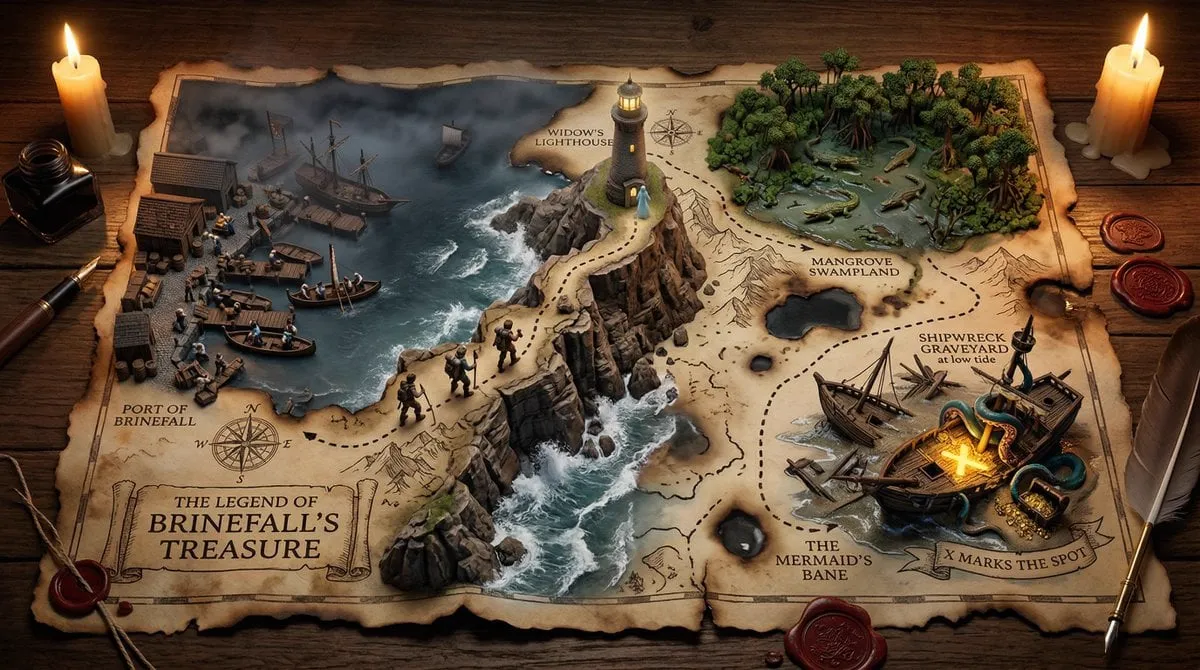
AI Video Generator with Animation: Dynamic Video Workflow
Oct 15, 2026
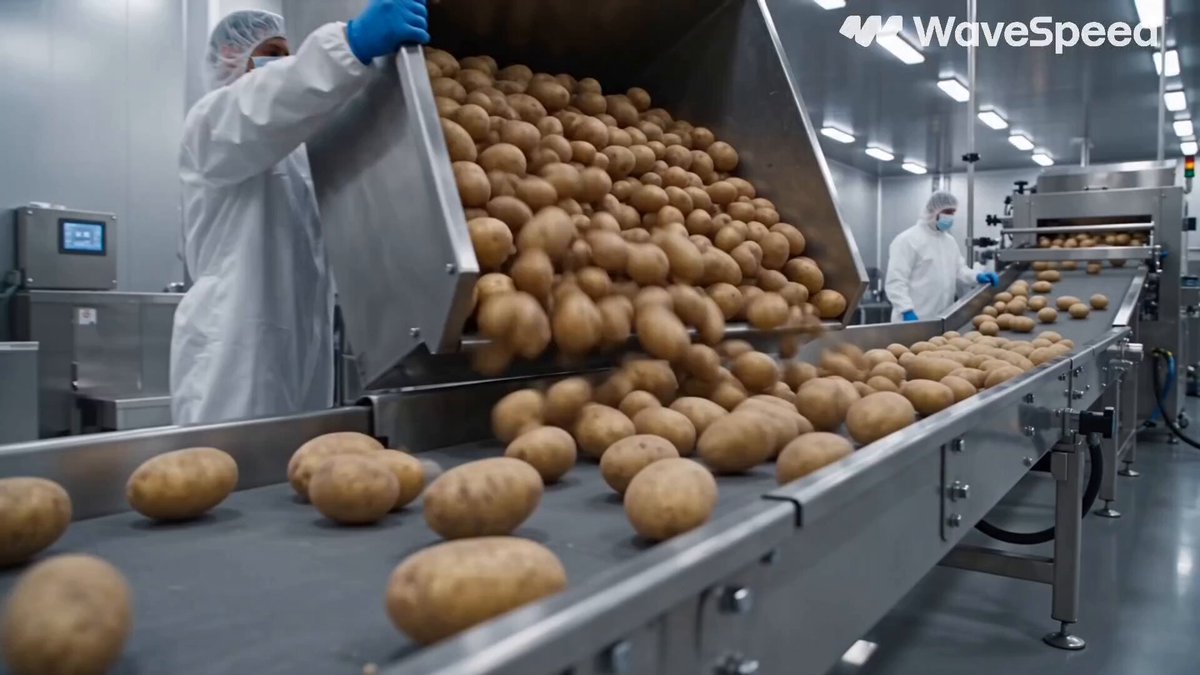
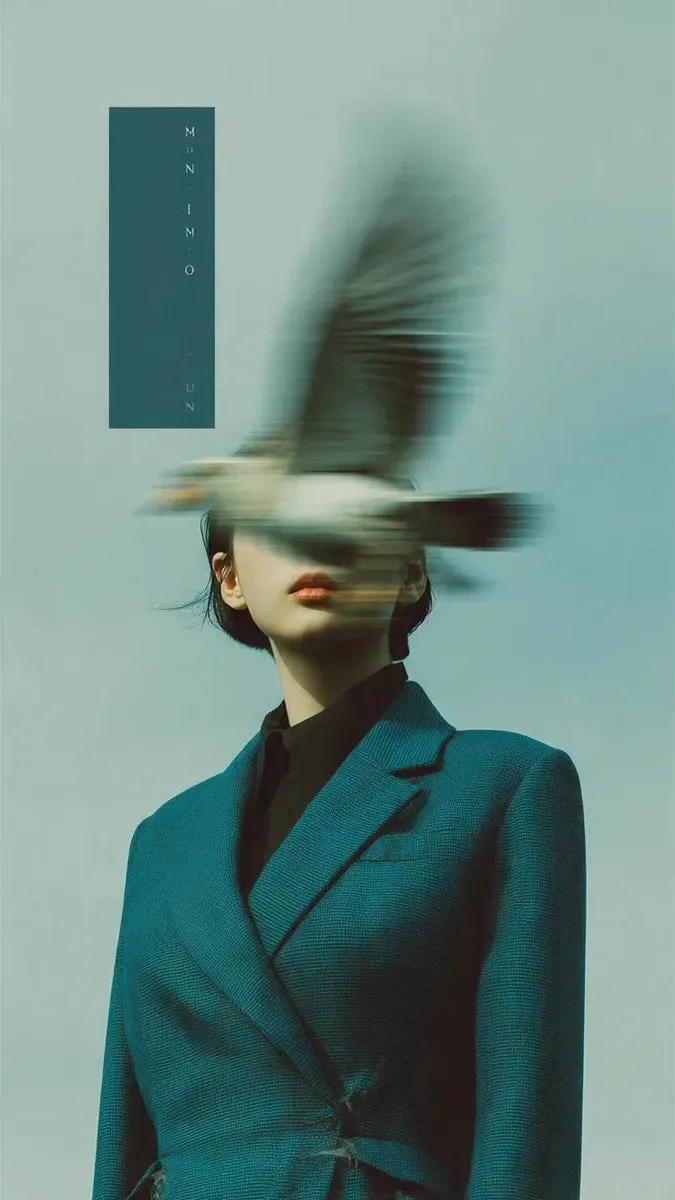

Animated AI video is no longer a novelty reserved for experimental reels. It is becoming a practical production layer for marketers, solo creators, educators, game studios, and small agencies. The appeal is simple: you can describe a scene, supply a reference image or two, and receive a moving clip with camera motion, character action, and atmospheric effects. But the gap between a fun demo and a usable dynamic video is wide. The difference comes from workflow discipline, not just model choice.
This guide focuses on how to use an AI video generator with animation to create dynamic videos that feel intentional. You will learn how motion prompts work, how to keep characters recognizable, how to plan shots, how to edit clips into a coherent sequence, and how to judge output quality. The advice is tool-agnostic, so you can apply it whether you use a browser-based generator, a desktop pipeline, or a hybrid approach that combines AI clips with traditional editing.
Why Animated AI Video Is Different from Static Generation
Static image generation and animated video generation share some foundations, but they solve different problems. An image model has to produce one convincing frame. A video model has to produce many frames that agree with each other over time. That temporal agreement is where most failures appear: faces drift, hands morph, backgrounds pulse, and objects change shape between seconds.
The temporal coherence problem
Temporal coherence means that the world of the shot remains stable. If a character wears a red jacket in the first second, it should still be red in the third. If a camera pans left, the background should move in a way that matches the pan. Early animation tools struggled because they treated frames independently. Modern systems use motion-aware architectures, latent consistency, and reference conditioning to keep a scene together.
What animation adds to the equation
Animation introduces deliberate movement. That movement can be character motion, camera motion, environmental motion, or a mix. A talking-head clip may need only subtle mouth and head movement. An action sequence may need running, jumping, turning, and interacting with props. The more motion you request, the more opportunities the model has to make mistakes, so professional workflows break complex shots into simpler beats.
When a still image is enough
Not every project needs animation. If your goal is a thumbnail, a product mockup, or a storyboard frame, a still image generator may be faster and cheaper. Use animated AI video when motion communicates something: a product rotating, a character reacting, a landscape drifting, a logo assembling, or a scene transitioning. Motion should carry meaning, not just decorate.
The Core Workflow for Dynamic AI Video
A repeatable workflow prevents wasted generations. Instead of typing a prompt and hoping, treat each project as a small production pipeline. The stages below work for social clips, explainer videos, mood pieces, and narrative shorts.
Stage one: clarify the creative brief
Write a one-paragraph brief that names the audience, the platform, the aspect ratio, the duration, and the emotional tone. For example: a fifteen-second vertical clip for a fitness app, energetic but clean, showing a runner transitioning from city street to mountain trail. The brief becomes your filter for every prompt and edit decision.
Stage two: collect visual references
Reference images anchor style, character design, color palette, and composition. You can use mood boards, sketches, photos, or previously approved frames. If the tool supports multi-image conditioning, provide a character reference, a wardrobe reference, and a location reference separately. Mixing too many references into one input often creates a blended look that satisfies nothing.
Stage three: storyboard in beats
Break the video into beats of two to five seconds. Each beat should have one primary action and one camera idea. A beat might be: close-up of hands tying a shoe, camera slowly pushes in. Another beat: wide shot of runner leaving frame, camera tracks right. Short beats are easier to generate and easier to replace if one fails.
Stage four: generate variations
Generate multiple takes for each beat. Even strong models produce inconsistent results. Save every take with a naming convention that includes scene number, take number, and a short note. For example: s02_t03_pushin_ok. This habit saves hours when you assemble the edit.
Stage five: assemble, trim, and polish
Bring the best takes into an editor. Trim the first and last few frames where morphing often appears. Use cuts, speed ramps, transitions, and sound design to hide imperfections and build rhythm. AI video is raw material; editing is where it becomes a dynamic video.
Prompting for Motion: How to Describe Animation Clearly
Motion prompts are not just longer image prompts. They need verbs, directions, timing, and camera language. A useful structure is: subject + action + direction + camera + atmosphere + continuity note. You do not always need every element, but the more control you want, the more specific you should be.
Use concrete action verbs
Words like walking, turning, reaching, laughing, drifting, and accelerating give the model a clear target. Vague words like beautiful or dynamic are less useful because they describe taste rather than movement. If you want a subtle motion, say slow blink, gentle sway, or slight head turn. If you want dramatic motion, say sprint, spin, crash, or explode.
Separate camera motion from subject motion
A common mistake is describing both in one confusing phrase. Instead, state them separately: subject walks toward the camera while the camera pulls back slowly. Another example: character stands still while the camera orbits clockwise around them. This separation helps you diagnose whether a bad result came from subject animation or camera animation.
Include continuity cues
Continuity cues remind the model what must not change. You can mention wardrobe, hair color, prop position, background landmark, or lighting direction. Phrases like keep the same jacket and hairstyle or maintain the same alley background act as constraints. Some tools respond better to negative prompts, such as no extra fingers, no warped face, no flickering lights.
Control pacing with timing words
Timing words shape rhythm: slowly, gradually, suddenly, in one smooth motion, then, after a pause. For a reveal, you might write: the camera slowly tilts up, then stops on the character's face. For an action beat, you might write: the character suddenly turns and runs left. Pacing words help the model distribute motion across the clip instead of front-loading it.
Test prompts in small batches
Do not generate twenty variations of a complex prompt. Generate three to five, compare them, and adjust one variable at a time. If the camera is wrong, change the camera phrase. If the character changes, add a continuity cue or a stronger reference. Small batch testing turns prompting into a controlled experiment.
Character Consistency and Multi-Image Fusion
Character consistency is one of the hardest parts of animated AI video. A character may look correct in the first frame and slowly become someone else. Multi-image fusion and reference conditioning have improved the situation, but they still require careful setup.
Build a character sheet
Create a character sheet with a neutral front view, a three-quarter view, a profile, and a full-body shot. Ideally, use the same lighting and background so the model learns the character rather than the environment. Include notes about age, build, hair, clothing, and signature accessories. The more consistent your references, the more consistent your output.
Use the right reference for the right job
A face reference helps with identity. A wardrobe reference helps with costume. A pose reference helps with body language. A style reference helps with rendering. If you combine all four into one image, the model may prioritize the wrong element. Use separate inputs when the tool allows it, and describe the role of each reference in the prompt.
Keep shots within a range the model handles well
Extreme close-ups, profile turns, fast spins, and heavy occlusion are difficult. If a shot requires a complicated turn, consider splitting it into two shots: one from the front, one from the back. You can bridge them with a cut, a whip pan, or a transition. Audiences accept cuts; they are less forgiving of a face melting mid-shot.
Lock seed and settings when possible
Many generators let you reuse a seed or a project setting. Reusing a seed can preserve style and composition across takes. It does not guarantee identical characters, but it reduces randomness. Combine seed reuse with reference images and continuity prompts for the best results.
Camera Language and Scene Composition
Animation feels dynamic when the camera behaves with purpose. AI models can simulate pans, tilts, dollies, orbits, zooms, handheld shake, and drone moves. The key is to choose camera moves that support the story instead of showing off.
Match camera energy to emotion
A slow push-in creates intimacy, tension, or revelation. A fast whip pan creates urgency and energy. A static shot creates stability and lets the subject carry the motion. A high drone shot creates context and scale. Before you generate, ask what the viewer should feel. Then choose the simplest camera move that delivers that feeling.
Compose for motion, not just for a frame
In a still image, composition is about balance within the frame. In a moving shot, composition is about how elements enter, exit, and overlap. Leave space in the direction of movement. If a character runs left, give them room on the left side of the frame. If the camera pans right, place a reveal on the right. Think about the whole path, not just the starting image.
Use foreground, midground, and background layers
Layered scenes create depth and make camera motion more readable. A foreground element, such as a plant or a window frame, can pass close to the lens. A midground character carries the action. A background city or mountain range provides context. When the camera moves, the layers shift at different rates, which is a powerful cue for realism.
Avoid chaotic camera requests
Requests like camera spins wildly while zooming and shaking often produce unusable results. The model may try to satisfy every word at once, creating a muddy clip. Choose one primary camera move and, if needed, one secondary move. For example: slow dolly in with a slight handheld sway. That is enough for most scenes.
Editing, Sound, and Pacing for Dynamic Results
AI-generated clips rarely become a finished video on their own. Editing transforms separate takes into a coherent experience. Sound is equally important because viewers forgive visual imperfections when the audio feels intentional.
Cut on motion
Cuts feel smoother when they happen during movement. If a character is running, cut on a stride. If the camera is panning, cut while the pan is still in progress. Cutting during motion hides small mismatches in pose and framing. Cutting on a static moment draws attention to every difference between takes.
Use speed ramps to fix pacing
AI clips sometimes move too slowly or too quickly. Speed ramps let you slow down a key moment or speed through a weak section. A slight slowdown on a character's reaction can add emotional weight. A speed-up on a transition can make the edit feel energetic. Use these adjustments subtly; extreme speed changes can look artificial.
Design sound before final polish
Add music, ambience, and effects early in the edit. A whoosh can make a whip pan feel sharper. Footsteps can ground a walking character. Room tone can smooth cuts between shots. If a generated clip has strange audio artifacts, replace or mute the original audio and rebuild the soundscape.
Color grade for consistency
Different AI takes may have slightly different color temperatures, contrast, and saturation. A simple grade can unify them. Match skin tones first, then adjust shadows, highlights, and saturation. If one shot is warmer, cool it down. If another is flatter, add contrast. Consistency in color makes the video feel planned rather than assembled.
Keep the edit tight
New creators often leave clips too long because each generation feels precious. Be ruthless. If a shot does not advance the story or emotion, cut it. A tight fifteen-second video is more impactful than a loose thirty-second one. Dynamic does not mean busy; it means every second has a job.
Quality Control: Common Artifacts and How to Fix Them
AI video has recognizable failure modes. Knowing them helps you troubleshoot quickly instead of blaming the prompt.
Morphing faces and hands
Faces may shift identity, and hands may gain or lose fingers. Fixes include stronger character references, shorter clips, simpler motion, and avoiding extreme close-ups of hands. If a hand must be visible, generate it at a moderate distance or use a cutaway to a prop.
Flickering textures and backgrounds
Flickering often appears in detailed textures, crowds, foliage, and patterned surfaces. Reduce background complexity, lower motion intensity, or use a slight blur. In editing, a subtle noise reduction or grain overlay can mask flicker. If the flicker is severe, regenerate the shot with a simpler background.
Object permanence failures
Objects may appear, disappear, or change shape. This is common when a character interacts with props. Specify the object's position and behavior in the prompt. Keep interactions simple. If a character must pick up a cup, generate the reach and the lift as separate beats if needed.
Unnatural motion and rubbery limbs
Rubbery movement happens when the model lacks motion training for the action. Use reference videos or pose guidance if the tool supports it. Otherwise, choose actions the model knows well: walking, turning, running, waving. For unusual actions, stylize the animation so the imperfection becomes part of the aesthetic.
Audio-visual mismatch
Generated audio may not match lip movement, footsteps, or scene intensity. Replace it. Use sound design to lead the viewer's attention. A strong music bed and well-placed effects can make a visually imperfect clip feel professional.
Choosing the Right AI Video Generator for Your Project
There is no single best tool for every job. Evaluate generators against your specific workflow, not against a generic feature list.
Start with input flexibility
Does the tool accept text, image, video, or multi-image inputs? Can you provide separate references for character, style, and motion? Flexible input options give you more control when a shot is difficult. If you only need text-to-video, simpler tools may be enough.
Check motion control and camera options
Look for camera motion controls, motion strength settings, and the ability to guide movement with references. If you need precise camera moves, a tool with explicit camera parameters will save time. If you need organic handheld energy, a tool with natural motion presets may be better.
Evaluate consistency and resolution
Test the tool with a character across three different shots. Compare identity, costume, and lighting. Also check output resolution and aspect ratios. Vertical, square, and widescreen support matter if you publish across platforms. Upscaling can help, but starting with a higher-resolution output usually looks better.
Consider iteration speed
Fast generation encourages experimentation. If each take takes too long, you will settle for mediocre results. A slightly less capable tool with faster iteration can outperform a powerful tool that slows your feedback loop. Balance quality with how quickly you can test ideas.
Plan for post-production
Some tools output clips that need heavy editing. Others provide cleaner plates that are easier to grade and composite. Think about your editing skills and software. If you are comfortable in an editor, prioritize raw image quality and motion. If you need finished-looking clips, prioritize templates and presets.
FAQ: Practical Answers for Animated AI Video
How long should each AI video clip be?
Start with two to five seconds per beat. Shorter clips are easier to control and replace. You can always extend a shot with editing, speed changes, or a cutaway.
Do I need a storyboard?
A simple beat sheet is enough. You do not need professional drawings. Write one line per shot with the action and camera move. This keeps your generations focused and your edit organized.
Can AI video generators handle dialogue?
Some can generate lip movement, but consistency and emotion are still limited. For dialogue-heavy scenes, consider using AI video for B-roll, establishing shots, and transitions, then combine with live-action or animated avatars.
How many generations should I expect per usable shot?
Plan for three to ten attempts per shot, depending on complexity. Simple scenes may need fewer. Complex character interactions may need more. Build this into your schedule so you do not rush.
What is the biggest mistake beginners make?
Trying to generate a complete complex scene in one prompt. Break the scene into beats. Generate simple actions. Then assemble the performance in the edit. This approach is faster and produces more consistent results.
How do I keep a consistent style across shots?
Use a style reference, reuse seeds when available, keep lighting and color descriptions consistent, and apply a unifying grade in post-production. Style drift is easier to fix when every shot starts from the same visual rules.
Is AI animation ready for client work?
Yes, for many commercial uses: social ads, explainers, mood pieces, and concept visuals. Be transparent about your process, set realistic expectations, and always review output for artifacts. The technology is strongest when it supports a clear creative plan rather than replacing one.
An AI video generator with animation gives you a new kind of production power, but it does not remove the need for craft. The creators who get the best results treat generation as one step in a larger workflow. They write clear prompts, build reference libraries, storyboard in beats, test in small batches, edit with rhythm, and design sound with intention. If you apply that discipline, you can turn unpredictable model output into dynamic videos that feel deliberate, polished, and ready for an audience.

Alexander
More Blogs
Read MoreVidu Q4 Alternatives: 4K AI Video Models Compared (2026)
Vidu Q4 alternatives compared: Kling 4.0, Seedance 2.5, Wan 3.0, and Runway Gen-4 — 4K support, input modes, durations, audio, and what each costs in credits on Domer.
Top 4K AI Image Generators in 2026: 5 Models Compared on Real Costs
The top 4K AI image generators on Domer compared: Flux 3 Klein, Nano Banana 2.1, GPT Image 2.5, GPT Image 2, and Nano Banana Pro — 4K credit costs, reference limits, and speed.
Nano Banana 2.1 vs GPT Image 2.5: Which Image Model Should You Use? (2026)
Nano Banana 2.1 vs GPT Image 2.5 Flare compared: credit costs per resolution, aspect ratios, reference images, text rendering, and which tasks fit each model.