
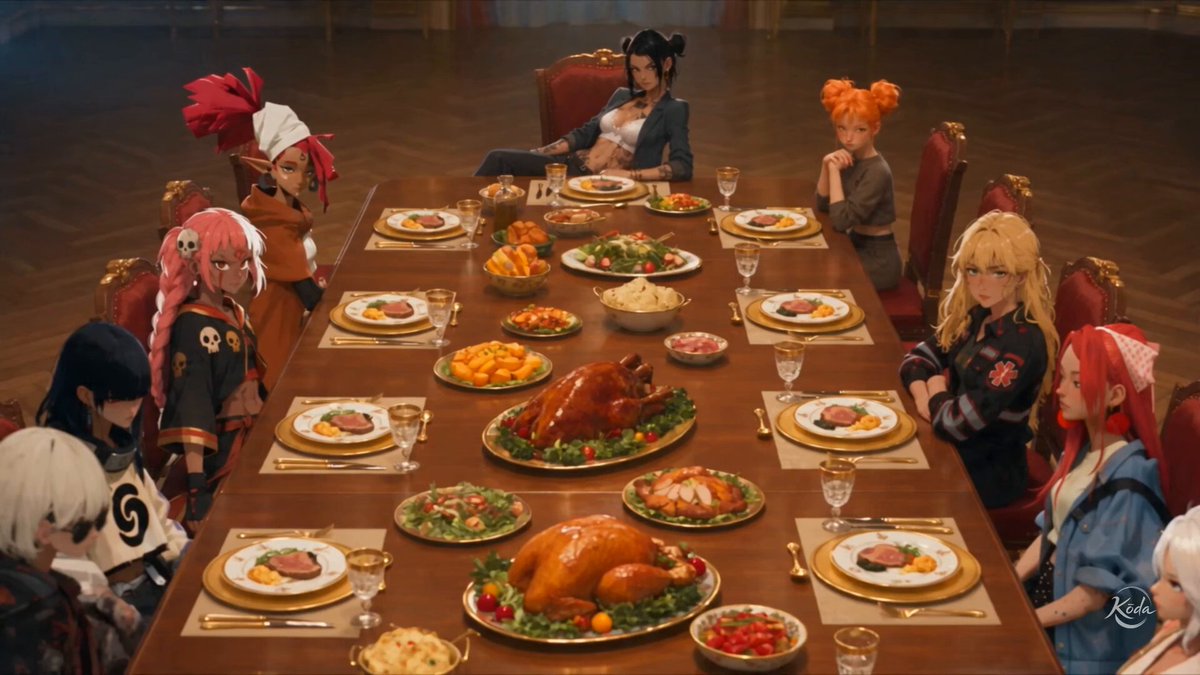
Anime AI Art Generator: Turn Photos Into Anime Art
Oct 15, 2026
Why Photo-to-Anime Workflows Beat Text-Only Prompting
An anime art generator that starts from a photo solves a problem that text prompts fight against constantly: continuity. When you type a description of a character into a text-to-image tool, you are asking the model to invent a face, a hairstyle, a jawline, and a lighting setup from scratch. Every generation is a new interpretation. When you start from a photograph instead, most of those decisions are already made for you — and the model only has to translate style, not invent identity.
That distinction matters more than most beginners expect. A photo already encodes:
- Identity — the exact proportions of eyes, nose, mouth, and face shape
- Pose — shoulder angle, head tilt, hand position
- Lighting direction — where shadows fall and how highlights wrap
- Framing — crop, lens compression, perspective
- Clothing and silhouette — folds, textures, layering
Text-only prompting gives you novelty but almost no repeatability. Photo-driven generation gives you repeatability, which is what you need for character sheets, comic panels, storyboards, profile art, thumbnails, and short animated scenes.
The tradeoff is real, though. Photo conversion tends to inherit the photo's flaws: harsh shadows, cluttered backgrounds, awkward crops, and a camera-angle flatness that anime art usually avoids. The strongest results come from a hybrid workflow — generate or choose a base image with good composition, then convert it with a style model and structural guidance.
How a Photo-to-Anime Pipeline Actually Works
Under the surface, every photo-to-anime conversion runs through three stages: encode, transform, and decode plus refine. Understanding those stages is what separates random clicking from deliberate control.
Style transfer versus regeneration
Older style-transfer systems (largely GAN-based) keep the photo's structure almost entirely intact and repaint texture on top. The result often looks like a photo with an anime filter smeared over it: correct in shape, wrong in spirit.
Diffusion-based regeneration works differently. The model interprets the image and rebuilds it, which lets it simplify skin into flat color, merge hair strands into cel clusters, exaggerate eye size, and replace photographic detail with clean linework. Anime conversion almost always looks better with regeneration plus a structural lock than with pure texture transfer.
What the model notices first
The first things a vision encoder latches onto are high-contrast edges: face outline, eye pupils, eyebrow shape, hairline, and the boundary between subject and background. If the background is busy, those edges compete with the face and the model may blur the two together. A clean source with a simple backdrop gives dramatically cleaner output.
The denoise strength dial
Strength (sometimes labeled denoise or transformation amount) is the single most important setting. Rough guidance:
- 0.20–0.35 — subtle. Reads as a lightly stylized photo. Good for editorial portraits where identity must be unmistakable.
- 0.40–0.60 — the sweet spot for portraits. Recognizable face, convincing anime rendering.
- 0.65–0.80 — heavy reinterpretation. Keeps silhouette and rough pose, discards facial accuracy.
- 0.85+ — effectively a new image with a loose compositional nod to the source.
Most first attempts fail because strength is too high. Beginners assume more strength equals more anime, when in practice it usually equals less resemblance.
Choosing the Right Tool for Your Skill Level
The tool you pick should match the number of images you need and how much control you want. There is no single best answer.
Browser-based converters
Upload a photo, pick a style preset, download. These apps handle the pipeline for you, which is ideal for a one-off avatar or a quick test of whether a photo will convert well at all. Limitations: fixed aspect ratios, limited control over line weight, and inconsistent results across a batch.
Local diffusion setups
Running a diffusion model locally through an interface like ComfyUI or Automatic1111 gives you full control: img2img, inpainting, structural conditioning through ControlNet modules (Lineart, Canny, Depth, OpenPose), and identity preservation through adapter models. The learning curve is real but bounded — a focused weekend gets most people to competent output.
Mobile apps and hybrid editors
Phone apps are excellent for sketching ideas and testing whether a concept works, and poor for batch consistency. A common pattern is to convert on mobile, then bring the result into a desktop editor such as Photoshop, Krita, or Affinity Photo for line cleanup and compositing.
Decision criteria
- Converting one selfie for a profile picture → browser app
- Building a recurring character across 50+ images → local pipeline with a fixed checkpoint and saved prompt
- Print-sized poster art → any tool with tile-based upscaling and a refine pass
- Converting a full cast from a group photo → one pass per face, then composite manually
- Turning stills into a short animated sequence → convert first, animate second
Using two tools in sequence is normal, not a compromise. Convert with model A, clean up in an editor, finish with an upscaler.
Step-by-Step: Your First Photo Conversion
Step 1 — Prepare the source photo
Good input is 70 percent of good output. Aim for:
- Short edge of at least 1024 pixels, ideally 1500–2048
- Sharp focus on the eyes
- Even, soft lighting — overcast daylight or a large window beats a phone flash
- Face occupying at least a quarter of the frame
- Crop to your target aspect ratio before conversion, never after
- Remove distracting objects, mirrored backgrounds, and heavy patterned clothing
Do not over-edit the source. Aggressive skin smoothing removes the texture cues the model uses to build shading.
Step 2 — Write a style prompt anchored to a real look
A reliable formula: subject description, hair and eye detail, style descriptors, lighting, and quality anchors.
Example prompt: young woman, short black hair, green eyes, 1990s cel anime style, limited color palette, flat shading, clean linework, soft rim light, portrait framing, detailed eyes.
A companion negative prompt matters just as much: photorealistic, 3d render, extra fingers, deformed hands, blurry, watermark, signature, text, harsh shadows, oversaturated.
Two or three style tokens beat eight. Stacking 1980s, cyberpunk, watercolor, and studio-quality into one prompt produces muddy, indecisive results.
Step 3 — Set strength, steps, and guidance
Starting points for a portrait conversion:
- Strength: 0.45–0.55
- Steps: 25–35
- Guidance scale: 5–8 for anime-tuned models
If the face drifts, lower strength by 0.05 and add structural conditioning rather than adding more prompt words.
Step 4 — Lock the composition
Structural conditioning is what keeps a conversion faithful. In practice:
- Lineart or Canny at 0.6–0.8 weight preserves the outline and keeps the jaw from morphing
- Depth keeps the background from flattening into a poster
- OpenPose locks the pose when the subject is in a dynamic position
- Inpaint handles eyes, hands, and hairline problems after the main pass
Step 5 — Fix the details that break believability
Anime art lives or dies on eyes and hands. Eyes need a defined pupil shape, consistent highlight placement, and eyelash thickness that matches the style era. Hands need fingers that read at thumbnail size. Inpaint these elements rather than regenerating the whole image.
Step 6 — Upscale and finish
Run a 4x upscaler at low denoise, then add a finishing touch: a light grain pass, a touch of chromatic aberration, or a paper texture overlay. These small moves make flat anime linework feel intentional rather than synthetic. Export PNG for further editing and JPEG for web use.
Prompt Patterns for Consistent Anime Characters
The hardest part of photo conversion is not the first image — it is the fiftieth, when the character has drifted into someone else. Consistency comes from discipline, not luck.
- Write a character block. Describe your character in 40–60 words and reuse it verbatim, changing only pose, scene, and camera lines.
- Lock the seed and checkpoint. A fixed seed plus a single anime checkpoint keeps line weight and palette stable across a whole project.
- Reuse a style reference. Feed a previously approved image as a style or identity reference in every subsequent generation.
- Use low-strength img2img for continuity. Converting your own previous output at 0.25–0.35 strength is often enough to move a character into a new pose while keeping the face.
- Keep a project sheet. Record prompt, seed, checkpoint, strength, and conditioning weights for every approved frame.
Stylistic vocabulary that reliably produces anime looks:
- Cel shading, flat color, three-tone shading
- Thick outer lines, tapered inner lines, sparse highlights
- Muted palette, pastel palette, limited hues
- Soft rim light, backlight bloom, night scene with neon accents
Era-specific tokens are useful when you need a unified look: 1980s TV anime with soft grain and muted color, 1990s OVA contrast with detailed mechanical design, or modern broadcast style with digital gradients and bloom. Pick one era per project.
Common Mistakes and How to Fix Them
1. Cranking strength too high. Everything turns into a generic anime figure. Fix: drop to 0.5 and add Lineart conditioning.
2. Ignoring the background. The subject converts beautifully and the backdrop becomes grey mush. Fix: convert the background in a separate pass or composite a hand-drawn or generated environment behind the subject.
3. Fingers and hands. The single most common giveaway. Fix: inpaint hands or add an OpenPose hand reference, then check the count at full zoom.
4. Fighting the source lighting. A hard side-lit photo converts into muddled anime shading because the original shadow map is already extreme. Fix: soften the source first, or prompt explicitly for rim light and low-contrast shading.
5. Switching checkpoints mid-project. Line weight and color temperature drift between frames. Fix: one checkpoint per project, no exceptions.
6. Aspect-ratio mismatches. Converting a square photo into a 16:9 canvas stretches faces. Fix: crop to the target ratio before conversion.
7. Over-sharpening after upscaling. Halos appear around linework. Fix: sharpen before the upscale, not after, and keep the final pass subtle.
8. Flat, dead eyes. Fix: regenerate the eye region at low strength with an explicit eye prompt, then paint in a single white highlight by hand if needed.
9. Copying a living artist's signature style. Fix: describe style traits in neutral terms instead of naming a person.
10. No version tracking. You get a great frame and cannot reproduce it. Fix: save prompt, seed, and settings the moment something works.
From Stills to Moving Anime Scenes
Once your photo conversion pipeline is stable, the obvious next step is motion. Image-to-video tools can animate a converted still, but anime aesthetics break quickly if you push them too hard.
A workflow that holds up:
- Convert the photo to a clean anime still with strong linework.
- Feed the still into an image-to-video tool with low motion strength.
- Restrict motion to hair, clothing, and background elements; keep the face nearly static.
- Generate 2–4 second shots and cut them together rather than producing one long take.
- Animate on twos — hold each frame pair briefly — to mimic traditional limited animation.
- Add speed lines, parallax pans, and a grain overlay in post.
- Layer ambient sound and a single music bed.
A simple shot list for a 20-second scene: establishing wide, character entrance, dialogue close-up, reaction beat, action or exit. Five shots, four seconds each, and you have a sequence that reads as animation rather than a slideshow.
Large camera moves across faces are the fastest way to destroy the illusion. Anime production solves this with cuts, not sweeping camera work.
Quality Checklist Before You Publish
Run every finished piece through the same ten checks:
- Eyes are symmetrical, consistent in style, and have coherent highlights
- Line weight is uniform across the whole piece
- The palette uses three to five dominant hues, not twelve
- Hands read correctly at thumbnail size
- The background is intentional, not accidental noise
- No watermarks, stray text, or prompt artifacts in corners
- Resolution meets the target platform's minimum
- The character matches every other frame in the series
- Color harmony holds when the image is desaturated
- Consent, usage rights, and AI disclosure requirements are satisfied
That last point deserves its own section.
Ethics, Rights, and Style Ownership
Converting photos of real people carries responsibilities that go beyond technical skill.
- Get consent. Converting a friend's or client's photograph into stylized art requires permission, especially before publishing.
- Respect publicity rights. Commercial use of a recognizable person's likeness usually needs a release.
- Do not clone a living artist. Naming an illustrator in a prompt to imitate their exact style is a legal and reputational risk. Describe traits instead.
- Read the tool terms. Some services claim broad usage rights over uploaded images; others restrict commercial output.
- Disclose when required. Many platforms and clients now ask for a clear statement that AI was used in production. Building it into your delivery template saves awkward conversations later.
None of this is a reason to avoid the technology. It is a reason to treat it like any other production tool with a rights profile.
FAQ
Can I convert a group photo into anime art? Yes, but convert each face in a separate pass with a tighter crop, then composite them onto a shared background. Attempting a single conversion of five people almost always merges features between subjects.
Do I need a powerful GPU? Not for browser tools. For local diffusion, a modern mid-range GPU with 8–12 GB of video memory is enough for 1024-pixel portrait work. Larger outputs and video generation need more.
Why does my anime version look nothing like me? Usually strength is too high. Drop to 0.45, add Lineart or Canny conditioning at 0.7, and crop to the target aspect ratio before converting.
Is img2img or structural conditioning better? They solve different problems. img2img controls how much the model is allowed to reinterpret the image. Structural conditioning controls which parts of the original layout must be preserved. Use both together for portraits.
How long does one image take? A browser conversion takes seconds. A local portrait pass at 30 steps runs 10–40 seconds depending on hardware, plus a few minutes for retouching eyes, hands, and background.
Do I need an anime-specific model? Yes if you want convincing linework and flat shading. General-purpose models tend toward semi-realistic rendering that reads as a filter rather than an illustration.
Can I sell the finished artwork? That depends on the model license, the tool's terms, and the rights attached to the source photo. Check all three before you list anything for sale.
How do I keep one character consistent across a hundred images? Freeze the checkpoint, seed, and prompt block. Feed a reference image into every generation, and use low-strength img2img from your last approved frame whenever the pose needs to change.
What is the fastest way to improve quality? Stop adding prompt words. Improve the source photo, add structural conditioning, and fix the eyes by hand. Those three changes outperform any prompt tweak.

Alexander
More Blogs
Read MoreVidu Q4 Alternatives: 4K AI Video Models Compared (2026)
Vidu Q4 alternatives compared: Kling 4.0, Seedance 2.5, Wan 3.0, and Runway Gen-4 — 4K support, input modes, durations, audio, and what each costs in credits on Domer.
Top 4K AI Image Generators in 2026: 5 Models Compared on Real Costs
The top 4K AI image generators on Domer compared: Flux 3 Klein, Nano Banana 2.1, GPT Image 2.5, GPT Image 2, and Nano Banana Pro — 4K credit costs, reference limits, and speed.
Nano Banana 2.1 vs GPT Image 2.5: Which Image Model Should You Use? (2026)
Nano Banana 2.1 vs GPT Image 2.5 Flare compared: credit costs per resolution, aspect ratios, reference images, text rendering, and which tasks fit each model.