
Gemini vs ChatGPT for AI Video Workflows: A Practical Guide
Oct 13, 2026
Why multimodal assistants became the front door to video production
Most people who make AI video do not start inside a video model. They start inside a chat window. The reason is simple: a generative video tool is good at turning a prompt into motion, but it is terrible at helping you decide what the video should be. Scripts, structures, shot lists, on-screen text, voiceover timing, continuity notes, and the dozens of micro-decisions that separate a usable clip from a wasted render all happen before the render button is pressed.
That is where Gemini and ChatGPT compete. Both are multimodal assistants that can read images, analyze documents, discuss video frames, write copy, and reason about a creative brief. Neither is primarily a video generator in the sense of producing a finished MP4 from a sentence. Instead they act as the planning layer, the writing layer, and increasingly the orchestration layer for a stack of specialized tools.
This guide is about that layer. It is written for creators, marketers, and small production teams who need a repeatable way to move from an idea to a shot list to a finished cut, and who want to know when Gemini is the better choice, when ChatGPT is the better choice, and when the honest answer is that you need a dedicated video model instead.
What the two assistants actually do differently
Both products are general-purpose assistants built on large language models with multimodal input. The differences that matter for video work are less about raw intelligence and more about context handling, media ingestion, and how well each one plays with the rest of your pipeline.
Context and long-document handling
Video projects generate a lot of text. A 90-second explainer can produce a two-page script, a twenty-shot list, character notes, brand rules, and captions. If you paste all of that into a chat, you want the assistant to keep it straight across a long session without forgetting the tone you established twenty messages ago.
Long-context behavior is where assistants differ most in practice. Some handle very large documents gracefully but drift in tone; others hold style consistency well but compress detail. The practical test is not a benchmark number. It is whether you can paste your brand guide, a transcript, and a shot list into one conversation and still get usable output on message fifteen.
Media ingestion, from stills to frames
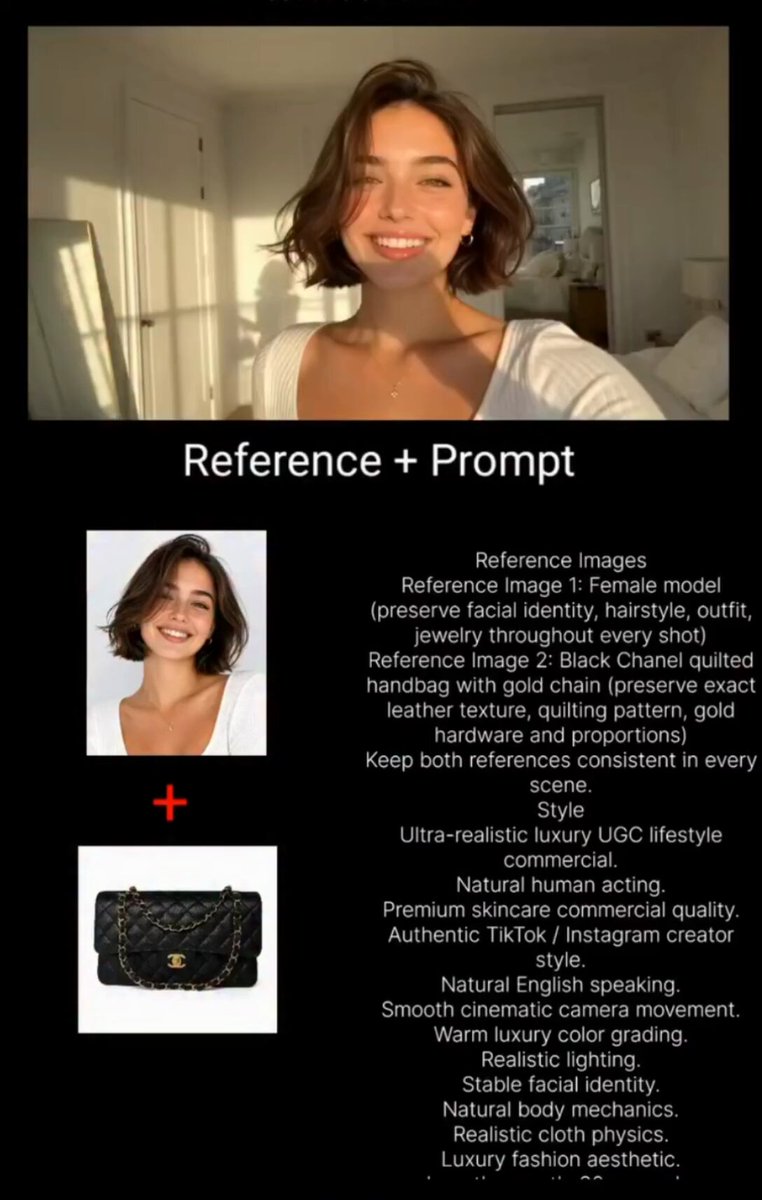
For video work, the ability to read an image is not a novelty. It is a workflow ingredient. You may want the assistant to describe a reference frame so you can rewrite it as a prompt, compare two storyboard sketches for continuity, or read a location photo and suggest camera positions that suit the light.
Both assistants handle images, but the ergonomics differ: how many images you can send at once, how well they describe fine detail such as lens distortion or fabric texture, and whether they can reason about a sequence of frames as a sequence rather than as isolated pictures. If your process depends on frame-by-frame analysis, test this early with your own footage. Descriptions that are good enough for a caption are often too vague for a render prompt.
Tool ecosystems and orchestration
A chat assistant becomes far more valuable when it can call other tools: generate an image, transcribe audio, search for references, or hand a prompt to a video model. The direction of travel across the industry is toward assistants that act as routers, deciding which specialized model should handle which sub-task.
For a video workflow this matters enormously. The ideal assistant does not try to be the video model. It writes the prompt, checks the output against the brief, and then rewrites the prompt when the first attempt fails. Products differ in how open that orchestration is, how easy it is to plug in third-party services, and whether you can save a repeatable pipeline rather than rebuilding it every session.
Output discipline: tables, JSON, and structured lists
Video work needs structure. A shot list in prose is useless; a shot list in a table with columns for duration, framing, action, dialogue, and prompt text is directly usable. Assistants vary in how reliably they hold a schema across many rows and whether they invent fields or silently drop rows.
When comparing them, run one test: ask for a 20-row shot list with fixed columns, then ask for rows 21 through 40 in the same format. The assistant that keeps the schema intact without reminders is the one you want for production planning.
The generative video gap neither chatbot closes
It is worth being blunt about this, because a lot of comparison writing blurs it. Gemini and ChatGPT are excellent at describing, planning, and scripting video. They are not, by themselves, the tools that render photoreal motion from a text prompt at production quality.
That work belongs to dedicated text-to-video and image-to-video systems, plus editing environments that stitch clips together. The assistant's job is upstream and downstream:
- Upstream: research, concept, script, shot list, prompt drafting, style bible, continuity rules.
- Downstream: reviewing outputs, flagging inconsistencies, writing alternates, generating captions and metadata, planning distribution cuts.
The mistake new creators make is expecting the chat assistant to produce the final video. When it does generate something, the result is usually a short, stylized clip that is better used as a mood reference than as a finished shot. Treat the assistant as a director and script supervisor, not as a camera.
A practical workflow from brief to shot list
Here is a workflow that works with either assistant and keeps the generative video stage clean. It is deliberately modular so you can swap tools without rewriting the process.
Step 1: Lock the brief in one page
Start by asking the assistant to interview you. Give it a rough idea and let it ask clarifying questions about audience, platform, length, tone, and the single action you want viewers to take. Then have it write a one-page brief with a logline, three key beats, and an explicit list of things the video must not do.
That last section is more valuable than it sounds. Constraints like "no office stock footage," "no text overlays longer than six words," or "no presenter on camera" prevent entire categories of wasted renders.
Step 2: Turn the brief into a script with timing
Ask for a script formatted as a two-column table: timecode range on the left, spoken line and visual note on the right. Force the assistant to keep total runtime within your target. If it overshoots, ask it to cut ten percent without losing the call to action, which is a much better editing instruction than "make it shorter."
Read the script aloud. Anything you stumble over will sound worse in a synthetic voice.
Step 3: Convert the script into a shot list
Request a shot list with consistent columns: shot number, duration, framing, camera movement, subject action, lighting, audio, and the raw prompt text you will paste into a video model. Insist on one action per shot. Models handle simple, single-subject motion far better than complex choreography.
Step 4: Draft prompts with the assistant, not for it
This is the step most people rush. Give the assistant your style bible, the shot list, and two or three examples of prompts that previously produced good results. Ask it to rewrite each shot as a compact prompt with subject, action, environment, lighting, lens, and mood, plus a short negative list covering artifacts you want to avoid.
Then edit by hand. The assistant is generating candidates; you are the one who knows which phrasing your particular video model responds to.
Step 5: Build a continuity sheet
Ask for a single reference table listing every recurring element: characters with fixed descriptions, wardrobe, color palette, locations, props, and time of day. Consistency across shots is the hardest part of AI video, and a continuity sheet is the cheapest insurance against a clip that looks like it belongs to a different film.
Step 6: Generate, review, and log failures
After rendering, feed the results back into the same conversation. Describe what went wrong in specific terms: "the hands merge at second three," "the camera drifts left when the prompt asked for a static frame." Ask for a revised prompt and note the change in a version log. Over a few projects this log becomes more valuable than any generic prompt guide.
Prompting patterns that survive a real shot list
Generic prompt advice collapses when you have forty shots to produce. These patterns hold up under repetition.
Describe the shot, then describe the style
Separate the two. First sentence: what is happening and where. Second sentence: how it is captured. Mixing them produces prompts where a stylistic adjective accidentally changes the subject.
Use camera language the model recognizes
Terms like "slow dolly in," "static wide," "shallow depth of field," and "handheld medium close-up" do more work than poetic description. Ask the assistant to standardize camera vocabulary across the whole shot list so your prompts stay comparable.
Keep motion single and small
One subject, one movement, one direction. If a shot needs two things to happen, split it. This single rule reduces failed renders more than any other change.
Write negatives as a standing list
Maintain one negative list per project rather than inventing a new one per shot. Typical entries cover warped anatomy, text artifacts, flickering, sudden cuts, and unwanted camera shake. Consistency makes debugging faster.
Version your prompts
Name them shot07_v1, shot07_v2. When a shot finally works, you want to know exactly what changed. Assistants can keep this log for you if you ask them to maintain a running table in the conversation.
Choosing between the two for each task
A useful way to decide is to stop thinking about which assistant is better overall and start mapping tasks.
| Task | What to look for |
|---|---|
| Long script with brand rules | Strong long-context retention and tone stability |
| Reference frame analysis | Detailed visual description, multi-image support |
| Shot list generation | Reliable table schemas over many rows |
| Prompt iteration loops | Ability to reference earlier outputs in the same thread |
| Captions and metadata | Concise copywriting with length constraints |
| Orchestration | Access to external tools and saved pipelines |
The honest answer for most teams is to use both. Draft in one, critique in the other. A second assistant reading the first one's shot list will catch ambiguities that the original missed, the same way a second pair of human eyes does. That cross-check costs a few minutes and saves render time.
Common mistakes and how to avoid them
Treating the first output as final. The first script is a rough draft with good bones. Budget three passes minimum: structure, wording, timing.
Skipping the negative list. Every failed render you cannot explain is a missing constraint. Write it down.
Letting the assistant invent product facts. Never let it fill in specifications, prices, or claims. Supply those yourself and mark them as fixed.
Ignoring aspect ratio and platform. A 16:9 shot list does not crop gracefully into vertical. Decide the format before you write prompts, and ask for a framing note per shot.
Overloading a single prompt. Complex multi-action prompts look impressive in writing and fail in rendering. Simplify.
Not saving the conversation. Your chat history is project documentation. Export or copy the key tables into a working file you own.
A realistic tool stack around the assistant
The assistant sits in the middle of a small stack. Around it you typically want:
- A dedicated text-to-video and image-to-video model for hero shots.
- An image generator for storyboards and reference frames.
- A voice tool for scratch narration and final voiceover.
- A music and sound effects source, ideally licensed for commercial use.
- An editor that handles captions, cuts, and export presets.
- A storage convention that keeps prompts, versions, and finals together.
Keep the assistant responsible for text and structure. Resist the temptation to make it responsible for everything; generalist assistants are weakest precisely where specialized models are strongest.
Quality control before you commit to a render
Run this checklist on every project:
- Does the script fit the target runtime when read at a natural pace?
- Does every shot contain exactly one action?
- Is camera vocabulary consistent across all prompts?
- Are recurring characters and locations described identically every time?
- Is the negative list attached to every prompt?
- Does the aspect ratio match the delivery platform?
- Are captions written for reading speed, not for verbatim transcription?
- Is there a version log so a good result can be reproduced?
Eight questions, five minutes, and a meaningful reduction in wasted compute.
Frequently asked questions
Can either assistant generate finished video on its own?
They can produce short stylized clips in some configurations, but for production work treat them as the planning and writing layer. Final rendering belongs to dedicated video models and editing tools.
Which one is better for writing scripts?
Both are strong. Test them with your own brief: paste a brand guide and a 60-second target, then compare which output needs fewer edits. Writing quality varies more by prompting than by product.
Do I need a paid plan?
For serious work, yes. Longer context, higher usage limits, and access to advanced models matter once a project involves multiple drafts and revisions. Free tiers are fine for experimenting with structure.
How do I keep visual consistency across shots?
Build a continuity sheet before generating anything, keep character and location descriptions word-for-word identical, and generate the establishing shot first so later prompts can reference it.
What is the fastest way to improve results?
Keep a failure log. Every prompt that failed, with a one-line reason, teaches you more than any tutorial. Within three projects your personal prompt library will outperform generic advice.
Should I use one assistant for everything?
Use one as your primary workspace so context stays intact, and bring in a second as a reviewer for scripts and shot lists. Splitting drafting and critique is the highest-value use of two tools.
Where this is heading
The direction is clear: assistants are becoming the control layer for video production, not the video engine. Expect tighter integration with specialized models, saved pipelines that remember your brand rules, and better frame-level reasoning that lets an assistant judge whether a rendered clip actually matches the brief.
Until then, the practical advantage belongs to creators with a disciplined process. Pick an assistant you can hold a long conversation with, build a shot list schema you reuse, maintain a continuity sheet and a failure log, and keep rendering in tools built for it. That combination will outperform any single model upgrade, and it will survive the next round of product changes without a rewrite.

Alexander
More Blogs
Read MoreVidu Q4 Alternatives: 4K AI Video Models Compared (2026)
Vidu Q4 alternatives compared: Kling 4.0, Seedance 2.5, Wan 3.0, and Runway Gen-4 — 4K support, input modes, durations, audio, and what each costs in credits on Domer.
Top 4K AI Image Generators in 2026: 5 Models Compared on Real Costs
The top 4K AI image generators on Domer compared: Flux 3 Klein, Nano Banana 2.1, GPT Image 2.5, GPT Image 2, and Nano Banana Pro — 4K credit costs, reference limits, and speed.
Nano Banana 2.1 vs GPT Image 2.5: Which Image Model Should You Use? (2026)
Nano Banana 2.1 vs GPT Image 2.5 Flare compared: credit costs per resolution, aspect ratios, reference images, text rendering, and which tasks fit each model.