
Create
Mobile AI Video Production: Integrated Features That Matter
Oct 13, 2026
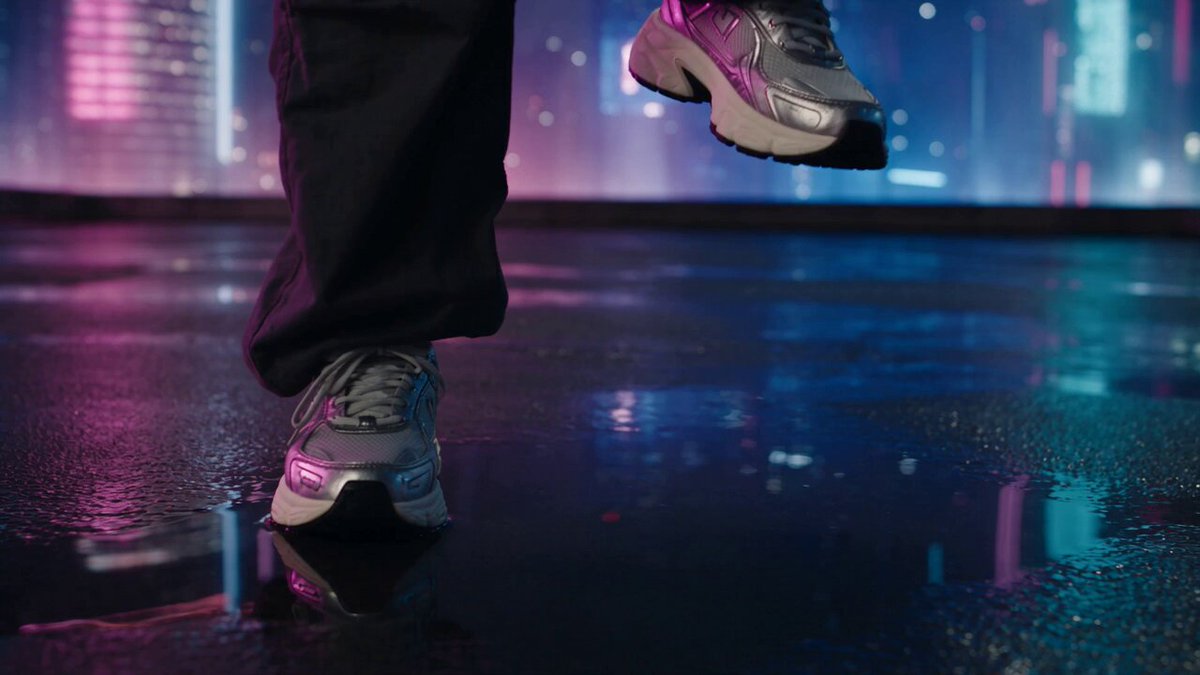

Why Mobile Video Production Changed
A decade ago, shooting on a phone was a compromise. You accepted noisy footage, limited dynamic range, and a timeline that could not handle more than a few clips. Editors treated mobile as a preview tool — something to cut a rough sequence on while the real work happened on a desktop machine.
That trade-off no longer exists. Modern phones carry image signal processors and neural accelerators that outperform entry-level laptops from a few years back, and the software layer has caught up. The interesting shift is not that phones can now record in high resolution. It is that the entire production chain — ideation, generation, editing, sound, color, delivery — can plausibly live on one device.
The bottleneck has moved. Capture is cheap and abundant. What limits output quality today is decision-making: knowing which shots to generate, which takes to keep, and how to shape a sequence so it feels intentional rather than assembled. That is exactly where integrated AI features earn their place in a mobile app. They do not replace the decisions; they shorten the distance between a decision and a result.
This guide treats mobile AI video production as a workflow problem. Instead of ranking apps by marketing claims, it walks through the capabilities that actually change what you can ship, the constraints you cannot ignore, and a repeatable production process you can run from a phone.
What "Integrated" Actually Means in a Mobile Video App
The word integrated is overused. In practice, an app is genuinely integrated when you can move from an idea to a finished file without exporting between three different tools and losing quality, timecode, or metadata along the way.
Generation, Editing, and Finishing in One Timeline
The strongest signal of real integration is a shared timeline. When generated clips, camera footage, titles, music, and color adjustments all live in the same project structure, you avoid the classic mobile trap: exporting a draft, importing it into an editor, exporting again, and then watching compression artifacts compound.
Ask a simple question when evaluating an app. Can I generate a five-second shot, drop it next to footage I recorded myself, adjust its exposure to match, add a caption, and export a final file — all without leaving the project? If the answer requires two apps, you are working in a pipeline, not an integrated tool, and you should budget extra time accordingly.
Feature-List Traps to Ignore
Feature lists reward breadth. Production rewards reliability. A handful of capabilities matter far more than a long menu:
- Non-destructive editing. Every change should be reversible, because mobile projects get revised far more often than desktop projects.
- Consistent project state. If the app loses your edits when the phone kills background processes, nothing else matters.
- Predictable export. You need to know exactly what resolution, frame rate, and audio layout you will get.
- Batch operations. Applying a look, a caption style, or a sound level to twelve clips at once saves more time than any single clever effect.
Everything else — animated stickers, trending transitions, one-tap templates — is optional garnish. It can help you ship faster, but it should never be the reason you commit to a tool.
Evaluating AI Generation Quality on a Phone
Generative video on a mobile device splits into two categories: models that run locally and models that run in the cloud and stream results back. Both are legitimate. The choice affects speed, privacy, and the kind of output you can request.
Model Choice Versus One Strong Default
A large library of models sounds appealing, but it can be paralyzing. What you actually want is a small set of defaults you trust, plus the ability to switch when a shot needs something different.
A practical way to test this: write the same prompt — say, "a cyclist turning onto a wet city street at dusk, slow tracking shot" — and generate it with every model the app offers. Style them side by side. You will quickly discover that two or three models consistently suit your aesthetic. Bookmark those and stop browsing.
Consistency Across Shots
Single-clip quality is easy to demo and hard to sustain. The real test is whether you can generate five clips that look like they belong to the same film. Look for features that support continuity:
- Reference-image conditioning, where you supply a frame and the model matches its lighting, wardrobe, or palette.
- Character or subject locking, so a person's face and clothing remain stable across cuts.
- Style anchoring, where a look established in one clip can be reapplied to later clips without re-describing it in full.
If an app can only generate isolated shots with no memory, you will spend your editing time patching mismatches — grading one clip cooler, cropping another tighter — instead of shaping the story.
Resolution, Duration, and Aspect Ratio Reality Check
Mobile generation has practical ceilings. Short clips are cheap and reliable; long continuous shots are expensive and prone to drift. A realistic approach is to generate in short bursts and assemble, rather than trying to produce a single forty-second take.
Aspect ratio deserves attention before you start. Vertical, square, and widescreen versions of the same project are now common deliverables. If the app cannot reframe or output multiple aspect ratios from one edit, you will be rebuilding the project by hand, which is the single biggest time sink in mobile production.
Direction and Control: Making AI Clips Look Intentional
Generated footage often looks generic because the prompt describes subject matter but not cinematography. The difference between amateur and professional-looking AI video is usually camera language.
Speak the Language of the Camera
Instead of describing what happens, describe how it is filmed:
- Shot size: extreme close-up, medium shot, wide establishing shot.
- Movement: slow push in, handheld follow, static locked-off frame, crane up.
- Lens character: shallow depth of field, wide-angle distortion, telephoto compression.
- Lighting: practical sources, hard key with deep shadows, soft overcast diffusion.
A prompt like "a woman reading in a café" produces a generic result. "Medium close-up, shallow depth of field, warm window light from camera left, subtle handheld drift" gives the model a shot you can cut with.
Multimodal Input: Scripts, Frames, Audio
The most capable mobile tools accept more than text. Feeding a reference frame locks composition. Feeding a script excerpt keeps dialogue and pacing aligned. Feeding a music bed or a voice track lets the tool time cuts to rhythm.
This matters for one specific reason: generation is stochastic. The same prompt produces different results each time. Every additional constraint — an image, a duration, a beat map — narrows the range of outcomes and moves you closer to a usable take on the first or second attempt instead of the tenth.
Prompt Structure That Survives a Phone Keyboard
Typing long prompts on a touchscreen is unpleasant, so build a reusable structure and keep it short:
- Subject and action — who or what, doing what.
- Shot and movement — how the camera behaves.
- Environment and light — where and when.
- Texture and mood — film grain, color temperature, energy.
Save your best prompts in a notes app or the tool's preset system. Over a few projects you will build a personal library that makes new work faster than any template pack.
A Realistic Mobile Production Workflow
Here is a process that works for short-form social pieces, brand spots, and documentary inserts alike. It assumes one phone, one app, and a few hours.
Step 1 — Pre-Production on the Device
Write a shot list before you generate anything. Even six lines is enough: shot number, description, shot size, duration, and whether it is generated or captured. This prevents the most common mobile failure mode, which is generating attractive clips with no plan and then trying to invent a story in the edit.
Collect assets now: reference images, a music bed, any voiceover, and logos or brand colors. Having them in the project from the start means you can test how generated footage interacts with real elements before committing.
Step 2 — Generation and Selects
Generate in batches by shot, not by prompt. For each shot on your list, produce three to five variations at the shortest duration that reads clearly. Immediately delete the obvious failures. Tag or favorite the keepers.
Resist the urge to perfect a single clip. You are casting, not directing yet. A slightly imperfect take with the right energy will cut better than a technically flawless clip that feels inert.
Step 3 — Assembly, Sound, and Color
Lay the selects on the timeline in shot order and watch it through once without touching anything. Note where you are bored and where you are confused. Boredom means a shot is too long; confusion means a transition or a setup is missing.
Then work in layers. Cut for pace first. Add sound second — ambience under dialogue, music under montage. Grade last, and grade for consistency rather than for individual clips. A simple approach works well: match black levels, match skin tones, then apply one look across the whole piece.
Step 4 — Review on More Than One Screen
Phone speakers and phone screens flatter everything. Check the export on a laptop, on a television, and with headphones. Watch it once at arm's length, as a viewer would, and once in silence. If the story reads without sound, your visuals are doing their job.
Performance, Storage, and Battery: The Unglamorous Constraints
Mobile production fails for boring reasons far more often than creative ones.
- Storage. A single project with high-resolution source clips, generated takes, and music can consume several gigabytes. Keep at least twenty percent of device storage free; full drives cause apps to stall and exports to fail.
- Thermal throttling. Long generation sessions heat the phone, and performance drops. Work in twenty-minute blocks with pauses, and take the case off if you are rendering heavily.
- Battery. Generation is power-hungry, especially locally. Charge while editing rather than while generating, and avoid generating below twenty percent.
- Background limits. Mobile operating systems aggressively suspend apps. Save frequently, and prefer tools that checkpoint automatically.
Cloud-based generation sidesteps thermal and battery pressure but introduces dependency on connectivity. A hybrid approach works best: generate heavy shots while on power and Wi-Fi, and reserve local processing for quick iterations and edits.
Collaboration and Handoff
Even solo creators eventually hand work to someone else — a client, a collaborator, a social manager. Plan for it early.
Practical habits that save friction:
- Name files and projects descriptively. "ClientName_ProductLaunch_V3" beats "Final_final2."
- Export a clean master plus a compressed review copy. Keep the high-quality file untouched; share the lightweight one.
- Document your look. Write down the grade settings or save them as a preset so the next version matches.
- Keep a change log. Three lines per revision is enough to avoid repeating feedback cycles.
If the app supports shared review links or comment threads, use them instead of messaging screenshots. Comments anchored to timecode remove ambiguity, and ambiguity is what turns one revision into five.
Common Mistakes That Ruin Mobile AI Videos
Most disappointing mobile projects share recognizable failure patterns.
- Generating before planning. Beautiful clips, no story. Fix it with a shot list.
- One long generation instead of many short ones. Continuity drifts and you lose editorial control.
- Ignoring audio. Viewers forgive soft footage; they do not forgive bad sound. Record clean narration and respect your music levels.
- Overloading the edit. Ten effects per shot reads as noise. Choose one visual idea and commit.
- Exporting the wrong aspect ratio. Check the final spec before you spend an hour on the timeline.
- Skipping the silent watch-through. It is the fastest quality check you have.
- Working from a nearly full device. Performance problems are usually storage problems.
A Decision Framework for Choosing Your Mobile Stack
When comparing options, score them against your actual constraints rather than their feature counts.
Start with output format. If you deliver vertical video, multi-aspect export is a requirement, not a nice-to-have.
Then evaluate generation control. Test reference images, shot-length limits, and whether style carries across clips. Generate the same three prompts in each candidate app and compare honestly.
Then check editing depth. Can you do multi-track audio, speed ramps, keyframes, and reliable captions? If your work is simple, you can accept less. If you cut client work, you probably cannot.
Then weigh performance. How long does a typical export take? Does the app survive being backgrounded? Does it handle a project with fifty clips?
Finally, consider cost structure. Subscription tiers usually meter generation volume, export resolution, or watermark removal. Estimate your monthly output before choosing a tier — a plan that seems generous can run dry in a busy week.
FAQ
Can a phone really replace a desktop for video work?
For short-form content, ads, social cuts, and many documentary inserts, yes. For long-form projects with heavy compositing, complex audio mixing, or large media libraries, a desktop still saves time. Many creators use both: generate and rough-cut on the phone, finish on a computer.
How long should generated clips be?
Short. Three to six seconds is a practical sweet spot for mobile generation. Longer clips raise the chance of visual drift and limit your ability to reorder the edit.
Do I need many different AI models?
No. Two or three models that reliably match your style will outperform a large library you never learn. Variety helps when you need a distinct look — animation, archival texture, hyperreal detail — not as a default.
How do I keep characters consistent across shots?
Use reference images, lock wardrobe and lighting descriptions, and keep prompts structured identically between shots. Generate all clips featuring the same character in one session, before changing anything else in your project.
What should I check before exporting?
Resolution, frame rate, aspect ratio, audio levels around -14 to -16 LUFS for social platforms, and a silent watch-through. Confirm the file plays on a device other than the one you edited on.
Is it worth editing on a tablet instead?
A larger screen makes trimming and grading easier, and many mobile apps run identically on tablets. If your primary complaint is precision rather than portability, a tablet is a reasonable upgrade.
How much storage should I reserve?
Treat five to ten gigabytes per active project as a working baseline, more if you shoot in high resolution. Offload finished projects to cloud storage and delete local media once a piece is delivered.
Final Take
Mobile video production is no longer about proving that a phone can do the job. It is about building a repeatable process that turns an idea into a finished file quickly, without the quality compromises that used to be inevitable. The apps that help most are the ones that keep generation, editing, and finishing in one place, give you real control over camera language and continuity, and stay stable under the pressure of a real project.
Start with a shot list. Generate short, generate in batches, and generate with intention. Edit for pace, then for sound, then for color. Check the export on a second screen. Do that consistently and the device in your pocket stops being a convenience and becomes your production pipeline.

Alexander
More Blogs
Read MoreVidu Q4 Alternatives: 4K AI Video Models Compared (2026)
Vidu Q4 alternatives compared: Kling 4.0, Seedance 2.5, Wan 3.0, and Runway Gen-4 — 4K support, input modes, durations, audio, and what each costs in credits on Domer.
Top 4K AI Image Generators in 2026: 5 Models Compared on Real Costs
The top 4K AI image generators on Domer compared: Flux 3 Klein, Nano Banana 2.1, GPT Image 2.5, GPT Image 2, and Nano Banana Pro — 4K credit costs, reference limits, and speed.
Nano Banana 2.1 vs GPT Image 2.5: Which Image Model Should You Use? (2026)
Nano Banana 2.1 vs GPT Image 2.5 Flare compared: credit costs per resolution, aspect ratios, reference images, text rendering, and which tasks fit each model.