
Photo to Anime AI Workflow: A Practical Creator Guide
Oct 15, 2026
Photo-to-anime AI is often described as a filter, but the results that look intentional come from a pipeline. You are not just applying a style; you are translating a photograph into a visual language with different anatomy, lighting logic, color conventions, and composition rules. The best results happen when you control each handoff: source photo preparation, style selection, identity preservation, still-image refinement, motion planning, and final delivery. This guide lays out a repeatable workflow for portraits, couples, pets, products, and short video scenes, with prompt patterns, model choices, quality checks, and troubleshooting advice.
Why Photo-to-Anime AI Is a Workflow, Not a One-Click Trick
One-click converters are useful for testing ideas, but they usually make three compromises. First, they apply a broad style that may not match the story you want to tell. Second, they often change facial features because the system prioritizes style over identity. Third, they produce a single still image rather than a coherent set of frames or shots.
A workflow approach solves those problems by separating decisions. You can decide how much the source photo should influence the result, which anime conventions to borrow, how much identity to preserve, and whether the final output needs to move. That separation is what makes the difference between a novelty image and a usable asset for a profile, thumbnail, campaign, storyboard, or short video.
Use a one-click tool when you need a moodboard, a quick visual joke, or a first look at a concept. Use a pipeline when you need consistency across multiple images, when the person in the photo must remain recognizable, when the style needs to match an existing brand or story, or when the result will appear in video. The pipeline does not have to be complicated. A three-stage process of prepare, generate, and refine is enough for most creators.
Decision criteria are simple. If the source photo is clean, the style target is clear, and the output is a single still, a fast converter may be enough. If the source has mixed lighting, multiple people, unusual poses, or important identity details, slow down and use the workflow. If the final piece needs motion, always plan for consistency before you animate.
The Core Pipeline: From Reference Photo to Anime Frame
The core pipeline has four stages: prepare the source, choose the style target, build the first still, and lock identity before motion. Each stage has its own failure modes. Preparing the source badly leads to muddy line art. Choosing the wrong style target leads to a result that feels generic. Building the first still without a plan leads to endless random variations. Locking identity too late leads to flicker and drift in video.
Prepare the Source Photo
Start with a photo that gives the model clear information. Use the highest resolution you have, but avoid aggressive sharpening. Soft, even lighting is easier to translate than harsh side light. A straight-on or three-quarter view works better for faces than an extreme profile. Remove distracting background elements when possible, or plan to replace them later.
Do not pre-filter the photo with heavy beauty effects before the anime conversion. Smoothing can erase the small asymmetries that make a face recognizable. If you must retouch, keep the retouching subtle. Also check for motion blur, clipped highlights, and color casts. A color cast in the source often becomes a strange color cast in the anime output, especially in skin tones.
For groups, make sure every face is visible and roughly the same size. For pets, choose a photo where the eyes and muzzle are clear. For products, use a clean background and consistent lighting so the anime stylization does not confuse the silhouette.
Choose a Style Target
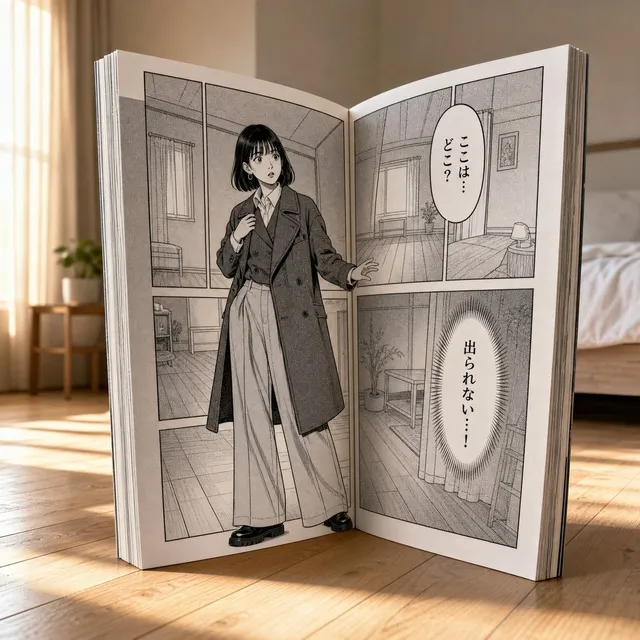
Anime is not one style. It is a family of visual languages. A 1980s cel look has different line weight, color saturation, and shading than a modern television anime look. A watercolor anime style feels softer and less graphic. A cyberpunk anime style leans into neon, high contrast, and detailed city backgrounds. A manga ink style may be mostly black and white with screentone textures.
Build a small reference board with three to five images that share the mood you want. Do not mix incompatible references. If one reference is soft watercolor and another is hard-edged mecha, the model will produce a compromise that satisfies neither. Write down the key traits: line thickness, eye style, hair rendering, shadow shape, color palette, and background detail.
If you are working for a client or a brand, ask for style references before you generate. It is much easier to match a target than to guess and revise later. If you are experimenting, limit yourself to two style directions at a time so you can compare them fairly.
Build the First Still
Use a text-to-image model with an image-to-image or reference-guided mode. Start with a moderate denoise strength, often between 0.35 and 0.6, depending on how much the tool lets you control. Lower values keep more of the photo. Higher values allow more anime interpretation but risk losing likeness.
A prompt scaffold helps you stay consistent. Include subject, framing, style, line quality, lighting, color, background, and camera. For example: anime portrait of a young woman, three-quarter view, 1990s cel animation style, clean line art, soft rim light, warm sunset palette, simple city rooftop background, medium shot. Then add identity details that matter, such as hair color, eye color, glasses, freckles, or a specific jacket.
Generate multiple seeds and compare them side by side. Do not judge a single output in isolation. Look for the version that preserves the face shape and expression while adopting the style. If none of the outputs are close, adjust the source photo or the style reference rather than adding more random prompt words.
Lock Identity Before Motion
If the final piece will move, create a canonical character sheet before you animate. Generate the character from at least three angles: front, three-quarter, and profile. Include a neutral expression and one or two key expressions. Save the best seed, prompt, model, and reference settings. This sheet becomes your anchor when you generate additional frames.
For video, consistency matters more than individual frame beauty. A slightly less dramatic still that matches the previous frame is more useful than a stunning still that breaks continuity. Use the same seed when possible, and use reference or identity tools to keep the face stable. If the tool supports it, lock the character description in a reusable profile rather than retyping it.
Prompt Architecture for Anime Portraits
A good anime prompt is not a pile of adjectives. It is a structured description that tells the model what to keep, what to change, and how to render the result. Think in layers: subject, framing, style, line, lighting, color, background, and camera.
Subject and Framing
Start with who or what is in the frame. For a portrait, include age range, hair, clothing, expression, and pose. For a couple, describe the relationship and spacing. For a pet, include breed or species, fur pattern, and ear shape. For a product, describe the object, material, and angle.
Framing controls how much of the subject appears. Close-up focuses on the face and eyes. Medium shot shows the torso and hands. Full body shows the whole figure and requires more attention to proportions. Wide shot includes the environment and is useful for establishing scenes.
Style, Era, and Line Quality
Style words should be specific. Instead of anime style, try modern TV anime style with clean digital line art or retro cel animation with visible paint texture. If you want a cinematic look, add dramatic composition and detailed background. If you want a soft look, add watercolor wash and pastel palette.
Line quality is often overlooked. Anime can have thin uniform lines, thick expressive lines, sketchy lines, or no visible lines at all. Specify what you want: thin ink lines, bold brush strokes, soft pencil texture, or clean vector-like edges. The line style affects how the final image reads at small sizes, such as a profile picture or thumbnail.
Lighting and Color Script
Lighting is where anime differs most from photography. Anime often uses simplified shadows, rim lights, and color scripts that change with the emotional beat. Describe the light source, direction, and quality. For example: soft window light from the left, cool moonlight rim light, or warm practical lights in the background.
Color scripts can be warm, cool, high contrast, or muted. Choose a palette that supports the mood. A nostalgic scene might use amber, teal, and cream. A tense scene might use deep blue, magenta, and black. Keep the palette limited so the image feels designed rather than chaotic.
Negative Prompts and Guardrails
Use negative prompts to reduce common errors. Typical negative terms include extra fingers, asymmetrical eyes, blurry, low resolution, bad anatomy, text, watermark, logo, and oversaturated. If the model adds too much detail, negative prompts like cluttered background or busy patterns can help.
Do not rely on negative prompts to fix a bad source photo. They can reduce artifacts, but they cannot restore information that was never there. If the face is in shadow or turned away, fix the source or choose a different photo.
Working with Models, LoRAs, and Control Layers
Different base models have different strengths. Some excel at illustration, some at realism, and some at animation. Test a few models with the same prompt and source image. Keep a note of which model handles skin, hair, hands, and backgrounds best. The best model for a close-up portrait may not be the best for a full-body action pose.
LoRAs and style adapters can push the output toward a specific look. Use them carefully. One strong style LoRA is usually enough. Stacking three or four style LoRAs often creates muddy results and unpredictable anatomy. If you need to combine styles, do it in stages: generate a base image, then refine with a second pass at low strength.
Control layers are your best tool for composition and identity. OpenPose can lock a body pose. Depth can preserve the spatial layout. Canny can keep edges from the original photo. Reference-only or IP-Adapter-style tools can carry facial features and color palettes. A practical stack is: reference image for identity, OpenPose for pose, and a moderate denoise strength for style.
Work in passes. First pass: rough composition and style. Second pass: fix the face, hands, and hair with inpainting. Third pass: refine background and lighting. Fourth pass: upscale and sharpen. Do not try to solve every problem in one generation. Each pass should have one clear goal.
Keep a generation log. Record the source image, model, prompt, negative prompt, seed, sampler, steps, denoise strength, and any control layers. When you get a good result, you will need to reproduce it. A log turns luck into a repeatable process.
Turning Stills into Anime Video
Video adds two new problems: temporal consistency and motion design. A still image only has to look good once. A video has to look good across dozens or hundreds of frames. That means you need to plan the shot before you animate.
Start with a shot list. For a short character piece, you might use a wide establishing shot, a medium reaction shot, a close-up on the eyes, and a final wide shot. For a product teaser, you might use a slow push-in, a rotating hero shot, and a detail macro. Write down the camera move, duration, and emotional beat for each shot. This prevents random motion that fights the story.
Use an image-to-video tool with a strong first frame. The first frame should already be in the final anime style. Describe motion in simple terms: slow push in, hair moving gently in the wind, subtle blink, camera pans left, or rain falling in the background. Avoid describing complex actions that the tool cannot handle. If you need a character to walk, generate a sequence of keyframes and interpolate between them rather than relying on a single motion prompt.
Frame rate matters. Anime is often animated on twos or threes, which means 8 to 12 unique drawings per second. Some AI video tools output 24 or 30 frames per second with heavy interpolation. That can look too smooth and lose the anime feel. You can reduce the frame rate in an editor or use frame blending to create a more stylized cadence. If the tool supports it, generate at a lower frame rate and hold frames intentionally.
For longer sequences, use a layered approach. Generate short clips of 3 to 5 seconds, then assemble them in an editor. Use crossfades, match cuts, or hard cuts to hide inconsistencies. If a character appears in multiple shots, reuse the same character sheet and seed. Color grade all clips together at the end so the palette matches. Tools like DaVinci Resolve, CapCut, or similar editors can handle the assembly and color work.
Temporal flicker is the most common video problem. It shows up as shimmering lines, changing eye color, or shifting facial features. To reduce it, lower the motion strength, use a fixed seed, provide a reference image for every clip, and avoid drastic camera moves. If flicker persists, generate fewer frames and use interpolation or hold frames. Sometimes a shorter clip with a locked camera looks more professional than a longer clip with unstable motion.
Quality Control: What to Check Before You Publish
Quality control is not just about resolution. Check identity first. Does the face still resemble the person in the source photo? Look at the eyes, nose, mouth, jawline, and hairline. If the likeness is weak, fix it before you move on. For clients, ask for approval on a still before you animate.
Check anatomy next. Count fingers. Look at ears, collarbones, and shoulders. AI anime models often struggle with hands, feet, and complex poses. Inpaint problem areas rather than regenerating the whole image. Check the neck and shoulders for unnatural twists. Check the hair for strands that merge into the background.
Check line consistency. If the line weight changes dramatically from the face to the clothing, the image will feel unfinished. Check color consistency across shadows, highlights, and skin tones. Check the background for accidental text, logos, or repeating patterns. If the image will be cropped for a thumbnail, make sure the face is not too close to the edge.
For video, check temporal consistency frame by frame. Look for flicker in the eyes, mouth, and hair. Check that the background does not morph into a different location. Check that the camera move matches the shot list. Watch the clip at full speed and at half speed. If something feels off at half speed, it will usually feel wrong at full speed too.
Finally, check delivery requirements. Export the correct aspect ratio for the platform. Use a high bitrate for video. Keep a master file with minimal compression. If the final piece includes text, add it in an editor rather than asking the image model to generate it. Image models often produce unreadable text.
Common Mistakes and How to Fix Them
One common mistake is over-stylization. When the style is too strong, the person becomes a generic anime character. Fix it by lowering the denoise strength, using a reference image for identity, and reducing the number of style words. Another mistake is using a low-quality source photo. Fix it by choosing a sharper, better-lit photo, or by restoring the photo before conversion.
A third mistake is mixing too many styles. If the prompt includes retro cel, watercolor, cyberpunk, and chibi, the model will create a confused hybrid. Fix it by choosing one primary style and at most one secondary influence. A fourth mistake is ignoring hands. Fix hands with inpainting or by choosing poses where hands are hidden or simple.
A fifth mistake is animating without a shot list. The result is random camera moves and inconsistent pacing. Fix it by writing a simple shot list before you generate any video. A sixth mistake is using the wrong frame rate. If the motion looks too smooth, reduce the frame rate or hold frames. A seventh mistake is relying on a single seed. Seeds help, but they are not a complete identity system. Use reference tools and character sheets instead.
An eighth mistake is ignoring rights and consent. If you are converting a photo of another person, get permission before you publish. If you are using a copyrighted character style, understand the legal risk. A ninth mistake is bad upscaling. Aggressive upscaling can create plastic skin and strange textures. Use a gentle upscaler and compare before and after. A tenth mistake is publishing without a final review on a different screen. Colors and contrast can look very different on a phone, a laptop, and a television.
Practical Projects and Mini Workflows
A profile picture pack is a good first project. Choose one clear portrait, decide on one anime style, and generate ten variations with the same seed and prompt. Pick the three best, inpaint the eyes and hair, and export square crops. This teaches you how small prompt changes affect identity.
A couple portrait is a step up. Prepare a photo where both faces are visible and evenly lit. Generate a base image, then inpaint each face separately to improve likeness. Use a shared background and color script so the image feels unified. If one face is stronger than the other, do not settle. Keep refining until both are acceptable.
A pet hero image is fun and forgiving. Choose a photo with a clear eye and muzzle. Use a style that suits the pet's personality, such as a soft watercolor look for a calm cat or a bold action style for a jumping dog. Add a simple background that supports the pose. Inpaint the eyes to make them expressive and consistent.
A product mascot is a commercial-friendly project. Photograph the product on a clean background. Convert it into an anime-style object with a face or personality, but keep the product recognizable. Use the mascot in a short video with a slow push-in and a simple background. This works well for social media teasers and landing pages.
A 15-second anime teaser is a full pipeline project. Write a three-shot sequence: wide establishing shot, medium character reaction, close-up detail. Generate a still for each shot. Animate each still for 3 to 5 seconds with a simple camera move. Assemble the clips in an editor, add music and sound effects, and color grade the sequence. Keep the total runtime short so the consistency problems are manageable.
Ethical, Legal, and Creative Boundaries
Photo-to-anime AI touches consent, copyright, and cultural context. If you are converting a photo of a friend, family member, or client, ask for permission before you publish. If the photo is of a minor, be especially careful. Do not create sexualized or violent anime versions of real people without clear consent. Do not use someone's likeness for commercial endorsements without a proper agreement.
Copyright is another boundary. Anime styles are not owned by a single person, but specific characters, logos, and distinctive designs may be protected. If you are creating fan art, understand the platform rules and the local law. If you are creating commercial work, avoid copying a recognizable character too closely. Use style references as inspiration for broad traits, not as a template for another artist's exact design.
Cultural context matters too. Anime is a broad medium with many regional and historical influences. Avoid reducing it to a single stereotype. If you are working with Japanese settings, research the visual details rather than relying on generic tropes. If you are working with a client from a specific culture, ask questions and involve them in the review process.
Finally, be transparent when appropriate. If an image or video is AI-generated or AI-assisted, say so when the context calls for it. Disclosure builds trust, especially in journalism, education, and client work. You can still be creative and commercially successful while being honest about your process.
FAQ: Photo-to-Anime AI Questions
How many source photos do I need?
For a single portrait, one good photo can be enough. For a character sheet, use three to five photos from different angles. More photos help the model understand the face, but only if they are clear and consistent. Blurry or contradictory photos can hurt the result.
What is the best denoise strength for photo-to-anime?
There is no universal number. Start around 0.4 to 0.5 for a balance between likeness and style. Lower values keep more of the photo. Higher values allow more anime interpretation. Test a range and keep notes. The best value depends on the model, the source photo, and the style target.
Why does the AI change the eye color or hair color?
Color shifts happen when the style reference or prompt conflicts with the source photo. Fix it by adding explicit color words to the prompt, using a reference image for identity, and lowering the denoise strength. Inpainting the eyes and hair is often faster than regenerating the whole image.
Can I turn a photo into anime video directly?
Most image-to-video tools can animate a single still, but the result may flicker or drift. For better consistency, create a character sheet, generate multiple stills, and animate each shot separately. Then assemble the clips in an editor with color grading and sound.
How do I fix bad hands in anime AI images?
Use inpainting. Mask the hand area and regenerate with a prompt that describes the hand pose clearly, such as relaxed open hand or hand resting on cheek. If the model still struggles, choose a pose where the hands are hidden or simplify the composition.
What frame rate should I use for anime-style AI video?
Many anime productions use 24 frames per second with animation on twos or threes. AI video tools often output 24 or 30 frames per second. Try generating at a lower frame rate or reducing the frame rate in an editor to get a more stylized cadence. Test both and compare.
Do I need a powerful computer?
It depends on the tools. Cloud-based tools run on remote hardware and only need a browser. Local tools require a capable GPU, enough memory, and storage. For casual work, cloud tools are convenient. For large batches or privacy-sensitive work, local tools can be better.
How do I keep a character consistent across shots?
Use a character sheet, a fixed seed, and a reference image for every generation. Keep the prompt structure identical and change only the framing or action. Color grade all shots together at the end. Consistency is a process, not a single setting.
Can I sell anime-style images made from photos?
Commercial use depends on the tool's terms, the rights to the source photo, and the style references you used. If the photo belongs to someone else, get permission. If the style is too close to a protected character, avoid selling it. Read the tool's license and consult a professional when the stakes are high.
What is the fastest way to get a good result?
Prepare a clean source photo, choose one clear style target, and generate a small batch of variations. Pick the best one, inpaint the face and hands, and do one gentle upscale. That basic pipeline beats endless random generation. Speed comes from clear decisions, not from more prompts.
Why does the background look different from the character?
The model may treat the background and character as separate styles. Fix it by describing the background in the same style language, using a reference image that includes both, and doing a final pass with inpainting or color grading. A unified color script helps more than adding more background detail.
How do I avoid a plastic or over-smoothed look?
Lower the denoise strength, avoid aggressive upscaling, and add texture words such as paper grain, subtle paint texture, or fine line variation. Do not over-sharpen. Compare the result with the source photo to make sure skin and fabric still have believable variation.

Alexander
More Blogs
Read MoreVidu Q4 Alternatives: 4K AI Video Models Compared (2026)
Vidu Q4 alternatives compared: Kling 4.0, Seedance 2.5, Wan 3.0, and Runway Gen-4 — 4K support, input modes, durations, audio, and what each costs in credits on Domer.
Top 4K AI Image Generators in 2026: 5 Models Compared on Real Costs
The top 4K AI image generators on Domer compared: Flux 3 Klein, Nano Banana 2.1, GPT Image 2.5, GPT Image 2, and Nano Banana Pro — 4K credit costs, reference limits, and speed.
Nano Banana 2.1 vs GPT Image 2.5: Which Image Model Should You Use? (2026)
Nano Banana 2.1 vs GPT Image 2.5 Flare compared: credit costs per resolution, aspect ratios, reference images, text rendering, and which tasks fit each model.