
Create
Seamless Video Loops: How to Create Repeating Clips
Oct 15, 2026
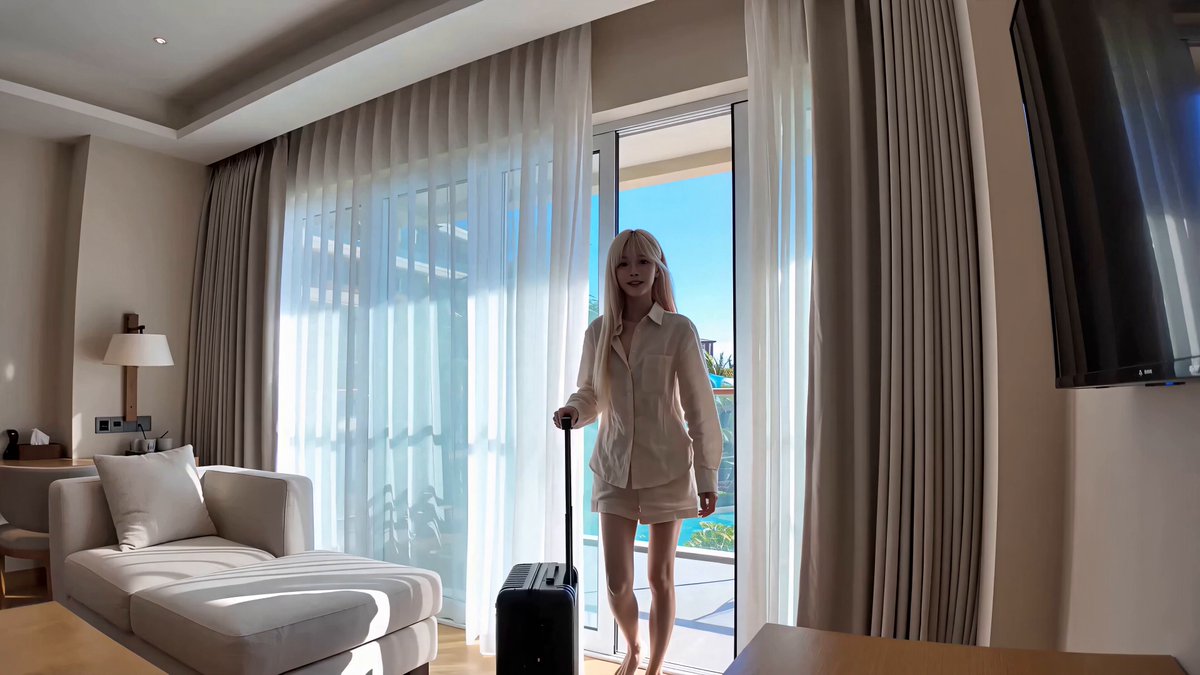
A seamless loop looks like a trick: the clip ends and, without a cut, starts again. The image never jumps, the motion never stutters, and the viewer's eye never gets a reason to leave. That single quality is why loops perform so well in short-form feeds, on product pages, in lobby screens, and as ambient backgrounds behind podcasts and streams.
Making one is less about finding a magic app and more about understanding a handful of motion and editing principles. You can build a perfect loop in a free editor, in a professional compositor, or with an AI tool that generates frames to bridge the gap. What matters is the same in every case: the last frame must hand off cleanly to the first, and any elements that would reveal the repetition have to be controlled.
This guide walks through the whole pipeline — choosing footage, trimming to a motion cycle, blending the seam, generating missing frames, testing, exporting, and avoiding the mistakes that make loops look cheap.
Why Seamless Loops Hold Attention
A loop is a promise of continuity. When a clip restarts invisibly, the brain reads it as one continuous scene rather than a repeated file, and the usual cue to scroll — a hard cut, a resolution, a fade to black — never arrives.
That matters for a few practical reasons:
- Retention. Viewers stay through a clip that keeps flowing. On a loop, a second viewing starts without a decision to rewatch.
- Ambience. Backgrounds and signage need motion that never draws attention to its own restart, whether a screen runs for ten minutes or ten hours.
- File size. A ten-second loop can carry the perceived weight of a much longer video, which keeps lightweight pages fast and playback smooth.
- Flexibility. Loops stretch easily — you can trim a loop to any duration, stack it under text, or scale it from a phone screen to a wall display.
The opposite is also true. A visible seam reads as an error. Even viewers who cannot name what is wrong will feel the hiccup, and on a feed that hiccup is a natural exit point.
What Makes a Loop Feel Seamless
Seamlessness is not about matching colors. It is about matching motion, exposure, and geometry at one specific instant.
Match the final and first frame
The simplest test: place the last frame next to the first frame and flip between them. If the subject shifts position, changes brightness, or changes size, viewers will see a pop. In a perfect loop these two frames are effectively identical — or so close that a one-frame blend hides the difference.
Let continuous motion carry the seam
Motion disguises seams better than stillness. A rotating object, drifting clouds, a passing light, or a slow camera push means the eye is tracking movement rather than comparing frames. When the movement is cyclical — a full rotation, a wave rising and falling — the restart happens at a natural point of the cycle and disappears.
Avoid one-way events
Anything that happens once and cannot un-happen is a loop killer: a hand entering frame, a door closing, a light turning on, a text caption that finishes. Either cut these out or reframe the shot so the action becomes reversible (a hand entering and leaving, a light pulsing up and down).
Control exposure and grain drift
Auto-exposure, auto-white-balance, and heavy noise reduction change subtly across a clip. In a loop those changes become a visible flicker on restart. Lock the exposure and color in camera or in the edit, and apply consistent grain treatment across the whole clip rather than scene by scene.
Choosing Footage That Loops Naturally
Some shots want to loop. Look for motion you can describe as a cycle:
- Water: waves, ripples, rain on glass, a fountain, a slow pour
- Rotation: turntables, wheels, fans, planets, a product on a rotating platform
- Fabric and smoke: flags, curtains, drifting haze, steam
- Repetitive human motion: walking in place, kneading, brushing, typing, dancing in a fixed spot
- Abstract motion: particle fields, light sweeps, gradients, animated textures
- Timelapse: traffic, clouds, crowds, day-to-night transitions
Shots that resist looping are equally easy to spot: handheld walking shots with parallax, dialogue scenes, anything with a clear beginning and end, and footage where the camera itself changes direction mid-clip.
If you are shooting for a loop rather than editing existing footage, plan it. Keep the camera locked or moving at a constant rate. Shoot longer than you need — twenty to thirty seconds gives you room to find a full cycle. Avoid wind gusts, passing people, and changing light. A tripod, a stable frame rate, and manual settings do more for loop quality than any post-production trick.
The Editing Workflow: From Clip to Infinite Loop
This workflow works in any editor that supports keyframes and blending, from free desktop tools to mobile apps to full compositors.
Step 1: Find a motion cycle
Scrub through the clip and locate a moment where the subject is in the same position and orientation as an earlier moment. Set an in point at the earlier frame and an out point at the later frame. That interval is your candidate loop.
Step 2: Build an overlap
Duplicate the loop segment and place a copy after it. Now trim the tail of the first copy and the head of the second so they overlap by roughly half a second to a second. You now have a short region where both copies exist — the seam zone.
Step 3: Blend the seam
Apply a cross dissolve across the overlap. If the motion is slow and steady, a straight dissolve is invisible. If the motion is fast or the camera is moving, a dissolve alone produces a ghosted double image. In that case, use optical-flow retiming or morph-based frame blending, which generates intermediate frames by tracking pixels rather than mixing them.
Step 4: Fix drift with a match cut
If the two ends never quite align, add a short transition that hides the mismatch instead of showing it — a whip, a flash, a quick zoom, or a shadow passing over the lens. This is a cheat, but a well-timed one is indistinguishable from a technical fix in a fast-paced feed.
Step 5: Fill gaps with generated frames
When you only have a still image or a clip that is a few frames short of a full cycle, frame interpolation and image-to-video generation can invent the missing motion. Use short, controlled prompts and low motion strength for loops: large motion creates artifacts that make the seam worse, not better.
Step 6: Render, re-import, and inspect
Export the loop, then import it back and play it on repeat at normal speed and at half speed. Watch the seam ten times in a row. If you stop noticing it around the third pass, it works. If you still see it on the tenth, the problem is in the motion, not the blend.
Using AI Tools in the Loop Pipeline
AI has made two parts of looping much easier: generating motion that does not exist, and cleaning up motion that does not match.
Frame interpolation inserts synthetic frames between existing ones, so you can slow motion down and create overlap where none exists in the source. Quality varies: interpolate at low ratios (two to four times) and inspect for warping around hands, hair, and thin edges.
Image-to-video generation turns a single still into a short moving clip. For loops, prompt for cyclical motion — "slow rotation," "gentle ripple," "breathing light" — and avoid prompts that imply a one-way event. Generate several variations and pick the one whose final frame sits closest to its first.
Motion tracking and stabilization removes camera drift that would otherwise break the cycle, and lets you keep a moving subject perfectly framed for the whole loop.
Style transfer and upscaling help when you want a loop to match a brand look or when a low-resolution background needs to scale to a large display.
A practical division of labor: use AI for the seam and for missing frames, and use standard editing tools for trimming, color, and timing. AI is a repair tool here, not a replacement for choosing the right shot.
Loops for Short-Form Social Video
On vertical feeds, the loop is a retention mechanism. The most reliable formats share a few traits.
Keep it under ten seconds. Short enough to watch twice without effort, long enough to register the content. Six to eight seconds is a sweet spot for product and mood clips.
Start mid-action. If the clip begins on a beat, the restart lands on a beat too, and rhythm masks the seam.
Sync cuts to music. Layer audio so the loop boundary falls on a bar or a drum hit. Viewers hear continuity even when the image shifts slightly.
Repeat a readable claim. If the video carries a caption, keep it on screen for the full loop so it re-reads instantly on restart.
Test on a phone. Small screens hide micro-jitter and make soft seams look perfect. If it looks clean on a phone, it usually looks clean anywhere at that scale.
A useful experiment: export two versions, one with a visible seam and one with a blended seam, and compare retention in a small posting test. The difference is usually obvious within a few hundred views.
Loops for Product and E-Commerce
Product loops do a specific job: show an object from enough angles that a buyer understands it, without requiring interaction.
- Turntable loops are the classic. Rotate the product at constant speed, crop tight, and match the first and last frame of a full rotation.
- Detail loops highlight texture, movement, or a mechanism — a hinge opening and closing, fabric draping, liquid pouring and settling.
- Lifestyle loops place the product in a scene with cyclical motion: coffee steaming, a candle flickering, a bag being packed and unpacked.
- Comparison loops sit two variants side by side with identical timing, so the difference is the only thing moving.
Practical rules for product loops: lock the exposure, keep the background static, avoid reflections that change across the cycle, and render at a high enough resolution that the loop looks crisp on retina displays. A two-second loop of a rotating product often outperforms a static hero image because it signals quality and attention to detail.
Backgrounds, Signage, and Ambient Loops
Ambient loops run unattended, sometimes for hours. That changes the requirements.
Length matters less than smoothness. A four-second loop played for an hour should never call attention to itself. Slow motion is your friend; fast motion becomes irritating by the fiftieth repetition.
Avoid burn-in and banding. Gradients and dark scenes reveal compression artifacts on cheap panels. Add subtle grain and avoid near-black backgrounds.
Design for distance. Lobby screens and conference displays are viewed from far away, so contrast and simple silhouettes beat fine detail.
Loop the audio too. If sound is involved, crossfade the ambience at the boundary exactly as you do the image, or use a continuous sound bed that does not depend on the video timing.
Consider file size and decode cost. A lightweight, efficiently encoded loop is less likely to stutter on a low-power media player, which is a much more visible failure than a slightly imperfect seam.
Common Loop Mistakes and How to Fix Them
Visible pop at the restart. The first and last frames do not match. Trim to a full motion cycle, or extend the overlap and blend across it.
Ghosting in the blend. A dissolve is being used on fast motion. Switch to optical-flow or morph-based blending, or lengthen the loop so the motion is slower at the seam.
Flicker across the whole clip. Exposure or white balance drifted. Apply a manual exposure match across the loop and avoid auto settings.
Text that restarts awkwardly. Captions, lower thirds, and animations that finish create a reset point. Make text appear and disappear symmetrically, or keep it static for the entire loop.
Sound that clicks. Audio cuts at a non-zero crossing. Crossfade the audio for a beat, or fade the track independently of the video.
Motion that feels mechanical. Perfectly even loops can look artificial. Add a small amount of variation — a light that pulses slightly differently, a subtle handheld sway — but keep the cycle length consistent.
Overprocessing. Heavy denoise, sharpening, and aggressive compression all create artifacts that become obvious on the second and third pass. Export at a generous bitrate and let clean footage stay clean.
Export Settings and Quality Checks
Most loops fail at export, not at the edit.
- Frame rate: match the source. Converting frame rates introduces duplicated or dropped frames that read as stutter on repeat.
- Resolution: render at the delivery size rather than scaling a huge file down in the browser. Sharp edges near the seam survive better.
- Bitrate: use a generous constant or high variable bitrate. Loops spend more time in motion than typical footage, so they benefit from headroom.
- Codec: H.264 remains the safest for web and social; use a modern codec for internal signage if the player supports it.
- Keyframes: place a keyframe at the start and end of the loop so seek behavior at the boundary is predictable.
- Color: export in the color space your player expects. A mismatch in gamma shifts brightness at the boundary and makes the seam visible even when geometry is perfect.
Final check sequence: play the loop on repeat in the browser, play it in the target app, play it on the actual screen it will run on, and if possible let it run for fifteen minutes untouched. Some problems only appear after repetition.
A Practical Mental Model
If you remember one thing, make it this: a loop is a single continuous moment, not two clips stuck together. Every decision — the shot you choose, the frame you start on, the blend you apply, the audio you layer — should serve that illusion.
The order of work also matters. Fix motion first, then timing, then color, then audio, then export. Attempting to hide a bad cycle with a fancy transition rarely works, and fixing the cycle usually makes the transition unnecessary.
Start simple: pick a shot with obvious cyclical motion, trim it to one full cycle, and blend half a second of overlap. That basic approach produces clean loops in most cases. Everything else — interpolation, generation, fancy transitions — exists to rescue shots that do not cooperate.
FAQ
How long should a seamless loop be?
For social feeds, six to ten seconds. For ambient and signage use, two to six seconds is usually enough, provided the motion is smooth. Longer loops are easier to make seamless but consume more attention and bandwidth.
Can I loop a still image?
Yes, with generated motion. Animate a subtle element — light, parallax, particles, drifting texture — and keep the motion cyclical so the start and end match. Pure stills with no motion cannot loop; they are simply static.
Why does my loop look fine on my phone but bad on a large screen?
Small screens hide micro-jitter, compression artifacts, and small geometric mismatches. Large screens magnify all three. Always validate on the largest display your audience will use.
Do I need professional software?
No. Free editors handle trimming, crossfades, and keyframes well. Professional tools help with optical-flow retiming, tracking, and precise color matching, but they are conveniences rather than requirements.
Is a visible seam always a problem?
Not always. On fast-paced social clips, a rhythmic hard cut at the boundary can read as intentional editing. On ambient or product loops, it almost always reads as a mistake.
How do I loop audio cleanly?
Crossfade a short region at the boundary just as you would with video, or choose a sound bed with continuous texture — room tone, ambient hum, a steady pad — so there is no transient to click.
What is the fastest way to check a loop?
Watch it on repeat at normal speed, then at half speed. If half speed reveals a jump you cannot see at full speed, the loop is good. If it still looks smooth at half speed, it will look perfect everywhere.

Alexander
More Blogs
Read MoreVidu Q4 Alternatives: 4K AI Video Models Compared (2026)
Vidu Q4 alternatives compared: Kling 4.0, Seedance 2.5, Wan 3.0, and Runway Gen-4 — 4K support, input modes, durations, audio, and what each costs in credits on Domer.
Top 4K AI Image Generators in 2026: 5 Models Compared on Real Costs
The top 4K AI image generators on Domer compared: Flux 3 Klein, Nano Banana 2.1, GPT Image 2.5, GPT Image 2, and Nano Banana Pro — 4K credit costs, reference limits, and speed.
Nano Banana 2.1 vs GPT Image 2.5: Which Image Model Should You Use? (2026)
Nano Banana 2.1 vs GPT Image 2.5 Flare compared: credit costs per resolution, aspect ratios, reference images, text rendering, and which tasks fit each model.