
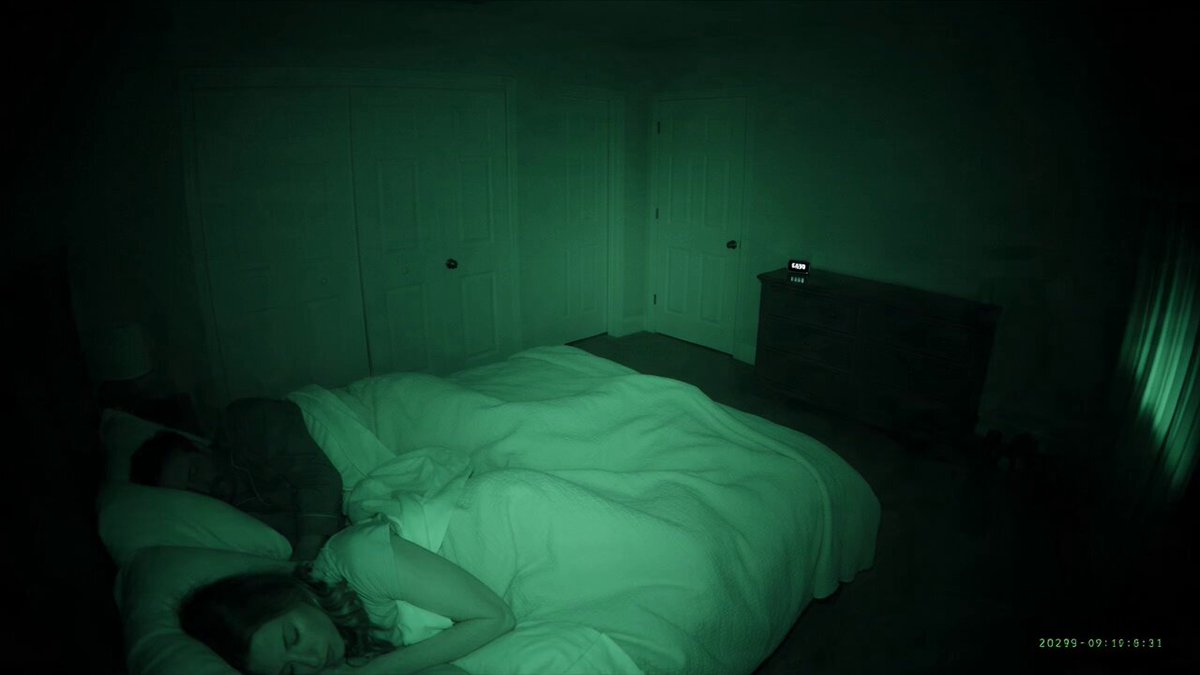
Veo 3 User Guide: Mastering AI Video Generation Workflows
Oct 14, 2026
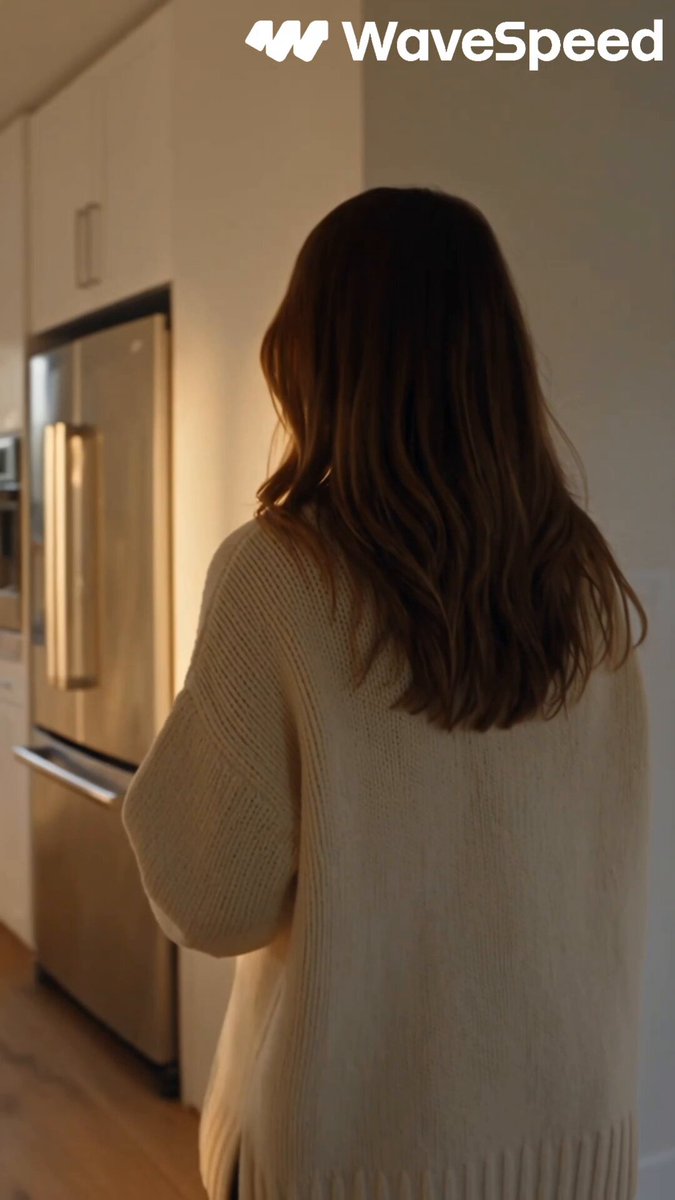
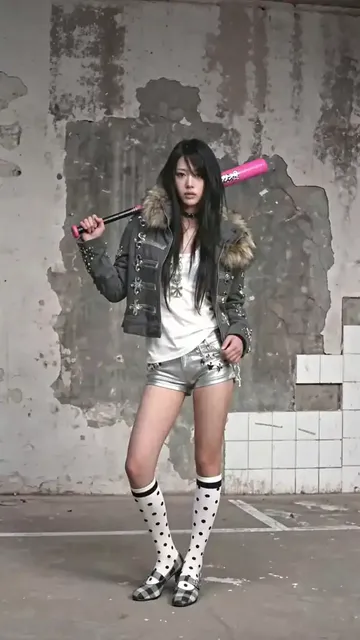
What Veo 3 Changes for Working Creators
Text-to-video stopped being a novelty the moment generated clips started arriving with sound already attached. Veo 3 is one of the clearest examples of that shift: it produces synchronized audio — ambience, effects, and spoken lines — alongside the picture, so a single generation can be a watchable scene rather than a silent plate waiting for a separate sound pass. The second shift is temporal stability. Faces hold their identity through small head movements, camera motion stays readable for longer stretches, and physical objects stop morphing quite so aggressively as the shot progresses. The third shift is prompt literacy. The model responds to shootable, specific direction — the kind of note you would hand a camera operator — far better than it responds to abstract mood language.
None of that removes the need for craft. A generative model is only as good as the decisions made before and after it runs. If your brief is vague, your shot list is improvised, and your edit is an afterthought, you will spend hours rerolling clips and still end up with a scene that feels like a demo reel instead of a story. This guide walks through a repeatable workflow: plan the scene, write prompts that survive motion, control continuity with reference images, produce shot by shot, treat audio as a first-class layer, and finish in an editor where generated clips become actual sequences.
Start With a Brief, Not a Prompt
The single biggest predictor of good output is whether you can describe the scene in plain language before you open a generator. Force yourself onto one page of notes.
The one-page creative brief
A useful brief answers six questions: Who is on screen? Where are they? What changes between the first frame and the last? What is the emotional temperature? What format is this for? What will the audience hear? If you cannot answer the third question — what changes — you do not have a shot, you have a still image that happens to move. Motion without change reads as decorative stock footage, and viewers disengage quickly.
Where AI fits in the pipeline
Decide early whether the generated clip is the final footage or raw material for a bigger edit. A social spot may only need three or four strong clips stitched together. A narrative short needs coverage: wide establishing shots, medium dialogue shots, inserts, and reaction beats, all matching in look and tone. Treating generated clips as production footage — with slates, labels, and a folder structure — saves enormous confusion later.
Choosing aspect ratio and shot length first
Lock the delivery format before you generate anything. Vertical formats push you toward faces, hands, and tight framing; wide formats reward environment and blocking. Shot length follows intent: an establishing shot can run several seconds, but a dialogue exchange usually works better as two or three shorter pieces you cut together. Generating one long take and trying to cut it apart in post is one of the most common beginner errors, because the moment you trim, you lose the audio continuity you generated.
Prompt Anatomy: What Veo 3 Rewards
Prompts are not incantations. They are production notes compressed into a paragraph. The most reliable structure moves from subject to action to environment to camera to light, with audio and constraints added at the end.
Subject and wardrobe specificity
“A woman in a kitchen” gives the model almost nothing to work with. “A woman in her thirties wearing a charcoal wool sweater and a thin silver necklace, standing at a gas stove” gives it texture, era, and material cues. Specificity is not about word count; it is about removing ambiguity that the model would otherwise resolve randomly. Wardrobe details are especially valuable for continuity, because they give you something concrete to repeat — and to notice — across shots.
Action verbs and physical behaviour
Describe what the body does, not what the character feels. “She is nervous” is unrenderable. “She taps the wooden spoon twice against the rim of the pan, glances left, and wipes her palm on her apron” is a performance. Physical business also gives the model something to animate, which reduces the drifting, gliding quality that appears when a scene has no clear action beat.
Camera language that the model understands
Use vocabulary borrowed from a real set: slow dolly in, handheld follow, locked-off tripod wide, low-angle arc around the subject, steady push past a doorway. Pair the movement with a subject anchor so the camera has something to orbit: “slow push in on the man’s hands as he folds the letter.” One camera instruction per shot. Stacking three movements into one prompt usually produces a muddy compromise between them.
Light, colour, and texture
Lighting notes do more for perceived quality than almost any other category. “Late afternoon window light, warm highlights, soft shadows on the left cheek” reads as intentional cinematography. Add a texture reference if you want a specific finish: film grain, cool overcast flatness, glossy commercial sheen, documentary handheld realism. Colour direction belongs here too — muted teal shadows, amber practicals, or desaturated midtones — because it helps the model keep neighbouring shots visually related.
Audio cues and negative instructions
Because audio is generated natively, you can direct it. Name the ambient bed (rain on a tin roof, distant traffic, restaurant murmur), the effects tied to action (a mug set down, a door latch clicking), and whether anyone speaks. Keep spoken lines short, natural, and clearly attributed so the model knows who is talking. Negative instructions work best as short constraints rather than long prohibition lists: “no subtitles, no on-screen text, no lens flare” is easier to honour than a paragraph of bans. Excessive negatives can crowd out the positive description that actually shapes the frame.
Reference Images and Character Consistency
Continuity is where most AI video projects fall apart. A character that looks slightly different in every shot destroys the illusion faster than any rendering artefact.
The practical fix is to build a small reference kit before you generate a single scene. Create three to five stills of your main character: front-facing neutral, three-quarter angle, profile, and a full-body frame. Do the same for key locations and any hero prop. Then use those images as conditioning inputs for every shot in which the character or location appears. Multi-image reference works best when each image carries a clear role — one for facial identity, one for wardrobe, one for environment — rather than several near-duplicates competing for influence.
When a shot still drifts, adjust in this order: first, repeat the physical description verbatim across prompts instead of paraphrasing; second, simplify the framing so the face is larger and more central; third, reduce competing motion in the frame; fourth, shorten the clip and extend the scene with a cutaway rather than a longer take. Chasing consistency by adding more adjectives rarely works, because the model is solving a visual problem, not a literary one.
A Shot-by-Shot Production Workflow
With a brief, a prompt structure, and a reference kit in hand, production becomes mechanical — which is exactly what you want.
Step 1: Generate a look test
Before committing to a scene, generate two or three short clips of a single character in the intended lighting and colour scheme. Judge them on skin rendering, motion quality, and how the audio bed sits against the image. If the look is wrong, fix it now; it is far cheaper than discovering the problem after twenty shots.
Step 2: Build the establishing shot
Start with the widest shot in the scene. It sets geography and tone, and it gives you a visual reference for how the rest of the sequence should feel. Keep camera movement gentle and let the environment do the work.
Step 3: Cover the action
Generate medium shots and close-ups of the main beat, one prompt per shot, each repeating the character description exactly. Generate one or two extra variations of the most important shot — the one the scene lives or dies on — so you have choices in the edit.
Step 4: Shoot your inserts
Inserts are cheap and enormously useful: hands, objects, a clock, a phone screen, steam rising. They give you cut points, cover small continuity problems, and let you build rhythm without generating more complex footage.
Step 5: Review with the sound on
Watch every clip with audio at full attention. Listen for mismatched room tone, dialogue that lands on the wrong beat, and effects that conflict with the action. Bad audio is harder to repair than bad framing.
Step 6: Label and organise immediately
Name files by scene and shot number the moment they are approved. Generated footage piles up faster than people expect, and an unlabelled folder of thirty near-identical clips is a genuine time sink.
Audio, Dialogue, and Timing
Native audio is powerful but not magic. Dialogue works best in short bursts — a sentence or two per generation — because longer speeches drift in lip timing and tone. Write lines the way people actually speak, with contractions and interruptions, and keep the character’s mouth clearly visible if lip sync matters to the shot.
Ambience is the glue of a sequence. Generate a consistent ambient bed for each location and keep it steady across shots; sudden changes in background noise read as errors even when viewers cannot name what is wrong. Music is usually better added in the edit than generated per clip, because a continuous score across cuts creates cohesion that per-shot audio cannot.
Timing deserves specific attention. Line up your cut points with sound events — a door closing, a line finishing, a beat of silence. Cutting on a sound event hides the seams of generated footage better than cutting on motion alone.
Common Mistakes and How to Fix Them
Overloaded prompts. When a prompt contains five actions and three camera moves, the model picks a mediocre average. Fix: one action, one camera instruction per generation.
Inconsistent character descriptions. Small paraphrases produce large visual changes. Fix: copy and paste the same physical description into every prompt for that character.
Ignoring the first frame. The opening image sets audience expectations instantly. Fix: review the first half-second of each clip and discard anything that starts mid-motion or with a distracting artefact.
Too few shots. Beginners generate long clips and cut them up; the result feels slow and disjointed. Fix: generate more, shorter clips and build rhythm in the edit.
Chasing perfection on one shot. Diminishing returns arrive quickly. Fix: set a reroll limit — three attempts is a reasonable ceiling — then move on or change the approach.
Neglecting sound design. Generated audio is a foundation, not a mix. Fix: always add a music bed, level the dialogue, and trim harsh frequencies in post.
Finishing in the Edit
Treat generated footage exactly like camera footage. Import everything, build a rough assembly, then tighten. Add a subtle grade to unify clips that were generated at different moments; a slight contrast curve and a shared colour cast can make separate generations feel like one shoot. Stabilise only where needed, since aggressive stabilisation can introduce warping on synthetic motion.
Upscaling is often the difference between “AI-looking” and “broadcast-plausible.” Run final clips through an upscaler after the edit is locked, not before, so you are not wasting processing time on material you will cut. Sound design does the rest: room tone under dialogue, a low bed for tension, small foley accents on movement. Viewers forgive imperfect images far more readily than they forgive silence.
Decision Criteria: When Veo 3 Is the Right Tool
Use it when you need shots that would be expensive or impossible to film — period settings, fantastical environments, abstract transitions, rapid concept visualisation for client approval. Use it for social-first content where speed matters more than absolute realism, and for storyboards that need motion rather than sketches.
Consider a different approach when a shot requires precise choreography, brand-accurate product detail, real human performance, or legally sensitive depictions. Those are cases where a small practical shoot or a hybrid approach — real footage with generated backgrounds — usually wins. The strongest results in practice come from hybrids: generated establishing shots cut against practical close-ups, or a generated background behind a real talking-head performance.
FAQ
How long should a generated clip be?
Short clips are easier to control and easier to cut. Generate three to five seconds for coverage and reserve longer durations for slow, simple camera moves with a single action.
Why does my character look different in every shot?
Almost always because the physical description changed between prompts. Repeat the description verbatim, use reference images for the face, and keep framing consistent.
Should I write dialogue into the prompt?
Yes, but keep it brief and attribute it clearly. Long speeches are better split across multiple generations and edited together.
Do I need to add music afterwards?
Nearly always. A continuous score across a sequence creates far more cohesion than per-clip generated audio.
How many attempts should one shot get?
Three. If it is not working after three, the prompt or the concept needs changing, not another reroll.
Can I mix generated and real footage?
Yes, and this is often the best option. Match colour, grain, and lens feel in the grade, and the audience will rarely notice the join.

Alexander
More Blogs
Read MoreVidu Q4 Alternatives: 4K AI Video Models Compared (2026)
Vidu Q4 alternatives compared: Kling 4.0, Seedance 2.5, Wan 3.0, and Runway Gen-4 — 4K support, input modes, durations, audio, and what each costs in credits on Domer.
Top 4K AI Image Generators in 2026: 5 Models Compared on Real Costs
The top 4K AI image generators on Domer compared: Flux 3 Klein, Nano Banana 2.1, GPT Image 2.5, GPT Image 2, and Nano Banana Pro — 4K credit costs, reference limits, and speed.
Nano Banana 2.1 vs GPT Image 2.5: Which Image Model Should You Use? (2026)
Nano Banana 2.1 vs GPT Image 2.5 Flare compared: credit costs per resolution, aspect ratios, reference images, text rendering, and which tasks fit each model.