What Is Kling Motion Control (And Why It's Different)
I've tested a lot of AI video tools, and most of them work the same way: you upload an image, write a prompt, and hope the AI generates the movement you want. Sometimes it works, sometimes you get something completely random.
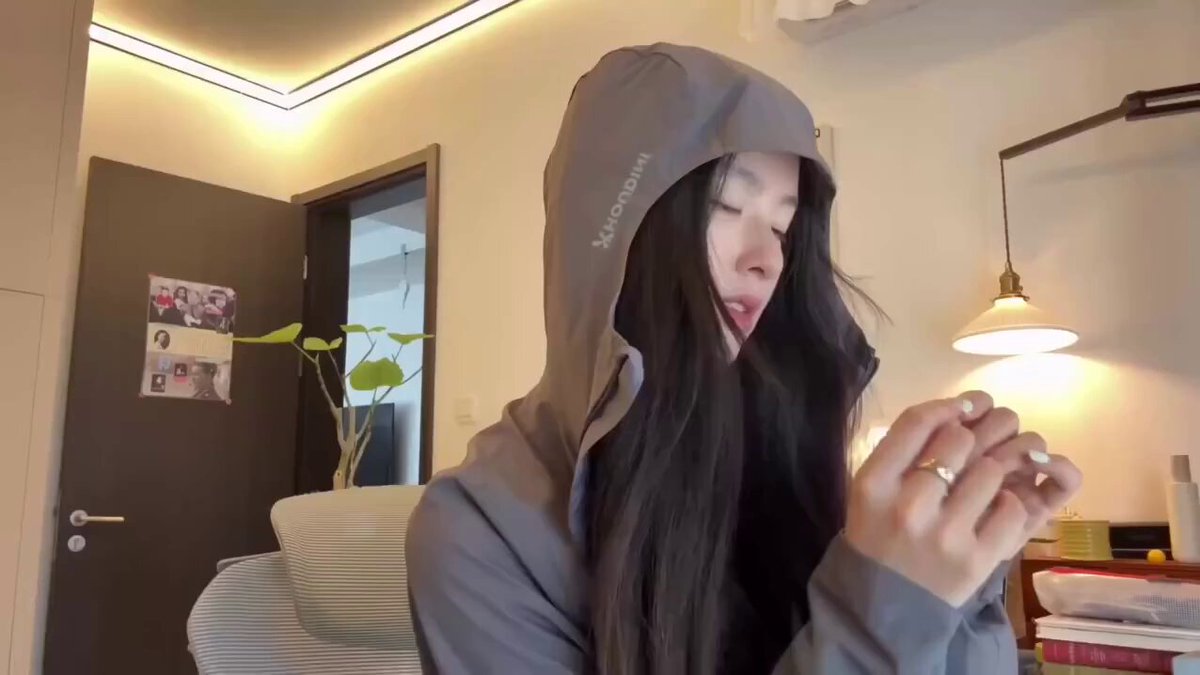
Kling Motion Control takes a different approach. Instead of describing the motion you want in words, you show the AI exactly what motion you want by uploading a reference video.
Here's how it works:
- You have a static image (a portrait, a character, a product, whatever)
- You have a reference video showing the motion you want (someone dancing, a camera pan, an object rotating)
- The AI analyzes the motion in your reference video and applies that same motion to your static image
- You get a video of your image moving with the motion from the reference video
Think of it like motion transfer or motion cloning. You're not manually controlling camera angles or writing complex prompts—you're showing the AI an example of the motion you want, and it copies that motion onto your image.
Why Motion Transfer Matters
The traditional approach to AI video generation has a problem: unpredictability. You write "camera zooms in slowly" and maybe it zooms, maybe it pans, maybe it barely moves. You write "character dances" and you get some generic movement that might not match what you had in mind.
Motion control via reference video solves this by letting you be specific without needing perfect prompt engineering skills. Instead of trying to describe complex motion in words, you just show an example.
Real-world example:
- Old way: "Create a video of this portrait with the person nodding their head slowly and smiling"
- Motion control way: Upload the portrait + upload a reference video of someone nodding and smiling → get exactly that motion applied to your portrait
The reference video acts as a blueprint. The AI extracts the motion patterns, timing, and dynamics from your reference video and applies them to your image while preserving the visual style and content of your image.
How to Use Kling Motion Control (Step-by-Step)
Using Domer's Kling Motion Control tool is straightforward once you understand what you need. Here's the complete workflow:
Step 1: Prepare Your Static Image
This is the image you want to animate. It could be a portrait, a character illustration, a product photo, or any static image.
Requirements:
- Format: JPG, PNG
- Max file size: 10MB
- Recommended: High resolution, clear subject, good lighting
What works best:
- Portraits with clear facial features
- Character illustrations or artwork
- Product photos with clean backgrounds
- Images with a clear main subject
You can use photos you've taken, AI-generated images from Domer's text-to-image tool, or any image you have rights to use.
Step 2: Find or Create a Reference Video
This is the most important part. Your reference video contains the motion you want to transfer to your image.
Requirements:
- Format: MP4, MOV, MKV
- Max file size: 50MB
- The motion in this video will be applied to your image
Where to find reference videos:
- Record your own videos (use your phone to record the motion you want)
- Stock video sites (Pexels, Pixabay for free options)
- Extract clips from longer videos
- Use existing short videos that show the motion you need
What makes a good reference video:
- Clear, visible motion that matches what you want
- Not too fast or chaotic (smooth motion transfers better)
- Similar framing to your target image (if your image is a portrait, use a portrait reference video)
- Good lighting and clear subject
Step 3: Upload Both Files to the Tool
Go to Domer's Kling Motion Control tool and upload:
- Your static image (the image you want to animate)
- Your reference video (the video containing the motion)
The interface is simple - you'll see upload areas for both the image and video.
Step 4: Add an Optional Text Prompt
You can add a text description to guide the generation, but it's optional. The motion comes from your reference video, not the prompt.
When to use a prompt:
- To describe the style or mood you want
- To add context about what should happen in the scene
- To guide details that aren't in the reference video
Example prompts:
- "Smooth, natural movement"
- "Dancing with joy and energy"
- "Slow, elegant motion"
Step 5: Generate and Review
Click the generate button and wait. Processing typically takes 2-3 minutes.
What you get:
- A video with your image animated using the motion from your reference video
- The output duration matches your reference video duration
- 1080p resolution (or your selected resolution)
If the result isn't what you expected:
- Try a different reference video with clearer motion
- Adjust your prompt to guide the style
- Make sure your image and reference video have compatible framing
The key to good results is choosing the right reference video. The motion transfer works best when the reference video clearly shows the motion you want.
Practical Examples: What You Can Create
Let me walk through some real use cases to show you what's possible with motion transfer.
Example 1: Animated Portrait from Dance Video
What you need:
- Static portrait photo (your image)
- Reference video of someone dancing
How it works: The AI takes the dance movements from your reference video and applies them to your portrait. Your portrait character will move and dance with the same motions as the person in the reference video.
Best for: Social media content, creative projects, character animation
Example 2: Product Demo with Camera Movement
What you need:
- Product photo (your image)
- Reference video showing camera pan or zoom motion
How it works: The camera movement from your reference video gets applied to your product image, creating a dynamic product video without needing to film the actual product.
Best for: E-commerce, product marketing, social media ads
Example 3: Character Animation from Acting Reference
What you need:
- Character illustration or artwork (your image)
- Reference video of an actor performing expressions and gestures
How it works: The facial expressions, head movements, and gestures from your reference video get transferred to your character illustration, bringing it to life.
Best for: Animation projects, storytelling, character development
Example 4: Landscape with Dynamic Camera Work
What you need:
- Landscape photo (your image)
- Reference video with cinematic camera movement (drone footage, tracking shots)
How it works: The camera motion from your reference video creates a dynamic video from your static landscape, adding cinematic movement without needing to reshoot.
Best for: Travel content, real estate, portfolio work
Tips for Getting Better Results
After testing motion transfer with dozens of different images and reference videos, here's what I've learned about getting consistently good results.
Choose Reference Videos with Clear Motion
The quality of your reference video directly impacts your results. Look for videos where:
- The motion is smooth and visible
- The subject is well-lit and in focus
- The movement isn't too fast or chaotic
- The framing matches your target image style
Avoid reference videos with rapid cuts, shaky camera work, or unclear motion patterns.
Match Framing Between Image and Video
If your static image is a close-up portrait, use a reference video with similar framing (close-up of a person). If your image is a wide landscape, use a reference video with wide framing.
Mismatched framing can lead to unexpected results where the motion doesn't transfer cleanly.
Start with Simple Motion
For your first attempts, use reference videos with simple, clear motion:
- A person nodding or turning their head
- A slow camera pan across a scene
- A gentle zoom in or out
- Simple gestures or movements
Once you understand how the motion transfer works, you can experiment with more complex reference videos.
Keep Reference Videos Short
The output video duration matches your reference video duration. If you want a 5-second result, use a 5-second reference video.
Shorter videos (3-10 seconds) tend to work better than longer ones because the motion is more focused and easier for the AI to transfer cleanly.
Use High-Quality Source Materials
Both your static image and reference video should be high quality:
- Good resolution (at least 720p for videos, high-res for images)
- Proper lighting
- Clear focus
- Minimal compression artifacts
Better source materials lead to better results.
Getting Started with Motion Transfer
Kling Motion Control's approach to video generation is different from traditional text-to-video tools. Instead of describing motion in words and hoping the AI understands, you show the AI exactly what motion you want by providing a reference video.
This makes the process more predictable and gives you precise control over the final result. The learning curve is minimal - once you understand that you need a static image + reference video, you can start creating.
Try It on Domer
Ready to create your first motion-controlled video? Here's how to get started:
- Use Kling Motion Control - Upload your image and reference video
- Need an image first? Use Domer's text-to-image tool to generate high-quality images
- Want other video options? Check out image-to-video or text-to-video tools
Key Takeaways
What makes Kling Motion Control different:
- Uses reference videos instead of text descriptions for motion
- Transfers motion from video to static image
- More predictable results than prompt-based generation
- Works with any image and reference video combination
What you need:
- 1 static image (JPG/PNG, max 10MB)
- 1 reference video (MP4/MOV/MKV, max 50MB)
- Optional text prompt for guidance
Best practices:
- Choose reference videos with clear, smooth motion
- Match framing between image and video
- Start with simple motion before trying complex transfers
- Use high-quality source materials
Ready to try motion transfer? Start with Kling Motion Control
Explore more AI video tools:
- Image to Video - Animate images without reference videos
- Text to Video - Generate videos from text descriptions
- Video to Video - Transform existing videos with AI
Need images first? Text to Image Generator
Check pricing: View Plans
Last Updated: January 13, 2026