
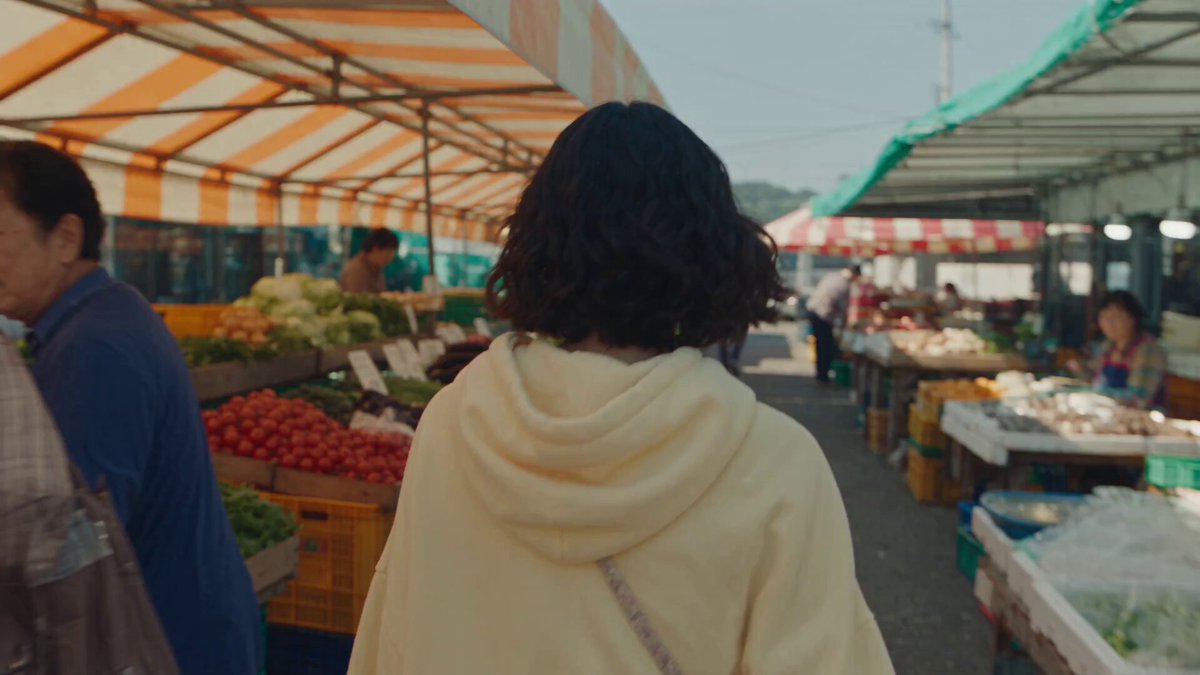

Short-form video has quietly turned into a craft discipline. The gap between a clip that gets scrolled past and one that gets rewatched rarely comes down to the idea alone — it comes down to how the cut feels. Aesthetic vertical video is built from dozens of small decisions: where the subject sits inside a tall frame, when the beat lands, how a transition hides the edit point, how an overlay adds energy without covering a face.
This guide lays out a complete system for producing polished vertical videos quickly, with emphasis on fast transitions and lightweight graphic effects. You will find composition principles, a reusable transition vocabulary, an AI-assisted workflow for generating effects, criteria for choosing tools, a troubleshooting section, and a closing checklist you can run before every export.
Why visual polish decides retention
Viewers do not consciously analyze editing. They feel it. A hard cut that lands slightly late, a text overlay that appears one frame after the word is spoken, a shot that sits static for four seconds — these register as friction. Friction is what makes a thumb move.
Two forces have raised the baseline. First, mobile cameras and stabilization have made clean footage nearly universal, so rough footage is now a choice rather than a limitation. Second, generative and template-driven tools have made complex effects accessible to anyone with a phone. When a hand-held clip with a bespoke light streak can be produced in ten minutes, the audience's tolerance for flat, unedited footage drops accordingly.
The practical consequence: polish is no longer a differentiator, it is table stakes. The differentiator is taste — knowing which transition serves the story and which one is decoration. That judgement is learnable, and it starts with foundations.
The visual foundations of vertical video
Before effects, get the frame right. Every transition and overlay sits on top of a composition, and a weak composition cannot be rescued by a dramatic transition.
Composition for a 9:16 frame
A vertical frame is tall, which changes where the eye travels. Horizontally framed footage emphasizes width and negative space on the sides; vertically framed footage emphasizes depth and vertical motion. Practical adjustments:
- Keep the primary subject in the upper two-thirds. Phone interfaces, captions, and comment prompts occupy the bottom band.
- Build vertical lines into the shot — doorways, poles, staircases, falling light — because they read as intentional in a tall frame.
- Leave headroom for text. If a caption will sit above the subject, frame the shot slightly lower than feels natural.
- Use foreground elements to create depth. A plant, a curtain edge, or a shoulder in the near field gives the frame a sense of layering that a flat shot lacks.
Pacing and the first three seconds
The opening is a promise. If nothing changes visually or audibly within the first couple of seconds, most viewers leave. Note that change is not the same as motion — a hard cut between two static shots is a change, and it can work better than restless camera movement.
A useful rhythm pattern for a fifteen-second video: a strong hook shot (0–2s), a fast sequence of two or three short shots (2–6s), a longer payoff shot (6–11s), and a closing beat with text or a loop point (11–15s). The pattern gives viewers variety without chaos.
Contrast, depth, and color
Contrast is the cheapest way to make footage look graded. Push the darkest tones down and the highlights up slightly, then reduce saturation on background elements so the subject pops. Color temperature consistency matters more than color accuracy — if one shot is warm and the next is cool without narrative reason, the edit feels accidental.
Depth comes from light. Backlight, rim light, and practical light sources in frame all create separation between subject and background, which is exactly what makes a vertical video feel cinematic rather than like a recording.
Building a transition vocabulary you can reuse
Transitions are punctuation. A comma, a period, and an exclamation mark all do different jobs. Building a small vocabulary of five or six transitions you can execute reliably beats collecting fifty you use once.
Motion-based transitions
The most natural transitions hide the cut inside movement. Whip pans, quick tilts, push-ins, and pull-outs all work because the eye is already moving when the frame changes. The rule is simple: end shot A with a fast move in a direction, and begin shot B with a fast move in the same direction. Directional continuity sells the illusion.
Shoot these deliberately. A pan needs a clean entry and exit frame, roughly a quarter second of visible blur, and a stable body position. Hand-held works if you brace your elbows; a small gimbal makes it repeatable.
Match cuts and object wipes
A match cut links two shots through a shared shape or action. A hand reaching for a cup becomes a hand reaching for a product. A circle of light becomes a lens flare becomes a graphic ring. Object wipes take this further: something passes close to the lens — a sleeve, a bag, a passing car — and the cut hides inside that occlusion.
These transitions reward planning. When you storyboard, look for shapes and motions that repeat across scenes, then shoot a clean plate of each so you have flexibility in the edit.
Masking and shape-driven transitions
Masking transitions animate a shape across the frame to reveal the next shot. A circle expanding from the subject, a rectangle sliding in from the edge, a subject-shaped cutout travelling through the frame. Modern mobile editors and desktop tools both support this through a few keyframed mask parameters.
The technique that reads best on small screens is the subject-silhouette wipe: isolate a person or object, move it across the frame, and let the new shot appear behind it. It looks expensive and is surprisingly fast to produce with an automatic subject selection tool.
Speed ramps and time manipulation
Speed ramping — accelerating into a moment and slowing out of it — is a reliable way to add drama without adding a single graphic. Use it sparingly. Two ramps in a fifteen-second clip is usually the ceiling; more and the footage feels like a demonstration of the effect rather than a story.
Quick graphic effects that read on a phone screen
Graphic effects in vertical video have one job: add information or energy without obscuring the subject. Small screens punish clutter faster than any other medium.
Kinetic text that stays legible
Text needs to be readable at arm's length. Practical rules: one typeface family per video, weight changes instead of size changes for emphasis, and a solid contrast backdrop or shadow behind any text that crosses a busy area. Animate text in from the direction of the cut — if the shot enters from the left, the text slides from the left. Consistency makes the motion feel designed rather than random.
Keep caption blocks to three or four words. Long captions force the eye to read instead of watch, which slows the perceived pace of the video even if the cuts are fast.
Overlays: grain, glow, light leaks, and haze
Texture overlays do a lot of work in aesthetic short-form video. A subtle film grain layer, a soft glow on highlights, a light leak in the corner, or a haze pass all reduce the clinical sharpness of phone footage and give it a mood. The important constraint is restraint: pick one texture treatment and apply it to the whole clip so it reads as a grade rather than a sticker collection.
Stickers, shapes, and animated accents
Animated shapes — arrows, underlines, dots, progress bars — work well as attention directors. Point at the thing you want noticed, then get out of the way. Keep duration short (0.3–0.6 seconds for an entrance) and align every accent to the music grid.
Where AI genuinely speeds up the work
AI tools are most useful in three specific places, and being clear about which is which saves a lot of wasted time.
Rotoscoping and subject isolation
Cutting a subject out of a background used to be the slowest task in editing. Automatic segmentation now does it in a few seconds with acceptable edge quality for vertical video, where the subject is large in frame. This unlocks silhouette wipes, colour-isolated backgrounds, and text-behind-subject effects that previously required a compositor.
Generation of supporting footage and textures
Short generated clips are genuinely useful as b-roll, texture plates, and abstract transitions — smoke, liquid, particles, light streaks. They fill gaps when you need a bridge shot and have nothing suitable in the footage bin. They are less reliable for anything featuring recognisable people, hands, or text.
Motion tracking and effect placement
Tracking a point in the frame and attaching a graphic to it lets you place labels, floating UI, or callouts that follow the action. Automatic trackers handle most short clips well, provided the subject stays in frame and the lighting is stable.
Where AI still fails
Generated footage tends to drift, morph, and lose object permanence over more than a few seconds. Generated text is often malformed. Style consistency across multiple generated clips is hard to maintain. Treat generation as a source of raw material to be cut, not finished shots.
A repeatable workflow from clips to export
Here is the sequence that keeps quality high and edit time short.
Step 1: Organise and select ruthlessly
Import everything into one folder, then cut down to the strongest 20 percent before you start editing. Do not edit on your phone's camera roll. Choose clips on the criteria of clarity, motion, and light — in that order.
Step 2: Build a beat map
Lay the audio down first and mark the beats you plan to cut on. Every transition should land on a beat or deliberately between two. A marker track gives you an objective grid and stops you nudging cuts by eye for an hour.
Step 3: Place transitions, then shots
Counter-intuitively, placing transitions before final shot selection helps. You see immediately whether a whip pan has enough blur to hide the cut, or whether a mask reveal needs a cleaner plate. Only then trim the shots to fit the gaps.
Step 4: Layer graphics in a single pass
Add all text, shapes, and overlays in one continuous pass rather than hopping between them. Consistency comes from momentum: your eye calibrates to the visual style when it is making the same kind of decision repeatedly.
Step 5: Sound design and captions
Add whooshes to whip pans, clicks to text entrances, and a low sub hit to speed ramps. Sound sells transitions more than the visuals do. Then add captions, kept to short word groups, aligned with the beat grid.
Step 6: Export, watch on a phone, and re-cut
Export at the platform's recommended specifications and watch the result on the device you expect viewers to use, with the sound on. Note the first moment your attention drifts, and cut it. Repeat once. Two watch-throughs catch almost everything.
Common mistakes and how to fix them
- Transition overload. Every cut gets a spin, a zoom, and a flash. Fix: keep one signature transition per video and use plain cuts elsewhere.
- Text fighting the subject. Fix: shift the subject, add a subtle backdrop, or move the text to a band that is visually quiet.
- Inconsistent colour. Fix: apply one grade across the timeline before adding effects.
- Audio that ignores the cut. Fix: place a sound effect at the exact frame of every transition.
- Effects added after export. Fix: always render graphics and transitions on the timeline, never as a post-processing pass.
- Loops that break. Fix: make the last frame visually and audibly similar to the first so replays feel seamless.
Choosing the right tools
Match the tool to the job rather than to the marketing.
- Mobile editors win on speed and are sufficient for cuts, captions, and template transitions. Choose one that supports keyframed masks if you want silhouette wipes.
- Desktop editors are worth the learning curve when you need multi-layer compositing, colour management, or precise tracking.
- AI segmentation and tracking tools pay for themselves the first time you need a cutout with clean edges.
- Generative video tools are for b-roll and textures, not for hero shots.
Decision criteria: how fast can you execute your five most-used transitions, how stable is the export, and how well does the tool handle vertical timelines natively. If a tool forces you to work in 16:9 with a crop, it will cost you time on every project.
FAQ
How long should a transition last? Between 0.2 and 0.5 seconds. Anything longer reads as a deliberate effect rather than a seamless cut.
Do I need a gimbal? No. Brace your elbows, move from the hips, and shoot at a slightly wider focal length. A gimbal helps for long continuous takes, not for transition shots.
How much text is too much? If a caption needs more than four words per block, split it. Reading competes with watching.
Can AI-generated clips be used as main footage? Occasionally, for abstract or macro content. For anything involving people, hands, or readable text, use real footage.
What frame rate should I shoot at? Shoot at the highest rate your device supports if you plan speed ramps; otherwise match the platform's preferred output rate and stay consistent.
How do I keep a consistent look across a series? Save a project template with your grade, text style, and overlay stack already applied. Series consistency is a template problem, not a talent problem.
Pre-export checklist
Run this before every upload:
- Does the first second contain a visual or audible change?
- Does every transition land on a beat or a deliberate offbeat?
- Is all text legible against its background on a phone screen?
- Is colour consistent across every shot?
- Is there a sound effect at every transition point?
- Does the last frame connect back to the first for a clean loop?
- Has the video been watched once on a phone with sound on?
Aesthetic short-form video is not about owning the most effects. It is about a small set of decisions executed consistently — a well-built vertical frame, transitions that hide their seams, graphics that add information instead of noise, and audio that makes the whole thing feel intentional. Build that system once, and producing polished videos quickly stops being a scramble and becomes a routine.
