
Why Stills Alone Struggle on Short-Form Feeds
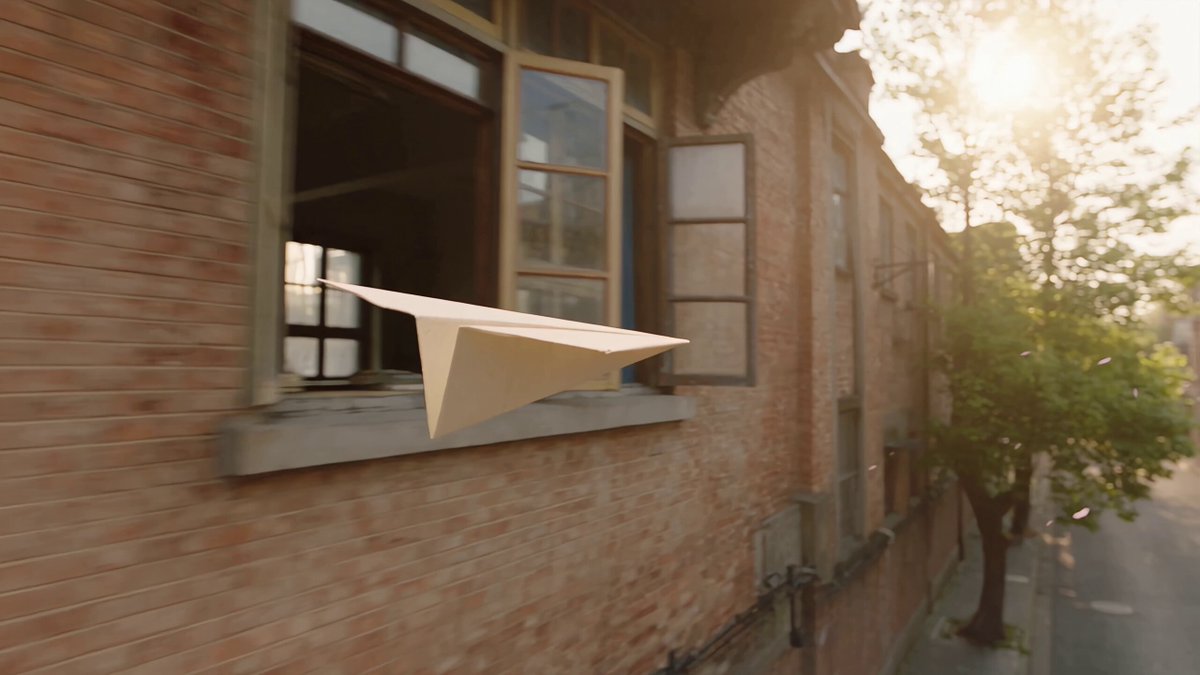
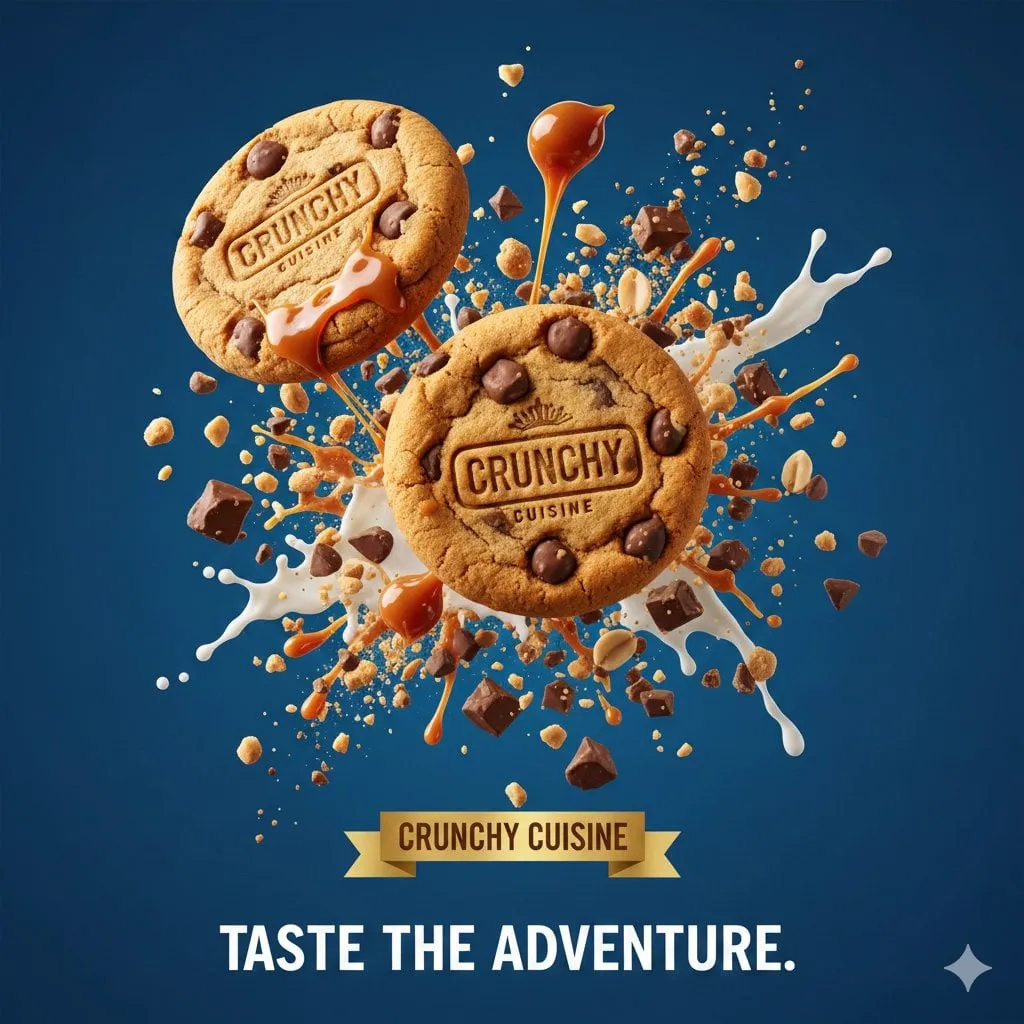
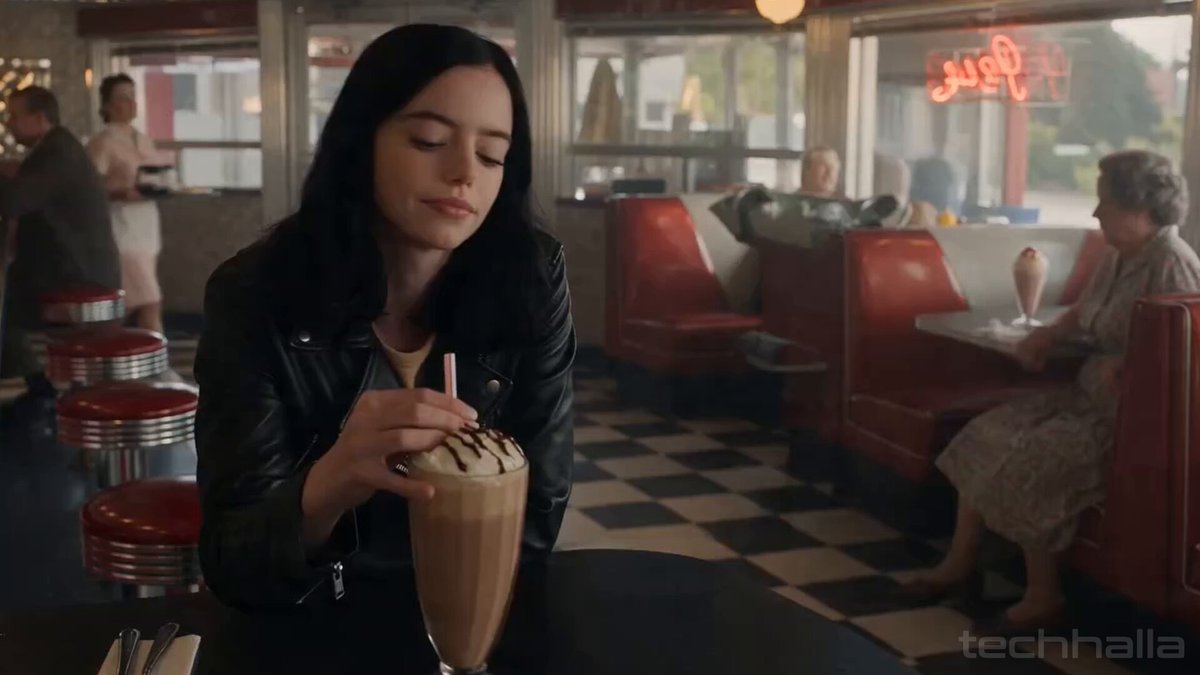
A great photograph can stop a scroll for half a second. A great three-second motion shot can hold attention for the full length of a vertical clip. That gap is why image-to-video generation has become one of the most practical skills in short-form content production.
The economics are simple. You already have photos: product shots, portraits, location stills, old campaign assets, phone snapshots sitting in a folder. What you usually lack is time and budget for a shoot with movement, a camera operator, a lighting setup, and a model who can repeat an action ten times. Image-to-video tools close that gap by letting a single frame become the first frame of a moving scene.
But the naive version of this workflow — upload a picture, type "make it move," post the result — produces the kind of clip audiences now recognize instantly and scroll past: rubbery faces, melting hands, backgrounds that breathe like a lava lamp, and a camera that drifts with no motivation. This guide is about the disciplined version of the workflow, the one that produces clips good enough to sit next to footage shot on a real camera.
What Actually Makes an Image-to-Video Clip Feel Real
Before touching a tool, understand the three properties that separate a convincing clip from an obvious artifact.
Temporal coherence
The subject must stay the same subject from frame one to frame last. Cloth patterns should not reorganize themselves. Hair strands should not merge into a single mass. If a person turns their head, the far ear should behave like an ear, not a smear. Temporal coherence is the single hardest problem in this medium, and it degrades in predictable ways: fast motion, occlusion, and complex textures such as lace, wire mesh, or foliage are the first things to break.
Motion motivation
Real footage moves for a reason. Someone walks because they are going somewhere. A camera pushes in because the moment is intensifying. Generated clips often fail not because the pixels are wrong but because the motion has no cause. When you write a prompt, always answer the question: why is this image moving right now?
Identity lock
In short-form content, recurring characters and products build recognition. If your spokesperson's face changes shape between clips, you break the illusion. Identity preservation across shots matters more than any single shot's fidelity, and it should shape how you choose tools and how you structure a batch.
Preparing the Source Image Before You Generate
Most quality problems trace back to the input frame. Spend five minutes here and you save an hour of re-rolls.
Resolution and aspect ratio
Generate in the aspect ratio you will publish. If the final delivery is a 9:16 vertical, prepare a 9:16 still rather than cropping a wide image after generation. Cropping a generated clip zooms into the region where artifacts are most likely to live, and it can cut off a hand or a product edge that the model animated faithfully.
Aim for a source image with genuine detail — roughly 1080 pixels on the short edge at minimum, ideally more. Upscaling a soft, compressed image before generation tends to amplify noise rather than add information.
Composition that leaves room for motion
An image that fills the frame edge to edge with a subject leaves the model nowhere to go. Compose with negative space in the direction of intended movement. If a hand is going to reach for a product, leave space in front of that hand. If the camera is going to push in, make sure the center of the frame can survive a 20 percent crop.
Lighting and background separation
Even, soft lighting produces more stable motion than harsh directional light with deep shadows, because shadows create high-contrast edges that models struggle to keep consistent. Clean separation between subject and background — a blurred backdrop, a plain wall, a graduated sky — gives the motion system fewer ambiguous pixels to misinterpret.
The pre-flight checklist
- Sharp, well-exposed, and free of heavy compression artifacts.
- Subject fully visible, no cropped limbs or half-cut products.
- Background simple enough to animate without dissolving.
- Correct aspect ratio for the target platform.
- Any text/logos you need preserved positioned away from the edges.
Choosing the Right Model for the Shot You Need
There is no universally best generator. There is a best generator for a specific shot type. Build a short mental map of your own needs.
Short action and motion-heavy shots — walking, dancing, sports, liquid pours — reward models tuned for physical plausibility. Kling-style engines and Runway's motion controls tend to handle translation and rotation more cleanly than generalists.
Cinematic camera moves — slow push-ins, parallax dolly moves, crane reveals — are where tools with explicit camera control excel. Look for named camera parameters or motion brush features rather than relying on prompt text alone.
Dialogue and performance — a person speaking, reacting, or delivering a line — needs lip-sync tooling and stable facial geometry. Dedicated talking-avatar workflows beat generic image-to-video for this, because they solve identity and audio alignment as a package.
Longer narrative clips demand a model with strong temporal memory. Veo-style and Sora-style engines have pushed clip duration and prompt adherence upward, which matters when a single shot needs to carry a story beat rather than act as a texture layer.
Product beauty shots — a bottle turning, a watch catching light — are less about physics and more about refinement. Here, subtlety wins: a slow rotation with a controlled highlight reads as expensive, while a flashy move reads as synthetic.
A practical selection test
Take one of your own stills and run it through two or three candidate tools with the same prompt. Score the outputs on identity retention, artifact count, and how much of the motion you can explain. Two test runs will tell you more than any leaderboard.
Writing Motion Prompts That Hold Up
Treat the prompt as a shot description for a cinematographer, not a wish list. A reliable structure has five slots.
- Subject and state. What is in frame and what is it doing at frame one: "a woman in a linen shirt standing beside a window, holding a ceramic mug."
- Action. One verb, one direction, one speed: "she lifts the mug slowly toward her face."
- Camera. Movement, lens feel, and framing: "static medium close-up, 50mm look, shallow depth of field."
- Environment. What else should be alive in the frame: "steam rising, curtains shifting gently, dust in the light."
- Constraints. What must not change: "face and hands remain consistent, no warping, background stays sharp, no text artifacts."
Keep it to one action
Two actions in one short clip almost always produce a muddled result. If you need a person to pick up a product, turn to camera, and smile, that is three shots, not one. Split it, generate each beat separately, and cut them together in the edit.
Describe speed explicitly
Models default to medium-fast motion, which is exactly what makes generated clips feel uncanny. Words like "slowly," "gently," "gradual," and "subtle" push timing toward natural. For product shots, gentle motion almost always outperforms dramatic motion.
Use negative constraints sparingly but precisely
A long list of prohibitions dilutes attention. Name the two or three failures you actually see: "no morphing faces, no flickering background, no shifting text."
A Repeatable Seven-Step Workflow
This is the sequence to run for every clip until it becomes automatic.
Step 1 — Write the shot before you generate it
One sentence describing what changes between the first frame and the last. If you cannot state it, the model cannot render it.
Step 2 — Source or create the still
Either choose an existing photo or generate a still in a text-to-image tool at your target aspect ratio. If you generate the still, keep the prompt and seed, because you may need a matching frame later for a second shot.
Step 3 — Run a low-cost motion test
Generate at the shortest duration your tool offers, ideally at a lower resolution. You are testing composition, identity, and motion direction — not final quality. Two or three test variants with small prompt changes will teach you more than one long render.
Step 4 — Iterate on the frame, not just the prompt
If the subject morphs, the problem is often the source image, not your wording. Try a cleaner still with better separation. If the motion is wrong, fix the action line. If the whole clip feels aimless, fix the shot description.
Step 5 — Render the winning variation at full quality
Lock the prompt and seed. Render once at high resolution and the full duration you need. Avoid stacking conflicting upscalers on top of each other.
Step 6 — Repair and refine
Use an upscaler for detail, a frame-interpolation pass for smoothness if your tool outputs a low frame rate, and a targeted inpaint or mask fix for a single broken frame. Do not attempt to save a fundamentally bad clip with post-processing.
Step 7 — Finish in the edit
Cut to the beat, add sound, add captions, and grade. AI clips rarely look finished on their own; they look finished after they are cut into a sequence with audio and typography.
Keeping Characters and Products Consistent Across Shots
Multi-shot sequences are where most creators give up, and where the workflow pays off most.
Lock a reference set. Save three to five approved images of your character or product from different angles. Most modern tools support reference images; feeding the same set every time is the simplest consistency lever available.
Reuse seeds and prompts. When a tool supports seeds, keep the same seed across a sequence and change only the action and camera lines.
Change one variable at a time. If shot two needs a new location, keep the subject description and lighting language identical to shot one. Changing location, wardrobe, and lens at once guarantees drift.
Match the grade in post. A consistent color grade across clips does more for perceived continuity than pixel-perfect identity. Slight skin-tone shifts disappear once both shots sit under the same look.
Accept controlled variation. Perfect identity transfer is still an unsolved problem. Design your sequences so that a slight shift reads as a new camera angle rather than an error — cut on motion, use inserts, and avoid long held close-ups of faces in sequence.
Editing and Finishing So Clips Feel Native to the Platform
A generated clip is raw material. Three finishing moves make the difference between "AI video" and "video."
Sound design first
Ambient sound and a music bed do more for believability than any resolution bump. Add room tone under product shots, footsteps under walk cycles, and a fabric rustle under wardrobe motion. Sound gives the eye permission to believe the image.
Captions and typography
Most vertical viewing happens with sound off for at least the first few seconds. Burn in captions, keep them inside the safe zone, and match your type hierarchy to the rest of your channel. Consistent typography signals a real brand faster than any single visual.
Pacing and cut points
Cut on motion, not after it. Ending a generated clip mid-action and starting the next shot as the action completes hides artifacts and creates energy. Keep the first two seconds the strongest, because that is where retention is decided.
Troubleshooting the Failures You Will Actually See
Faces warp and melt. Shorten the motion, use a tighter framing, and reduce the amount of head rotation. Slimming the action to a nod or a glance usually resolves it.
Hands dissolve. Avoid prompts that require fine finger articulation. Frame hands partially out of shot, or place a prop in them so the silhouette stays simple.
The background breathes and shifts. This happens when the backdrop has high-frequency texture. Swap in a simpler background or blur the source image slightly before generation.
Motion is too fast and jittery. Add speed adverbs, halve the intended action, and consider generating a longer clip and trimming the calm portions.
The clip drifts in color over time. Usually a compression or frame-interpolation artifact. Re-render without interpolation, or apply a slight grade and a subtle vignette in the edit to mask it.
Text and logos distort. Generate the clip without text, then overlay real typography in your editor. Never ask a motion model to render brand text if crisp type matters.
Everything looks plastic. Reduce prompt complexity, add explicit film-grain or documentary-style language, and grade with slight contrast and grain in post.
Batching at Volume Without Losing Quality Control
When you move from one clip a week to twenty, process discipline matters more than creativity.
- Standardize presets. Keep a document of approved prompt templates per shot type: hero product, lifestyle, portrait, transition. Fill in the blanks rather than writing from scratch.
- Queue during downtime. Long renders are a scheduling problem. Kick off batches before breaks or at the end of the day and review in blocks.
- Review on a phone. Watch every candidate on the device your audience uses. Artifacts that are invisible on a large monitor can be obvious on a small vertical screen, and vice versa.
- Keep a rejection log. One line per failed render describing the failure type. After twenty entries you will see your own recurring mistakes and fix them at the source.
- Version your assets. Name files with the shot, variant, and date so you can trace which prompt produced which approved clip.
FAQ
How long should a generated clip be?
Short. Three to six seconds is the sweet spot for most platforms, because it is long enough to read as motion and short enough to avoid accumulated drift. Sequence several short clips rather than generating one long one.
Do I need a powerful computer?
Not necessarily. Most of the heavy lifting happens on remote infrastructure, so a laptop with a stable connection handles the workflow. Local tools demand a strong GPU, which is only worth it if you generate constantly or need offline privacy.
Can I use photos of real people?
Only with clear permission from the person depicted, and only in ways consistent with how they agreed to be shown. Beyond ethics, platform policies and local law around synthetic media and likeness are strict, and disclosure is often required.
Why does my second clip look like a different person?
Because identity is not carried automatically between generations. Use reference images, reuse seeds, keep every prompt element except the action identical, and cut your sequence so small differences read as new angles.
Is it better to generate in a high resolution or upscale later?
Generate at a moderate resolution for speed, then upscale the approved take. Iterating at high resolution wastes time on clips you will discard anyway.
What is the biggest beginner mistake?
Asking for too much in one clip. One subject, one action, one camera move, one mood. Complexity is what produces melting faces and drifting backgrounds.
How do I make generated clips match real footage?
Match grain, contrast, and color temperature in post, and match the audio treatment. A shared grade and a shared sound bed will blend sources more effectively than any technical trick.
Can image-to-video replace a shoot entirely?
For some content, yes — especially abstract transitions, product inserts, and stylized sequences. For human performance and anything requiring precise brand compliance, it is best used as a supplement that extends the value of footage you already have.
The workflow is not complicated, but it is disciplined. Prepare the still, describe one clear action, test cheap, render once, and finish in the edit. Do that consistently and a folder of static images becomes a content pipeline.
