
Why AI shot design breaks down before the first render
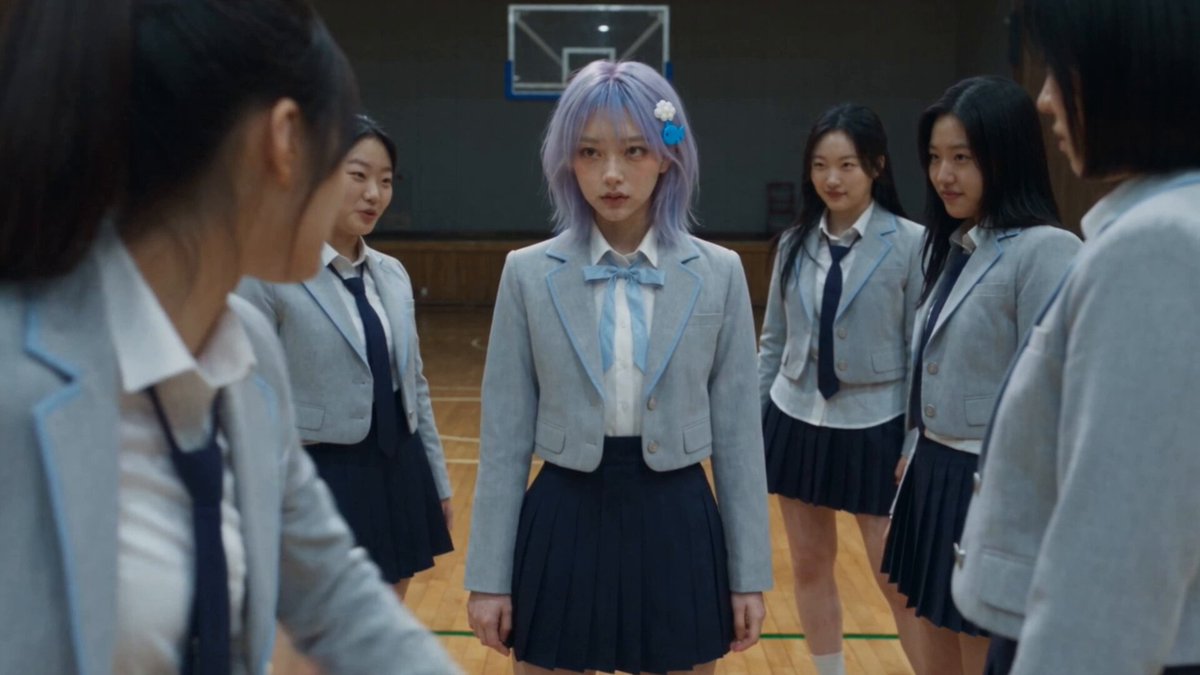
Most AI video projects that disappoint do not fail at the render stage. They fail earlier, in the gap between a mood and a decision. A prompt like "cinematic shot of a woman walking through a rainy night market, dramatic lighting" describes an atmosphere, not a shot. The model then fills every empty slot with its own defaults: an unplanned medium-wide framing, a subject drifting off center, light that changes direction between takes, and a camera move that reads as accidental rather than chosen.
Shot design is the practice of removing those empty slots before they cost you render time. It means committing to a subject, a framing, a lens feel, a camera move, a duration, a light direction, and the emotional job the shot has to do, then writing those commitments in a form that both a human collaborator and a generative model can follow.
The pipeline at a glance
A reliable concept-to-clip pipeline has ten stages, and each one narrows ambiguity:
- Script — story, dialogue, and emotional beats.
- Beat sheet — the story split into moments that each require a visual decision.
- Shot intent — one line per shot describing purpose, subject, and feeling.
- Shot list — durations, framing, lens, movement, transitions, continuity notes.
- Prompt package — the model-facing version of each shot, with references and negative constraints.
- Draft render — low-cost passes used to test composition and motion.
- Selection and refinement — keep what works, repair what does not.
- Final render — the high-fidelity pass with locked prompts and references.
- Edit — timing, transitions, rhythm, coverage.
- Sound and grade — dialogue, effects, music, color, and grain to unify the look.
The tools rotate constantly. You might be working with Runway, Kling, Luma, Pika, a Veo-style text-to-video engine, an image-to-video model, or an open-source stack in ComfyUI. The category names change; the decisions do not. A well-designed shot survives a model swap. A badly designed shot does not survive a re-render.
Where most time is lost
Three bottlenecks dominate. First, prompt churn: rewriting the same sentence fifteen times with no structural change, hoping randomness eventually delivers. Second, consistency drift: faces, wardrobe, props, and color temperature shifting between shots until the edit feels like a collage. Third, coverage gaps: discovering during the edit that there is no insert for a hand, no reaction shot for a listener, and no wide to establish geography.
All three are shot-design problems, not model problems. They are solved with a beat sheet, a continuity sheet, and a coverage plan — the unglamorous documents that separate a demo from a film.
Step 1: Turn the script into beat-level shot intent
A script tells you what happens. A beat sheet tells you where the audience needs to look. Before touching any video tool, break the scene into beats of five to fifteen seconds, then write one line of intent for each beat. Intent lines are not prompts. They are decisions.
A useful intent line has four parts:
- Job: what the shot must accomplish (establish, reveal, react, escalate, resolve).
- Subject: the single most important thing in frame.
- Framing and move: a rough starting point, not a final lock.
- Emotion: the feeling the shot must carry.
Example: Job: reveal that the letter is not from her sister. Subject: her hands and the paper. Framing: close, slightly high, slow push in. Emotion: cold recognition.
That line already prevents three common failures. The model now knows what to center, the edit knows how long the beat should breathe, and the continuity sheet knows that hands and paper must match later shots.
Build the intent table before the shot list
Keep a simple table with columns for beat number, job, subject, framing, duration, and emotion. Fill it top to bottom without worrying about technology. Only after the table reads like a coherent scene should you translate it into shots. Creators who skip this step usually end up generating beautiful clips that cannot be cut together, because each clip was designed in isolation rather than as part of a sequence.
Step 2: Build a shot list that respects model limits
Every generative video model has practical limits that affect design: how much it can hold in a single frame, how long a coherent action can run, how well it handles multiple characters, and how reliably it reproduces text, hands, and complex interactions. Your shot list should be written around those limits rather than in spite of them.
Split action-heavy beats into coverage
Instead of one eight-second shot of a character crossing a room, opening a door, and reacting, design three shots: a wide that establishes the room, a medium that carries the movement, and a close reaction that lands the emotion. Shorter shots are easier to steer, easier to re-render, and easier to cut with rhythm. This is classic coverage thinking, and it is the single most effective way to make AI footage feel edited rather than generated.
Design around what the model does well
Text-to-video engines tend to excel at atmosphere, texture, weather, light, and moderate camera motion. They tend to struggle with precise hand interactions, crowded scenes, readable signage, and multi-character dialogue. So place your best shots where the model is strong: a rain-slicked street in a slow tracking move, a silhouette against a window, a detail insert of steam rising from a cup. Save the fragile moments for image-to-video, which gives you far more control over the starting frame.
Write durations before you write prompts
Deciding that a shot is three seconds long changes everything downstream. It tells you the camera move must be modest, the action must be nearly static, and the edit will need another shot to complete the thought. Duration is a design constraint, not a post-production afterthought.
Step 3: Design camera language: framing, lens, movement
Camera language is where AI video either starts looking intentional or starts looking like stock footage. The good news is that you only need a small, consistent vocabulary. Pick a handful of framing sizes, a lens character, and three or four moves, then reuse them across the project so the film has a visual grammar.
Framing and lens
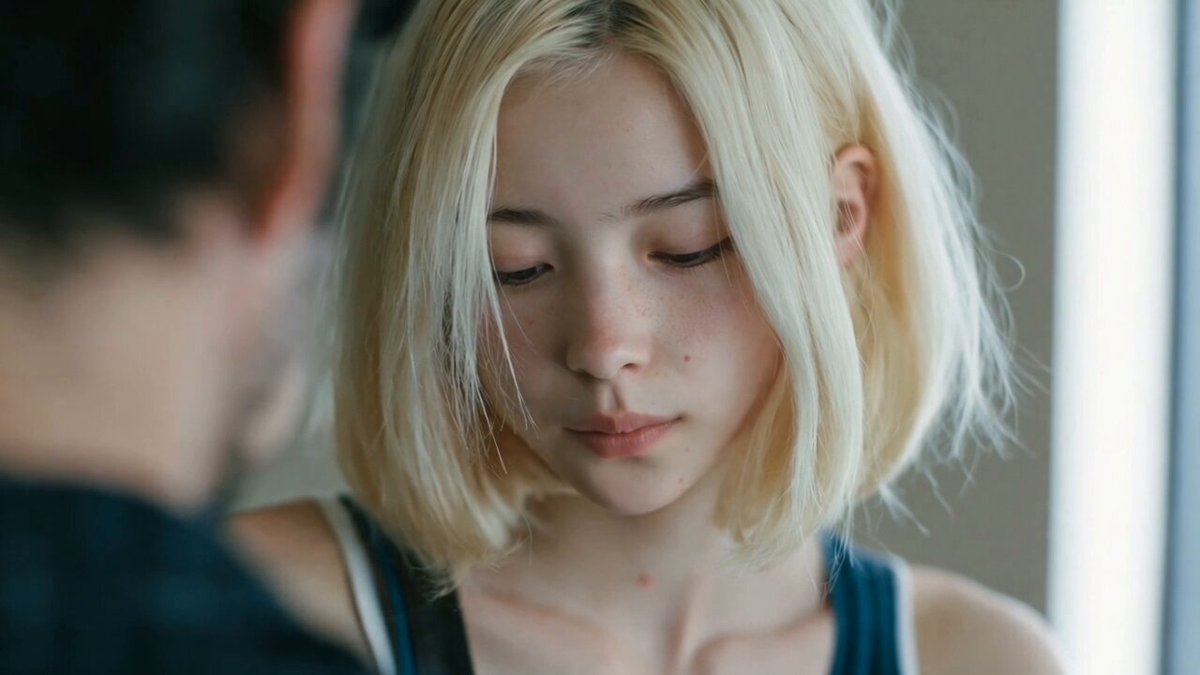
Framing options worth naming explicitly in your shot list: extreme close-up, close-up, medium close-up, medium, medium-wide, wide, and establishing wide. Pair each with a lens character. A wide lens exaggerates space and speed; a long lens compresses background and flatters faces; a macro lens turns texture into subject. In prompts, these translate into concrete phrases such as "shot on a 35mm lens, shallow depth of field" or "long lens compression, background softly blurred."
Movement vocabulary
Keep moves simple and single-purpose. A slow push in builds intensity. A slow pull out reveals context or isolation. A lateral tracking move follows a walking subject and adds momentum. A handheld drift adds unease. A static lock-off creates stillness and makes the next cut feel bigger. Avoid stacking moves — a dolly-in while tilting up while zooming out almost always produces mush.
Light direction is part of camera design
Specify light direction and quality in every shot: backlit, side-lit, top-lit, practical sources in frame, soft overcast, hard noon sun. Consistent light logic makes separate clips feel like one location, and mismatched light logic is the fastest way to make an edit feel assembled from unrelated pieces.
Step 4: Write shot prompts that hold up across takes
Prompts are not magic words; they are structured specifications. The most reliable structure has five blocks, always in the same order, so you can debug one block at a time instead of rewriting everything.
- Shot type and lens: medium close-up, 50mm, shallow depth of field.
- Subject and action: a tired courier sets a package on the counter, hands visible.
- Environment and time: small shop interior at dusk, warm practical lamps, rain on the window.
- Camera behavior: slow push in, steady, no cut, ends on the hands.
- Look and finish: muted teal shadows, soft grain, 24fps cadence, natural motion blur.
Then add a short negative block: no text overlays, no extra limbs, no warped hands, no sudden lighting shifts, no camera shake, no scene cuts. Negative constraints save more takes than any adjective you can add.
Stabilize the prompt, vary one variable
When a take fails, change exactly one block. If the composition is wrong, adjust framing. If the motion is chaotic, reduce movement wording. If the mood is off, change light and color, not the subject. Random full rewrites destroy the information you just learned from the failed take.
Keep a prompt library
Save prompts that worked, with a note about which model and settings produced them. After a few projects you will have a personal library of reliable phrasings — the equivalent of a cinematographer's mental list of setups that always read well on camera.
Step 5: Keep characters, props, and color consistent
Consistency is the difference between a sequence and a slideshow. Three layers matter most: identity, props and wardrobe, and color and grain.
Identity. Generate a locked reference image for each character: same angle, same lighting, same wardrobe, neutral expression plus one action pose. Feed that reference into every shot the character appears in, and describe identifying details in the prompt — hairline, jacket color, a scar, glasses, jewelry. Never rely on the model to remember a face it has never been shown.
Props and wardrobe. A continuity sheet tracks objects that must persist: the red envelope, the cracked phone screen, the bandaged left hand. If a prop changes shape or color between shots, the audience reads it as a mistake even if they cannot articulate why.
Color and grain. Decide the palette once — for example, cool blue shadows with warm sodium highlights — and repeat the same color and grain phrasing in every prompt. Then reinforce it in the grade. A single look applied across all clips hides small inconsistencies that would otherwise be noticeable.
Shoot the geography shot early
Generate the wide establishing shot first. It locks the layout of the space, the position of light sources, and the color logic of the scene. Every closer shot then becomes a crop of that world instead of a new invention.
Step 6: Run a two-tier iteration loop
Speed comes from separating exploration from production. Use a two-tier loop: cheap drafts to discover, expensive finals to deliver.
Tier one, draft mode. Lower resolution, shorter duration, minimal polish. Generate four to eight variations per shot. Your goal is not beauty; it is deciding whether the framing, motion, and blocking work at all. If a draft feels wrong, a higher-quality render will not rescue it.
Tier two, final mode. Lock the prompt, the seed or reference image, and the camera behavior. Render the chosen take at full quality, then render one backup take with a slightly different seed. Having a spare protects you from a single unlucky render at the end of a long session.
Selection criteria that prevent endless tinkering
Score each take on four axes: composition, motion quality, continuity match, and emotional read. Keep a take if it scores well on three and can be fixed in the edit. Very few shots need to be perfect; they need to cut together. Creators who demand perfection on every clip typically finish nothing.
Timebox the search
Give each shot a fixed number of attempts. If it still fails after that, change the design rather than the prompt: simplify the action, shorten the duration, switch from text-to-video to image-to-video, or split the shot in two. The design is almost always the real problem.
Step 7: Assemble the edit, sound, and final polish
The edit is where designed shots become a film. Assemble a rough cut with no effects at all, and watch it muted first. If the story reads without sound, the shot design is working. If it does not, no amount of music will fix it.
Then work in this order:
- Rhythm pass. Trim every shot to its functional minimum. Cut on motion where possible.
- Continuity pass. Check faces, props, light direction, and screen direction from shot to shot.
- Sound pass. Add room tone, foley, and ambience before music. Sound sells location more than visuals do.
- Color pass. Match clips to a single look, unify grain, and keep skin tones believable.
- Motion finishing. Where a clip feels slightly flat, subtle speed ramps, a light push-in, or a gentle handheld jitter can add life without a re-render.
The last ten percent
Most of the perceived quality in a final clip comes from small finishing details: consistent grain, matched black levels, a subtle vignette, and clean audio transitions. Spend your remaining time there rather than on another round of generation. The audience notices polish, not pixel counts.
Common mistakes, decision criteria, and a pre-render checklist
Mistake 1: Designing shots in isolation. Each clip looks great alone and refuses to cut together. Fix it by designing sequences, not clips.
Mistake 2: Overloading single shots. Too much action, too many characters, too much camera movement. Fix it by splitting the beat into coverage.
Mistake 3: Ignoring screen direction. Subject moves left to right in one shot and right to left in the next, breaking spatial logic. Fix it by noting direction in the shot list.
Mistake 4: Chasing a model instead of a plan. Switching engines mid-project rarely helps if the shot design is vague.
Mistake 5: No coverage. Always generate one insert and one reaction shot per scene. They save edits.
Decision criteria when choosing a technique:
- Use text-to-video for atmosphere, landscapes, abstract motion, and establishing shots.
- Use image-to-video when identity, composition, or product accuracy matters.
- Use short durations when action is complex.
- Use static framing when the model struggles with motion coherence.
- Use longer lenses and shallow depth of field to hide background detail you cannot control.
Pre-render checklist: intent line written, duration decided, framing and lens named, one camera move only, light direction specified, character reference attached, continuity notes updated, negative constraints included, draft tier confirmed, backup take planned.
FAQ
How long should an AI-generated shot be?
Three to six seconds is the sweet spot for most models. Shorter shots hide motion errors, cut faster, and give you more control. Reserve longer durations for slow, simple moves where the model has little to misinterpret.
Do I need a storyboard, or is a shot list enough?
A shot list is usually enough. Storyboards help most when you are communicating with other people or when spatial blocking is complex. For solo work, a beat sheet plus intent lines plus reference images covers nearly everything.
Why do my characters change between shots?
Because the model has no persistent memory. Attach a locked reference image, repeat identifying details in every prompt, and keep wardrobe and lighting logic identical across the sequence.
Should I generate at the highest quality from the start?
No. Draft at lower resolution and shorter duration to test composition and motion, then commit to a full-quality render only after the take works. This halves wasted time and keeps experimentation cheap.
What if a shot simply will not work?
Change the design, not the wording. Shorten it, simplify the action, switch to image-to-video, split it into two shots, or hide the difficult element with framing. Persistence with the same design is the most common way creators burn an entire session.
How do I make separate clips feel like one film?
Repeat three things across every shot: the same color and grain phrasing, the same light direction logic, and the same lens family. Then unify them in the grade. Visual grammar is more convincing than visual perfection.
