

When Manual Editing Stops Being Fun
Every creator hits the same wall. You open a timeline, drop in three clips, and then spend the next four hours nudging keyframes, matching audio levels, and re-timing text animations that will be visible for exactly two seconds. The finished video is good. It is also the only thing you made that day.
The frustration is not laziness. It is arithmetic. Short-form video rewards volume and consistency, and manual editing scales linearly: twice the videos means twice the hours. When you are producing vertical clips for several platforms, plus a longer cut for a library channel, the timeline becomes a treadmill that never slows down.
What changed is that a large share of the work inside that timeline is now automatable. Not the taste, not the hook, not the punchline — but the assembly, the reframing, the caption timing, the color matching, the background swaps, and increasingly the footage itself. AI video editors handle that layer, which frees you to spend your attention on the parts that actually differentiate your channel.
This guide is a practical map of that shift: what these tools genuinely do well, how to pick one without wasting weeks, a step-by-step workflow you can run on free or low-cost tiers, and the consistency tricks that separate a channel that looks intentional from one that looks generated.
What AI Video Editors Actually Do Now
The phrase "AI video editor" gets applied to at least three different categories of software, and confusing them is the fastest way to buy the wrong tool. It helps to separate them.
Generation, Not Just Assembly
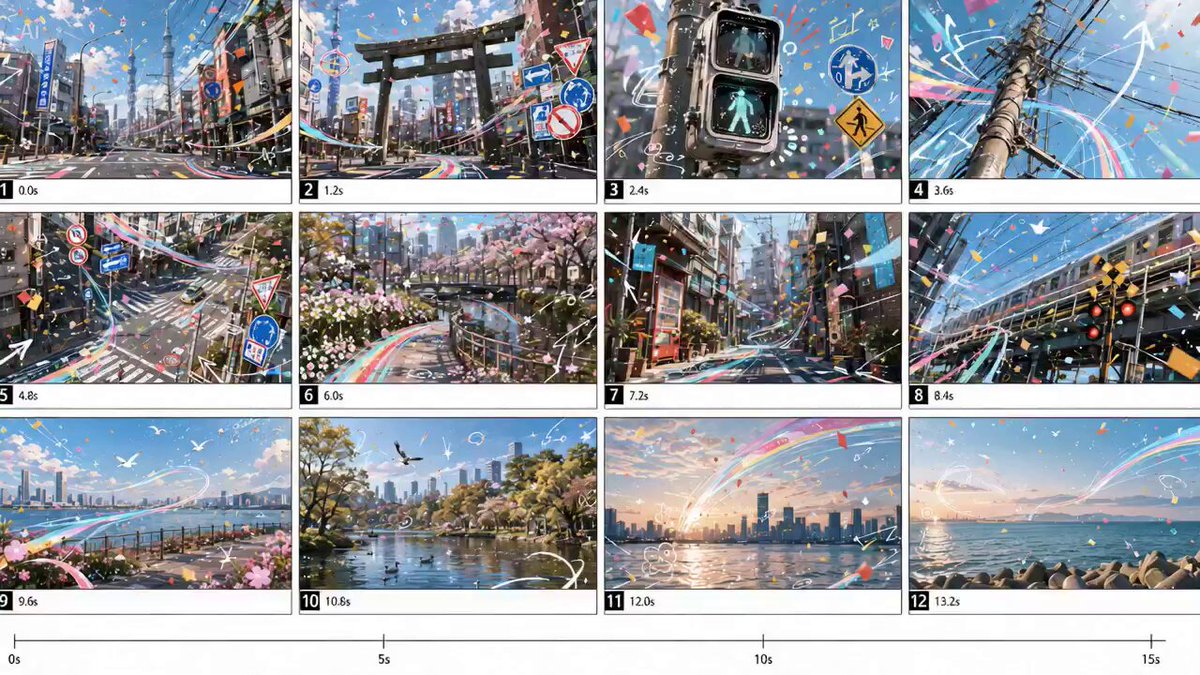
Generative video models create footage from a text prompt, a still image, or a short reference clip. You describe a scene — a runner on a wet city street at dawn, camera pushing in slowly — and the model returns a few seconds of motion. This is the category that has moved fastest, and it is the reason a single creator can now build a b-roll library without booking a shoot.
These tools are strongest at atmosphere and motion: weather, landscapes, abstract textures, product-style beauty shots, dramatic lighting, stylized sequences. They are weaker at precise choreography, readable on-screen text, and complex hand interactions. Knowing those limits saves you from generating twenty clips trying to get one impossible shot.
Editing Assistants: Cuts, Captions, Reframing
The second category sits on top of your existing footage. These tools transcribe your audio, detect silences and filler words, cut on sentence boundaries, generate animated captions, reframe horizontal footage into vertical, and remove backgrounds without a green screen.
This is the highest-return automation for most creators, because it attacks the most repetitive work. Trimming a forty-minute interview into a dozen clips is largely a matter of text selection when the transcript drives the timeline. The quality gap between tools in this category usually shows up in caption accuracy for accents and jargon, and in how gracefully the reframing handles shots with two people in frame.
Consistency Engines
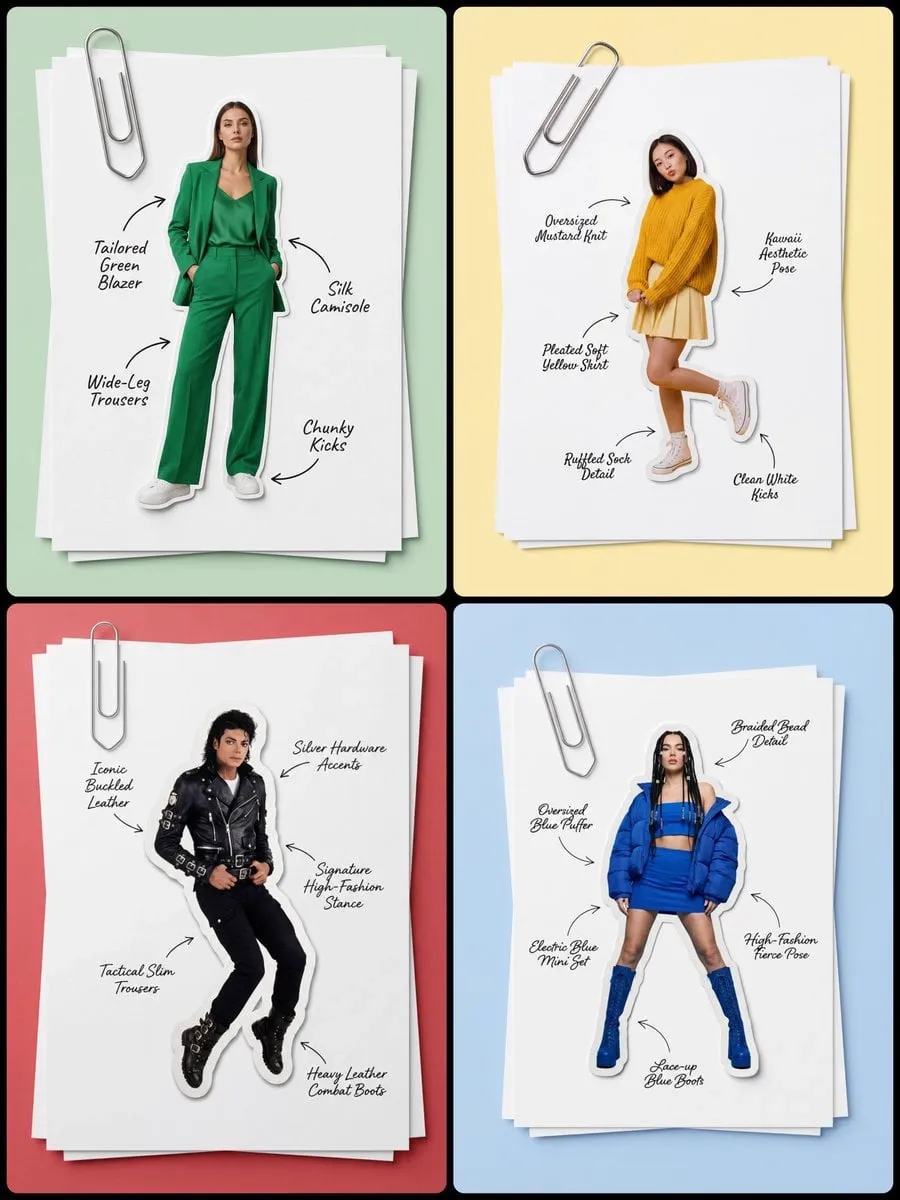
A newer layer focuses on making generated footage look like it came from one production rather than ten unrelated prompts. These features let you lock a character's appearance across shots, reuse a style reference, control keyframes at specific moments, and blend a generated element into real footage.
Consistency is the single biggest quality lever in AI-assisted video. A viewer will forgive a slightly soft background. They will not forgive a protagonist whose face, jacket, and hair change every three seconds.
How to Choose the Right Tool: Decision Criteria
Feature lists are marketing. These are the criteria that actually decide whether a tool survives week two in your workflow.
Aspect ratio and export flexibility. If you publish vertical, you need native 9:16 output, not a crop of a 16:9 render. Check whether you can export multiple ratios from one project, and whether there are resolution ceilings on lower tiers.
Consistency controls. Look for character or subject locking, style references, image-to-video, and keyframe control. If a tool only accepts text prompts with no reference input, it will struggle with any narrative content.
Iteration speed. Generation time matters more than generation quality once you are producing daily. A model that returns a clip in forty seconds lets you try six variations. One that takes ten minutes forces you to accept the first result, which usually means the mediocre result.
Caption and transcript accuracy. Test it on your own voice, in your own language, with your own jargon. This is where free tiers most often disappoint, and where a two-minute test tells you more than any comparison chart.
Watermarks and commercial terms. Many free tiers add a watermark or restrict commercial use. Read the terms before you build a client deliverable on top of a free plan.
Batch and queue behavior. Can you fire off ten prompts and walk away, or does the tool demand you babysit one job at a time? Batch capability is what turns a tool into a pipeline.
Learning curve versus ceiling. A simple tool that you use daily beats a professional suite you open twice a month. Start with something that exports fast, then graduate to node-based or timeline-heavy software when you actually need control over alpha channels and blend modes.
A Practical Workflow for a 45-Second Clip
Here is a workflow that works with almost any combination of tools. It assumes you have a script, a generated b-roll library, and a transcript-capable editor.
Step 1: Lock the Script and Shot List
Write the script at the length you intend to publish, then break it into shots. A forty-five second clip typically needs eight to twelve shots: a hook, four to six supporting visuals, two or three pattern interrupts, and an ending frame.
Write the shot list as prompts before you touch the software. "Close-up of hands assembling a mechanical keyboard, warm desk lamp, shallow depth of field, slow push in" is a prompt. "Cool tech shot" is a coin flip. Specificity in the shot list is what makes the generated footage usable.
Step 2: Generate B-Roll That Matches the Hook
The first two seconds decide whether the clip travels, so generate four or five options for the opening shot and choose deliberately. For the remaining shots, generate two options each and pick the cleaner one.
Keep a naming convention. Something like project-hook-a, project-hook-b, project-shot03-a will save you twenty minutes of scrolling later. Generated clips pile up fast, and a disorganized asset folder is its own kind of manual labor.
Step 3: Assemble in a Dedicated Timeline
Import your generated clips along with any real footage you shot. Drop the voiceover or main audio first, then cut visuals to the audio rather than the other way around. Speaking rhythm gives you natural cut points; music does not.
Use an automated rough cut if your editor offers one — silence removal, filler-word removal, scene detection — then fix the result by hand. The automation typically gets you to eighty percent, and the remaining twenty percent is exactly where pacing lives.
Step 4: Captions, Sound, and Pacing
Auto-generate captions, then edit them. Proper nouns, brand names, and technical terms are usually wrong. Fix them once and save a glossary if the tool supports it.
For pacing, apply a simple rule: if a shot has no new information, cut it. If a sentence has no new information, cut it. Short-form audiences do not need connective tissue; they need momentum. Add sound design — a whoosh on a transition, a subtle impact on a text reveal — and keep music at least ten decibels under the voice.
Step 5: Publish and Read the Data
Publish the same core clip in two versions: one with a text-forward hook, one with a visual hook. Compare retention at three seconds. That single experiment teaches you more about your audience than a month of guessing.
Keeping Characters and Scenes Consistent
Consistency problems almost always trace back to one of four causes: no reference image, inconsistent prompt structure, changing lighting descriptions, or mixing models mid-project.
Use reference images. Most modern tools let you condition generation on a still. Generate one strong portrait of your character, then reuse that image as the reference for every subsequent shot. This single habit fixes more consistency problems than any prompt trick.
Freeze your prompt skeleton. Build a reusable prompt template with fixed slots: [character reference] + [action] + [camera movement] + [lighting] + [style]. Change only the action and camera slots between shots. If you rewrite lighting descriptions from scratch each time, the model will interpret them differently each time.
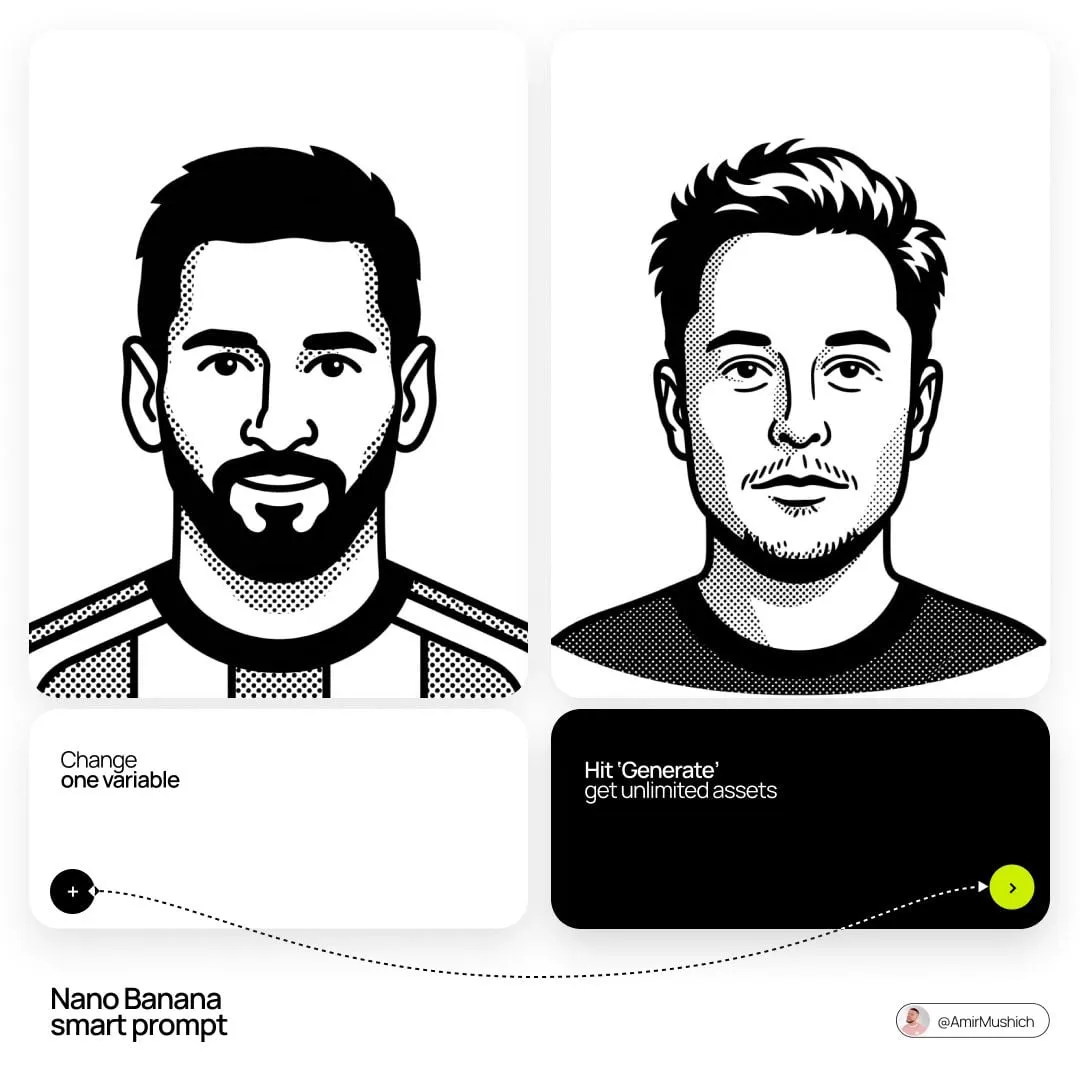
Separate style from subject. Define a style phrase once — "muted teal-and-amber palette, 35mm film grain, soft rim light" — and paste it verbatim into every prompt. Style drift is usually a vocabulary drift problem.
Stay in one model per project. Switching models mid-project is like switching film stocks between scenes. Each model has its own color science and motion signature, and the seam will be visible.
Use keyframes for complex moments. If a shot needs a specific pose or composition at a specific second, generate a still that matches it and use image-to-video to animate from that frame. This gives you control where a text prompt gives you a lottery ticket.
Repurposing One Shoot into Many Posts
AI editing pays off most when you stop thinking in single videos and start thinking in asset libraries.
Start with a longer source — a ten-minute talking-head recording, a podcast segment, a screen recording of a process. Transcribe it, then let the transcript be your navigation. Skim for self-contained moments: a strong opinion, a surprising number, a quick demonstration, a story with a punchline.
Each moment becomes a short clip with its own hook. The generated b-roll you create for one clip often serves three others, because atmospheric footage is rarely specific. A library of twenty generated background clips can support a month of posting.
Then build variants. The same clip can run with captions burned in, with a different opening frame, with a different aspect ratio, or with a rewritten first line. This is not the same as reposting; it is testing whether your hook or your content is the limiting factor.
Finally, keep a running document of what worked: hook type, length, pacing style, sound design. After thirty clips you will have a personal style guide more accurate than any general advice, including this article.
Common Mistakes That Waste Hours
Prompting for perfection on the first attempt. Generate cheaply, select ruthlessly. Budget three to five generations per usable shot and treat the rest as the cost of doing business.
Over-automating the creative core. Let the tooling handle cuts, captions, and reframing. Do not let it write your hook. Hooks are where your judgment matters most, and generic hooks produce generic results.
Ignoring audio. Viewers tolerate imperfect visuals and abandon bad audio instantly. Normalize levels, cut room tone, and check the mix on a phone speaker, not studio headphones.
Chasing the trendiest model. The best model is the one you can iterate with quickly. A slightly weaker model with a fast queue will outproduce a state-of-the-art model with a slow queue, every week.
Never archiving prompts. Save the prompts that worked, along with their output. Your future self will reuse them constantly, and rewriting them from memory is pure waste.
Skipping the vertical reframe check. Auto-reframing frequently cuts off heads, hands, and product labels. Always spot-check the full clip on a phone before publishing.
A Pre-Publish Quality Checklist
Run the same twelve checks every time, in the same order:
- Does the first frame communicate the topic without audio?
- Is the hook visible in the first two seconds?
- Are captions accurate, including names and jargon?
- Is the caption placement clear of platform UI elements?
- Does the character's appearance stay stable across shots?
- Is the color palette consistent from first shot to last?
- Are audio levels normalized, with music well under the voice?
- Is there any dead air longer than roughly half a second?
- Does every shot add new information?
- Is the ending frame deliberate rather than an accidental cut?
- Does the export match the target aspect ratio and resolution?
- Is the file free of watermarks you did not intend to include?
This checklist takes ninety seconds and catches most of the errors that get clips muted, skipped, or scrolled past.
Tool Categories Worth Knowing
You do not need every category, but knowing what exists prevents you from forcing one tool to do everything.
Generative video models convert prompts and stills into short clips. They are your b-roll factory and your stylized-sequence engine.
Text-based editors drive the timeline from a transcript. They are the fastest route from long footage to short clips, and the most valuable category for talking-head creators.
Caption and subtitle tools specialize in animated, accurately timed text. Dedicated tools often beat general editors on multilingual accuracy.
Background removal and rotoscoping tools isolate subjects without a green screen, which is essential for product inserts and reaction formats.
Traditional nonlinear editors remain the right answer for complex compositing, precise multicam work, and final color grades. They are the finishing room, not the assembly line.
Audio restoration and mastering tools handle noise reduction and loudness normalization, and they are routinely the most underrated part of an AI-assisted stack.
A sensible stack is three deep: one generative model, one text-based editor, one finishing tool. More than that and you spend your time moving files instead of making videos.
FAQ: Free Tiers, Quality, and Realistic Expectations
Can I build a real posting schedule on free tiers alone? Yes, with a caveat. Free tiers are excellent for learning, testing hooks, and producing a few clips per week. Once you post daily, paid tiers usually pay for themselves in queue speed and export limits. Plan for that transition instead of fighting it.
How much does AI editing actually speed things up? For talking-head repurposing, creators commonly report going from several hours per clip to well under an hour, mostly because transcript-driven cutting removes the tedious scrubbing. For narrative content with generated footage, expect to spend the saved time on shot selection instead.
Will audiences notice that footage is generated? On atmospheric b-roll, rarely. On faces and hands in close-up, sometimes. Keep generated humans at medium distance, avoid complex hand interactions, and lean on real footage for the moments where authenticity carries the message.
Do I still need to learn editing fundamentals? More than ever. AI handles execution, not judgment. Pacing, rhythm, hook construction, and sound design are the skills that now determine whether your clip performs, and no model chooses those for you.
What about rights and licensing? Check each tool's commercial terms, especially on free tiers. Keep a simple record of which clips came from which tool, and avoid using recognizable logos, celebrity likenesses, or copyrighted characters in prompts.
Where should a beginner start? Pick one transcription-based editor and one generative model. Make five clips with them this week. Add a finishing tool only when you hit a specific limitation — that constraint-driven approach prevents tool sprawl and keeps you publishing.
The shift away from manual editing is not about removing craft. It is about removing the parts of the craft that were never creative in the first place — the trimming, the keyframe nudging, the caption retyping — so that the remaining hours go into the hook, the story, and the reason anyone watches at all.
