
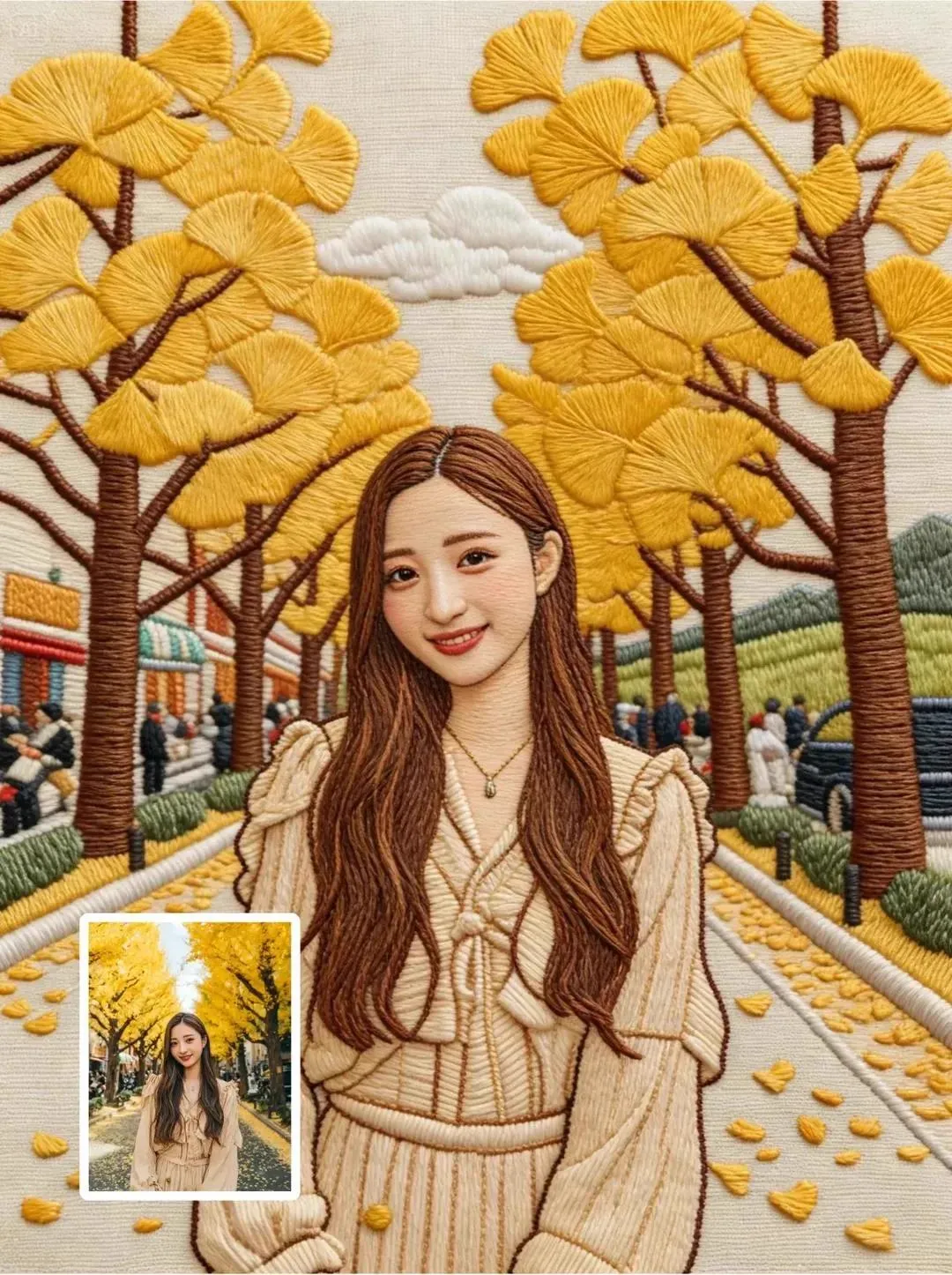
Why Surface Detail Decides Whether AI Video Looks Real
A shot can have flawless camera motion, believable lighting, and a perfectly blocked performance, and still read as fake. The usual culprit is surface detail. Walls look like flat paint, armor looks like plastic, terrain looks like a felt mat. Human vision is extremely sensitive to material cues — the way light breaks across a brushed metal edge, the irregular pores in concrete, the fine grain in weathered wood. When those cues are missing or uniform, the brain quietly downgrades the whole image to "computer generated."
Texture work has traditionally come in three flavors. Hand-painted maps in tools like Adobe Photoshop or Substance 3D Painter give maximum art direction but scale poorly across hundreds of assets. Photogrammetry captures real materials with convincing fidelity but requires scanning sessions, cleanup, and careful de-lighting. Procedural systems such as Substance 3D Designer, Houdini, or Blender node graphs generate infinite variation, but someone has to author and maintain the graph.
Generative texture synthesis is now a practical fourth option. Instead of painting every crack or building a node network, you describe a material and let a model propose candidates. The interesting part is not still images — plenty of tools make a pretty texture map. The interesting part is video: a surface that stays consistent frame to frame while lighting, camera angle, and deformation change. That temporal problem is what separates a novelty from a production tool.
How Smart Texture Generation Actually Works
Understanding the mechanics helps you use these systems well, because most failures trace back to a mismatch between what the model learned and what your shot needs.
Neural synthesis from real material data
Modern generators are trained on large collections of scanned and photographed materials. The model learns statistical regularities: how rust clusters along a weld seam, how fabric weave catches light at grazing angles, how stone fractures propagate. When you prompt for "cracked terracotta pavement," the system is not assembling clip art — it is sampling patterns that resemble the distribution of real terracotta in its training data, then synthesizing a fresh arrangement.
Good systems output more than a color image. They produce the full physically based rendering set: base color, normal, roughness, metalness, ambient occlusion, and increasingly height and displacement. Missing channels are where generated assets usually fall apart in-engine, so check what a tool actually exports before committing to it.
Temporal coherence for moving images
Video textures have a constraint stills do not: the same surface must look identical across frames while the world changes around it. Naive per-frame generation flickers, shimmers, and boils — every frame gets a slightly different crack pattern. Solving this requires temporal conditioning: the model anchors a canonical texture and projects it consistently as the camera and lighting move. Practically, you should test any candidate tool by generating a slow camera pan across a plain wall with fine detail. If the detail crawls or pulses, the temporal handling is not production-ready for your shot.
Prompt and reference driven control
Text and image conditioning are complementary. Text is fast for exploration: "wet asphalt with tar seams," "oxidized copper roof panels," "hand-thrown ceramic with matte glaze." Image conditioning is for precision — drop in a reference photo or a concept painting and ask for structural variation that respects the reference's character. The best results usually come from a hybrid loop: rough text passes to find a direction, reference-locked passes to refine, then a style transfer or blending step to fit the rest of the scene.
A Practical Workflow for AI-Assisted Texture Creation
This workflow works whether you are texturing a single hero prop or an entire open-world biome. The ordering matters more than the specific tools.
Step 1: Write a material brief before you generate anything
A material brief is one paragraph that answers four questions: what is the object made of, how old is it, where has it been, and what scale are we viewing it at? "Weathered oak plank flooring, twenty years of foot traffic, sealed once and never refinished, seen from standing height in a dim interior" produces far better output than "wood texture." Include the failure modes you want: cupping, dark traffic paths, hairline splits at the seams.
Step 2: Collect a small, honest reference set
Gather five to ten reference images of the real material, ideally shot in neutral light with no strong color cast. Resist cinematic references with dramatic lighting — they teach the model about lighting, not material. If you have scanned textures in your library, use them to sanity-check scale and channel values. Keep this folder with the project; it becomes your review baseline.
Step 3: Generate broad variations cheaply
Run a first batch of low-resolution candidates across a wide range of prompts. The goal is coverage, not polish. Generate eight to twelve directions: cleaner, dirtier, wetter, more granular, more fibrous. Look at them at thumbnail size first. If a texture does not read as the right material at 128 pixels wide, no amount of upscaling will save it.
Step 4: Test in motion before you refine
Take your top two or three candidates and apply them to a simple animated test — a rotating sphere, a panning plane, a deforming cloth sim. Watch for flicker, swimming detail, and scale drift. This is the step most people skip, and it is the step that determines whether the texture is usable in video at all. A candidate that looks stunning as a still but boils in motion is worth less than a plainer texture that holds steady.
Step 5: Lock the material and refine channels
Once you commit to a direction, upscale to final resolution and check each channel independently. View the normal map on its own — detail should match the color map's structure, not contradict it. Inspect roughness variation: uniform roughness reads as plastic, but noisy roughness reads as static. Verify that metalness is binary where it should be (a metal surface is metal or it is not) and blended only at transition zones like worn paint over steel.
Step 6: Tile, trim, and prepare for engine use
Most production needs tiling textures with seamless edges, or trim sheets with careful UV layouts. Check seams by tiling the texture four times and viewing it at an angle where the repeat is most visible. Then export at the resolution and channel packing your pipeline expects — ORM packed, or separate maps, with correct color space flags (color data in sRGB, data maps in linear).
Step 7: Version and hand off deliberately
Keep the prompt, the reference set, and the seed or session identifier next to the exported maps. When a director says "make it twenty percent dustier," you want to regenerate a variant rather than reverse-engineer it. A simple naming convention — material, variant, resolution, date — saves hours on a long production.
Decision Criteria: Procedural, Photogrammetry, or Generative?
None of these approaches replaces the others, and the right answer depends on four factors.
Variation requirements. If you need ten thousand unique rocks, procedural systems still win because the variation is parametric and cheap. If you need one hero prop with a specific story, generative prompting gets you there faster.
Fidelity ceiling. Photogrammetry remains the gold standard for realistic materials at close range because the data is real. Generative output is excellent at mid and far range and improving fast at close range, but it can soften micro-detail in ways that show up on a 4K close-up.
Team skills. Procedural work rewards technical artists with node-graph fluency. Generative work rewards people who write clear briefs and iterate visually — a different skill set, and often a faster one to teach.
Iteration speed. On a sequence where art direction is still shifting, generative iteration is usually the fastest path to a conversation. Once the look is locked, you can rebuild the winner procedurally for infinite variation, or rescan it photographically for maximum fidelity.
A pragmatic hybrid is common in studios: generative passes for exploration and mid-ground assets, procedural graphs for tiling materials used across large sets, photogrammetry for hero close-ups.
Where Video Textures Pay Off Most
Film and virtual production
In virtual production, the environment is often displayed behind the actors in real time, which means textures must hold up under moving cameras and interactive lighting. Generated surfaces let a team dress a fantasy set — cracked flagstones, mossy timber, corroded iron — and apply consistent detailing across many shots instead of treating each plate separately. The biggest win is turnaround: surface detail that would have taken a week of sculpting and baking can be explored in an afternoon, then finished by hand where the camera lands closest.
Game development and open worlds
Open-world games need variety without ballooning download size. A generative pass can produce a family of related materials — five stone types, three soil blends, a dozen foliage variations — with a shared visual signature, so the world feels coherent rather than randomly assembled. The practical trick is to generate at a controlled resolution and rely on layered detail maps at runtime instead of shipping enormous unique textures.
Advertising and product visualization
Product renders live or die on material accuracy. Brushed aluminum, soft-touch plastic, matte ceramic, woven textile — each has a specific micro-surface that viewers recognize instantly, even if they cannot name it. Generative texturing is useful for rapid concept rounds and for dressing CG environments around a product. For the product itself, treat generated maps as a starting point and verify against a physical sample or manufacturer data. Nobody wants a lawsuit over a coating that does not exist.
Troubleshooting the Most Common Texture Problems
Flicker and temporal instability
Symptom: fine detail crawls or pulses across frames. Causes: per-frame generation without temporal conditioning, resolution mismatch between generation and delivery, or over-sharpened detail that aliases under motion. Fixes: lock a canonical texture and project it through the shot rather than regenerating per frame; render at higher internal resolution and downsample; reduce high-frequency noise in the roughness channel, which is usually the loudest offender.
Visible seams and repetition
Symptom: a grid pattern appears on large surfaces, or a hard line shows at tile boundaries. Causes: textures generated without wrap-around awareness, or a single tile stretched over too much geometry. Fixes: use a tool that produces seamless tiles, then break repetition with a macro variation layer, decals at transition points, or a low-frequency grunge overlay. Real surfaces repeat, but the eye forgives repetition at 4 meters far more than at 40 centimeters.
Scale mismatch
Symptom: brick looks like it was made by giants. Causes: no physical scale reference during generation. Fixes: always define real-world size before generating — a brick course is roughly 65 to 75 millimeters tall, a floorboard 100 to 200 millimeters wide. Bake that into your brief and check with a known reference object in the scene, like a door frame or a human figure.
Channel breaks and lighting weirdness
Symptom: the surface responds to light incorrectly — highlights in the wrong place, shadows baked into the color map. Causes: lighting baked into base color, inverted normals, wrong green channel convention (OpenGL versus DirectX), or roughness and metalness swapped. Fixes: verify channel conventions match your engine, keep illumination out of albedo, and validate on a neutral sphere under a single light before applying to the full asset.
Prompt Patterns That Improve Surface Looks
A few patterns reliably raise output quality. Start with the material, then the condition, then the environment, then the camera distance:
- Material + history: "limestone exterior wall, fifty years of rain exposure, hairline cracks along mortar lines"
- Material + process: "cold-rolled steel, brushed finish, faint tool marks from grinding, oil residue in low spots"
- Material + environment: "canvas tent fabric, sun-bleached and rain-stained, dust in the weave, viewed at arm's length"
- Material + negative: "clean concrete, no graffiti, no puddles, uniform aggregate, minimal staining"
Negative phrases matter more than most people expect. Generated surfaces drift toward drama — more grime, more contrast, more damage than requested. If your scene is meant to look new or maintained, say so explicitly.
Also consider generating a family rather than a single map. Ask for four variations that share a base pattern but differ in wear, then use them as a set across a location. Shared DNA between materials is what makes an environment feel designed rather than assembled.
Fitting Generated Textures Into an Existing Pipeline
Texture work does not happen in isolation, so plan the handoff before you start.
Naming and folder structure. Decide where materials live, how variants are named, and which maps are considered source versus derivative. If your pipeline is automated, generative outputs should drop into the same slots as scanned assets with no special handling.
Resolution discipline. Choose two or three standard resolutions rather than generating everything at maximum. Most surfaces never need to be seen at extreme close range, and oversized maps waste memory and streaming bandwidth.
Color management. Color maps are sRGB; normal, roughness, metalness, height, and ambient occlusion are linear. Getting this wrong makes every generated texture look washed out or overly shiny, and it is a five-second fix once you know to check it.
Review gates. Add a motion review alongside your still review. A texture that passes a static look-dev check can still fail in animation, and catching that before the material is applied across forty assets saves a rebuild.
Licensing and provenance. Keep a record of what references and prompts produced each material, especially for client work. Some studios require that generated assets be documented for legal review, and a small metadata file solves that permanently.
Balancing Speed, Quality, and Control
Generative texturing is not free of tradeoffs. It tends to be fastest at the exploration stage and slower at the polish stage, because refinement still needs an artist's eye. It also introduces a subtle risk: because output looks impressive immediately, teams sometimes stop reviewing too early. Set explicit quality bars. For example: "must hold at 1080p in a moving shot at two meters from camera with no visible tiling." A measurable bar turns subjective approval into a checklist.
Budget-wise, the main cost centers are compute time for high-resolution passes and artist time for channel cleanup. If you track anything, track iteration count per approved material. That number tells you whether your briefs are getting better or whether you are prompt-thrashing.
Finally, keep a curated library of approved generated materials from past projects. Over a year, that library becomes more valuable than any single tool, because it encodes your studio's specific look — and it can be reused, blended, and remixed on the next job.
Frequently Asked Questions
Can AI-generated textures replace hand-painted work entirely?
Rarely for hero assets. They are extremely effective for environment dressing, mid-ground props, background sets, and rapid concepting. Hand work still wins on storytelling detail — the specific dent that came from a specific event.
Do I need a powerful GPU?
For generation, the heavy lifting is usually server-side, so a modest workstation can drive it. Caching, retouching, baking, and engine preview still benefit from a solid GPU and plenty of memory.
How do I avoid a uniform AI look across a whole scene?
Introduce controlled variation deliberately. Change wear level, scale, and color temperature between materials, and use one or two shared visual motifs — a common dust color, matching grime accumulation in corners — so the variation still feels like one world.
What resolution should I generate at?
Generate at the resolution your closest camera position requires, then downsample for smaller surfaces. Generating at 4K and shipping 4K for a background wall that occupies 30 pixels is wasted budget.
Will generated textures tile seamlessly?
Only if the tool is built for it. Check by tiling four copies and viewing at a shallow angle under directional light. If the tool cannot do seamless output, plan to use decals, macro break-up, or a compositing step to hide repeats.
How do I keep lighting out of the color map?
Ask for flat, even illumination in your brief and inspect the albedo at low contrast. If you see directional shadows or bright highlights baked in, regenerate or flatten them in post before engine import.
Is it safe to use references from the internet?
Treat external imagery as inspiration at most, and prefer your own scans or licensed libraries. Document everything you use so a later review does not become a scramble.
Key Takeaways
Surface texture is the difference between a render that reads as real and one that reads as generated. AI-assisted texture synthesis, and especially video-aware generation that stays coherent across frames, lets you explore material directions in hours instead of days — provided you bring process discipline.
Write a material brief before you generate. Test in motion before you refine. Check every channel, not just color. Keep provenance alongside your exports. And mix methods: generative for speed and variation, procedural for scale, photogrammetry for hero fidelity. Teams that combine all three, with a clear review gate for motion, ship better-looking work with less rework than teams that chase any single technique.
