
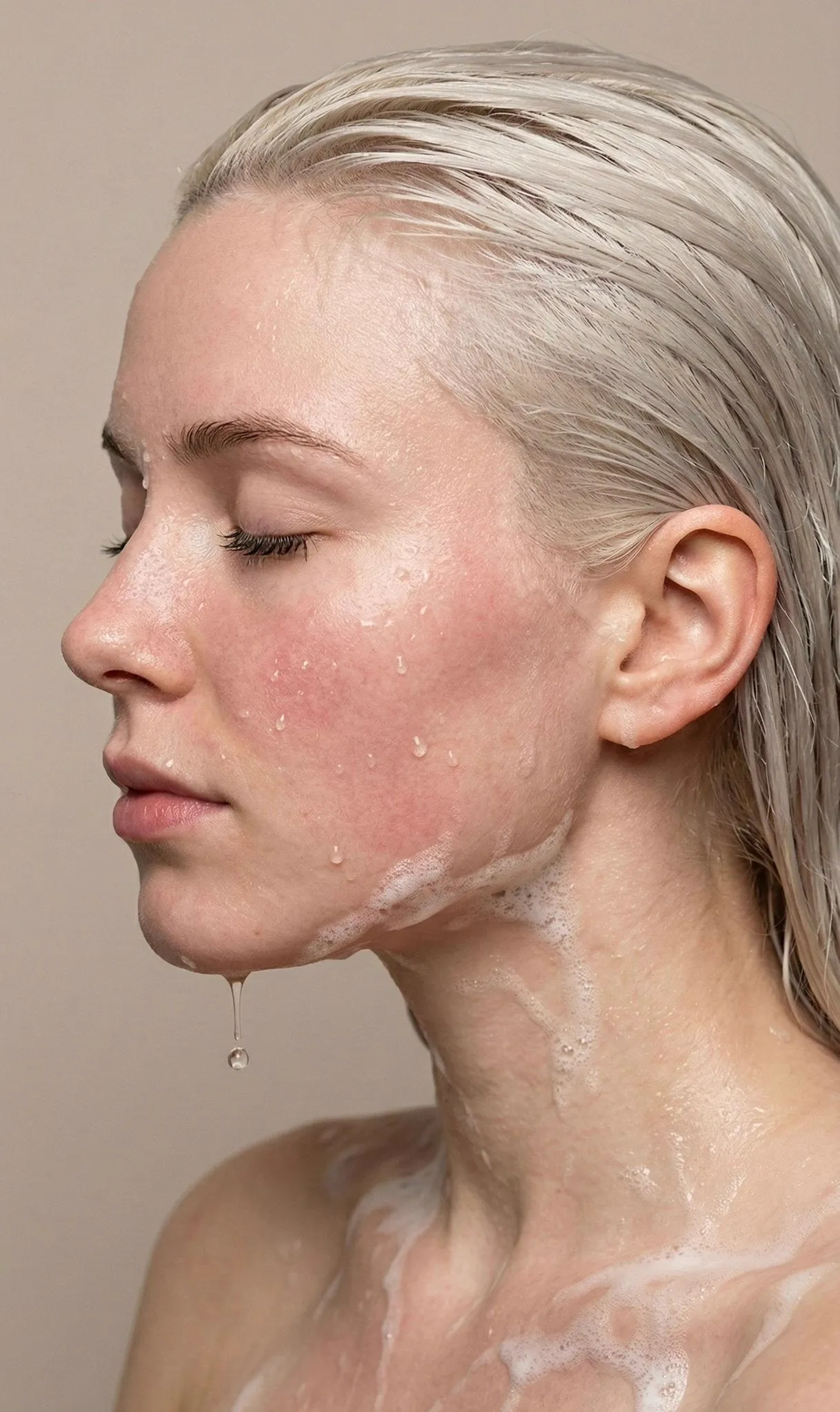
Why Photo-to-Video Is the Fastest Route to Cinematic Results
Text-to-video generation is thrilling, but it behaves like a slot machine. You describe a scene, wait, and hope the model invents a composition you actually wanted. Photo-to-video inverts that relationship. You supply the frame — the composition, the lighting, the subject, the color palette — and the model's only job is to add motion. That single change removes most of the randomness from AI video production.
The practical benefits show up immediately. First, identity consistency: a face or product photographed once stays recognizably itself across clips, because the model is animating a specific image rather than reinventing a person from a text description. Second, style control: your source photo already carries the look, so you spend far less prompt effort fighting for a visual direction. Third, iteration speed: when a render fails, the failure is usually about motion, not about the entire scene, which makes fixes targeted instead of total rewrites.
This approach fits a wide range of real work. Product teams animate a single hero shot into a rotating showcase. Real-estate marketers push a camera through a still of a living room. Portrait photographers create subtle "living photo" moments. Archivists and families add gentle motion to old photographs. Brand teams build animatics from storyboard frames before committing to a shoot. In each case, the still image is the anchor, and the AI is the camera operator.
The Four-Stage Photo-to-Video Workflow
A repeatable pipeline beats improvisation, especially when you are producing more than one clip. The workflow below has four stages, and each one has a clear exit condition so you know when to move on.
Stage one — Source preparation. Select and clean the stills, set aspect ratios, and decide how much empty space the shot needs for camera movement. Exit condition: a folder of finished, correctly sized images with no visible artifacts.
Stage two — Motion prompting. Write prompts that describe one action, one camera behavior, and one lighting condition. Exit condition: a prompt template per shot that you can reuse with small variations.
Stage three — Shot direction. Generate multiple takes, pick the best, and build continuity between clips so they cut together. Exit condition: a rough assembly where every shot plays in order without a jarring jump.
Stage four — Finishing. Edit, retime, add sound, grade, and export. Exit condition: a master file that looks correct on a phone screen and a large display.
Expect roughly three renders for every usable clip in the early going. Keep a simple shot log — image name, prompt, settings, take number, verdict — because the single biggest productivity gain in AI video is not a better model. It is remembering which settings already worked.
Stage One: Choosing and Preparing Source Stills
Most bad AI video starts with a bad source frame. The model amplifies whatever is already there, including problems.
Resolution, Aspect Ratio, and Artifacts
Aim for at least 1920 pixels on the long edge. Higher is better up to a point: 4K sources give the model more detail to move, but they also slow rendering. If your image is smaller, run it through an upscaler first and then inspect the result at 100% zoom. Watch for three killers — heavy JPEG blocking, aggressive sharpening halos, and motion blur baked into the original photo. Sharpening is especially deceptive: it looks crisp in a still, then produces crawling, shimmering texture once animated.
Set the aspect ratio before you generate, not after. Vertical 9:16 for short-form feeds, 16:9 for landscape storytelling, 1:1 for square placements, and ultra-wide ratios like 2.39:1 if you want a deliberately cinematic frame. Cropping after generation wastes renders and often cuts off the exact part of the frame where the motion happened.
Composition That Leaves Room for Movement
A great photograph is often a tightly cropped photograph. A great photo-to-video source is usually a slightly looser one. Give the camera somewhere to travel: a strip of foreground floor for a push-in, sky above a skyline for a tilt, empty wall beside a subject for a lateral move. Leave headroom. If a pan is planned, make sure the destination area is already visible and interesting in the source frame, because the model will smear or hallucinate anything it cannot see.
Simplify busy backgrounds. Crowds, tangled foliage, and dense text all tend to melt or flicker. Text in particular is a trap — signage and watermarks rarely survive animation cleanly, so remove them in an editor rather than asking the model to handle them.
Cleanup Before You Animate
Spend five minutes in a photo editor per image. Remove watermarks and logos. Fix obvious distractions. Do a light color balance so the palette is coherent across all the sources in a sequence. Then save a clean, flattened copy in a lossless or high-quality format. This small investment prevents the most common complaint in AI video: a clip that looks almost right but has a mangled detail that no re-render will fix.
Stage Two: Writing Motion Prompts That Hold Together
Prompts for image-to-video are shorter and more surgical than prompts for text-to-video. You are not describing the scene; you are describing what changes.
A Prompt Formula That Scales
Use a five-part structure: subject action, camera behavior, environment behavior, lighting, and style constraint. A working example:
"Woman in a linen jacket turns her head slowly toward the window, subtle hair movement, camera pushes in gently at a slow constant speed, dust particles drifting in the light beam, warm afternoon sunlight, shallow depth of field, cinematic realism, no flicker, no distortion."
Notice what is missing: there is no paragraph describing her appearance, because the source image already establishes that. Every word in the prompt is spent on motion. As a rule, one primary action per clip. If you ask for a turn and a walk and a gesture, the model will do a smeared version of all three.
Negative Prompts and Constraint Language
Most modern video models accept negative or constraint phrasing, and it is worth using. Common items to exclude: warping faces, extra fingers, morphing hands, duplicated limbs, flickering highlights, jittery camera, sudden zoom, text artifacts, and background objects appearing or disappearing. Keep the negative list short and specific. A twenty-item blocklist dilutes attention and can suppress legitimate motion.
Keyframes, Motion Strength, and Seeds
If the tool supports a start frame and an end frame, use it. Setting both ends of a clip is the closest thing to directing in this medium: the model interpolates between two compositions you control, which is excellent for reveals, product rotations, and before/after transitions. Motion strength sliders behave predictably — low values produce subtle, believable movement and are far more forgiving on faces; high values produce dramatic motion with a higher chance of artifacts. Start low, then increase only if the shot feels static.
Lock the seed when you are iterating on a single shot. Changing the seed along with the prompt makes it impossible to tell which change caused the improvement.
Stage Three: Directing Camera Movement Like an Editor
The difference between amateur and professional-looking AI video is usually grammar, not resolution. Learn a small camera vocabulary and deploy it deliberately.
The Camera Moves Worth Memorizing
- Slow push in: increases intimacy and tension. Best for faces, products, and reveals.
- Dolly out: reveals context. Ideal as a closing shot.
- Lateral track: gives parallax and depth, excellent for interiors and landscapes.
- Tilt up or down: establishes scale, from feet to face or ground to skyline.
- Orbit: circles a subject; powerful for product and architecture shots.
- Handheld drift: adds documentary energy; keep the amplitude small or it looks like an earthquake.
Keep individual clips short when you are learning. Three to five seconds is the sweet spot for most image-to-video engines: long enough to establish a move, short enough that errors stay small. Cut on motion. If a clip ends while the camera is still drifting, the next shot feels connected; if it ends after the movement has stopped, the cut feels dead.
Keeping Continuity Across Multiple Clips
Continuity is where AI video projects fall apart. Three techniques help. First, reuse the same style and character reference images across every prompt in a sequence. Second, keep your style descriptors identical — do not switch from "cinematic realism" to "moody film noir" midway through unless the story calls for it. Third, plan a shot list before generating anything, with a clear idea of what each shot must communicate and how long it should run.
Respect basic editing logic. Maintain consistent screen direction so a subject walking left keeps walking left. Keep the eyeline stable. If a character looks toward the right edge of the frame in one shot, the reverse shot should have them looking toward the left edge.
Stage Four: Assembly, Sound, and Finishing
AI-generated clips are raw material. The finishing pass is what makes a sequence feel like a film rather than a demo reel.
Editing and Retiming
Drop every approved take into an editor and assemble a rough cut immediately. You will discover that some shots that looked great in isolation do not serve the sequence, and some shots you nearly discarded are perfect as two-second transitions. Trim ruthlessly. Then apply frame interpolation if you need smoother slow motion, and a light deflicker pass on any clip with shimmering texture. If you plan to upscale, do it after editing so you only pay the render cost for shots that survived the cut.
Sound Design and Voice
Audio carries more perceived production value than resolution. Three layers do most of the work: ambience (room tone, wind, city hum), discrete effects (footsteps, cloth movement, a click, a whoosh on a transition), and music. Even a subtle ambient bed makes AI video feel several tiers more professional, because silence is what most viewers unconsciously read as "fake."
For narration, write for the ear and keep sentences short. Generate a scratch voice track early so you can time your cuts to it, then decide whether to keep the synthetic voice, record your own, or hire a narrator.
Export Settings That Survive Compression
Export a high-bitrate master first — H.264 or H.265 at a generous bitrate, correct frame rate, and clean audio levels around -14 LUFS for streaming platforms. Then create platform-specific versions from that master. Vertical cuts need their own framing logic: reframe so the subject's face sits in the upper third, and keep captions clear of interface overlays at the bottom of the screen. Always watch the final export on a phone at full brightness before publishing; that is where the majority of your audience will see it, and it is where shadow detail and fine texture usually collapse.
Matching the Right Model to the Right Shot
Model choice matters less than workflow, but it still matters. Instead of chasing benchmarks, evaluate tools against the specific shots you need to produce.
| Shot type | What to prioritize | What to avoid |
|---|---|---|
| Photoreal people | Natural skin texture, subtle head and hand motion | Models that over-sharpen faces |
| Product showcases | Precise camera control, stable edges, clean backgrounds | Heavy stylization filters |
| Stylized or illustrated | Strong style retention from the source frame | Models that force realism |
| Long takes | Longer native clip length, motion coherence over time | Short-clip engines stitched together |
| Character continuity | Reference image support, seed reuse | Tools that ignore your reference |
| Drafting and storyboards | Fast render speed, low resolution is fine | Expensive high-fidelity settings |
Run a five-shot test before committing to a tool for a project. Take five representative source images, generate three renders of each with the same prompt structure, and score them on motion realism, artifact count, and how much of your original composition survived. That one evening of testing will save days of frustration later.
Plan your renders like a budget. Draft at low resolution, approve composition and motion, then commit to final renders only for approved shots. Batch similar shots together so you can reuse prompts and settings, and stop generating the moment a take is good enough — perfectionism is the fastest way to burn through your available render time.
Common Mistakes and How to Fix Them
- Overloaded prompts. Asking for three actions at once produces mush. Cut to one action per clip.
- Animating a soft source. Blurry or noisy images produce drifting, melting output. Upscale and clean first.
- Expecting a single clip to run thirty seconds. Generate short shots and assemble them; the sequence supplies the length.
- Ignoring physics. Liquids, fabric, and hair obey rules. If a hand passes through a cup, the shot reads as fake instantly — regenerate rather than hoping viewers miss it.
- Style drift across shots. Freeze one style descriptor block and paste it into every prompt in the project.
- No sound design. Add ambience and effects before you judge whether the visuals work.
- Skipping the phone check. Review on the smallest, worst screen your audience uses, not just on a calibrated monitor.
- Never keeping notes. Maintain a shot log so successful settings become reusable instead of accidental.
A Worked Example: Three Photos, Thirty Seconds
Suppose you have three photographs of a ceramic studio: a wide establishing shot of the room, a medium shot of hands shaping clay on a wheel, and a close-up of a finished bowl on a shelf.
Shot 1 (0:00–0:06). Wide room shot. Prompt: slow lateral track from left to right, warm light shifting across the workbench, dust motes drifting, cinematic realism, no distortion. Use this as the establishing beat.
Shot 2 (0:06–0:16). Hands and clay. Prompt: hands rotate the wheel slowly, wet clay surface deforms subtly, camera holds steady with a gentle push in, soft window light, shallow depth of field. This is your texture and detail shot — the one that makes the audience believe the material.
Shot 3 (0:16–0:26). Finished bowl. Prompt: gentle orbit around the bowl, specular highlight travels across the glaze, background falls out of focus, steady camera, no flicker. Save this as the hero reveal.
Shot 4 (0:26–0:30). Reuse the wide room shot with a slow dolly out to signal closure.
For sound, layer a low room tone throughout, add the wheel's hum under shot two, a soft ceramic tap as shot three begins, and a quiet acoustic music bed that resolves on the final frame. Grade everything toward the same warm palette so the three source photos feel like one film shoot. The whole sequence uses four generated clips from three stills — a realistic scope for a single afternoon of work.
For a vertical version, reframe each shot: the establishing shot becomes a tighter crop with a vertical tilt, and the close-up moves to a top-down angle framed in the upper third so captions have room underneath.
FAQ
How many seconds can one photo realistically produce?
A single render typically yields a few seconds of believable motion. You can extend a clip, but quality usually degrades over longer durations. The reliable approach is to treat each photo as one shot and build length through editing — six four-second shots give you a twenty-four-second sequence that feels far better than one long, drifting render.
Do I need a powerful GPU?
Not necessarily. Hosted tools handle generation for you, and most have free or entry-level tiers for experimentation. A local setup becomes worthwhile if you want unlimited iteration, offline work, or fine control through node-based pipelines, but it requires a capable graphics card and patience with setup. For most projects, the bottleneck is decision-making, not hardware.
How do I keep a character consistent across shots?
Generate from the same source photograph as often as possible, lock your seed, reuse an identical style descriptor block, and keep lighting direction consistent between shots. When you need a new angle, use the closest available photo of the same person rather than asking the model to invent one. Consistency is mostly a sourcing discipline.
Can I use AI video for client and commercial work?
Usually yes, but verify the terms of the specific tool you use and be transparent with clients about your process. Keep your source images properly licensed — especially portraits, logos, and recognizable property. Many teams also keep a documented prompt and version history so a project can be replicated or revised later.
What is the single biggest quality upgrade for beginners?
Sound. Editors and viewers forgive imperfect motion far more readily than dead silence. Before upgrading tools or resolution, add an ambient bed, a few well-placed effects, and a music track. It is the cheapest, highest-impact improvement available at any skill level.
How should I organize a larger project?
Work image-first: build a shot list, then produce stills for every beat before generating any motion. Group clips by scene, name files with a consistent convention, and keep all approved takes in a dedicated folder. This structure makes revisions fast, because you can always trace a final cut back to the exact source frame and prompt that produced it.
