
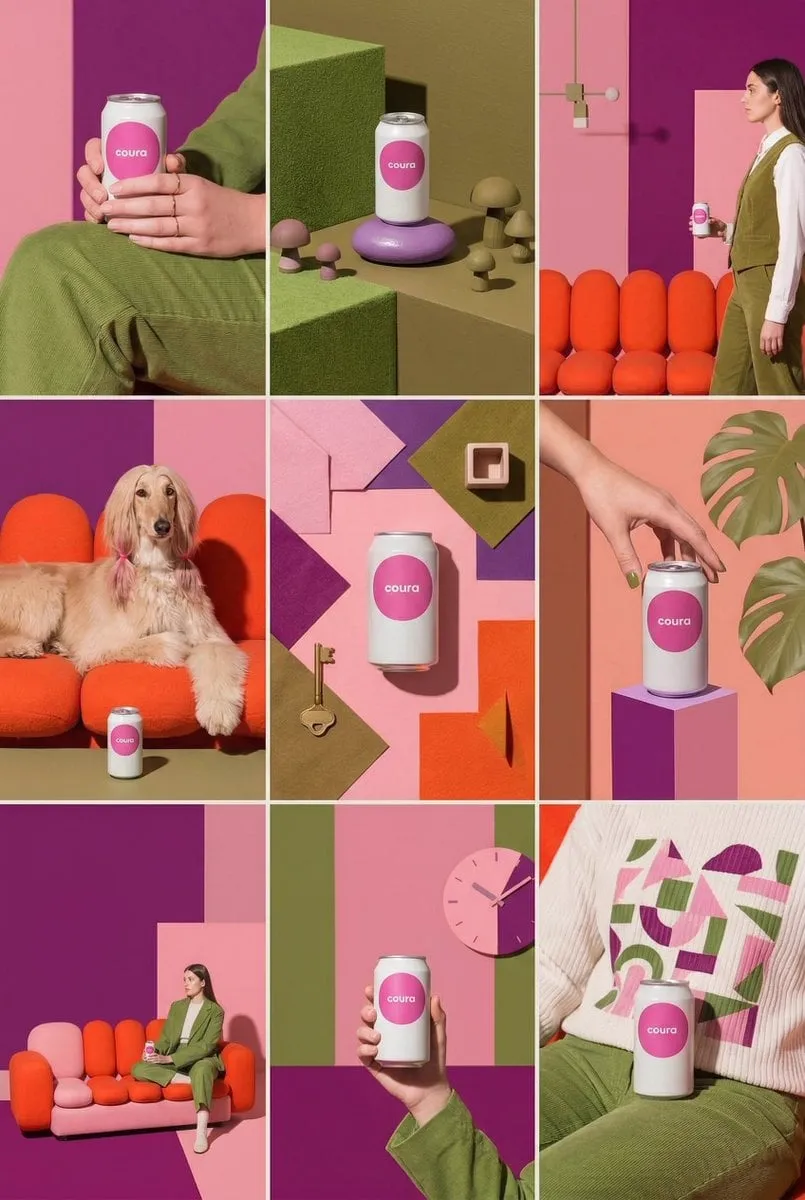
Why still images are the most underrated input for AI video
Most people start an AI video project by typing a prompt into a text-to-video model and hoping for the best. That approach works fine for mood boards and abstract loops, but it collapses the moment you need something specific: a particular product, a recognizable face, a location you actually scouted, or a composition that matches your brand system. Language alone cannot describe those things precisely enough, and every re-roll drifts a little further from what you had in mind.
A still image solves that problem. A photograph carries composition, color palette, light direction, wardrobe, and subject identity all at once, and image-to-video models read those signals directly from pixels. Instead of burning a paragraph on 'a woman in a mustard coat standing on a wet street at dusk,' you hand the model the frame you already approve and spend your prompt budget on the one thing a still cannot encode: motion.
The practical economics matter just as much. Photo shoots, product renders, illustration libraries, and archived footage stills already exist in most creative pipelines. Animating them stretches assets you have already produced, and it makes short-form output dramatically faster than shooting new material for every variation. Treat the still as the source of truth and let the model supply movement rather than identity.
What makes a source image work well for animation
Not every photo animates gracefully. Modern models are forgiving, but they are not magic, and a few properties separate a source frame that produces a clean clip from one that produces a smeared mess.
Resolution and detail. Aim for at least 1080 pixels on the short edge. Upscalers can enlarge a file but cannot invent texture that was never captured, and soft or heavily compressed images turn into muddy, wobbly motion.
Clean subject separation. If your subject wears a dark coat against a dark alley, the model has trouble deciding which edges should move. Contrast between subject and background gives the animation a reliable boundary to work with.
Room to move. A face cropped tight to the frame edge leaves nowhere for a push-in or a pan to go. Leave headroom, side space, or foreground elements you can use for parallax.
Directional lighting. A single clear light source with defined shadows gives the model depth cues. Flat, shadowless lighting tends to produce flat, unconvincing motion.
Aspect ratio discipline. Crop and frame for your final delivery format before you animate. Generating a square clip and then cropping to vertical throws away the composition the model worked hardest to preserve.
Two more practical notes. Remove watermarks, timestamps, and interface overlays first, because models will happily animate them as if they were part of the scene. And if a frame contains a lot of fine text, expect it to wobble; either accept that as a stylistic choice or mask the text out and add it back in your editor.
Three routes into image-to-video, and when to use each
Most image-to-video tools offer more than one way to work. Choosing the right route early saves a lot of wasted generation time.
Single-image animation. You supply one frame plus a motion prompt, and the model invents the next few seconds. This is the fastest route and the right default for product beauty shots, portraits, landscapes, and atmospheric loops. Its weakness is ambiguity: the model decides what moves, and it may animate a background tree while your subject stands perfectly still.
First-and-last-frame interpolation. You supply two stills and the model fills the gap between them. This is the most controllable option for narrative work, because you can storyboard a transition by choosing your endpoints: hand at rest, hand holding a card. Interpolation also hides artifacts well, since the beginning and end are anchored to real frames.
Reference-guided and multi-image shots. Here you feed one or more reference images to lock identity, style, or product design while the prompt controls the scene. This is the standard approach for character continuity across a series of clips, and for branded content where a logo, label, or garment must remain exact.
A fourth technique deserves mention even though it is not strictly a route: control inputs. Depth maps, pose skeletons, and camera trajectory settings let you dictate motion geometry rather than describe it. When a client says the camera must orbit exactly forty-five degrees, control inputs are the only reliable answer; prompts alone will always be approximate.
Writing motion prompts that actually get followed
Prompting for image-to-video is a different skill from prompting for stills. Your subject, wardrobe, and location are already decided by the frame you uploaded, so restating them mostly wastes tokens and occasionally confuses the model into restyling the whole scene.
Describe motion, not appearance
Say what should change over the duration of the clip: she turns her head slowly toward the window and smiles; steam rises from the cup and drifts to the left; the fabric ripples in a light breeze. Leave out adjectives about how the subject looks unless you specifically want the model to alter the look, as with a deliberate style pass.
Use camera language explicitly
Words like push in, pull back, pan left, tilt up, orbit, crane, and handheld are understood by most modern models, and they are far more reliable than vague words like dynamic. Combine exactly one camera instruction with exactly one subject instruction and you get predictable results. Stack three camera moves in one sentence and the model will average them into a slow, purposeless drift.
Keep one dominant action per shot
Unless you are deliberately testing chaos, each clip should do one thing. A two-second shot of a person walking while turning while the camera orbits while confetti falls will produce mush. If you need several beats, cut them as separate clips and assemble them in the edit.
Use negative constraints sparingly and precisely
Most tools accept a negative field. Fill it with the specific failure you observed last time - warping face, melting hands, text artifacts, flickering background - rather than a long generic list. Generic negatives make the model timid and the motion lifeless. Also keep duration honest: if your tool generates five seconds, do not prompt a three-part choreography. Write for the time you have, then tighten pacing with trim controls.
Camera movement vocabulary that reads as cinematic
Beginners often assume that more movement equals more cinematic. The opposite is closer to the truth: deliberate, slow movement with a clear purpose reads as professional, while fast random motion reads as a malfunction. Use this table as a starting point and adjust phrasing for your tool.
| Move | Typical prompt phrasing | Best used for |
|---|---|---|
| Push in | slow push in on the subject | Revealing emotion, building focus |
| Pull back | camera pulls back to reveal the room | Context, endings, scale |
| Pan | slow pan left across the scene | Landscapes, product shelves, group shots |
| Tilt | tilt up from hands to face | Reveals, entrances, architecture |
| Orbit | camera arcs around the subject | Product turntables, hero shots |
| Crane | crane up above the subject | Establishing shots, transitions |
| Handheld | subtle handheld drift | Documentary, social-native realism |
| Static | static camera, subject moves | Dialogue, delicate detail, macro work |
Two rules make this vocabulary work. First, add an intensity word - slow, gentle, subtle, dramatic - because models interpret bare commands as extremes. Second, match the move to the subject's scale: an orbit on a small object needs a tighter arc than an orbit on a building.
Keeping characters and product look consistent across shots
Consistency is the hardest part of image-to-video, and it is where most ambitious projects fail. Character faces drift, jacket colors shift a shade, and a product label renders differently in every clip.
The most reliable method is to build a small reference set before you generate anything: three to five images of the same character or product from different angles, in the same lighting, ideally produced from one base frame. Then use whichever reference or multi-image features your tool provides to bind every clip to that set. When a tool supports a consistent-character mode, use it rather than hoping prompt wording will hold identity.
Beyond references, three habits help. Keep the seed fixed when iterating, so changes come from your prompt rather than random variation. Keep lighting direction identical across shots, because a change in light direction changes how the model renders facial structure and viewers read that as a different person. And prefer shorter clips for continuity-sensitive shots: drift compounds over time, and a three-second clip holds identity far better than a ten-second one.
For product work, photograph or render the item on a plain background and composite it in after animation if absolute label accuracy matters. No generative model should be trusted with legal copy or fine print.
A practical production workflow, start to finish
This sequence works whether you are producing one clip for a social post or a twenty-shot sequence.
1. Define the shot list on paper. Write one line per clip: subject, action, camera move, duration. Generation is the expensive part in time and attention, and a shot list prevents wandering.
2. Prepare and normalize frames. Crop to your delivery aspect ratio, upscale anything below 1080p, and remove overlays. Keep a folder of approved source frames so you never animate a rejected version by accident.
3. Build your reference set. For recurring characters or products, gather or generate three to five angles before producing any final clip.
4. Write prompts in a fixed template. A template such as camera move, subject action, environment detail, atmosphere keeps your tests comparable and makes it obvious which element caused a failure.
5. Generate in small batches. Produce three or four variations per shot at low resolution first. Compare them side by side, pick the winner, then re-render that prompt at full quality.
6. Assemble before you perfect. Drop every selected clip into your timeline and watch the sequence whole. Individual clips that look great often fight each other, and you will cut or reorder more than you expect.
7. Repair the seams. Use frame interpolation tools to smooth jagged motion and a video upscaler to sharpen soft output. Stabilization helps handheld-looking clips that drifted too far.
8. Add sound, then color match, then export. Ambient beds, foley, and music carry more perceived quality than most creators admit, and a single adjustment layer or LUT across the timeline hides small tonal differences. Export at platform specs: vertical for short-form, widescreen for web, captions burned in for silent viewing.
Common failure modes and how to fix them
Face warping or identity drift. Shorten the clip, lock the seed, add a reference image, and add stable face, no morphing to the negative field. If drift persists, the source frame is probably too low-resolution.
Melting hands or objects. Reduce the amount of subject motion in the prompt, keep hands out of frame where possible, and animate a wider shot rather than a close-up.
Over-animation. Everything moves at once, so nothing reads. Specify a static camera and one subject action, and lower the motion strength parameter if your tool exposes one.
Flicker and pulsing exposure. This is often caused by a prompt that implies changing light. Remove words like flickering or pulsing from the positive prompt and add flicker to the negatives.
Unwanted text or logo animation. Mask those regions before generating, or generate without them and composite the real artwork afterward.
Motion that ignores the prompt. Simplify to one camera move and one subject action. If the model still ignores you, switch to motion controls such as a depth map or trajectory input instead of text.
FAQ
Do I need expensive equipment to create source images? No. A modern phone in good light produces frames that animate beautifully. Clean composition and directional lighting matter far more than sensor size.
How long should each AI clip be? Three to five seconds is the sweet spot for most tools and most social formats. Longer clips drift, and you can always extend a good shot by interpolating between a start and end frame.
Can I animate an illustration or a 3D render instead of a photo? Yes, and renders often behave better than photographs because they have no sensor noise and very clean edges. Illustrations with flat color and bold outlines animate well too, though the result usually looks stylized rather than photoreal.
What is the biggest beginner mistake? Prompting for the whole scene instead of the motion. The image already defines the scene; your prompt should define what happens next and how the camera behaves.
How many variations should I generate per shot? Three to four at draft resolution, then one or two final renders. More than that rarely improves the outcome and slows the whole production down.
Should I use several tools or just one? Most creators end up with two or three: one tool that excels at cinematic motion, another that handles reference-based character consistency well, and a dedicated upscaler. Test the same source frame and prompt across candidates before committing to a paid plan.
Is AI animation usable for client work? Yes, with disclosure and a clear scope. Keep motion subtle, avoid showing hands and fine text, and treat generative clips as one element inside a normal edit rather than the entire deliverable. The most convincing AI video work is edited, sound-designed, and color-graded, not raw output dropped straight into a feed.
