
Why Photo-to-Anime Conversion Became a Mainstream Skill
Personal visual identity has become a normal part of how people present themselves online. Avatars, channel art, thumbnail faces, and character sheets all read better when they feel illustrated rather than photographic. Anime conversion sits in a sweet spot: the style is instantly recognizable, it is forgiving of imperfect source photos, and it is flexible enough to match a playful mood, a serious brand, or a specific narrative world.
The appeal is not only novelty. A stylized portrait flattens cluttered backgrounds, evens out harsh lighting, and gives a consistent visual signature across dozens of images. Creators who publish regularly use anime versions of themselves as a visual anchor, so a new upload is recognizable before anyone reads the title. Small studios use the same trick for mascots, sticker packs, and storyboards.
There is also a practical production argument. Photographs carry information the viewer never asked for: a messy room, a logo on a shirt, a season that dates the shot. A stylized illustration removes that noise while keeping the emotional content, which is expression, posture, and energy.
This guide walks through the process in the order you will actually experience it. First, how the technology works and why some photos convert beautifully while others fall apart. Then how to choose an approach, a step-by-step workflow, prompt patterns that hold up, artifact repair, animation, and the ethical questions that come with restyling a real person. The decisions here apply whether you use a mobile app, a browser-based generator, or a local pipeline.
How Anime Style Transfer Actually Works
Understanding the mechanics makes you dramatically better at troubleshooting. Most modern anime conversion is not a filter applied on top of pixels. It is a generative process that rebuilds the image from a compressed understanding of what the image contains.
Diffusion models and the latent space
A diffusion model learns by adding noise to training images and then learning to reverse that noise. At generation time it starts from noise and removes it step by step until an image appears. Because this happens in a compressed mathematical space rather than in raw pixels, the model works with concepts rather than exact colors. That is why a photo and an anime drawing of the same face can sit close together in that space even though the pixels look nothing alike.
Identity preservation is the real challenge
The hard part is not making something anime-shaped. It is making something anime-shaped that still looks like you. Models have no built-in concept of your specific face, so identity has to be injected. Common methods include feeding the original photo as a structural reference, using a face embedding that encodes identity separately from style, or training a small personal model on a handful of your own photos. Each method trades effort for control.
Reference-based styles versus learned styles
A reference-based approach shows the model an example image and says, in effect, match this look. It is fast and instantly satisfying, but it drifts: the output inherits the reference's color palette and background along with its line style. A learned style lives inside the model weights and tends to be more stable across a batch. For a series of images that must look like siblings, learned styles win. For a single striking experiment, reference-based is fine.
Choosing the Right Approach for Your Photo
Before you touch a prompt, decide what kind of tool fits the job. There are three broad categories, and they differ more in workflow than in output quality.
One-tap mobile apps
These are ideal when you want a result in thirty seconds and do not care about fine control. They usually apply a fixed style set. The tradeoff is consistency: the same photo may convert differently on two attempts, and you cannot direct the composition. Use them for quick profile updates and casual sharing.
Prompt-driven generators
Web-based generators let you describe the style, the lighting, the framing, and the character details. This is where most creators land, because it combines speed with enough control to build a recognizable personal look. The learning curve is mostly about learning what the model responds to.
Controllable pipelines
Structural controls, pose guides, and identity adapters give you precision: exact head angles, exact hand placement, exact color scripts. They are slower and more technical, but they are the right answer when a client, a publisher, or a brand guideline is involved. If you are producing ten consistent character portraits for a project, this is the category that will not waste your afternoon on re-rolls.
A useful rule: pick the least controllable tool that can still meet your consistency requirement. Extra control you do not need becomes extra work.
A Step-by-Step Workflow: From Selfie to Anime Character
Step 1: Prepare the source photo
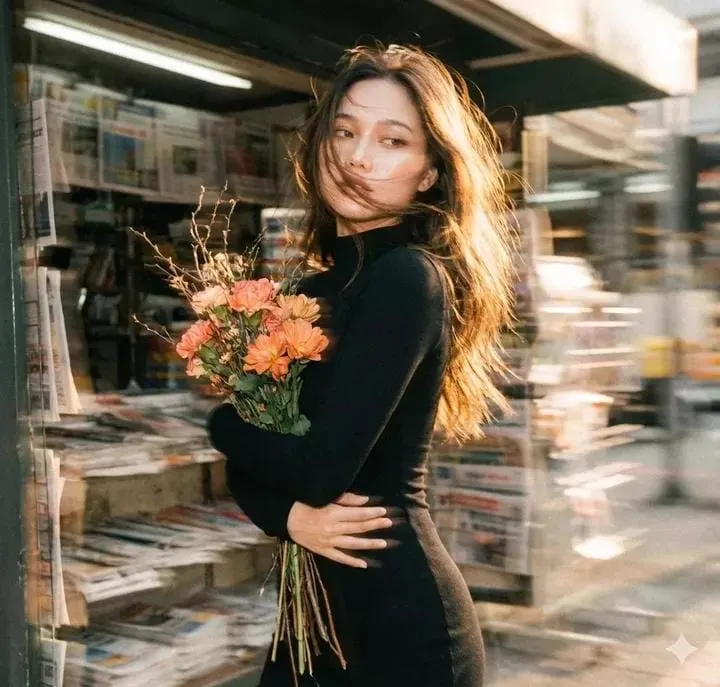
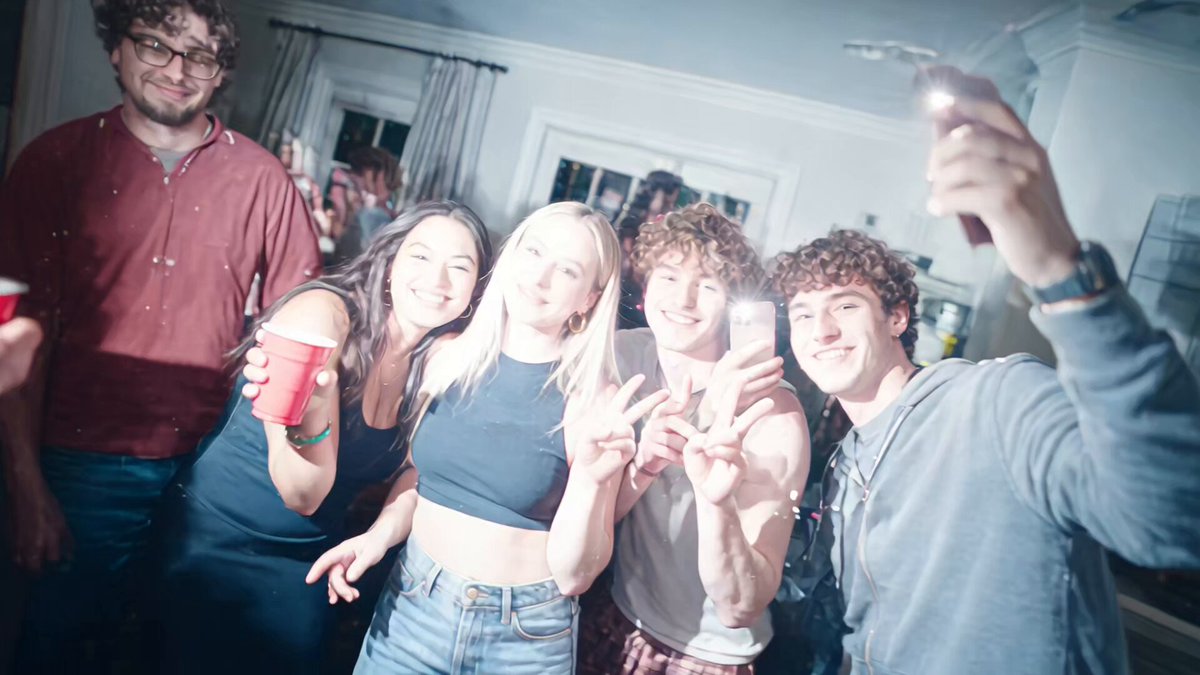
Most bad conversions start with a bad input. Use a sharp photo where your face occupies a decent share of the frame. Avoid heavy shadows across the eyes, avoid extreme angles, and avoid motion blur. If there are two people in the shot, crop before uploading, because models will happily blend two faces into one unsettling result. Shoot or select a photo where the expression is the one you want in the final image, since expression survives stylization better than almost any other detail.
Step 2: Choose a substyle before you choose a tool
Anime is not one look. Cel-shaded modern TV animation, soft watercolor film style, high-contrast retro line art, and painterly shonen illustration all demand different prompt language. Decide on a substyle first and write it down. Jumping between substyles mid-session is the fastest way to end up with a folder of images that look like they came from four different projects.
Step 3: Describe structure and style separately
A prompt that mixes everything into one sentence gives the model no way to prioritize. Split your prompt conceptually. First describe the subject and composition: who is in frame, what they are wearing, the camera angle, the background. Then describe the rendering: line weight, shading method, palette, and overall mood. When something goes wrong, you can now tell whether the composition or the rendering caused it.
Step 4: Tune strength, guidance, and resolution
Strength controls how far the output travels from the source photo. Low strength keeps your features but produces a faint, filter-like result. High strength produces bold stylization but replaces your face with a generic one. Start in the middle and move in small steps. Guidance controls how strictly the model follows your text; higher values obey the prompt but can produce stiff, oversaturated images. Resolution should match the intended output, not the largest number available, because upscaling artifacts in anime line art are more visible than in photography.
Step 5: Fix the face with masking and inpainting
Do not throw away a good composition because the eyes are wrong. Mask just the face region and regenerate it with a slightly different seed while the background stays locked. This is the single most time-saving habit in anime conversion. Two or three passes usually produce a face that both resembles you and matches the surrounding style.
Step 6: Upscale and color grade
Anime line art benefits from a dedicated upscaler that preserves edges rather than smearing them. After upscaling, a very light color grade, usually a small contrast and saturation adjustment, harmonizes the generated elements with any real elements you kept. Keep this step minimal; aggressive grading makes illustration look muddy.
Prompt Patterns That Consistently Work
Describe hair, eyes, and line weight
These three elements define an anime look more than anything else. Mention hair shape and volume, eye style, and line quality explicitly. Words like clean line art, bold outlines, soft sketch edges each push the result in noticeably different directions.
Separate lighting from style
Lighting is the most under-specified part of most prompts. State whether the light is soft and diffused, dramatic and rim-lit, or flat and graphic. A flat lighting description combined with a detailed style description produces the cleanest, most dependable results.
Negative prompts that matter
Negatives are your cleanup crew. Useful entries include extra fingers, deformed hands, blurry, watermark, text, oversaturated, and photorealistic skin texture. The last one is worth remembering specifically: without it, many models blend photographic skin across an illustrated face, which is the fastest way to make a portrait look uncanny.
Reusable prompt blocks
Build a small library of tested sentences. A structure line, a style line, a lighting line, a palette line, and a negative line. Reuse them, tweak one element at a time, and note which combination produced which result. Ten minutes of note-taking saves hours of guessing later.
Common Artifacts and How to Fix Them
Identity drift
The output is beautiful and looks nothing like you. Causes are usually excessive strength, a face embedding that is too generic, or a source photo where the face was small. Lower strength, crop tighter, and consider a personal model trained on several photos of the same person.
Hands
Hands remain the classic failure. Solutions, in order of preference: hide them (pockets, arms crossed, hands out of frame), pose them with a structural guide, or inpaint them at high resolution with the rest of the image locked. Never fix hands at low resolution and then upscale, because the error gets upscaled too.
Plastic skin and over-smoothing
If the face looks like a mannequin, your prompt is over-emphasizing smooth rendering and your negative list is not fighting photographic skin. Add texture cues such as cel shading with hard shadow edges and remove smooth skin language.
Background chaos
Generated backgrounds often invent meaningless detail. Either blur them deliberately, simplify them to a gradient or a single color, or describe one specific location instead of a general one. Specificity reduces invention.
Color banding and halo edges
Banding appears when a smooth gradient is generated at low resolution. Halos appear when upscaling exaggerates edge contrast. Both are solved by generating larger, then downscaling slightly rather than upscaling aggressively.
Animating the Anime Portrait Into Video
Still portraits are a starting point. Many creators now animate the result for short loops, intros, and social clips.
Image-to-video basics
Image-to-video models take your finished portrait and generate motion over a short duration. The quality of the motion depends far more on the source image than beginners expect. A clean, well-lit portrait with a simple background animates smoothly. A busy, detailed background with a complex pose will wobble.
Keeping motion subtle
Subtle motion reads as intentional. Hair drift, a slow blink, a gentle head turn, or a soft light shift all work. Large gestures usually break anatomy and reveal that the model does not understand the character. Start small, then increase only if the result stays stable.
Consistency across shots
If you plan several clips of the same character, lock your prompt, your style block, and your seed strategy before you animate anything. Changing the appearance between clips turns a character into a stranger.
Loops and short clips
Short loops of three to five seconds are the most practical deliverable. They are easy to preview, easy to reuse as background motion, and they hide the small inconsistencies that appear over longer durations.
Ethics, Consent, and Style Ownership
Restyling a real person raises questions that are worth answering before you publish. If the subject is not you, get clear permission, especially if the image will be used commercially or could be read as a statement about that person. Do not generate portraits of public figures in ways that imply endorsement or fabricate events.
Style is a separate question. Copying the signature look of a living artist is legal in many places but ethically uncomfortable, and it is a poor long-term strategy because your work becomes a derivative of someone else's identity. Instead of naming an artist, describe the visual properties you actually want: line weight, palette, shading method, and mood. You will get a result that is yours and that you can iterate on deliberately.
Finally, be transparent. A short note that an image was AI-assisted costs you nothing and prevents awkward conversations when someone assumes it is a photograph.
Tools and Decision Criteria
What to evaluate
Judge any anime generator against five things. First, identity retention: does the output still read as the same person? Second, consistency: can you reproduce a look across a batch? Third, control: can you mask, inpaint, and set strength? Fourth, export quality: is the resolution adequate for print, thumbnails, or video? Fifth, iteration speed: how many attempts does it take to get a keeper? A tool that is slightly weaker but twice as fast usually wins, because anime conversion is an iterative craft.
A practical comparison
Mobile apps win on convenience and lose on repeatability. Browser generators win on prompt control and are the best default for most creators. Local or advanced pipelines win on precision and cost predictability but demand setup time and hardware. If you are making one image, convenience matters most. If you are making fifty, repeatability beats everything else.
A two-week practice plan
Days one and two: convert the same photo ten times across different substyles and note which phrasing changes the outcome. Days three and four: practice masking and inpainting faces. Days five and six: build your reusable prompt blocks. Day seven: attempt a batch of five portraits with a single consistent style. Week two: animate two of them, then refine your style block based on what broke. By the end you will have a personal system rather than a collection of lucky results.
Frequently Asked Questions
Do I need an expensive computer?
No, if you use a hosted generator. Local pipelines need a capable GPU, but browsing and prompting do not. Most creators never install anything.
Why does my result stop looking like me?
Almost always because the stylization strength is too high or the source photo has a small, low-detail face. Lower the strength in small increments and crop the face larger before uploading.
How many photos do I need for a consistent character?
For a single image, one good photo is enough. For a consistent character across many images, gather five to twenty varied photos: different angles, expressions, and lighting. Variety teaches identity; similarity teaches a single pose.
Can I use these images commercially?
That depends on the tool's terms and on whose face is in the image. Check the license, confirm you have permission from the subject, and keep documentation of both. When in doubt, generate an original character instead of a real person.
What is the fastest way to get better results?
Fix one variable at a time. Change only the prompt, or only the strength, and compare. Random experimentation feels productive but teaches very little.
Should I edit the photo first?
Yes. Straighten it, brighten shadows slightly, and remove obvious distractions. Clean input produces clean stylization far more reliably than any prompt trick.
Can I mix anime style with real photography?
Yes, and it is an effective look. Keep the subject illustrated and the background photographic, or the reverse. Blending both in the same region is where results get muddy.
How do I keep a series looking consistent?
Lock your style block, use the same tool and model version, keep your aspect ratio fixed, and write down your settings. Consistency is a documentation habit more than a creative one.
The whole craft comes down to a loop: prepare a good source, describe what you want precisely, review honestly, and change one thing at a time. Do that consistently and anime conversion stops being a slot machine and becomes a reliable part of your creative toolkit.
