
What the Bing image generator does well — and where it falls short
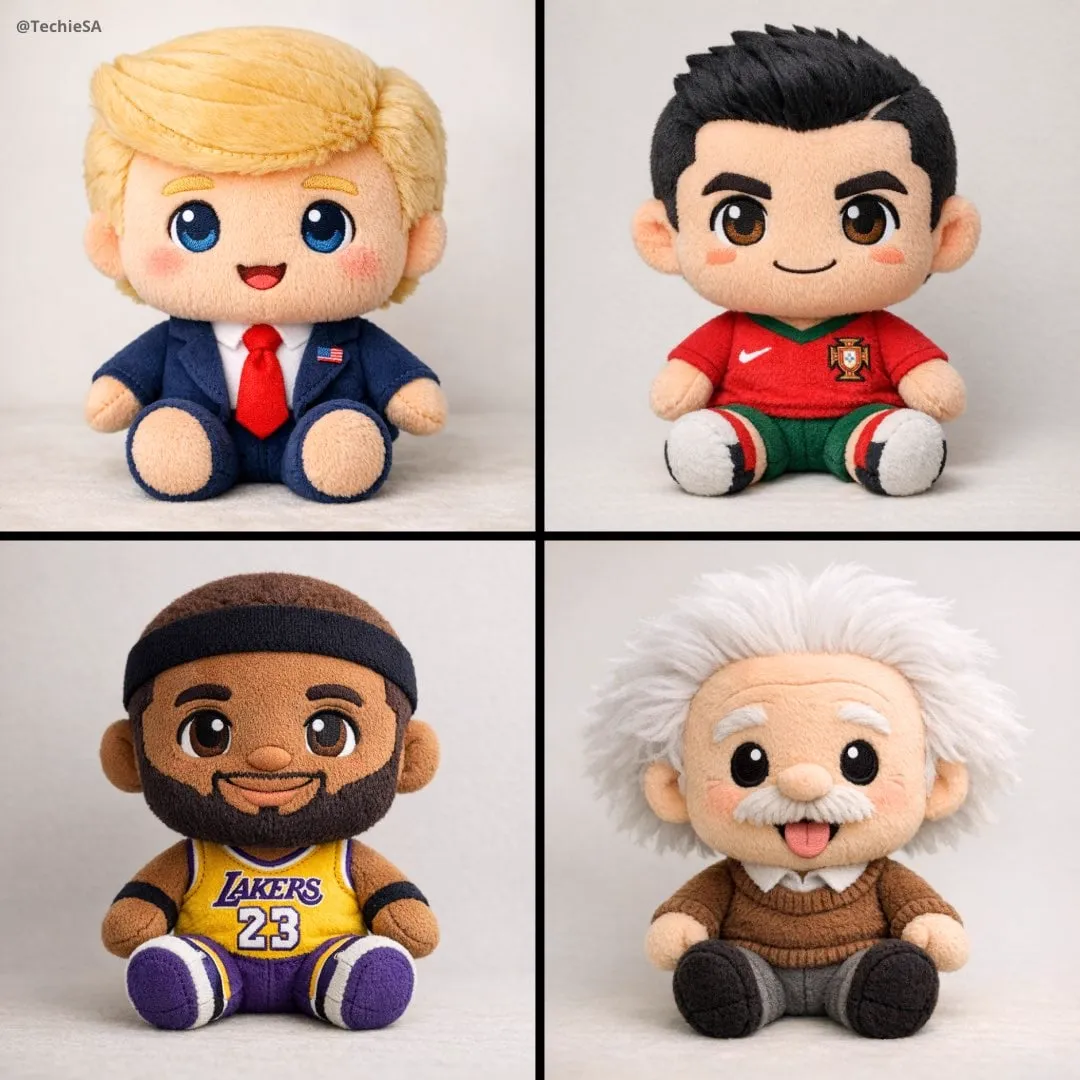
Microsoft's image generator is one of the easiest ways to turn a sentence into a usable visual. It runs inside a chat-style interface, accepts long natural-language descriptions, and returns a batch of variations you can iterate on without leaving the conversation. For anyone who needs concept art, mood boards, thumbnail sketches, or background plates in a hurry, that combination is genuinely useful.
Its strengths are worth naming precisely, because they shape how you should use it:
- Natural-language understanding. You can describe a scene the way you would describe it to a colleague, including mood, time of day, and intent.
- Style range. It handles painterly, photographic, illustrative, and graphic styles with reasonable fidelity.
- Conversational iteration. Follow-up messages like "same composition, but at dusk" work better here than in tools that treat every generation as a fresh start.
- Batch output. Multiple variations per request make it fast for exploration.
Where it struggles is equally important:
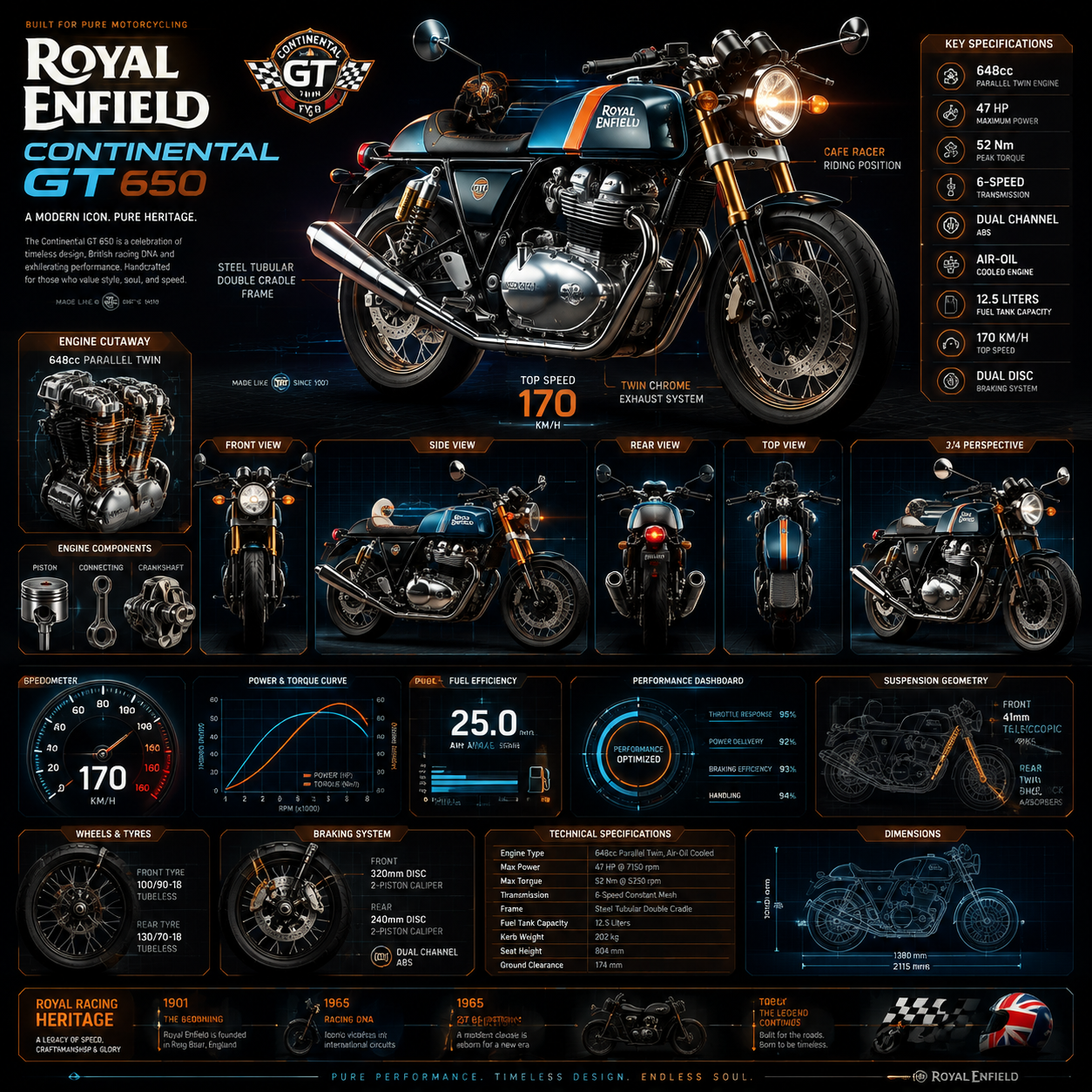
- Precise text. Short words sometimes render correctly; paragraphs almost never do. Add text in a layout tool instead.
- Anatomy and hands. Complex poses and multiple characters remain risky.
- Exact layout control. You cannot place an object at pixel coordinates. Composition is negotiated, not dictated.
- Cross-image consistency. The same character will drift between generations unless you actively manage it.
- Brand-level accuracy. Logos, packaging, and product details will be approximations.
A practical decision rule: use this tool for exploration and pre-production, then move deliverables into a deterministic tool — a vector editor, a compositing app, or a video pipeline — for the final pass. If your client needs an exact product photo, an AI generator is the wrong starting point. If your client needs twelve background options by lunch, it is the right one.
Prompt anatomy: the five slots that do the heavy lifting
The single biggest quality jump comes from structuring prompts instead of writing them as loose sentences. Think of a prompt as five slots, filled in order of importance.
- Subject — who or what is in frame, described concretely.
- Action or pose — what the subject is doing, and from what angle.
- Environment — setting, time of day, weather, background detail.
- Light and optics — light direction, quality, lens, depth of field.
- Style and output constraints — medium, genre, aspect ratio, resolution intent.
A weak prompt:
a mountain landscape
A structured prompt:
Photorealistic wide shot of a snow-capped Himalayan ridge at golden hour,
mist filling the valley below, warm rim light on the peaks,
shot on a 24mm lens, shallow atmospheric haze,
cinematic nature documentary look, 16:9 framing
The second version succeeds because every slot tells the model something it can act on. "Mountain landscape" is a category; the structured version is a specific photograph that does not exist yet.
A few calibration notes:
- Twenty to sixty words is the sweet spot. Shorter prompts give the model too much freedom. Much longer prompts start to dilute — later details get ignored or averaged away.
- Order matters. Put the subject first. If the first five words are about lighting, you may get a beautiful lighting study with no subject.
- Use concrete nouns, not abstractions. "Melancholy" is weak; "an empty bus stop in the rain at night" is strong. Show the emotion through objects.
- Name the shot type. Close-up, medium shot, wide establishing shot, over-the-shoulder, top-down flat lay. These camera words do more work than adjectives.
- One idea per generation. If you want a poster concept and a logo concept, run two prompts. Mixed briefs produce mixed results.
Keep a running document of prompts that worked. Prompts are reusable assets, and a small personal library will save you more time than any trick you learn from a video tutorial.
Style keywords that steer the look without hijacking it
Style keywords are the fastest lever you have, and also the easiest way to wreck a prompt. The trick is to use two or three style anchors maximum, and to pick anchors from different categories so they reinforce each other instead of fighting.
Medium and technique
- watercolor wash, gouache, ink line art, risograph print, charcoal sketch
- 3D render, claymation, low-poly, papercraft diorama
- analog film photography, Polaroid, cyanotype, cross-processed slide film
Lighting
- golden hour, blue hour, overcast diffusion, hard noon sun
- Rembrandt lighting, rim light, volumetric god rays, neon practicals
- bioluminescent glow, candlelit interior, screen-lit face
Camera and lens
- 85mm portrait, 24mm environmental, 100mm macro, tilt-shift
- drone shot, handheld documentary, long-exposure, shallow depth of field
Era and genre
- mid-century editorial, neo-retro futurism, brutalist architecture, solarpunk
- art deco poster, 1970s sci-fi paperback cover, museum catalog photograph
Combining one item from each of three rows gives a coherent look. Combining five medium words gives mush, because the model averages conflicting signals. "Watercolor oil painting with 3D render lighting" is not a style; it is a coin flip.
Two cautions. First, naming living artists as a style shortcut is both ethically shaky and inconsistent across rights regimes — describe the visual qualities instead. "High-contrast graphic shapes with limited palette and thick outlines" will get you where you want to go without borrowing someone's name. Second, style words attached to franchises or studios often trip safety and copyright filters, and the request may simply be declined.
The most reliable approach is a two-pass method: generate for composition first with minimal style language, then rerun the winning composition with style words added. You keep the framing you liked and change only the aesthetic layer.
Negative prompts, constraints, and aspect ratios
Most chat-based generators accept negative phrasing inside the prompt itself. It is not a separate field, so the wording matters.
Workable patterns:
... no text, no watermark, no logos, clean background
... avoid blurry foreground, avoid harsh flash, no heavy vignette
... plain seamless backdrop, nothing distracting
What works poorly:
- Stacking ten negatives. Filtered or ignored, depending on the platform.
- Negating the main subject. "A portrait, no face" confuses more than it clarifies.
- Vague negatives. "Don't make it bad" is not a directive. Be specific about the artifact you are seeing.
The most common real-world artifact is unwanted text. If a scene naturally implies signage, the model will invent lettering, and it will be garbled. Either accept that you will cover it in post, or explicitly request "blank signage" or "unbranded surfaces."
Aspect ratio deserves its own habit. State the intended frame in words, because the generator often defaults to square or landscape:
- 16:9 for video thumbnails, presentation headers, and video backdrops
- 9:16 for vertical social formats and phone-first content
- 4:5 for feed posts that maximize vertical real estate
- 2:1 for cinematic banners and hero images
Also decide early whether you need clean negative space. If a graphic designer will overlay a headline, prompt for "large empty sky area on the right third" or "plain wall space on the left for text." Doing this at generation time is dramatically cheaper than extending the canvas afterward.
Reference images, fusion, and canvas expansion
Newer builds of the tool accept reference images and can blend elements from more than one. This unlocks a workflow that pure text prompts cannot reach — but only if you assign each reference a distinct job.
A reliable three-reference pattern:
- Composition reference — "match the framing and camera angle of image 1"
- Style reference — "apply the color palette and rendering style of image 2"
- Subject reference — "keep the character design from image 3"
When you upload images without labelling their roles, the model averages everything, and you get a blurry compromise. Naming the role in the prompt is the whole trick.
Canvas expansion is the other headline capability. It extends an image beyond its original borders while attempting to preserve perspective, lighting direction, and texture. It is excellent for:
- turning a square concept into a 16:9 video backdrop
- adding headroom above a subject for title placement
- extending a texture into a seamless tile
- widening an environment for a slow camera pan
Three practical rules for expansion:
- Extend in one direction at a time. Expanding all four sides at once multiplies the chance of perspective drift.
- Re-describe the contents as you expand. "Continue the wet asphalt street and neon reflections to the right" beats "expand image."
- Check the seam at 100% zoom. Blended borders are usually invisible at thumbnail size and obvious in a video pan.
For character work, build a character sheet prompt block you reuse verbatim — hair colour, clothing, build, distinguishing features — and only change the pose and environment around it. It will not produce perfect consistency, but it dramatically narrows the drift. Combine that with a fixed aspect ratio and a fixed style anchor, and most sequences will feel like they belong to the same project.
A repeatable batch-and-refine workflow
Ad-hoc prompting feels productive and wastes hours. A disciplined loop looks like this.
Step 1 — Write the brief in plain language first. One paragraph describing what the image is for, who sees it, and where it will appear. Purpose changes everything: a thumbnail needs contrast and a readable subject at small size; a backdrop needs low detail so it does not compete with foreground text.
Step 2 — Translate the brief into the five slots. Subject, action, environment, light and optics, style and constraints.
Step 3 — Generate a batch and pick the closest, not the best. You are looking for the right composition, not the final image. Judging early generations on polish leads to dead ends.
Step 4 — Change one variable per iteration. Keep everything else identical. If you change lighting and style simultaneously, you cannot tell which one fixed the problem.
Step 5 — Lock the winning prompt. Copy it into a project file with a short note about what changed. This is your seed for the next related image.
Step 6 — Upscale or finish elsewhere. Layout, text, retouching, and colour grading belong in a dedicated editor.
Step 7 — Export with a naming convention. Something like project_scene_v03_16x9.png prevents the folder chaos that kills momentum three weeks later.
Two habits make this loop faster. First, work in sets — generate backgrounds for a whole sequence before switching to characters, because context-switching is the real cost. Second, time-box exploration: ten minutes of variations, then commit to a direction. Endless refinement rarely improves the result after the first few batches.
From stills to motion: preparing images for video
Static images become video assets in several ways: animating a still with an image-to-video model, using the image as a background plate behind motion graphics, or building an animatic from a sequence of keyframes. Each path has requirements you should bake into the prompt.
Leave room for movement. If the camera will push in, keep the outer 10% of the frame uncluttered. If a subject will walk forward, they need space to move into. Prompt for "wide framing with breathing room around the subject" rather than a tight crop.
Match the aspect ratio to the delivery format. Vertical video is not a cropped landscape image; it is a different composition. Shoot for 9:16 natively when the final output is vertical.
Describe camera motion in the still. Phrases like "low angle looking up, horizon near the top third" or "symmetrical one-point perspective down a corridor" give image-to-video models an obvious axis to move along. Flat, frontal compositions animate poorly.
Keep lighting consistent across a sequence. If shot one is golden hour, shot four should not be fluorescent. Write the lighting phrase into every prompt in the sequence, even when it feels repetitive.
Build a keyframe set, not a gallery. For a thirty-second piece, six to ten well-chosen keyframes with consistent style are more useful than fifty unrelated pretty images.
Watch for baked-in detail that fights motion. Heavy film grain, dense texture, and busy backgrounds cause shimmering when animated. Slightly cleaner, simpler frames animate better and can be textured in post.
A simple storyboard pipeline: generate keyframes at the final aspect ratio, lay them on a timeline in order, check that the visual story reads without sound, then animate only the shots that need motion. Most explainer videos need far fewer animated shots than people assume.
Troubleshooting the most common failures
Garbled or nonsense text. Remove all signage, labels, and book covers from the prompt. Add "no text, unbranded surfaces." Add typography later.
Extra limbs, fused hands, merged objects. Simplify the pose. "Standing, hands in pockets" is far safer than "gesturing with both hands while holding a cup." Reduce the number of interacting subjects to one or two.
The style ignores what you asked for. You probably have too many style words. Cut to two, and put them at the end of the prompt where they carry weight.
Everything looks the same. Push the environment and lens slot harder. Changing "studio lighting" to "harsh afternoon sun through a window" shifts the whole image more than swapping style adjectives.
The subject is cropped or off-centre. Add explicit framing language: "centred subject, full figure in frame, headroom above."
Colours are oversaturated and plasticky. Add "muted palette," "natural colour grading," or "neutral skin tones." If it persists, reduce style intensity rather than piling on corrections.
The request is refused. Safety filters block certain names, likenesses, and sensitive scenarios. Rephrase toward the visual properties you actually want, and drop proper nouns tied to real people or protected characters.
Resolution feels soft. Generators upscale inconsistently. Generate the composition you want, then upscale with a dedicated tool that preserves edges rather than letting the model reinvent detail.
Rights, safety, and ethical guardrails
Rules differ by country, platform, and use case, so treat the following as working principles rather than legal advice — and read the terms that apply to your account before commercial use.
- Assume you need to check commercial rights. Personal experimentation and commercial publication are different categories.
- Avoid prompting real people's likenesses, especially public figures, without clear rights. It invites both legal and platform problems.
- Do not request trademarked characters or logos. The output will be wrong anyway, and the risk is not worth it.
- Describe style by its properties, not by a living artist's name. Better results, fewer questions.
- Actively counter bias. If your prompts keep producing one demographic by default, specify the range of ages, body types, and appearances you want. Defaults reflect training data, not reality.
- Disclose AI involvement where your audience or client would reasonably expect it, and where platform rules require it.
- Keep a paper trail. Save prompts alongside final files. It makes revisions, client approvals, and disputes much easier.
Accessibility is part of this too: generated imagery should carry meaningful alt text, and colour choices should not rely on hue alone to convey meaning. A quick contrast check takes seconds and prevents a whole class of problems.
FAQ and a final pre-publish checklist
Do I need an account to generate images? Yes — sign in with a Microsoft account. History and conversation context are tied to that session, which is also how follow-up refinements work.
Is it better than dedicated image tools? It is better at fast, conversational ideation and worse at precise control. Many teams use it for exploration and a specialist tool for final renders.
How do I get consistent characters across images? Reuse one fixed description block verbatim, keep the aspect ratio and style anchor constant, and change only the pose and setting. Expect 80% consistency and plan to fix the rest in post.
Can I control the exact composition? Not precisely. You can strongly suggest it with shot type, camera angle, and placement language. For exact layout, generate elements separately and composite.
Why does the same prompt give different results each time? Generation is probabilistic. Small wording changes and batch-to-batch variance are normal. Lock a prompt that works and reuse it rather than re-rolling endlessly.
What is the best resolution to request? Ask for the aspect ratio and framing you need, then upscale the chosen image with a dedicated upscaler. Requesting extreme resolution in words rarely helps and sometimes degrades the composition.
Before you ship anything, run this checklist:
- Aspect ratio matches the final placement.
- No garbled text or accidental logos in frame.
- Negative space exists where the headline or UI will go.
- Lighting and palette are consistent with the rest of the sequence.
- The image has been upscaled and cropped in a real editor, not just exported from the chat.
- The prompt is saved next to the file for future revisions.
- Rights, disclosure, and alt text are handled.
Treat the generator as a fast sketch artist sitting next to you, not as a finished art department. Give it a clear brief, steer it with structure rather than adjectives, and stop iterating once you have the composition you need. The teams that get the most from it are not the ones with secret prompt words — they are the ones with a repeatable workflow and the discipline to move on.
