

Why Educational Videos Fail Before Editing Starts
Most disappointing educational videos are not ruined in the edit suite. They are ruined earlier: in the lesson outline, in the asset naming, or in the audio mix. A learner rarely stops watching because a render looks slightly soft. They stop because the video asks them to hold too many unfamiliar ideas at once, because the narration drifts away from what is on screen, or because a presenter's face changes between two shots inside the same lesson.
Three structural problems account for most of that drop-off:
- Lesson design debt. The script tries to cover everything the instructor knows instead of what the learner needs in the next ten minutes.
- Asset drift. Visuals produced across many separate sessions no longer look like they belong to the same production.
- Audio-visual mismatch. The voiceover explains step three while the screen still shows step one.
A multi-model AI workflow does not repair bad lesson design. What it does fix is the second problem. And when it is wired correctly, it makes the third problem visible long before you record. That is the real argument for routing different jobs to different specialized models instead of asking a single general tool to do everything at once.
This guide walks through a complete production pipeline: lesson architecture, scripting, storyboarding, consistent image and motion generation, synthetic narration, sound design, assembly, accessibility, and publishing. The examples assume you are building a six- to twelve-minute explainer, but the same structure scales to a two-minute micro-lesson or a forty-minute course module.
What a Multi-Model Workflow Really Means
A multi-model workflow is a routing table. Nothing more mystical than that. You list every job in the production, and next to each one you write which model type handles it best, what input format it needs, what it returns, and how the output file is named.
A typical routing table for an educational video looks like this:
- Research and fact gathering — a text model with strong citation habits and the ability to summarize long source documents.
- Script and narration draft — a text model tuned for conversational rhythm rather than formal writing.
- Storyboard frames — an image model that respects reference images and holds a consistent style.
- Motion clips — an image-to-video model, because it inherits composition from your storyboard instead of inventing a new scene.
- Narration — a text-to-speech voice with controllable pacing, punctuation-aware pauses, and a pronunciation lexicon.
- Music and ambience — a short-form music generator used for beds and stings, kept deliberately low in the mix.
- Captions and translation — a speech-to-text model plus a translation model, always reviewed by a human.
- Finishing — an upscaler, a color pass, and a standard editor or non-linear editor for assembly.
The reason to split these tasks is control. A do-everything tool is fast, but it forces you to accept its defaults for every stage. When a lesson has to be factually accurate, visually stable across eight minutes, and accessible, defaults are not enough.
The cost of splitting is coordination overhead. That is why the routing table matters: it turns a vague creative process into a repeatable checklist that a second person — an editor, a translator, an instructional designer — can pick up without a briefing call.
Keep a project ledger
Before generating anything, create a single document or spreadsheet with columns for shot ID, narration line, prompt, model used, seed or reference image, output filename, and status. This one habit prevents the most common multi-model failure: regenerating a shot six times because nobody remembers which settings produced the version the client approved.
Version everything
Use a naming convention like lesson03_shot07_v04.mp4. Never overwrite. When a lesson gets updated next quarter, you will want the original assets intact.
Stage 1: Lesson Architecture and the Script
Start with objectives, not visuals
Write the learning outcome in one sentence: "After this video, the learner can configure a two-factor authentication policy." Everything else is negotiable. If you cannot write that sentence, stop. No amount of visual polish will rescue a lesson that does not know what it is teaching.
From the objective, derive three to five checkpoints. Each checkpoint becomes a section of the video. This is the difference between an eight-minute video that feels structured and an eight-minute video that feels like a slideshow with narration.
Write for the ear, not the page
Text models default to written register: subordinate clauses, semicolons, hedging language. Narration needs short sentences, active verbs, and explicit transitions. A simple prompt pattern helps:
Rewrite this section as spoken narration for a learner with no background in the topic. Use sentences under 20 words. Replace jargon with plain alternatives on first use. Add a one-line spoken transition before each new section.
Then read the result out loud. Anywhere you stumble, the synthetic voice will stumble too — and so will the learner.
Chunk the lesson into 60–90 second beats
Attention in instructional video behaves like attention in conversation. Beats of roughly a minute to a minute and a half let the viewer reset, and they give you natural cut points for chapters, captions, and thumbnails. If a beat runs longer than two minutes with a single visual, plan an on-screen change: a zoom, a diagram build, a cutaway, or a text callout.
Draft narration and on-screen text separately
A frequent mistake is to make the voice read bullet points. It produces a flat, robotic experience and doubles the cognitive load, because the learner hears and reads the same words in slightly different order. Instead, let the narration carry the explanation and let the on-screen text carry labels, numbers, and short takeaways. Two channels, two jobs.
Stage 2: Storyboard, Shot List, and Style Bible
What belongs in a storyboard
A storyboard for an AI-assisted explainer does not need to be beautiful. It needs to be specific enough that a generation prompt can be derived from it. Each row should contain:
- Shot ID and duration
- Narration line for that shot
- Visual description in one or two sentences
- Camera framing and movement (static, slow push, pan, orbit)
- On-screen text, if any
- Assets needed (presenter reference, diagram, screenshot, prop)
Twenty to forty shots is normal for a ten-minute lesson. Doing this on paper or in a spreadsheet takes an hour and saves several hours of regeneration later.
Build a style bible
A style bible is a short document containing the visual rules: color palette, lighting direction, lens character, level of realism or illustration, background treatment, and the exact wording used to describe recurring elements. Keep the phrasing identical across shots. If your prompt says "soft north-facing window light" in shot two, do not write "bright daylight" in shot nine. Consistency in language produces consistency in output far more reliably than hoping the model infers your intent.
Reference images do the heavy lifting
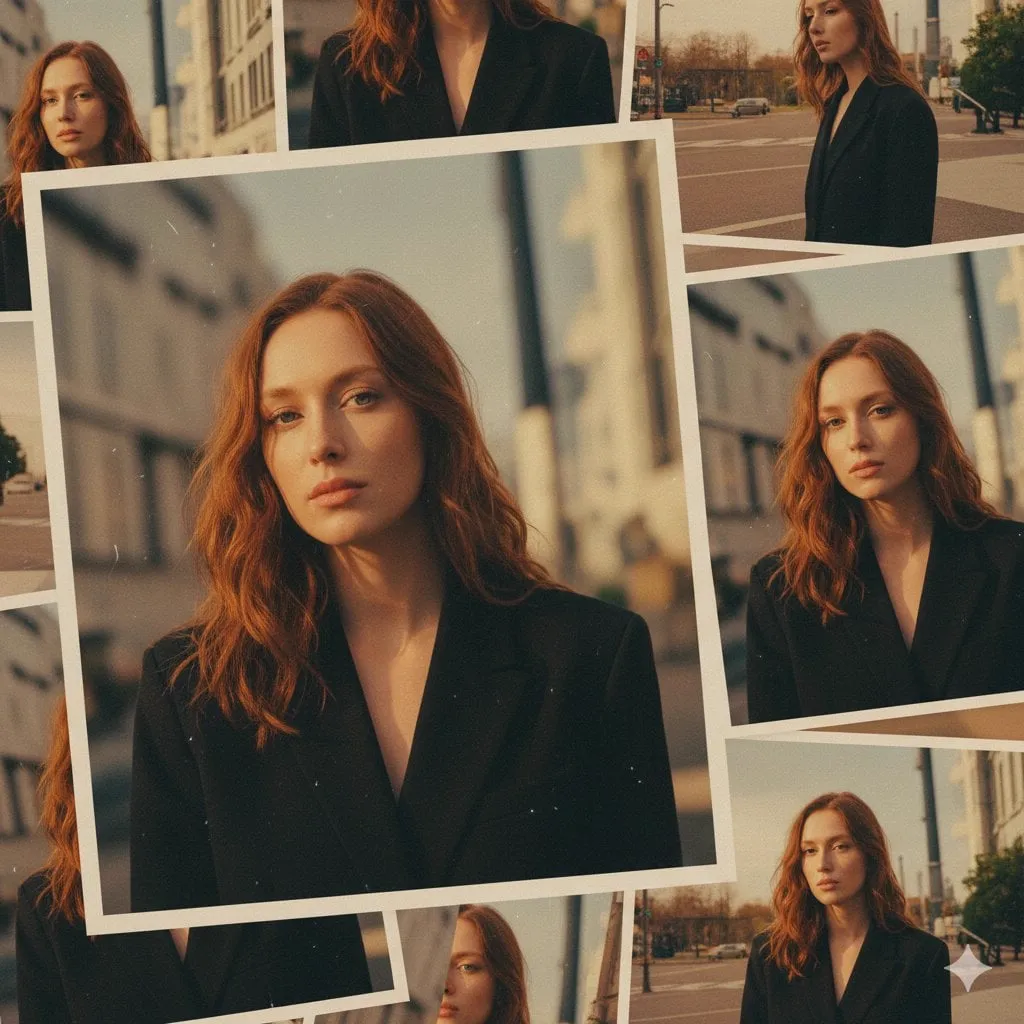
For any recurring presenter or character, generate three to five reference images first and approve them before producing a single clip. Then lock a seed and reuse the same reference set. When a shot drifts, the fastest fix is usually to re-run it with a tighter reference rather than to rewrite the prompt entirely.
Stage 3: Generating Consistent Visuals
Locking character consistency
Character drift is the number one complaint about long AI-assisted lessons. Practical countermeasures, roughly in order of effort:
- Seed locking. Keep the same seed and prompt scaffold for every shot featuring that character.
- Reference conditioning. Feed approved reference images into every generation rather than relying on text alone.
- Style adapters. If your tool supports lightweight style training on a small approved image set, use it — five to fifteen images is often enough.
- Prompt scaffolding. Keep a fixed descriptive block (age, build, wardrobe, hair, distinguishing features) that you paste into every prompt and only append the scene-specific change.
- Shot isolation. When a character speaks, keep the camera relatively static. Large camera moves give the generator more freedom to reinterpret the face.
Environment and prop consistency
Environments drift for the same reasons. Build a reference for each recurring location — a classroom, a workshop, a control room — and reuse the description block. For props that carry instructional meaning, such as a specific device or diagram, prefer generated-from-scratch diagrams or clean screenshots over photorealistic generation. A diagram that renders slightly imperfectly still teaches; a photorealistic prop that morphs between shots distracts.
When to skip generation entirely
Not every shot should be synthetic. Screen recordings, real screenshots, animated diagrams, and simple kinetic typography are often clearer and cheaper than a generated clip, and they remove an entire class of consistency problems. A good rule: generate when you need a human presence, a stylized metaphor, or atmosphere; record or draw when you need precision.
Stage 4: Motion, Voiceover, and Sound Design
Image-to-video versus text-to-video
For instructional content, image-to-video almost always wins. Because it starts from an approved storyboard frame, the composition, framing, and character appearance are already correct. Text-to-video is useful for abstract B-roll — drifting particles, a time-lapse of a city, a metaphor shot — but it is a poor fit for anything that must match a storyboard precisely.
Keep motion subtle. A slow push-in or a gentle parallax reads as professional. Dramatic camera moves on synthetic footage tend to expose artifacts, and they add visual noise that competes with the narration.
Directing a synthetic voice
The best way to get a natural-sounding synthetic narration is to treat it like a voice actor rather than a text-to-speech engine:
- Write punctuation deliberately. Commas are short breaths, periods are full stops, em dashes are pivots.
- Break long sentences. Most TTS voices flatten after roughly thirty words.
- Control pace per section. Slower for definitions and numbers, slightly faster for transitions and recaps.
- Build a pronunciation lexicon. Acronyms, product names, and technical terms should be added once and reused everywhere.
- Keep one voice per series. Switching voices between lessons breaks the sense of a single instructor, even if the visuals are identical.
Finally, check for the uncanny double stress on the wrong syllable. Re-render that line with different punctuation rather than accepting it.
Music and sound effects
A music bed should sit far below the narration — typically 18 to 24 dB under the voice — and should duck further whenever the narrator speaks. Avoid tracks with strong melodic hooks under explanations; they compete for the same attention. Use short whooshes and clicks sparingly and only where a visual change needs emphasis. Ambience is underrated: a quiet room tone behind a synthetic presenter removes the "recorded in a vacuum" feeling that makes AI narration obvious.
Stage 5: Assembly, Pacing, and Accessibility
Timeline rhythm
Import assets in storyboard order and build a rough cut before polishing anything. Watch it once at normal speed with your eyes closed. If the lesson still makes sense, your narration is doing its job. Then watch it muted. If it still makes sense, your visuals are doing theirs. If either pass fails, the problem is structural, not cosmetic.
Pacing rules that hold up across subjects: cut on sentence boundaries, never mid-thought; hold a finished diagram for at least two seconds before moving on; and end every section with a one-second beat of visual rest before the next begins.
Captions, contrast, and readability
Auto-generated captions are a starting point, not a deliverable. Budget time to correct technical terms, names, and numbers, because those are exactly the words a learner will search for later. Keep on-screen text to five to seven words per line, maintain strong contrast against the background, and avoid placing text over busy motion. If your lesson includes charts, describe the trend in narration rather than relying on color alone.
Localization
If you plan to publish in more than one language, produce the narration script in a translation-friendly form: short sentences, no idioms, no culture-specific metaphors. Translate the script, not the captions, then regenerate captions from the translated narration so the timing matches. Word order changes between languages, so a re-timed voice track will not match a caption file built from the original language.
Choosing the Right Tool for Each Job
| Job | What to look for | Common pitfall |
|---|---|---|
| Research | Long-document summarization, traceable sourcing | Accepting confident but unsourced claims |
| Script | Conversational rewrite controls, tone presets | Written register leaking into narration |
| Storyboard frames | Reference-image conditioning, seed control | Generating before approving references |
| Motion clips | Image-to-video, duration control, frame anchoring | Over-animating and exposing artifacts |
| Narration | Pace control, pronunciation lexicon, consistent voice | Rephrasing the whole script instead of fixing one line |
| Music | Clean loops, ducking-friendly stems | Beds mixed too loud over speech |
| Captions | Glossary support, timing adjustment | Publishing raw auto-captions |
| Finishing | Upscaling, color consistency, standard export presets | Re-encoding repeatedly and degrading quality |
When comparing tools, evaluate them on three dimensions that matter for education rather than on demo reels: reproducibility (can you get the same output twice?), controllability (can you change one variable without breaking everything else?), and reviewability (can a colleague understand what you did?). A tool that scores poorly on reproducibility will cost you more time in regeneration than it saves in generation.
Common Mistakes That Make AI Lessons Feel Robotic
- Uniform pacing. Every shot the same length, every sentence the same cadence. Vary both deliberately.
- Too many camera moves. Constant motion reads as noise. Let static shots breathe.
- Presenter shots that cut away mid-sentence. Keep the visual stable while the voice carries meaning.
- Narration that describes the obvious. Saying "as you can see here" wastes a sentence. Say what matters.
- On-screen text that duplicates the voice. Redundant channels slow comprehension instead of reinforcing it.
- No sound design. Complete silence between sentences is the clearest tell of synthetic production.
- Regenerating instead of editing. Sometimes trimming three seconds in the timeline beats another generation cycle.
- Skipping human fact-checking. A model can write a confident, fluent, wrong explanation. Subject review is not optional.
Publishing Checklist and FAQ
Pre-publish checklist
- Objective stated in the first 20 seconds and restated at the end
- Narration reviewed by a subject-matter expert
- Character and environment consistency verified shot to shot
- Voice uniform across the series, pronunciation list updated
- Music bed ducked under all speech, no clipping
- Captions corrected for names, numbers, and technical terms
- Contrast and text size checked on a phone screen
- Thumbnail and opening frame readable at small sizes
- Source assets archived with version numbers
- Chapter markers and description written for searchability
How long should an educational video be?
Match length to the objective, not to a platform norm. A single-concept explainer works best between four and eight minutes. Multi-part lessons should be broken into chapters of five to ten minutes each, because completion rates fall sharply past that point for instructional content.
Do I need a different model for every scene?
No. You need the right model type per job, not per scene. Most productions run on four to six model types total: one for text, one for stills, one for motion, one for voice, one for music, and one for transcription. Adding more does not improve quality unless a specific job is failing.
How do I keep a synthetic presenter looking the same throughout?
Approve reference images first, lock a seed, reuse an identical descriptive prompt block, and keep the camera relatively still whenever the character speaks. When drift appears, tighten the reference rather than rewriting the scene description.
Can I edit a lesson after publishing?
Yes, and you should plan for it. Keep the project ledger, original prompts, and approved assets archived. A ten-minute lesson that needs one outdated screenshot replaced can take twenty minutes to update if the assets are organized, or half a day if they are not.
How much of this can be automated end to end?
Roughly the first draft: research summary, script, storyboard text, initial frames, narration, and captions. The parts that resist automation are the ones that determine whether the lesson actually teaches — objective setting, factual review, pacing decisions, and the final accessibility pass. Treat automation as a way to reach a reviewable draft faster, not as a way to skip review.
