

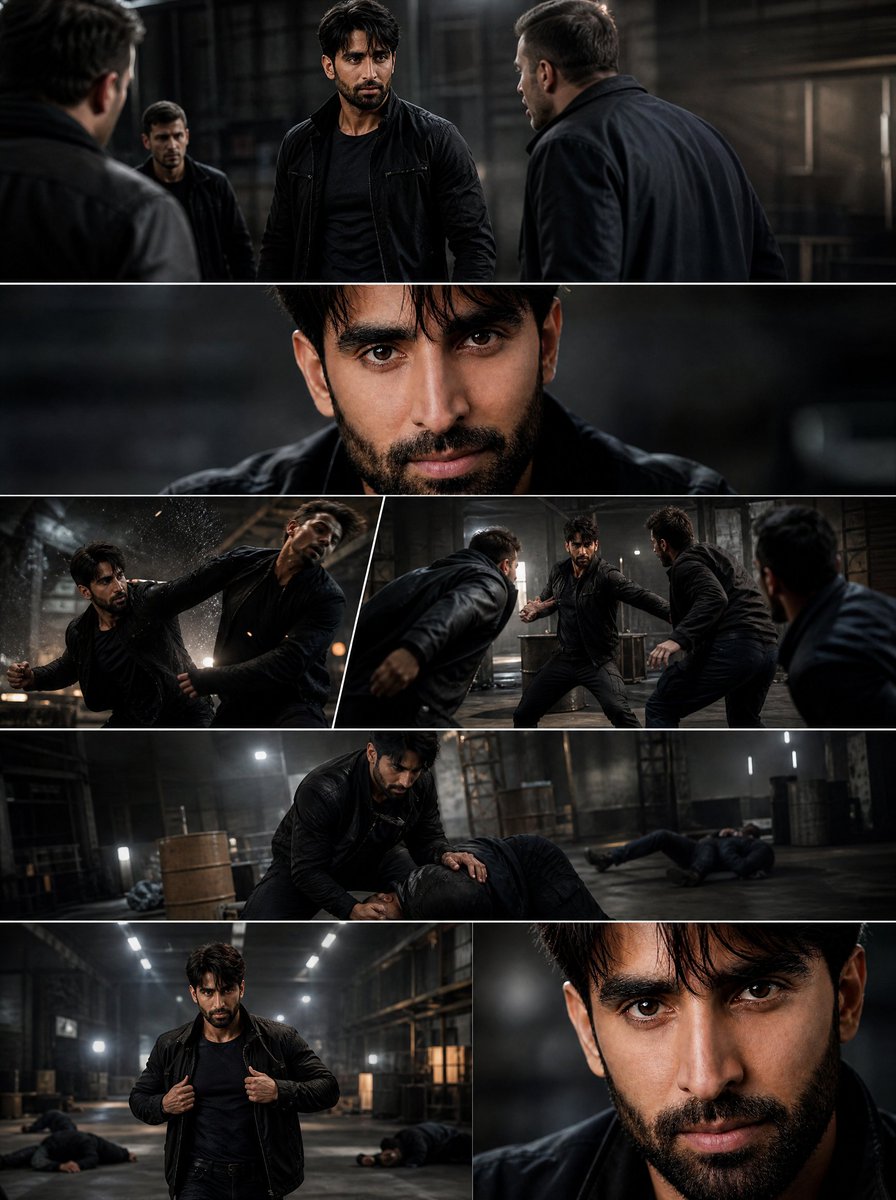
What "Cinematic" Really Means When a Model Generates the Footage
Audiences do not experience "cinematic" as a technical specification. They experience it as a bundle of signals that arrive together: a camera that seems to know where to stand, light that appears to come from somewhere real, color that stays coherent from shot to shot, motion that respects weight and momentum, sound that fills the frame, and pacing that withholds information instead of dumping it. A generated clip can be gorgeous and still fail all of these tests. That distinction matters, because most AI video advice stops at "write a good prompt."
A useful working definition: a shot is cinematic when a viewer cannot tell where the seams are. Seams appear in four places. First, continuity — the jacket changes color between cuts, the room rearranges itself, a face slowly morphs into a different person. Second, motion physics — fabric that ripples like water, hands that pass through objects, a walk cycle that stutters. Third, texture — plastic skin, smeared detail, over-sharpened edges where the upscaler guessed. Fourth, sound — silence, generic stock music, or foley that lands a half-second late.
Generative tools have not changed what cinematic means. They have changed who can afford to attempt it. A solo creator with a laptop and a well-designed pipeline can now produce footage that would previously have required a crew, a lighting truck, and a location budget. The pipeline is the skill. The prompt is one component of it.
This guide walks through that pipeline in the order you will actually use it: planning, model selection, consistency engineering, camera direction, lighting and grade, sound, assembly, scaling, and the mistakes that quietly ruin otherwise good work.
Start With a Shot List, Not a Prompt
The single biggest upgrade to AI video quality costs nothing: stop generating clips and start building a film. Write the piece first — a short script, a beat sheet, a storyboard, anything that forces you to decide what happens, in what order, and why.
Then convert it into a shot list. A practical shot list for AI production has one row per generated clip and these columns:
- Shot ID — a stable name like
S03_MED_KITCHENthat survives re-renders and re-cuts. - Duration — how many seconds you need, rounded up. Models degrade on long generations, so plan for 4–8 second units and stitch.
- Framing — wide, medium, close, insert, over-the-shoulder.
- Subject action — one verb phrase. "She sets the cup down," not "she is sad and it is raining and the phone rings."
- Camera move — one move. Push in. Slow pan left. Static.
- Lighting — direction, quality, time of day.
- Continuity anchors — which reference images and plate shots apply.
- Sound — ambience, foley, dialogue, music cue.
This document is your defence against the two failure modes that eat the most time: regenerating clips because you never decided what you wanted, and discovering during the edit that your coverage does not cut together.
Breaking the Script Into Generatable Units
Film language already gives you the grammar. A scene is a location plus a time. A sequence is a chain of shots whose framings contrast: wide to establish, medium to carry dialogue, close to land emotion, insert to buy time in the edit. When you plan AI shots, build at least three framings per scene even if you think you only need one. Coverage is what saves you when a generation comes back with a warped face — you cut to the insert instead of regenerating for the ninth time.
Choosing Aspect Ratio and Frame Rate Early
Decide 16:9, 9:16, 2.39:1, or 1:1 before you generate anything. Re-framing after the fact costs resolution and often breaks composition, because generative models place subjects with the frame edges in mind. Likewise, pick your intended motion cadence early: a 24fps feel with natural motion blur reads as film; a crisp 60fps look reads as sports or gameplay. If your tool offers motion strength or blur controls, that is the dial governing this, and small values make an enormous difference.
Building the Model Stack That Fits Your Shot List
There is no best AI video model. There are models with different personalities, and your job is casting. Some are strong at photoreal humans and weak at complex camera moves. Some are excellent at stylized motion and poor at hands. Some follow prompts literally and produce flat, literal images. Some are aesthetically opinionated and will give you a beautiful shot you did not ask for.
The productive approach is not to pick a favourite and force every shot through it. It is to run a short test on your own material — three prompts, three models, same seeds where possible — and record which model wins each shot type in your shot list.
Text-to-Video vs Image-to-Video vs Video-to-Video
Text-to-video is best for exploration, B-roll, landscapes, abstract transitions, and any shot where exact composition does not matter. It is worst for anything requiring a specific face, wardrobe, or blocking.
Image-to-video is the workhorse for narrative work. You generate or photograph a keyframe with full control over composition, then let the video model animate it. Because the first frame is fixed, your framing, lighting, and character design survive. Most consistency problems in AI filmmaking are actually a symptom of using text-to-video where image-to-video belonged.
Video-to-video is for restyling, cleanup, frame interpolation, and turning rough previz into something presentable. It is also the correct tool for repairing a clip that is 90% right but has a melting hand in the last second.
How to Compare Models Fairly
Hold every variable except the model constant. Same prompt, same reference image, same requested duration, same aspect ratio. Score each output on four axes from 1–5: prompt adherence, motion realism, texture quality, and how many regeneration attempts it needed to be usable. That last number matters most, because a model that produces slightly less beautiful footage on the first try will beat a model that needs six attempts every time.
Character and Environment Consistency Without Drift
Drift is the defining problem of AI narrative video. Here is a workflow that keeps it under control.
Creating a Reference Sheet
Build a reference sheet for every recurring character: a neutral full-body shot, a three-quarter portrait, a straight-on portrait, and a detail shot of the defining feature (a scar, a specific jacket, a hairstyle). Keep wardrobe simple and high-contrast. Busy patterns and small logos are where models hallucinate most. Restrict the palette to two or three dominant colours so the model has fewer places to wander.
Treat the reference sheet as canon. Every prompt that includes the character should reference the same sheet, and every keyframe you generate should be corrected against it before it becomes a video input.
Locking Locations With Plate Shots
Generate a "plate" for each location: a clean wide shot with no characters, shot at the lighting condition you intend to use. Then use that plate as the image input for every shot in that scene. The model inherits architecture, window placement, and colour temperature from the plate, which is exactly the continuity that edit-room audiences notice without knowing why.
If your tooling supports multi-image conditioning, feed the character reference and the location plate together and describe the composition in the prompt. This combination — fixed identity, fixed environment, described framing — is the practical core of consistency.
Handling Drift When It Happens
When a character starts slipping, do not write a longer prompt. Shorten it, strip stylistic adjectives, and reduce the shot to its essentials: who, where, doing what, camera. Overloaded prompts cause models to average competing instructions, which looks like identity loss. If the drift persists across a whole scene, regenerate the scene's keyframes as a batch from the same references so they share a visual baseline, then animate.
Directing the Camera: Movement, Framing, and Blocking
Camera language survives translation into prompts surprisingly well, but only if you keep it simple. Use established vocabulary: static, slow push in, dolly out, pan left, tilt up, crane down, handheld follow, orbit. Name the subject's distance relative to the lens: close-up, medium close-up, wide.
The One-Move Rule
One camera move per shot. When you request a push in while the character turns and the camera cranes up, models tend to produce a smeared, weightless result. If a shot genuinely needs two moves, cut it into two shots. Editors do this anyway because a cut gives rhythm that a continuous move cannot.
Coverage Strategy for AI Shots
For each scene, generate in this order: master (wide, static), then mediums with the hero action, then close-ups on the emotional beat, then two or three inserts (hands, objects, environment details). Inserts are cheap to generate, hard to get wrong, and they are what allow you to trim around a bad frame. Budget roughly 1.5× the clip count you think you need.
Also plan your transitions before generation. A cut is free. A match cut needs two shots with similar composition. A whip pan needs motion blur that most models produce inconsistently. Choose transitions you can actually deliver.
Lighting, Color, and Grade: The Fastest Route to a Film Look
Lighting is where AI video most often looks like AI video. The tell is not low quality; it is unmotivated quality. Everything is evenly, pleasantly lit from nowhere.
Prompting Light Like a Gaffer
Describe light the way a crew would. State the source (window, practical lamp, overhead fluorescent, fire), the direction (camera left, backlight, three-quarter), the quality (soft diffused, hard directional, bounced), and the time of day (overcast morning, golden hour, blue hour, night). Add a ratio cue: "high contrast with deep shadows" or "soft flat light with gentle falloff."
Practical sources inside the frame — a desk lamp, a neon sign, headlights — are the fastest way to make a generated shot feel photographed rather than rendered. Place one in the composition whenever it makes narrative sense.
Grading for Cohesion
Generate first, grade second. Build a single look for the project and apply it to everything: a subtle film emulation with slight highlight roll-off, gentle shadow lift, and a restrained colour palette. In a node-based editor, this is usually a curve adjustment, a colour-space transform, and a grain or halation layer at low opacity.
Two rules keep grading from becoming damage. First, match shots to each other before you stylize anything — look at skin tones in the darkest and brightest shots side by side. Second, keep the stylization subtle enough that you cannot name it. Visible grain and heavy teal-orange push are the two most common giveaways that a project was graded by someone who just discovered grading.
Sound Design Is Half the Illusion
Generated video has no sound, and viewers forgive visual imperfection far more readily than bad audio. Build sound in layers:
- Ambience — continuous room tone, wind, traffic, or crowd. This single layer does more for realism than any visual effect.
- Foley — footsteps, cloth movement, object handling. Sync these to the action; a door that closes silently feels wrong instantly.
- Dialogue — record it, or use a voice tool with a performer's consent and a clear record of how the voice will be used. Never clone a real person's voice without written permission.
- Score — one musical idea per scene, not per shot. Let it enter late and leave early.
Mix to a target: dialogue around -12 to -14 LUFS integrated, with the full mix peaking near -1 dBTP. Test on phone speakers, because that is where most viewers will hear it. If a scene still feels flat after visuals are locked, the problem is almost always a missing ambience layer rather than a missing visual effect.
A Repeatable Production Workflow, Shot by Shot
Phase 1: Pre-Production
Write the script. Build the shot list. Create character reference sheets. Generate location plates. Choose your look — aspect ratio, colour palette, reference films. Assemble a project folder structure that separates refs/, plates/, keyframes/, clips_raw/, clips_selects/, audio/, and exports/. Naming discipline here saves hours later.
Phase 2: Generation
Generate keyframes first with an image model, and fix them before animating. Then animate in small batches grouped by location, so that when a batch drifts you can see it immediately. Log every attempt with its prompt and settings — a simple spreadsheet is enough. Review at full size, not on a thumbnail grid; most artifacts hide at thumbnail scale and become obvious on a television.
Phase 3: Assembly and Finishing
Cut for story, not for showing off your best clip. Anything that does not advance the scene goes, no matter how beautiful. Lock picture, then sound. Then do the grade. Then add grain and texture. Upscale last, and only if your delivery format demands it — upscaling before the edit bakes in artifacts you will regret.
Export at the highest quality your platform accepts, and always watch the final file end to end on the target device before publishing.
Scaling Output Without Losing Quality
Volume kills quality when it is achieved by skipping steps. Scale by systematizing instead.
- Prompt templates. Build reusable prompt skeletons with slots for subject, action, framing, light, and lens. This is how you keep a series visually coherent across dozens of episodes.
- Review gates. Two people minimum, or two passes minimum: one pass for technical faults, one for story. Do not combine them.
- Batching. Generate all shots for one location before moving on. Batch review. Batch sound. Context switching is where quality leaks.
- A living look book. Collect frames you love from your own output. When a new project starts, the look book is already the brief.
- Kill criteria. Define in advance what makes you abandon a clip — say, more than three failed attempts, or any frame with unreadable hands in a close-up. Deciding while frustrated produces inconsistency.
Common Mistakes and How to Fix Them
- Writing paragraph-long prompts. Fix: cut to the essentials — subject, action, framing, light, lens. Add detail only when a specific element is missing.
- Changing five variables at once. Fix: change one thing per regeneration so you learn what actually caused the improvement.
- Ignoring the first frame. Fix: if the first frame is wrong, the clip is wrong. Fix it in the still, not the video.
- No continuity anchors. Fix: reference sheet plus location plate on every shot, every time.
- Leaning on upscaling. Fix: fix problems at generation, sharpen only at the very end.
- Too many camera moves. Fix: one move per shot; use cuts for energy.
- Treating sound as an afterthought. Fix: cut a scratch ambience track during assembly, before you fall in love with the visuals.
- Grading each shot independently. Fix: build one look, apply it, then correct individual shots toward it.
- Never watching on a phone. Fix: check the final export on a small screen at least once.
FAQ
How long does it take to produce a two-minute cinematic AI video? With a prepared shot list and reference sheets, a realistic range is 15–35 hours for planning, generation, review, editing, sound, and grade. First projects take longer because you are building the assets and templates you will reuse.
Do I need an expensive computer? Most generation happens in the browser or on rented cloud hardware. A mid-range machine handles editing, grading, and export comfortably. Prioritize storage and a calibrated display over raw processing power — colour accuracy affects perceived quality more than render speed.
How do I stop faces from changing between shots? Use image-to-video with a locked reference sheet, keep wardrobe and background simple, animate one subject at a time, and shoot fewer close-ups than you think you need. Wide and medium shots hide drift that close-ups expose.
Is AI-generated footage commercially usable? It depends on the tool's terms and your jurisdiction, and rules continue to evolve. Keep records of the tools and settings used, avoid generating recognizable real people or protected characters, and get written consent for any voice replication.
Which model should I start with? Choose by shot type, not by reputation. Run a three-prompt test on your own material with two or three tools and score prompt adherence, motion realism, texture, and retry count. The winner for your project is the one that needs the fewest attempts.
How do I make it look like film without heavy grading? Get it right at generation: shallow depth-of-field language, one motivated practical light in frame, restrained palette, natural motion blur. Then add only a gentle curve, fine grain, and slight halation. Restraint reads as confidence.
What is the most common reason AI video feels cheap? Missing ambience. Viewers tolerate imperfect motion far more easily than they tolerate a silent room.
