
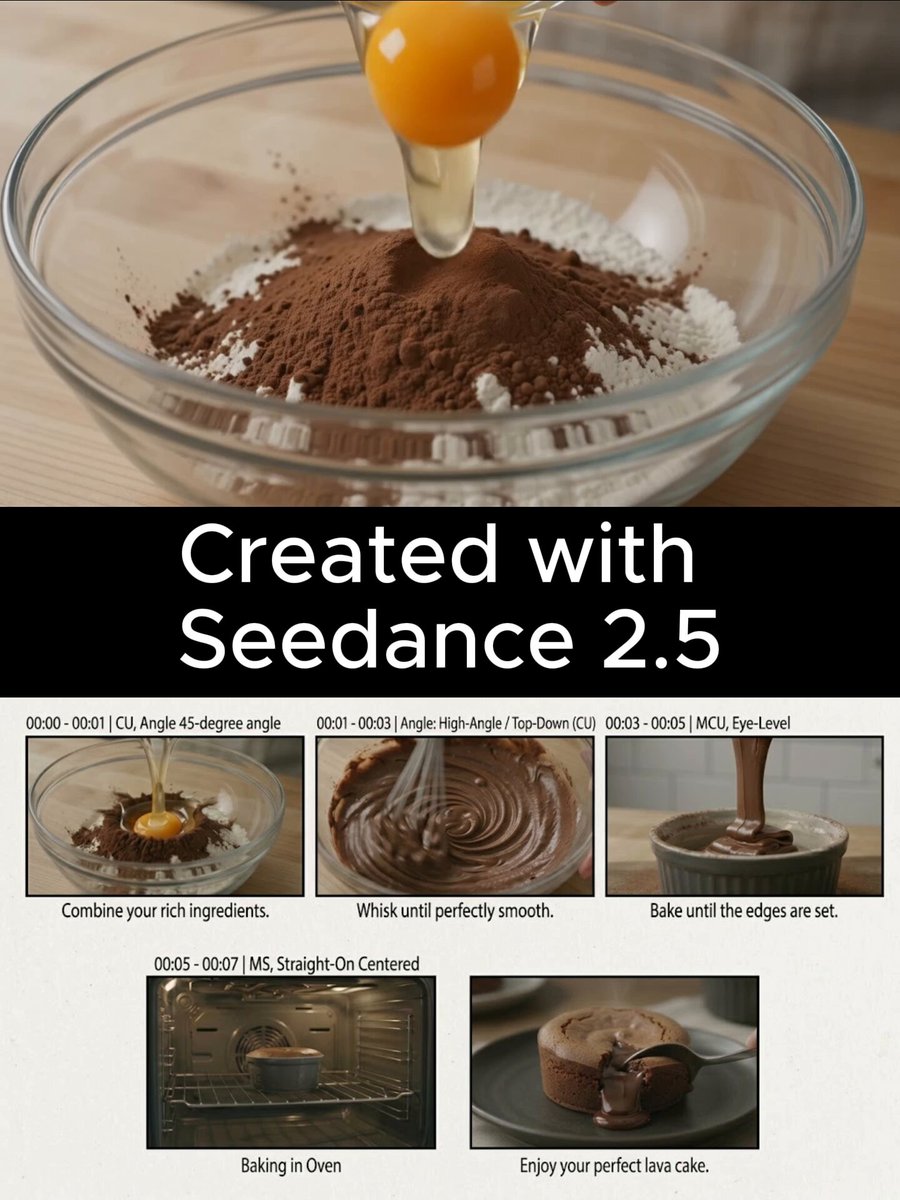
Why Free AI Animation Generators Changed Video Production
A few years ago, a five-second animated shot meant a storyboard, a motion designer, a render queue, and a budget line. Today, a creator with a laptop and a clear idea can produce a dozen variations of that same shot before lunch. That is the real change: not that AI produces flawless footage, but that the cost of a first draft has collapsed to nearly nothing.
Free AI animation generators sit at the center of that shift. They turn a written description into moving images, often in under a minute, and many of them offer enough resolution, motion control, and style variety to be genuinely useful in real projects: social clips, product teasers, explainers, music videos, and even short narrative films.
This guide is about how to actually use them. It covers how the technology works, how to choose the right tool for a specific shot, a repeatable production workflow, prompt patterns that produce stable motion, and the mistakes that waste the most time.
How AI Animation Generators Actually Work
Understanding the mechanics at a high level helps you predict what a tool will do well and where it will fall apart.
Diffusion, transformers, and motion priors
Most modern video generators combine two ideas. The first is diffusion: a model learns to remove noise from an image step by step, and once trained, it can start from pure noise and invent a brand-new frame. The second is a temporal model, often a transformer or a 3D convolutional network, that learns how pixels tend to move from one frame to the next. Together they generate a short sequence that looks like it was filmed rather than assembled.
That temporal component is why motion quality varies so much between tools. A model trained on a narrow style, such as anime or product macro shots, will produce convincing movement in that style and nonsense outside it. A general-purpose model will handle more subjects but may wobble on faces, hands, and fine text.
What "free" usually means in practice
Free tiers come in three broad shapes. The first is unlimited low-resolution generation with a watermark. The second is a daily allowance of higher-quality renders. The third is an open-source model you run locally on your own hardware, where the only real cost is electricity and time.
None of these is inherently better. A watermark is fine for storyboarding and client previews, but not for a published ad. A daily allowance rewards planning: you think harder about each prompt because you cannot spam the generate button. Local models give unlimited iteration but demand a capable GPU and patience with setup.
What matters is knowing which constraint you are working under before you start, because that shapes the entire workflow.
The Three Families of AI Animation Tools
Almost every generator you will encounter falls into one of three families, and each solves a different problem.
Text-to-video takes a written prompt and produces a clip. It is the fastest way to explore an idea, build a mood board of moving images, or fill a B-roll gap. Control is limited to the prompt, so continuity across shots is difficult unless you use the same tool with carefully matched language.
Image-to-video takes a still image and animates it. This is the workhorse of practical production, because it lets you lock composition, character design, and color first, then add motion. You can generate the still with an image model, retouch it in an editor, and only then bring it to life.
Video-to-video and stylization takes existing footage and restyles or re-times it. This is useful when you already have a performance or a product shot and want a different visual treatment without reshooting.
If you are building anything longer than a few seconds, you will almost certainly combine all three. A typical sequence might use text-to-video for establishing shots, image-to-video for character moments, and stylization for a dream sequence or title card.
Choosing the Right Tool for the Shot
Tool choice should follow the shot, not the other way around. Begin by writing down what the shot must communicate, then match the tool to that requirement.
A quick decision framework
- If the shot is about mood or scale (a skyline, a storm, an abstract texture), text-to-video is usually enough.
- If the shot depends on a specific face, product, or composition, generate or photograph a still first and animate it with image-to-video.
- If the shot needs precise timing (a beat drop, a logo reveal, a punchline), generate the motion loosely and control timing in the edit instead.
- If the shot needs readable text, generate the background in AI and add the text in your editor. Models still struggle with letterforms.
- If the shot requires consistency across many clips, favor a tool that accepts a reference image or seed value.
An evaluation checklist
Before committing to a tool for a project, test it against five criteria:
- Motion realism. Does it handle the specific movement you need, such as walking, pouring, or turning a page?
- Duration and resolution. Can it produce clips long enough and sharp enough for your final format?
- Determinism. Can you reproduce a result with a seed or reference image?
- Export freedom. Are the outputs watermark-free and licensed for commercial use on your tier?
- Speed. How long does one render take, and how many can you run in parallel?
Run the same three test prompts through every candidate tool. The differences become obvious in minutes, and you will avoid the classic mistake of building a whole project on a tool you have only used once.
The Nine-Step AI Animation Workflow
This is the sequence that keeps AI video projects from spiraling. It works for a fifteen-second social clip and for a three-minute explainer.
Step 1: Define the shot, not the tool
Write one sentence per shot describing subject, action, camera, and mood. If you cannot write that sentence, the prompt will not save you.
Step 2: Build a shot list before generating anything
Number every shot, estimate its duration, and note whether it is text-to-video, image-to-video, or stylization. A ten-shot, thirty-second video is a realistic first project.
Step 3: Create a reusable prompt template
Lock the parts that must stay constant across shots and vary only the parts that should change. A workable template is: subject + action + environment + lighting + lens + motion + style + quality modifiers. Keeping the environment, lighting, and style phrases identical across shots is the cheapest way to make a sequence feel coherent.
Step 4: Generate in batches
Produce four to eight variations per shot in one sitting. Batching keeps your prompt language consistent and lets you compare options side by side rather than judging them one at a time over several days.
Step 5: Curate ruthlessly
Most outputs are usable but not good. Sort results into three buckets: keep, maybe, and discard. Delete the discards immediately. A project folder with sixty mediocre clips is harder to finish than one with eight strong ones.
Step 6: Animate stills when motion is subtle
If a shot only needs a slow push, a drifting camera, or a gentle parallax effect, animating a still image is faster and far more controllable than text-to-video. It also preserves any retouching you have already done.
Step 7: Assemble before you polish
Cut the sequence together with placeholder music and scratch narration. You will discover pacing problems here, not in the individual clips, and it is much cheaper to regenerate two shots than to rebuild an edit.
Step 8: Fix continuity, then upscale
Once the cut works, go back and correct color, sharpness, and any clip that feels out of place. Upscale only the clips that make the final cut. Upscaling rejected footage is pure wasted time.
Step 9: Finish the audio properly
AI video is silent, and silent footage feels cheap no matter how good the motion is. Add ambience, sound effects, and music with clear dynamic movement. Sound is the single fastest way to make generated footage feel intentional.
Prompt Patterns That Produce Stable Motion
Prompts are not magic words. They are a control surface, and specific kinds of language control specific things.
Camera language
Use real cinematography vocabulary: slow dolly in, static tripod shot, handheld follow, aerial orbit, rack focus. Naming a camera behavior reduces random movement, because the model has a strong association between those phrases and stable framing.
Lighting and time of day
Lighting phrases do more for perceived quality than almost anything else. Golden hour backlight, overcast soft light, neon practicals, and single hard key at 45 degrees all produce recognizable looks. Keep lighting language consistent across a sequence so shots feel like they belong to the same scene.
Motion verbs and pacing
Describe the pace of the action, not just the action. Slowly turns, glances up, gently drifts produce calmer results than turns, looks, moves. Fast movement is where most models break, so reserve it for moments where distortion is acceptable or hidden by a cut.
Negative guidance
Many tools accept a list of things to avoid. Useful entries include warped hands, text artifacts, flickering, extra limbs, and identity drift. Even when a tool does not support a formal negative field, keeping the prompt focused on one subject and one action reduces the same problems.
Length and specificity
Longer prompts are not better. A prompt of thirty to sixty words, describing one subject, one action, one setting, and one look, consistently outperforms a paragraph that tries to describe a whole scene.
Common Mistakes and How to Fix Them
The fastest way to improve results is to stop making these five errors.
Generating without a shot list. Random exploration feels productive and produces nothing usable. Fix it by writing the shot list first, even if it is only five lines.
Changing everything between attempts. If you rewrite the entire prompt after a bad result, you learn nothing. Change one variable at a time: motion, then lighting, then style.
Ignoring frame rate and duration. Clips generated at different frame rates will stutter when cut together. Standardize on one output setting before you start editing.
Expecting text and logos to render. They almost never do. Generate clean plates and composite typography in your editor.
Skipping sound design. Viewers forgive imperfect motion far more readily than they forgive silence. Build an audio bed early, not at the end.
A Realistic Example: A Thirty-Second Product Teaser
Here is how the workflow looks in practice for a short product teaser made in a single afternoon.
The shot list has six entries: a wide environmental shot, two product close-ups, one detail macro, one lifestyle moment with a hand interacting with the product, and a closing logo card. The wide shot and the environmental texture come from text-to-video. The product close-ups come from image-to-video using clean product photography as the source, which guarantees the product looks correct. The hand interaction is generated with several variations and the best take is kept. The logo card is built entirely in the editor.
Generation takes roughly forty minutes across batches. Curation takes fifteen. The cut takes thirty, and audio takes another thirty. The result is not cinema, but it is coherent, on-brand, and finished, which is what most commercial work actually requires.
Quality, Consistency, and Continuity
Consistency is the hardest problem in AI video, and it is solved with references rather than words.
Use the same seed when a tool supports it. Feed a reference image of your character or product into every shot that includes them. Keep a small style bible: three or four phrases describing palette, lighting, and lens that appear in every prompt. Generate all shots for a scene in one session, because models are updated frequently and outputs can shift between days.
When continuity still fails, hide the seam. Cut on motion, use a transition, or insert a cutaway. Editors have solved continuity problems for a century without AI; the same tricks apply here.
Where Free Tools Hit Their Limits
Free tiers are excellent for exploration, social content, and proof-of-concept work. They become frustrating in a few predictable situations.
Long continuous takes are still difficult, and anything beyond a handful of seconds tends to drift. Precise choreography, dialogue-driven performance, and complex interactions between multiple characters remain unreliable. Brand-accurate color and typography usually need post-production correction.
The practical answer is to design around the limits rather than fight them. Build sequences from short shots. Keep human faces and hands in the middle distance rather than extreme close-up. Composite typography yourself. Treat AI as a shot factory, not as a finished-video machine.
Building a Repeatable Personal Pipeline
Once a project works, write down what you did. Save your prompt templates, your shot list structure, your export settings, and your audio checklist. A documented pipeline turns AI video from a novelty into a service you can deliver reliably.
Keep a personal library of reusable assets: background textures, transition sounds, color presets, and reference images. Every asset you save is a decision you never have to make again. Over a few months, this library does more for your output quality than any single new tool.
Finally, review your own work honestly. Note which shots audiences respond to and which they scroll past. AI makes generation cheap, but attention is still scarce, and the creators who win are the ones who use cheap generation to test more ideas, not the ones who generate the most clips.
FAQ
Are free AI animation generators good enough for commercial work?
Yes, for many formats, provided you check the license on your specific tier and confirm that outputs are watermark-free. Short-form social video, product teasers, and abstract B-roll are all realistic commercial uses.
Do I need a powerful computer?
Only for local, open-source models. Browser-based generators run on the provider's hardware, so a mid-range laptop is enough. Local models need a capable GPU and more setup time.
How long should each generated clip be?
Shorter than you think. Three to five seconds per shot is a comfortable range that keeps motion stable and makes editing easier. Longer clips tend to drift in the middle.
Why do faces look wrong?
Faces are the hardest subject for temporal models because small errors are instantly noticeable. Keep faces at medium distance, use image-to-video from a clean still, and avoid fast head movement.
Can I use AI animation for an entire short film?
You can, but plan for heavy editing. Most successful AI-driven shorts are built from many short shots, with continuity handled by cutting, grading, and sound rather than by the model producing one long take.
What is the single biggest quality upgrade?
Sound design. Adding ambience, effects, and music with real dynamic range changes how viewers perceive generated footage more than any resolution increase.
How do I keep a series consistent?
Lock a style bible of three or four phrases, reuse the same reference images and seeds, and generate each episode's shots in one session so model updates do not shift the look mid-series.
