
Why a Single Photo Is Now Enough to Start a Video
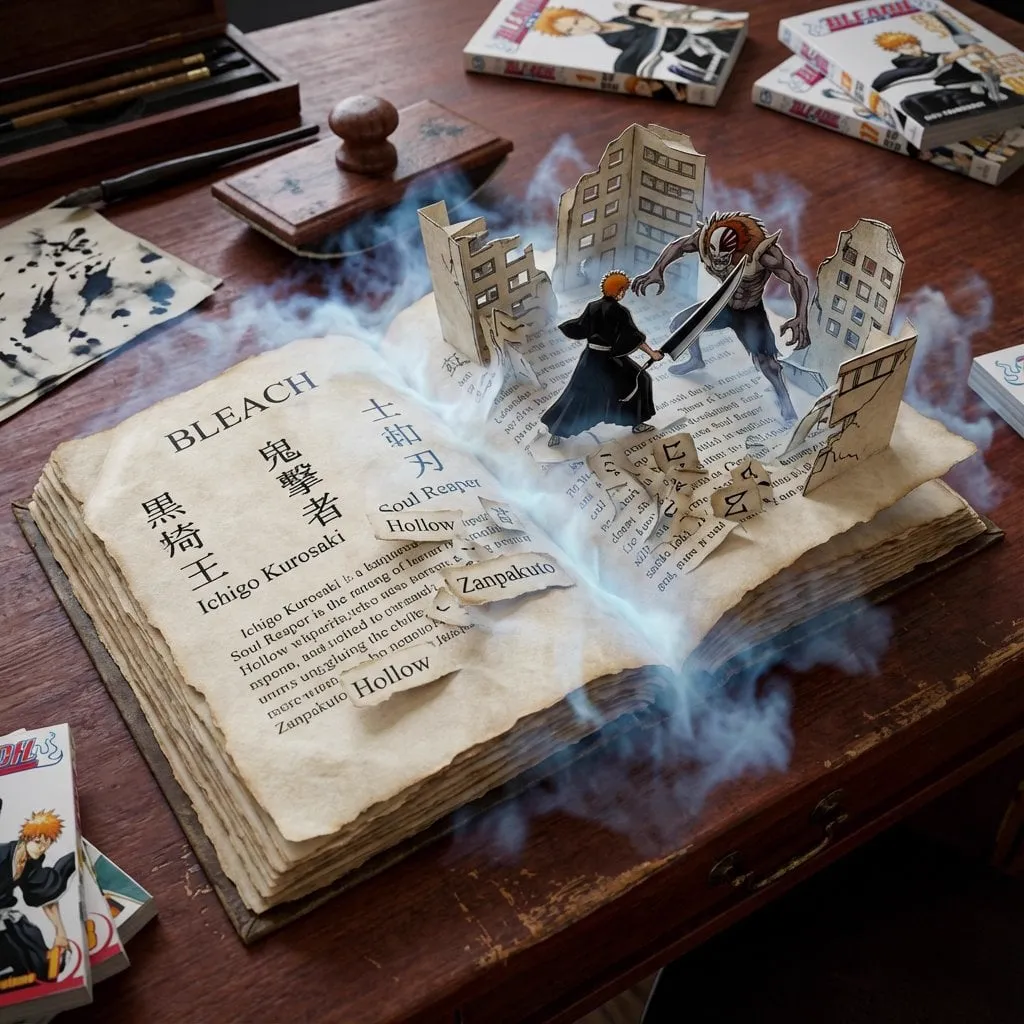
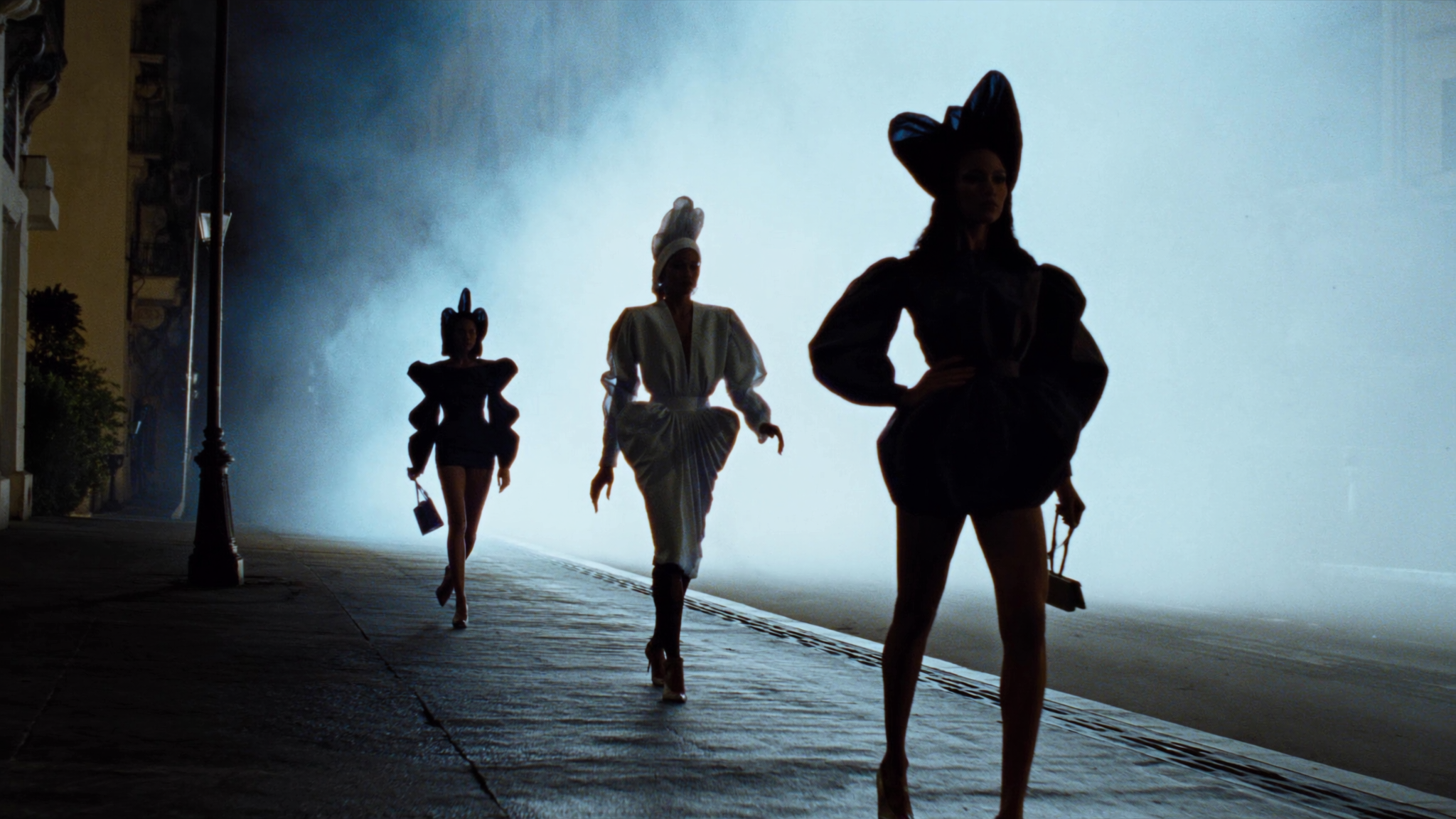
A still image used to be the end of the line. You shot it, edited it, and published it. Today it is often the first frame of something moving. Image-to-video models have quietly become one of the most practical entry points into AI filmmaking, because they remove the hardest part of the job: inventing a scene from nothing.
When you start from a photograph, you already own the composition, the lighting, the wardrobe, the product angle, and the color palette. The model only has to add time. That narrower task is why image-to-video output tends to look more controlled than pure text-to-video output, and why so many working creators use it as their default path.
The practical uses are wide and unglamorous:
- E-commerce: turn a catalog still into a short loop that shows fabric movement, liquid pour, or a rotating product.
- Real estate: animate a hero exterior shot with subtle clouds, tree movement, and a slow push-in.
- Portraits and avatars: add a natural blink, a head turn, or a gentle parallax for social posts.
- Storyboards and previz: test a camera move before committing to a shoot day.
- Archival and family photos: reintroduce depth and gentle motion for documentary or memorial pieces.
- Ad creative: produce ten motion variants from one approved still instead of booking ten shoots.
This guide focuses on the free end of the market — what free image-to-video tools can realistically deliver, how to judge them, and how to build a workflow that produces publishable clips without paying for every experiment.
How Image-to-Video Generators Actually Work
The pipeline in plain language
Most modern systems follow a similar path. An image encoder converts your photo into a compressed mathematical representation. A text encoder does the same for your prompt. A video diffusion model then denoises a field of noise into a sequence of frames, guided by both encodings, while temporal layers compare each frame to its neighbors so that the result reads as motion rather than a flipbook of unrelated images. A decoder turns the final latent sequence back into pixels.
The important consequence: the model is not moving your pixels. It is re-imagining your image many times per second and trying to keep those re-imaginings consistent. Every artifact you have ever seen — a melting ear, a shirt that changes pattern mid-clip, a chair that slides across the floor — comes from that consistency problem.
Identity preservation versus motion strength
Almost every generator has an implicit dial between two goals: keep the subject exactly as photographed, or generate convincing movement. Push toward motion and faces drift, logos warp, and fine textures shimmer. Push toward stability and you get an expensive-looking still with a barely perceptible breathing effect.
The sweet spot for most commercial work is low-to-moderate motion with a strong anchor on the first frame. If your clip needs to tell a story with a big action, expect to generate several attempts and pick the cleanest.
Why the first frame carries so much weight
Models treat frame one as ground truth. That makes your source image a technical decision, not just an aesthetic one. Clean subject separation, even lighting, moderate depth of field, and a clear focal point all give the model room to move things without inventing structure. A busy background with overlapping objects forces the model to guess what belongs to what, and guessing is where warping starts.
What "Free" Actually Means in Image-to-Video
Free tiers differ enormously, and the differences matter more than the model name on the landing page. When you evaluate a tool, check these specific limits before you invest time in learning its quirks.
| Limit type | Typical free-tier behavior | Why it matters |
|---|---|---|
| Daily generation allowance | A small number of renders per day or a queue of tasks | Determines how many experiments you can afford per idea |
| Clip length | Often two to five seconds per render | Longer ideas must be stitched from several passes |
| Resolution | Frequently capped below full HD | Finishing work needs an upscale step |
| Watermark | Present on some tiers, removable on others | Decides whether output is publishable as-is |
| Queue priority | Free jobs may wait behind paid ones | Kills rapid iteration during a client session |
| Commercial license | Sometimes restricted or unclear | The single most common compliance mistake |
| Data usage | Generations may be used for training or shown publicly | A blocker for confidential product shots |
| API access | Usually absent | Rules out automation and batch pipelines |
Read the terms once, properly, before you build a client deliverable on a free tier. Two questions decide most cases: can I use this commercially, and does my input stay private?
Features Worth Judging on Any Free Plan
Motion coherence
This is the headline quality metric. Watch for three failure modes: flicker (brightness or texture pulsing between frames), morphing (objects changing shape or identity), and drift (the whole frame slowly sliding or zooming when you asked for stillness). Generate the same image three times with the same prompt and seed. If the results vary wildly, the model lacks stability and you will spend your allowance re-rolling instead of creating.
Control inputs
Even free tiers sometimes expose powerful controls. Look for:
- Start and end frame conditioning — the single biggest upgrade for predictable motion.
- Camera motion presets — push in, pull out, pan, tilt, orbit, handheld.
- Motion brush or regional masks — animate only the hair, only the water, only the flag.
- Motion strength sliders — dial amplitude up and down without rewriting the prompt.
- Depth or pose guidance — helps with human subjects and architectural shots.
- Seed locking — makes iteration scientific instead of superstitious.
A tool with a mediocre base model but good controls will outperform a prettier model with no knobs, because you can steer it.
Duration, resolution, and stitching
If the free tier caps you at three seconds, plan for it. Three-second beats cut together beautifully if you design them as beats: an establishing push-in, a detail insert, a reaction close-up. Stitching short clips also reduces the risk that a single long generation falls apart at the four-second mark.
Export and finishing options
Check frame rate, container format, and whether you can export without compression that destroys fine detail. If the tool only offers a social-ready MP4, you can still finish in an editor, but you will want to upscale and re-encode deliberately rather than stacking compression twice.
A Repeatable Five-Step Image-to-Video Workflow
Step 1: Prepare the source image
Spend more time here than on prompting. A good source frame is:
- Sharp at the subject, soft but readable in the background. Avoid extreme bokeh that hides structure the model needs.
- Evenly lit. Harsh shadows on faces invite flicker.
- Single-subject or clearly layered. One person, one product, one hero object.
- Correctly cropped. Generate at the aspect ratio you will publish. Cropping after generation wastes resolution.
- At least 1024 pixels on the short edge. Larger is better up to a point; extreme sizes can be downscaled anyway.
- Free of embedded text. Model-generated text shimmers. Remove watermarks and captions before animating.
If the shot needs a different composition, edit the still first. Re-composing inside a video model is expensive and unreliable.
Step 2: Write a motion-first prompt
Describe what changes, not what exists. The image already covers appearance. A useful structure:
[Subject] + [specific action] + [camera behavior] + [environment motion] + [lighting and style] + [stability clause]
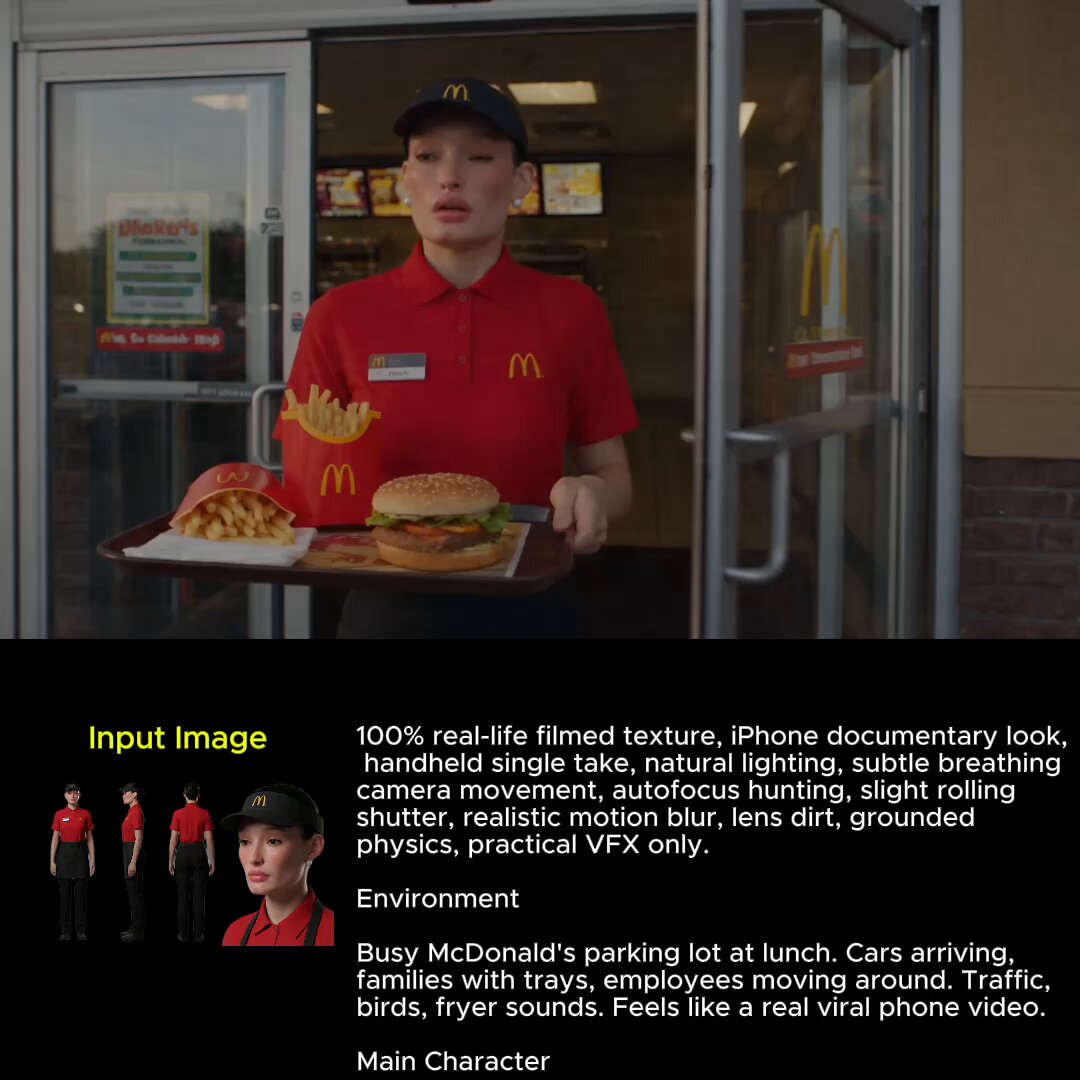
Example for a portrait: "A woman turns her head slightly toward the window, hair lifting in a light breeze, camera slowly pushes in, blurred café background with passing light, warm afternoon tones, natural skin texture, stable identity, minimal distortion."
Example for a product: "A glass bottle of serum stands on a stone surface, a single droplet slides down the label, camera orbits fifteen degrees to the right, soft studio highlights travel across the glass, clean commercial look, no text distortion."
Step 3: Draft short and cheap
Generate the shortest clip the tool allows at the lowest acceptable resolution. Judge only structure: does the motion read, does the subject hold together, does the camera behave. Never evaluate lighting detail in a draft.
Step 4: Lock the result with controls
Once a draft works, change one variable at a time:
- Lock the seed so you can compare runs.
- Reduce motion strength if faces or logos warp.
- Add an end frame if the motion needs a destination.
- Mask regions that should stay static, like signage or a product label.
This is where patience pays. Three disciplined iterations beat twenty random re-rolls.
Step 5: Upscale, interpolate, and finish
Short AI clips benefit from a finishing pass: upscale to delivery resolution, interpolate to your target frame rate for smoother camera moves, stabilize if needed, then grade and add sound. Sound does more for perceived realism than another generation attempt. A room tone, a fabric rustle, or a low music bed makes a three-second clip feel intentional.
Prompt Patterns That Produce Clean Motion
Motion verbs are the vocabulary of this craft. Vague verbs like "moves" produce vague results. Specific verbs produce predictable ones.
- Camera verbs: pushes in, pulls out, pans left, tilts up, orbits, dollies past, racks focus, handheld sway.
- Subject verbs: turns, blinks, smiles, lifts, pours, opens, folds, steps forward, breathes.
- Environment verbs: clouds drift, leaves rustle, rain falls, crowd walks past, neon flickers, steam rises.
Pair one camera verb with one subject verb and one environment verb. That is usually the maximum a single short clip can carry convincingly. Adding a fourth element increases the chance that one of them breaks.
Useful negative prompts include: warped face, extra fingers, morphing objects, flickering, text artifacts, watermark, sudden cut, camera shake, oversaturated. Not every tool supports negatives, but where it does, it saves re-rolls.
Common Mistakes and How to Avoid Them
Asking for too much motion. A three-second clip that contains a turn, a walk, and a camera orbit will fail. Choose one strong idea.
Prompting new content. Describing a subject that is not in the image forces the model to invent, and invention is where identity breaks. Describe movement of what is already there.
Ignoring aspect ratio. Generating a square clip and cropping to vertical loses roughly a third of your pixels and often decapitates the composition.
Fighting the source lighting. If the still has golden-hour light, ask for warm highlights, not a cool studio look. Contradictions cause flicker.
Treating the free tier as the final render. Free renders are excellent for exploring and often fine for social, but paid finishing steps usually deliver noticeably cleaner detail at delivery resolution.
Skipping the license check. Commercial use, model training clauses, and publicity rights for identifiable people are three separate questions. Answer all three.
Not saving settings. Record the prompt, seed, motion strength, and model version for every keeper. Reproducibility is what turns a lucky render into a repeatable service.
Free Tier, Open Models, or Paid Upgrade: How to Decide
Work through these criteria in order:
- Volume. A handful of clips a month fits a free tier comfortably. Daily content demands automation or a paid plan.
- Resolution and length. Vertical social at three seconds? Free is realistic. Broadcast, long-form, or 4K delivery? Budget for finishing tools.
- Commercial use. If the license is unclear, treat it as unavailable and choose another route.
- Iteration speed. Queue times above a few minutes make live client work impossible.
- Consistency across shots. Multi-shot sequences need the same model, same seed family, and same prompt grammar throughout.
- Automation. If you need to generate hundreds of variants, an API matters more than any single quality difference.
A sensible progression is to prototype exclusively on free tiers, build a personal library of prompts and settings that work, then pay only for the specific capability your workflow is missing — usually resolution, length, or privacy.
A Quality Checklist Before Anything Ships
Run every clip through the same gate:
- Frame-one check: does the first frame match the source image exactly?
- Identity check: pause at one-second intervals and confirm faces, logos, and hands hold.
- Flicker check: play at half speed and watch for brightness pulsing.
- Edge check: zoom to 200 percent and inspect hair, foliage, and text for shimmer.
- Loop check: if it loops, is the cut seamless?
- Motion check: is the camera move smooth, or does it stutter at the midpoint?
- Audio check: does sound sell the motion?
- Compliance check: license, model release, and platform policy all clear.
Building a Reusable Asset Library
The compounding advantage in AI video comes from documentation, not from finding a secret tool. Keep four small files:
- Prompt snippets that reliably produce specific motions for your niche.
- Motion presets — preferred strength values, camera verbs, and durations per shot type.
- Style references — the source images and grades that define your look.
- A license log — which tool, which terms, which project, which date.
After a few dozen clips, you stop prompting from scratch and start assembling from proven parts. That is when output becomes consistent enough for client work and fast enough to be profitable.
FAQ
Can free image-to-video tools produce commercially usable clips?
Sometimes, but it depends entirely on the terms of the specific tool. Check the commercial-use clause, the training-data clause, and whether a watermark must remain. If any of those are ambiguous, use the clip for exploration only.
How long should a generated clip be?
Two to five seconds is the reliable range for most free tiers. Design your story as a sequence of short beats and cut them together, rather than chasing one long take.
Why does the face change during the clip?
Identity drift comes from the model re-imagining the subject each frame without a strong anchor. Lower the motion strength, lock the seed, mask the face region if possible, and avoid prompts that describe new actions or expressions.
Do I need a powerful computer?
No. Browser-based generators run remotely. You only need local hardware for upscaling, interpolation, and editing, and even those have lighter alternatives.
What is the best source image resolution?
Around 1024 to 1536 pixels on the short edge is a practical target. Larger files get downscaled internally; much smaller ones starve the model of detail.
Can I use the same image to generate multiple different clips?
Yes, and that is one of the most efficient uses of a still. Change one variable at a time — camera move, then motion strength, then environment — and you build a small library of variants from a single approved shot.
How do I avoid warping on text and logos?
Mask the region if the tool supports it, keep the camera nearly static, avoid motion near the text, or composite the logo back in during editing. Models are still weak at preserving typography through motion.
Is it worth learning several tools?
Learn one thoroughly first. Prompt grammar, motion strengths, and failure patterns differ enough between models that shallow familiarity across five tools usually produces worse results than deep familiarity with one plus a finishing pipeline.
The real shift is not that free tools exist. It is that a single, well-prepared photograph plus a disciplined workflow can now produce motion that reads as intentional. Prepare the still carefully, describe one clear action, iterate with controls instead of luck, and finish with sound and an upscale. That sequence will outperform a bigger model used carelessly, and it will keep working as the tools underneath it change.
