
Why Free AI Video Tools Deserve a Serious Look
For years, "making video" implied a camera, a light kit, a microphone, and someone who knew how to use all three together. That assumption has cracked. Cloud rendering, open-weight diffusion models, and browser-based editors have pushed a genuinely useful amount of capability into tools anyone can open in a tab. You no longer need a production budget to test an idea, animate a product concept, or build a short explainer for a client.
The catch is that "free" means something slightly different in every product, and those differences matter more than the marketing pages admit. This guide focuses on process rather than hype. In practice, output quality depends far more on how you structure shots, references, and reviews than on which model happened to top a leaderboard this month.
What "Free" Actually Means in AI Video Tooling
Almost no serious video generator is unlimited and free forever. Rendering a few seconds of video consumes far more compute than generating an image, so every provider has to ration usage somehow. Understanding the rationing model tells you whether a tool fits your project before you invest hours in it.
When you evaluate any free tier, ask six questions. What resolution can I export? Is there a watermark, and can I remove it? How long can a single clip be? How long do I wait in the render queue? Can I use the output commercially? And does the tool own any rights to what I create?
Typical trade-offs look like this:
- Watermarks and resolution caps. Many free plans export at 720p with a logo. That is fine for testing, painful for client delivery.
- Queue priority. Free users often wait several minutes per generation while paid users skip ahead. This changes how you work: you batch prompts instead of iterating one at a time.
- Clip length limits. Three to five seconds is common. Treat that as a creative constraint, not a defect.
- Daily generation ceilings. You may get a handful of generations per day. Plan your prompts before you spend them.
- Licensing. Some tools grant commercial rights only on paid plans. If the video is for a brand, read the terms first.
- Model access. Free plans often expose one or two models rather than the full catalogue.
A useful mental model: free tiers are for learning and prototyping, paid tiers are for delivery. Design your workflow so the expensive, final render is the smallest part of your time.
How AI Video Generation Works in Plain Terms
Knowing roughly what happens between your prompt and a playable file helps you debug bad output instead of guessing.
Text-to-video versus image-to-video
Text-to-video models invent everything from a written description. They are flexible but unpredictable, especially with people, hands, and text on screen. Image-to-video models start from a still you control and animate it. Because the first frame is fixed, composition, wardrobe, and colour are locked before motion is added. For anything with a recurring character or product, image-to-video is almost always the better starting point.
The pipeline from prompt to playable file
Most modern generators share a rough sequence. A text encoder converts your prompt into a representation the model can condition on. A latent diffusion process denoises a block of video frames together, using temporal layers to keep motion coherent between them. A decoder turns the result into pixels. Then optional stages run: upscaling, frame interpolation to raise the frame rate, and sometimes audio generation or lip sync.
Each stage is a place where things can go wrong. Motion blur may be missing because the model generated crisp frames and interpolation did not add it. Faces may drift because temporal consistency was weak. Colours may shift between shots because each generation was conditioned independently. When a result looks off, identify which stage failed and fix that stage rather than rewriting the entire prompt.
A Repeatable Workflow for AI Video Production
Ad hoc prompting produces inconsistent results. A structured pipeline produces footage you can actually edit.
Step 1: Write the script as a shot list
Do not write prose. Write shots. Each line should describe one camera setup: what we see, where the camera is, how long it lasts, and what changes. A thirty-second video typically needs six to ten shots at three to five seconds each.
This step also forces you to decide what is essential. If a shot does not carry information or emotion, cut it. Generated footage is expensive in time, so a tight shot list saves hours.
Step 2: Lock a visual reference before generating anything
Create or select one still image that defines the look: lighting direction, colour palette, lens character, and the appearance of any recurring subject. Every subsequent generation should be conditioned on that reference. This single habit does more for perceived quality than any prompt trick.
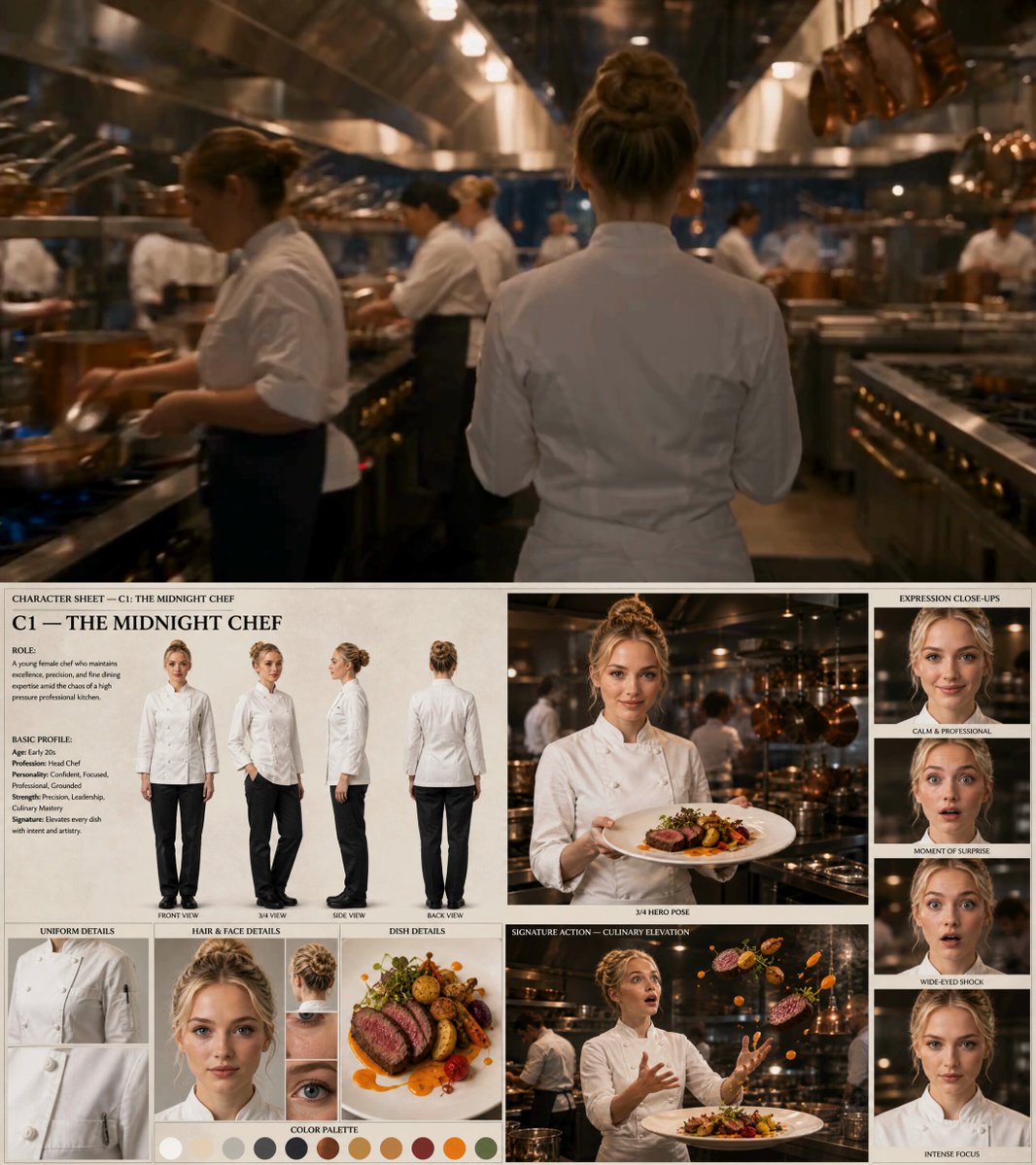
If you have a character, build a small reference set: a front view, a three-quarter view, and a profile, all with the same lighting. Keep them in one folder and use them consistently.
Step 3: Generate in short shots, not long scenes
Long generations drift. A ten-second clip often degrades in the second half as the model loses track of the subject. Generate four short clips and cut them together instead. Short shots also give you more coverage when you edit, which is exactly how professional editors work with real footage.
Step 4: Change one variable at a time
When a result disappoints, resist the urge to rewrite everything. Change the camera move, or the lighting description, or the seed, but not all three. Otherwise you learn nothing about what caused the improvement. Keep a simple log: prompt, reference, seed, settings, verdict.
Step 5: Assemble in a real editor
Generation tools are not editors. Move your clips into a timeline where you can trim, reorder, and adjust pacing. Free options include CapCut, DaVinci Resolve, Shotcut, and Blender's video sequence editor. Once clips are on a timeline, you will immediately see which shots are too long and which transitions feel abrupt.
Use cutting, not generating, to solve pacing problems. A jump cut or a cutaway to a detail shot is often better than another render.
Step 6: Treat sound as half the video
Silent AI footage reads as artificial. Add a music bed, room tone, and at least one layer of diegetic sound: footsteps, keyboard clicks, traffic, wind. Free tools like Audacity plus public-domain sound libraries cover most needs, and synthetic voice tools can handle narration when a human recording is not possible.
Sound also hides motion imperfections. A clip that looks slightly wrong on mute often looks fine once it has rhythm and ambience underneath it.
Choosing Tools by Job, Not by Hype
No single tool wins every category. Match the tool to the task.
| Job | What matters most | Tool archetype |
|---|---|---|
| Concept tests and moodboards | Speed, low commitment | Fast text-to-video with generous free allowance |
| Character-driven narrative | Reference control, consistency | Image-to-video with reference conditioning |
| Product and packshots | Fidelity to a real object | Image-to-video from a studio photo |
| Social verticals | Aspect ratio presets, captions | Mobile-first editor with templates |
| Motion graphics and titles | Timeline control | Traditional editor or compositor |
| Narrated explainers | Voice quality, timing | TTS tool plus editor |
For exploration, browser tools such as Runway, Pika, Luma Dream Machine, and Kling are convenient and require no setup. For control, node-based environments like ComfyUI with open models such as Stable Video Diffusion or Wan give you reproducibility and no per-render cost, at the price of a learning curve and local hardware. Many creators use both: a hosted tool for fast ideation and a local pipeline for final shots.
Decide based on three criteria: how often you will render, how much control you need, and whether your hardware can handle it. If you render daily, local tooling pays for itself quickly. If you render once a month, hosted tools are simpler.
Consistency Is the Real Bottleneck
Ask any creator what limits their AI video work and the answer is rarely resolution. It is consistency: the same face, the same jacket, the same lighting across eight shots that were generated at different times.
Three techniques address this. First, lock a reference image and reuse it for every shot in a sequence. Second, fix the seed where the tool allows it, so small prompt changes do not reshuffle everything. Third, finish with a colour grade: a single LUT or manual adjustment across all clips unifies footage that was generated separately. That grade is often the difference between "AI clips" and "a video."
Mistakes That Make AI Video Look Synthetic
- Camera moves on every shot. Real footage often sits still. Constant motion reads as generated.
- Overlong clips. Past five or six seconds, artifacts accumulate. Cut earlier than feels natural.
- Default aesthetics. The model's out-of-the-box look is recognisable. Push the palette and lighting with your references.
- Ignoring focal length. Specify wide, normal, or telephoto. Vague prompts produce a flat, depthless look.
- Text on screen. Letting the model render words usually fails. Add typography in the editor.
- No sound design. Covered above, but it is the most common oversight.
- Inconsistent aspect ratios. Decide vertical or horizontal before you generate, because reframing later crops compositions badly.
- Skipping a review pass. Watch the assembled cut at full speed before you publish, then watch it muted.
A Pre-Publish Quality Checklist
- Every shot is under six seconds, or has a reason not to be.
- The lighting direction stays consistent within each scene.
- Any recurring subject looks recognisably the same across shots.
- Hands, teeth, and eyes survived a frame-by-frame check at normal speed.
- On-screen text was added in the editor, not generated.
- Audio levels are consistent and music does not clip.
- The export matches the platform's aspect ratio and duration expectations.
- Licensing terms allow the intended use.
FAQ
Can free AI video tools produce commercially usable footage?
Sometimes. It depends entirely on the licence attached to the plan you are using. Some free tiers permit commercial use, others restrict it to personal projects, and some require attribution. Check the terms before you publish for a client, and keep a record of which tool generated which shot.
How long does it take to learn this workflow?
A weekend is usually enough to produce a watchable thirty-second piece. The script-as-shot-list habit takes a day to internalise, and reference locking takes a few projects to appreciate. Consistency problems are the slowest to solve because they require disciplined reuse rather than new skills.
Do I need a powerful computer?
Not for hosted tools, which run on the provider's hardware. For local, node-based pipelines you will want a recent GPU with a reasonable amount of video memory. Many creators start hosted and move local only when render volume justifies the hardware.
Why does my generated video look worse than the still image?
Motion is harder than a single frame. Temporal consistency costs detail, so the model prioritises smoothness over sharpness. Shortening clips, lowering the amount of movement you request, and finishing with an upscale pass all help.
Should I generate audio with the video model?
Rarely as a final choice. Generated audio is useful for timing reference, but a music bed, ambience, and a recorded or synthesised voice track give you far more control. Treat generated sound as a placeholder.
How many shots do I need for a one-minute video?
Plan for twelve to twenty short shots. That gives you room to cut for pacing and to drop any shot that fails a quality check without losing the story.
Where to Take This Next
Start small and finish something. Pick one thirty-second idea, write eight shots, lock a single reference image, generate twelve short clips, and cut them to music. The goal of that first exercise is not a masterpiece; it is to learn where your pipeline breaks.
Once you have one finished piece, the workflow becomes repeatable, and each repetition makes the next one faster. Free tools are more than adequate for that learning phase. What they cannot replace is the discipline of a shot list, a locked reference, and a final sound pass, which is where most of the perceived quality actually lives.
